
Overview
This article describes how to integrate Microsoft Game Development Kit (GDK) components into your Unreal Engine project. It covers the different types of Unreal Engine plug-ins and platform extensions, how to set them up, and what functionality is included within the provided plug-ins and extensions. Epic Games maintains and distributes the GDK Platform Extensions and associated plug-ins.Prerequisites
To use the GDK Platform Extensions and GDK plug-ins for Unreal Engine, you need the following prerequisites.- Unreal Engine 4.27 or later (Unreal Engine 5.8 or later recommended; GDK plug-ins are publicly available starting with 5.8, or available with 5.7 via the GDK Platform Extensions)
- Visual Studio 2019 (16.9) or later
- Windows SDK (22000 or later)
- Windows 10 (1809 or later) or Windows 11
- Microsoft GDK (install with
winget install Microsoft.GDK)
Microsoft GDK plug-ins for Unreal Engine
Each GDK plug-in provides different capabilities when you enable it for your project. The plug-ins in this section are part of the GDK platform extensions that Epic Games distributes. Starting with Unreal Engine 5.8, the GDK plug-ins are publicly available with the engine. You can acquire them through the Epic Games Launcher or the Unreal Engine GitHub source. No separate access request is needed. For a guide on the different ways to acquire these plug-ins, see Building XBOX games with Unreal Engine’s new GDK plug-ins. In Unreal Engine 5.7, the same plug-ins exist but are part of the GDK Platform Extensions, which require membership in an XBOX Developer program, like ID@XBOX, and a separate access request. Request access by using this access request form. Upon approval, you gain access to Unreal Engine source that includes GDK Platform Extensions.For Unreal Engine 5.7, joining an XBOX Developer Program and requesting access to the GDK plug-ins and GDK Platform Extensions is required for PC, XBOX Series X|S, and XBOX One development. This access requirement has been removed for Unreal Engine 5.8 and later, where the plug-ins are publicly available. If you have any issues, contact your Microsoft representative for assistance.
Microsoft GDK Runtime Plug-in for Unreal Engine: Provides access to the GDK runtime functionality, like XBOX-compatible game saves and XBOX user selection. In Unreal Engine 5.7, this plug-in is in the GDK Platform Extensions folder as
MSGamingRuntime. In Unreal Engine 5.8, it has moved to Engine\Plugins\Runtime\Windows\MSGamingRuntime.
Microsoft GDK Store Plug-in for Unreal Engine: Provides automatic generation of .msixvc packages for submission to the XBOX PC App. In Unreal Engine 5.7, this plug-in is in the GDK Platform Extensions folder as MSGameStore. In Unreal Engine 5.8, it has moved to Engine\Plugins\Runtime\Windows\MSGameStore.
Online Subsystem GDK: Provides GDK integration with the Online Subsystem from Unreal. This plug-in is an engine abstraction layer that provides common interface calls for key features like achievements, friends, and matchmaking. In Unreal Engine 5.7, this plug-in is in all platform folders, including the GDK folder for Win64 support, as OnlineSubsystemGDK. In Unreal Engine 5.8, the Win64 plug-in has moved to Engine\Plugins\Online\Microsoft\OnlineSubsystemGDK.
If you have already enabled these plug-ins for your project, the plug-in names remain the same between Unreal Engine 5.7 and 5.8. Your project configuration is preserved when upgrading. The folder paths only matter if you are navigating the engine source directly.
The Game Input (Windows), Game Input Base, and XBOX Common Game Input plug-ins provide integration with
GameInput functionality within Unreal Engine. These plug-ins are structured as follows.
- GameInput (friendly name: Game Input Base)
- Contains the core functionality and an interface for plug-ins lower in this list to implement
- Platform: Win64
- GameInput_WinGDK, GameInput_XB1, and GameInput_XSX extend the GameInput plug-in to add support for their respective platform support (no code difference from parent)
- Platform: Win64
- Contains the core functionality and an interface for plug-ins lower in this list to implement
- GameInputWindows (friendly name: Game Input (Windows))
- Depends on GameInput and implements the interface from the GameInput plug-in
- Platform: Win64
- GameInputWindows_WinGDK extends GameInputWindows to add support for the WinGDK platform (no code difference from parent)
- XboxCommonGDKGameInput (friendly name: XBOX Common GameInput)
- Depends on GameInput and implements an interface from the GameInput plug-in
- Platform: None specified
- Equivalent to GameInputWindows but for the two XBOX platforms and different interface implementation (because of GameInput differences between platforms)
- XboxCommonGDKGameInput_XB1 and XboxCommonGDKGameInput_XSX extend XboxCommonGDKGameInput to add support for their respective platforms (no code difference from parent)
Engine\Platforms\GDK\Plugins folder. In Unreal Engine 5.8, it has moved to Engine\Plugins\Runtime\Microsoft\GDKPackageChunkInstall. Platform-specific plug-ins with the platform suffix for WinGDK, XBOX One, and XBOX Series X|S exist within their respective platform folders.
The GDK Virtual Keyboard plug-in and Windows Virtual Keyboard plug-in provide functionality to invoke a virtual keyboard as part of your game. This functionality is especially important when considering gamepad scenarios on handheld devices.
The GDK Virtual Keyboard plug-in uses a GDK-specific API to enable this functionality. In Unreal Engine 5.7, the Win64 compatible plug-in is in the Engine\Platforms\GDK\Plugins folder. In Unreal Engine 5.8, it has moved to Engine\Plugins\Runtime\Microsoft\GDKVirtualKeyboard. The Windows Virtual Keyboard plug-in is at Engine\Plugins\Runtime\Windows\WinVirtualKeyboard in Unreal Engine 5.8. Platform-specific plug-ins with the platform suffix for WinGDK (_WinGDK), XBOX One(_XB1), and XBOX Series X|S (_XSX) exist within their respective platform folders.
Unreal Engine and GDK Platform Extensions
The GDK-specific code within Unreal Engine is part of the GDK Platform Extensions. These extensions add to the base engine source and enable you to build your game by using the GDK for PC, XBOX One, and XBOX Series X|S. The extensions include a set of GDK platforms and GDK plug-ins that work with the engine to extend necessary functionality. In Unreal Engine 5.7, the GDK Platform Extensions are a separate download that requires membership in an XBOX Developer program. You need the GDK with XBOX Extensions (GDKx) regardless of your target platform. The extensions includeEngine\Platforms source code with the following GDK-specific platforms:
- WinGDK
- XBOX One
- XBOX Series X|S
Engine\Plugins\. The GDK Platform Extensions download is no longer required for PC-only development. XBOX console development (XBOX One, XBOX Series X|S) still requires the GDK Platform Extensions.
The GDK and XboxCommon folders provide shared code between platforms. GDK code is shared across all platforms, and XboxCommon code is shared across XBOX One and XBOX Series X|S platforms. You can find the plug-ins for each platform in the Plugins folder within each platform in the GDK Platform Extensions download.
For more information about XBOX One and XBOX Series X|S configurations, see the GDK documentation from Epic Games.
If you’re using Unreal Engine 4, XboxOneGDK appears instead of XB1. Epic Games renamed this platform to XB1 in Unreal Engine 5.
GDK and engine compatibility
Each Unreal Engine release includes release notes that specify what main GDK version the Unreal Editor supports. The Unreal Engine team tests this version to validate compatibility with the engine. For example: Figure 1. Unreal Engine release notes.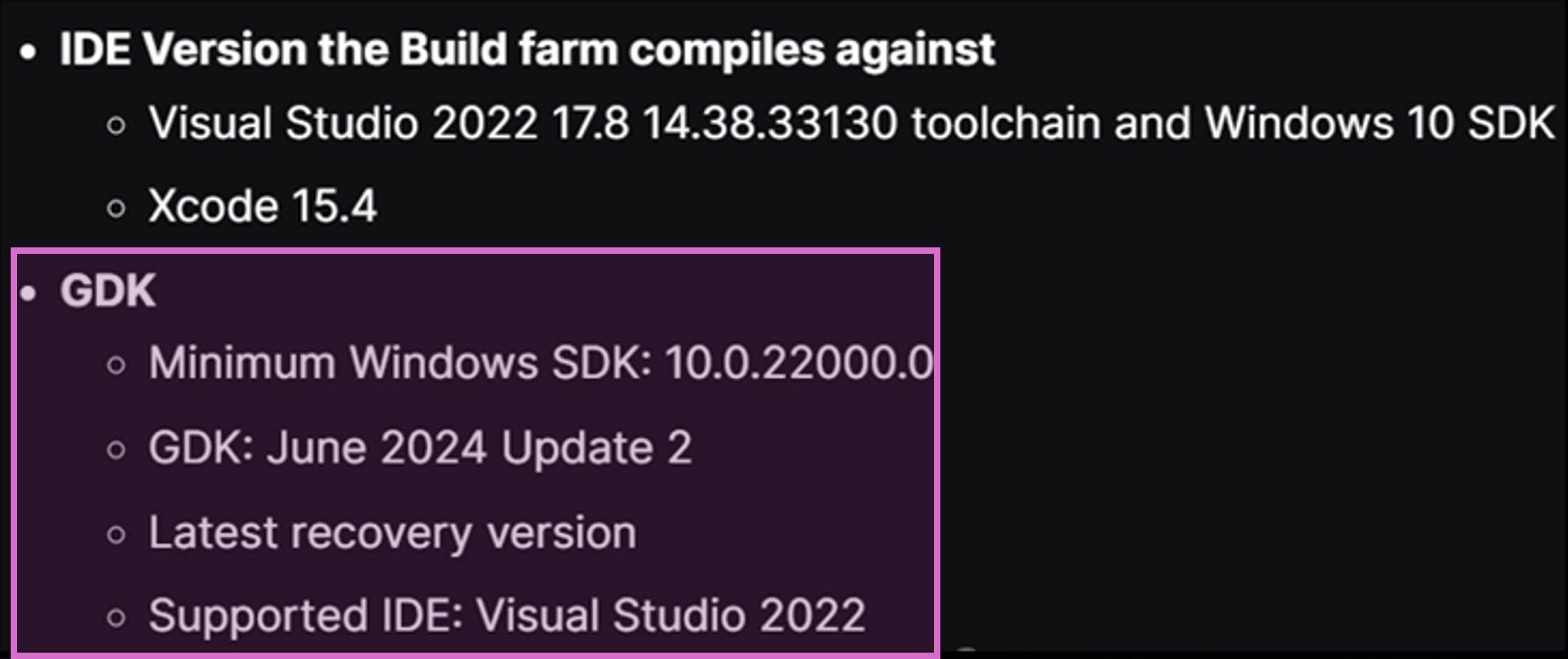
GDK_SDK.json file. The location of this file differs by engine version:
- Unreal Engine 5.7 and earlier:
Engine\Platforms\GDK\Config\GDK_SDK.json - Unreal Engine 5.8:
Engine\Config\Microsoft\GDK_SDK.json
Project updates to work with GDK Platform Extensions
After acquiring the GDK Platform Extensions source, update your project files to access the GDK-specific platforms in your IDE. For more information, see Update project files. Run the GenerateProjectFiles.bat file at the root directory of your engine version. When you finish this step, you see options to build for each platform in your IDE Solution Platform dropdown list. Figure 2. Unreal Engine GDK platforms in Visual Studio IDE.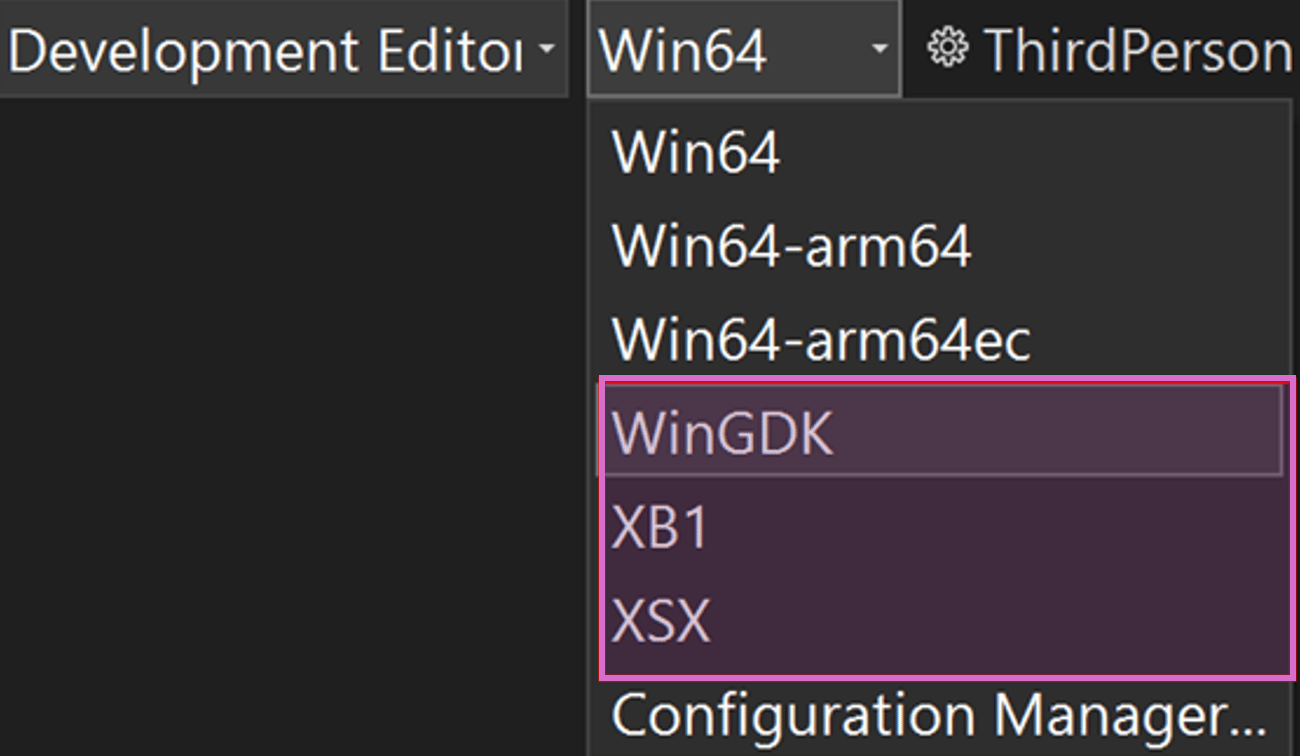
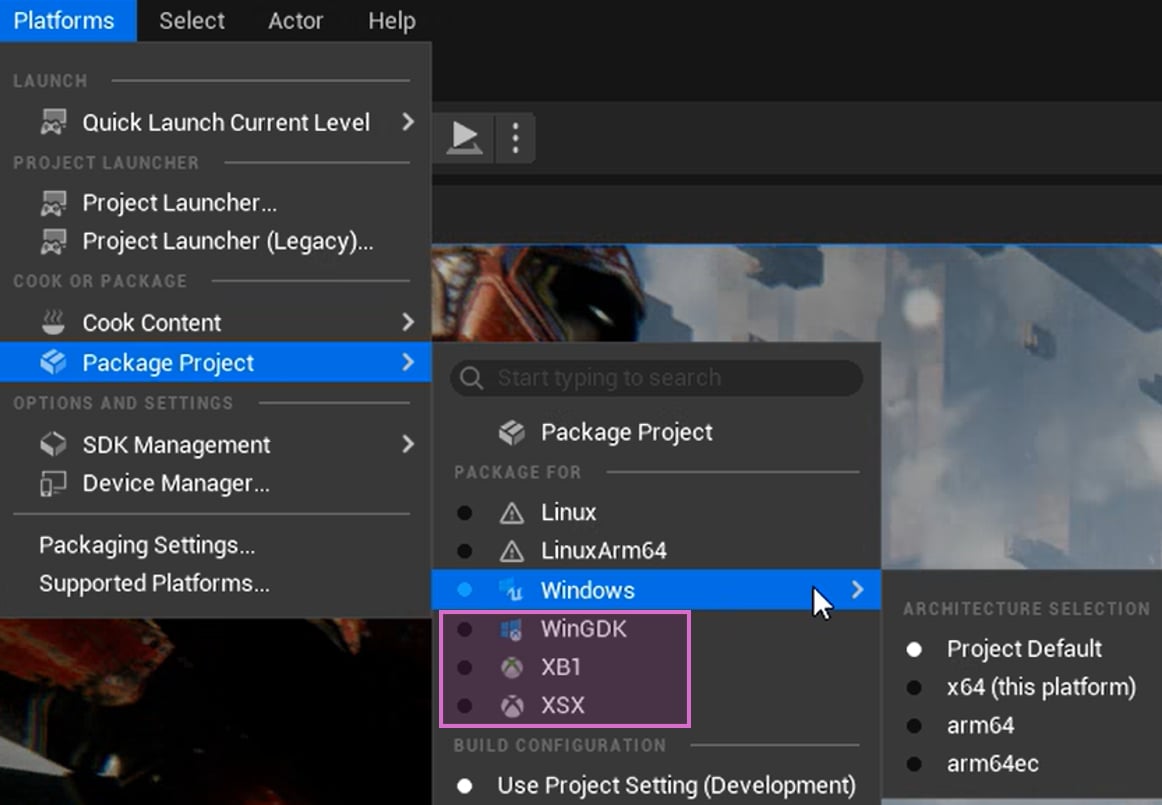
Add GDK plug-ins to your project
A subset of GDK plug-ins are automatically enabled by default for XBOX One and XBOX Series X|S. For more information, see
UEBuildXboxCommon.cs in the Unreal Build Tool (UBT) source.
Configure your GDK plug-ins for title-specific data
After setting up your GDK plug-ins and GDK platform extensions, update the Platform and Plugin settings in the Project Settings menu. You can find the XBOX One and XBOX Series X|S platforms in the Platform Settings. The Microsoft GDK plug-ins for Unreal Engine are in the Plugin Settings. Figure 5. Unreal Engine GDK Platform and Plugins settings.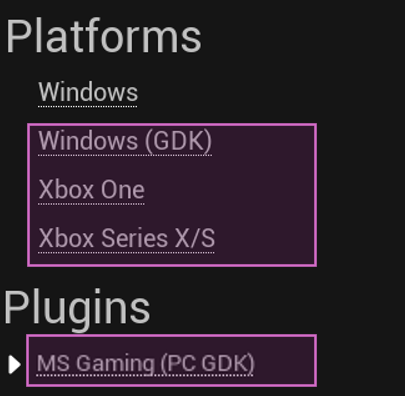
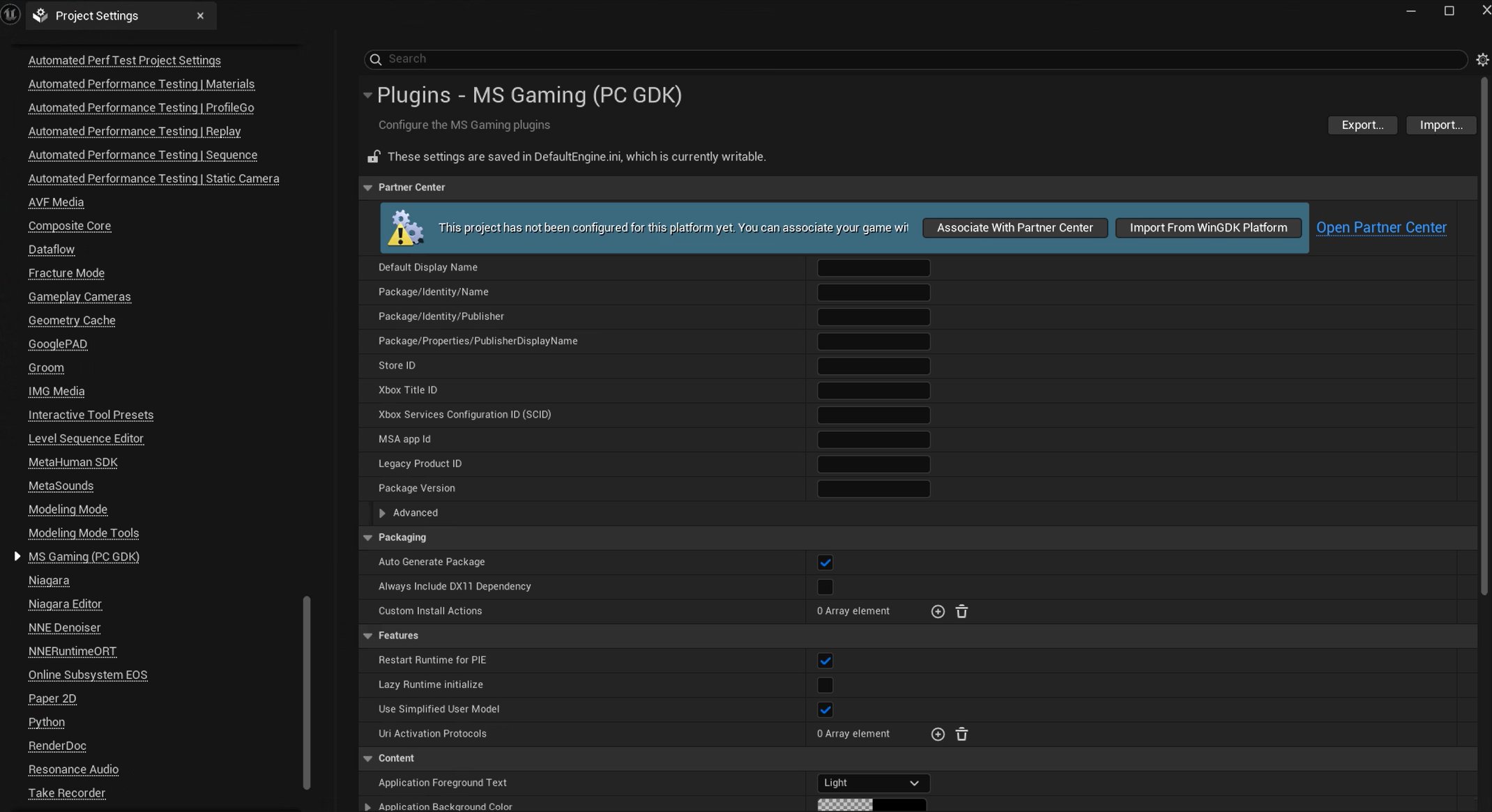
Title ID and Store ID, to work properly with the GDK and XBOX Services. Use the Associate with Partner Center option to sign in to a Microsoft account that has Microsoft Partner Center access. This option automatically adds your product details to your local MicrosoftGame.config file, so you don’t need to enter them manually.
In addition to MicrosoftGame.config setup, configure the packaging and installation options.
Figure 7. GDK Plug-ins Project Settings part 2.
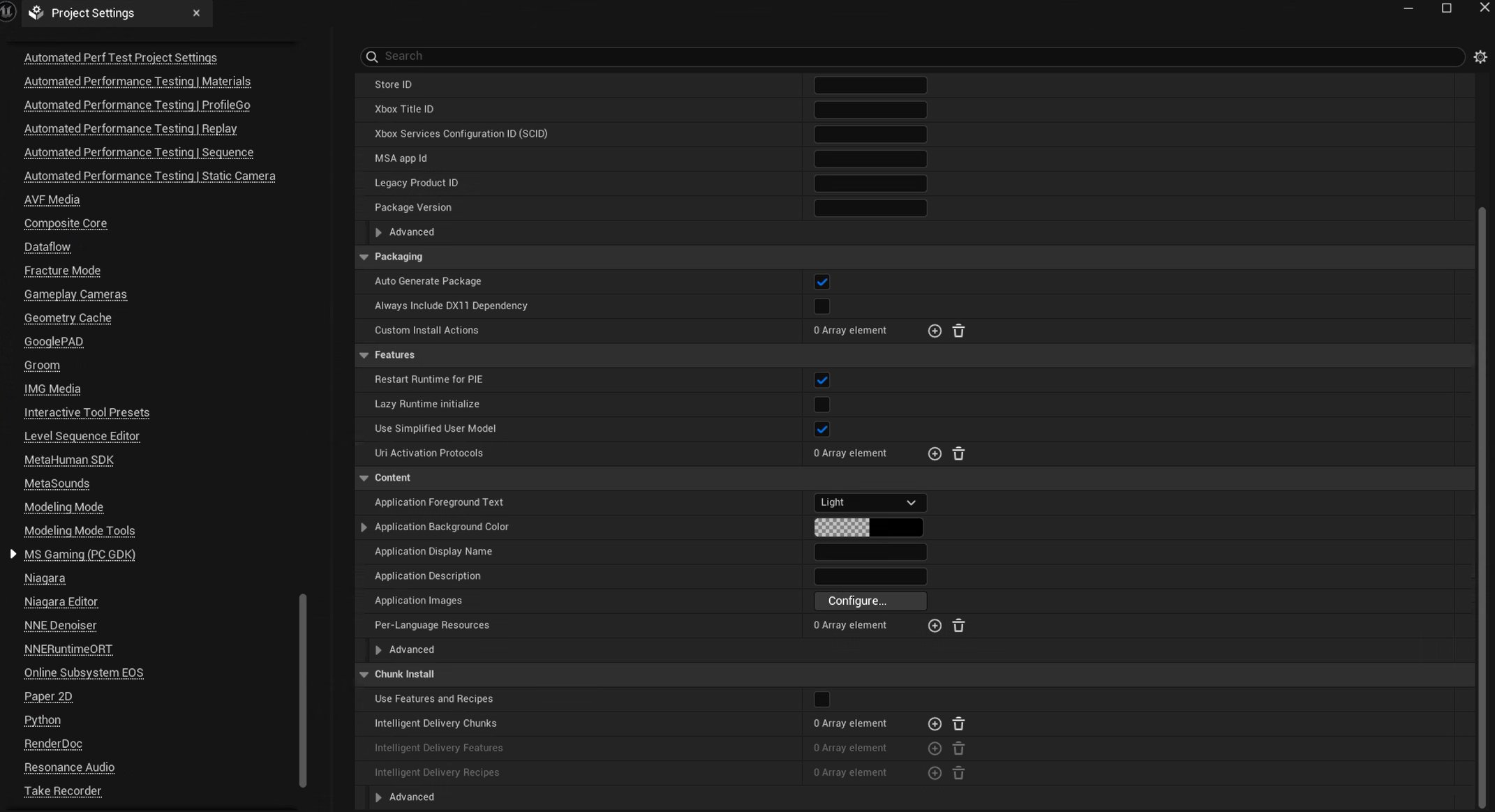
To specify any overrides in your Platform Engine .ini file (for example, WindowsEngine.ini), manually modify that file.
Use the Online Subsystem GDK
The Online Subsystem GDK plug-in provides engine abstraction of key XBOX Services APIs to simplify game code written to do similar actions across many stores and platforms (for example, sign-in, store purchases, achievements, friends, matchmaking). Use Online Subsystem if you’re building a GDK game. To configure the Online Subsystem GDK, edit your DefaultEngine.ini (or Platform Engine .ini file) with additional details to ensure that it works properly for your game. Here’s an example for the WindowsEngine.ini.Achievements.json in the platforms\GDK\Config\OSS\ directory of your project (note that the path might not exist and you might need to create it yourself). Achievements.json contains a mapping for achievement names to their Partner center IDs. For example, if your project has 10 achievements named achievement 1 through achievement 10, Achievements.json looks like this.
Achievements.json file, pass GDK_SUBSYSTEM in your calls to Online::GetSubsystem().
The Online Subsystem GDK uses Microsoft Azure PlayFab Party directly through GDK PlayFabParty plug-ins as a Socket Subsystem.
Use Visual Studio and Unreal Engine
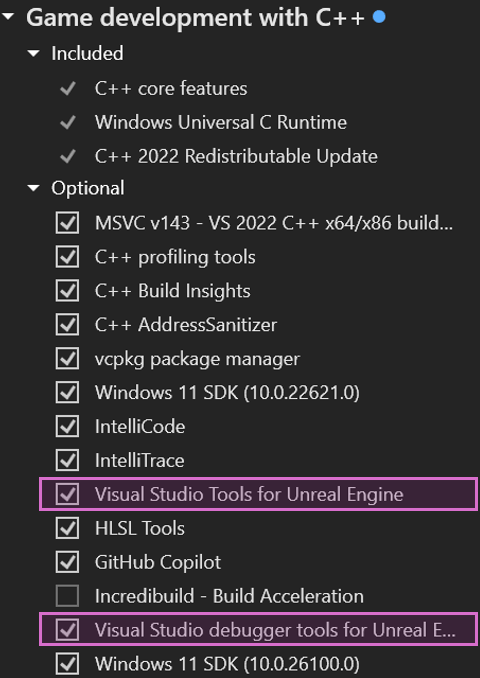
Visual Studio provides additional functionality, as part of the Visual Studio Installer, for better integration with Unreal Engine. This functionality is included in the Game development with C++ workload. Two optional installation components, called Visual Studio Tools for Unreal Engine and Visual Studio debugger tools for Unreal Engine, provide nativeuplugin support and the capability to debug Blueprint logic from within Visual Studio.
Figure 8. Visual Studio Tools for Unreal Engine in Visual Studio Installer.
Build, cook, and package your project
Use the Unreal Automation Tool to automatically build, cook, and package your game for each GDK platform. This tool also creates a package for your GDK plug-in integration by using the Win64 platform. To use this tool, follow the provided syntax.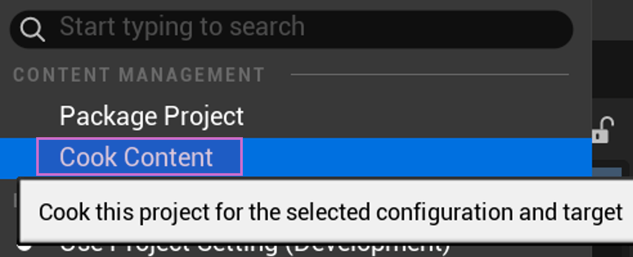
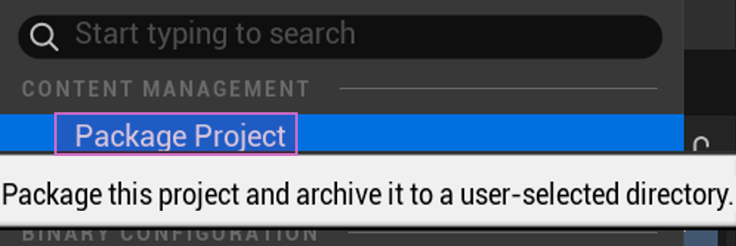
Testing your project
You can also use the Unreal Automation Tool to deploy and launch your build. To do so, use these flags.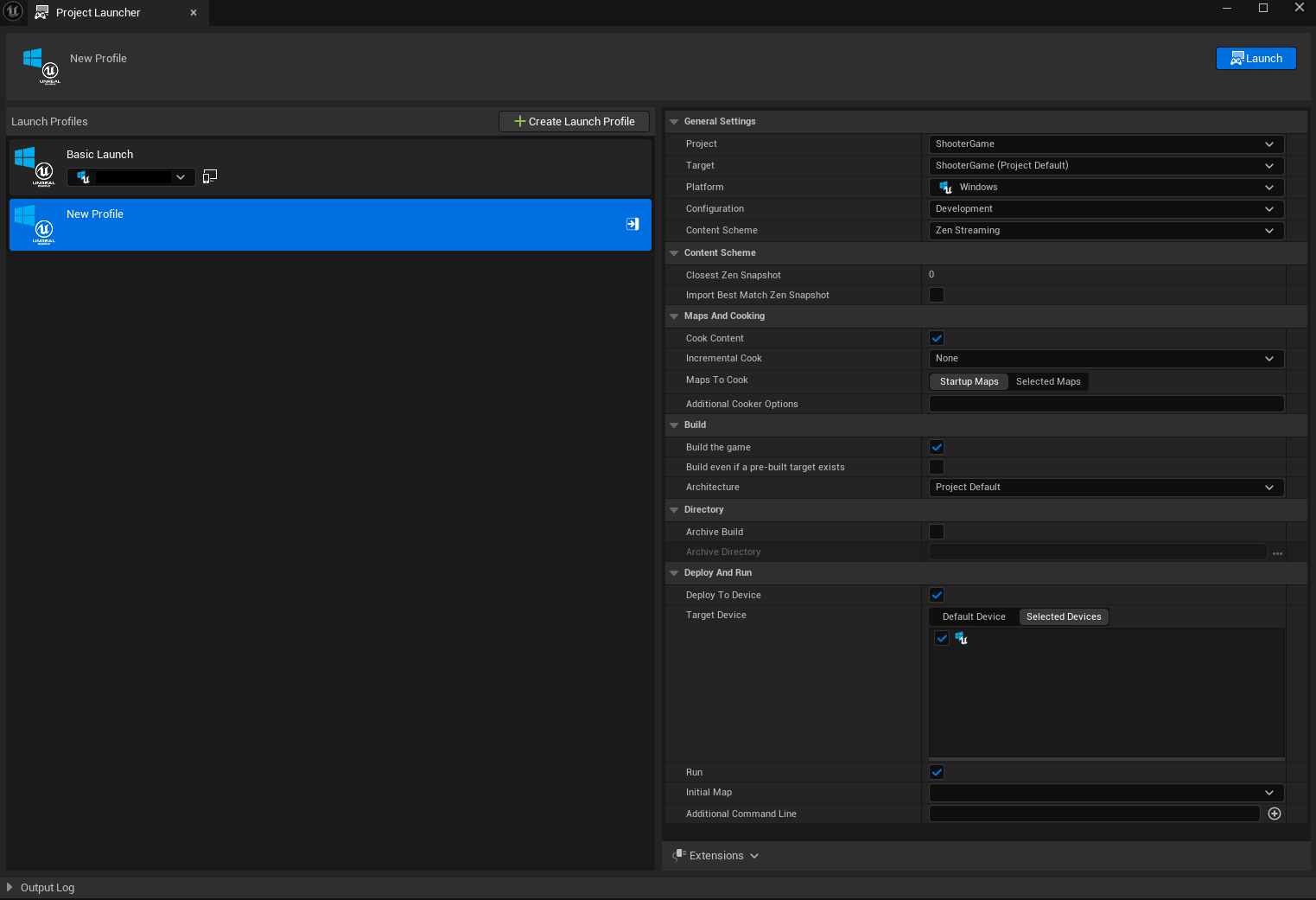
There are some known limitations with the WinGDK platform and PIE support. We recommend standalone and packaged build testing for this platform.
Test your game remotely via XBOX PC Remote Tools
As of Unreal Engine 5.8, Remote Windows Deployment lets you build, cook, deploy, and launch your game on a separate Windows PC, including Windows on Arm64 hardware, directly from Unreal Editor or from the command line. This feature is backed by the XBOX PC Remote Tools. After you install the XBOX PC Toolbox on both your development machine and the target device and pair them, you register the target in your engine configuration and then select it from the Launch On menu in the editor toolbar, or pass-deploy -run -device=<DeviceName> to RunUAT BuildCookRun.
For setup steps, see the XBOX PC Remote Tools quickstart guide. For engine-side configuration and command-line examples, see Remote Windows Deployment in Unreal Engine in the Epic Games documentation.
Additional information
Using Microsoft Azure PlayFab with Unreal Engine
For more information about working with PlayFab, which includes direct integration and plug-ins to work within Unreal Engine, including Online Subsystem support, see the PlayFab Unreal Engine Quick Start page.Windows handheld device detection
Unreal Engine 5.7 supports detection of Windows handheld devices viaFPlatformMisc::IsDeviceHandheld(). This function returns true or false depending on the device state.