
Before you begin
Before you create the bundle, collect the following information and files:- The package full name (
PackageFullName). - The title ID (
TitleId). - The
IdentityNamevalue from MicrosoftGame.config. - The exact layout file that was passed to MakePkg by using
/f. - The packaged EXE and DLL files.
- The exact matching PDB file for each packaged EXE and DLL.
/f, use makepkg genmap to create a layout file. Rebuild the package by passing that file to makepkg pack /f, and then use the same layout file in the symbol bundle.
[!IMPORTANT] Each PDB must exactly match the binary from the packaged build. A PDB from a different build can’t provide symbols for that binary.
Create the bundle
-
Create a root directory named
<PackageFullName>_<TitleId>. -
In the root directory, create a file named
game.txtwith the following JSON. Replace the placeholder values with the identity name and package full name for your package. -
Copy the exact layout file that was passed to MakePkg into the root directory. For example, copy
layout.xml. - Re-create the packaged directory path for each EXE and DLL under the root directory.
-
At the location of each packaged EXE or DLL, create a directory named exactly after the binary, including its
.exeor.dllextension. - Copy the binary and its exact matching PDB file into that directory.
-
Verify the bundle structure. For example, a package with
MyGame.exeat the package root andResources\MyDll.dllhas the following structure: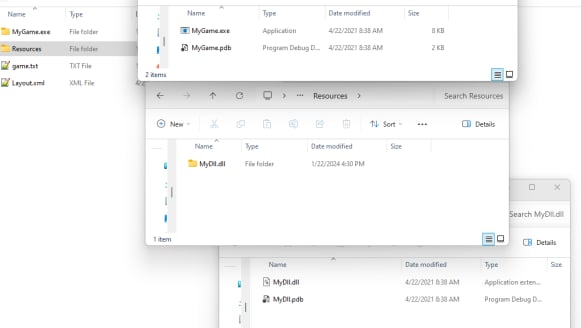
-
Create a ZIP archive that contains
<PackageFullName>_<TitleId>as its top-level directory. - In Partner Center, upload the ZIP archive as the symbol bundle for the matching title and package.