
XboxLiveTools.zip; see Development tools for XBOX services.
Access Control
Partner Center has certain setup requirements in order to support using a developer’s account to sign in to Multiplayer Session History Viewer. The publisher of the title must give permission for that developer to run session history queries for that title. Your company administrator needs to go to the Partner Center page for your company, select Access Management, and then select the appropriate group. A Partner Center developer account is required, to use the Multiplayer Session History Viewer. This developer account needs to be part of a specific group. As a developer, if you do not already have access to Partner Center, contact your company administrator.Viewing changes to the session document
-
In Windows Explorer, double-click
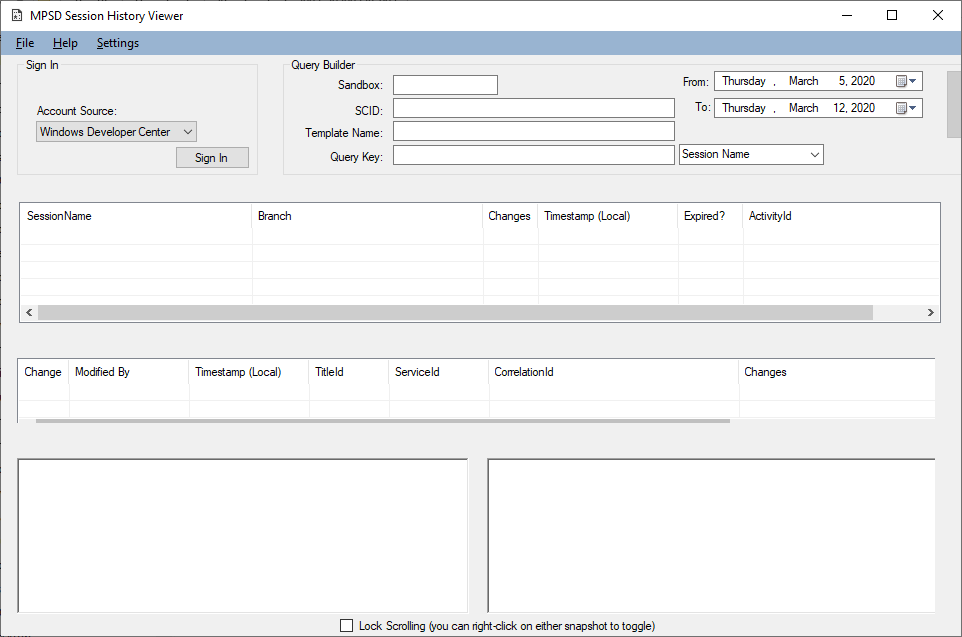
MultiplayerSessionHistoryViewer.exe. The Multiplayer Session History Viewer appears. - Specify a sandbox, SCID, template name, and “query key” (either a session name, gamertag, xuid, or request correlationId) along with a search date range. Then click the Query button.
- If this is the first query for that sandbox, an access control flow dialog box appears, requesting your email and password (see “Access Control” above). The tool won’t ask for access credentials until a valid query is made.
- If the credentials are valid, the query runs, and any MPSD sessions that match the query criteria are displayed in the top listview control, along with metadata.
- Select a session or a change.
- Blue - something changed.
- Yellow - something was added.
- Red - something was removed.