
How to use the XBOX PC Remote Tools
The XBOX PC Toolbox app is in preview. Download it from the Microsoft Store on Windows.
Set up your development device
- On your device, download and install the XBOX PC Toolbox from the Microsoft Store on Windows.
- Open the app. Select Set as development device, and then select Continue.
-
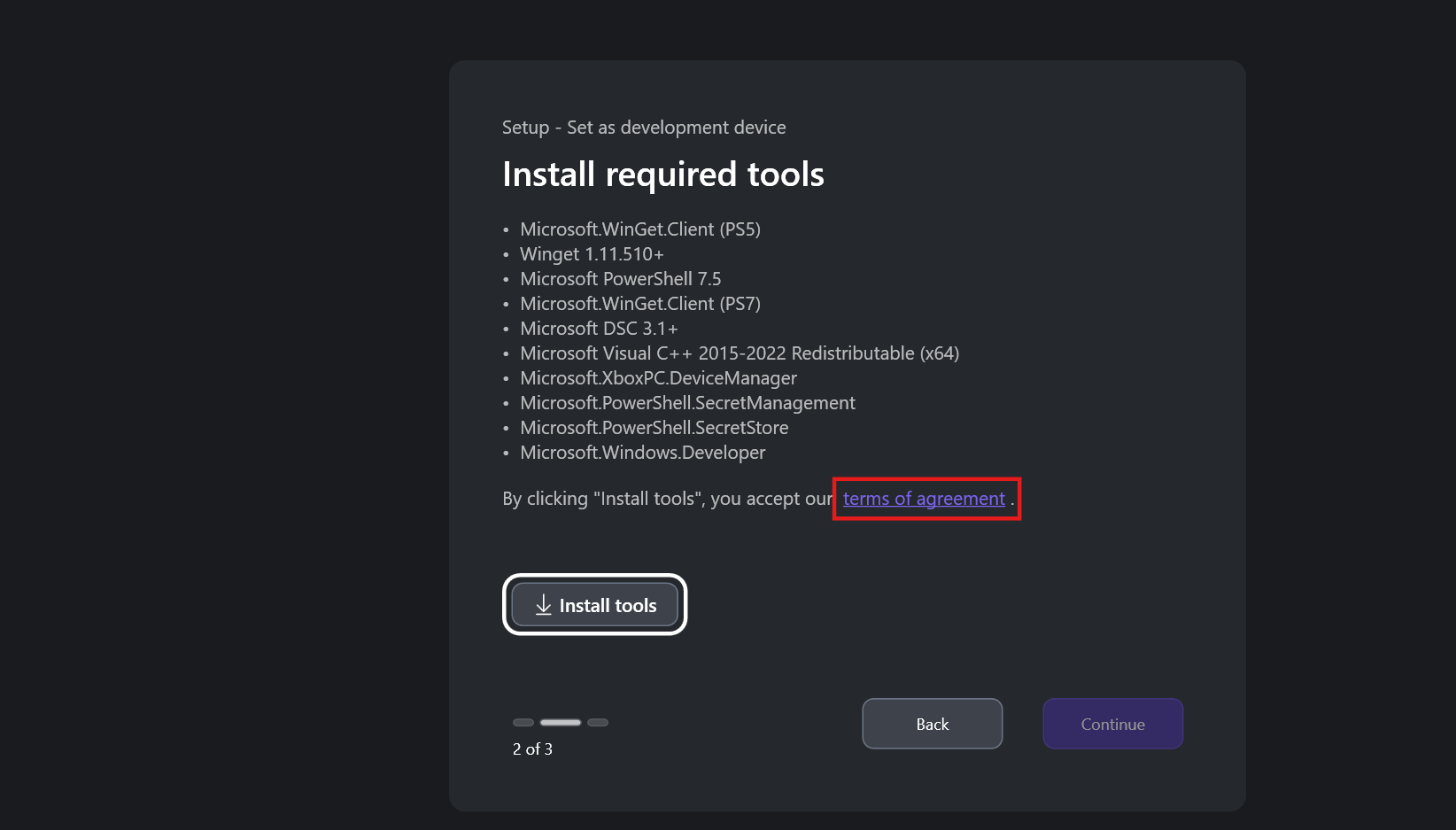
Select Install Tools to add the required components for your environment.
By selecting Install Tools, you accept the Terms of Agreement. To review the terms, select the link on the installation screen.
- After installation, select the network adapter for the secure channel. If your system has one adapter, it’s selected automatically.
- Add a strong passphrase to protect your SSH key. Save the passphrase securely.
- Select Confirm to start the device configuration process.
- When configuration is complete, you see the device workspace screen.
Set up your remote target device
Follow the same steps as for the development device, with these differences:- In Step 2, select Set as a remote target device instead of development device.
-
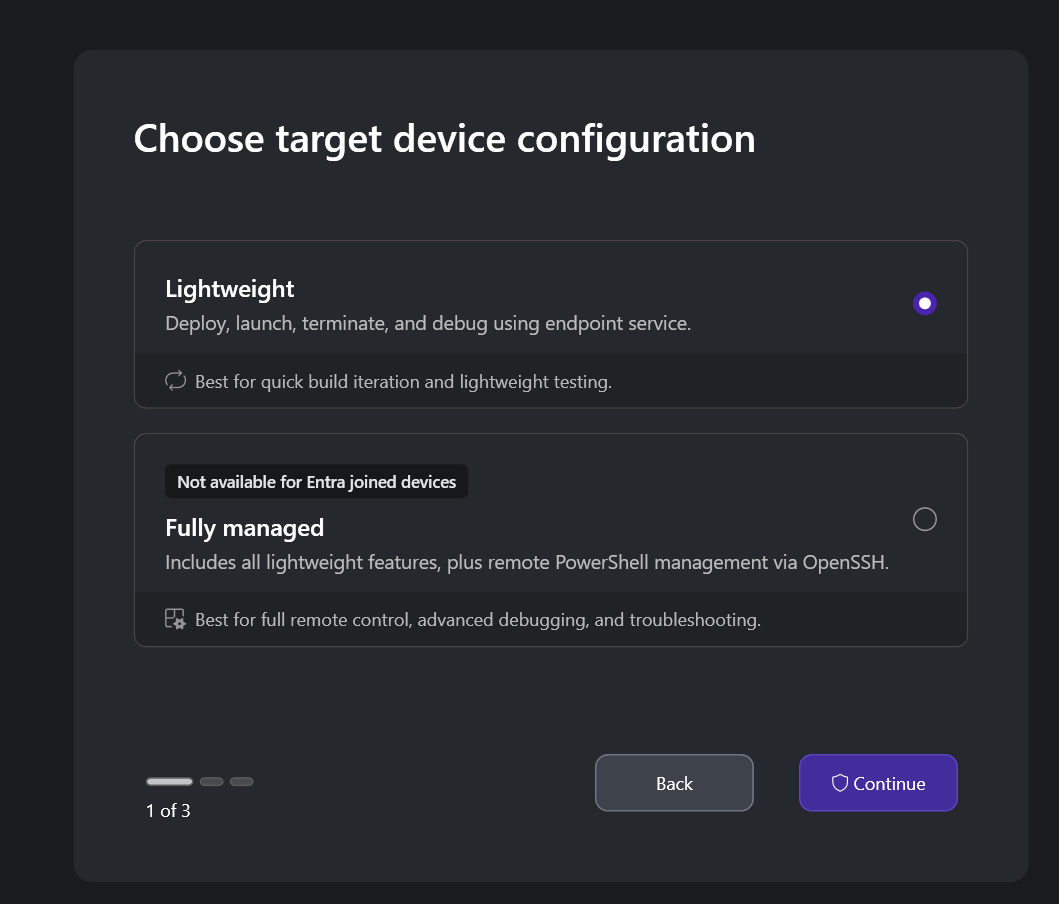
Select a device type:
- Fully Managed: Enables remote iteration and device management capabilities over SSH.
- Lightweight: Enables remote iteration scenarios (deploy, launch, and terminate) over HTTPS/TLS without requiring SSH setup.
- In Step 5, you don’t need to create SSH keys or add a passphrase on the remote target device.
Manage device add-ons
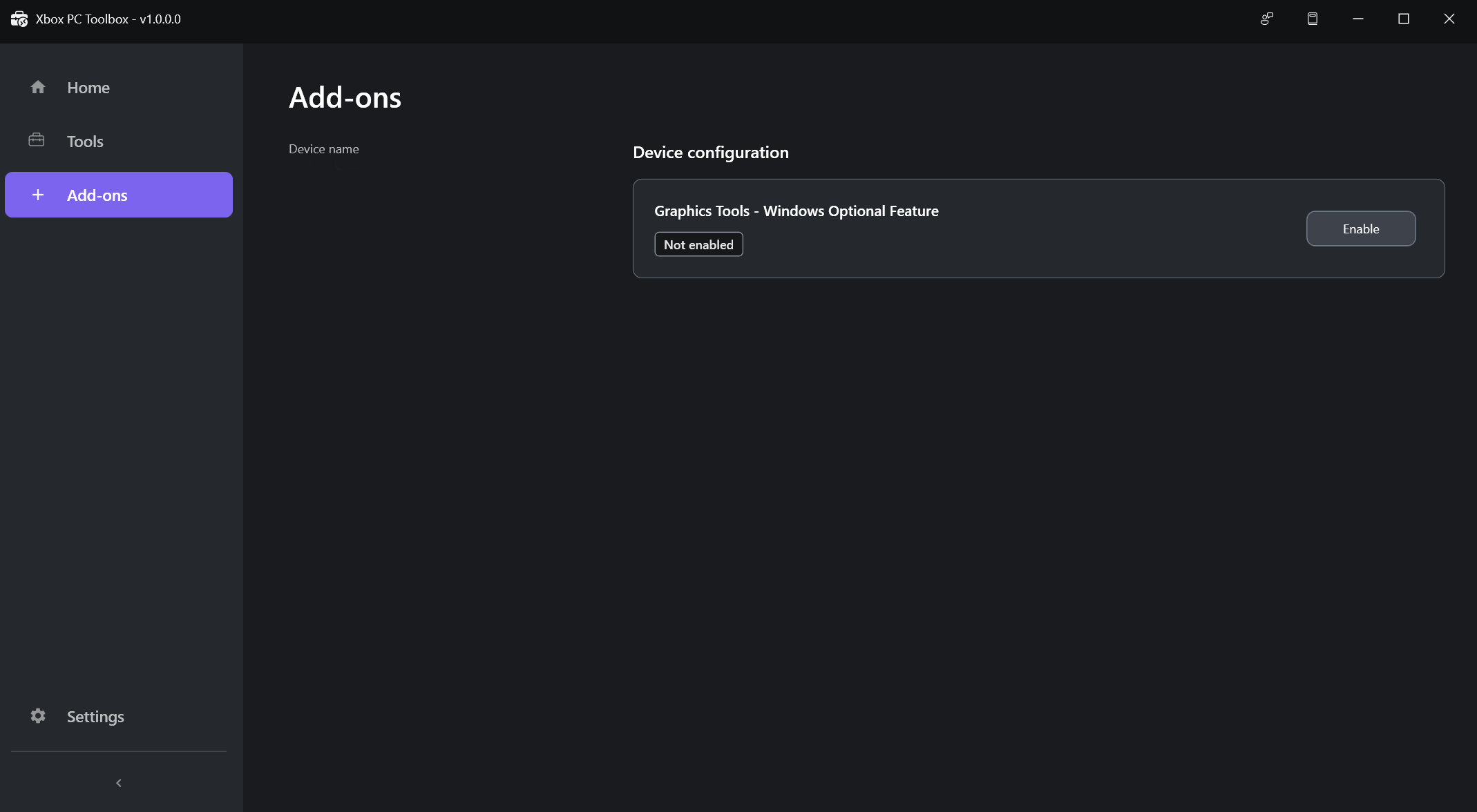
Add-ons are optional components that enable development workflows that might not be necessary for every project. After you set up your device in the XBOX PC Toolbox, these add-ons become available. Enable the Windows Graphics Tools add-on if you’re debugging or profiling DirectX graphics or the D3D API. Windows Graphics Tools enables the D3D debug layer and GPU-based validation on your device. When enabled, you can use tools like PIX to run GPU Captures, and any D3D API validation errors are surfaced. You can also enable this add-on through Windows Settings by managing optional features. However, the Toolbox provides this add-on to streamline your device setup without needing to leave the app. You can enable or disable add-ons in the add-on workspace by selecting a single option. You can apply add-ons to your development PC and remote Windows devices.If you face any issues disabling an add-on, ensure your Windows device is up to date and restart your device. If the issue persists, report it through Feedback Hub.
Pair your devices
-
On the remote target device: In the workspace, select Pair device to start pairing.

-
On the remote target device: Select Start Pairing. The app generates a PIN and displays connection details. Note these details for setup and testing the connection.
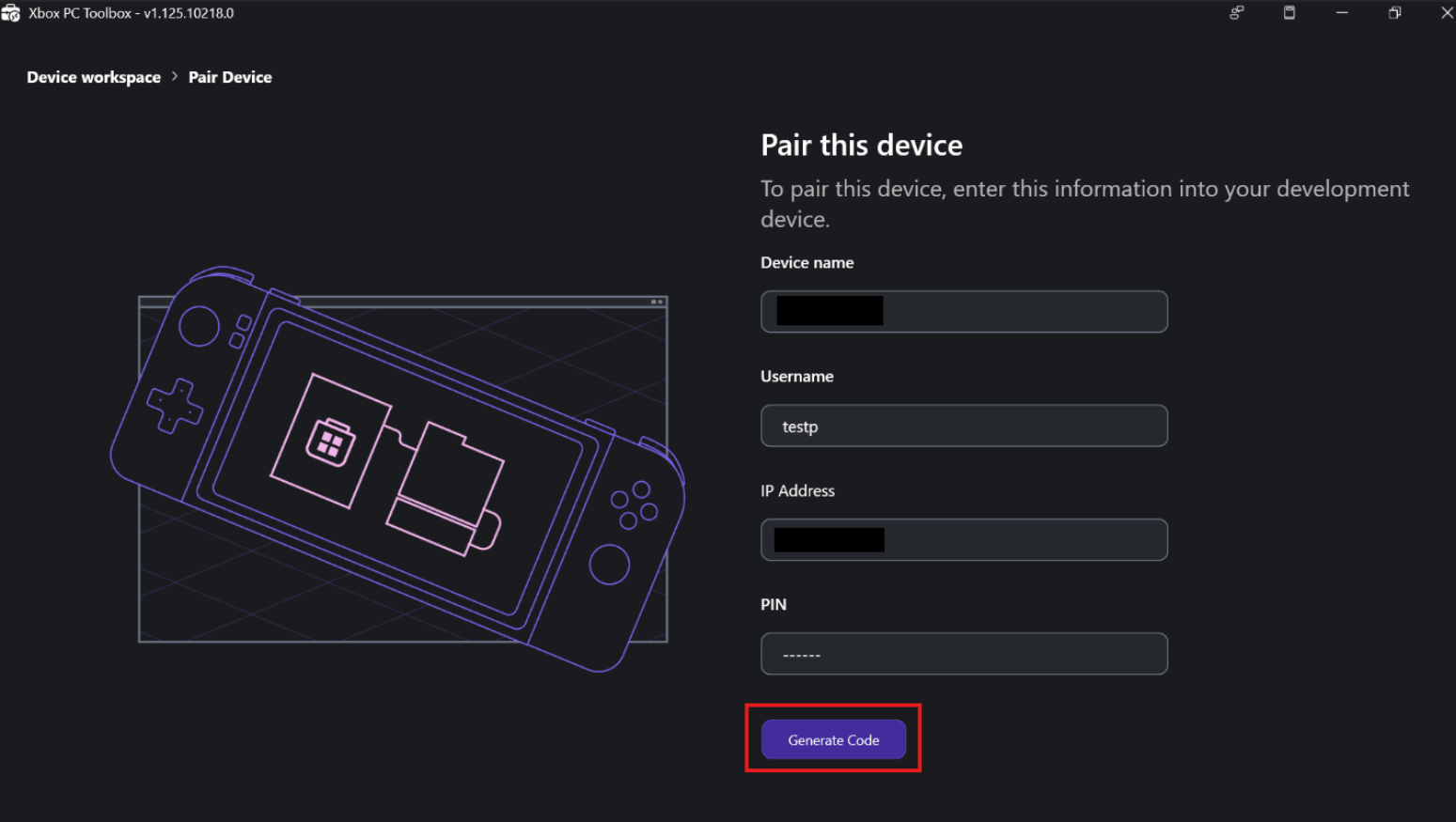 You have two minutes to enter the PIN on the development PC before it expires.
 - On the development device: On the Device Workspace screen, select Pair device.
- On the Select device type screen, select Fully Managed or Lightweight for the remote target device.
-
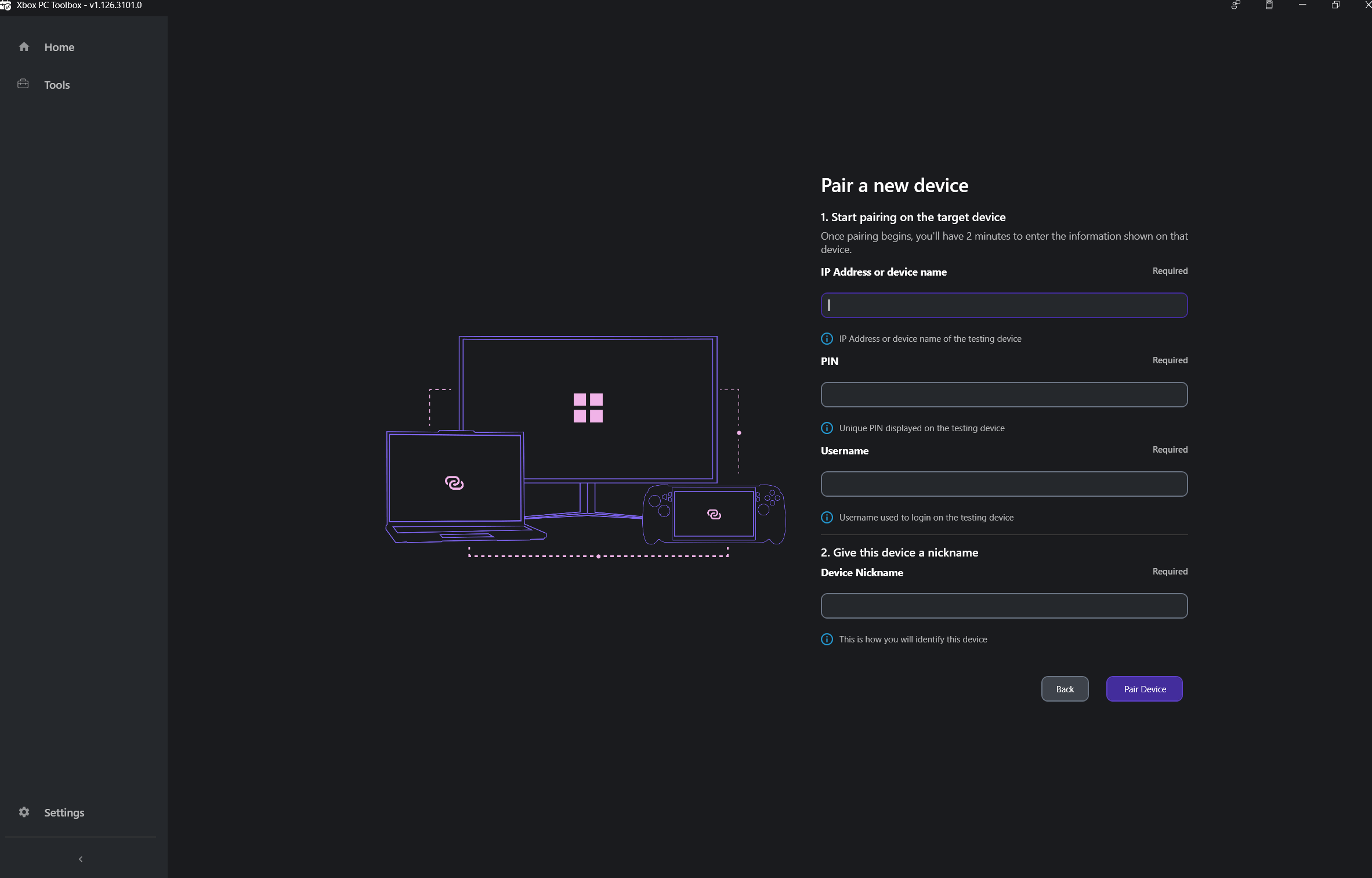
On the Pair a new device screen, enter the IP address or device name, PIN, username, and nickname. Then select Pair device.
-
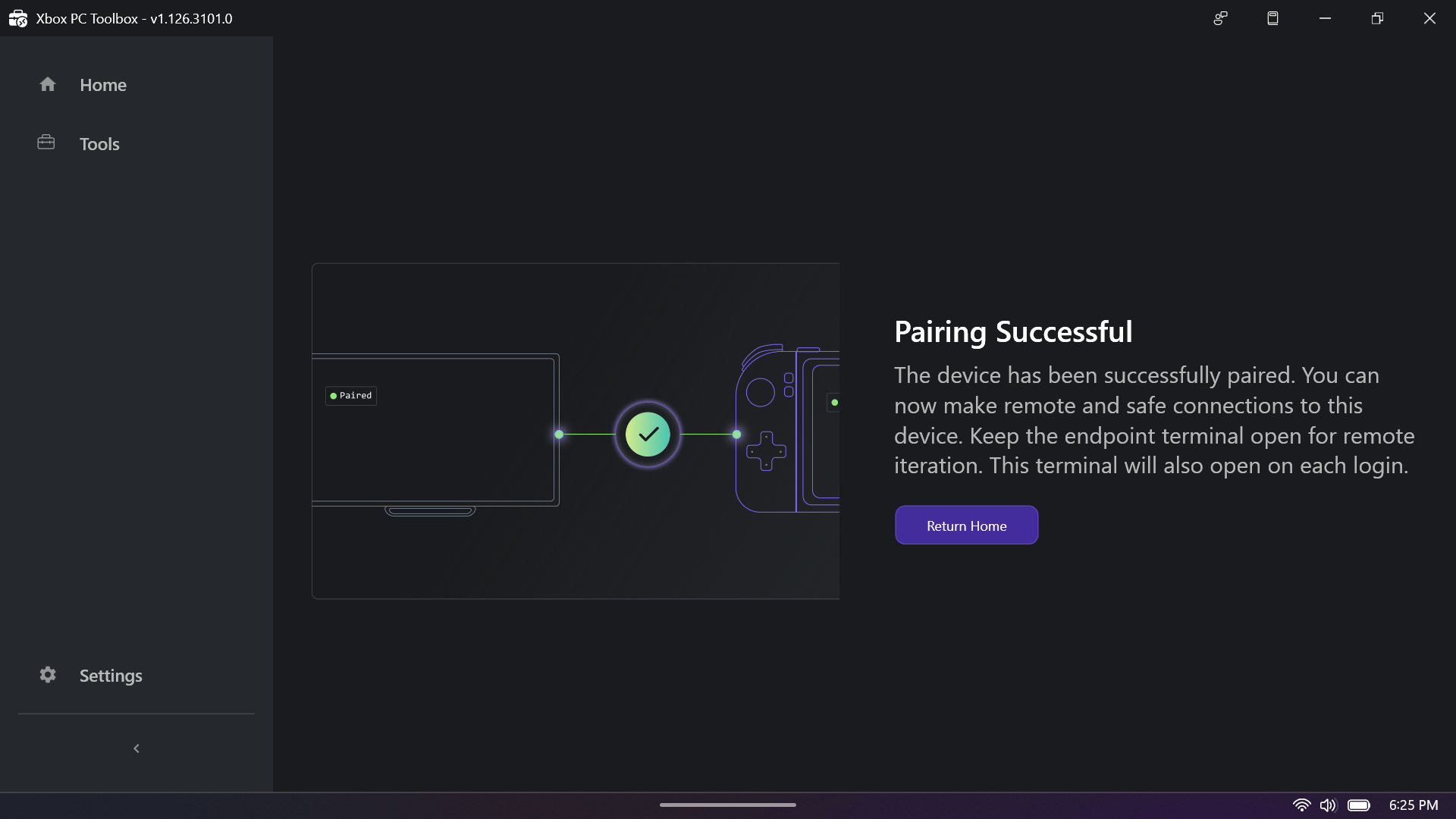
On the remote target device: When pairing succeeds, select Return Home to go back to the workspace. The device is ready for secure Fully Managed operations or Lightweight operations.
-
On the development device: To finalize setup for Fully Managed devices, accept the SSH fingerprint. The app opens a terminal and asks if you want to continue. Type
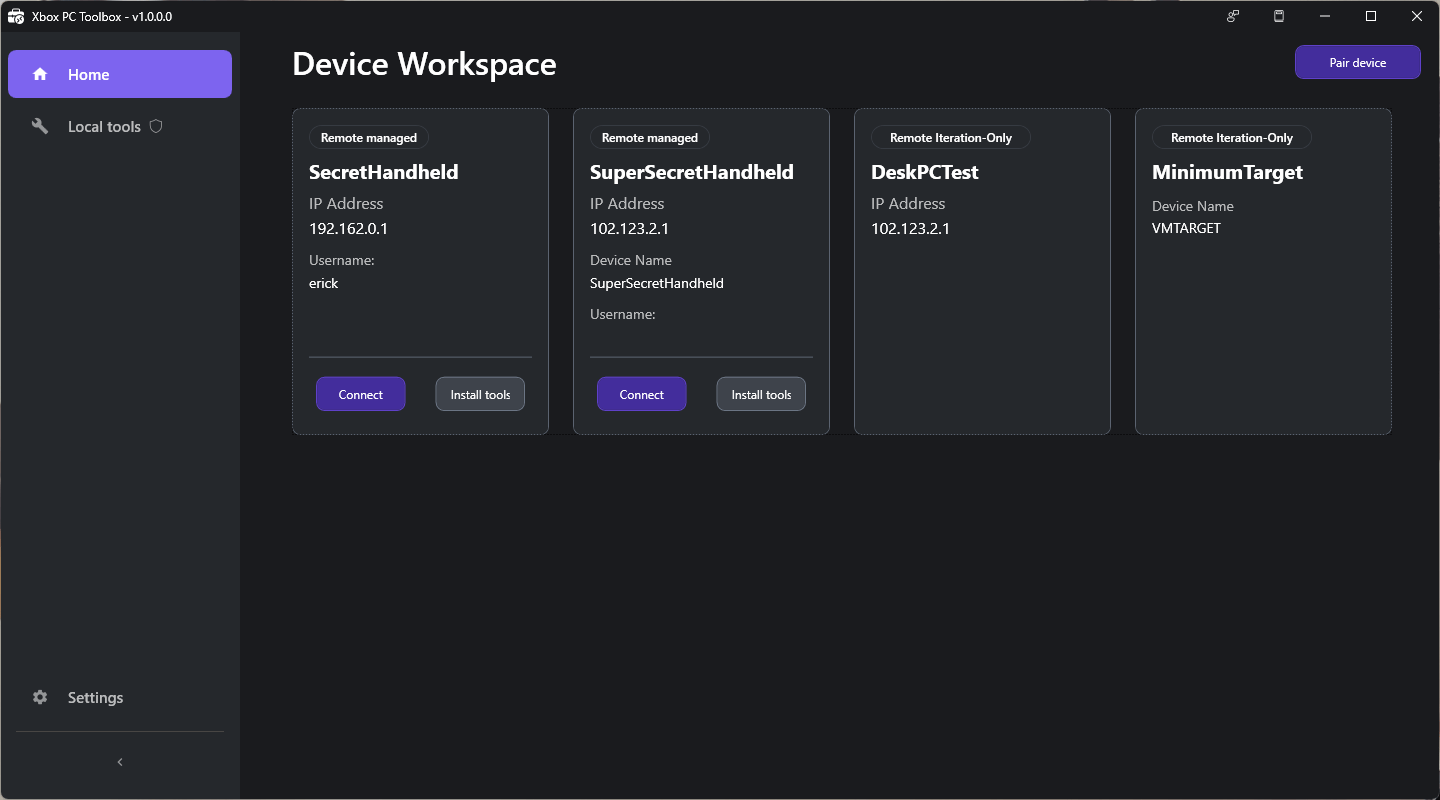
yesand press Enter.After connecting, typeexitand press Enter to close the window. Closing by using the X button might cause known problems. - On the development device: When the connection test finishes, a success screen confirms your devices are securely paired. Select Return home to return to the Device Workspace and view your paired remote target devices.
Unpair devices
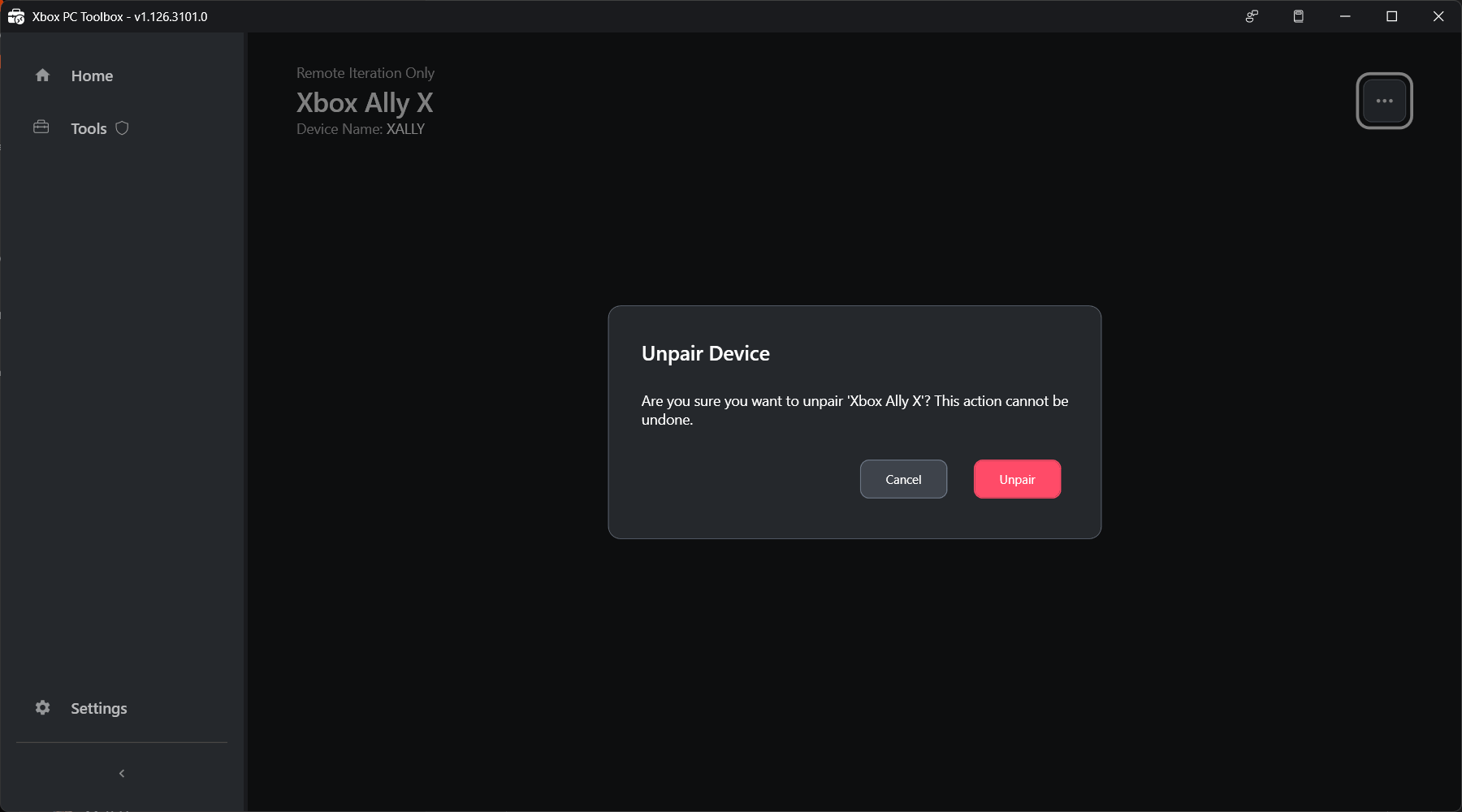
To manage a paired device, select the gear icon on the device card in the workspace. From there, you can:- Unpair device: Remove the paired device from your workspace.
- Rename device: Change the display name of the paired device.
- Edit connection settings: Update the IP address or other connection details for the paired device.
Unpair from the remote target device. When you unpair from the remote target device, the SSH keys are removed on both devices, so the disconnection is clean. If you unpair from the development PC, the device is removed only from the local workspace.
Use Microsoft.XboxPC.DeviceManager (XDM)
Microsoft.XboxPC.DeviceManager (XDM) is a PowerShell module that’s installed during setup. It creates secure, encrypted communication between development PCs and remote devices. XDM manages device acquisition, OpenSSH configuration, trust, and it enables remote command execution with device state management.
Start an interactive session
On your development PC, go to the device workspace in XBOX PC Toolbox. Find the card for the device you want to connect to and select Connect. This action starts an interactive session with the remote device over PowerShell remoting in a command-line terminal. Commands you run here execute on the remote device.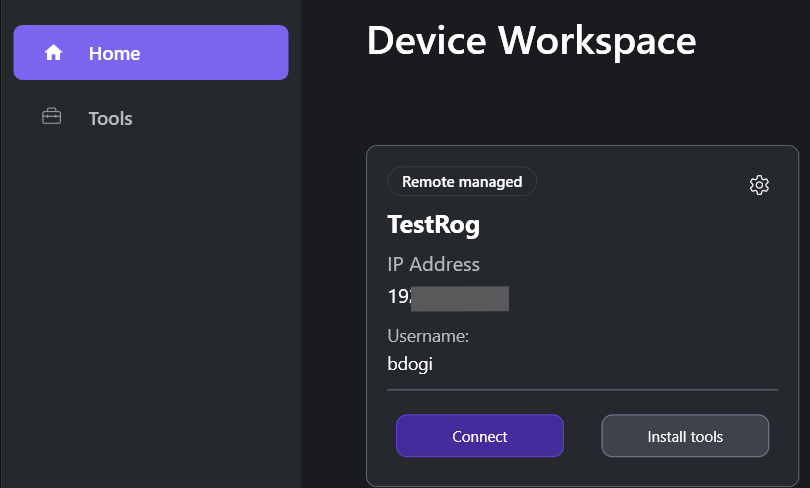
Provision remote iteration tools
Use the command-line tools wdRemote and wdEndpoint to transfer files, deploy and manage games, and run tools on remote Windows devices after you set up a secure connection by using XBOX PC Toolbox. Both tools are standalone executables that you install during pairing.- wdRemote.exe: Runs on the development PC and sends commands.
- wdEndpoint.exe: Runs on remote target device and executes commands.
Use wdRemote
Open a command-line terminal on your development PC to runwdRemote commands.
Deploy a game
When you specify paths for remote machines, use paths relative to the gameroot directory. The game root directory isC:\%ProgramData%\Microsoft GDK\wdEndpoint\gameroot on the remote target device.
Syntax:
Launch a game
Syntax:Terminate a game
Syntax:Send feedback
From the XBOX PC Toolbox title bar, select Send Feedback. Then select Report a Problem.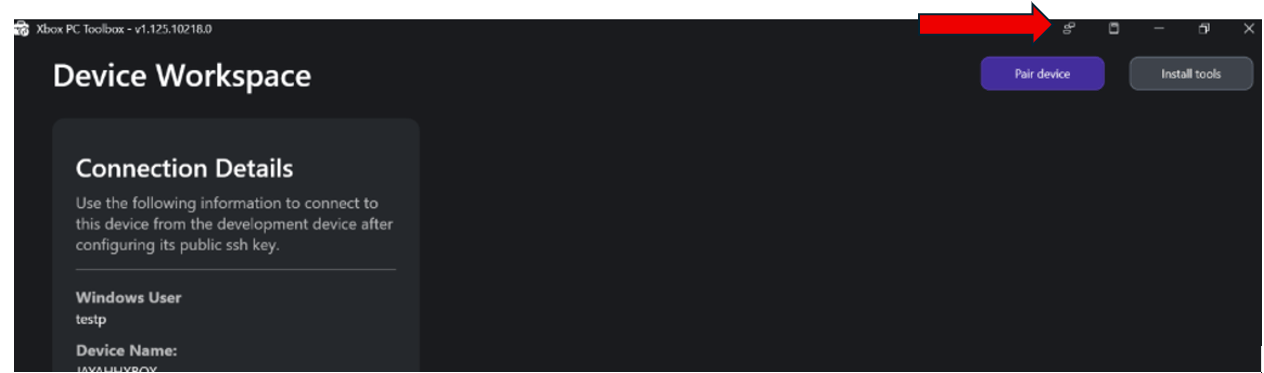
- Operating System version (Windows 10/11 build)
- PowerShell version (
$PSVersionTable) forMicrosoft.XboxPC.DeviceManagerproblems - Network configuration (Wi-Fi/Ethernet, corporate/home)
- Error messages (exact text)
- Steps to reproduce
- Which tool you used (XBOX PC Toolbox,
Microsoft.XboxPC.DeviceManager, wdRemote, or wdEndpoint) - Preview version you’re using