- Go to Partner Center.
- Select your app in either Overview or Products.
- From Services, select XBOX services.
Title Storage settings
Figure 1. Title Storage section.
Writing or modifying saved data is available only to the player who generated it.
Storage types
There are four storage types that can be activated on the Title Storage configuration page. You can find a description of each storage type by hovering over the Info icon next to each storage type’s name or by referring to the following table.Global Storage file management
Figure 2. Global storage file management section.
You might see a warning at the top of the Title Storage configuration page if your game is not properly published for testing.
Manage Global Storage files
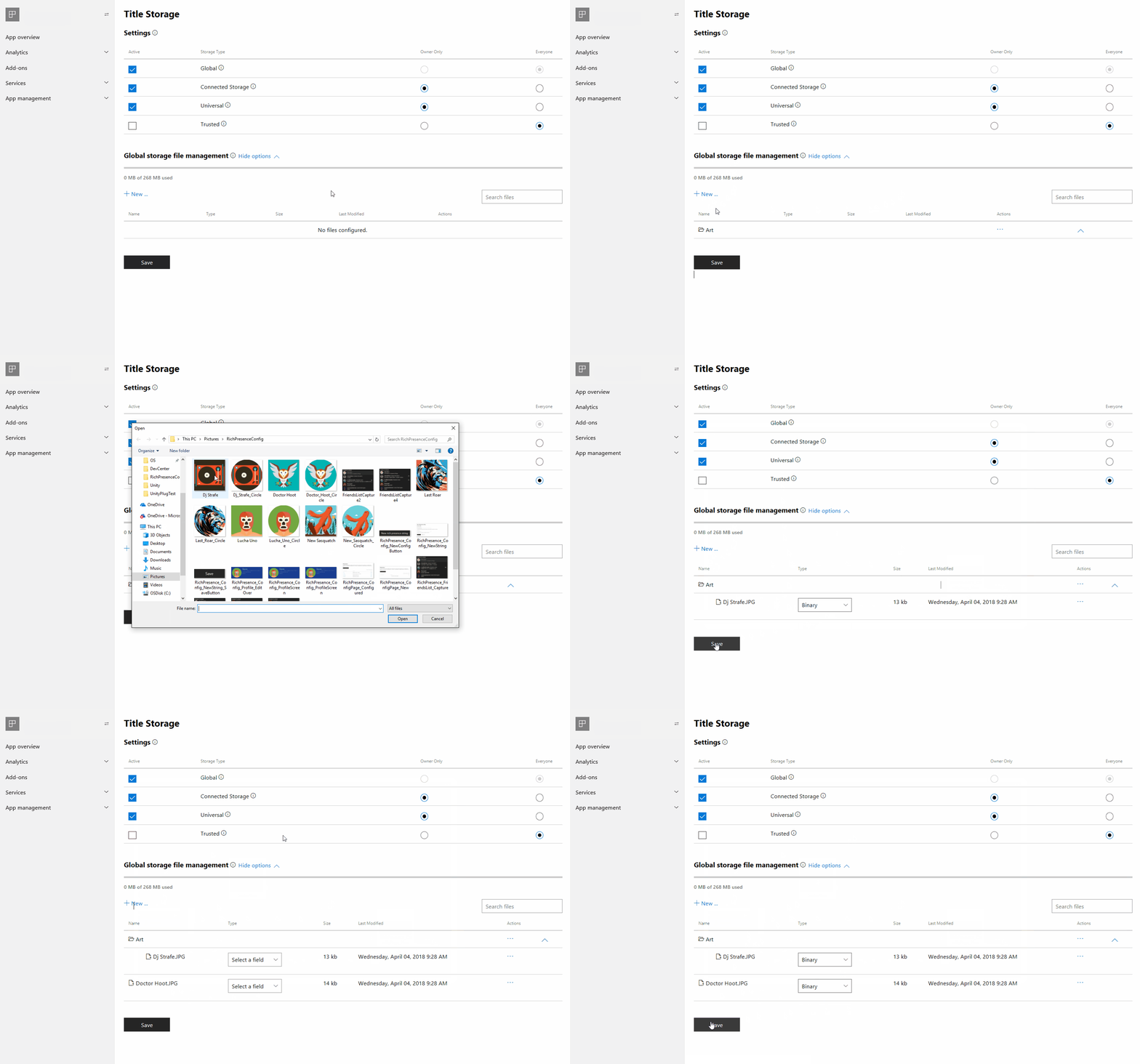
Use Global storage file management to upload and download files to and from global storage. These files can potentially be accessed by anyone who owns your title and are meant to be shared by everyone who plays your game.- To see the global storage file options, select Show options (next to the section’s title).
- To add your first file, select + New. You will then see the option to add a new file or folder to your global storage files.
New folders
When adding a new folder to your global storage files, you must name the folder, and then select Create (figure 3). Your new folder appears in the file explorer table. Figure 3. The New folder dialog box.
New files
When adding a new file to global storage, you’ll be prompted to upload a file from your development PC’s File Explorer, and then you’ll be asked to choose from one of the three file types: Binary, Config, and JSON. In addition to being able to upload a file by selecting + New, you can also drag files from your development PC to the file explorer table.File management actions
For file management actions, see figure 4. Figure 4. The Global storage file management dialog box.