This article is for Managed Partners, and does not apply to titles in the XBOX Creators Program.
- After selecting your title in Partner Center, navigate to XBOX services > Gameplay settings.
- Click the link to Access policies.
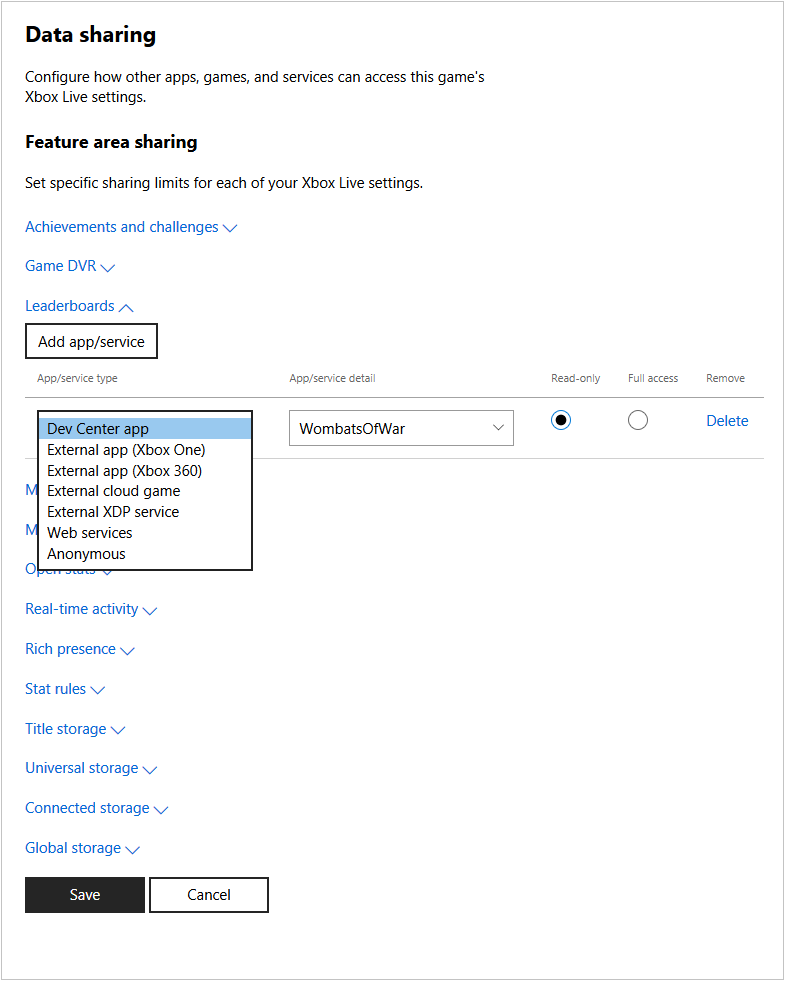
- Select the setting you want to grant access to, and click Add app/service. A new row will be added at the end of the list of apps and services configured to access that setting.
- Select the type of app or service in the dropdown list, and enter details to indicate the app, title ID, or service ID of the app or service that will access the data.
- Select if the app or service can only read the data, or if it has full access to the data.
- Repeat for each setting, and for each app or service that needs access to those settings. To remove an entry, click Delete.
- When you’re finished, click Save to save your changes.