
Account upgrades
Customers can upgrade their account plan using the self-serve plans experience found in Game Manager.Account plans
A PlayFab account has five plan options:- FREE TO START: This plan has no cost to the customer. Once a title reaches its Development Mode limits, it must be launched by upgrading to a paid plan. To learn how to launch a title, see Title Launches.
- PAY-AS-YOU-GO: This paid plan has no monthly base rate. Accounts are only charged for their monthly consumption for live titles.
- STANDARD: This paid plan has a monthly base rate and private support options (PaidTechnicalSupport.md). This plan comes with included meter usage amounts that live titles may access. Once the included meter amounts have been used, the account will be charged for additional consumption.
- PREMIUM: This paid plan has a monthly base rate and private support options (PaidTechnicalSupport.md). This plan comes with more included meter usage than the Standard plan. Once the included meter amounts have been used, the account will be charged for additional consumption.
- ENTERPRISE: An Enterprise account has a monthly base rate and private support channels that offer 24/7 assistance. This plan comes with more included meter usage than the Premium plan. Once the included meter amounts have been used, the account will be charged for additional consumption.
All PlayFab account plans adhere to the https://playfab.com/terms/.
Understanding the account-studio-title relationship
An account is linked to one Studio and a Studio may be linked to many titles. Upgrades are executed at the account level and launches are executed at the Title level.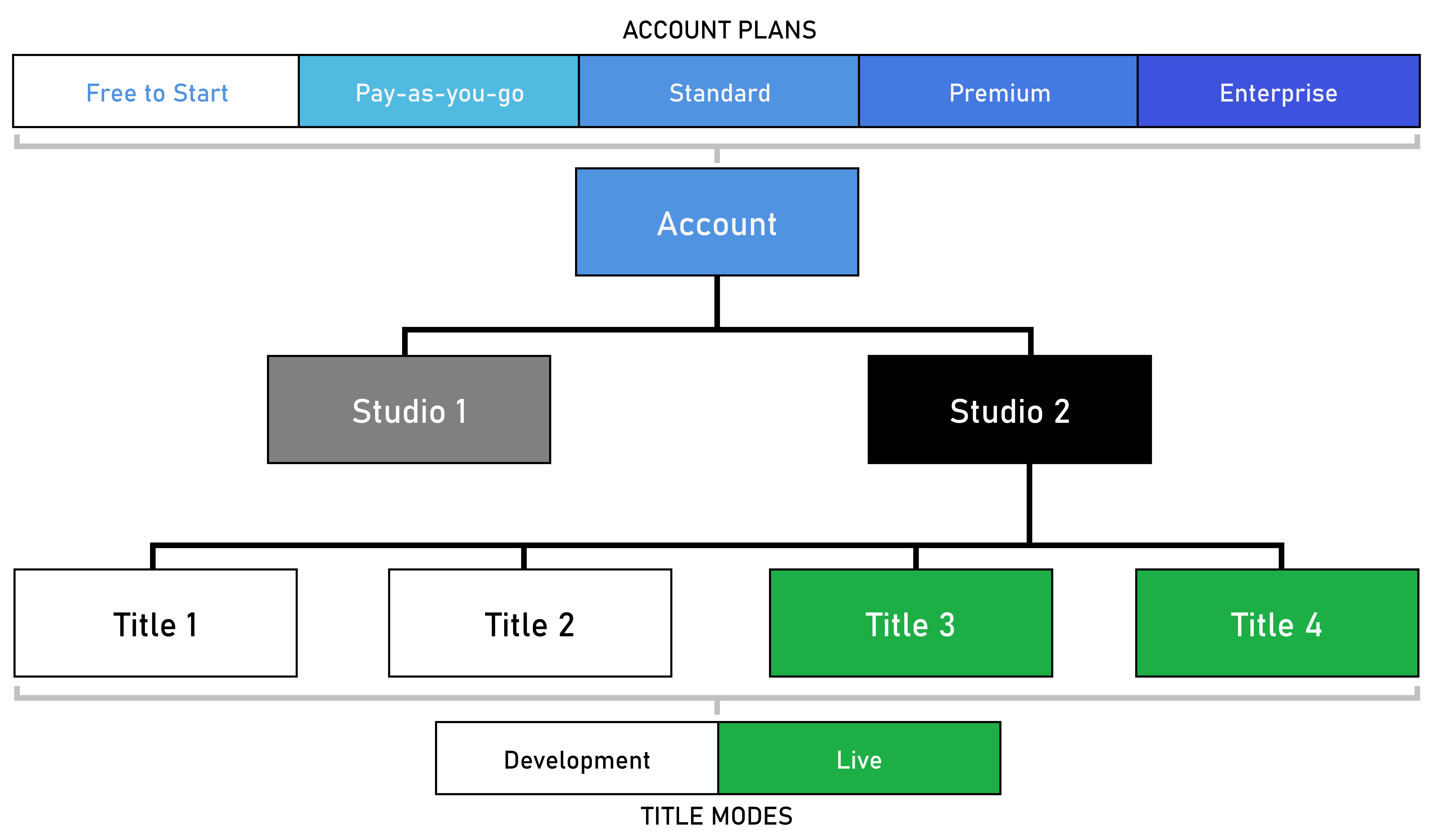
Changing plans
You can change your account’s plan via Game Manager using the Plan Recommendation and Plan Selection pages. Plan changes are scheduled for the beginning of the next billing period.Upgrading from free-to-start
You can upgrade your account plan at any time on the My Studios and Titles page. Use the following steps to upgrade your account from Free to Start. Upgrading an account will upgrade all studios owned by the account.- Log in to http://developer.playfab.com/.
- On the My Studios and Titles page, locate the header of a Studio whose linked account should be upgraded. Select Upgrade Account.
- Through the Plan Recommendation page, you can see your account’s meter usage for the past 30 days, your current plan, and a recommended plan based upon your usage. On each plan, you can see the estimated monthly cost given your historic usage. To change your plan, select Proceed with plan.
- On the Plan Selection page, the recommended plan will be automatically selected, though you can select any plan your account is eligible for. Titles can be launched in conjunction with the plan change. Select any titles to launch. The Next button will open the next tab.
- Enter Contact Information and Payment Information to move to the Review page. Select Confirm this Plan to complete the account upgrade.
- Once you upgrade your account, on the Studio Settings page under the Studio Plan section, you will see your current plan as well as the scheduled plan and date of schedule.
Upgrading and downgrading
You can upgrade or downgrade your account plan at any time on the Studio Settings page of any studio owned by the account. Use the following steps to change your account’s plan. Changing the account plan will change all studios owned by the account.- Log in to http://developer.playfab.com/.
- On the My Studios and Titles page, locate the header of a Studio whose linked account should be upgraded. Select the options button indicated by the 3 dots and select Studio Settings. On the Studio Settings page, locate the header of a Studio whose linked account should be upgraded. Select Change Plan.
- Through the Plan Recommendation page, you can see your account’s meter usage for the past 30 days, your current plan, and a recommended plan based upon your usage. On each plan, you can see the estimated monthly cost given your historic usage. To change your plan, select Proceed with plan.
- On the Plan Selection page, the recommended plan will be automatically selected, though you can select any plan your account is eligible for. Titles can be launched in conjunction with the plan change. Select any titles to launch. The Next button will open the next tab.
- Enter Contact Information and Payment Information to move to the Review page. Select Confirm this Plan to complete the account upgrade.
- Once you upgrade your account, on the Studio Settings page under the Studio Plan section, you will see your current plan as well as the scheduled plan.
Upgrading to enterprise
Any account is eligible to upgrade to an Enterprise account plan. The PlayFab team must be contacted to upgrade to an Enterprise account plan. https://playfab.com/contact/Cancel all charges and delete Your Studio
Before proceeding with deletion, consider the following recommended (but optional) actions to ensure a smooth transition and avoid any unintended loss:- Back up any critical data, as deleting your studio is a permanent action and data is not recoverable.
- Download reports from the Billing summary page for your records and future reference.
- Communicate the decision with your development team to prevent any surprise loss of access.
- Log in to http://developer.playfab.com/.
- On the My Studios and Titles page, locate the header of the Studio you plan to delete. Click the three dots on the right and select Studio Settings.
- Click Delete Studio button on the top right of the screen.
- Confirm your cancellation.