
Stores Quickstart (Legacy Economy)
Economy v1 APIs are in maintenance mode and will not be receiving any new features, only bug fixes. The v1 APIs will be maintained for the foreseeable future. See the Economy v2 Overview to learn more about the next version of PlayFab Economy!
- Add items to a catalog with regular prices.
- Create a store that contains the same items with discounted prices.
- Use PlayFab APIs to purchase an item from the store.
- Use information in the Game Manager to confirm that the item was purchased at the discounted store price.
Adding items to a catalog
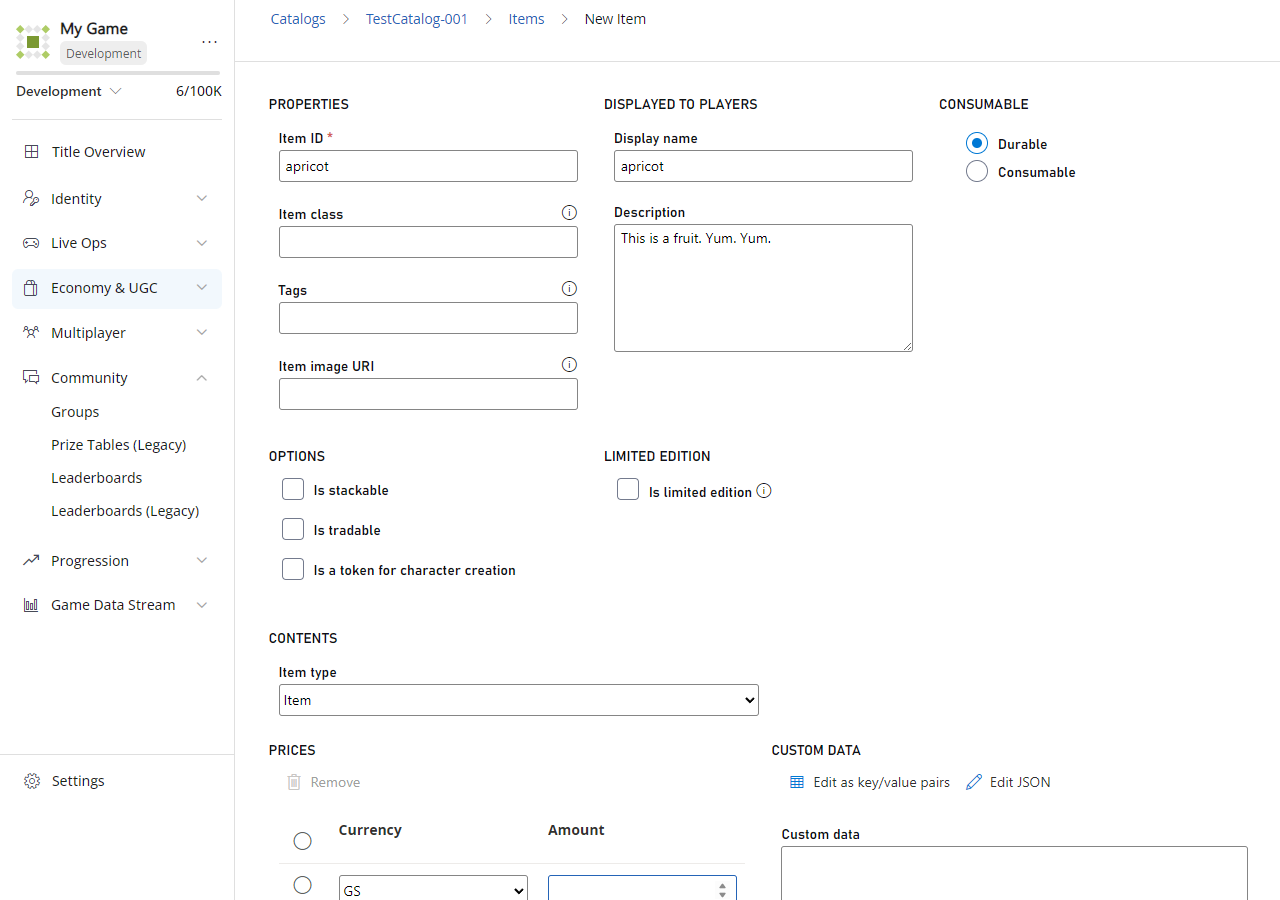
First, let’s add some Items to sell in your catalog:- Open Game Manager and select Economy on the left side bar.
- Select the Catalogs tab, and open your main catalog.
- Select New Item a few times, and create some items:
- apricot with a GD price of 4.
- pear with a GD price of 3.
- grape with no GD price (don’t select any prices).
Creating a store
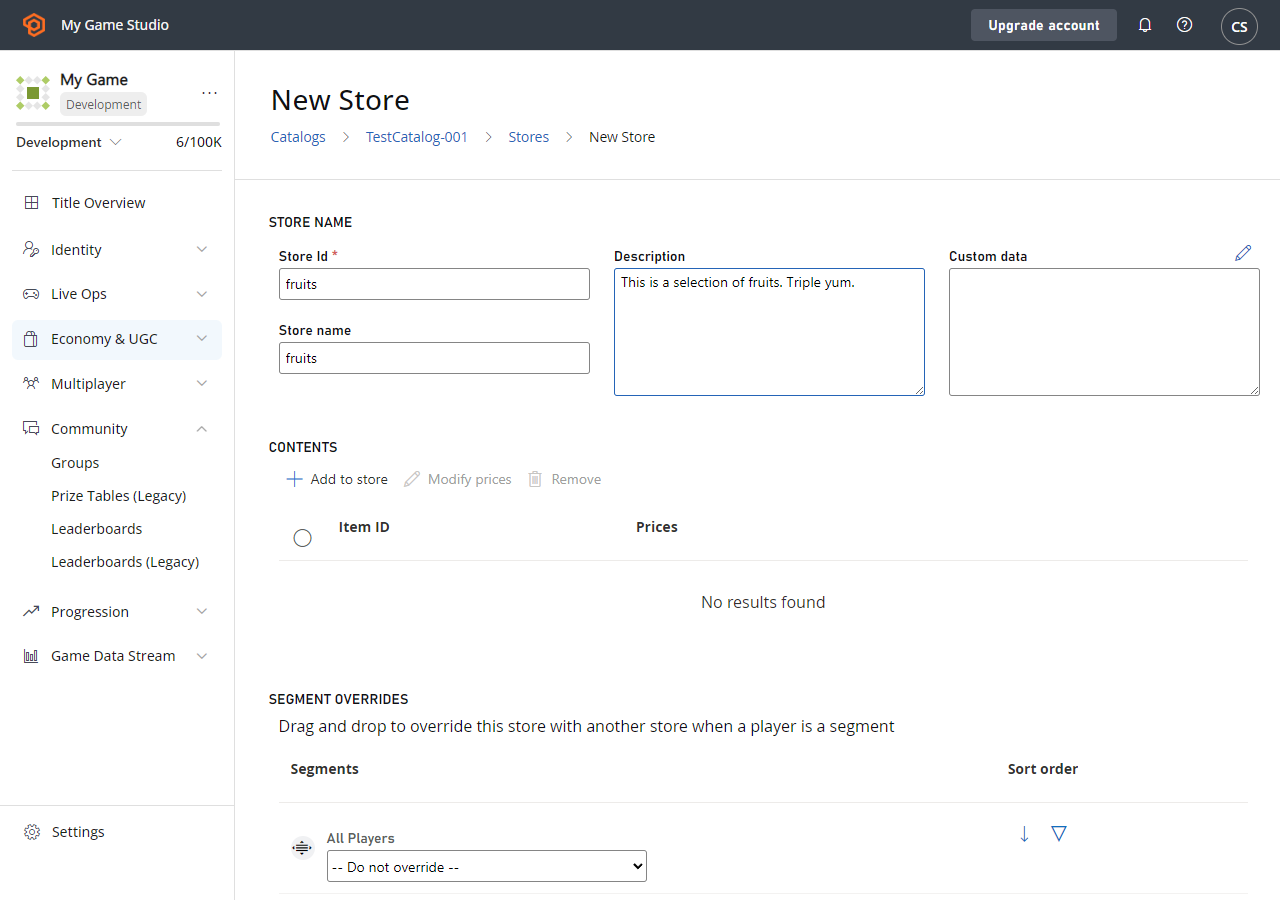
You should now have a few items with prices in your catalog. Let’s create a store to sell them to a player.- Open your main catalog and select Stores.
- Select New store.
- Set the Store Id and Store name to fruits (as shown in the following example).
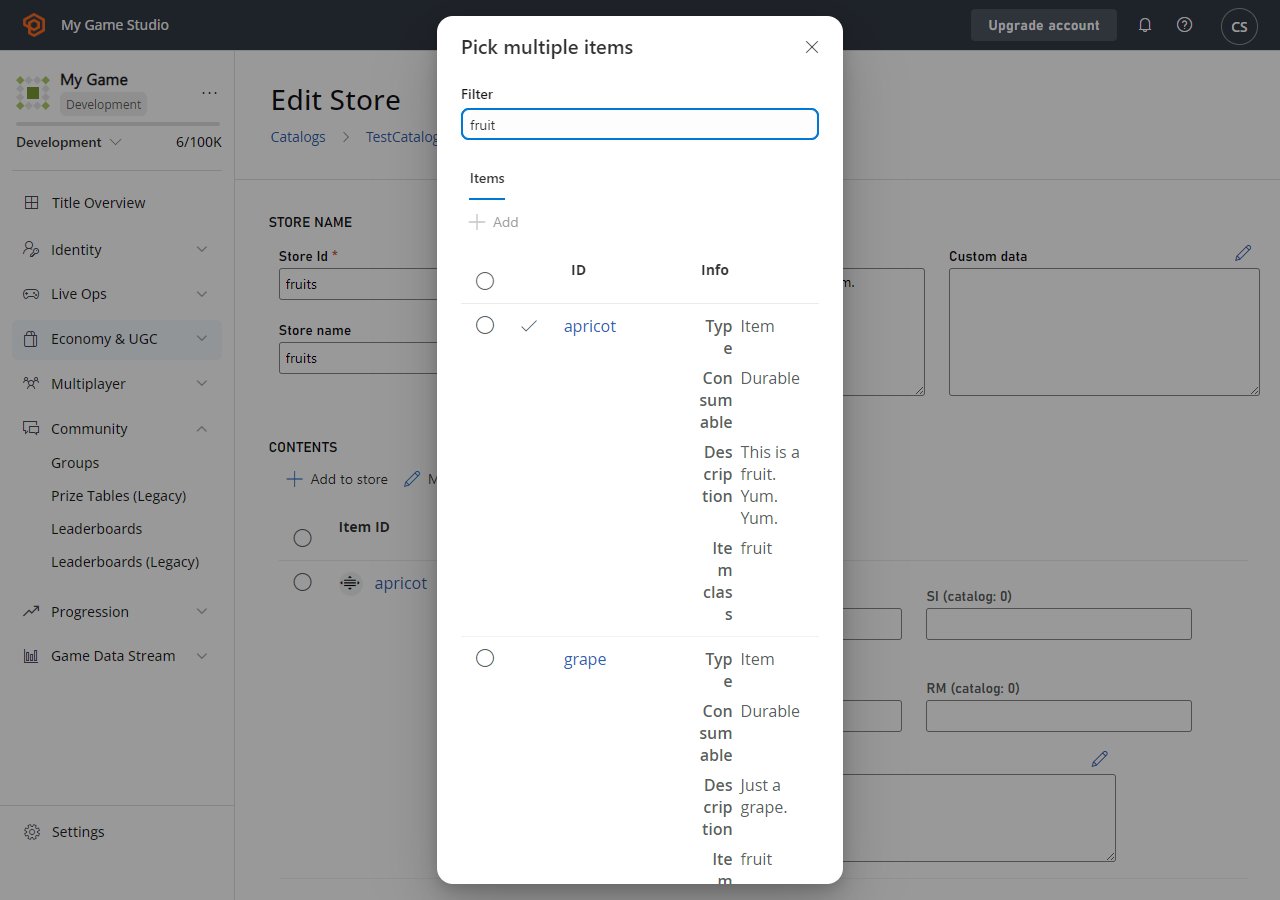
- Select ADD TO STORE.
- A pop-up screen - like the one shown below - will display all the items, bundles, and containers in the current catalog.
- Add a few items to your store by selecting the Add button next to the item.
Setting the store price for an item
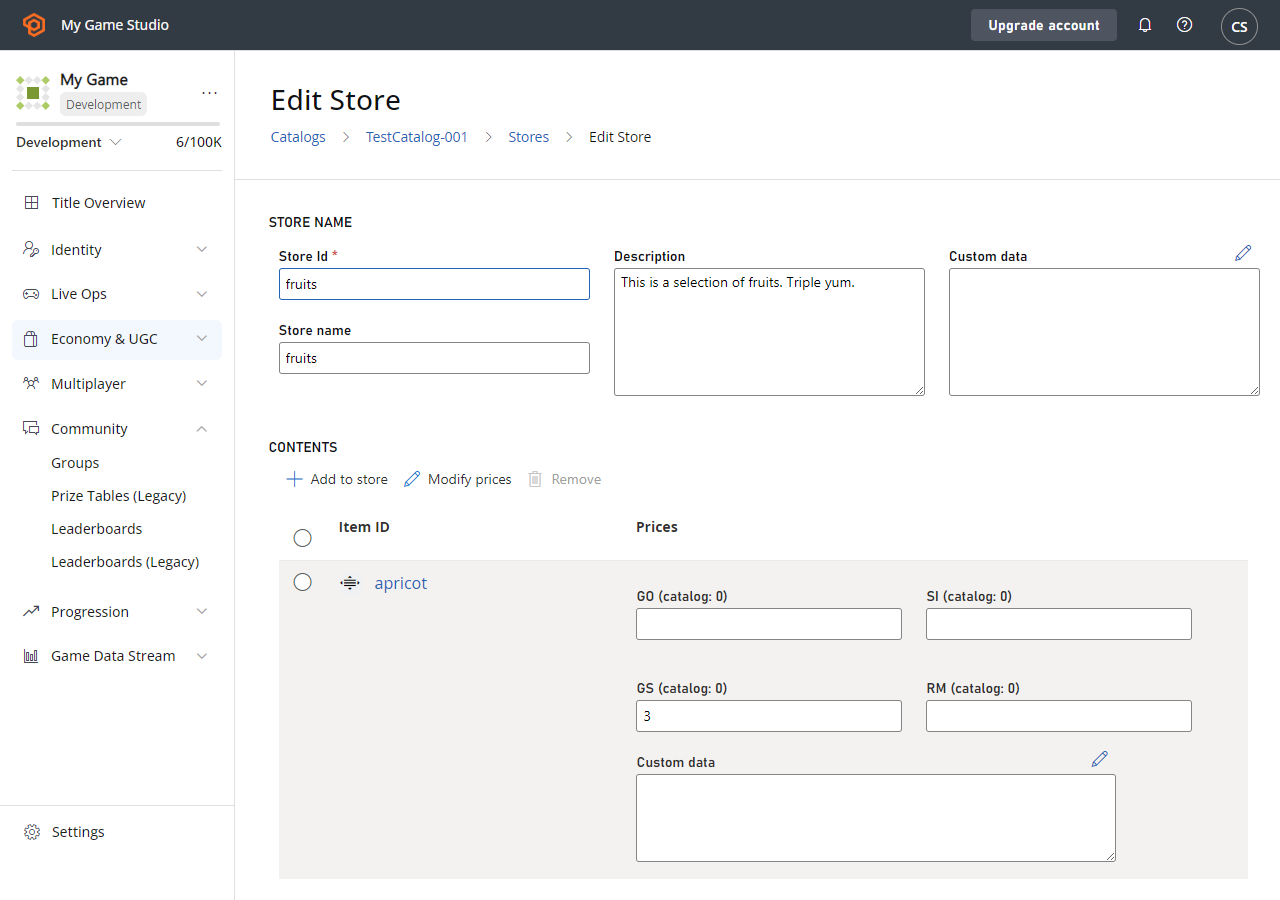
You should now see your items listed in the STORE CONTENTS, but they’re not valid until they have at least one price. The little static number (for example, < 4) next to the price text box is the original catalog price. You only have to enter a price for one box in each row, but you can enter as many prices as you want.- If you don’t enter any price for an item, it will be removed from the store.
- If a store item doesn’t have a price in a currency, it can’t be bought using that currency.
- Store prices can be higher than catalog prices, and zero is a valid price for an item.
- Add some GD prices to your items, but make them lower than the catalog prices:
- Apricot: 3.
- Pear: 2.
- Grape: 1.
- Select SAVE STORE when you’re done.
Purchasing an item from the store
Now that you have a store, let’s use the PlayFab APIs to buy an item from the store in your game.- Get your store by calling GetStoreItems with these parameters in the request:
CatalogVersion = "main"StoreId = "fruits"
- The
Storefield in GetStoreItemsResult should contain a list of your store items and their prices. - Call PurchaseItem with values in the request that specify the currency and store price of the item you want to buy.
CatalogVersion = "main"StoreId = "fruits"ItemId = "pear"VirtualCurrency = "GD"Price = 2
Confirming the purchase price
Open Game Manager, and confirm that the purchase was made at the store price of two GD.- Select Players from the left side bar to open the Players tab.
- Select the ID of the player that purchased the item.
- Check the following information for the player:
- Open the Inventory tab. The inventory should now contain a pear.
- Open the Virtual Currency tab. Check the virtual currency Amount to verify that the player only spent 2 GD.
- Open the PlayStream tab. You’ll see events showing the purchase flow from the store. Events include a Player virtual currency item purchased event, and a Player virtual currency balance changed event showing that the virtual currency balance changed by two GD.