
The Data Explorer feature is in public preview. We anticipate ongoing changes to it as we continue gathering feedback
Authoring custom queries
To begin authoring your own queries in advanced mode, it’s important to first understand the shape of the data you’re accessing.The events.all table
Theevents.all table is the default destination for all incoming events. It’s a single semi-structured table with columns for common values such as time & event name. You’ll quickly become familiar with the EventData column, which contains the full original JSON payload and is useful in almost all queries. You can read the following documentation on the events.all table.
The anatomy of a query
A query expression most commonly begins with the name of the table. This is followed by the pipe delimiter (|). Next comes one or more operators. Each operator is separated by the pipe delimiter.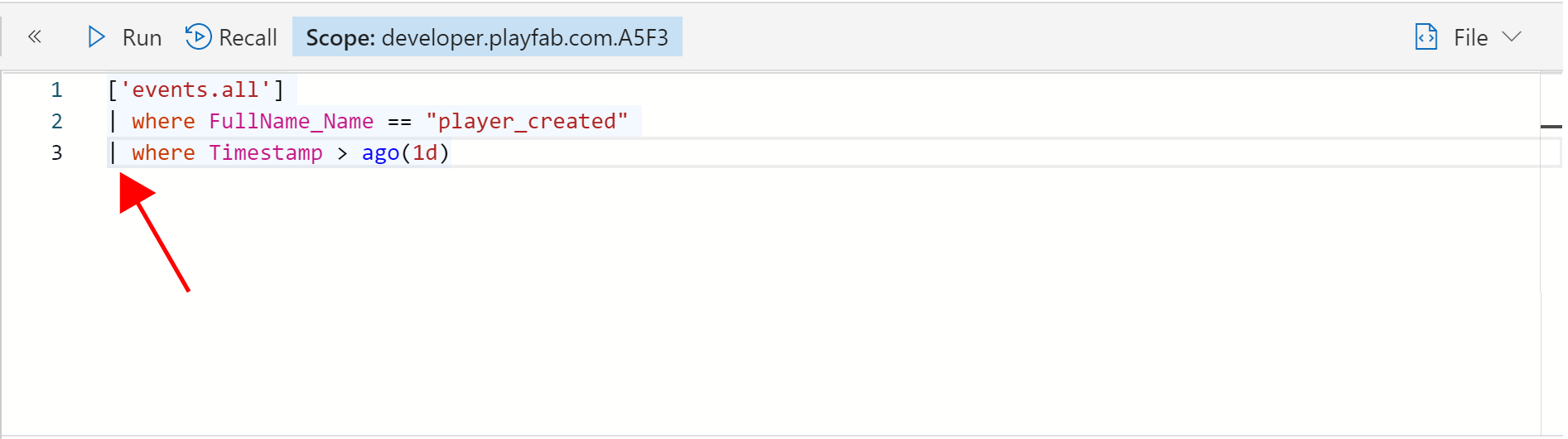
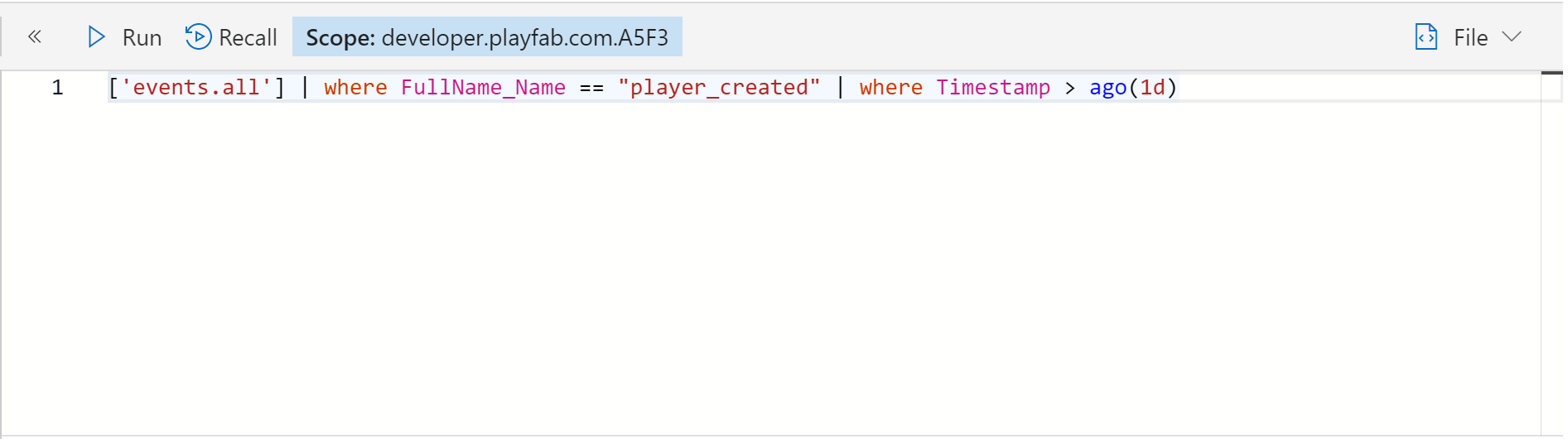
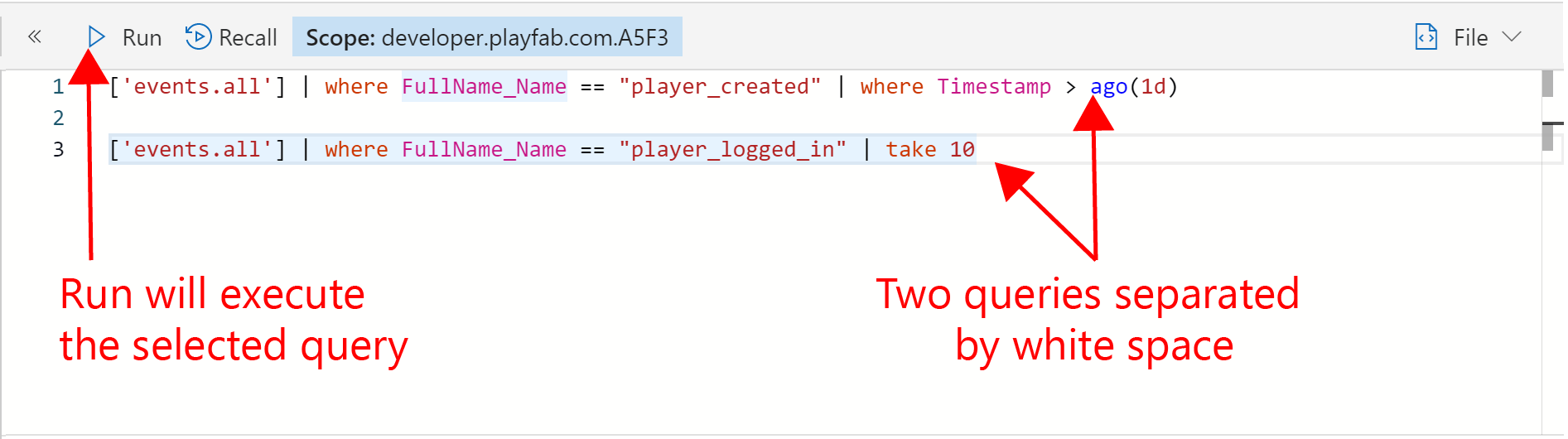
Building Your first query
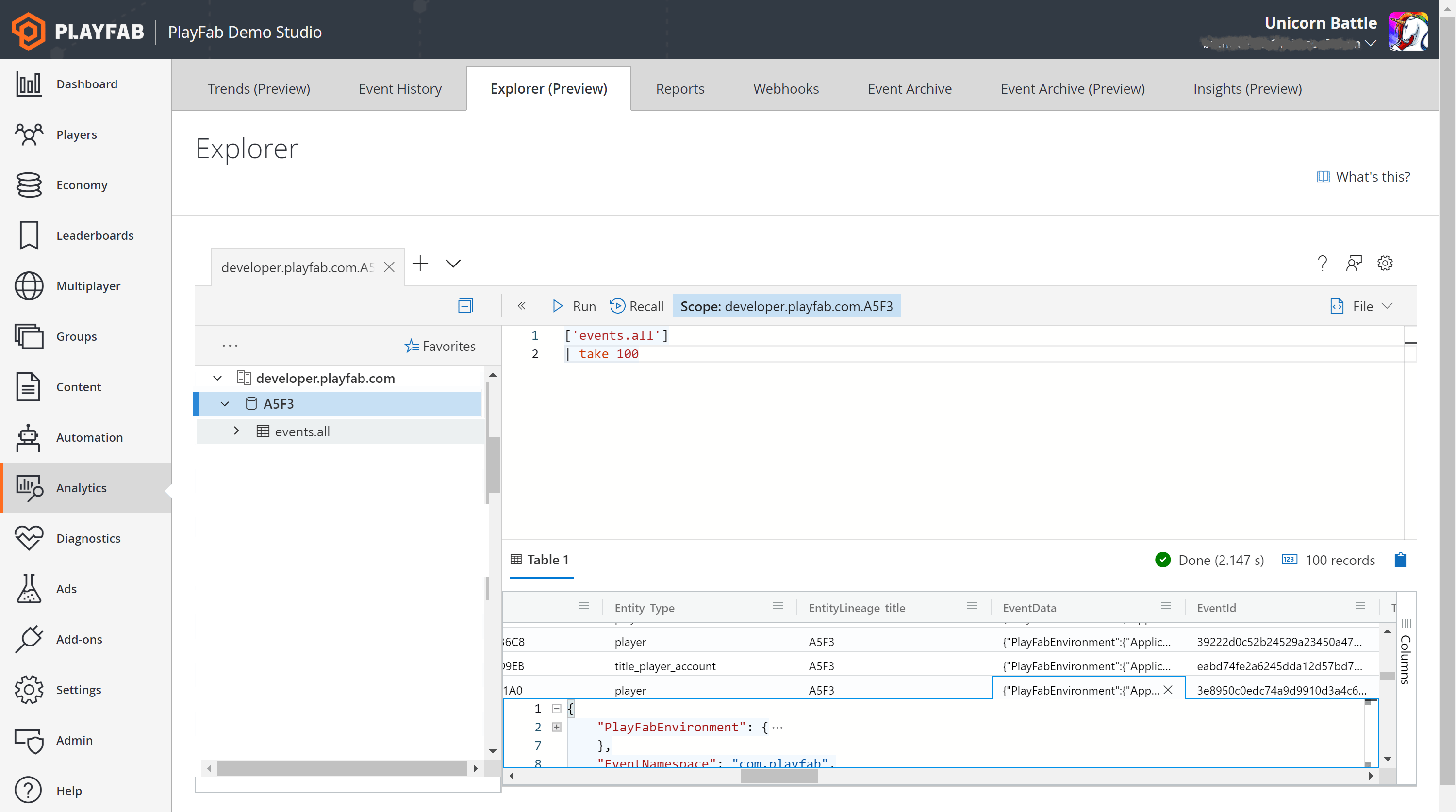
Now let’s author your first query from scratch. You can type the table name into the Query pane. But we’re going to use a little shortcut. Find theevents.all table in the Resources pane. You may have to expand your title ID database by clicking the arrow.
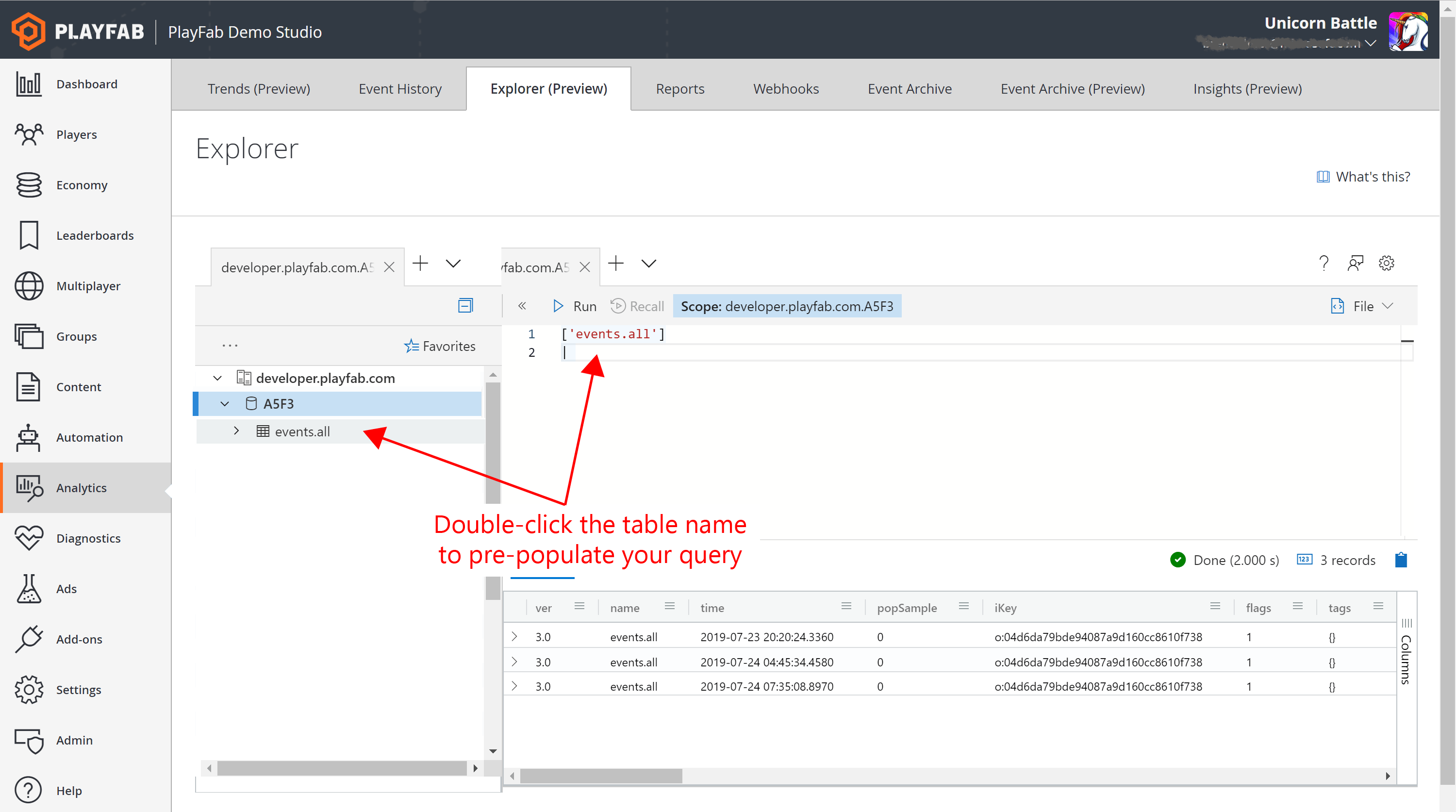
events.all table, double click the table name. You’ll notice this expression has been added to the Query pane.
In Preview, you’ll need to manually add the brackets and single quotes around the table name. A fix for this inconvenience is in progress.
player_logged_in event. Once you’ve found one, right arrow over to the EventData column and double click. You should now see this:
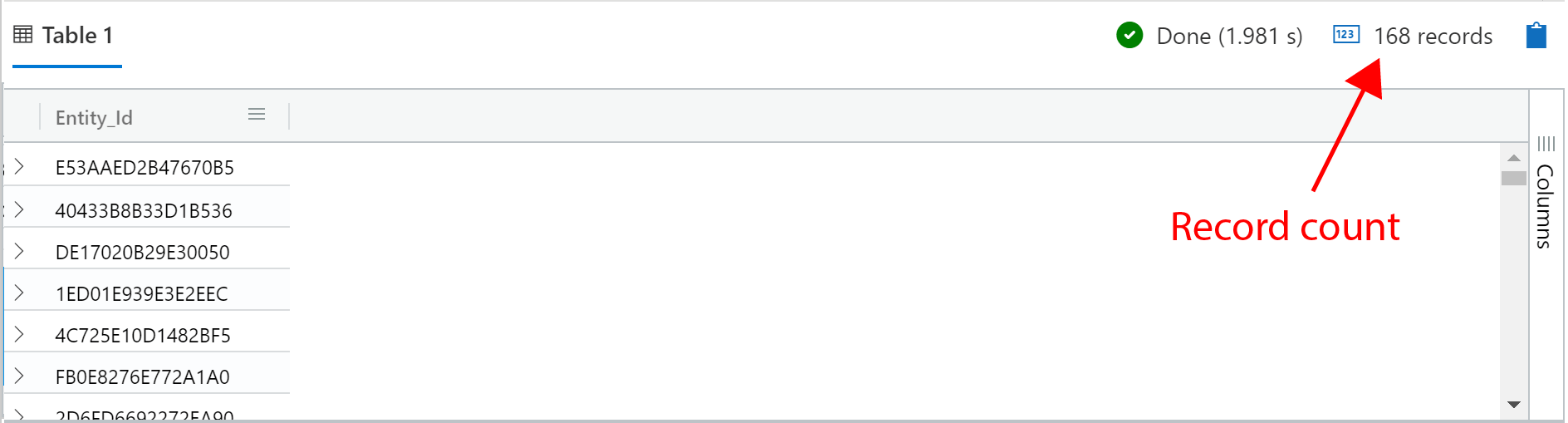
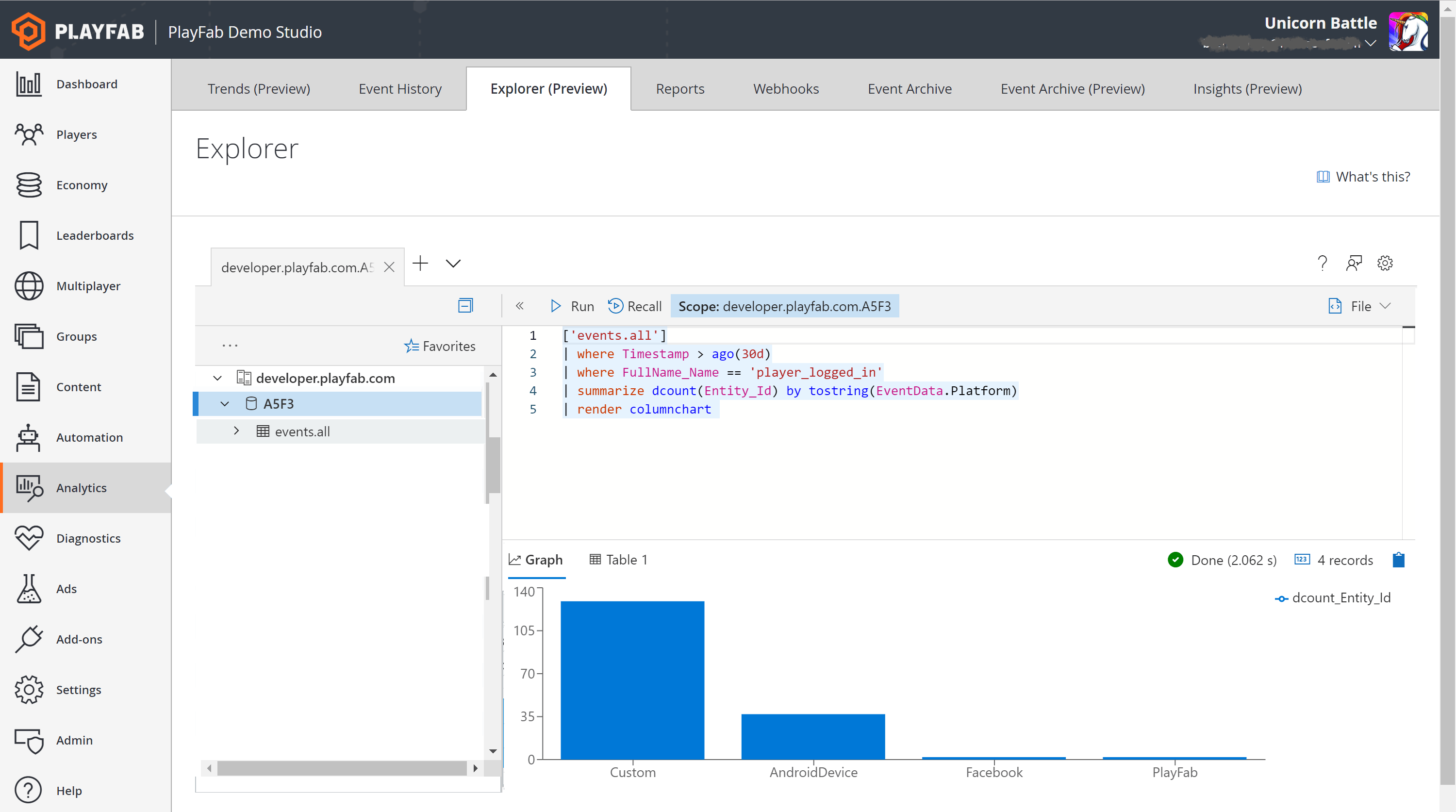
summarize operator. Because summarize does not support dynamic types, we’ll also need to cast platform to a string.
Sample Queries
We’ve only just scratched the surface of the types of queries that can be authored in Explorer. More example queries can be loaded from the Explorer page by pressing “What’s This”. Each of these sample queries is chosen to demonstrate some of the various operators available and how they can be applied to real world questions.Because the shape of your data might vary from our demo data set, you may need to modify the sample query to run for your scenario.
Limits
There are two limits that govern Explorer query usage:- Max query runtime: An individual query isn’t permitted to run longer than 30 seconds. If this limit is exceeded, the query will be terminated and you’ll receive an error message.
- Interval Usage: Each title is permitted a cumulative total runtime of three minutes per any given 10 minute interval. If this limit is exceeded, you’ll receive an error message and will need to wait before running additional queries.