> ## Documentation Index
> Fetch the complete documentation index at: https://devdocs.xbox.com/llms.txt
> Use this file to discover all available pages before exploring further.
# 使用 Visual Studio 偵錯 PC 專案
> 使用 Visual Studio 偵錯 PC 專案
從 2022 年 6 月版的 Microsoft Game Development Kit (GDK) 開始,會使用隨附於 Visual Studio 的原生程式碼偵錯工具來偵錯 PC 遊戲專案。若要在本機電腦上偵錯,請從 Visual Studio 工具列上的偵錯工具下拉式清單中選取 **本機 Windows 偵錯工具**,如下圖所示。
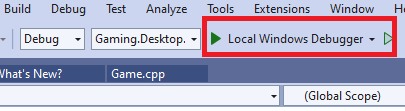 若要在遠端電腦上偵錯,請選取 **遠端 Windows 偵錯工具**,並依照[在遠端電腦上偵錯遊戲](#vs_pc_debug_remote)中所述的步驟操作。
對於使用 2022 年 6 月之前版本 Microsoft Game Development Kit (GDK) 的專案,要使用的偵錯工具名為 Local Machine。2022 年 6 月之前版本的 Microsoft Game Development Kit (GDK) 不支援遠端偵錯。
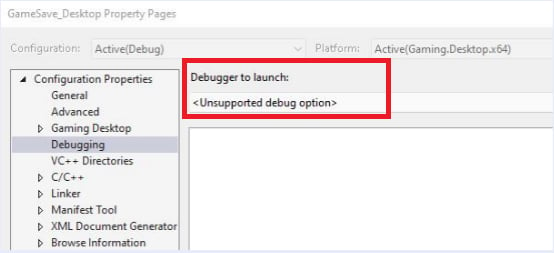
將專案升級至 2022 年 6 月版的 Microsoft Game Development Kit (GDK) 時,在某些情況下偵錯工具屬性可能會設為 **Unsupported debug option**,如下圖所示。如果發生這種情況,必須使用偵錯工具列、專案屬性頁,或將 **DebuggerFlavor** msbuild 屬性設為 **WindowsLocalDebugger**,將偵錯工具屬性重設為 **本機 Windows 偵錯工具** (完全移除 **DebuggerFlavor** 屬性也會導致使用 **本機 Windows 偵錯工具**)。
若要在遠端電腦上偵錯,請選取 **遠端 Windows 偵錯工具**,並依照[在遠端電腦上偵錯遊戲](#vs_pc_debug_remote)中所述的步驟操作。
對於使用 2022 年 6 月之前版本 Microsoft Game Development Kit (GDK) 的專案,要使用的偵錯工具名為 Local Machine。2022 年 6 月之前版本的 Microsoft Game Development Kit (GDK) 不支援遠端偵錯。
將專案升級至 2022 年 6 月版的 Microsoft Game Development Kit (GDK) 時,在某些情況下偵錯工具屬性可能會設為 **Unsupported debug option**,如下圖所示。如果發生這種情況,必須使用偵錯工具列、專案屬性頁,或將 **DebuggerFlavor** msbuild 屬性設為 **WindowsLocalDebugger**,將偵錯工具屬性重設為 **本機 Windows 偵錯工具** (完全移除 **DebuggerFlavor** 屬性也會導致使用 **本機 Windows 偵錯工具**)。
 從 2022 年 6 月版的 Microsoft Game Development Kit (GDK) 開始,PC 專案不再需要部署步驟。Visual Studio **組態管理員** 對話方塊中的 **部署** 核取方塊已停用。
在零售環境中啟動遊戲時,會使用中繼啟動器處理序。此啟動載入器處理序會在遊戲轉譯之前顯示啟動顯示畫面、檢查遊戲更新、預先同步雲端存檔、預先登入使用者等。在鬆散檔案偵錯情境中不會執行這些行為。請使用[封裝組建](#vs_pc_debug_packaged_build)來測試或偵錯遊戲,使其以零售環境中的方式啟動。
## 偵錯封裝組建
偵錯封裝組建之前,必須先使用 [wdapp install](/zh-TW/tools/tools-pc/commandlinetools/gr-wdapp#wdapp_install) 安裝套件。安裝後,即可使用 Visual Studio 中的 **偵錯已安裝的應用程式套件** 功能偵錯遊戲。使用 **偵錯** 功能表開啟偵錯對話方塊,如下圖所示。
從 2022 年 6 月版的 Microsoft Game Development Kit (GDK) 開始,PC 專案不再需要部署步驟。Visual Studio **組態管理員** 對話方塊中的 **部署** 核取方塊已停用。
在零售環境中啟動遊戲時,會使用中繼啟動器處理序。此啟動載入器處理序會在遊戲轉譯之前顯示啟動顯示畫面、檢查遊戲更新、預先同步雲端存檔、預先登入使用者等。在鬆散檔案偵錯情境中不會執行這些行為。請使用[封裝組建](#vs_pc_debug_packaged_build)來測試或偵錯遊戲,使其以零售環境中的方式啟動。
## 偵錯封裝組建
偵錯封裝組建之前,必須先使用 [wdapp install](/zh-TW/tools/tools-pc/commandlinetools/gr-wdapp#wdapp_install) 安裝套件。安裝後,即可使用 Visual Studio 中的 **偵錯已安裝的應用程式套件** 功能偵錯遊戲。使用 **偵錯** 功能表開啟偵錯對話方塊,如下圖所示。
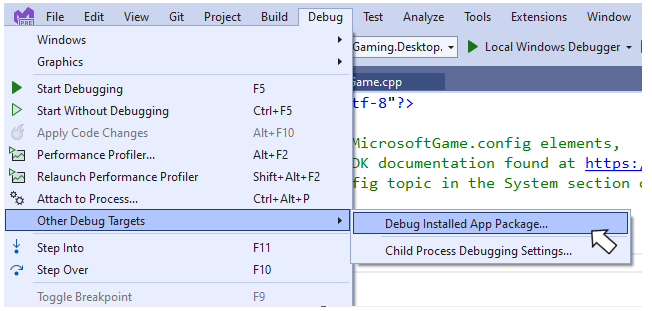 若要偵錯您的遊戲,請在對話方塊中搜尋該遊戲,將 **偵錯此程式碼類型** 設為 *僅限原生*,然後按一下 **開始** 按鈕。
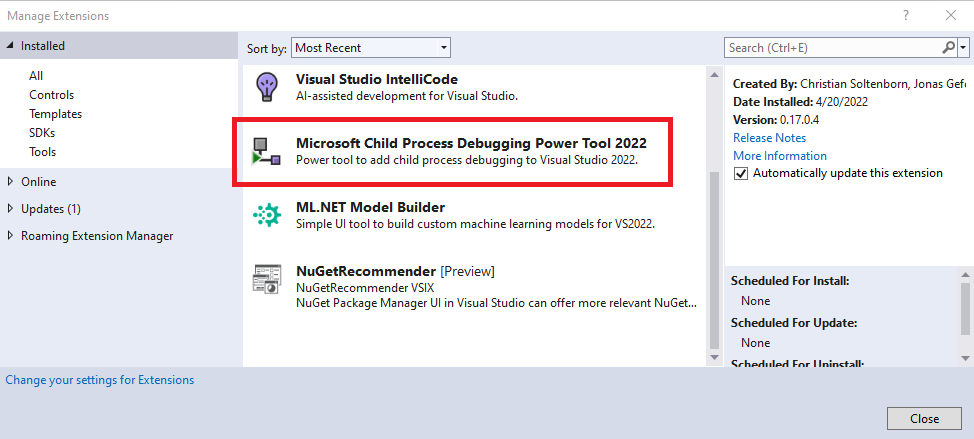
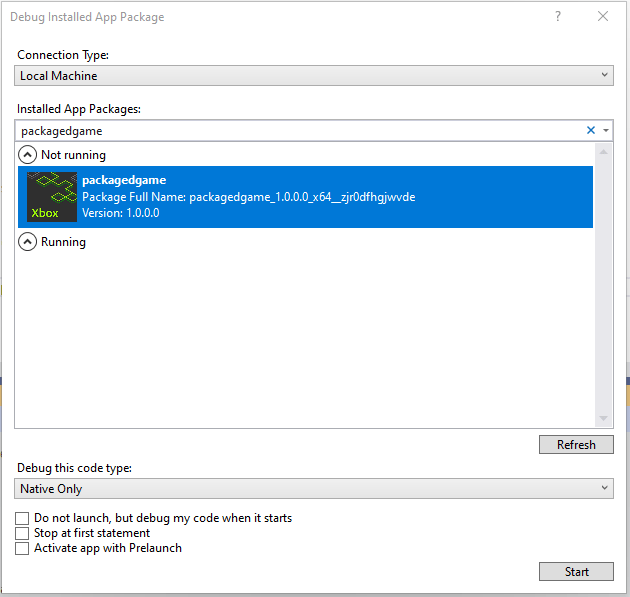 若要以零售環境中的啟動方式偵錯遊戲,請在 [wdapp install](/zh-TW/tools/tools-pc/commandlinetools/gr-wdapp#wdapp_install) 命令列中新增 **/bootstrapper** 旗標。以此方式安裝的遊戲會由啟動載入器處理序啟動。在此情境中偵錯需要 Visual Studio 中的 **Child Process Debugging** 延伸模組。請使用 **管理延伸模組** 對話方塊安裝該延伸模組。
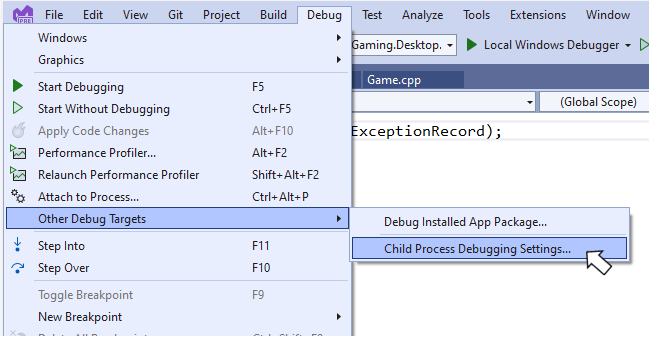
 安裝後,使用 **偵錯** 功能表檢視 **Child Process Debugging** 設定。
 在設定頁面上按一下 **Enable child process debugging** 核取方塊。
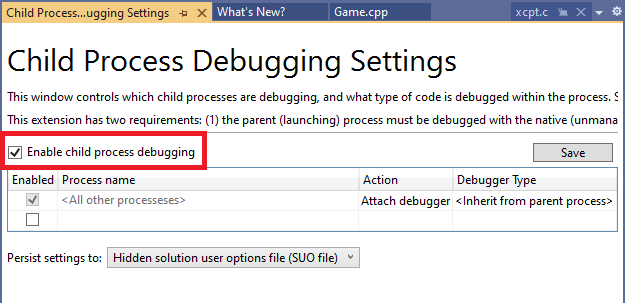 啟用子處理序偵錯後,**偵錯已安裝的應用程式套件** 對話方塊現在會將偵錯工具附加至遊戲,而不是附加至啟動載入器處理序。
## 在遠端電腦上偵錯遊戲
在遠端電腦上偵錯遊戲需要 Visual Studio 遠端工具。請依照[在 Visual Studio 中遠端偵錯 C++ 專案](https://learn.microsoft.com/visualstudio/debugger/remote-debugging-cpp)中的說明安裝工具並設定遠端偵錯工具。
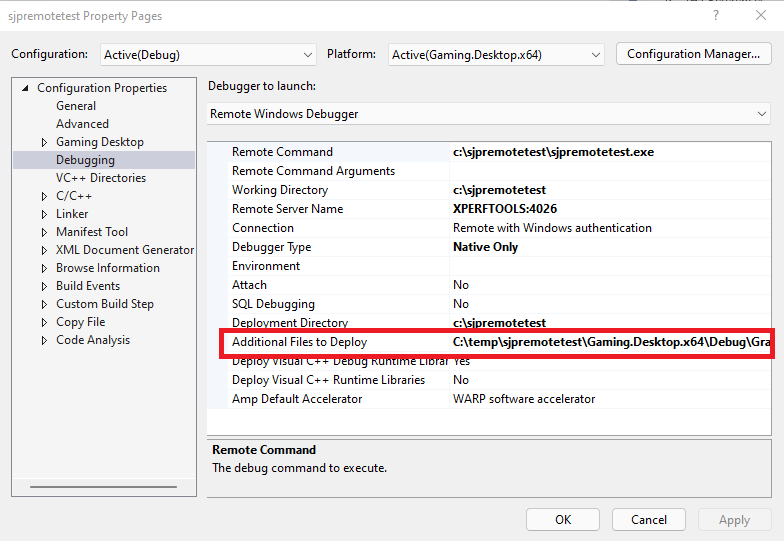
從專案屬性頁上的 **要啟動的偵錯工具** 下拉式清單中選取 **遠端 Windows 偵錯工具**。輸入遊戲可執行檔的名稱、所需的工作目錄等。根據預設,Visual Studio 會部署遊戲的可執行檔與二進位相依性。若要偵錯遠端 Microsoft Game Development Kit (GDK) 遊戲,還需要部署其他檔案,包括 MicrosoftGame.config 檔案與標誌檔案。請使用 **遠端 Windows 偵錯工具** 屬性頁上的 **要部署的其他檔案** 屬性指定要部署的其他檔案,如下圖所示。
啟用子處理序偵錯後,**偵錯已安裝的應用程式套件** 對話方塊現在會將偵錯工具附加至遊戲,而不是附加至啟動載入器處理序。
## 在遠端電腦上偵錯遊戲
在遠端電腦上偵錯遊戲需要 Visual Studio 遠端工具。請依照[在 Visual Studio 中遠端偵錯 C++ 專案](https://learn.microsoft.com/visualstudio/debugger/remote-debugging-cpp)中的說明安裝工具並設定遠端偵錯工具。
從專案屬性頁上的 **要啟動的偵錯工具** 下拉式清單中選取 **遠端 Windows 偵錯工具**。輸入遊戲可執行檔的名稱、所需的工作目錄等。根據預設,Visual Studio 會部署遊戲的可執行檔與二進位相依性。若要偵錯遠端 Microsoft Game Development Kit (GDK) 遊戲,還需要部署其他檔案,包括 MicrosoftGame.config 檔案與標誌檔案。請使用 **遠端 Windows 偵錯工具** 屬性頁上的 **要部署的其他檔案** 屬性指定要部署的其他檔案,如下圖所示。
 ## 另請參閱
[Visual Studio](/zh-TW/tools/tools-pc/visualstudio/gr-visualstudio-toc)
## Related topics
- [Visual Studio](/zh-TW/tools/tools-pc/visualstudio/index.md)
- [Visual Studio (內容)](/zh-TW/tools/tools-pc/visualstudio/gr-visualstudio-toc.md)
- [使用 Visual Studio 偵錯 XBOX 專案](/zh-TW/tools/tools-console/visualstudio/debugging-with-visualstudio.md)
- [在 Visual Studio 中偵錯遠端 Windows 裝置上的 PC 專案](/zh-TW/tools/tools-pc/visualstudio/gr-vs-debugging-with-visualstudio-remote-windows.md)
- [Visual Studio 2022 GDK 支援注意事項](/zh-TW/tools/tools-console/visualstudio/vs-2022-support-notes.md)
## 另請參閱
[Visual Studio](/zh-TW/tools/tools-pc/visualstudio/gr-visualstudio-toc)
## Related topics
- [Visual Studio](/zh-TW/tools/tools-pc/visualstudio/index.md)
- [Visual Studio (內容)](/zh-TW/tools/tools-pc/visualstudio/gr-visualstudio-toc.md)
- [使用 Visual Studio 偵錯 XBOX 專案](/zh-TW/tools/tools-console/visualstudio/debugging-with-visualstudio.md)
- [在 Visual Studio 中偵錯遠端 Windows 裝置上的 PC 專案](/zh-TW/tools/tools-pc/visualstudio/gr-vs-debugging-with-visualstudio-remote-windows.md)
- [Visual Studio 2022 GDK 支援注意事項](/zh-TW/tools/tools-console/visualstudio/vs-2022-support-notes.md)