> ## Documentation Index
> Fetch the complete documentation index at: https://devdocs.xbox.com/llms.txt
> Use this file to discover all available pages before exploring further.
# XBOX Manager:管理主機自動化
> XBOX Manager:管理主機自動化
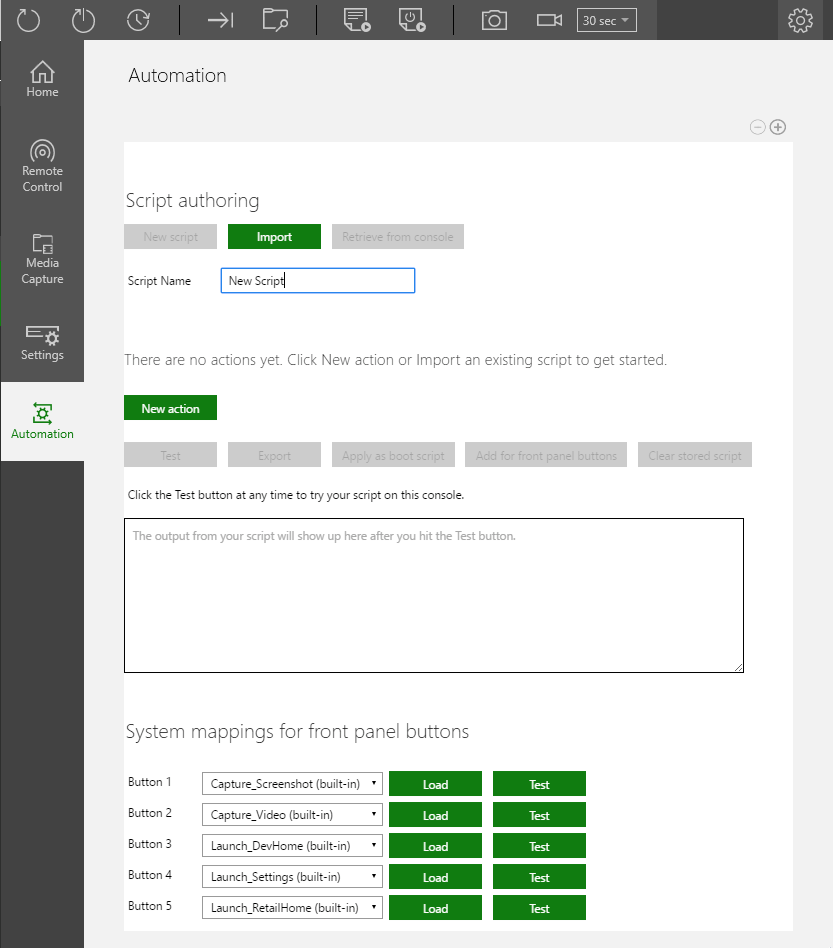
XBOX Manager 中的自動化索引標籤 (如下列螢幕擷取畫面所示) 裝載用於自動指令碼 (以及 XBOX One X 開發套件與前面板指令碼) 的 [XBOX Device Portal (XBOX 上的 Windows Device Portal)](/zh-TW/tools/tools-console/wdp/wdp) UI。連線至具有前面板顯示器的開發套件時,可在自動化頁面上使用該顯示器進行遠端測試與控制。只有在主機上啟用 [XBOX Device Portal](/zh-TW/tools/tools-console/wdp/wdp) 時,才能使用自動化索引標籤。
 ## 建立新指令碼
1. 選取 **New script** (如下所示)。
## 建立新指令碼
1. 選取 **New script** (如下所示)。 2. 輸入新的指令碼名稱。預設名稱為 **New Script**。
3. 將新動作新增至指令碼。選取 **New action** (如下所示)。
2. 輸入新的指令碼名稱。預設名稱為 **New Script**。
3. 將新動作新增至指令碼。選取 **New action** (如下所示)。
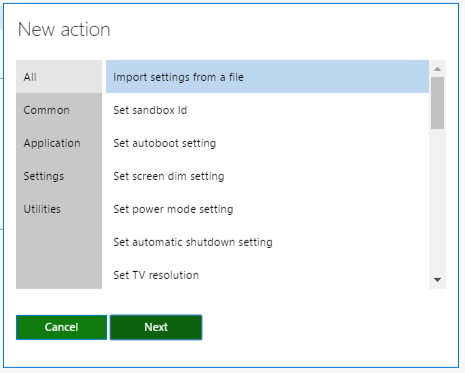
 1. 從出現的 **New action** 視窗 (如下所示) 選取指令碼的動作,然後選取 **Next**。
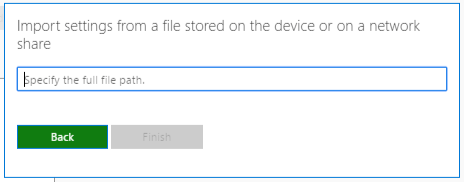
 1. 設定動作的任何參數 (如下所示)。
 1. 重複步驟 3 到 5,將更多動作新增至指令碼。
2. 您也可以選擇將指令碼設定為在啟動時執行,請選取 **Apply as boot script** (如下所示)。
1. 重複步驟 3 到 5,將更多動作新增至指令碼。
2. 您也可以選擇將指令碼設定為在啟動時執行,請選取 **Apply as boot script** (如下所示)。
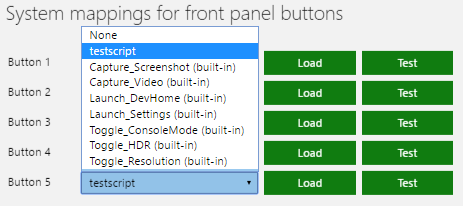
 1. 您也可以選擇將指令碼套用至其中一個前面板按鈕,請按一下 **Add for front panel buttons** (如下所示),然後在 **System mappings for front panel buttons** 區段中選取指令碼 (如下所示)。

 ## Related topics
- [用於管理開發主機的 XBOX Manager 工具](/zh-TW/tools/tools-console/xbom/index.md)
- [XBOX Manager:管理主機設定](/zh-TW/tools/tools-console/xbom/manager-tool-console-settings.md)
- [XBOX Manager:管理主機與群組](/zh-TW/tools/tools-console/xbom/manager-tool-groups.md)
- [XBOX Manager](/zh-TW/tools/tools-console/xbom/xbom.md)
- [指令碼撰寫工具](/zh-TW/tools/tools-console/wdp/script-authoring-tool.md)
## Related topics
- [用於管理開發主機的 XBOX Manager 工具](/zh-TW/tools/tools-console/xbom/index.md)
- [XBOX Manager:管理主機設定](/zh-TW/tools/tools-console/xbom/manager-tool-console-settings.md)
- [XBOX Manager:管理主機與群組](/zh-TW/tools/tools-console/xbom/manager-tool-groups.md)
- [XBOX Manager](/zh-TW/tools/tools-console/xbom/xbom.md)
- [指令碼撰寫工具](/zh-TW/tools/tools-console/wdp/script-authoring-tool.md)