> ## Documentation Index
> Fetch the complete documentation index at: https://devdocs.xbox.com/llms.txt
> Use this file to discover all available pages before exploring further.
# 管理覆疊資料夾
> 管理覆疊資料夾
XBOX Device Portal 首頁的我的遊戲與應用程式窗格會顯示主機上已安裝的遊戲與應用程式,如下列螢幕擷取畫面所示。使用此窗格為您的遊戲設定覆疊資料夾。
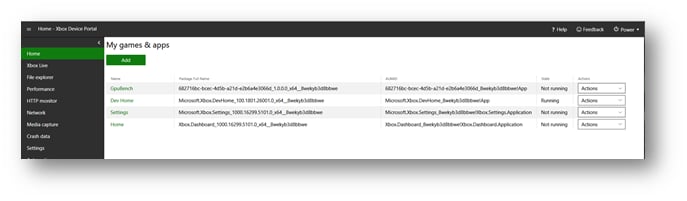 若要為您的遊戲設定覆疊資料夾,請使用下列步驟。
1. 在 **My games & apps** 窗格中,選取您的遊戲名稱。您的遊戲的 **View Details** 對話方塊隨即出現。
2. 在 **Overlay Folder** 方塊中,輸入您要為遊戲使用的覆疊資料夾路徑,如下列螢幕擷取畫面所示。
若要為您的遊戲設定覆疊資料夾,請使用下列步驟。
1. 在 **My games & apps** 窗格中,選取您的遊戲名稱。您的遊戲的 **View Details** 對話方塊隨即出現。
2. 在 **Overlay Folder** 方塊中,輸入您要為遊戲使用的覆疊資料夾路徑,如下列螢幕擷取畫面所示。
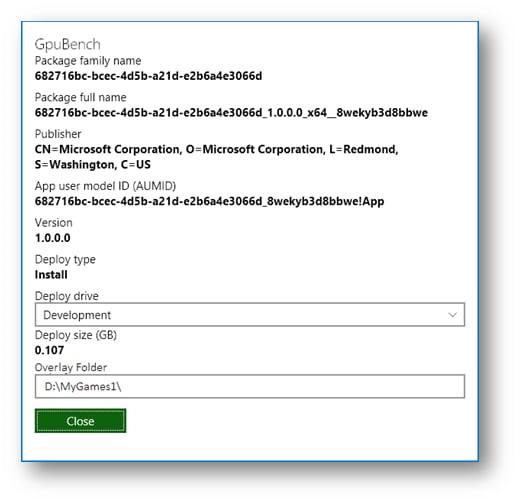 1. 選取 **Close**。
## Related topics
- [管理覆疊資料夾](/zh-TW/tools/tools-console/devhome/devhome-overlay-folders.md)
- [首頁 (Dev Home)](/zh-TW/tools/tools-console/devhome/devhome-home.md)
- [首頁](/zh-TW/tools/tools-console/wdp/windows-device-portal-on-xbox-home.md)
- [XBOX Device Portal (XBOX 上的 Windows Device Portal)](/zh-TW/tools/tools-console/wdp/wdp.md)
- [XBOX 開發套件上的開發人員首頁 (DevHome)](/zh-TW/tools/tools-console/devhome/index.md)
1. 選取 **Close**。
## Related topics
- [管理覆疊資料夾](/zh-TW/tools/tools-console/devhome/devhome-overlay-folders.md)
- [首頁 (Dev Home)](/zh-TW/tools/tools-console/devhome/devhome-home.md)
- [首頁](/zh-TW/tools/tools-console/wdp/windows-device-portal-on-xbox-home.md)
- [XBOX Device Portal (XBOX 上的 Windows Device Portal)](/zh-TW/tools/tools-console/wdp/wdp.md)
- [XBOX 開發套件上的開發人員首頁 (DevHome)](/zh-TW/tools/tools-console/devhome/index.md)