> ## Documentation Index
> Fetch the complete documentation index at: https://devdocs.xbox.com/llms.txt
> Use this file to discover all available pages before exploring further.
# 啟用 XBOX Device Portal
> 啟用 XBOX Device Portal
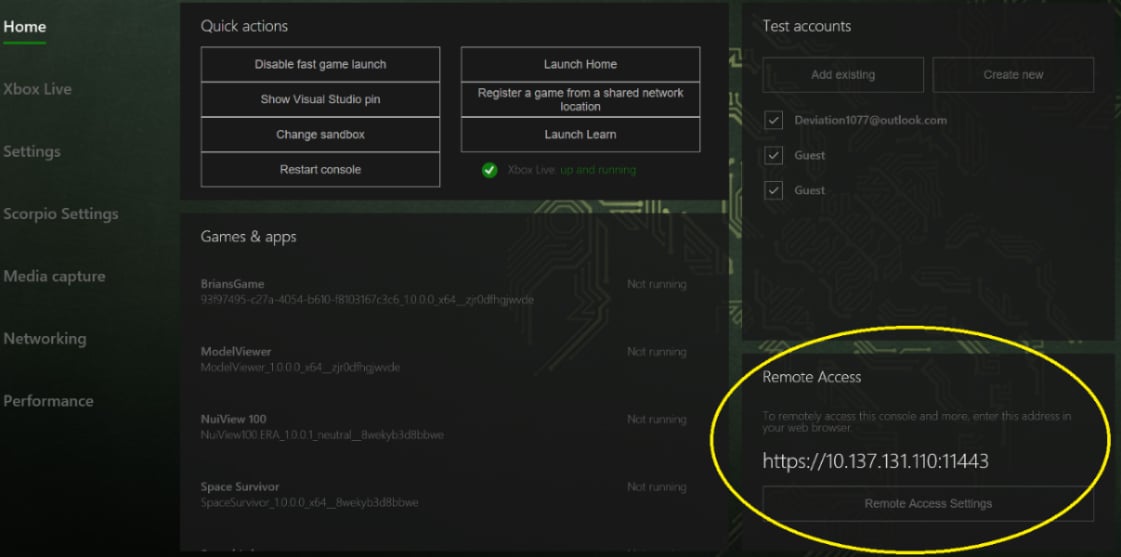
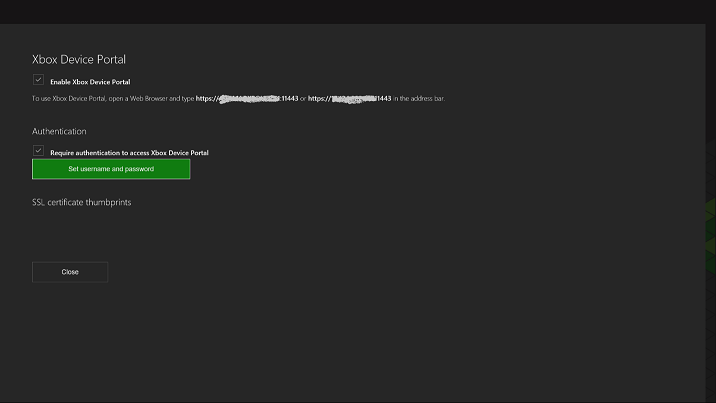
若要在 XBOX One 主機上啟用或停用 XBOX Device Portal,請選取 Developer Home (Dev Home) 中 **Home** 畫面上 **Remote Access** 索引標籤中的 **Remote Access Settings** 按鈕,如下列螢幕擷取畫面所示。
 ## 連線至 XBOX Device Portal
1. 在主機上開啟 Developer Home (Dev Home)。
2. 在 **Home** 畫面上,找到 **Remote Access** 窗格。它會顯示 XBOX Device Portal 要使用的 IP 位址與連接埠。
3. 在開發電腦的網頁瀏覽器中,前往 `https://:`。預設連接埠為 11443。請在位址中包含 `https://`。
如果頁面未載入:
* 確認已在 **Remote Access Settings** 中啟用 XBOX Device Portal。
* 確認您使用的是 **Remote Access** 窗格中顯示的 IP 位址與連接埠。
## 憑證警告
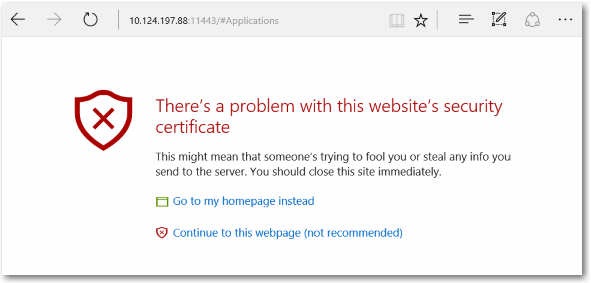
當您從網頁瀏覽器連線至 XBOX Device Portal 時,會出現有關所提供憑證的警告訊息 (類似下列螢幕擷取畫面)。這是因為由您的 XBOX 開發套件簽署的安全性憑證不被視為知名的受信任發行者。若要存取 XBOX Device Portal,請選取 **Continue to this webpage**。
## 連線至 XBOX Device Portal
1. 在主機上開啟 Developer Home (Dev Home)。
2. 在 **Home** 畫面上,找到 **Remote Access** 窗格。它會顯示 XBOX Device Portal 要使用的 IP 位址與連接埠。
3. 在開發電腦的網頁瀏覽器中,前往 `https://:`。預設連接埠為 11443。請在位址中包含 `https://`。
如果頁面未載入:
* 確認已在 **Remote Access Settings** 中啟用 XBOX Device Portal。
* 確認您使用的是 **Remote Access** 窗格中顯示的 IP 位址與連接埠。
## 憑證警告
當您從網頁瀏覽器連線至 XBOX Device Portal 時,會出現有關所提供憑證的警告訊息 (類似下列螢幕擷取畫面)。這是因為由您的 XBOX 開發套件簽署的安全性憑證不被視為知名的受信任發行者。若要存取 XBOX Device Portal,請選取 **Continue to this webpage**。
 ## 使用自訂 SSL 憑證
若要避免在連線至 XBOX Device Portal 時出現此警告訊息,請將網頁瀏覽器設定為信任您的開發套件。方法是提供您自己的根憑證授權單位 (*根 CA*) 與 SSL 憑證。根 CA 會簽署憑證以建立受信任的連線。每個開發套件都需要由根 CA 簽署的唯一憑證。使用一個根 CA 搭配多個憑證,即可將同一台開發電腦連線至多個開發套件。在多台開發電腦上使用相同的根 CA,即可使用相同的憑證連線至相同的開發套件。
### 佈建 XBOX Device Portal
1. 如果您或您的組織有根 CA,請使用它為每個開發套件建立憑證。
2. 如果您沒有根 CA,則必須自行建立。如需如何建立根 CA 並將其安裝至開發電腦之受信任的根憑證授權單位的指示,請參閱[使用自訂 SSL 憑證佈建 Device Portal](https://learn.microsoft.com/windows/uwp/debug-test-perf/device-portal-ssl)。
3. 使用根 CA 為開發套件建立已簽署的憑證。如需如何執行此操作的資訊,請參閱前述連結。
4. 在自動安裝指令碼中使用 **Add XBOX Device Portal custom certificate** 動作,將憑證新增至 XBOX Device Portal。
## Related topics
- [XBOX Device Portal (XBOX 上的 Windows Device Portal)](/zh-TW/tools/tools-console/wdp/index.md)
- [使用 XBOX Device Portal 管理主機設定](/zh-TW/tools/tools-console/wdp/windows-device-portal-on-xbox-settings.md)
- [網路頁面](/zh-TW/tools/tools-console/devhome/devhome-networking.md)
- [XBOX Manager:管理主機設定](/zh-TW/tools/tools-console/xbom/manager-tool-console-settings.md)
- [XBOX Manager:管理主機自動化](/zh-TW/tools/tools-console/xbom/manager-tool-automation.md)
## 使用自訂 SSL 憑證
若要避免在連線至 XBOX Device Portal 時出現此警告訊息,請將網頁瀏覽器設定為信任您的開發套件。方法是提供您自己的根憑證授權單位 (*根 CA*) 與 SSL 憑證。根 CA 會簽署憑證以建立受信任的連線。每個開發套件都需要由根 CA 簽署的唯一憑證。使用一個根 CA 搭配多個憑證,即可將同一台開發電腦連線至多個開發套件。在多台開發電腦上使用相同的根 CA,即可使用相同的憑證連線至相同的開發套件。
### 佈建 XBOX Device Portal
1. 如果您或您的組織有根 CA,請使用它為每個開發套件建立憑證。
2. 如果您沒有根 CA,則必須自行建立。如需如何建立根 CA 並將其安裝至開發電腦之受信任的根憑證授權單位的指示,請參閱[使用自訂 SSL 憑證佈建 Device Portal](https://learn.microsoft.com/windows/uwp/debug-test-perf/device-portal-ssl)。
3. 使用根 CA 為開發套件建立已簽署的憑證。如需如何執行此操作的資訊,請參閱前述連結。
4. 在自動安裝指令碼中使用 **Add XBOX Device Portal custom certificate** 動作,將憑證新增至 XBOX Device Portal。
## Related topics
- [XBOX Device Portal (XBOX 上的 Windows Device Portal)](/zh-TW/tools/tools-console/wdp/index.md)
- [使用 XBOX Device Portal 管理主機設定](/zh-TW/tools/tools-console/wdp/windows-device-portal-on-xbox-settings.md)
- [網路頁面](/zh-TW/tools/tools-console/devhome/devhome-networking.md)
- [XBOX Manager:管理主機設定](/zh-TW/tools/tools-console/xbom/manager-tool-console-settings.md)
- [XBOX Manager:管理主機自動化](/zh-TW/tools/tools-console/xbom/manager-tool-automation.md)