> ## Documentation Index
> Fetch the complete documentation index at: https://devdocs.xbox.com/llms.txt
> Use this file to discover all available pages before exploring further.
# Visual Studio 2019 GDK 支援注意事項
> Visual Studio 2019 Microsoft Game Development Kit (GDK) 支援注意事項
本文說明 Microsoft Game Development Kit (GDK) 對 Visual Studio 2019 的支援。Visual Studio 2019 [16.11 版](https://learn.microsoft.com/visualstudio/releases/2019/servicing-vs2019)支援 GDK 開發。
Visual Studio 2019 16.0 到 16.10 版已於 2022 年 10 月終止支援。16.11 版也已結束主流支援。
## 安裝 Visual Studio 2019
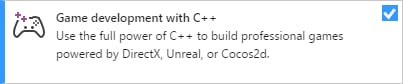
GDK 支援使用 Visual Studio 2019 的 **Professional** 版或 **Enterprise** 版進行開發。不支援 Community 版。安裝 Visual Studio 2019 時,請在安裝期間選取 **使用 C++ 的遊戲開發** 工作負載,如下列螢幕擷取畫面所示。
 除了遊戲開發所需的核心 C++ 工具之外,請確定已安裝 **Windows 10 SDK (22000)** 元件,以提供使用 GDK 建置遊戲所需的 Windows SDK。也可以使用 *Windows SDK for Windows 11, Version 22H2* (10.0.22621) 或 *Windows SDK for Windows 11, Version 24H2* (10.0.26100),但並非必要。
雖然並非必要,但安裝 **使用 C++ 的桌面開發** 工作負載可提供您可能覺得有用的其他工具與範例。
MSVC 建置工具的 **v142** 版本會隨使用 C++ 的遊戲開發工作負載一起安裝。
> 自 2024 年 10 月版本起,不再支援 Visual Studio 2017 `v141` 工具組。
### clang/LLVM for Windows (ClangCl) 專案支援
Visual Studio 2019 也支援 clang/LLVM for Windows 開發。此支援需要安裝 **C++ Clang-cl for Windows** 與 **C++ Clang-cl for v142 build tools (x64/x86)** 這兩個個別元件。
如需詳細資訊,請參閱 [Microsoft Game Development Kit (GDK)](/zh-TW/tools/tools-console/visualstudio/vs-clang) Clang 文章與 [Microsoft Docs](https://learn.microsoft.com/cpp/build/clang-support-msbuild)。
### Build Tools 版本
依照[建置時安裝/不安裝的指示](/zh-TW/build/console-features/build-without-install/withoutinstall-overview),使用 **Build Tools for Visual Studio 2019** 搭配 Microsoft GDK 標頭、程式庫與工具進行建置。
* 使用 *使用 C++ 的桌面開發* 工作負載,它會安裝適用於 PlatformToolset `v142` 的 Visual C++ 編譯器。您也可以依照本文稍早的指示選取支援 `ClangCl` 的元件。
* 安裝 Windows SDK,或以 [NuGet](https://www.nuget.org/packages/Microsoft.Windows.SDK.CPP.x64/) 套件的形式使用它。
> Build Tools 版本不支援延伸模組,因此您無法為 Build 版本安裝 Microsoft GDK 的 VSIX 套件。此限制表示它不支援部署或偵錯,但您可以使用命令列工具。
## 將現有的 Visual Studio 2017 專案移轉至 Visual Studio 2019
在大多數情況下,Visual Studio 隨附的升級精靈可以將您的專案移轉至 Visual Studio 2019,而不需要任何其他變更。當您在 Visual Studio 2019 中開啟 Visual Studio 2017 專案時,會看到下列 **檢閱方案動作** 對話方塊,提示您進行升級。若要升級專案,請選取 **確定**。
除了遊戲開發所需的核心 C++ 工具之外,請確定已安裝 **Windows 10 SDK (22000)** 元件,以提供使用 GDK 建置遊戲所需的 Windows SDK。也可以使用 *Windows SDK for Windows 11, Version 22H2* (10.0.22621) 或 *Windows SDK for Windows 11, Version 24H2* (10.0.26100),但並非必要。
雖然並非必要,但安裝 **使用 C++ 的桌面開發** 工作負載可提供您可能覺得有用的其他工具與範例。
MSVC 建置工具的 **v142** 版本會隨使用 C++ 的遊戲開發工作負載一起安裝。
> 自 2024 年 10 月版本起,不再支援 Visual Studio 2017 `v141` 工具組。
### clang/LLVM for Windows (ClangCl) 專案支援
Visual Studio 2019 也支援 clang/LLVM for Windows 開發。此支援需要安裝 **C++ Clang-cl for Windows** 與 **C++ Clang-cl for v142 build tools (x64/x86)** 這兩個個別元件。
如需詳細資訊,請參閱 [Microsoft Game Development Kit (GDK)](/zh-TW/tools/tools-console/visualstudio/vs-clang) Clang 文章與 [Microsoft Docs](https://learn.microsoft.com/cpp/build/clang-support-msbuild)。
### Build Tools 版本
依照[建置時安裝/不安裝的指示](/zh-TW/build/console-features/build-without-install/withoutinstall-overview),使用 **Build Tools for Visual Studio 2019** 搭配 Microsoft GDK 標頭、程式庫與工具進行建置。
* 使用 *使用 C++ 的桌面開發* 工作負載,它會安裝適用於 PlatformToolset `v142` 的 Visual C++ 編譯器。您也可以依照本文稍早的指示選取支援 `ClangCl` 的元件。
* 安裝 Windows SDK,或以 [NuGet](https://www.nuget.org/packages/Microsoft.Windows.SDK.CPP.x64/) 套件的形式使用它。
> Build Tools 版本不支援延伸模組,因此您無法為 Build 版本安裝 Microsoft GDK 的 VSIX 套件。此限制表示它不支援部署或偵錯,但您可以使用命令列工具。
## 將現有的 Visual Studio 2017 專案移轉至 Visual Studio 2019
在大多數情況下,Visual Studio 隨附的升級精靈可以將您的專案移轉至 Visual Studio 2019,而不需要任何其他變更。當您在 Visual Studio 2019 中開啟 Visual Studio 2017 專案時,會看到下列 **檢閱方案動作** 對話方塊,提示您進行升級。若要升級專案,請選取 **確定**。
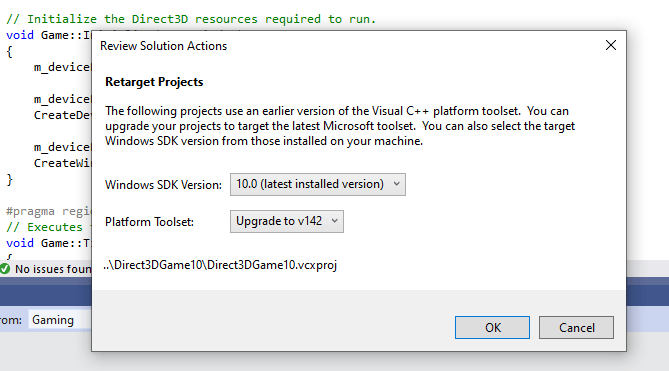 您也可以選擇使用 Visual Studio 2019 IDE 而不升級建置工具。若要這麼做,請在 **檢閱方案動作** 對話方塊中選取 **取消**。
### 手動將專案升級至 Visual Studio 2019
如果您想要直接編輯專案檔 (.vcxproj) 來升級專案,請進行下列變更。
1. 將所有 `PlatformToolset` 執行個體從 `v141` 變更為 `v142`。下列範例顯示如何進行此變更。
```xml theme={null}
v141
...
v142
```
1. 重建專案。
## 使用特定版本
根據預設,Visual Studio 安裝程式一律會下載最新版本。在企業環境中,您可以使用離線配置來控制特定版本。如需詳細資訊,請參閱[控制 Visual Studio 部署的更新](https://learn.microsoft.com/visualstudio/install/controlling-updates-to-visual-studio-deployments)。該文章也提供有關移除 **VS 通知** 圖示的資訊。
從 [Visual Studio 2019 版本](https://learn.microsoft.com/visualstudio/releases/2019/history)下載特定版本的 Visual Studio 2019。
## 已知問題
* 使用 `/fp:fast` 建置時,DirectXMath `*IsNan` 函式在 Visual Studio 2019 中可能會失敗。修正方式是使用 Visual Studio 2019 (16.3 或更新版本)。否則,您可以在使用這些函式的位置周圍放置 `#pragma float_control` 陳述式來因應此問題。
* GDK 開發僅支援 64 位元原生編譯器工具組。在 Visual C++ `vcxproj` 中,請在 globals 屬性中設定此工具組:
```xml theme={null}
x64
```
* 在早於 v11 的 clang/LLVM for Windows 版本中,先行編譯標頭有已知問題。視您的 PCH 與 C++ 範本使用方式而定,您可能需要新增 `-fno-pch-instantiate-templates` 才能成功建置。
* [透過 Microsoft Update 提供的 .NET Core 2.1 更新](https://devblogs.microsoft.com/dotnet/net-core-updates-coming-to-microsoft-update/)可能會封鎖 GDK 安裝。如需此問題的詳細資訊,請參閱 [.NET Core 2.1 終止支援通知](https://devblogs.microsoft.com/dotnet/net-core-2-1-will-reach-end-of-support-on-august-21-2021/)。若要解決此問題:
* 執行 Visual Studio 安裝程式
* 選取 Visual Studio 2019 的 **修改** 按鈕
* 選取 **個別元件** 索引標籤,並移除 [.NET Core 2.1 Runtime (LTS) 元件](https://learn.microsoft.com/visualstudio/install/workload-component-id-vs-enterprise)
* 重試解除安裝並重新安裝 GDK
## 回報錯誤
**Visual C++ 編譯器**的錯誤請 (盡可能) 透過 Visual Studio 的 *回報問題...* 進行回報。請參閱 [Microsoft Docs](https://learn.microsoft.com/visualstudio/ide/how-to-report-a-problem-with-visual-studio) 與[開發人員社群](https://aka.ms/feedback/report?space=62)網站。如需為編譯器建立良好錯誤報告的詳細資訊,請參閱[此頁面](https://aka.ms/compilerbug)。
如果需要其他 NDA 資訊才能重現問題,您可以在公開報告問題中新增標示為「僅限 Microsoft」的註解。
若要回報 **clang/LLVM for Windows 編譯器**的錯誤,請使用 [https://bugs.llvm.org/](https://bugs.llvm.org/)
若要回報 **Microsoft 標準 C++ 程式庫** (又稱 STL) 的錯誤,請使用 [https://github.com/microsoft/STL/issues](https://github.com/microsoft/STL/issues)
一如往常,對於需要提報的重大問題,歡迎與您的 \_Microsoft 代表\_聯絡。
## 另請參閱
[Visual Studio](/zh-TW/tools/tools-console/visualstudio/visualstudio) [Visual Studio 產品生命週期與服務](https://learn.microsoft.com/visualstudio/releases/2019/servicing-vs2019)
## Related topics
- [Visual Studio 2019 支援注意事項](/zh-TW/tools/tools-pc/visualstudio/gr-vs-2019-support-notes.md)
- [Visual Studio 2026 GDK 支援注意事項](/zh-TW/tools/tools-console/visualstudio/vs-2026-support-notes.md)
- [Visual Studio 2022 GDK 支援注意事項](/zh-TW/tools/tools-console/visualstudio/vs-2022-support-notes.md)
- [Visual Studio 2022 支援注意事項](/zh-TW/tools/tools-pc/visualstudio/gr-vs-2022-support-notes.md)
- [Visual Studio](/zh-TW/tools/tools-pc/visualstudio/index.md)
您也可以選擇使用 Visual Studio 2019 IDE 而不升級建置工具。若要這麼做,請在 **檢閱方案動作** 對話方塊中選取 **取消**。
### 手動將專案升級至 Visual Studio 2019
如果您想要直接編輯專案檔 (.vcxproj) 來升級專案,請進行下列變更。
1. 將所有 `PlatformToolset` 執行個體從 `v141` 變更為 `v142`。下列範例顯示如何進行此變更。
```xml theme={null}
v141
...
v142
```
1. 重建專案。
## 使用特定版本
根據預設,Visual Studio 安裝程式一律會下載最新版本。在企業環境中,您可以使用離線配置來控制特定版本。如需詳細資訊,請參閱[控制 Visual Studio 部署的更新](https://learn.microsoft.com/visualstudio/install/controlling-updates-to-visual-studio-deployments)。該文章也提供有關移除 **VS 通知** 圖示的資訊。
從 [Visual Studio 2019 版本](https://learn.microsoft.com/visualstudio/releases/2019/history)下載特定版本的 Visual Studio 2019。
## 已知問題
* 使用 `/fp:fast` 建置時,DirectXMath `*IsNan` 函式在 Visual Studio 2019 中可能會失敗。修正方式是使用 Visual Studio 2019 (16.3 或更新版本)。否則,您可以在使用這些函式的位置周圍放置 `#pragma float_control` 陳述式來因應此問題。
* GDK 開發僅支援 64 位元原生編譯器工具組。在 Visual C++ `vcxproj` 中,請在 globals 屬性中設定此工具組:
```xml theme={null}
x64
```
* 在早於 v11 的 clang/LLVM for Windows 版本中,先行編譯標頭有已知問題。視您的 PCH 與 C++ 範本使用方式而定,您可能需要新增 `-fno-pch-instantiate-templates` 才能成功建置。
* [透過 Microsoft Update 提供的 .NET Core 2.1 更新](https://devblogs.microsoft.com/dotnet/net-core-updates-coming-to-microsoft-update/)可能會封鎖 GDK 安裝。如需此問題的詳細資訊,請參閱 [.NET Core 2.1 終止支援通知](https://devblogs.microsoft.com/dotnet/net-core-2-1-will-reach-end-of-support-on-august-21-2021/)。若要解決此問題:
* 執行 Visual Studio 安裝程式
* 選取 Visual Studio 2019 的 **修改** 按鈕
* 選取 **個別元件** 索引標籤,並移除 [.NET Core 2.1 Runtime (LTS) 元件](https://learn.microsoft.com/visualstudio/install/workload-component-id-vs-enterprise)
* 重試解除安裝並重新安裝 GDK
## 回報錯誤
**Visual C++ 編譯器**的錯誤請 (盡可能) 透過 Visual Studio 的 *回報問題...* 進行回報。請參閱 [Microsoft Docs](https://learn.microsoft.com/visualstudio/ide/how-to-report-a-problem-with-visual-studio) 與[開發人員社群](https://aka.ms/feedback/report?space=62)網站。如需為編譯器建立良好錯誤報告的詳細資訊,請參閱[此頁面](https://aka.ms/compilerbug)。
如果需要其他 NDA 資訊才能重現問題,您可以在公開報告問題中新增標示為「僅限 Microsoft」的註解。
若要回報 **clang/LLVM for Windows 編譯器**的錯誤,請使用 [https://bugs.llvm.org/](https://bugs.llvm.org/)
若要回報 **Microsoft 標準 C++ 程式庫** (又稱 STL) 的錯誤,請使用 [https://github.com/microsoft/STL/issues](https://github.com/microsoft/STL/issues)
一如往常,對於需要提報的重大問題,歡迎與您的 \_Microsoft 代表\_聯絡。
## 另請參閱
[Visual Studio](/zh-TW/tools/tools-console/visualstudio/visualstudio) [Visual Studio 產品生命週期與服務](https://learn.microsoft.com/visualstudio/releases/2019/servicing-vs2019)
## Related topics
- [Visual Studio 2019 支援注意事項](/zh-TW/tools/tools-pc/visualstudio/gr-vs-2019-support-notes.md)
- [Visual Studio 2026 GDK 支援注意事項](/zh-TW/tools/tools-console/visualstudio/vs-2026-support-notes.md)
- [Visual Studio 2022 GDK 支援注意事項](/zh-TW/tools/tools-console/visualstudio/vs-2022-support-notes.md)
- [Visual Studio 2022 支援注意事項](/zh-TW/tools/tools-pc/visualstudio/gr-vs-2022-support-notes.md)
- [Visual Studio](/zh-TW/tools/tools-pc/visualstudio/index.md)