> ## Documentation Index
> Fetch the complete documentation index at: https://devdocs.xbox.com/llms.txt
> Use this file to discover all available pages before exploring further.
# 在單一部署中啟用多個建置組態
> 操作說明:在單一部署中啟用多個建置組態
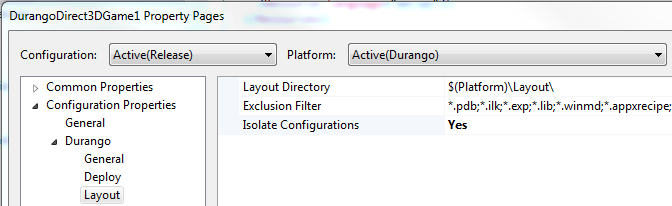
XBOX One 專案可以設定為允許以不同組態 (例如偵錯與發行) 建置的可執行檔部署至 XBOX One 主機上的同一個目錄並在其中執行。
#### 在單一部署中啟用多個建置組態
1. 在專案的屬性頁中,將 **Isolate Configuration** 屬性設為 **Yes**。
 1. 為每個組態指定唯一的名稱。
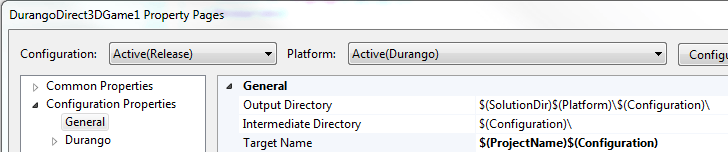
根據預設,每個組態的 **Target Name** 屬性值為 **$(ProjectName)**。將*每個*組態的 **Target Name** 變更為 **$(ProjectName)\$(Configuration)**。
1. 為每個組態指定唯一的名稱。
根據預設,每個組態的 **Target Name** 屬性值為 **$(ProjectName)**。將*每個*組態的 **Target Name** 變更為 **$(ProjectName)\$(Configuration)**。
 1. 將對應於專案中每個組態的應用程式元素新增至 Package.appxmanifest (預設資訊清單檔案)。
例如,含有發行組態與偵錯組態項目的專案,其 Package.appxmanifest 中的 **\
```
> \[!NOTE]
> 如果您希望各組態在啟動器中顯示不同的外觀,可以指定不同的視覺元素。
1. 如果您的專案包含對 WinRT 專案的參考,且您想要部署 WinRT 專案的多個組態,請將 `` 節點新增至資訊清單。
下列範例顯示為兩個 WinRT 專案設定的 ``。
```xml theme={null}
WindowsRuntimeComponent1Release.dll
WindowsRuntimeComponent1Debug.dll
```
## 部署多個建置組態
依照本主題所述設定多個建置組態之後,即可使用下列工具部署這些組態。
**Visual Studio:** 按 Ctrl-F5 或 F5 即可部署組態。所有組態都會部署至主機。目前選取的組態就是要啟動的組態。
**xbapp:** 在包含多個組態的 Layout 目錄上執行 **xbapp** **deploy** *directory-path*,會部署所有組態並傳回多個應用程式使用者模型識別碼 (AUMID)。接著,您可以將所需組態的 AUMID 傳遞給 **xbapp** **launch** 來啟動該組態。
如需 **xbapp** 命令的語法與詳細資訊,請參閱[應用程式管理 (xbapp.exe)](/zh-TW/tools/tools-console/commandlinetools/xbapp)。
## Related topics
- [用於主機開發的 Visual Studio](/zh-TW/tools/tools-console/visualstudio/visualstudio.md)
- [Visual Studio 中的部署錯誤](/zh-TW/tools/tools-console/visualstudio/deployment-errors.md)
- [Visual Studio](/zh-TW/tools/tools-console/visualstudio/index.md)
- [XBOX Gaming Project Control](/zh-TW/tools/tools-console/visualstudio/xbox-gaming-project-control.md)
- [使用 GDKX 建置並執行你的第一個主機遊戲](/zh-TW/home/build-first-title/first-console-title-walkthrough.md)
1. 將對應於專案中每個組態的應用程式元素新增至 Package.appxmanifest (預設資訊清單檔案)。
例如,含有發行組態與偵錯組態項目的專案,其 Package.appxmanifest 中的 **\
```
> \[!NOTE]
> 如果您希望各組態在啟動器中顯示不同的外觀,可以指定不同的視覺元素。
1. 如果您的專案包含對 WinRT 專案的參考,且您想要部署 WinRT 專案的多個組態,請將 `` 節點新增至資訊清單。
下列範例顯示為兩個 WinRT 專案設定的 ``。
```xml theme={null}
WindowsRuntimeComponent1Release.dll
WindowsRuntimeComponent1Debug.dll
```
## 部署多個建置組態
依照本主題所述設定多個建置組態之後,即可使用下列工具部署這些組態。
**Visual Studio:** 按 Ctrl-F5 或 F5 即可部署組態。所有組態都會部署至主機。目前選取的組態就是要啟動的組態。
**xbapp:** 在包含多個組態的 Layout 目錄上執行 **xbapp** **deploy** *directory-path*,會部署所有組態並傳回多個應用程式使用者模型識別碼 (AUMID)。接著,您可以將所需組態的 AUMID 傳遞給 **xbapp** **launch** 來啟動該組態。
如需 **xbapp** 命令的語法與詳細資訊,請參閱[應用程式管理 (xbapp.exe)](/zh-TW/tools/tools-console/commandlinetools/xbapp)。
## Related topics
- [用於主機開發的 Visual Studio](/zh-TW/tools/tools-console/visualstudio/visualstudio.md)
- [Visual Studio 中的部署錯誤](/zh-TW/tools/tools-console/visualstudio/deployment-errors.md)
- [Visual Studio](/zh-TW/tools/tools-console/visualstudio/index.md)
- [XBOX Gaming Project Control](/zh-TW/tools/tools-console/visualstudio/xbox-gaming-project-control.md)
- [使用 GDKX 建置並執行你的第一個主機遊戲](/zh-TW/home/build-first-title/first-console-title-walkthrough.md)