> ## Documentation Index
> Fetch the complete documentation index at: https://devdocs.xbox.com/llms.txt
> Use this file to discover all available pages before exploring further.
# 分析 Win32 檔案 IO 效能
> 分析 Win32 檔案 IO 效能
本文說明如何使用 PIX 分析 Win32 檔案 IO 作業的效能。PIX [時間擷取](/zh-TW/tools/tools-console/pix/new-timing-captures)可以收集遊戲使用 Win32 檔案 IO API 存取檔案的資料。針對 `ReadFile` 與 `WriteFile` 等 API 呼叫所收集的資料,包括所存取檔案的名稱,以及存取本身的位移、大小與持續時間。也會記錄每次檔案存取的完整呼叫堆疊。如果您的遊戲將個別資產封裝成複合封存檔,只要提供[對應檔案](#file_io_mapping_files),PIX 就能顯示複合檔案中有哪些資產被存取。
收集檔案 IO 資料時,PIX 也會計算儲存裝置的頻寬與使用率計量。您可以在時間擷取的 Timeline、Range Details、Element Details 與 Metrics 檢視中檢視檔案 IO 資料。
如果您使用 [DirectStorage](/zh-TW/build/console-features/storage/directstorage/directstorage-overview) API 存取檔案,請參閱[分析 DirectStorage 效能](/zh-TW/tools/tools-console/pix/pix-directstorage),以了解如何使用 PIX 最佳化 DirectStorage 的使用。
## 擷取 Win32 檔案 IO 資料
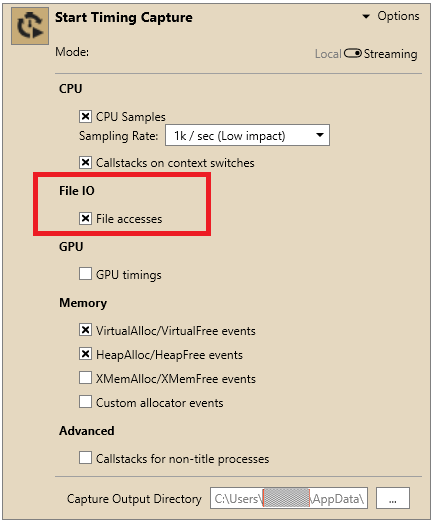
若要擷取 Win32 檔案存取的資料,請在開始時間擷取之前選取 **File accesses** 核取方塊,如圖 1 所示。
**圖 1. Options 窗格中的 File accesses 核取方塊。**
 選取 File accesses 核取方塊時,PIX 也會收集並分析使用 `DirectStorage` API 的檔案存取。
## 分析時間擷取中的 Win32 檔案 IO 資料
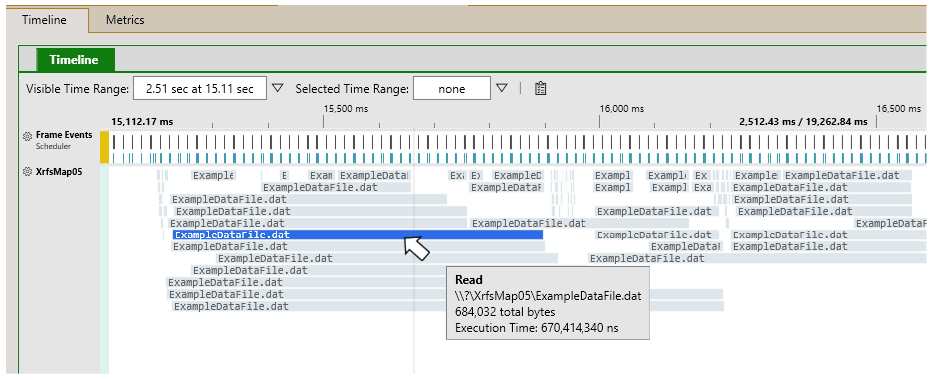
PIX 會在 Timeline 檢視中為主機上的每個磁碟機建立一個 IO 通道。每次檔案存取都以彩色矩形表示,並顯示所存取檔案的名稱。矩形的左端代表存取的開始時間,長度代表存取的持續時間。工具提示會提供每次存取的詳細資料。
圖 2 顯示在名為 XrfsMap05 的磁碟機上多次讀取名為 *ExampleFileData.dat* 的檔案。數個表示存取 *ExampleFileData.dat* 的矩形在時間上重疊,因此會堆疊顯示。此視覺效果代表對該檔案的數次同時讀取。
**圖 2. Timeline 檢視中的檔案 IO 通道。**
選取 File accesses 核取方塊時,PIX 也會收集並分析使用 `DirectStorage` API 的檔案存取。
## 分析時間擷取中的 Win32 檔案 IO 資料
PIX 會在 Timeline 檢視中為主機上的每個磁碟機建立一個 IO 通道。每次檔案存取都以彩色矩形表示,並顯示所存取檔案的名稱。矩形的左端代表存取的開始時間,長度代表存取的持續時間。工具提示會提供每次存取的詳細資料。
圖 2 顯示在名為 XrfsMap05 的磁碟機上多次讀取名為 *ExampleFileData.dat* 的檔案。數個表示存取 *ExampleFileData.dat* 的矩形在時間上重疊,因此會堆疊顯示。此視覺效果代表對該檔案的數次同時讀取。
**圖 2. Timeline 檢視中的檔案 IO 通道。**
 在 2020 年 4 月版的 Microsoft Game Development Kit (GDK) 中,PIX 中顯示的檔案路徑不會解析為磁碟機代號。相反地,遊戲所存取的磁碟機會以前置詞 XrfsMap 識別。例如,在圖 2 中,標示為 XrfsMap05 的磁碟機是 G 磁碟機。基礎檔案路徑與磁碟機代號之間的對應將在未來版本中新增。
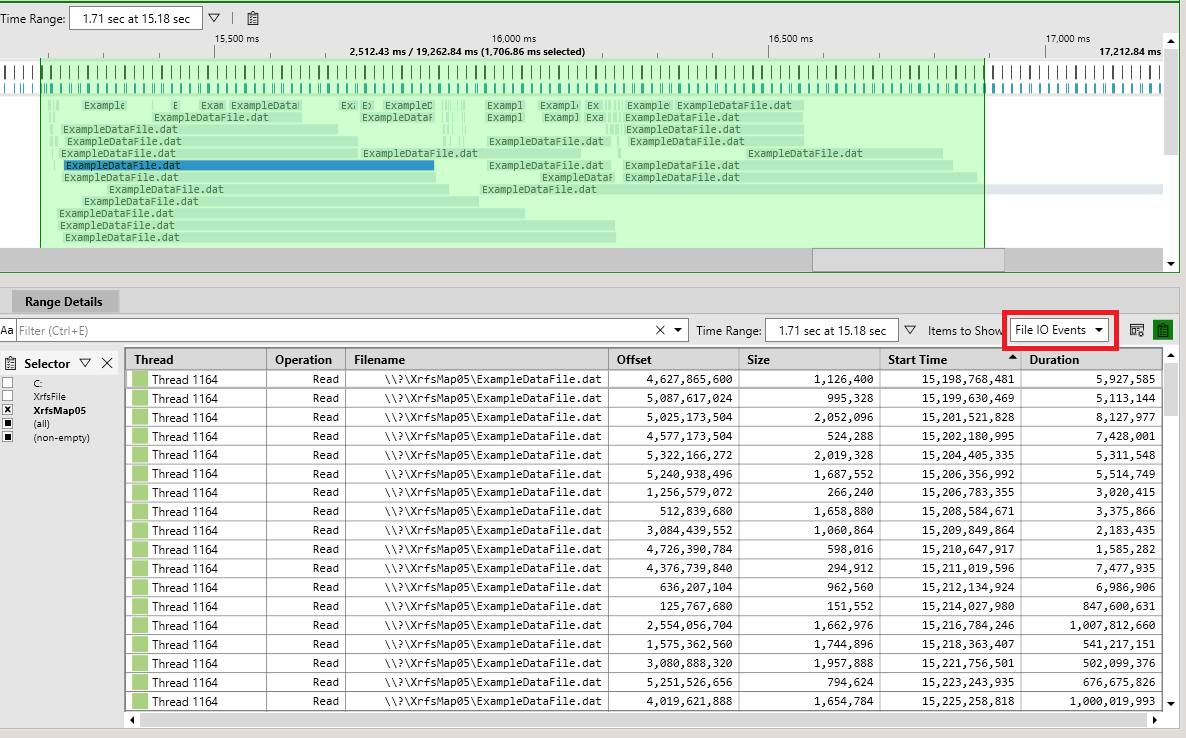
若要在表格中檢視 Win32 檔案 IO 資料,請在 Timeline 檢視中選取時間範圍。在 **Range Details** 檢視中開啟 **Items to Show** 功能表,然後選擇 **File IO Events** (圖 3)。在表格中檢視時間資料在某些情境中很有用,例如依完成時間最長的檔案存取排序表格。
**圖 3. 在表格中檢視檔案 IO 資料。**
在 2020 年 4 月版的 Microsoft Game Development Kit (GDK) 中,PIX 中顯示的檔案路徑不會解析為磁碟機代號。相反地,遊戲所存取的磁碟機會以前置詞 XrfsMap 識別。例如,在圖 2 中,標示為 XrfsMap05 的磁碟機是 G 磁碟機。基礎檔案路徑與磁碟機代號之間的對應將在未來版本中新增。
若要在表格中檢視 Win32 檔案 IO 資料,請在 Timeline 檢視中選取時間範圍。在 **Range Details** 檢視中開啟 **Items to Show** 功能表,然後選擇 **File IO Events** (圖 3)。在表格中檢視時間資料在某些情境中很有用,例如依完成時間最長的檔案存取排序表格。
**圖 3. 在表格中檢視檔案 IO 資料。**
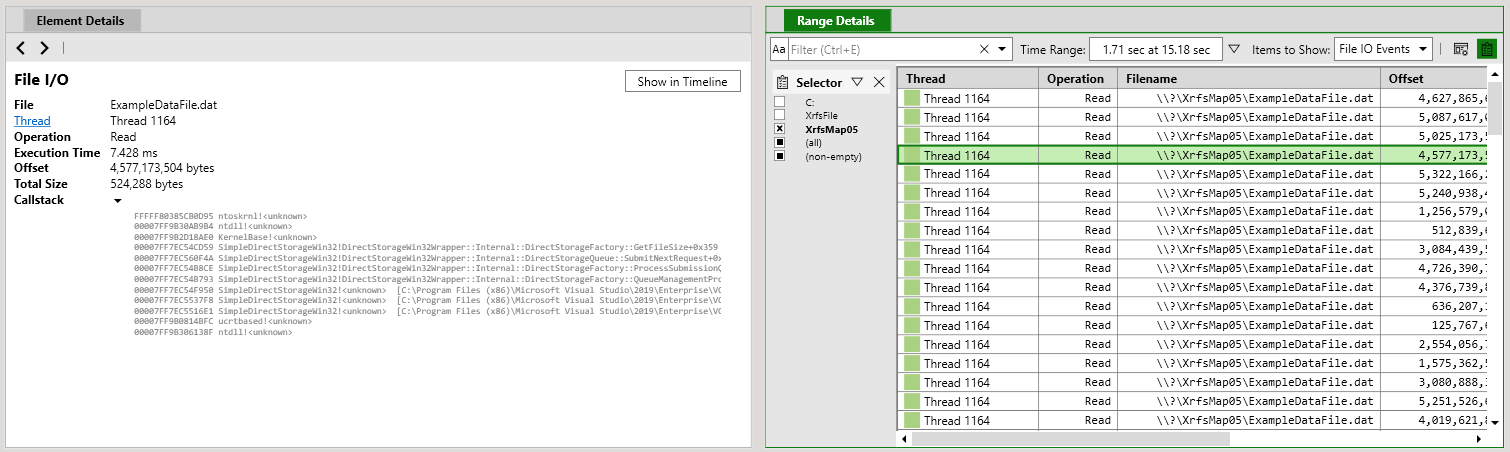
 在 **Range Details** 中選取一列,會在 **Element Details** 檢視中填入檔案存取的更詳細資料,包括遊戲中發起該存取的呼叫堆疊 (圖 4)。使用 **Show in Timeline** 按鈕,可將時間軸捲動到存取發生的時間點。
**圖 4. 所選檔案存取的詳細資料。**
在 **Range Details** 中選取一列,會在 **Element Details** 檢視中填入檔案存取的更詳細資料,包括遊戲中發起該存取的呼叫堆疊 (圖 4)。使用 **Show in Timeline** 按鈕,可將時間軸捲動到存取發生的時間點。
**圖 4. 所選檔案存取的詳細資料。**
 ### 分析封存檔內發生的檔案存取
如果您的遊戲將個別資產封裝成複合封存檔,PIX 可以使用對應檔案顯示複合檔案中有哪些資產被存取。如需詳細資訊,請參閱[分析封存檔內發生的檔案存取](/zh-TW/tools/tools-console/pix/pix-mappingfiles)。
## 儲存裝置頻寬與使用率計量
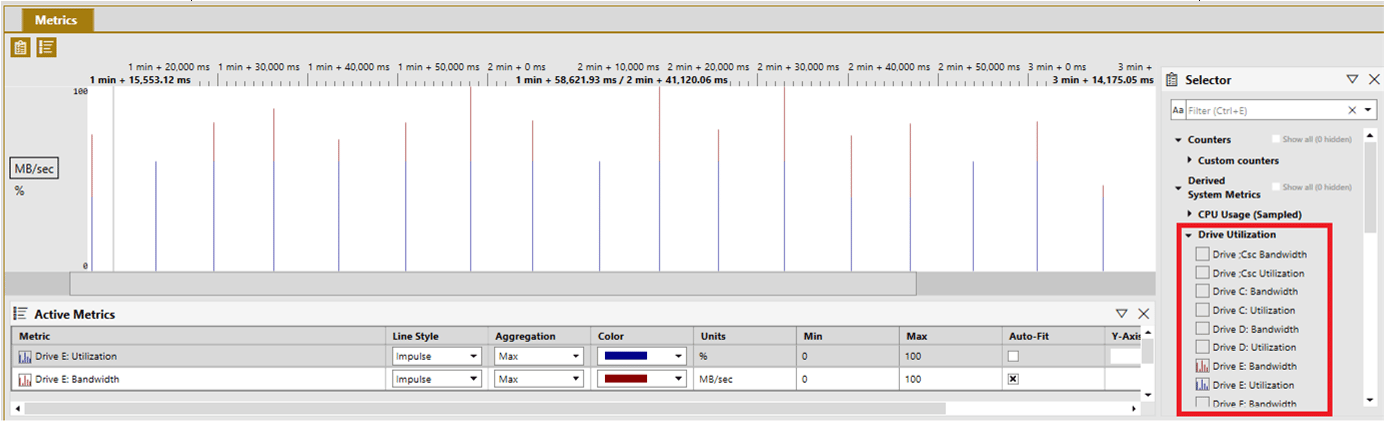
收集檔案 IO 資料時,PIX 會為主機上的每個儲存裝置計算磁碟機使用率與頻寬計數器。您可以在 **Metrics** 檢視 Selector 面板的 *Derived System Metrics/Drive Utilization* 節點下找到這些計數器。
**圖 5. Metrics 檢視中的磁碟機使用率與頻寬計數器。**
### 分析封存檔內發生的檔案存取
如果您的遊戲將個別資產封裝成複合封存檔,PIX 可以使用對應檔案顯示複合檔案中有哪些資產被存取。如需詳細資訊,請參閱[分析封存檔內發生的檔案存取](/zh-TW/tools/tools-console/pix/pix-mappingfiles)。
## 儲存裝置頻寬與使用率計量
收集檔案 IO 資料時,PIX 會為主機上的每個儲存裝置計算磁碟機使用率與頻寬計數器。您可以在 **Metrics** 檢視 Selector 面板的 *Derived System Metrics/Drive Utilization* 節點下找到這些計數器。
**圖 5. Metrics 檢視中的磁碟機使用率與頻寬計數器。**
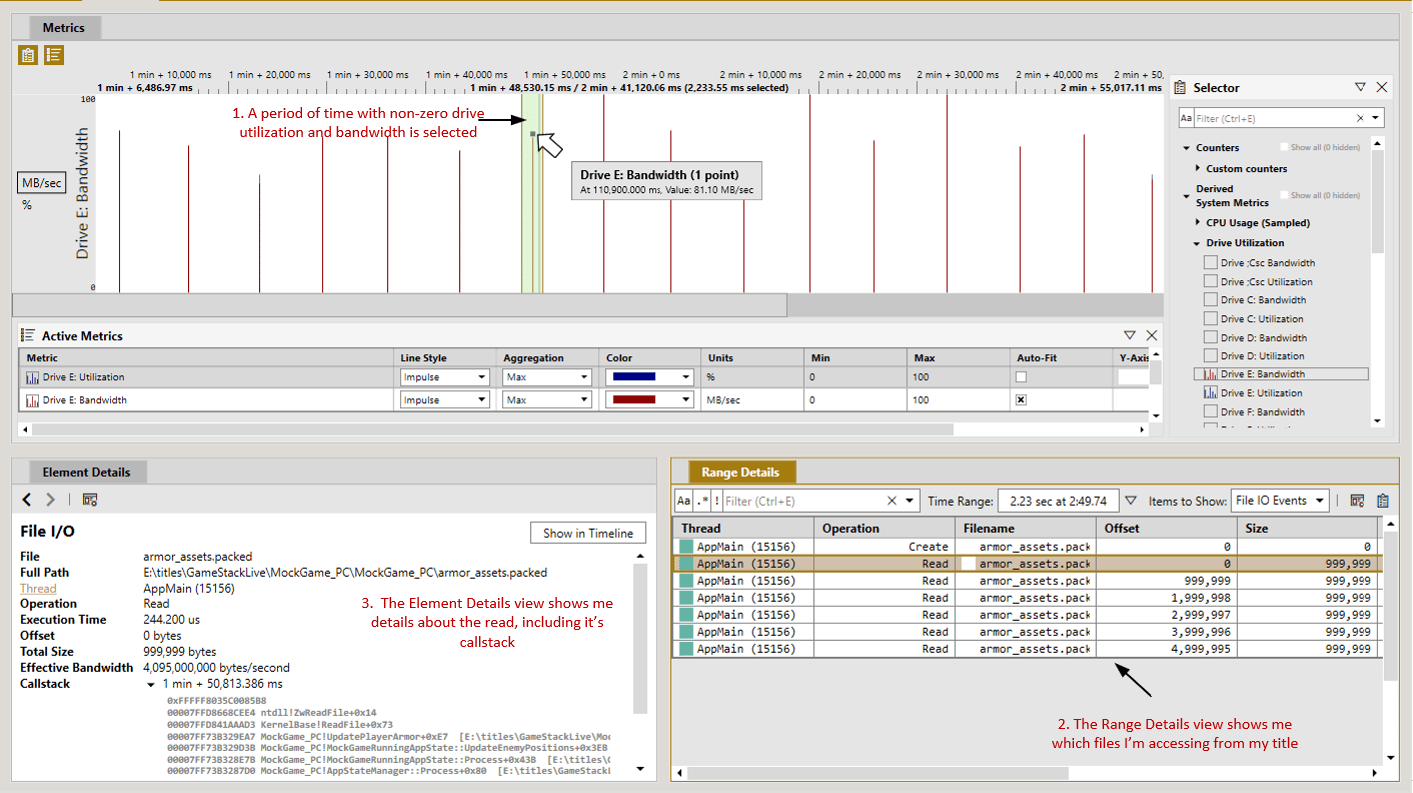
 PIX 中各檢視之間的整合,讓您可以輕鬆找出磁碟計量與個別讀取資料之間的關聯。下圖顯示一個由 **Metrics** 檢視、**Range Details** 檢視與 **Element Details** 檢視組成的自訂版面配置。**Range Details** 檢視已設定為顯示對應於 **Metrics** 檢視中所選時間範圍的資料。
您可以在 **Metrics** 檢視中選取對應於磁碟機使用率與頻寬尖峰的時間區間。從 **Range Details** 檢視的 *Items to Show* 下拉式清單中選取 *File IO Events*,會在表格中填入遊戲在該時間區間內進行的檔案存取集合。選取個別存取會在 **Element Details** 檢視中填入該存取的詳細資料,包括發起該存取之遊戲程式碼的呼叫堆疊。
**圖 6. 將儲存裝置使用率與頻寬與個別檔案存取建立關聯。**
PIX 中各檢視之間的整合,讓您可以輕鬆找出磁碟計量與個別讀取資料之間的關聯。下圖顯示一個由 **Metrics** 檢視、**Range Details** 檢視與 **Element Details** 檢視組成的自訂版面配置。**Range Details** 檢視已設定為顯示對應於 **Metrics** 檢視中所選時間範圍的資料。
您可以在 **Metrics** 檢視中選取對應於磁碟機使用率與頻寬尖峰的時間區間。從 **Range Details** 檢視的 *Items to Show* 下拉式清單中選取 *File IO Events*,會在表格中填入遊戲在該時間區間內進行的檔案存取集合。選取個別存取會在 **Element Details** 檢視中填入該存取的詳細資料,包括發起該存取之遊戲程式碼的呼叫堆疊。
**圖 6. 將儲存裝置使用率與頻寬與個別檔案存取建立關聯。**
 ## Win32 檔案 IO 通道設定
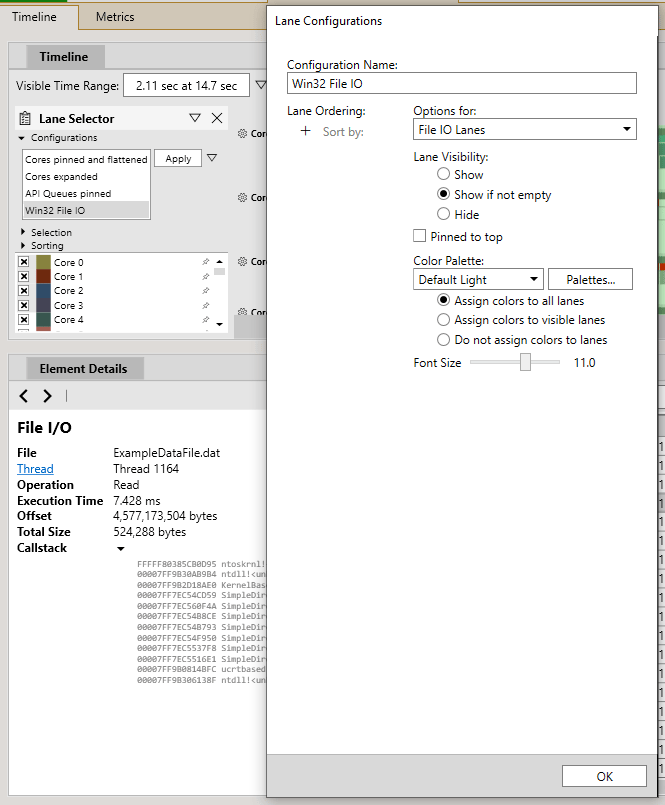
使用 Lane Selector 面板與 Lane Configurations 對話方塊,即可自訂 IO 通道的外觀 (圖 5)。選項包括重新排列通道、顯示或隱藏個別通道,以及調整色彩與標記高度。
**圖 7. Lane Selector 面板與 Lane Configurations 對話方塊。**
## Win32 檔案 IO 通道設定
使用 Lane Selector 面板與 Lane Configurations 對話方塊,即可自訂 IO 通道的外觀 (圖 5)。選項包括重新排列通道、顯示或隱藏個別通道,以及調整色彩與標記高度。
**圖 7. Lane Selector 面板與 Lane Configurations 對話方塊。**
 ## 另請參閱
[分析 DirectStorage 效能](/zh-TW/tools/tools-console/pix/pix-directstorage) [分析 DirectStorage 與 Win32 檔案 IO 效能](/zh-TW/tools/tools-console/pix/fileio-performance) [PIX](/zh-TW/tools/tools-console/pix/pix)
## Related topics
- [NDA 主題目錄 - Microsoft Learn 線上連結](/zh-TW/nda/nda-topic-directory.md)
- [適用於 GDK 遊戲的 XBOX 與 Windows 版 PIX](/zh-TW/tools/tools-console/pix/index.md)
- [效能頁面](/zh-TW/tools/tools-console/wdp/windows-device-portal-on-xbox-performance.md)
- [MSIXVC2 加密模型](/zh-TW/build/core-features/common/packaging/packaging-encryption-msixvc2.md)
- [Visual Studio 中的分析導引最佳化](/zh-TW/tools/tools-console/pgo/pgo_full.md)
## 另請參閱
[分析 DirectStorage 效能](/zh-TW/tools/tools-console/pix/pix-directstorage) [分析 DirectStorage 與 Win32 檔案 IO 效能](/zh-TW/tools/tools-console/pix/fileio-performance) [PIX](/zh-TW/tools/tools-console/pix/pix)
## Related topics
- [NDA 主題目錄 - Microsoft Learn 線上連結](/zh-TW/nda/nda-topic-directory.md)
- [適用於 GDK 遊戲的 XBOX 與 Windows 版 PIX](/zh-TW/tools/tools-console/pix/index.md)
- [效能頁面](/zh-TW/tools/tools-console/wdp/windows-device-portal-on-xbox-performance.md)
- [MSIXVC2 加密模型](/zh-TW/build/core-features/common/packaging/packaging-encryption-msixvc2.md)
- [Visual Studio 中的分析導引最佳化](/zh-TW/tools/tools-console/pgo/pgo_full.md)