> ## Documentation Index
> Fetch the complete documentation index at: https://devdocs.xbox.com/llms.txt
> Use this file to discover all available pages before exploring further.
# 使用 Kongregate 和 Unity 設定 PlayFab 驗證
> 逐步教學課程,說明如何在 Unity 中透過 WebGL 將 Kongregate 驗證新增至 PlayFab 遊戲,涵蓋 Kongregate 應用程式上傳和玩家登入程式碼。
本教學課程說明使用 Kongregate 和 Unity 在 PlayFab 中驗證玩家所需的最低設定。
## 需求
* 已註冊的 [Kongregate](https://www.kongregate.com/) 帳戶。
* 熟悉 [Kongregate 開發人員指南](https://www.kongregate.com/developer_center/docs/en/kongregate-api)。
* 已註冊的 PlayFab 遊戲。
* 已為您的遊戲設定 PlayFab 的 Unity 專案。
* 已安裝 Unity WebGL 支援。
* 熟悉[登入基本概念和最佳做法](/zh-TW/services/playfab/identity/player-identity/login/login-basics-best-practices)。
## 設定 Kongregate 應用程式
Kongregate 要求您先上傳應用程式的預覽版本,之後您才能存取必要的應用程式資訊。我們的第一步是準備一個包含下列內容的 **index.html** 檔案。
```html theme={null}
Placeholder
```
瀏覽至 [Kongregate 網站](https://www.kongregate.com/)。
1. 選取 **Games** 索引標籤。
2. 然後選取 **Upload your game** 按鈕。
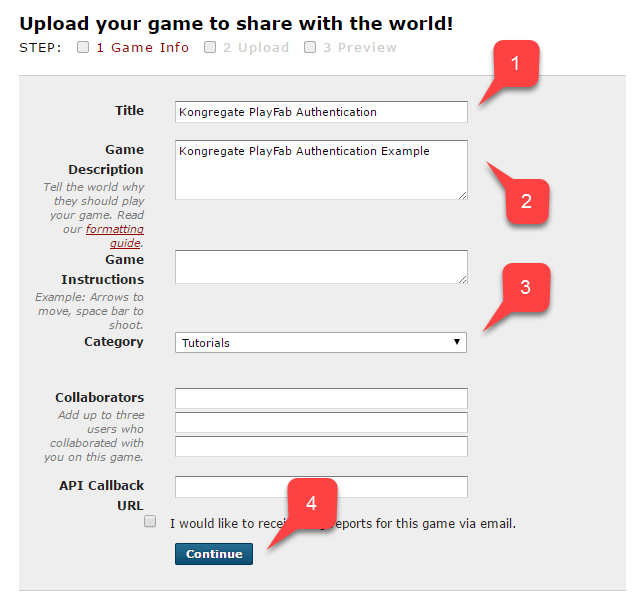
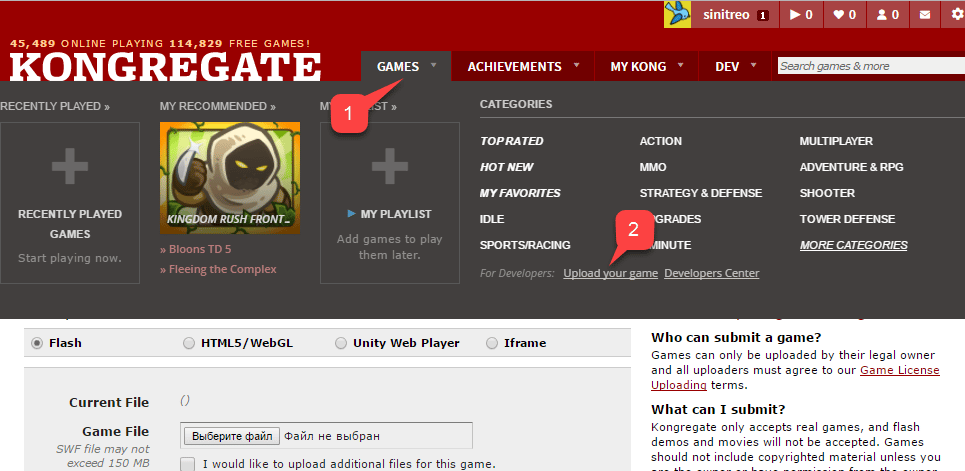 隨即開啟用於設定新應用程式的頁面。
1. 務必輸入 **Application Name**。
2. 輸入 **Game Description**。
3. 然後選取 **Category**。
4. 選取 **Continue** 按鈕以提交新應用程式。
隨即開啟用於設定新應用程式的頁面。
1. 務必輸入 **Application Name**。
2. 輸入 **Game Description**。
3. 然後選取 **Category**。
4. 選取 **Continue** 按鈕以提交新應用程式。
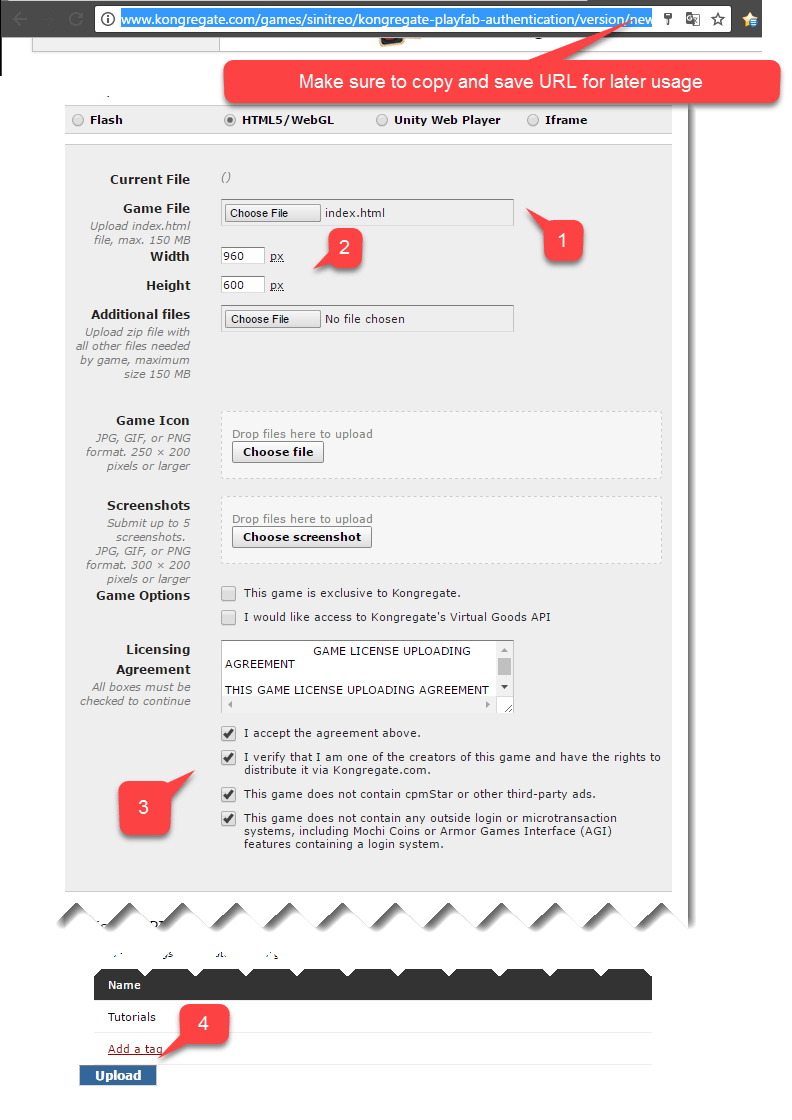
 您會被轉送至 **Application Upload** 頁面。
首先,*也是最重要的*,務必將**網址列**中的 URL 儲存在安全且容易存取的位置。*這樣可在您關閉頁面後,節省大量還原應用程式存取權的時間*。
1. 完成後,選取準備好的 **index.html** 檔案作為您的 **Game File**。
2. 然後設定畫面大小。
3. 務必接受所有必要的授權。
4. 最後,選取 **Upload** 按鈕以上傳您的應用程式。
您會被轉送至 **Application Upload** 頁面。
首先,*也是最重要的*,務必將**網址列**中的 URL 儲存在安全且容易存取的位置。*這樣可在您關閉頁面後,節省大量還原應用程式存取權的時間*。
1. 完成後,選取準備好的 **index.html** 檔案作為您的 **Game File**。
2. 然後設定畫面大小。
3. 務必接受所有必要的授權。
4. 最後,選取 **Upload** 按鈕以上傳您的應用程式。
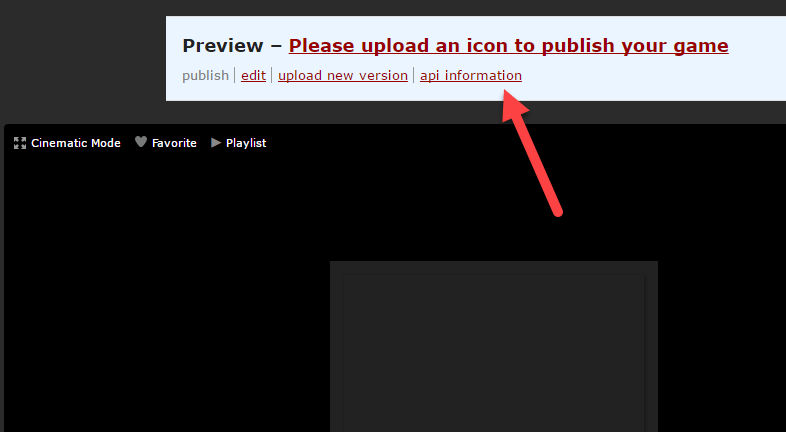
 預覽開啟後,請忽略其內容並開啟 **api information** 連結。
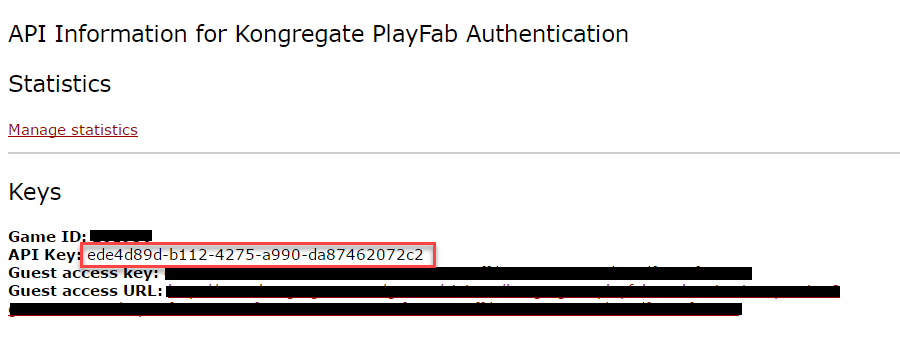
 **API Information** 頁面開啟時,找出 **API Key** 並將其保存在安全且容易存取的位置,以供稍後使用。
 ## 設定 PlayFab 遊戲
在您的 PlayFab 遊戲 Game Manager 中:
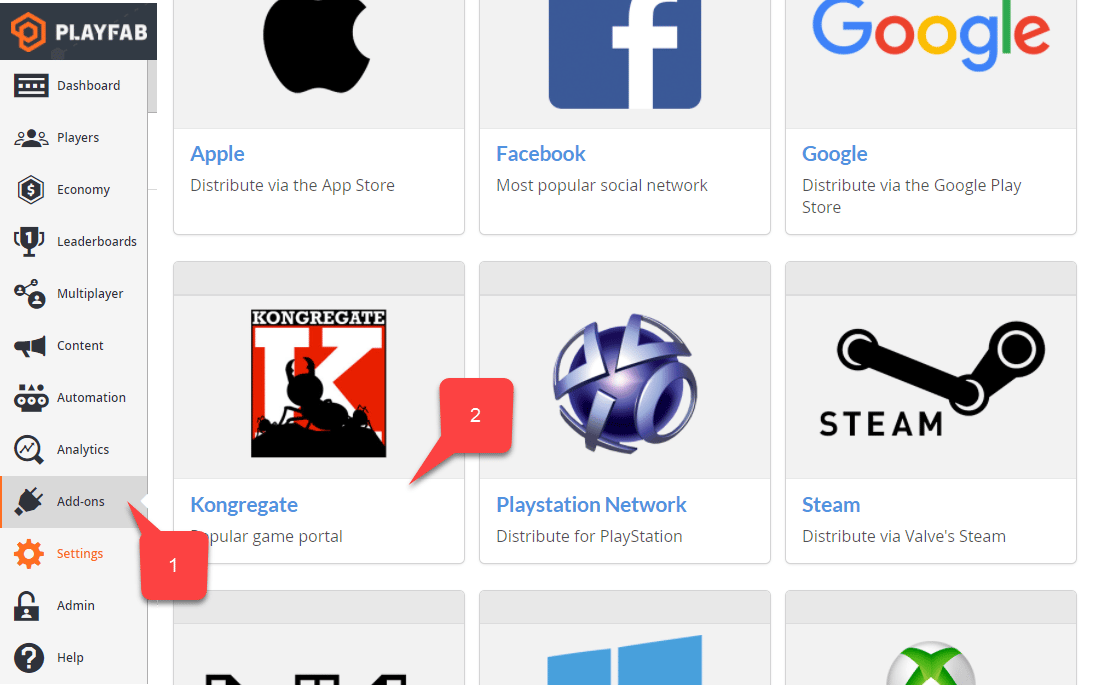
1. 從左側功能表選取 **Add-ons**。
2. 找到並選取 **Kongregate** 圖示。
## 設定 PlayFab 遊戲
在您的 PlayFab 遊戲 Game Manager 中:
1. 從左側功能表選取 **Add-ons**。
2. 找到並選取 **Kongregate** 圖示。
 隨即開啟新頁面,讓您設定 **Kongregate** 整合:
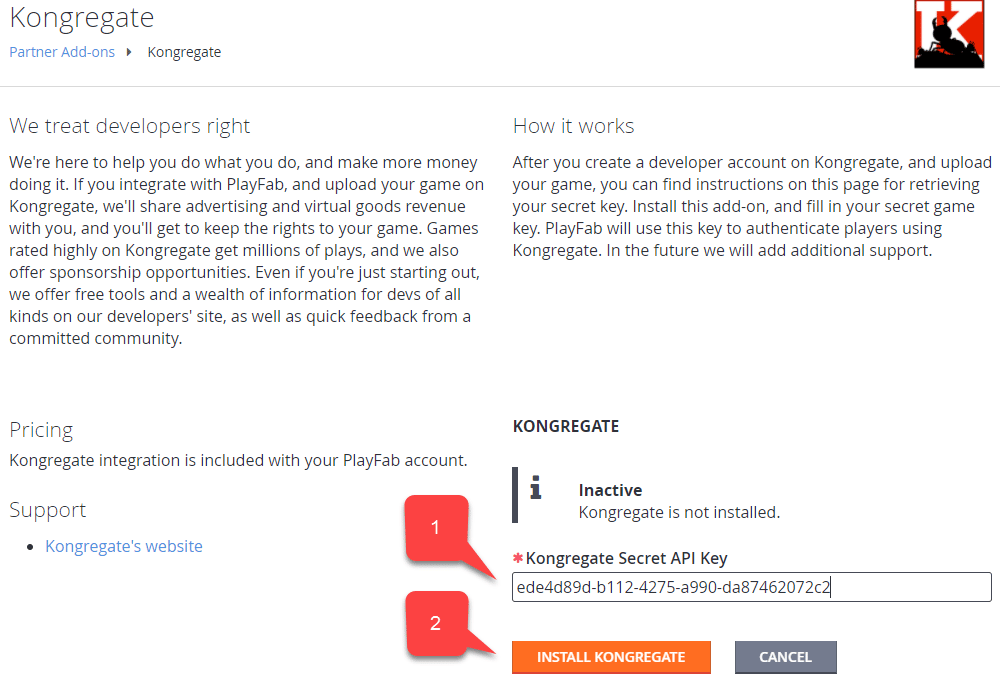
1. 輸入您在上一節取得的 **API Key**。
2. 選取 **Install Kongregate** 按鈕。
隨即開啟新頁面,讓您設定 **Kongregate** 整合:
1. 輸入您在上一節取得的 **API Key**。
2. 選取 **Install Kongregate** 按鈕。
 此時,如果您沒有收到錯誤訊息,表示您已正確設定 PlayFab 遊戲與 Kongregate 應用程式的整合。
## 設定 Unity 專案
使用此 Unity 設定檢查清單:
* \[選用] 安裝 [PlayFab Editor Extensions](https://aka.ms/playfabunityextension)。
* 在 `PlayFabSharedSettings` Scriptable Object 中設定您的 `TitleId`。
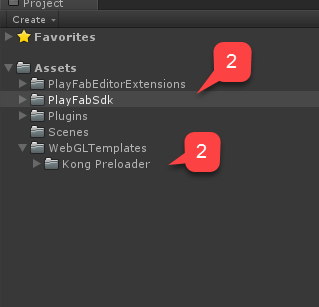
* 若為 Unity 5.6 以上版本,請下載 [Kongregate Preloader WebGL Template](https://github.com/kongregate/webgl-preloader),並將其放入 `Assets/WebGLTemplates` 資料夾 **(2)**。
* 若為 Unity 5.6 以下版本,請下載 [Kongregate Preloader WebGL Template 5.5 and below](https://github.com/kongregate/webgl-preloader/tree/unity-5.5-and-below),並將其放入 `Assets/WebGLTemplates` 資料夾 **(2)**。
此時,如果您沒有收到錯誤訊息,表示您已正確設定 PlayFab 遊戲與 Kongregate 應用程式的整合。
## 設定 Unity 專案
使用此 Unity 設定檢查清單:
* \[選用] 安裝 [PlayFab Editor Extensions](https://aka.ms/playfabunityextension)。
* 在 `PlayFabSharedSettings` Scriptable Object 中設定您的 `TitleId`。
* 若為 Unity 5.6 以上版本,請下載 [Kongregate Preloader WebGL Template](https://github.com/kongregate/webgl-preloader),並將其放入 `Assets/WebGLTemplates` 資料夾 **(2)**。
* 若為 Unity 5.6 以下版本,請下載 [Kongregate Preloader WebGL Template 5.5 and below](https://github.com/kongregate/webgl-preloader/tree/unity-5.5-and-below),並將其放入 `Assets/WebGLTemplates` 資料夾 **(2)**。
 現在讓我們建立您的工作場景。
1. 為了測試,請使用具有幾個文字標籤的螢幕縮放畫布。
我們只需要*一個*文字標籤來顯示偵錯訊息。
2. 建立一個空的 **GameObject**,並將其重新命名為 **Kongregate**。
現在讓我們建立您的工作場景。
1. 為了測試,請使用具有幾個文字標籤的螢幕縮放畫布。
我們只需要*一個*文字標籤來顯示偵錯訊息。
2. 建立一個空的 **GameObject**,並將其重新命名為 **Kongregate**。
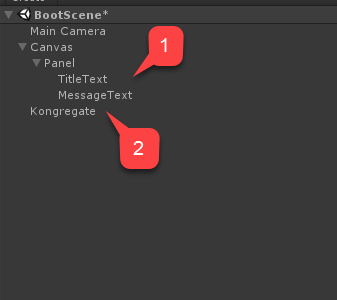 此 `GameObject` 將包含一個 `KongregateHandler` 元件,並連接一個用於偵錯訊息的文字標籤。
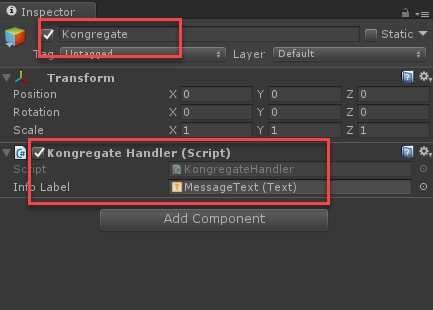 `KongregateHandler` 元件的程式碼如下所示。
```csharp theme={null}
// We are specifically interested in importing PlayFab related namespaces
using PlayFab;
using PlayFab.ClientModels;
using UnityEngine;
using UnityEngine.UI;
public class KongregateHandler : MonoBehaviour
{
// Standard unity callback, executed once for the script to start
public void Start()
{
// Utility: show feedback
SetMessage("Loading kongregate api...");
/*
* Important: execute Javascript in the external context to initialize
* Kongregate API, Unity Support and set up callback GameObject and Method.
* In this case, callback is set to a GameObject called Kongregate and a
* method called OnKongregateAPILoaded, which we define later in this class.
* Once Kongregate API is initialized, Unity will locate this object by name
* ("Kongregate") and execute a method "OnKongregateAPILoaded" passing in user
* info string as an argument.
*/
Application.ExternalEval(
"if(typeof(kongregateUnitySupport) != 'undefined'){" +
" kongregateUnitySupport.initAPI('Kongregate', 'OnKongregateAPILoaded');" +
"} else {" +
" console.error('No unity support!');" +
"};"
);
}
/*
* Executed once Kongregate API is ready. This method is invoked by KongregateAPI
* and receives a structured text with multiple pieces of data you must parse manually.
* The userInfo string parameter has the following structure: 'user_identifier|user_name|auth_token'
*/
public void OnKongregateAPILoaded(string userInfo)
{
SetMessage("Received user info! Logging though playfab...");
// We split userInfo string using '|' character to acquire auth token and Kongregate ID.
var userInfoArray = userInfo.Split('|');
var authTicket = userInfoArray[2];
var kongregateId = userInfoArray[0];
LogToBrowser("Auth Token: " + authTicket);
LogToBrowser("Kongregate Id: " + kongregateId);
/*
* We then execute PlayFab API call called LoginWithKongregate.
* LoginWithKongregate requires KongregateID and AuthTicket.
* We also pass CreateAccount flag, to automatically create player account.
*/
PlayFabClientAPI.LoginWithKongregate(new LoginWithKongregateRequest
{
KongregateId = kongregateId,
AuthTicket = authTicket,
CreateAccount = true
}, OnLoggedIn, OnFailed);
}
/*
* The rest of the code serves as a utility to process results, log debug statements
* and display them using Text message label.
*/
private void OnLoggedIn(LoginResult obj)
{
SetMessage("Logged in through PlayFab!");
}
private void OnFailed(PlayFabError error)
{
SetMessage("Failed to login in with PlayFab: " + error.GenerateErrorReport());
}
private void SetMessage(string message)
{
InfoLabel.text = message;
}
private void LogToBrowser(string message)
{
Application.ExternalEval(string.Format("console.log('{0}')", message));
}
public Text InfoLabel;
}
```
## 測試
真正測試整合的唯一方法,是將您的原型上傳至 Kongregate。
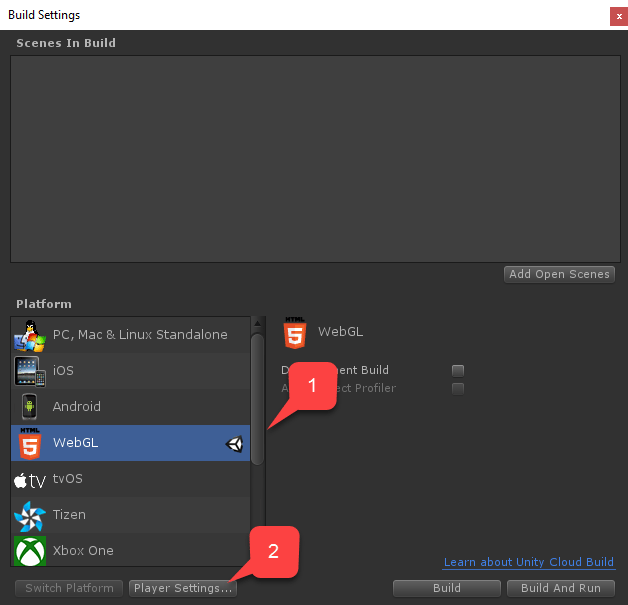
1. 開啟 **Build** 視窗,並確認已從功能表選取 **WebGL**。
2. 然後選取按鈕以開啟 **Player Settings**。
`KongregateHandler` 元件的程式碼如下所示。
```csharp theme={null}
// We are specifically interested in importing PlayFab related namespaces
using PlayFab;
using PlayFab.ClientModels;
using UnityEngine;
using UnityEngine.UI;
public class KongregateHandler : MonoBehaviour
{
// Standard unity callback, executed once for the script to start
public void Start()
{
// Utility: show feedback
SetMessage("Loading kongregate api...");
/*
* Important: execute Javascript in the external context to initialize
* Kongregate API, Unity Support and set up callback GameObject and Method.
* In this case, callback is set to a GameObject called Kongregate and a
* method called OnKongregateAPILoaded, which we define later in this class.
* Once Kongregate API is initialized, Unity will locate this object by name
* ("Kongregate") and execute a method "OnKongregateAPILoaded" passing in user
* info string as an argument.
*/
Application.ExternalEval(
"if(typeof(kongregateUnitySupport) != 'undefined'){" +
" kongregateUnitySupport.initAPI('Kongregate', 'OnKongregateAPILoaded');" +
"} else {" +
" console.error('No unity support!');" +
"};"
);
}
/*
* Executed once Kongregate API is ready. This method is invoked by KongregateAPI
* and receives a structured text with multiple pieces of data you must parse manually.
* The userInfo string parameter has the following structure: 'user_identifier|user_name|auth_token'
*/
public void OnKongregateAPILoaded(string userInfo)
{
SetMessage("Received user info! Logging though playfab...");
// We split userInfo string using '|' character to acquire auth token and Kongregate ID.
var userInfoArray = userInfo.Split('|');
var authTicket = userInfoArray[2];
var kongregateId = userInfoArray[0];
LogToBrowser("Auth Token: " + authTicket);
LogToBrowser("Kongregate Id: " + kongregateId);
/*
* We then execute PlayFab API call called LoginWithKongregate.
* LoginWithKongregate requires KongregateID and AuthTicket.
* We also pass CreateAccount flag, to automatically create player account.
*/
PlayFabClientAPI.LoginWithKongregate(new LoginWithKongregateRequest
{
KongregateId = kongregateId,
AuthTicket = authTicket,
CreateAccount = true
}, OnLoggedIn, OnFailed);
}
/*
* The rest of the code serves as a utility to process results, log debug statements
* and display them using Text message label.
*/
private void OnLoggedIn(LoginResult obj)
{
SetMessage("Logged in through PlayFab!");
}
private void OnFailed(PlayFabError error)
{
SetMessage("Failed to login in with PlayFab: " + error.GenerateErrorReport());
}
private void SetMessage(string message)
{
InfoLabel.text = message;
}
private void LogToBrowser(string message)
{
Application.ExternalEval(string.Format("console.log('{0}')", message));
}
public Text InfoLabel;
}
```
## 測試
真正測試整合的唯一方法,是將您的原型上傳至 Kongregate。
1. 開啟 **Build** 視窗,並確認已從功能表選取 **WebGL**。
2. 然後選取按鈕以開啟 **Player Settings**。
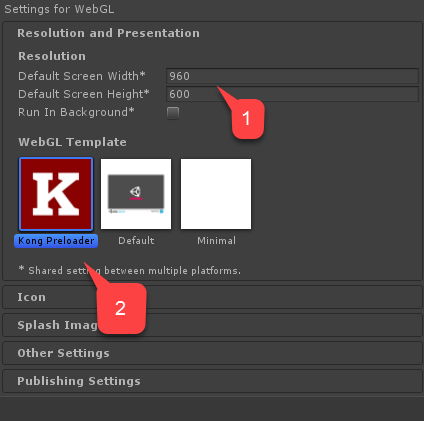
 在 **Player Settings** 畫面中,找到 **Settings for WebGL** 建置:
1. 確認您已正確設定大小。
2. 然後選取 **Kongregate Preloader Template**。
在 **Player Settings** 畫面中,找到 **Settings for WebGL** 建置:
1. 確認您已正確設定大小。
2. 然後選取 **Kongregate Preloader Template**。
 建置應用程式並開啟 **Build** 資料夾。
* 您會得到 **index.html** 以及其他一些檔案 (視 Unity 版本而定)。
* 將除了 **index.html** 以外的所有檔案放入 zip 封存檔中,如下列範例所示。
建置應用程式並開啟 **Build** 資料夾。
* 您會得到 **index.html** 以及其他一些檔案 (視 Unity 版本而定)。
* 將除了 **index.html** 以外的所有檔案放入 zip 封存檔中,如下列範例所示。
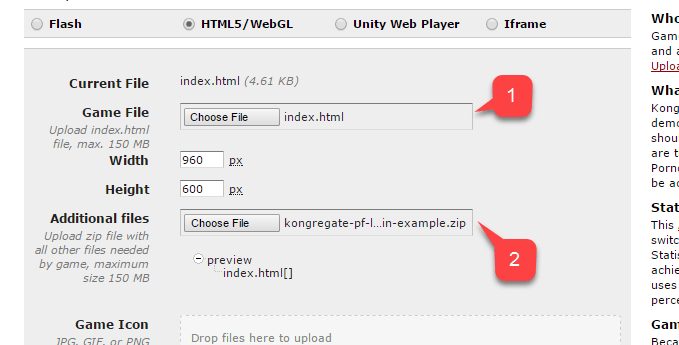
 使用您稍早儲存的 URL 存取您的 **Application Upload** 頁面。
1. 選取 **index.html** 作為您的 **Game File**。
2. 然後選取 zip 封存檔作為 **Additional files**。
* 接受授權並上傳。
使用您稍早儲存的 URL 存取您的 **Application Upload** 頁面。
1. 選取 **index.html** 作為您的 **Game File**。
2. 然後選取 zip 封存檔作為 **Additional files**。
* 接受授權並上傳。
 預覽開啟後,您應該可以在訊息變更時看到您的遊戲即時執行。
完成時,訊息應指出已透過 PlayFab 成功登入。
此時,您已成功整合 PlayFab 和 Kongregate。
## Related topics
- [平台特定驗證](/zh-TW/services/playfab/identity/player-identity/platform-specific-authentication/index.md)
- [使用 Kongregate 和 HTML5 設定 PlayFab 驗證](/zh-TW/services/playfab/identity/player-identity/platform-specific-authentication/kongregate-html5.md)
- [使用 Steam 和 Unity 設定 PlayFab 驗證](/zh-TW/services/playfab/identity/player-identity/platform-specific-authentication/steam-unity.md)
- [使用 Facebook 和 Unity 設定 PlayFab 驗證](/zh-TW/services/playfab/identity/player-identity/platform-specific-authentication/facebook-unity.md)
- [使用 Google 和 HTML5 設定 PlayFab 驗證](/zh-TW/services/playfab/identity/player-identity/platform-specific-authentication/google-html5.md)
預覽開啟後,您應該可以在訊息變更時看到您的遊戲即時執行。
完成時,訊息應指出已透過 PlayFab 成功登入。
此時,您已成功整合 PlayFab 和 Kongregate。
## Related topics
- [平台特定驗證](/zh-TW/services/playfab/identity/player-identity/platform-specific-authentication/index.md)
- [使用 Kongregate 和 HTML5 設定 PlayFab 驗證](/zh-TW/services/playfab/identity/player-identity/platform-specific-authentication/kongregate-html5.md)
- [使用 Steam 和 Unity 設定 PlayFab 驗證](/zh-TW/services/playfab/identity/player-identity/platform-specific-authentication/steam-unity.md)
- [使用 Facebook 和 Unity 設定 PlayFab 驗證](/zh-TW/services/playfab/identity/player-identity/platform-specific-authentication/facebook-unity.md)
- [使用 Google 和 HTML5 設定 PlayFab 驗證](/zh-TW/services/playfab/identity/player-identity/platform-specific-authentication/google-html5.md)