> ## Documentation Index
> Fetch the complete documentation index at: https://devdocs.xbox.com/llms.txt
> Use this file to discover all available pages before exploring further.
# 在 Unity 中使用 Google Play Games 登入進行 PlayFab 驗證
> 逐步教學課程,說明如何使用 PlayFab SDK 將 Google Play Games 登入新增至 Unity 專案,涵蓋 Play Console 設定和玩家驗證。
# 在 Unity 中使用 Google Play Games 登入設定 PlayFab 驗證
## 必要條件
* 使用 Unity 遊戲引擎建置的專案。
* Google 開發人員帳戶。
* 可存取 PlayFab 中遊戲的 PlayFab 開發人員帳戶。
* [PlayFab Unity 編輯器擴充功能和 Unity SDK](/zh-TW/services/playfab/sdks/unity3d/quickstart)。
* [Google Play Games SDK](https://github.com/playgameservices/play-games-plugin-for-unity)。
* 熟悉[登入基本概念和最佳做法](/zh-TW/services/playfab/identity/player-identity/login/login-basics-best-practices)。
## 開始使用
首先,我們從在 Google Play 中設定一些基本項目開始。已經有幾份不錯的指南說明如何完成其中一些工作,因此我們不會重複說明。
1. 建立 **Application**:如果您尚未建立應用程式,必須在 [Google Play Developer Console](https://play.google.com/apps/publish) 中建立。
2. 建置您遊戲的 AAB,並上傳以進行內部測試。您可以依照[這份](https://support.google.com/googleplay/android-developer/answer/9859348?visit_id=638373214207471441-2235763004\&rd=1)指南,了解如何將應用程式發行至 **Internal testing** 測試群組。在簽署過程中,請注意您的應用程式套件組合必須使用您自己的金鑰儲存區。如需如何建立金鑰儲存區,請參閱[這份](https://docs.unity3d.com/Manual/android-keystore-create.html)文件。
3. 依照此頁面上的指示設定 Google Play Games 服務:[Setting Up Google Play Games Services](https://developers.google.com/games/services/console/enabling)。
4. 下載並安裝 [Google Play Games SDK](https://github.com/playgameservices/play-games-plugin-for-unity)。
5. 安裝 PlayFab Unity SDK (如果您不知道如何執行此工作,請依照 [Unity3D 快速入門指南](/zh-TW/services/playfab/sdks/unity3d/quickstart)進行)。
## 設定 Google Play Games
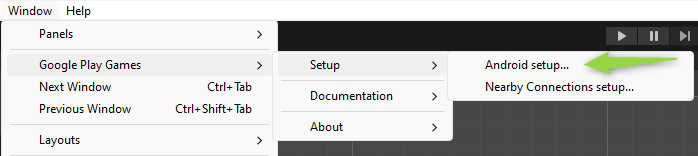
您可以從隨 Google Play Games SDK 安裝的工具集設定 Google Play Games。您可以透過下列方式存取這些工具:
* 前往 **Window** 索引標籤。
* 選取 **Google Play Games**。
* 前往 **Setup**。
* 然後存取 **Android Setup**。
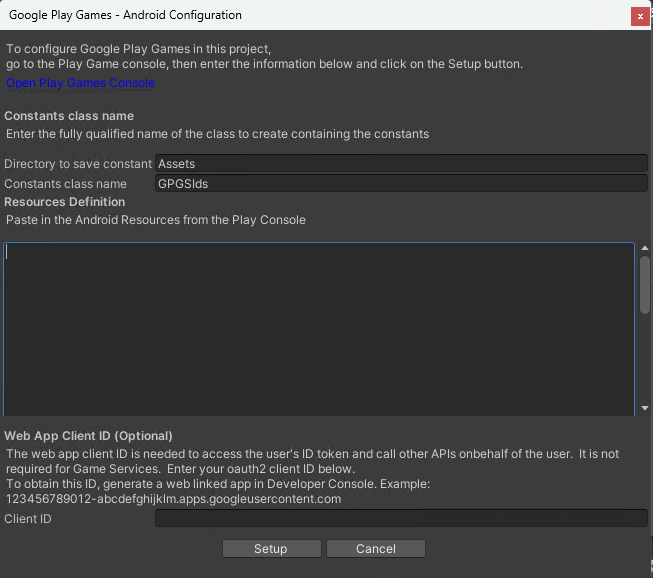
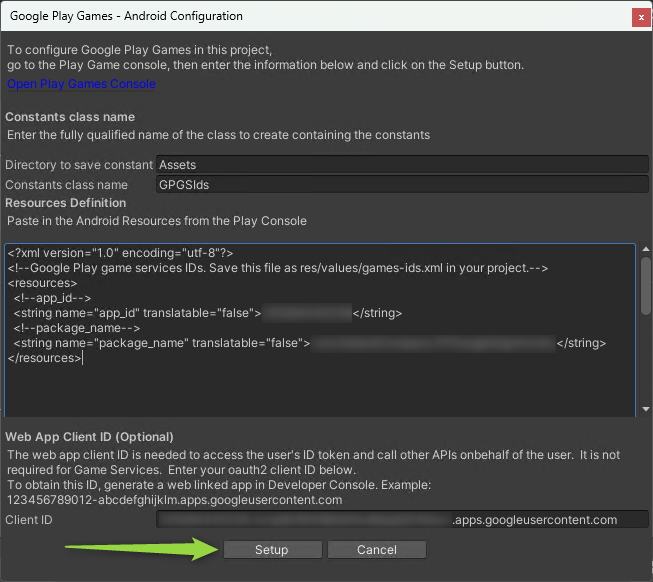
 * 隨即顯示 Android 設定視窗,我們需要在此畫面上輸入資源定義和 Web 應用程式用戶端識別碼。
 ### 取得資源定義
* 依照[這些](https://developer.android.com/games/pgs/unity/unity-start#get-android-resources)步驟取得您的 Android 資源定義。
### 取得 Web 應用程式用戶端識別碼
若要讓 Google 登入與 PlayFab 搭配運作,您需要使用 Web 用戶端識別碼,您可以為 "Web application" 類型建立 OAuth 用戶端識別碼認證來取得此識別碼。
在建立 OAuth 用戶端識別碼之前,您需要知道您的 PlayFab **API 端點**,您可以依照下列步驟找到它:
* 登入 [Game Manager](https://developer.playfab.com/)。
* 選取您的遊戲。
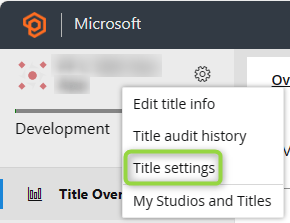
* 按一下遊戲名稱旁的**齒輪圖示**並選取 **Title Settings**,前往您的遊戲設定。
### 取得資源定義
* 依照[這些](https://developer.android.com/games/pgs/unity/unity-start#get-android-resources)步驟取得您的 Android 資源定義。
### 取得 Web 應用程式用戶端識別碼
若要讓 Google 登入與 PlayFab 搭配運作,您需要使用 Web 用戶端識別碼,您可以為 "Web application" 類型建立 OAuth 用戶端識別碼認證來取得此識別碼。
在建立 OAuth 用戶端識別碼之前,您需要知道您的 PlayFab **API 端點**,您可以依照下列步驟找到它:
* 登入 [Game Manager](https://developer.playfab.com/)。
* 選取您的遊戲。
* 按一下遊戲名稱旁的**齒輪圖示**並選取 **Title Settings**,前往您的遊戲設定。
 * 選取 **API Features** 索引標籤。
* 複製 **API endpoint** 欄位。
* 選取 **API Features** 索引標籤。
* 複製 **API endpoint** 欄位。
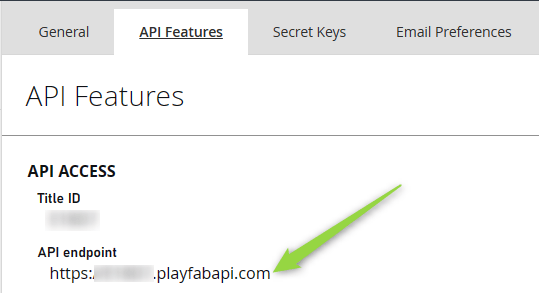 現在您已知道遊戲的 API 端點,請依照[此處](https://developers.google.com/workspace/guides/create-credentials#web-application)概述的步驟建立 OAuth 用戶端識別碼認證。
* 建立用戶端識別碼時,您需要將 API 端點新增為用戶端識別碼的 **Authorized JavaScript origin**。
現在您已知道遊戲的 API 端點,請依照[此處](https://developers.google.com/workspace/guides/create-credentials#web-application)概述的步驟建立 OAuth 用戶端識別碼認證。
* 建立用戶端識別碼時,您需要將 API 端點新增為用戶端識別碼的 **Authorized JavaScript origin**。
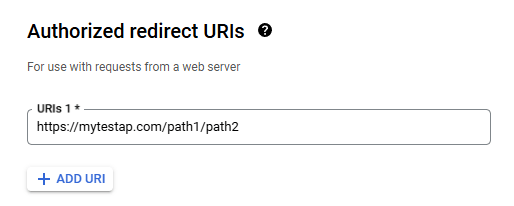
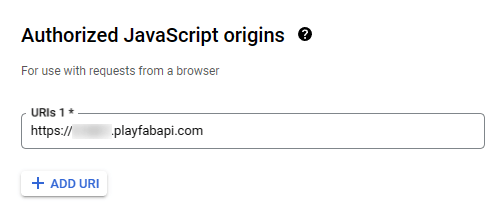 * 此外,請務必將您自己的應用程式重新導向 URI 新增為 **Authorized Redirect URI**。如果您沒有執行此步驟,將會收到 **mismatch redirect\_uri** 錯誤。
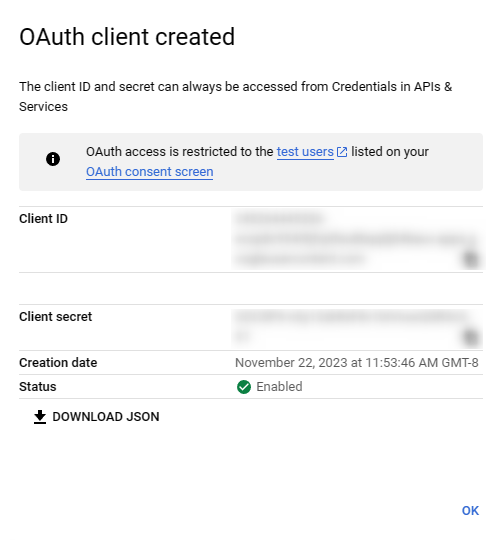
 建立用戶端識別碼後,您會看到類似下列的畫面,您可以在其中取得產生的用戶端識別碼字串和用戶端密碼。
 現在,您可以返回 Unity 中的 Android 設定視窗,並將用戶端識別碼貼到 **Client ID** 文字方塊中:
 現在兩個值都已填入,您可以選取 **Setup**:
 ## PlayFab Google 登入設定
PlayFab 有自己設定 Google 登入的程序。您可以在 PlayFab 開發人員帳戶中進行此設定。如果您沒有帳戶,可以[註冊免費的開發人員帳戶](https://developer.playfab.com)。
若要在 PlayFab 中設定 Google:
* 瀏覽至儀表板中的 **Add-ons** 區段。
* 前往 **Google Add-On**。
* 從該處選取 **Install Google** 按鈕。
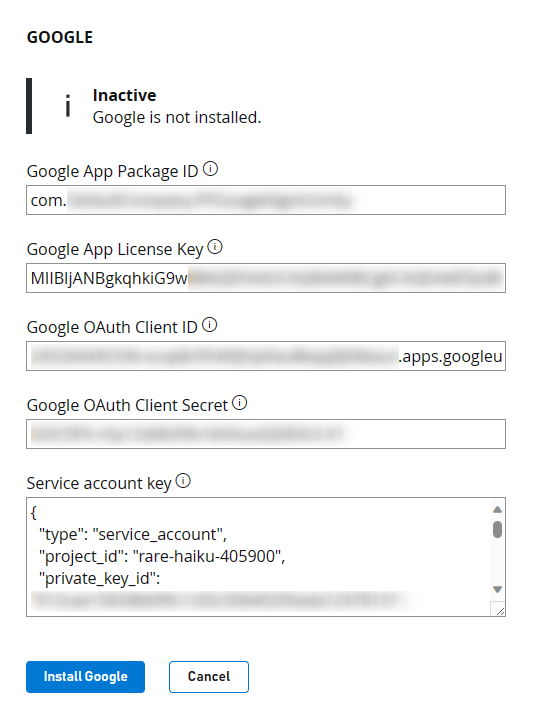
您需要在此表單中輸入幾項資訊:
* **Google App Package ID**:此欄位是您的 Android 套件名稱。例如,我們的範例使用 `com.playfab.gpgexample`。
* **Google App License Key**:雖然此欄位為必填,但與 Google 登入無關。此欄位用於透過我們的**收據驗證 API** 設定收據驗證。
您可以從 [Google Developer Console](https://play.google.com/apps/publish) 取得此授權金鑰:瀏覽至您的應用程式,在 **Monetize** 區段下,選取名為 **Monetization Setup** 的區段。在此處向下捲動,直到看到 **Licensing** 文字方塊,然後將 Base64 編碼的 RSA 公開金鑰複製並貼到此欄位中。
* **Google OAuth Client ID**:您在 Unity 中設定 **Google Play Games SDK** 時使用的 Web 用戶端識別碼。
* **Google OAuth Client Secret**:您在建立 OAuth 用戶端識別碼時取得的密碼金鑰。
* **Service Account Key**:此欄位需要服務帳戶金鑰 JSON 字串,您需要依照[這些](https://developers.google.com/workspace/guides/create-credentials#create_a_service_account)步驟建立服務帳戶金鑰。然後,依照[此處](https://developers.google.com/workspace/guides/create-credentials#create_credentials_for_a_service_account)的步驟為該服務帳戶建立認證。取得認證 JSON 檔案後,將整個 JSON 內容貼到此欄位中。
儲存之前,附加元件設定看起來應該如下所示:
## PlayFab Google 登入設定
PlayFab 有自己設定 Google 登入的程序。您可以在 PlayFab 開發人員帳戶中進行此設定。如果您沒有帳戶,可以[註冊免費的開發人員帳戶](https://developer.playfab.com)。
若要在 PlayFab 中設定 Google:
* 瀏覽至儀表板中的 **Add-ons** 區段。
* 前往 **Google Add-On**。
* 從該處選取 **Install Google** 按鈕。
您需要在此表單中輸入幾項資訊:
* **Google App Package ID**:此欄位是您的 Android 套件名稱。例如,我們的範例使用 `com.playfab.gpgexample`。
* **Google App License Key**:雖然此欄位為必填,但與 Google 登入無關。此欄位用於透過我們的**收據驗證 API** 設定收據驗證。
您可以從 [Google Developer Console](https://play.google.com/apps/publish) 取得此授權金鑰:瀏覽至您的應用程式,在 **Monetize** 區段下,選取名為 **Monetization Setup** 的區段。在此處向下捲動,直到看到 **Licensing** 文字方塊,然後將 Base64 編碼的 RSA 公開金鑰複製並貼到此欄位中。
* **Google OAuth Client ID**:您在 Unity 中設定 **Google Play Games SDK** 時使用的 Web 用戶端識別碼。
* **Google OAuth Client Secret**:您在建立 OAuth 用戶端識別碼時取得的密碼金鑰。
* **Service Account Key**:此欄位需要服務帳戶金鑰 JSON 字串,您需要依照[這些](https://developers.google.com/workspace/guides/create-credentials#create_a_service_account)步驟建立服務帳戶金鑰。然後,依照[此處](https://developers.google.com/workspace/guides/create-credentials#create_credentials_for_a_service_account)的步驟為該服務帳戶建立認證。取得認證 JSON 檔案後,將整個 JSON 內容貼到此欄位中。
儲存之前,附加元件設定看起來應該如下所示:
 請務必選取 **Save Settings**!
## 將 Google 登入新增至您的 Unity 遊戲
讓 Google 登入運作的程式碼相當精簡。其中包含初始化程式碼,您可以將它放在 Start 中 (或任何初始化或啟動應用程式的位置)。
視您遊戲或應用程式的架構和框架而定,此程式碼可以放在不同的位置。無論如何,下列程式碼都會初始化 Google Play Games。
*務必*不要忘記 **using** 陳述式,這樣您才能使用 Google Play Games SDK。
```csharp theme={null}
using GooglePlayGames;
using GooglePlayGames.BasicApi;
using PlayFab;
using PlayFab.ClientModels;
using UnityEngine;
public class PFGoogleSignInUnity : MonoBehaviour
{
void Start()
{
PlayGamesPlatform.Instance.Authenticate(ProcessAuthentication);
}
internal void ProcessAuthentication(SignInStatus status)
{
if (status == SignInStatus.Success)
{
PlayGamesPlatform.Instance.RequestServerSideAccess(false, ProcessServerAuthCode);
}
}
private void ProcessServerAuthCode(string serverAuthCode)
{
Debug.Log("Server Auth Code: " + serverAuthCode);
var request = new LoginWithGooglePlayGamesServicesRequest
{
ServerAuthCode = serverAuthCode,
CreateAccount = true,
TitleId = PlayFabSettings.TitleId
};
PlayFabClientAPI.LoginWithGooglePlayGamesServices(request, OnLoginWithGooglePlayGamesServicesSuccess, OnLoginWithGooglePlayGamesServicesFailure);
}
private void OnLoginWithGooglePlayGamesServicesSuccess(LoginResult result)
{
Debug.Log("PF Login Success LoginWithGooglePlayGamesServices");
}
private void OnLoginWithGooglePlayGamesServicesFailure(PlayFabError error)
{
Debug.Log("PF Login Failure LoginWithGooglePlayGamesServices: " + error.GenerateErrorReport());
}
}
```
讓我們詳細說明其中的運作方式:
* 首先,我們使用 `PlayGamesPlatform.Instance.Authenticate` 登入:此函式會接收回呼函式作為參數來處理結果,並根據收到的 *SignInStatus* 讓我們知道使用者是否成功登入。
* 如果您沒有將測試帳戶新增至應用程式,測試時回呼的 *SignInStatus* 結果一律為 *Canceled*。如果發生此問題,請依照[這份](https://developers.google.com/games/services/console/testpub)指南中的步驟,將測試人員新增至您的 Google 應用程式。
呼叫 `PlayGamesPlatform.Instance.Authenticate` 會觸發 **Google Play Games** 登入對話方塊彈出。
* 接著,如果登入成功,我們會呼叫 `PlayGamesPlatform.Instance.RequestServerSideAccess`,它會接收另一個回呼並傳回 ServerAuthCode 字串。
* 然後,我們發出 `PlayFabClientAPI.LoginWithGooglePlayGamesServices` 呼叫,並將剛從 Google 取得的 `AuthCode` 作為 `ServerAuthCode` 參數傳入。
* 最後,視 `LoginWithGooglePlayGamesServices` 呼叫的結果而定,會呼叫 `OnLoginWithGooglePlayGamesServicesSuccess` 或 `OnLoginWithGooglePlayGamesServicesFailure`,這些回呼負責處理您登入 PlayFab 作業的結果。此時,您應該會在儀表板中看到成功登入!
希望本指南對您有所幫助。如果您有任何問題,歡迎在我們的[社群論壇](https://community.playfab.com/)中提問。
## Related topics
- [在 Unity 中從 Google 登入移轉至 Google Play Games](/zh-TW/services/playfab/identity/player-identity/platform-specific-authentication/google-play-games-sign-in-migration-details.md)
- [平台特定驗證](/zh-TW/services/playfab/identity/player-identity/platform-specific-authentication/index.md)
- [PlayFab 身分識別文件](/zh-TW/services/playfab/identity/index.md)
- [使用 Google 市集兌換](/zh-TW/services/playfab/economy-monetization/economy-v2/marketplace/marketplace-redemption/google.md)
- [驗證](/zh-TW/services/xbox-services/fundamentals/identity/auth/index.md)
請務必選取 **Save Settings**!
## 將 Google 登入新增至您的 Unity 遊戲
讓 Google 登入運作的程式碼相當精簡。其中包含初始化程式碼,您可以將它放在 Start 中 (或任何初始化或啟動應用程式的位置)。
視您遊戲或應用程式的架構和框架而定,此程式碼可以放在不同的位置。無論如何,下列程式碼都會初始化 Google Play Games。
*務必*不要忘記 **using** 陳述式,這樣您才能使用 Google Play Games SDK。
```csharp theme={null}
using GooglePlayGames;
using GooglePlayGames.BasicApi;
using PlayFab;
using PlayFab.ClientModels;
using UnityEngine;
public class PFGoogleSignInUnity : MonoBehaviour
{
void Start()
{
PlayGamesPlatform.Instance.Authenticate(ProcessAuthentication);
}
internal void ProcessAuthentication(SignInStatus status)
{
if (status == SignInStatus.Success)
{
PlayGamesPlatform.Instance.RequestServerSideAccess(false, ProcessServerAuthCode);
}
}
private void ProcessServerAuthCode(string serverAuthCode)
{
Debug.Log("Server Auth Code: " + serverAuthCode);
var request = new LoginWithGooglePlayGamesServicesRequest
{
ServerAuthCode = serverAuthCode,
CreateAccount = true,
TitleId = PlayFabSettings.TitleId
};
PlayFabClientAPI.LoginWithGooglePlayGamesServices(request, OnLoginWithGooglePlayGamesServicesSuccess, OnLoginWithGooglePlayGamesServicesFailure);
}
private void OnLoginWithGooglePlayGamesServicesSuccess(LoginResult result)
{
Debug.Log("PF Login Success LoginWithGooglePlayGamesServices");
}
private void OnLoginWithGooglePlayGamesServicesFailure(PlayFabError error)
{
Debug.Log("PF Login Failure LoginWithGooglePlayGamesServices: " + error.GenerateErrorReport());
}
}
```
讓我們詳細說明其中的運作方式:
* 首先,我們使用 `PlayGamesPlatform.Instance.Authenticate` 登入:此函式會接收回呼函式作為參數來處理結果,並根據收到的 *SignInStatus* 讓我們知道使用者是否成功登入。
* 如果您沒有將測試帳戶新增至應用程式,測試時回呼的 *SignInStatus* 結果一律為 *Canceled*。如果發生此問題,請依照[這份](https://developers.google.com/games/services/console/testpub)指南中的步驟,將測試人員新增至您的 Google 應用程式。
呼叫 `PlayGamesPlatform.Instance.Authenticate` 會觸發 **Google Play Games** 登入對話方塊彈出。
* 接著,如果登入成功,我們會呼叫 `PlayGamesPlatform.Instance.RequestServerSideAccess`,它會接收另一個回呼並傳回 ServerAuthCode 字串。
* 然後,我們發出 `PlayFabClientAPI.LoginWithGooglePlayGamesServices` 呼叫,並將剛從 Google 取得的 `AuthCode` 作為 `ServerAuthCode` 參數傳入。
* 最後,視 `LoginWithGooglePlayGamesServices` 呼叫的結果而定,會呼叫 `OnLoginWithGooglePlayGamesServicesSuccess` 或 `OnLoginWithGooglePlayGamesServicesFailure`,這些回呼負責處理您登入 PlayFab 作業的結果。此時,您應該會在儀表板中看到成功登入!
希望本指南對您有所幫助。如果您有任何問題,歡迎在我們的[社群論壇](https://community.playfab.com/)中提問。
## Related topics
- [在 Unity 中從 Google 登入移轉至 Google Play Games](/zh-TW/services/playfab/identity/player-identity/platform-specific-authentication/google-play-games-sign-in-migration-details.md)
- [平台特定驗證](/zh-TW/services/playfab/identity/player-identity/platform-specific-authentication/index.md)
- [PlayFab 身分識別文件](/zh-TW/services/playfab/identity/index.md)
- [使用 Google 市集兌換](/zh-TW/services/playfab/economy-monetization/economy-v2/marketplace/marketplace-redemption/google.md)
- [驗證](/zh-TW/services/xbox-services/fundamentals/identity/auth/index.md)