> ## Documentation Index
> Fetch the complete documentation index at: https://devdocs.xbox.com/llms.txt
> Use this file to discover all available pages before exploring further.

# 使用 Google 和 HTML5 設定 PlayFab 驗證

> 逐步教學課程，說明如何使用 HTML5 和 JavaScript 將 Google 登入新增至 PlayFab 遊戲，涵蓋 Google API 設定和 OAuth 玩家驗證。

本教學課程將引導您完成使用 Google 和 HTML5/JavaScript 進行 PlayFab 驗證的程序。

## 需求

您需要：

* 用於測試的 [Google 帳戶](https://google.com/)。
* 已註冊的 `[PlayFab](https://developer.playfab.com/)` 遊戲。
* 熟悉[登入基本概念和最佳做法](/zh-TW/services/playfab/identity/player-identity/login/login-basics-best-practices)。
* 至少需要一部具有有效網域名稱的伺服器，以提供靜態 HTML 檔案。如需如何設定的相關資訊，請參閱[執行 HTTP 伺服器進行測試](/zh-TW/services/playfab/identity/player-identity/platform-specific-authentication/running-an-http-server-for-testing)教學課程。

## 伺服器和網域

本指南需要具有有效網域的伺服器。如果您還沒有已註冊的網域和遠端 Web 伺服器，請依照我們的[執行 HTTP 伺服器進行測試](/zh-TW/services/playfab/identity/player-identity/platform-specific-authentication/running-an-http-server-for-testing)教學課程，了解如何設定並執行具有有效網域名稱的本機 Web 伺服器。

在本指南中，我們假設您的網域是 `[http://playfab.example](http://playfab.example)`。

## 註冊 Google API 專案

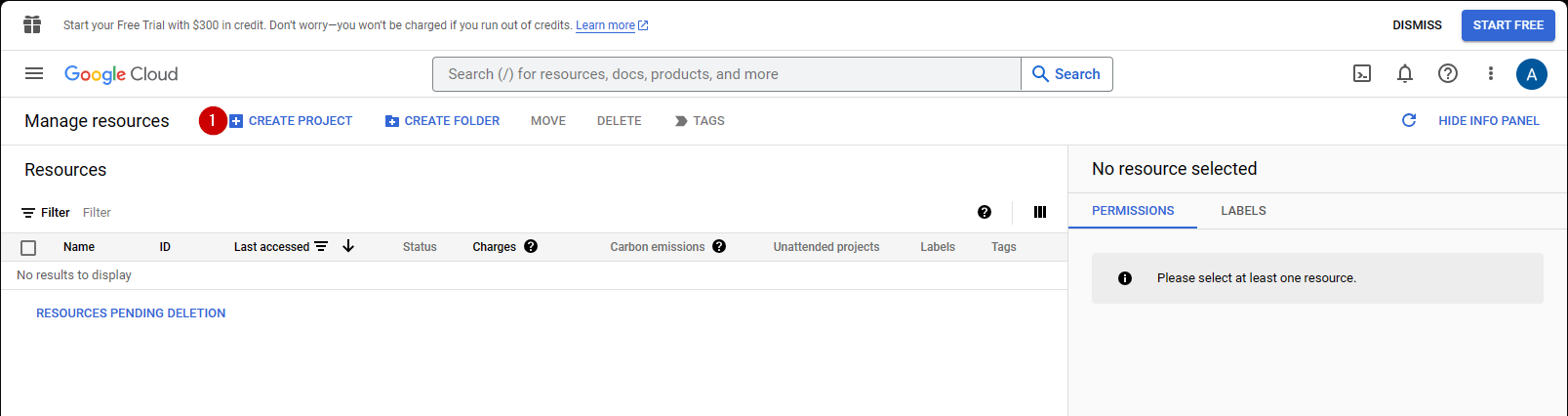
首先，瀏覽至 [Google API 主控台](https://console.developers.google.com/)：

1. 瀏覽至 **CREATE PROJECT** 並選取它。

<img src="https://mintcdn.com/microsoft-4404708b/mLCHf0iQv3VidfBe/images/playfab/identity/player-identity/platform-specific-authentication/tutorials/google-html5/create-project.png?fit=max&auto=format&n=mLCHf0iQv3VidfBe&q=85&s=5b9ba00fd573b49ddbdc0a4b47d173a4" alt="Google API Manager 建立新的認證" width="1607" height="426" data-path="images/playfab/identity/player-identity/platform-specific-authentication/tutorials/google-html5/create-project.png" />

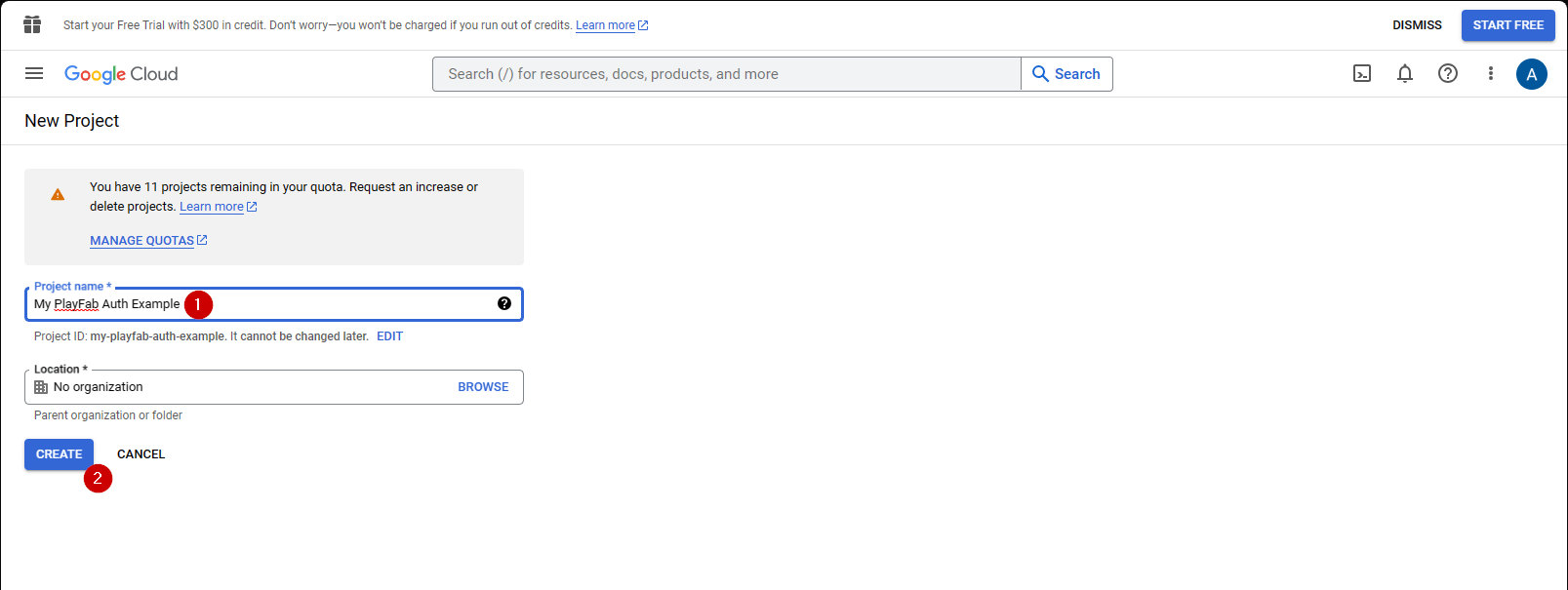
1. 填寫 **Project Name** 下方的欄位。
2. 選取 **Create** 按鈕。
<img src="https://mintcdn.com/microsoft-4404708b/mLCHf0iQv3VidfBe/images/playfab/identity/player-identity/platform-specific-authentication/tutorials/google-html5/create-new-project.png?fit=max&auto=format&n=mLCHf0iQv3VidfBe&q=85&s=10b5bb3e56749cdc940cc756f0285d0d" alt="Google API Manager 新專案" width="1607" height="605" data-path="images/playfab/identity/player-identity/platform-specific-authentication/tutorials/google-html5/create-new-project.png" />

<Note>
  **API Manager** 需要 10 到 20 秒來產生專案，這是正常現象。
</Note>

建立專案後：

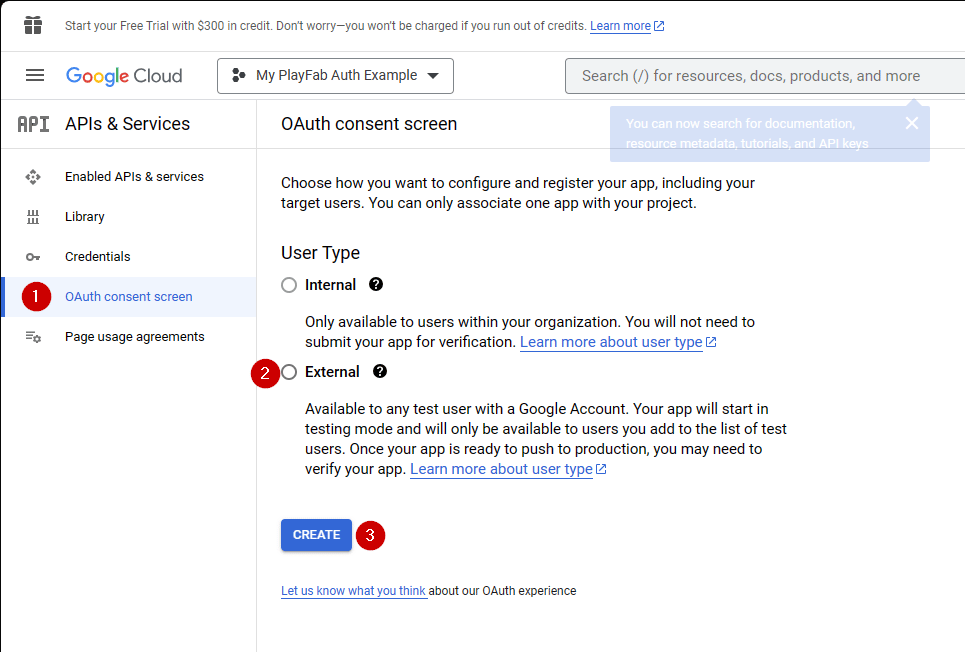
1. 瀏覽至 **OAuth consent screen**。
2. 在 User Type 下選取 **External**
3. 然後選取 **Create**。

<img src="https://mintcdn.com/microsoft-4404708b/mLCHf0iQv3VidfBe/images/playfab/identity/player-identity/platform-specific-authentication/tutorials/google-html5/oauth-consent-screen.png?fit=max&auto=format&n=mLCHf0iQv3VidfBe&q=85&s=f6889444d347b1f9d78f0309c2e75193" alt="Google API Manager OAuth 同意畫面" width="965" height="652" data-path="images/playfab/identity/player-identity/platform-specific-authentication/tutorials/google-html5/oauth-consent-screen.png" />

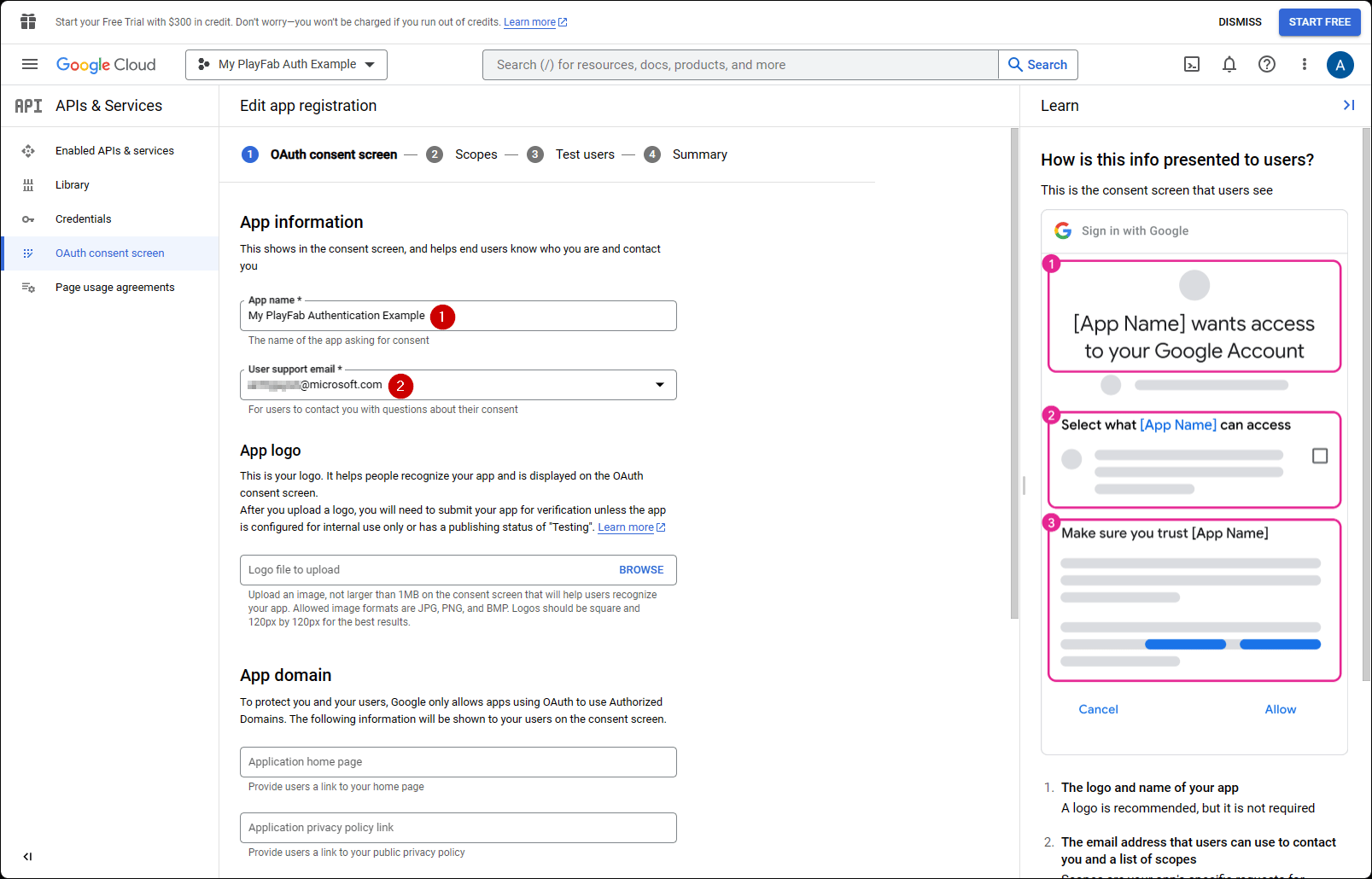
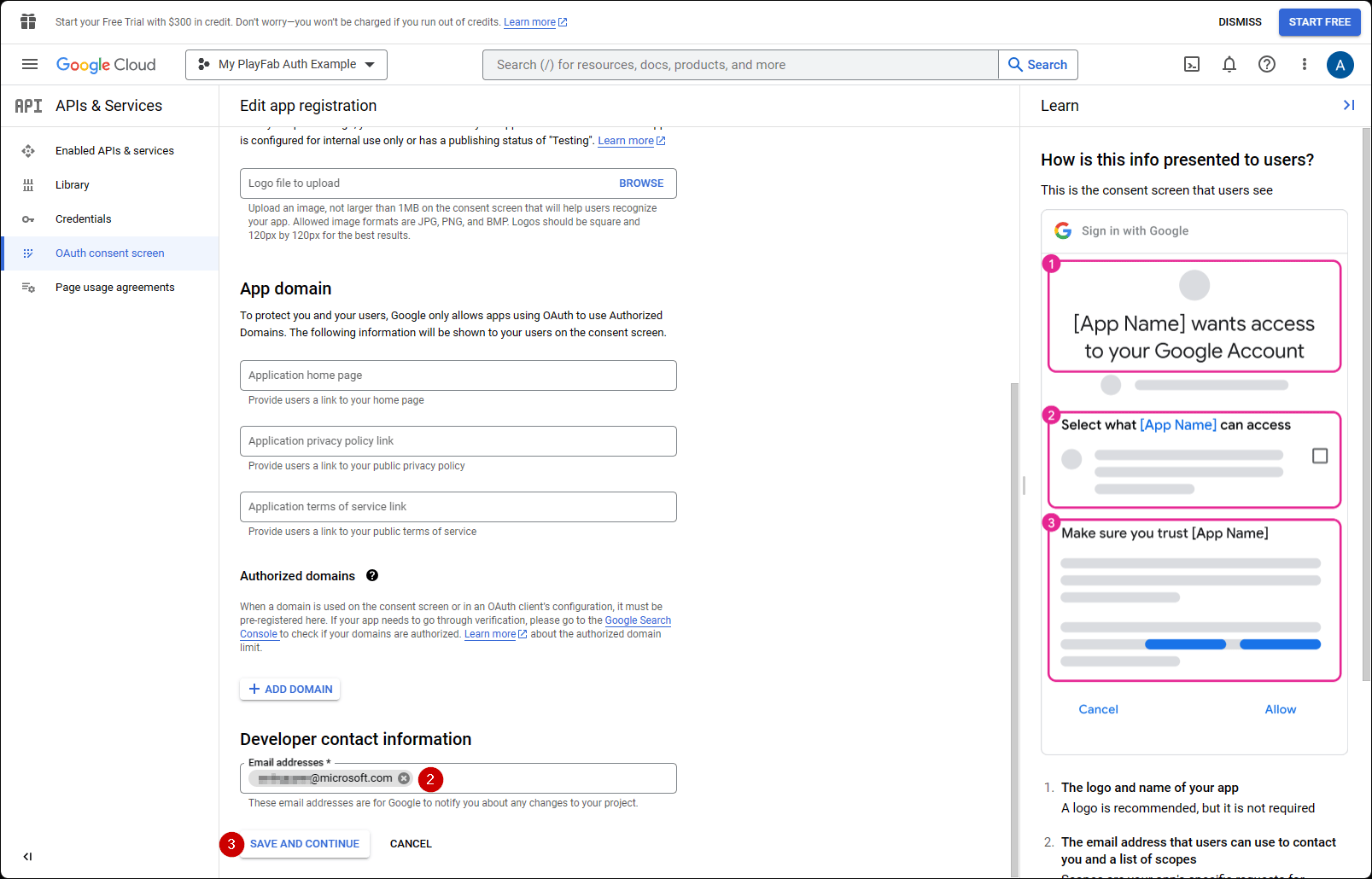
1. 填寫應用程式名稱
2. 確認 **user support email** 和 **Developer Contact Email** 都已填入電子郵件
3. 然後選取 **SAVE AND CONTINUE**
<img src="https://mintcdn.com/microsoft-4404708b/mLCHf0iQv3VidfBe/images/playfab/identity/player-identity/platform-specific-authentication/tutorials/google-html5/create-oauth-consent-screen-1.png?fit=max&auto=format&n=mLCHf0iQv3VidfBe&q=85&s=f3d7855e3f4b8ecd65cf3eb41f8f358c" alt="Google API Manager OAuth 同意畫面設定" width="1607" height="1030" data-path="images/playfab/identity/player-identity/platform-specific-authentication/tutorials/google-html5/create-oauth-consent-screen-1.png" />

<img src="https://mintcdn.com/microsoft-4404708b/mLCHf0iQv3VidfBe/images/playfab/identity/player-identity/platform-specific-authentication/tutorials/google-html5/create-oauth-consent-screen-2.png?fit=max&auto=format&n=mLCHf0iQv3VidfBe&q=85&s=d6013db1014b105eae236b04f61a92b9" alt="Google API Manager OAuth 同意畫面設定 2" width="1607" height="1030" data-path="images/playfab/identity/player-identity/platform-specific-authentication/tutorials/google-html5/create-oauth-consent-screen-2.png" />

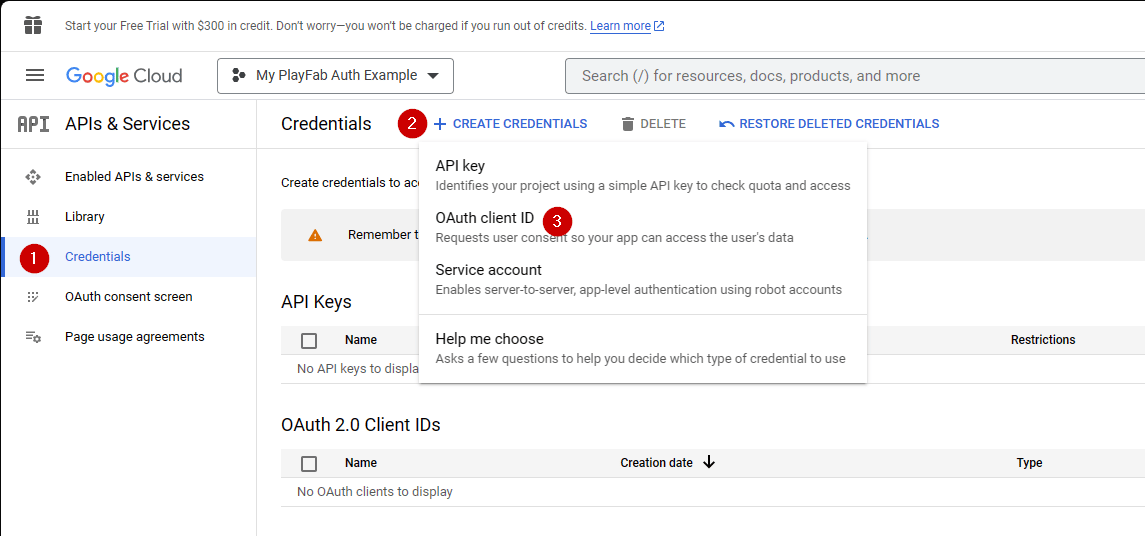
1. 接著，瀏覽至 **Credentials**。
2. 選取 **Create credentials**。
3. 然後選取 **OAuth client ID**。
<img src="https://mintcdn.com/microsoft-4404708b/mLCHf0iQv3VidfBe/images/playfab/identity/player-identity/platform-specific-authentication/tutorials/google-html5/open-oauth-credentials.png?fit=max&auto=format&n=mLCHf0iQv3VidfBe&q=85&s=6d594083a2d96943f337a0c2489c40eb" alt="Google API Manager 開啟 OAuth 認證" width="1145" height="536" data-path="images/playfab/identity/player-identity/platform-specific-authentication/tutorials/google-html5/open-oauth-credentials.png" />

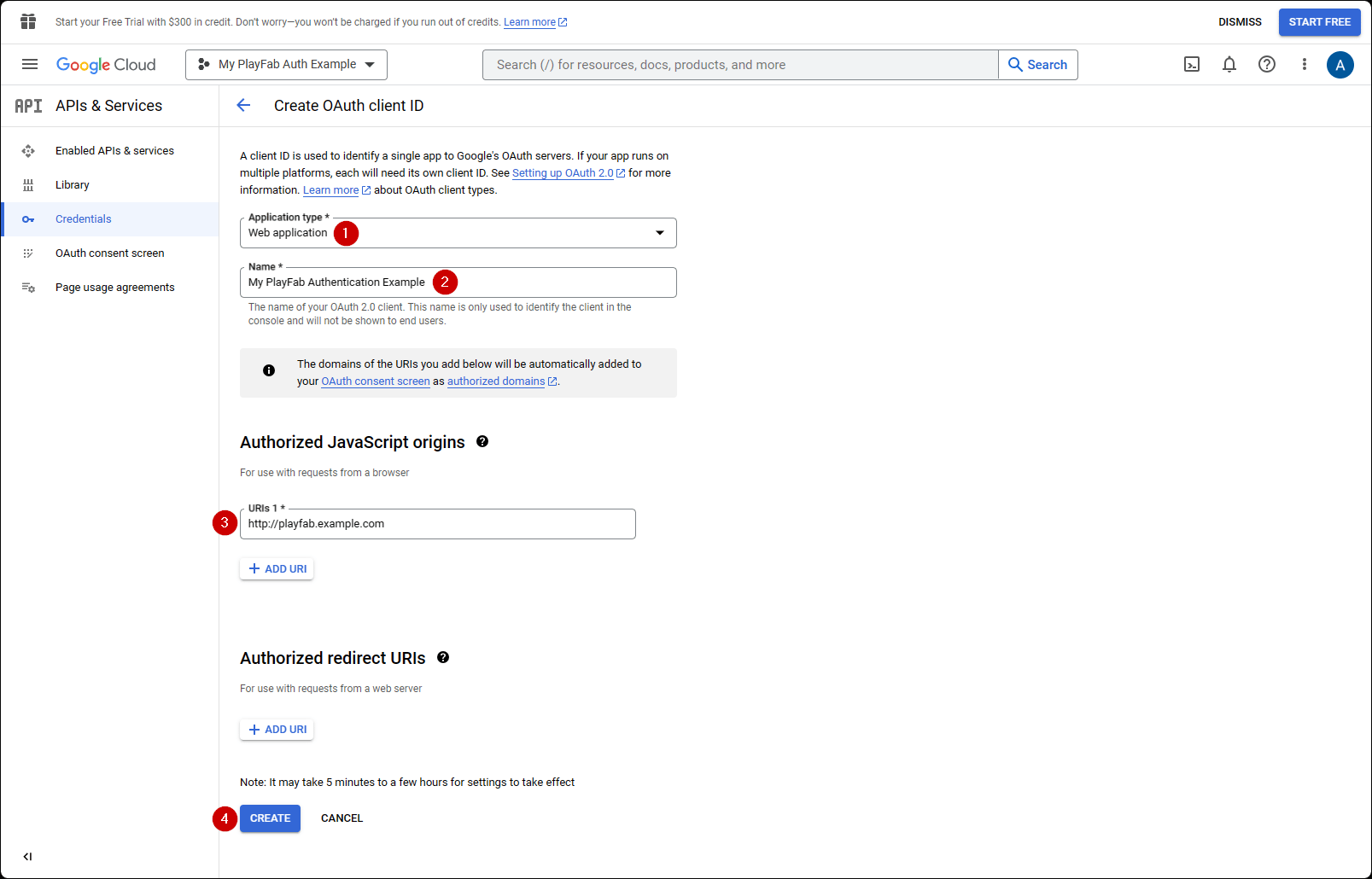
1. 選取 **Web Application** 作為您的 **Application type**。
2. 為您的應用程式指定 **Name**。
3. 將您的網域新增至 **Authorized JavaScript origins**：在我們的案例中是 `[PlayFab](http://playfab.example.com)`。
4. 最後，選取 **Create** 按鈕以認可變更。

<img src="https://mintcdn.com/microsoft-4404708b/mLCHf0iQv3VidfBe/images/playfab/identity/player-identity/platform-specific-authentication/tutorials/google-html5/create-oauth-credentials.png?fit=max&auto=format&n=mLCHf0iQv3VidfBe&q=85&s=0cc913b14a6883d7f2286121ce8af563" alt="Google API Manager 建立 OAuth 認證" width="1607" height="1030" data-path="images/playfab/identity/player-identity/platform-specific-authentication/tutorials/google-html5/create-oauth-credentials.png" />

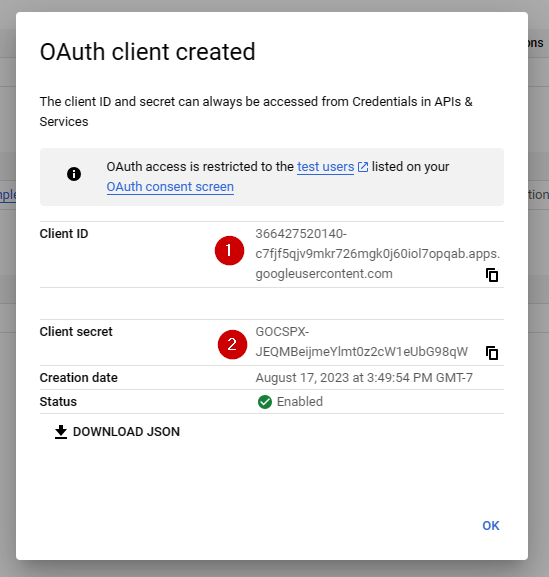
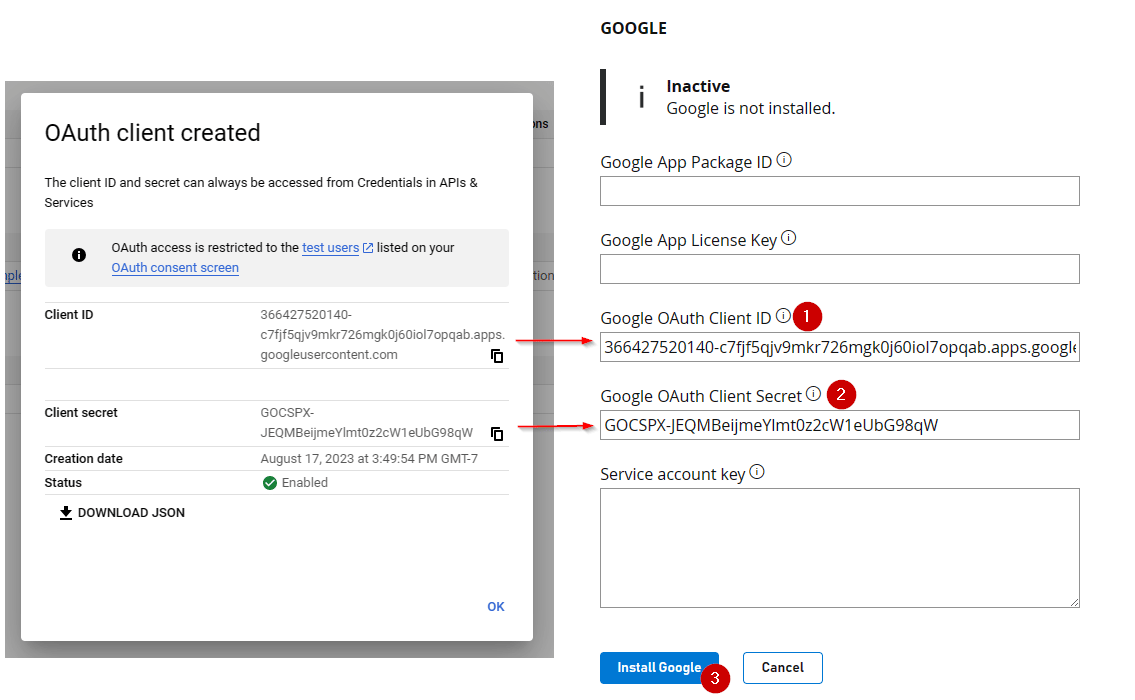
在下方所示的 **OAuth client** 畫面上，Google API Manager 會顯示兩項重要資訊：

1. **用戶端識別碼**
2. **用戶端密碼**。

<Note>
  請務必將這些值複製並儲存在容易存取的安全位置，因為本教學課程稍後所示的授權程序會使用這些值。
</Note>

<img src="https://mintcdn.com/microsoft-4404708b/mLCHf0iQv3VidfBe/images/playfab/identity/player-identity/platform-specific-authentication/tutorials/google-html5/oauth-client-credentials.png?fit=max&auto=format&n=mLCHf0iQv3VidfBe&q=85&s=33427703b3ddb679666f2d4c0632e0c8" alt="Google API Manager OAuth 用戶端識別碼和密碼" width="549" height="577" data-path="images/playfab/identity/player-identity/platform-specific-authentication/tutorials/google-html5/oauth-client-credentials.png" />

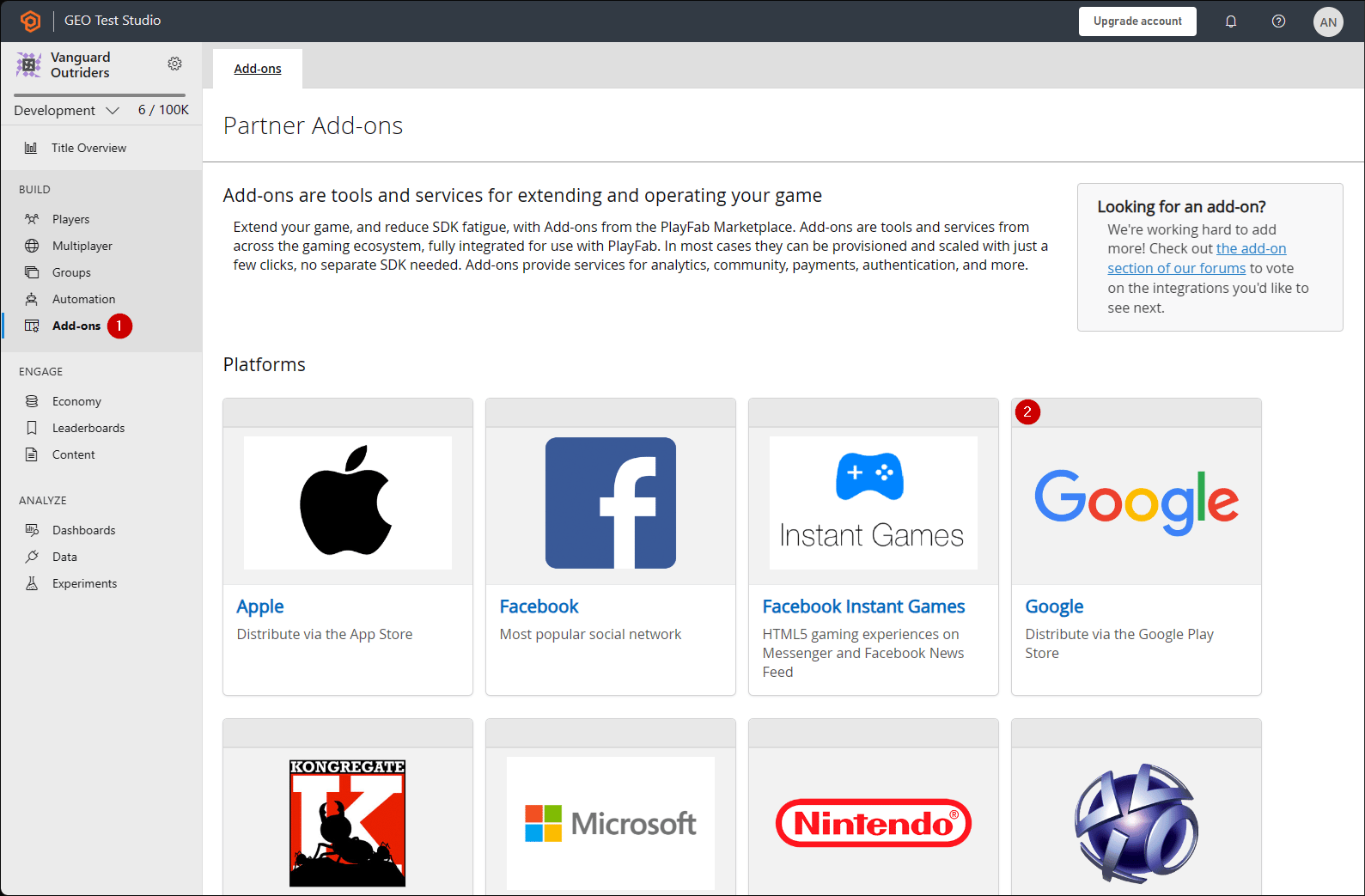
前往您遊戲的 PlayFab **Game Manager** 頁面。

1. 在功能表中瀏覽至 **Add-ons**。
2. 找到並開啟 **Google Add-on** 圖示/連結。
<img src="https://mintcdn.com/microsoft-4404708b/mLCHf0iQv3VidfBe/images/playfab/identity/player-identity/platform-specific-authentication/tutorials/google-html5/open-google-add-on.png?fit=max&auto=format&n=mLCHf0iQv3VidfBe&q=85&s=1b0af874b0d7e46cf30337e322f0004a" alt="PlayFab Game Manager 附加元件" width="1589" height="1043" data-path="images/playfab/identity/player-identity/platform-specific-authentication/tutorials/google-html5/open-google-add-on.png" />

1. 填入 **Client ID**。
2. 填入 **Client secret**。
3. 然後選取 **Install Google** 按鈕。
<img src="https://mintcdn.com/microsoft-4404708b/mLCHf0iQv3VidfBe/images/playfab/identity/player-identity/platform-specific-authentication/tutorials/google-html5/install-google-add-on.png?fit=max&auto=format&n=mLCHf0iQv3VidfBe&q=85&s=d84b1601417c536b97d909df1ae1f58c" alt="PlayFab Game Manager 安裝 Google 附加元件" width="1135" height="700" data-path="images/playfab/identity/player-identity/platform-specific-authentication/tutorials/google-html5/install-google-add-on.png" />

<Note>
  截至 2017 年 7 月，**Google API Manager** 有個壞習慣，就是*無法*正確連結 **Allowed JS** 來源網域。如果您收到下列錯誤：**"idpiframe\_initialization\_failed", details: "Not a valid origin for the client: somedomain.com..."**，請移除認證並重新建立。*不需要刪除整個專案，只要刪除認證即可。*
</Note>

## 使用存取權杖進行測試

在此範例中，我們將示範如何使用傳統的存取權杖方法來測試 LoginWithGoogleAccount API。請使用下方提供的 HTML 程式碼進行測試。

<Note>
  請務必\*將 `YOUR_CLIENT_ID` 和 `YOUR_PLAYFAB_TITLE` 取代為您自己的值。
</Note>

<Note>
  TypeScript 型別定義檔案中的 **LoginWithGoogleAccountRequest** 物件缺少 **AccessToken** 參數。如果您搭配 Node SDK 使用 TypeScript，可以建立自訂型別 `interface LoginRequest extends PlayFabClientModels.LoginWithGoogleAccountRequest { AccessToken: string; }`，並在使用 API 時轉換型別 `PlayFabClient.LoginWithGoogleAccount( { AccessToken: accessToken, CreateAccount: true, } as LoginRequest, onPlayFabResponse);`
</Note>

```html theme={null}
<!DOCTYPE html>
<html>
  <head>
    <script src="https://accounts.google.com/gsi/client" onload="initClient()" async defer></script>
    <script src="https://download.playfab.com/PlayFabClientApi.js"></script>
  </head>
  <body>
    <script>
      var client;
      function initClient() {
          console.log("Initializing Google token client on page load");
          client = google.accounts.oauth2.initTokenClient({
              client_id: "YOUR_CLIENT_ID", // TODO: PUT YOUR GOOGLE CLIENT_ID HERE!
              callback: "onTokenResponse",
              scope: "https://www.googleapis.com/auth/userinfo.profile",
              callback: (tokenResponse) => {
                  access_token = tokenResponse.access_token;
                  onSignIn();
              }
          });
      }

      function getToken() {
        client.requestAccessToken();
      }

      // Invoked after user has signed in with Google
      function onSignIn() {
          // Execute LoginWithGoogleAccount API call using the Google access token. Please replace TitleId.
          logLine("Attempting PlayFab Sign-in using LoginWithGoogleAccount");
          PlayFabClientSDK.LoginWithGoogleAccount({
              AccessToken: access_token, // This access token is generated after a user has signed into Google
              CreateAccount: true,
              TitleId: "YOUR_PLAYFAB_TITLE", // TODO: PUT YOUR TITLE ID HERE!
          }, onPlayFabResponse);
      }

      // Handles response from PlayFab
      function onPlayFabResponse(response, error) {
          if (response)
              logLine("Response: " + JSON.stringify(response));
          if (error)
              logLine("Error: " + JSON.stringify(error));
      }

      function logLine(message) {
          var textnode = document.createTextNode(message);
          document.body.appendChild(textnode);
          var br = document.createElement("br");
          document.body.appendChild(br);
      }
    </script>
    <h1>Google Access Token Auth Example</h1>
    <!-- Clicking this button will prompt the user to sign into Google. Once they have signed into Google, LoginWithGoogleAccount is automatically called. -->
    <button onclick="getToken();">Sign into Google</button><br><br>
  </body>
</html>
```

**使用 (已淘汰的) Google Sign-in Platform 程式庫進行測試**

<Note>
  下列範例使用 Google Sign-In 平台程式庫。**根據 [Google Identity 公開文件網站](https://developers.google.com/identity/gsi/web/guides/migration)，適用於 Web 的 Google Sign-In JavaScript 平台程式庫將於 2023 年 3 月 31 日淘汰**。此範例今後將無法用於新建立的 Google 用戶端，請參閱前一個程式碼範例，它使用較新的 Google Identity Services 程式庫！
</Note>

```html theme={null}
<!DOCTYPE html>
<html>
<head>
    <!-- Special meta tag allows you to pass Google Client ID. Replace the content attribute value with your own Client Id -->
    <meta name="google-signin-client_id" content="YOUR_CLIENT_ID"><!-- // TODO: PUT YOUR GOOGLE CLIENT_ID HERE! -->
    <!-- Load Google platform SDK-->
    <script src="https://apis.google.com/js/platform.js" async defer></script>
    <!-- Load PlayFab Client JavaScript SDK -->
    <script src="https://download.playfab.com/PlayFabClientApi.js"></script>
</head>
<body>
    <p>Google Access Token Auth Example</p>
    <!-- Neat Google button gets styled automatically when Google platform SDK is loaded -->
    <div class="g-signin2" data-onsuccess="onSignIn"></div>
    <script>
        // Invoked when user has signed in with Google
        function onSignIn() {
            // Retrieve access token
            var accessToken = gapi.auth2.getAuthInstance().currentUser.get().getAuthResponse(true).access_token;
            // Execute LoginWithGoogleAccount API call using the access token. Please replace TitleID with your own.
            logLine("Attempting PlayFab Sign-in using LoginWithGoogleAccount");
            PlayFabClientSDK.LoginWithGoogleAccount({
                ServerAuthCode: accessToken,
                CreateAccount : true,
                TitleId: "YOUR_PLAYFAB_TITLE", // TODO: PUT YOUR TITLE ID HERE!
            }, onPlayFabResponse);
        }

        // Handles response from PlayFab
        function onPlayFabResponse(response, error) {
            if (response)
                logLine("Response: " + JSON.stringify(response));
            if (error)
                logLine("Error: " + JSON.stringify(error));
        }

        function logLine(message) {
            var textnode = document.createTextNode(message);
            document.body.appendChild(textnode);
            var br = document.createElement("br");
            document.body.appendChild(br);
        }
    </script>
</body>
</html>
```

請記得使用您的 Web 伺服器開啟此頁面，並務必使用您在設定 Google 專案時指定的 URL 存取此頁面 (在我們的案例中是 `http://playfab.example`)。

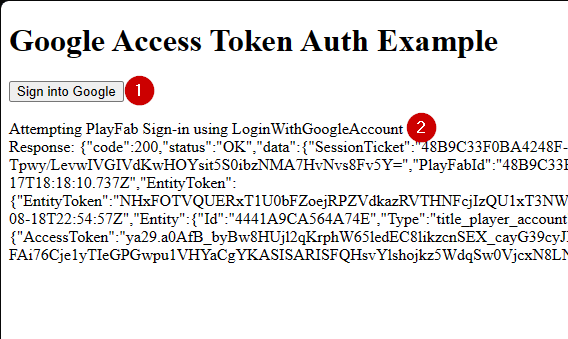
1. 頁面開啟後，選取 **G Signed In**，然後依照一般的 Google 驗證流程進行。
2. 完成後，指令碼會嘗試在 PlayFab 端進行驗證並輸出結果。

<img src="https://mintcdn.com/microsoft-4404708b/mLCHf0iQv3VidfBe/images/playfab/identity/player-identity/platform-specific-authentication/tutorials/google-html5/google-auth-example.png?fit=max&auto=format&n=mLCHf0iQv3VidfBe&q=85&s=b931669ffe5a96cb90404383ab650072" alt="Google 驗證範例" width="568" height="339" data-path="images/playfab/identity/player-identity/platform-specific-authentication/tutorials/google-html5/google-auth-example.png" />

<Note>
  如果您*已經有*執行中的 Google 驗證工作階段，就不需要選取 **G Signed In**。一切都會自動進行。
</Note>


## Related topics

- [平台特定驗證](/zh-TW/services/playfab/identity/player-identity/platform-specific-authentication/index.md)
- [使用 Kongregate 和 HTML5 設定 PlayFab 驗證](/zh-TW/services/playfab/identity/player-identity/platform-specific-authentication/kongregate-html5.md)
- [使用 Facebook 和 HTML5 設定 PlayFab 驗證](/zh-TW/services/playfab/identity/player-identity/platform-specific-authentication/facebook-html5.md)
- [使用 Twitch 和 HTML5 設定 PlayFab 驗證](/zh-TW/services/playfab/identity/player-identity/platform-specific-authentication/twitch-html5.md)
- [為 PlayFab 設定使用 Battle.net 登入](/zh-TW/services/playfab/identity/player-identity/platform-specific-authentication/battlenet-login.md)