> ## Documentation Index
> Fetch the complete documentation index at: https://devdocs.xbox.com/llms.txt
> Use this file to discover all available pages before exploring further.

# 為 PlayFab 設定使用 Battle.net 登入

> 使用 HTML5 和 JavaScript 設定 PlayFab 與 Battle.net 的驗證，包括 Blizzard 應用程式設定、OAuth 流程，以及玩家登入整合。

# 使用 Battle.net 設定 PlayFab 驗證

本教學課程將逐步引導您使用 Battle.net 和 HTML5/JavaScript 設定 PlayFab 驗證。

## 需求

您需要：

* 用於測試的 [Battle.net 帳戶](https://developer.battle.net)。
* 已註冊的 [PlayFab](https://developer.playfab.com/) 遊戲。
* 熟悉[登入基本概念和最佳做法](/zh-TW/services/playfab/identity/player-identity/login/login-basics-best-practices)。
* 具有有效網域名稱、可作為靜態 HTML 檔案的伺服器。如需如何設定伺服器的資訊，請參閱[執行 HTTP 伺服器以進行測試](/zh-TW/services/playfab/identity/player-identity/platform-specific-authentication/running-an-http-server-for-testing)教學課程。

## 伺服器和網域

本指南需要具有有效網域的伺服器才能進行。如果您還沒有已註冊的網域和遠端 Web 伺服器，請依照我們的[執行 HTTP 伺服器以進行測試](/zh-TW/services/playfab/identity/player-identity/platform-specific-authentication/running-an-http-server-for-testing)教學課程，了解如何設定以有效網域名稱執行的本機 Web 伺服器。

在本指南中，我們假設您的網域為 [http://playfab.example。](http://playfab.example。)

## 擷取 Battle.net 遊戲用戶端識別碼

首先瀏覽至 [Battle.net](https://developer.battle.net) 並建立 Battle.net 開發人員帳戶。建立帳戶之後，您需要建立遊戲並取得指派的用戶端識別碼。

## 安裝 Battle.net 附加元件

移至您遊戲的 PlayFab **Game Manager** 頁面。

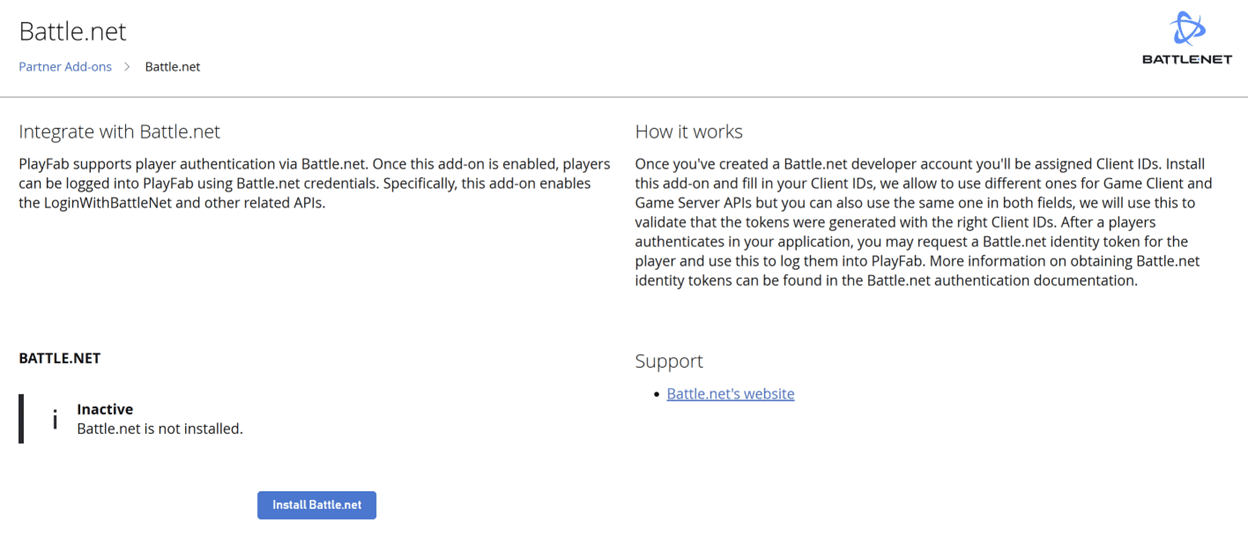
1. 在功能表中瀏覽至 **Add-ons**。
2. 找到並開啟 **Battle.net Add-on** 圖示/連結。

<img src="https://mintcdn.com/microsoft-4404708b/mLCHf0iQv3VidfBe/images/playfab/identity/player-identity/platform-specific-authentication/tutorials/battlenet/battlenet-partner-add-on-page.png?fit=max&auto=format&n=mLCHf0iQv3VidfBe&q=85&s=de4613079755faeb998407ac4158da89" alt="PlayFab Game Manager 附加元件" width="1248" height="555" data-path="images/playfab/identity/player-identity/platform-specific-authentication/tutorials/battlenet/battlenet-partner-add-on-page.png" />

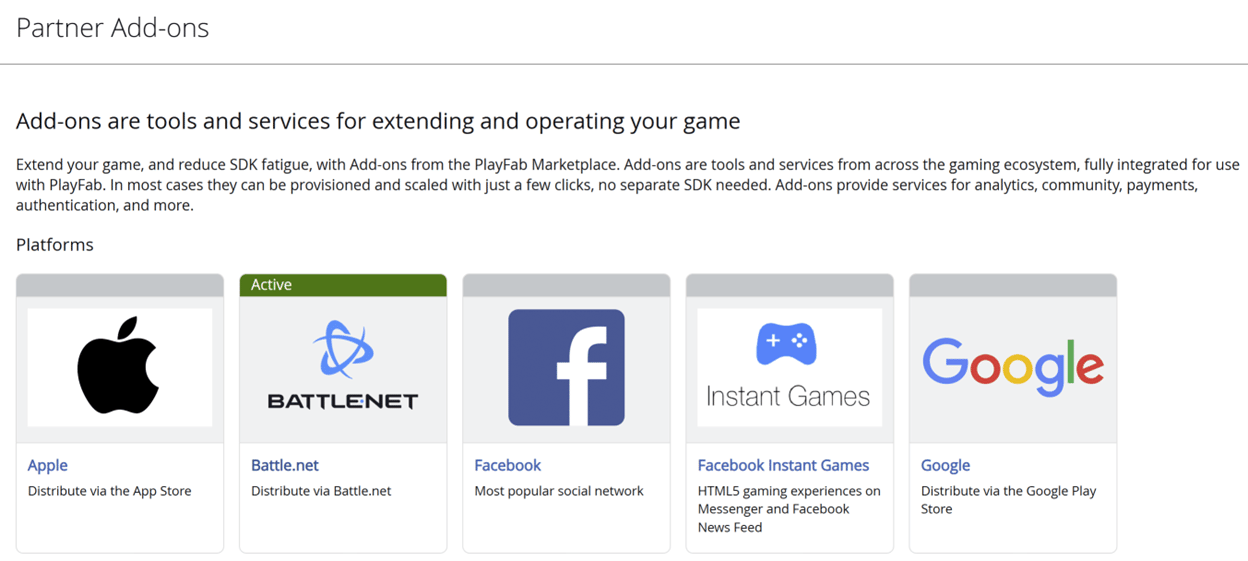
3. 選取 **Install Battle.net**。

<img src="https://mintcdn.com/microsoft-4404708b/mLCHf0iQv3VidfBe/images/playfab/identity/player-identity/platform-specific-authentication/tutorials/battlenet/battlenet-add-on.png?fit=max&auto=format&n=mLCHf0iQv3VidfBe&q=85&s=f9828e789c2285bbde0d456d7f307102" alt="PlayFab Game Manager Battle.net 附加元件" width="1248" height="545" data-path="images/playfab/identity/player-identity/platform-specific-authentication/tutorials/battlenet/battlenet-add-on.png" />

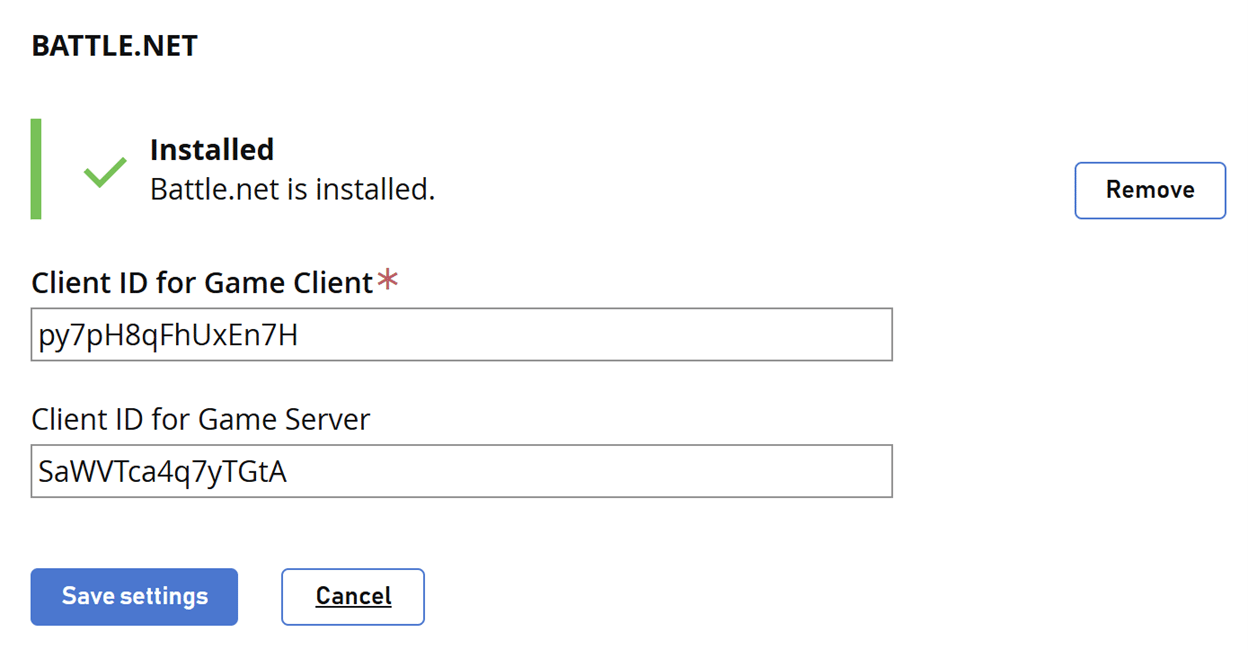
4. 填入 **Client ID for Game Client**。
5. (選擇性) 填入 **Client ID for Game Server**。
6. 然後選取 **Save settings** 按鈕。
<img src="https://mintcdn.com/microsoft-4404708b/mLCHf0iQv3VidfBe/images/playfab/identity/player-identity/platform-specific-authentication/tutorials/battlenet/battlenet-validated.png?fit=max&auto=format&n=mLCHf0iQv3VidfBe&q=85&s=1fe7a49156f04e31ae204c6f7ce6a9ef" alt="PlayFab Game Manager Battle.net 附加元件用戶端識別碼" width="1248" height="650" data-path="images/playfab/identity/player-identity/platform-specific-authentication/tutorials/battlenet/battlenet-validated.png" />

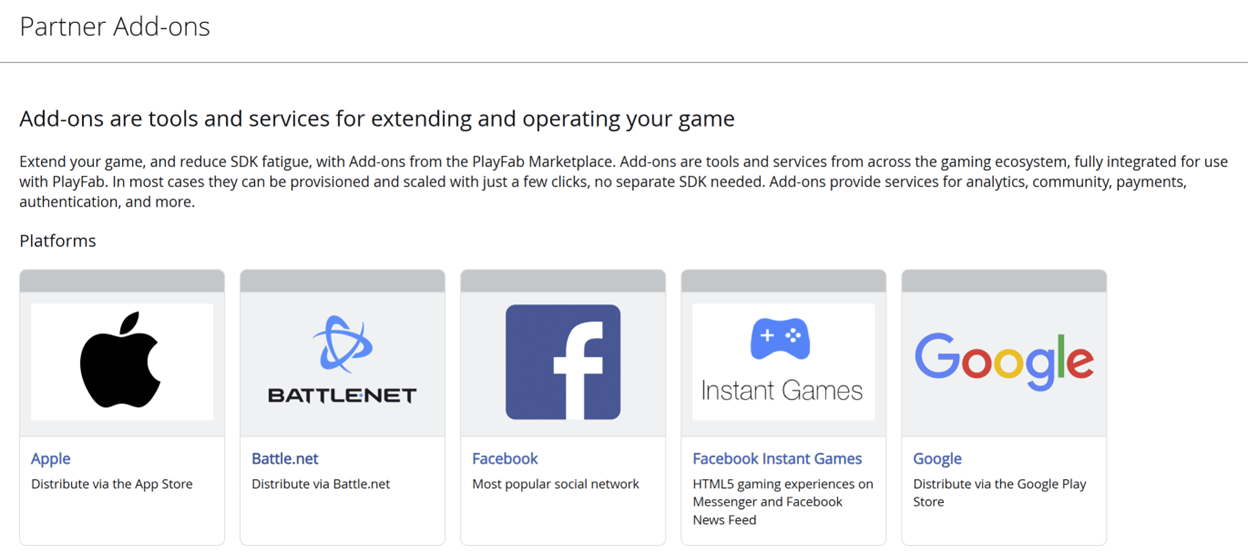
Battle.net 會在附加元件頁面中顯示為作用中。

<img src="https://mintcdn.com/microsoft-4404708b/mLCHf0iQv3VidfBe/images/playfab/identity/player-identity/platform-specific-authentication/tutorials/battlenet/battlenet-partner-add-on-page-active.png?fit=max&auto=format&n=mLCHf0iQv3VidfBe&q=85&s=42e07d365b7f93b5e3014039e91ac91b" alt="PlayFab Game Manager Battle.net 附加元件作用中" width="1248" height="561" data-path="images/playfab/identity/player-identity/platform-specific-authentication/tutorials/battlenet/battlenet-partner-add-on-page-active.png" />

## 使用存取權杖進行測試

在此範例中，我們示範如何使用傳統的存取權杖方法測試 LoginWithBattleNet API。請使用提供的 HTML 程式碼進行測試。

<Note>
  *請務必*將 `YOUR_CLIENT_ID`、`YOUR_PLAYFAB_TITLE_ID`、`YOUR_BNET_TITLE_NAME` 和 `YOUR_CLIENT_SECRET` 取代為您自己的值。
</Note>

```html theme={null}
<!DOCTYPE html>
<html>
<head>
    <script src="https://cdn.jsdelivr.net/npm/axios/dist/axios.min.js"></script>
</head>
<body>
    <h2>Battle.net SSO Token Demo (Manual Flow)</h2>
    <ol>
        <li>
            <button onclick="openBattleNetLogin()">Log in to Battle.net</button>
        </li>
        <li>
            After login, copy the <b>ST</b> value from the URL (e.g. <code>ST=US-xxxx-xxxx) and paste it here:
            

            <input type="text" id="ssoToken" size="80" placeholder="Paste SSO token (ST=...)" />
        </li>
        <li>
            Click "Exchange SSO Token for id_token"

            <button onclick="exchangeSSOToken()">Exchange SSO Token for id_token</button>
            

            <label>id_token:</label>

            <input type="text" id="idToken" size="80" placeholder="id_token will appear here" />
        </li>
        <li>
            Click "Login to PlayFab" to complete the flow

            <button onclick="loginWithPlayFab()">Login to PlayFab</button>
        </li>
    </ol>
    

    <div id="log"></div>
    <script>
        // Demo configuration variables
        const BNET_TITLE_NAME = 'YOUR_BNET_TITLE_NAME';
        const PLAYFAB_TITLE_ID = 'YOUR_PLAYFAB_TITLE_ID';
        const CLIENT_ID = 'YOUR_CLIENT_ID';
        const CLIENT_SECRET = 'YOUR_CLIENT_SECRET';

        function openBattleNetLogin() {
            const url = `http://account.battle.net/login/en/?app=${encodeURIComponent(BNET_TITLE_NAME)}`;
            window.open(url, '_blank');
        }

        function exchangeSSOToken() {
            const ssoToken = document.getElementById('ssoToken').value.trim();
            if (!ssoToken) {
                logLine("Please enter the SSO token.");
                return;
            }
            logLine("Exchanging SSO token for id_token...");
            // Prepare the request for the token exchange
            const params = new URLSearchParams();
            params.append('scope', 'account.basic openid');
            params.append('grant_type', 'urn:ietf:params:oauth:grant-type:token-exchange');
            params.append('subject_token', ssoToken);
            params.append('subject_token_type', 'urn:blizzard:params:oauth:token-type:sso');
            params.append('requested_token_type', 'urn:ietf:params:oauth:token-type:jwt');

            // Basic Auth header
            const authHeader = 'Basic ' + btoa(CLIENT_ID + ':' + CLIENT_SECRET);

            fetch('https://oauth.battle.net/token', {
                method: 'POST',
                headers: {
                    'Content-Type': 'application/x-www-form-urlencoded',
                    'Authorization': authHeader
                },
                body: params
            })
            .then(res => res.json())
            .then(data => {
                if (data.id_token) {
                    document.getElementById('idToken').value = data.id_token;
                    logLine("id_token received.");
                } else {
                    logLine("Error: " + JSON.stringify(data));
                }
            })
            .catch(err => logLine("Error: " + err));
        }

        function loginWithPlayFab() {
            const idToken = document.getElementById('idToken').value.trim();
            if (!idToken) {
                logLine("Please exchange for an id_token first.");
                return;
            }
            logLine("Logging in to PlayFab...");
            axios.post(
                `https://${PLAYFAB_TITLE_ID}.playfabapi.com/Client/LoginWithBattleNet`,
                {
                    TitleId: PLAYFAB_TITLE_ID,
                    IdentityToken: idToken,
                    CreateAccount: true
                },
                {
                    headers: {
                        'Content-Type': 'application/json'
                    }
                }
            )
            .then(response => logLine("Response: " + JSON.stringify(response.data)))
            .catch(error => logLine("Error: " + JSON.stringify(error.response ? error.response.data : error)));
        }

        function logLine(message) {
            const logDiv = document.getElementById('log');
            logDiv.innerHTML += message + "
";
        }
    </script>
</body>
</html></code>
```

請記得使用您的 Web 伺服器開啟 HTML 頁面，並確保使用您指定的 URL 存取此頁面。

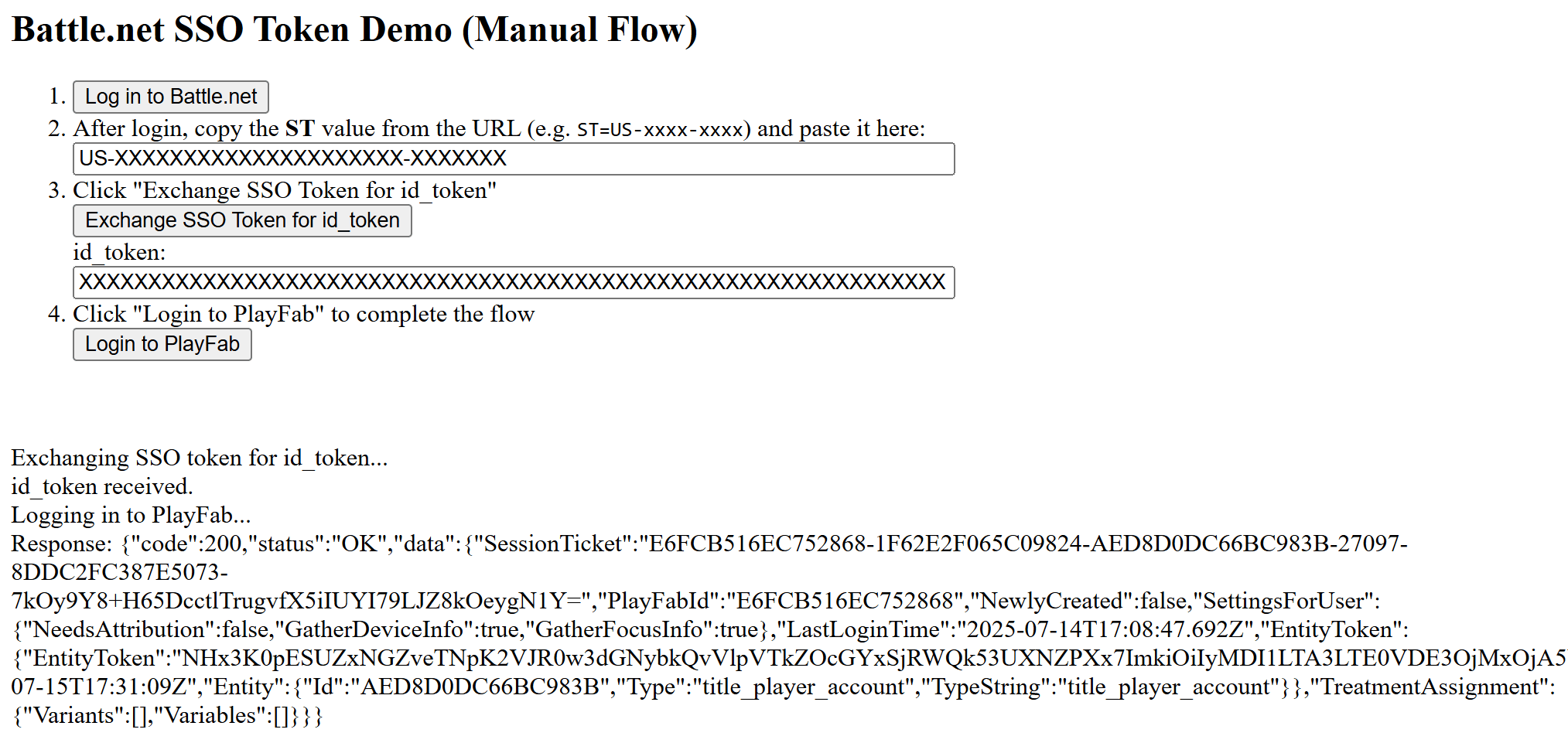
1. 頁面開啟後，選取 **Log in to Battle.net**。
2. 登入之後，從 URL 複製 **ST** 值 (例如：ST=US-xxxx-xxxx)，並將其輸入對話方塊中。
3. 選取 **Exchange SSO Token for id\_token**，並將值複製到對話方塊中。
4. 選取 **Login to PlayFab** 以完成登入流程。
5. 完成時，指令碼會嘗試在 PlayFab 端進行驗證並顯示結果。

<img src="https://mintcdn.com/microsoft-4404708b/mLCHf0iQv3VidfBe/images/playfab/identity/player-identity/platform-specific-authentication/tutorials/battlenet/battlenet-token-demo.png?fit=max&auto=format&n=mLCHf0iQv3VidfBe&q=85&s=6436d543b2543a12c1842bb36ad4021d" alt="Battle.net 驗證範例" width="2027" height="961" data-path="images/playfab/identity/player-identity/platform-specific-authentication/tutorials/battlenet/battlenet-token-demo.png" />


## Related topics

- [使用 Battle Net 登入](/zh-TW/services/playfab/api-references/rest/client/authentication/login-with-battle-net.md)
- [PFAuthenticationLoginWithBattleNetAsync](/zh-TW/services/playfab/api-references/c/pfauthentication/functions/pfauthenticationloginwithbattlenetasync.md)
- [PFAuthenticationServerLoginWithBattleNetAsync](/zh-TW/services/playfab/api-references/c/pfauthentication/functions/pfauthenticationserverloginwithbattlenetasync.md)
- [為 PlayFab 設定 Sign in with Apple](/zh-TW/services/playfab/identity/player-identity/platform-specific-authentication/apple-open-id/overview.md)
- [PFAccountManagementClientLinkBattleNetAccountRequest](/zh-TW/services/playfab/api-references/c/pfaccountmanagementtypes/structs/pfaccountmanagementclientlinkbattlenetaccountrequest.md)