> ## Documentation Index
> Fetch the complete documentation index at: https://devdocs.xbox.com/llms.txt
> Use this file to discover all available pages before exploring further.
# 雙重要素驗證
> 在您的裝置上配對驗證器應用程式以啟用雙重要素登入驗證,為您的 PlayFab Game Manager 帳戶增加一層額外的安全性。
雙重要素驗證可讓您在驗證程序中多加一個步驟,以強化您 PlayFab Game Manager 帳戶的安全性。
其做法是在驗證程序中加入裝置要素,只有在您持有專為此目的註冊的特定裝置時,才允許您進行驗證。
## 設定雙重要素驗證
在您的裝置上安裝 **雙重要素驗證** 應用程式。您可以自行搜尋應用程式,或從下列清單中選取您的平台:
* [iPhone、iPad 和 iPod Touch](https://itunes.apple.com/us/app/google-authenticator/id388497605?mt=8)
* [Android 手機或平板電腦](https://play.google.com/store/apps/details?id=com.google.android.apps.authenticator2)
* [Windows 手機或平板電腦](https://www.windowsphone.com/store/app/authenticator/e7994dbc-2336-4950-91ba-ca22d653759b)
所有平台上的步驟基本上都很類似。此範例顯示以 Android 為基礎的裝置和 Google Authenticator 應用程式。
下載應用程式之後:
* 開啟應用程式並依照指示操作。
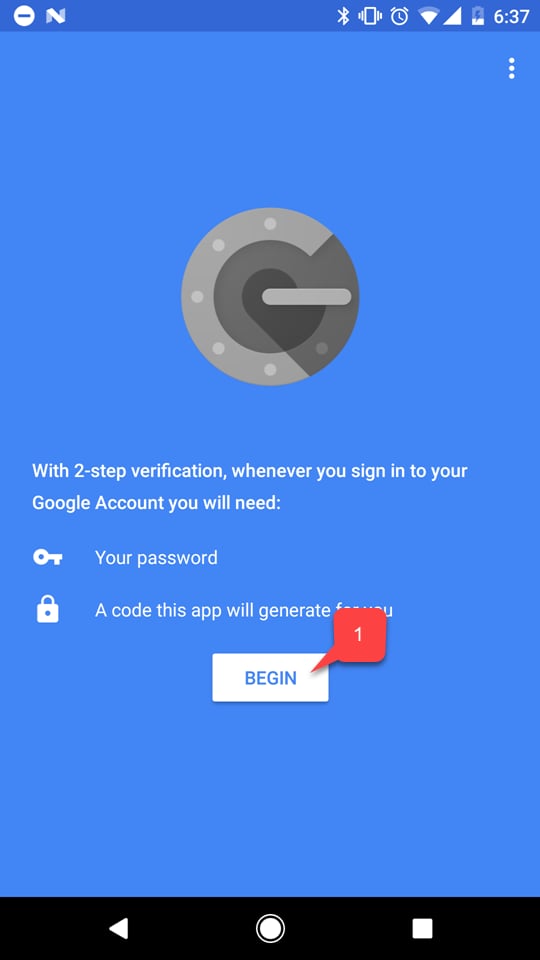
* 選取 **開始** 按鈕 **(1)**。
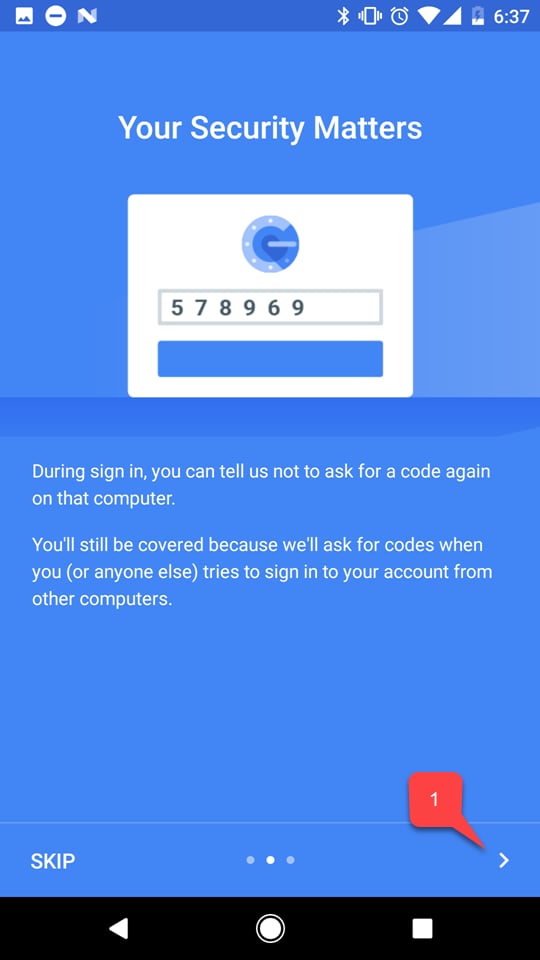
 如果應用程式有教學課程,請完成該教學課程 **(1)**。
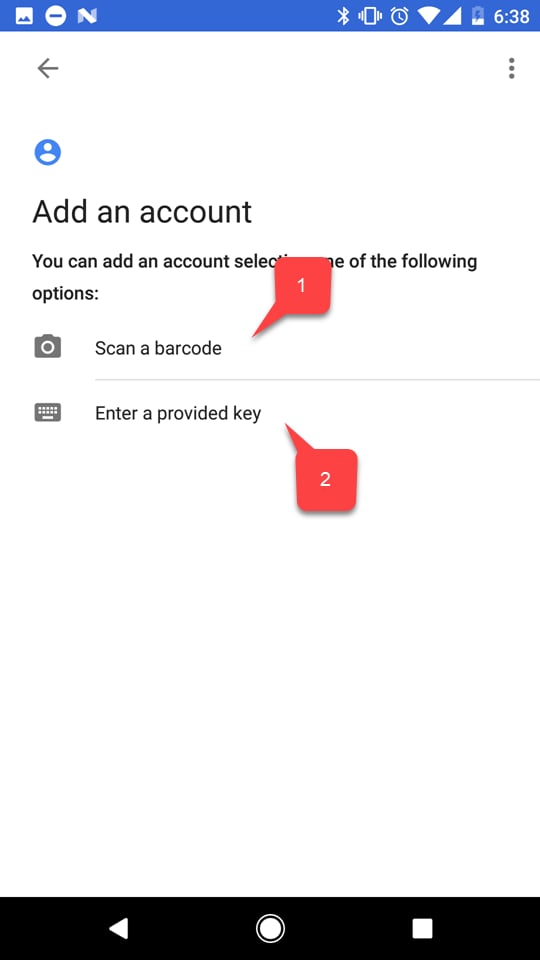
 * 然後選取下列兩個選項之一來新增您的 PlayFab 帳戶:
* 掃描 **條碼 (1)**。
* 或手動輸入 **金鑰** **(2)**。
* 然後選取下列兩個選項之一來新增您的 PlayFab 帳戶:
* 掃描 **條碼 (1)**。
* 或手動輸入 **金鑰** **(2)**。
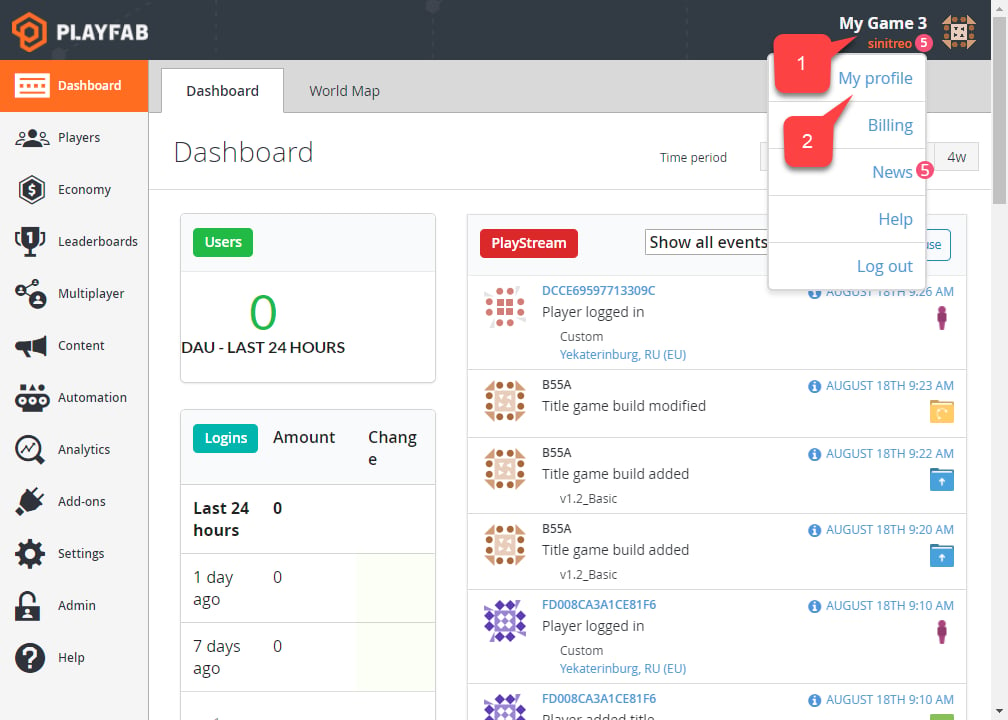
 無論您選擇哪個選項,接著請前往 PlayFab 網站並瀏覽至 **Game Manager**。在 **儀表板** 索引標籤上:
* 選取 **帳戶** 面板 **(1)**。
* 然後選取 **我的設定檔 (2)**。
無論您選擇哪個選項,接著請前往 PlayFab 網站並瀏覽至 **Game Manager**。在 **儀表板** 索引標籤上:
* 選取 **帳戶** 面板 **(1)**。
* 然後選取 **我的設定檔 (2)**。
 **帳戶** 設定隨即開啟。
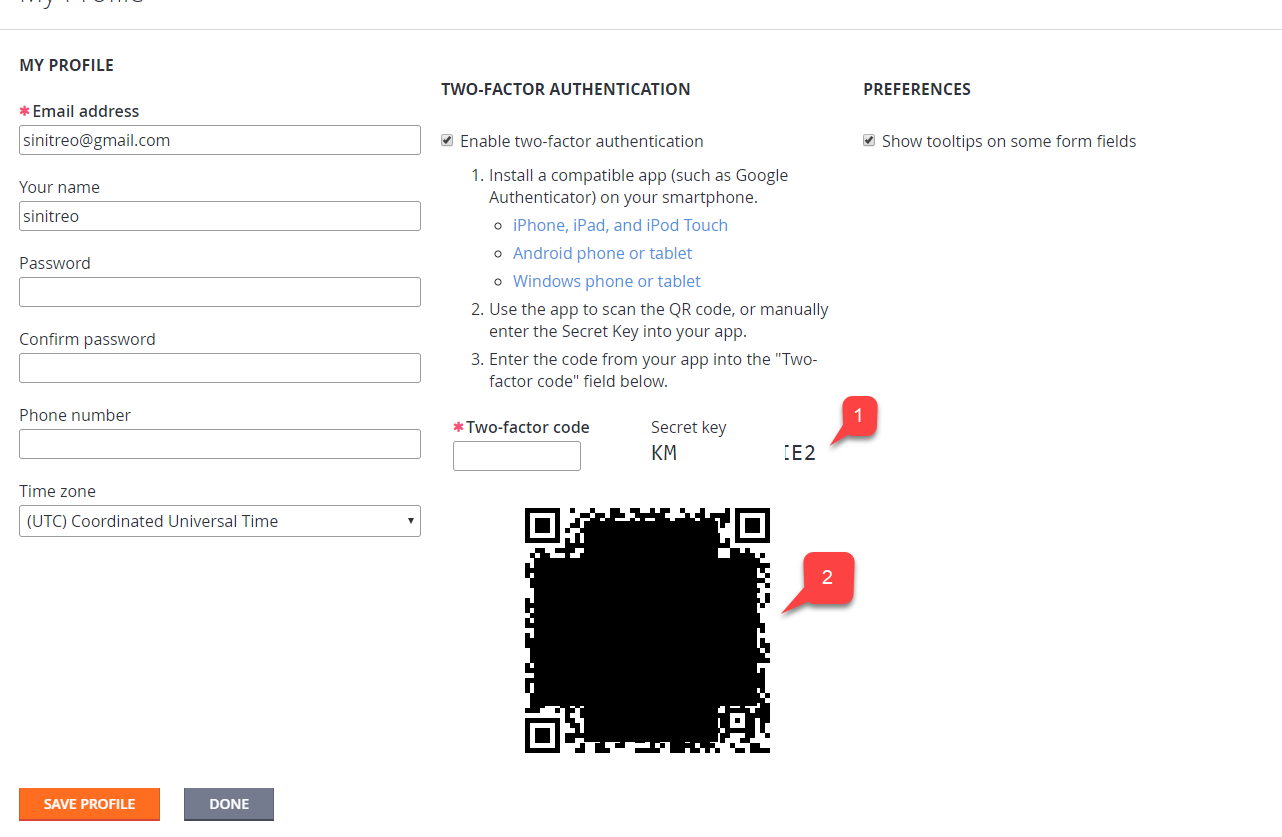
* 確認已核取 **啟用雙重要素驗證** 核取方塊。
* 根據您選擇的選項,使用 **代碼 (1)** 或 **條碼 (2)**,透過您裝置上的應用程式新增帳戶。
**帳戶** 設定隨即開啟。
* 確認已核取 **啟用雙重要素驗證** 核取方塊。
* 根據您選擇的選項,使用 **代碼 (1)** 或 **條碼 (2)**,透過您裝置上的應用程式新增帳戶。
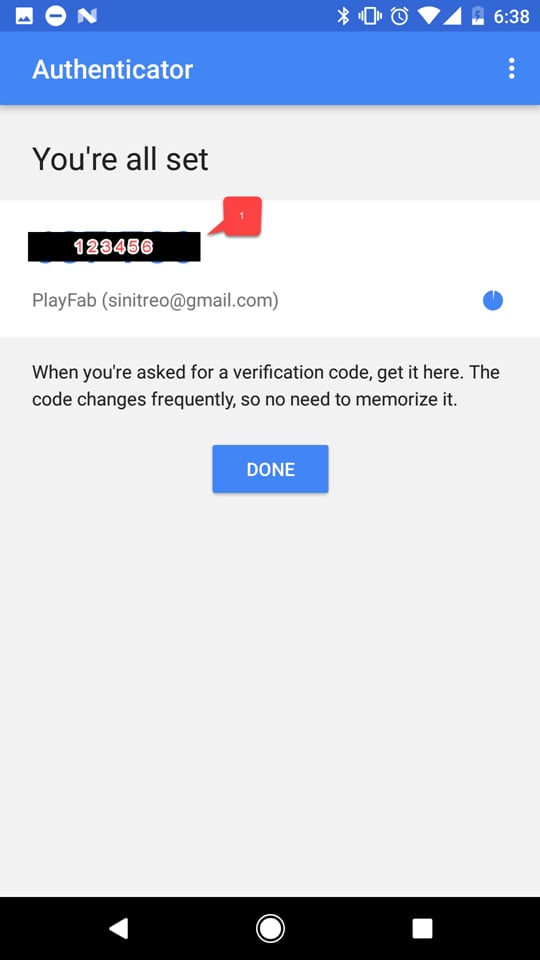
 完成之後,您將會取得雙重要素代碼。
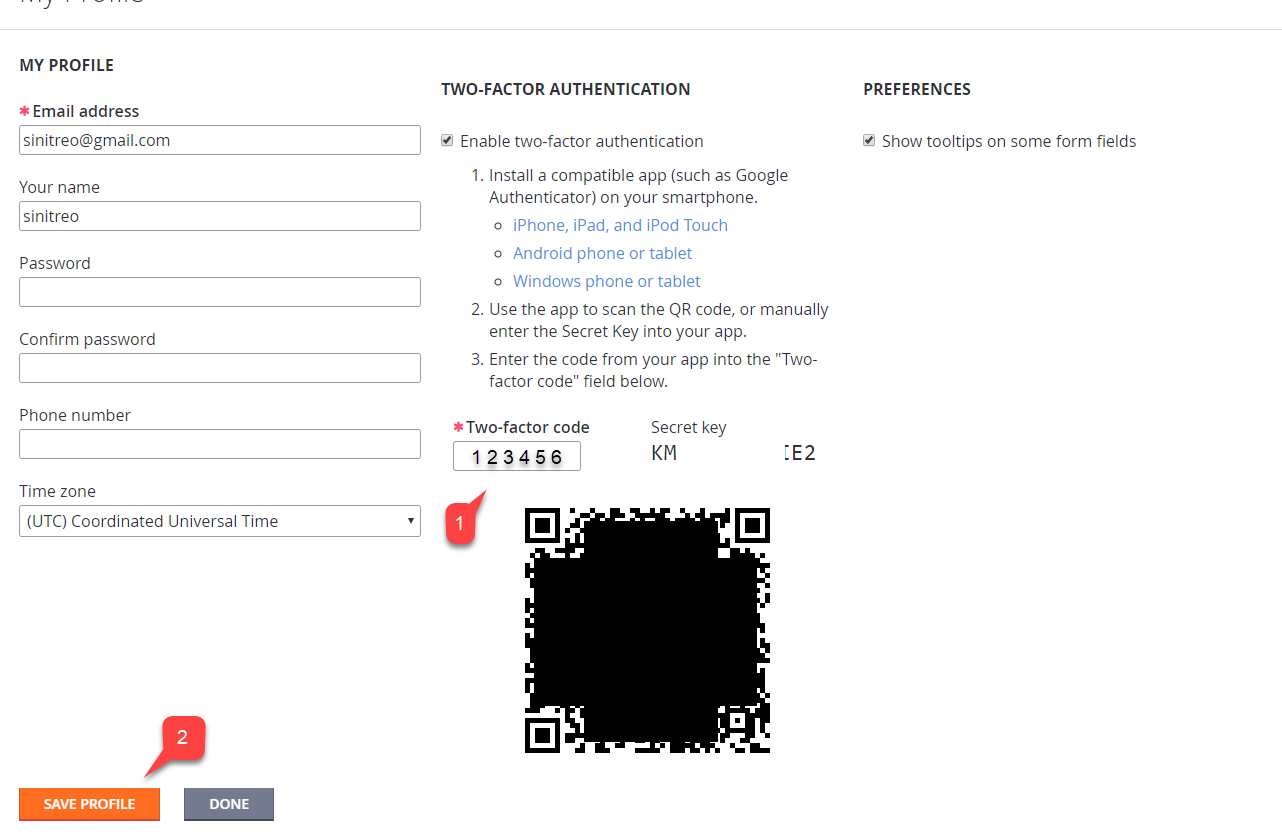
 返回 PlayFab **Game Manager** 中的 **設定檔** 設定:
* 輸入您收到的 **代碼** **(1)**。
* 選取 **儲存設定檔** 按鈕 **(2)**。
返回 PlayFab **Game Manager** 中的 **設定檔** 設定:
* 輸入您收到的 **代碼** **(1)**。
* 選取 **儲存設定檔** 按鈕 **(2)**。
 ## 測試
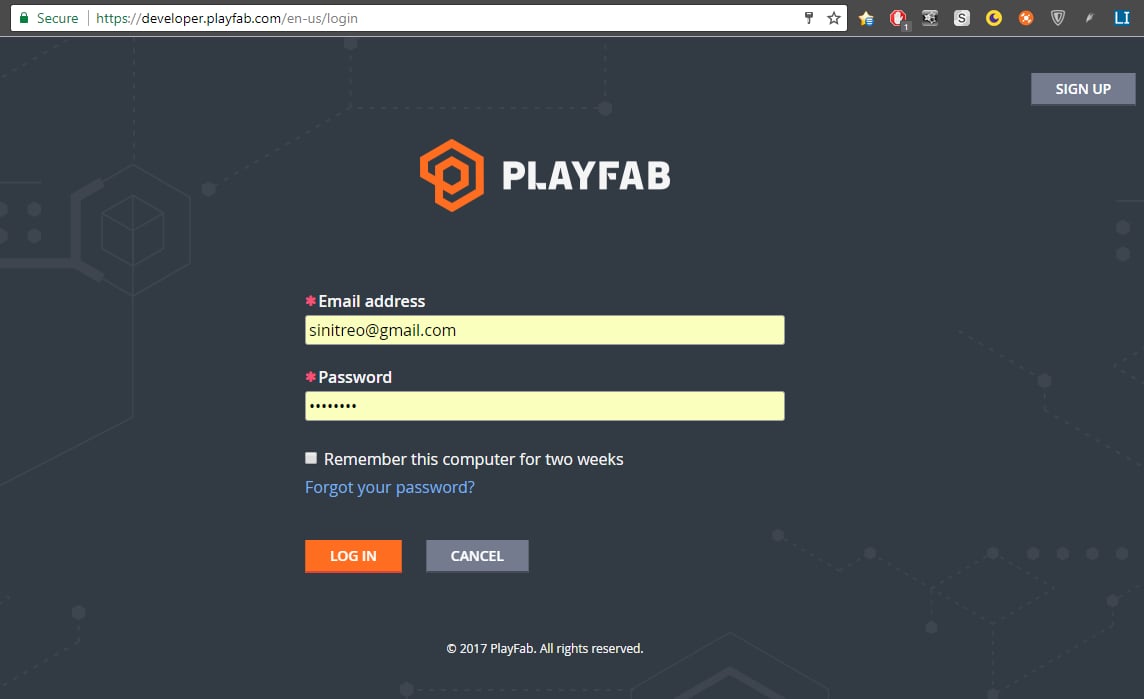
登出您的 PlayFab 帳戶,然後嘗試再次登入。驗證程序的第一個步驟看起來會很正常 (請參閱下方提供的範例)。
## 測試
登出您的 PlayFab 帳戶,然後嘗試再次登入。驗證程序的第一個步驟看起來會很正常 (請參閱下方提供的範例)。
 第二個步驟會要求您使用雙重要素代碼。此代碼隨時可用,您可以使用安裝在裝置上的應用程式存取它。
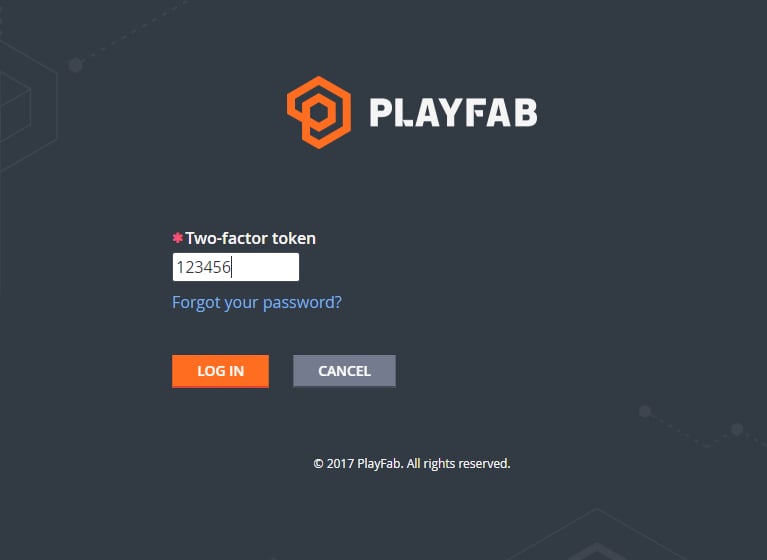 輸入正確的雙重要素代碼後,您應該就會登入。
PlayFab 雙重要素驗證的設定到此結束。
## Related topics
- [認證 PC BVT 指南](/zh-TW/publishing/game-publishing/concepts/certification/certification-pc-bvt-guide.md)
- [Game Manager 參考](/zh-TW/services/playfab/live-service-management/gamemanager/reference.md)
- [使用附加元件設定 SMTP 伺服器](/zh-TW/services/playfab/live-service-management/game-configuration/title-communications/emails/setting-up-an-smtp-server-with-add-ons.md)
- [XBOX 合作夥伴加入流程:取得存取權限與發行](/zh-TW/home/onboarding.md)
- [PlayFab API 的 Microsoft Entra ID 驗證](/zh-TW/services/playfab/identity/dev-identity/authentication/entra-id-api-authentication.md)
輸入正確的雙重要素代碼後,您應該就會登入。
PlayFab 雙重要素驗證的設定到此結束。
## Related topics
- [認證 PC BVT 指南](/zh-TW/publishing/game-publishing/concepts/certification/certification-pc-bvt-guide.md)
- [Game Manager 參考](/zh-TW/services/playfab/live-service-management/gamemanager/reference.md)
- [使用附加元件設定 SMTP 伺服器](/zh-TW/services/playfab/live-service-management/game-configuration/title-communications/emails/setting-up-an-smtp-server-with-add-ons.md)
- [XBOX 合作夥伴加入流程:取得存取權限與發行](/zh-TW/home/onboarding.md)
- [PlayFab API 的 Microsoft Entra ID 驗證](/zh-TW/services/playfab/identity/dev-identity/authentication/entra-id-api-authentication.md)