> ## Documentation Index
> Fetch the complete documentation index at: https://devdocs.xbox.com/llms.txt
> Use this file to discover all available pages before exploring further.
# 搖桿
> 搖桿
# 搖桿
行為類似搖桿的類比控制項。
## 屬性
`type` - "joystick"
`axis` - *object* 或 *array*。單一[軸](/zh-TW/reference/system/touchadaptationkit/types/game-streaming-touch-axis)或[軸](/zh-TW/reference/system/touchadaptationkit/types/game-streaming-touch-axis)陣列,描述此搖桿控制項的對應。
`action` - *object*、*選用*。除了軸對應之外要叫用的[動作](/zh-TW/reference/system/touchadaptationkit/types/game-streaming-touch-action)。
`actionThreshold` - *number*、*選用*。叫用動作所需的正規化最小搖桿值 (徑向)。預設值為 0。
`enabled` - *boolean*、*選用*。預設為 `true`。將控制項的視覺狀態設定為啟用/停用。停用的控制項仍會接收玩家的輸入,但「不會」根據輸入變更視覺樣式。
`expand` - *boolean*、*選用*。預設值為 `true`。放置在中央控制項插槽時,擴展搖桿範圍以符合使用者的人體工學偏好。設定為 false 可使用標準化的固定搖桿大小。
`relative` - *boolean*、*選用*。
根據預設 (`true`),搖桿會根據使用者的初始觸控位置,以相對計算方式計算其值。將此值設定為 `false` 則會改為根據控制項的中心點計算其值。
`visible` - *boolean*、*選用*。預設為 `true`。決定是否向玩家顯示控制項以供互動。若要在遊戲過程中變更,請參閱[使用遊戲狀態變更觸控配置](/zh-TW/build/core-features/common/game-streaming/building-touch-layouts/game-streaming-touch-changing-layouts-game-state#change_state)。
`styles` - *object*、*選用*。自訂控制項的視覺呈現。樣式以每個可設定樣式之狀態的物件來表示。
按鈕控制項可設定下列狀態的樣式:
* `default` - 基本樣式。
* `disabled` - 控制項停用時的樣式。如果未指定,則控制項停用時,會對預設樣式套用轉換,使其呈現停用外觀。
* `idle` - 玩家「未」與控制項互動時套用。
* `moving` - 搖桿旋鈕正被互動時套用,不論定義的死區為何。
* `activated` - 已定義 `action` 且旋鈕移出臨界值而執行動作時套用。
**每個狀態的樣式屬性**
`opacity` - *number*、*選用*。要套用至控制項的不透明度。除了 `disabled` 以外,所有狀態的預設值皆為 1.0。
`background` - *object*、*選用*。可以是[色彩](/zh-TW/reference/system/touchadaptationkit/types/game-streaming-touch-color)或[影像資產](/zh-TW/reference/system/touchadaptationkit/types/game-streaming-touch-asset)。
[`knob`](/zh-TW/reference/system/touchadaptationkit/types/game-streaming-touch-knob) - *object*、*選用*。[knob](/zh-TW/reference/system/touchadaptationkit/types/game-streaming-touch-knob) 物件指定玩家可互動之搖桿類按鈕部分的樣式。
[`outline`](/zh-TW/reference/system/touchadaptationkit/types/game-streaming-touch-joystick-outline) - *object*、*選用*。[outline](/zh-TW/reference/system/touchadaptationkit/types/game-streaming-touch-joystick-outline) 物件指定與搖桿互動時所呈現之外框和指示器的樣式。
**資產尺寸**
對於每個接受影像資產的樣式物件,指定的資產會以基本解析度,以及該基本解析度的 1.5x、2.0x、3.0x 和 4.0x 比例提供。指定影像的解析度必須小於或等於下列最大解析度:
| 物件 | @1.0x | @1.5x | @2.0x | @3.0x | @4.0x |
| :- | :- | :- | :- | :- | :- |
| background | 120x120 | 90x90 | 240x240 | 360x360 | 480x480 |
| knob.faceImage | 60x60 | 90x90 | 120x120 | 180x180 | 240x240 |
| knob.background | 60x60 | 90x90 | 120x120 | 180x180 | 240x240 |
## 備註
`joystick` 控制項可用來提供對應至不同實體控制器搖桿的類比控制。
如果 `joystick` 是主要的移動方式,建議放在左側中央位置並將 `expand` 設定為 true,為玩家提供最佳體驗。
請考慮自訂 `faceImage`,向玩家提示搖桿將控制的內容 (如果您的遊戲使用多個搖桿,這點尤其重要)。
對於只依賴 1 個軸的動作,請使用單軸搖桿以將可玩性最大化。
**樣式備註**
如果使用 `background` 資產且 `expand` 為 true,`background` 資產「不會」縮放至完整的中央插槽大小。
根據預設,`outline` 只會在玩家與控制項互動時顯示。
如果使用自訂 `background` 資產且 `expand` 設定為 `true`,請注意資產「不會」隨著玩家的控制項自訂而擴展。
透過 Windows 版本的 Content Test Application 進行串流時,並非所有樣式都能正確顯示。
## 範例
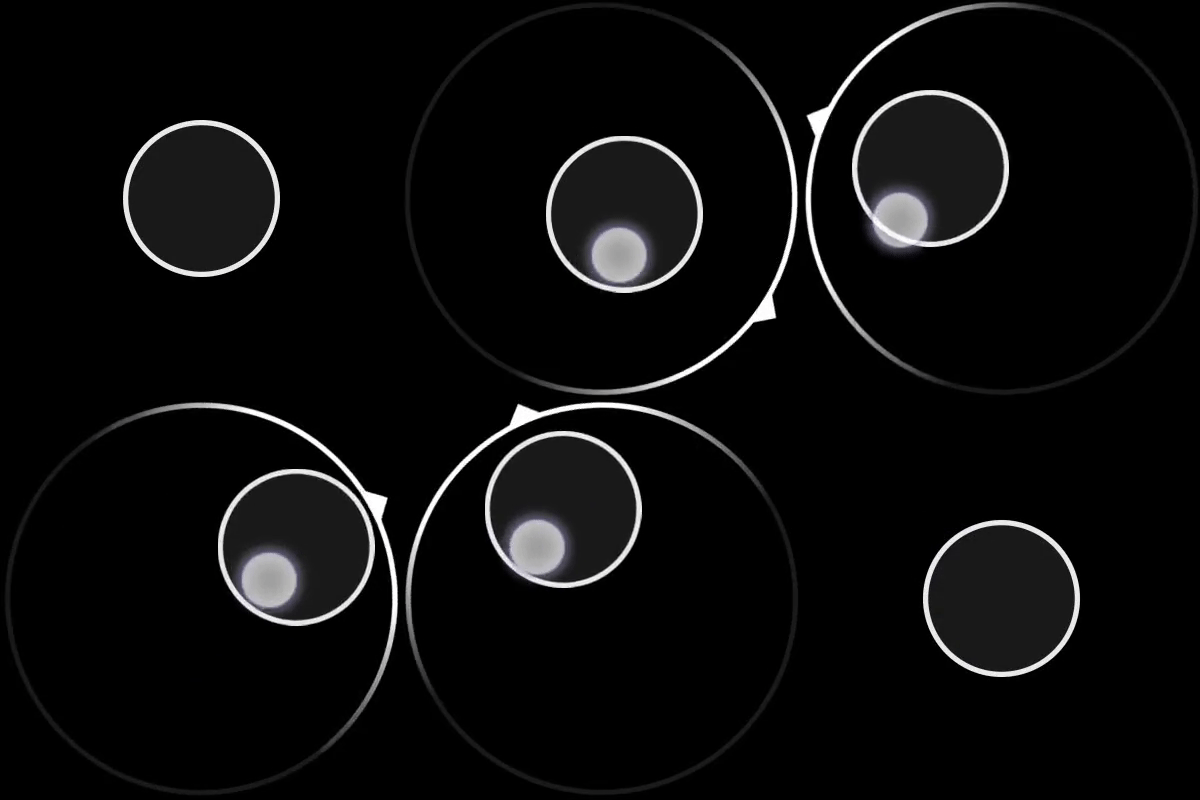
#### 範例 1:簡單搖桿
以 1:1 方式對應至搖桿,並帶有些微死區。實體控制器上的類比搖桿是透過旋轉計算其值。
**圖 1. 搖桿控制項**
 ```JSON theme={null}
{
"type": "joystick",
"axis": {
"input": "axisXY",
"output": "leftJoystick",
"deadzone": {
"threshold": 0.05,
"radial": true
}
}
}
```
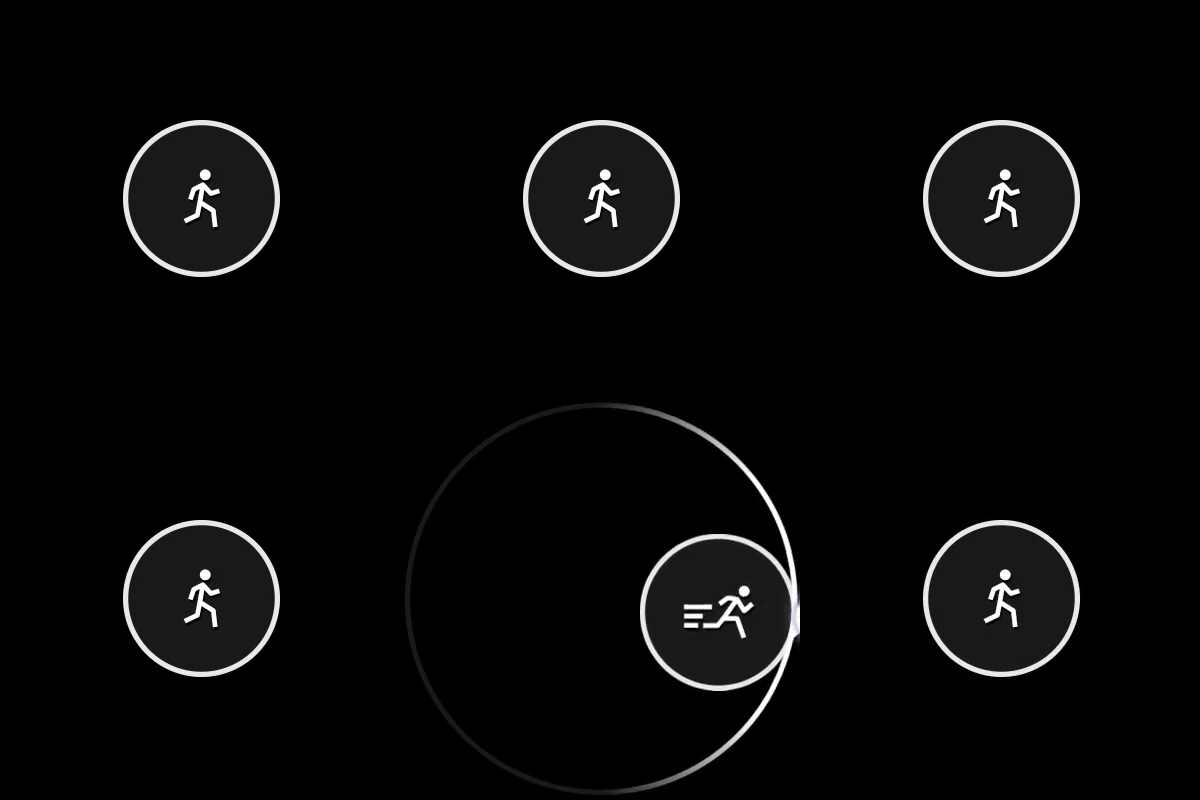
#### 範例 2:超過臨界值時從走路切換為衝刺的搖桿。
超過臨界值 (0.75) 時,leftTrigger 會與搖桿移動一起傳送。圖示會從 'walk' 變更為 'sprint'
**圖 1. 具有動作臨界值的搖桿控制項**
```JSON theme={null}
{
"type": "joystick",
"axis": {
"input": "axisXY",
"output": "leftJoystick",
"deadzone": {
"threshold": 0.05,
"radial": true
}
}
}
```
#### 範例 2:超過臨界值時從走路切換為衝刺的搖桿。
超過臨界值 (0.75) 時,leftTrigger 會與搖桿移動一起傳送。圖示會從 'walk' 變更為 'sprint'
**圖 1. 具有動作臨界值的搖桿控制項**
 ```JSON theme={null}
{
"type": "joystick",
"action": "leftTrigger",
"actionThreshold":0.75,
"axis": {
"input": "axisXY",
"output": "leftJoystick",
"deadzone": {
"threshold": 0.05,
"radial": true
}
},
"styles": {
"default": {
"knob": {
"faceImage": {
"type": "icon",
"value": "walk"
}
}
},
"activated": {
"knob": {
"faceImage": {
"type": "icon",
"value": "sprint"
},
"background" : {
"type": "color",
"value": "#0e7a0d"
}
}
}
}
}
```
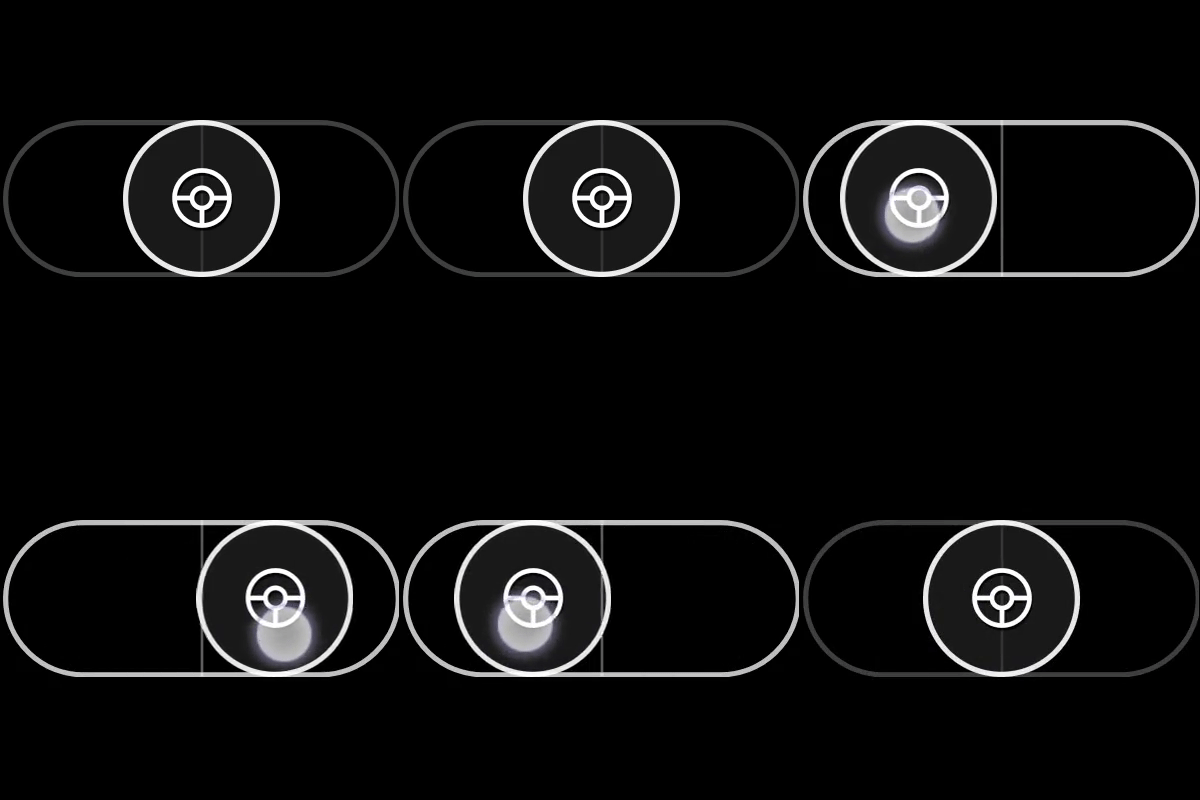
#### 範例 3:看起來像方向盤的單軸 (水平) 搖桿
**圖 1. 水平方向盤搖桿控制項**
```JSON theme={null}
{
"type": "joystick",
"action": "leftTrigger",
"actionThreshold":0.75,
"axis": {
"input": "axisXY",
"output": "leftJoystick",
"deadzone": {
"threshold": 0.05,
"radial": true
}
},
"styles": {
"default": {
"knob": {
"faceImage": {
"type": "icon",
"value": "walk"
}
}
},
"activated": {
"knob": {
"faceImage": {
"type": "icon",
"value": "sprint"
},
"background" : {
"type": "color",
"value": "#0e7a0d"
}
}
}
}
}
```
#### 範例 3:看起來像方向盤的單軸 (水平) 搖桿
**圖 1. 水平方向盤搖桿控制項**
 ```JSON theme={null}
{
"type": "joystick",
"axis": {
"input": "axisX",
"output": "leftJoystickX",
"deadzone": {
"threshold": 0.35
}
},
"relative": false,
"styles": {
"default": {
"knob": {
"faceImage": {
"type": "icon",
"value": "steering"
}
}
}
}
}
```
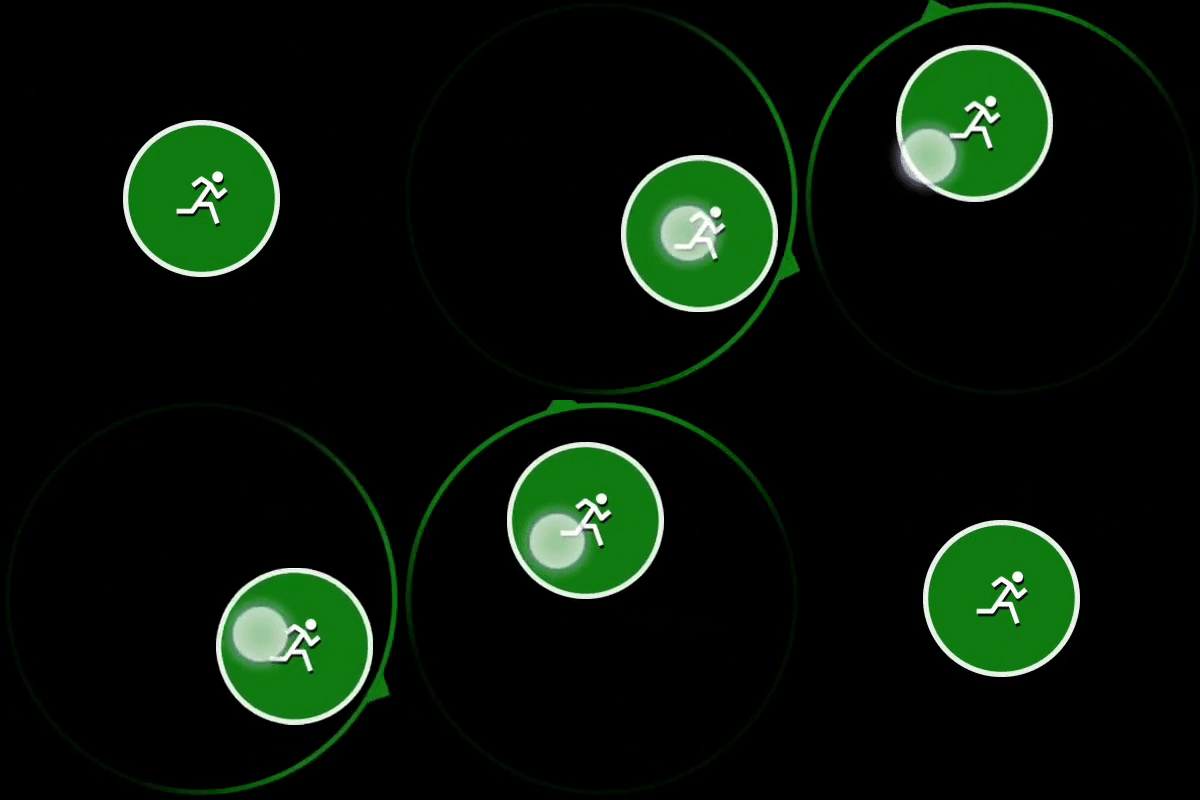
#### 範例 4:具有自訂色彩的搖桿
**圖 1. 自訂搖桿控制項**
```JSON theme={null}
{
"type": "joystick",
"axis": {
"input": "axisX",
"output": "leftJoystickX",
"deadzone": {
"threshold": 0.35
}
},
"relative": false,
"styles": {
"default": {
"knob": {
"faceImage": {
"type": "icon",
"value": "steering"
}
}
}
}
}
```
#### 範例 4:具有自訂色彩的搖桿
**圖 1. 自訂搖桿控制項**
 ```JSON theme={null}
{
"type": "joystick",
"axis": {
"input": "axisXY",
"output": "leftJoystick",
"deadzone": {
"threshold": 0.05,
"radial": true
}
},
"styles": {
"default": {
"outline" : {
"stroke" : {
"type": "solid",
"color": "#107C10"
}
}
}
}
}
```
## 需求
**配置版本:** 1.0+ (樣式功能自配置版本 3.0+ 起提供)
## 另請參閱
[觸控調整套件參考](/zh-TW/build/core-features/common/game-streaming/game-streaming-touch-touch-adaptation-kit-overview)
## Related topics
- [無障礙功能標籤](/zh-TW/build/game-principles/accessibility/accessibility-feature-tags.md)
- [開發者無障礙資源](/zh-TW/build/game-principles/accessibility/accessibility-resources.md)
- [術語](/zh-TW/publishing/certification/console-cert-terminology.md)
- [Terminology](/publishing/certification/console-cert-terminology.md)
- [Terminologia](/pt-BR/publishing/certification/console-cert-terminology.md)
```JSON theme={null}
{
"type": "joystick",
"axis": {
"input": "axisXY",
"output": "leftJoystick",
"deadzone": {
"threshold": 0.05,
"radial": true
}
},
"styles": {
"default": {
"outline" : {
"stroke" : {
"type": "solid",
"color": "#107C10"
}
}
}
}
}
```
## 需求
**配置版本:** 1.0+ (樣式功能自配置版本 3.0+ 起提供)
## 另請參閱
[觸控調整套件參考](/zh-TW/build/core-features/common/game-streaming/game-streaming-touch-touch-adaptation-kit-overview)
## Related topics
- [無障礙功能標籤](/zh-TW/build/game-principles/accessibility/accessibility-feature-tags.md)
- [開發者無障礙資源](/zh-TW/build/game-principles/accessibility/accessibility-resources.md)
- [術語](/zh-TW/publishing/certification/console-cert-terminology.md)
- [Terminology](/publishing/certification/console-cert-terminology.md)
- [Terminologia](/pt-BR/publishing/certification/console-cert-terminology.md)