> ## Documentation Index
> Fetch the complete documentation index at: https://devdocs.xbox.com/llms.txt
> Use this file to discover all available pages before exploring further.
# 預覽觸控調整配置
> 預覽觸控調整配置
本文概述如何使用 TAK 編輯器預覽觸控調整配置,以及自訂預覽時可用的各種選項。
## 先決條件
* 已[安裝](/zh-TW/build/core-features/common/game-streaming/tak-editor/game-streaming-tak-editor)並[設定](/zh-TW/build/core-features/common/game-streaming/tak-editor/game-streaming-tak-editor-setup) TAK 編輯器。
* 開啟的工作區資料夾中至少存在一個包含[配置](/zh-TW/build/core-features/common/game-streaming/tak-editor/game-streaming-tak-editor-create-bundle#create-a-new-layout)的[組合](/zh-TW/build/core-features/common/game-streaming/tak-editor/game-streaming-tak-editor-create-bundle#create-a-new-bundle)。
## 預覽配置
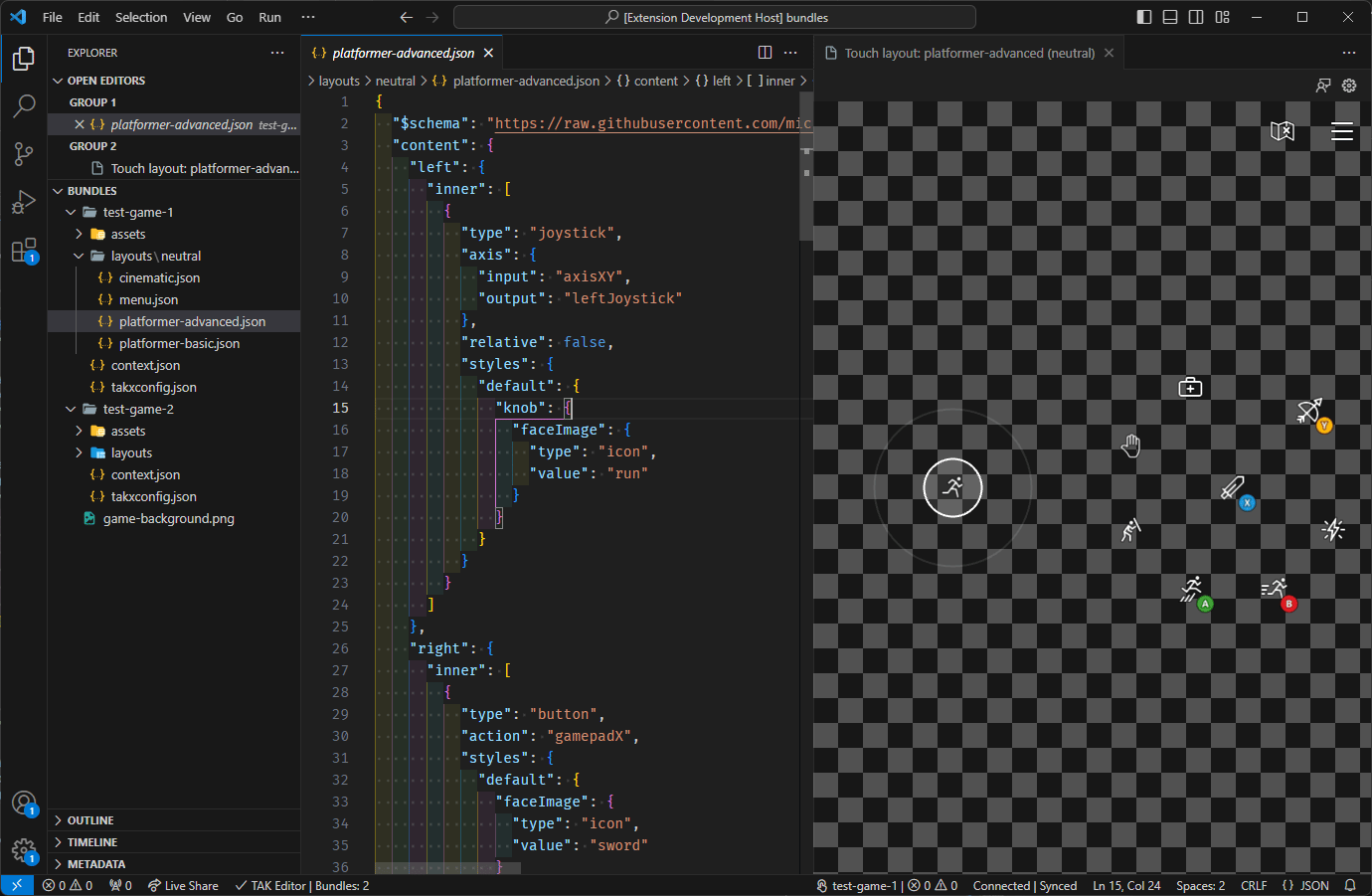
預覽配置非常簡單,只要透過 [VS Code 總管](https://code.visualstudio.com/docs/getstarted/userinterface#_explorer)在編輯器中開啟配置檔案即可。只要按一下組合 `layouts` 目錄中的配置檔案,配置的 JSON 內容就會顯示在一個索引標籤中,而配置的即時預覽會自動顯示在旁邊的索引標籤中。
如果配置檔案中有**錯誤**,這些錯誤會顯示在 [VS Code 問題面板](https://code.visualstudio.com/docs/editor/editingevolved#_errors-warnings)中。在錯誤解決之前,預覽不會更新。[狀態、錯誤和警告](#status-errors-and-warnings)一節會更詳細地探討此內容。
預覽是互動式的,這表示您可以使用滑鼠 (或在使用支援觸控的裝置時使用觸控輸入) 與觸控控制項互動。預覽會回應您的輸入,就如同在實際的遊戲串流上呈現一樣。
對配置 JSON 檔案所做的變更會在儲存檔案時反映在預覽中。這可讓您進行快速且反覆的設計程序,在變更配置後立即看到結果。
 如果預覽索引標籤已關閉,可以透過下列兩種方式之一重新開啟:
1. 按一下配置檔案右上角的 "Open Preview" 按鈕:
如果預覽索引標籤已關閉,可以透過下列兩種方式之一重新開啟:
1. 按一下配置檔案右上角的 "Open Preview" 按鈕:
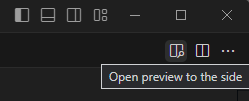 2. 透過命令選擇區執行 "Touch Adaptation Kit: Open preview to the side" 命令。
 請注意,只有在 (1) 已開啟配置檔案,且 (2) 預覽尚未開啟時,才能使用命令和按鈕。
## 狀態、錯誤和警告
### 驗證狀態
當您修改組合中的配置、資產和其他檔案時,擴充功能會持續根據所有組合都必須遵守的一組預先定義規則,驗證組合內容的有效性。此驗證會在背景中進行,並在組合內的巢狀檔案儲存或以任何其他方式變更 (例如重新命名) 時重新評估。
此驗證的狀態會透過位於視窗右下角的狀態列項目回報。
請注意,只有在 (1) 已開啟配置檔案,且 (2) 預覽尚未開啟時,才能使用命令和按鈕。
## 狀態、錯誤和警告
### 驗證狀態
當您修改組合中的配置、資產和其他檔案時,擴充功能會持續根據所有組合都必須遵守的一組預先定義規則,驗證組合內容的有效性。此驗證會在背景中進行,並在組合內的巢狀檔案儲存或以任何其他方式變更 (例如重新命名) 時重新評估。
此驗證的狀態會透過位於視窗右下角的狀態列項目回報。
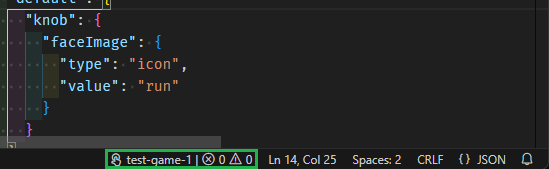 只有在編輯器中至少開啟一個配置檔案時,才會顯示此狀態列項目。它會顯示使用中組合的名稱,以及在組合中找到的問題 (錯誤和警告) 數目。按一下狀態列項目會開啟 [VS Code 問題面板](https://code.visualstudio.com/docs/editor/editingevolved#_errors-warnings),其中列出在組合中找到的所有問題。
### 同步處理狀態
預覽面板與 TAK CLI 之間有使用中的組合側載連線。您可以在 [TAK CLI 文件](/zh-TW/build/core-features/common/game-streaming/tak-command-line-tool/game-streaming-tak-command-line-serve-command)中深入了解其運作方式。
此連線的狀態會透過位於視窗右下角、驗證狀態列項目旁邊的狀態列項目回報。只有在預覽面板開啟時才會顯示此狀態。
只有在編輯器中至少開啟一個配置檔案時,才會顯示此狀態列項目。它會顯示使用中組合的名稱,以及在組合中找到的問題 (錯誤和警告) 數目。按一下狀態列項目會開啟 [VS Code 問題面板](https://code.visualstudio.com/docs/editor/editingevolved#_errors-warnings),其中列出在組合中找到的所有問題。
### 同步處理狀態
預覽面板與 TAK CLI 之間有使用中的組合側載連線。您可以在 [TAK CLI 文件](/zh-TW/build/core-features/common/game-streaming/tak-command-line-tool/game-streaming-tak-command-line-serve-command)中深入了解其運作方式。
此連線的狀態會透過位於視窗右下角、驗證狀態列項目旁邊的狀態列項目回報。只有在預覽面板開啟時才會顯示此狀態。
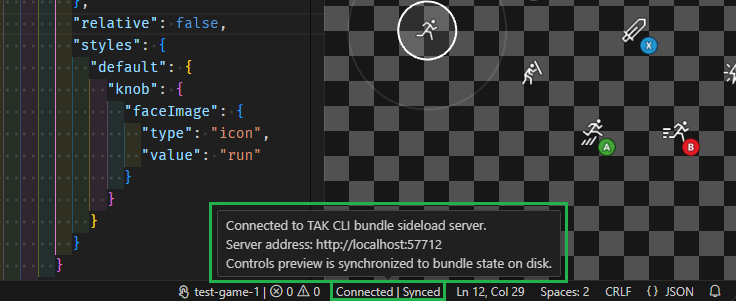 上方螢幕擷取畫面顯示連線處於使用中且預覽已同步處理時的狀態列項目。當組合中沒有錯誤時就會是這種情況 (允許警告,且會讓狀態保持為「已同步處理」)。如果有錯誤,狀態會變更為 "Out of sync"。
將滑鼠停留在此狀態列項目上時,會顯示工具提示,其中包含由 TAK CLI 託管之側載伺服器的詳細資料。此位址可用來將另一個遊戲串流用戶端連線至預覽,例如[內容測試應用程式](/zh-TW/build/core-features/common/game-streaming/building-touch-layouts/game-streaming-touch-deploying-touch-layout)。
### 錯誤和警告
[VS Code 問題面板](https://code.visualstudio.com/docs/editor/editingevolved#_errors-warnings)會顯示在組合中找到的所有問題清單。這包括在驗證程序期間找到的所有問題。
存在問題時,按一下驗證或同步處理狀態列項目,都會開啟問題面板並顯示問題清單。每個問題都會有描述,以及在組合中找到該問題的位置。
例如,在下列螢幕擷取畫面中,組合中存在一個錯誤:配置檔案 `platformer-advanced.json` 參考了組合中不存在的資產 (`run.png`):
上方螢幕擷取畫面顯示連線處於使用中且預覽已同步處理時的狀態列項目。當組合中沒有錯誤時就會是這種情況 (允許警告,且會讓狀態保持為「已同步處理」)。如果有錯誤,狀態會變更為 "Out of sync"。
將滑鼠停留在此狀態列項目上時,會顯示工具提示,其中包含由 TAK CLI 託管之側載伺服器的詳細資料。此位址可用來將另一個遊戲串流用戶端連線至預覽,例如[內容測試應用程式](/zh-TW/build/core-features/common/game-streaming/building-touch-layouts/game-streaming-touch-deploying-touch-layout)。
### 錯誤和警告
[VS Code 問題面板](https://code.visualstudio.com/docs/editor/editingevolved#_errors-warnings)會顯示在組合中找到的所有問題清單。這包括在驗證程序期間找到的所有問題。
存在問題時,按一下驗證或同步處理狀態列項目,都會開啟問題面板並顯示問題清單。每個問題都會有描述,以及在組合中找到該問題的位置。
例如,在下列螢幕擷取畫面中,組合中存在一個錯誤:配置檔案 `platformer-advanced.json` 參考了組合中不存在的資產 (`run.png`):
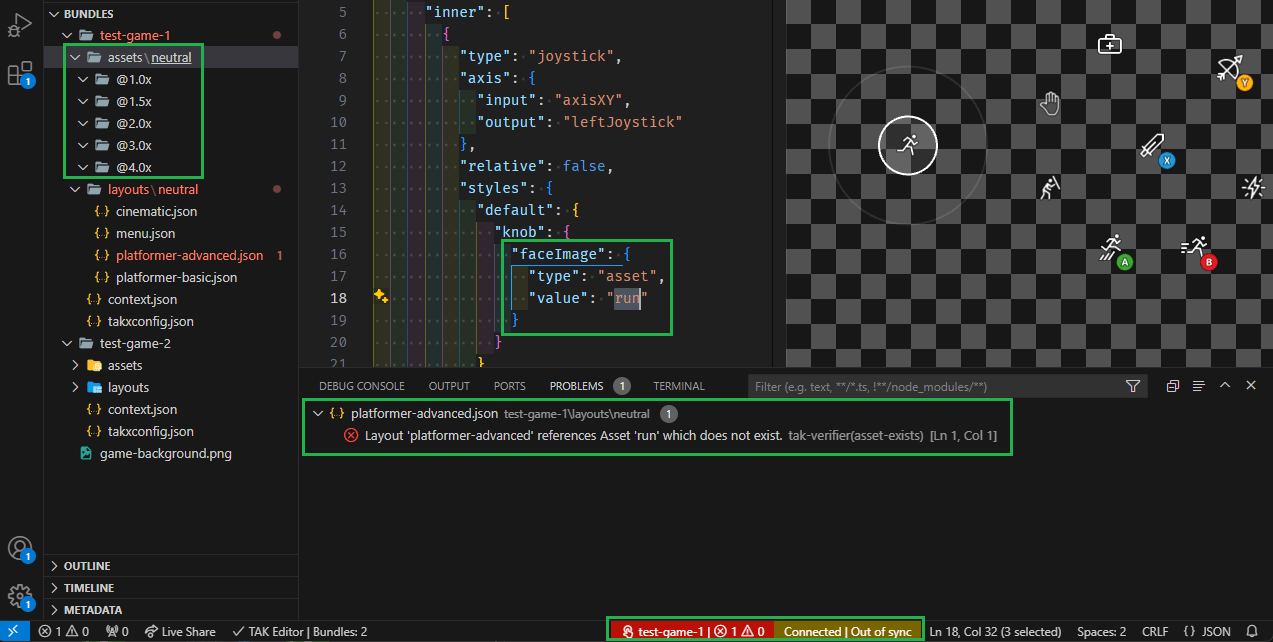 預覽的狀態現在為 "Out of sync",直到參考變更為組合中存在的資產,或將該資產新增至組合為止。
## 下一步
> \[!div class="nextstepaction"]
> [自訂預覽](/zh-TW/build/core-features/common/game-streaming/tak-editor/game-streaming-tak-editor-customize-preview)
## Related topics
- [Visual Studio Code 的觸控調整套件 (TAK) 編輯器](/zh-TW/build/core-features/common/game-streaming/tak-editor/index.md)
- [開始使用觸控](/zh-TW/build/core-features/common/game-streaming/game-streaming-getting-started-with-touch.md)
- [Android 內容測試應用程式 (CTA) 概觀 (已淘汰)](/zh-TW/build/core-features/common/game-streaming/game-streaming-android-content-test-application.md)
- [自訂觸控控制項預覽](/zh-TW/build/core-features/common/game-streaming/tak-editor/game-streaming-tak-editor-customize-preview.md)
- [什麼是觸控調整套件編輯器?](/zh-TW/build/core-features/common/game-streaming/tak-editor/game-streaming-tak-editor.md)
預覽的狀態現在為 "Out of sync",直到參考變更為組合中存在的資產,或將該資產新增至組合為止。
## 下一步
> \[!div class="nextstepaction"]
> [自訂預覽](/zh-TW/build/core-features/common/game-streaming/tak-editor/game-streaming-tak-editor-customize-preview)
## Related topics
- [Visual Studio Code 的觸控調整套件 (TAK) 編輯器](/zh-TW/build/core-features/common/game-streaming/tak-editor/index.md)
- [開始使用觸控](/zh-TW/build/core-features/common/game-streaming/game-streaming-getting-started-with-touch.md)
- [Android 內容測試應用程式 (CTA) 概觀 (已淘汰)](/zh-TW/build/core-features/common/game-streaming/game-streaming-android-content-test-application.md)
- [自訂觸控控制項預覽](/zh-TW/build/core-features/common/game-streaming/tak-editor/game-streaming-tak-editor-customize-preview.md)
- [什麼是觸控調整套件編輯器?](/zh-TW/build/core-features/common/game-streaming/tak-editor/game-streaming-tak-editor.md)