> ## Documentation Index
> Fetch the complete documentation index at: https://devdocs.xbox.com/llms.txt
> Use this file to discover all available pages before exploring further.
# 自訂觸控控制項預覽
> 自訂觸控控制項預覽
本文概述使用 TAK 編輯器自訂觸控調整配置預覽時可用的各種選項。您可以自訂預覽以模擬不同的遊戲場景,並測試觸控控制項在不同情境中的外觀。做法是為預覽指派背景色彩或影像。
## 背景
使用色彩或影像自訂背景有兩種方式:透過預覽設定,或在命令選擇區中執行命令。
### 透過預覽設定
1. 在編輯器中開啟組合的配置檔案,以啟動預覽。
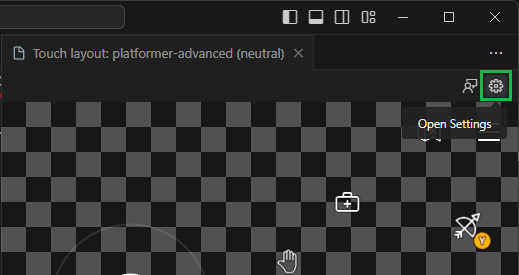
2. 按一下預覽面板右上角的 "Open Settings":
 3. 系統會顯示一個強制回應視窗,其中包含自訂背景的選項。您可以指派色彩或影像:
1. **色彩:** 按一下色彩選擇器以選取色彩。或者,也可以在輸入欄位中輸入色彩。色彩可以使用 CSS 支援的任何格式指定 (例如 `#0000ffff`、`rgba(0, 0, 255, 1)`、`hsl(240, 100%, 50%)` 或 `blue`)。
3. 系統會顯示一個強制回應視窗,其中包含自訂背景的選項。您可以指派色彩或影像:
1. **色彩:** 按一下色彩選擇器以選取色彩。或者,也可以在輸入欄位中輸入色彩。色彩可以使用 CSS 支援的任何格式指定 (例如 `#0000ffff`、`rgba(0, 0, 255, 1)`、`hsl(240, 100%, 50%)` 或 `blue`)。
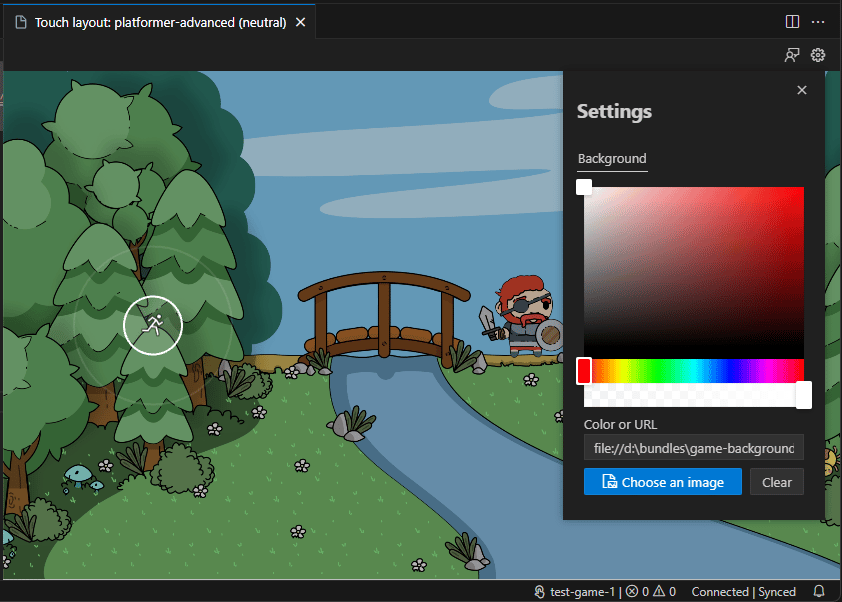
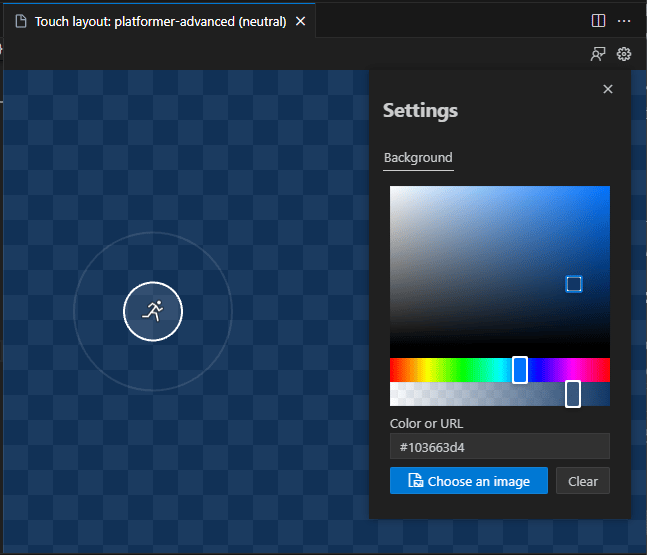 2. **影像:** 按一下 "Choose an image" 以開啟檔案選擇器。瀏覽至影像的位置並選取該影像。或者,也可以在輸入欄位中輸入影像的 URL。
 ### 透過命令選擇區
1. 在編輯器中開啟組合的配置檔案,以啟動預覽。**只有在預覽開啟時才能使用此命令。**
2. 啟動命令選擇區 (在 Windows 上為 `Ctrl+Shift+P`,在 macOS 上為 `Cmd+Shift+P`)。
3. 搜尋 "Background",然後選取 "Touch Adaptation Kit: Set preview background":
### 透過命令選擇區
1. 在編輯器中開啟組合的配置檔案,以啟動預覽。**只有在預覽開啟時才能使用此命令。**
2. 啟動命令選擇區 (在 Windows 上為 `Ctrl+Shift+P`,在 macOS 上為 `Cmd+Shift+P`)。
3. 搜尋 "Background",然後選取 "Touch Adaptation Kit: Set preview background":
 4. 選取其中一個可用選項:
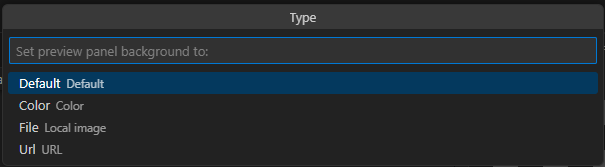 1. `Default`:將背景重設為預設的透明棋盤格圖樣。
2. `Color`:為背景指派色彩。必須以 CSS 色彩值格式的文字輸入。
3. `Image`:為背景指派影像。系統會開啟檔案選擇器以選取影像。
4. `URL`:使用 URL 為背景指派影像。系統會顯示文字輸入欄位以輸入 URL。
## 下一步
> \[!div class="nextstepaction"]
> [封裝組合以提交至 XBOX](/zh-TW/build/core-features/common/game-streaming/tak-editor/game-streaming-tak-editor-pack-bundles)
## Related topics
- [Visual Studio Code 的觸控調整套件 (TAK) 編輯器](/zh-TW/build/core-features/common/game-streaming/tak-editor/index.md)
- [使用 GitHub Copilot 建立自訂觸控控制項配置](/zh-TW/build/core-features/common/game-streaming/building-touch-layouts/game-streaming-build-touch-layout-github-copilot.md)
- [建置觸控控制項的設計師指南](/zh-TW/build/core-features/common/game-streaming/building-touch-layouts/game-streaming-tak-designers-guide.md)
- [為 XBOX 遊戲串流建置觸控控制配置](/zh-TW/build/core-features/common/game-streaming/building-touch-layouts/index.md)
- [建置觸控控制項配置](/zh-TW/build/core-features/common/game-streaming/building-touch-layouts/game-streaming-touch-building-touch-layout.md)
1. `Default`:將背景重設為預設的透明棋盤格圖樣。
2. `Color`:為背景指派色彩。必須以 CSS 色彩值格式的文字輸入。
3. `Image`:為背景指派影像。系統會開啟檔案選擇器以選取影像。
4. `URL`:使用 URL 為背景指派影像。系統會顯示文字輸入欄位以輸入 URL。
## 下一步
> \[!div class="nextstepaction"]
> [封裝組合以提交至 XBOX](/zh-TW/build/core-features/common/game-streaming/tak-editor/game-streaming-tak-editor-pack-bundles)
## Related topics
- [Visual Studio Code 的觸控調整套件 (TAK) 編輯器](/zh-TW/build/core-features/common/game-streaming/tak-editor/index.md)
- [使用 GitHub Copilot 建立自訂觸控控制項配置](/zh-TW/build/core-features/common/game-streaming/building-touch-layouts/game-streaming-build-touch-layout-github-copilot.md)
- [建置觸控控制項的設計師指南](/zh-TW/build/core-features/common/game-streaming/building-touch-layouts/game-streaming-tak-designers-guide.md)
- [為 XBOX 遊戲串流建置觸控控制配置](/zh-TW/build/core-features/common/game-streaming/building-touch-layouts/index.md)
- [建置觸控控制項配置](/zh-TW/build/core-features/common/game-streaming/building-touch-layouts/game-streaming-touch-building-touch-layout.md)