> ## Documentation Index
> Fetch the complete documentation index at: https://devdocs.xbox.com/llms.txt
> Use this file to discover all available pages before exploring further.
# 高對比模式
> 高對比模式
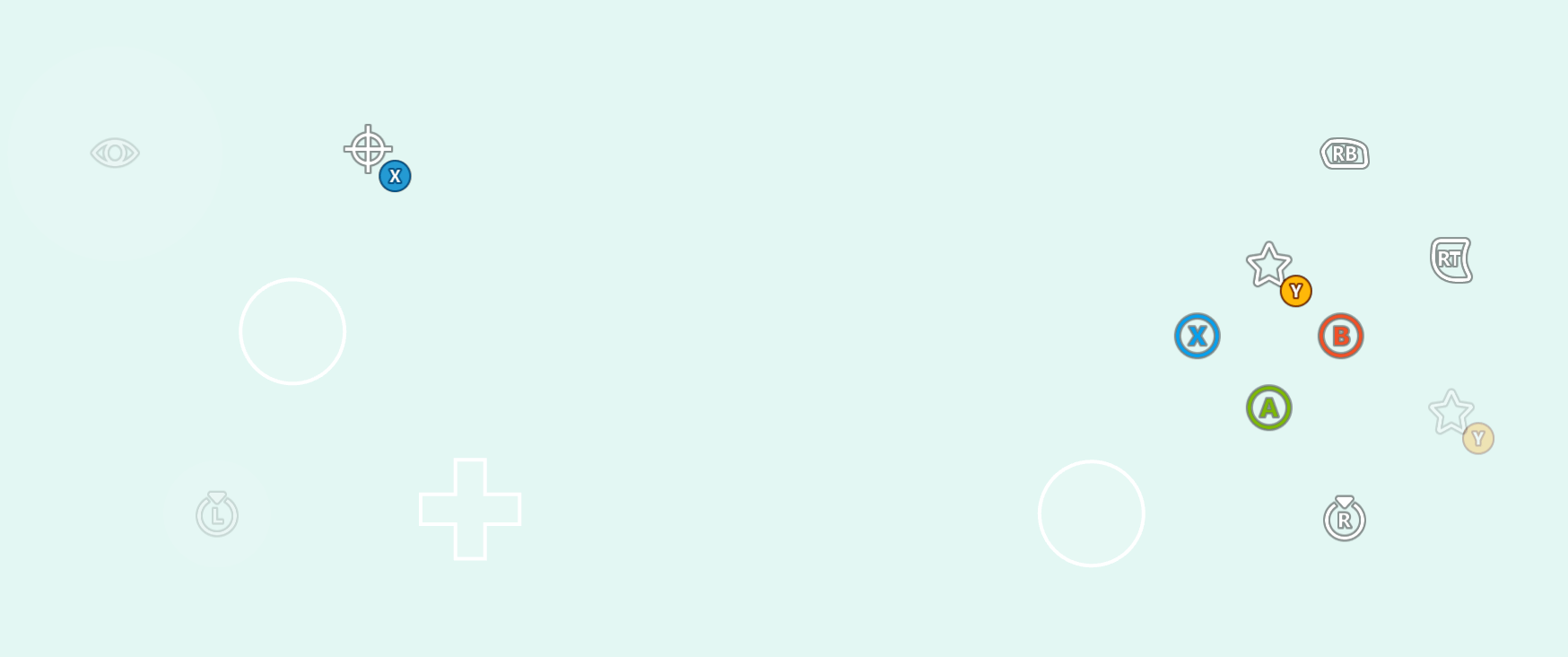
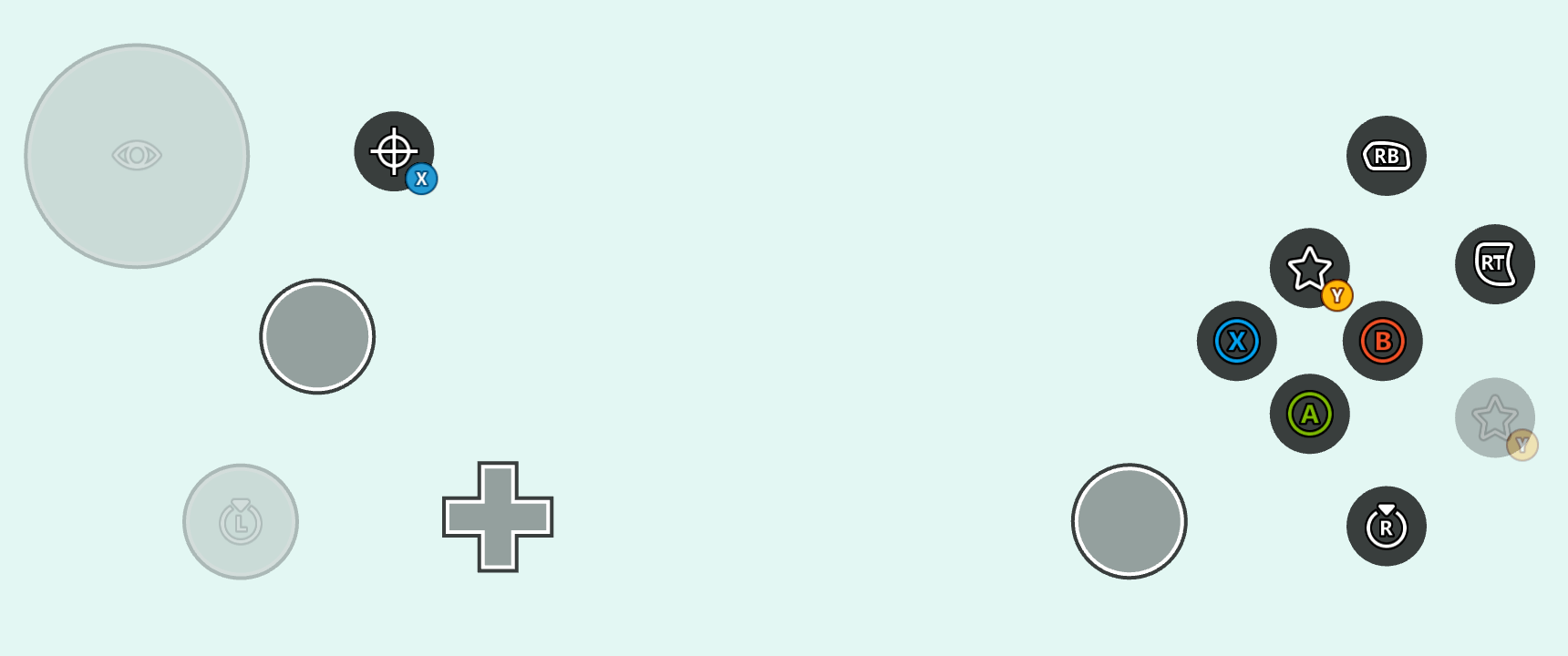
視遊戲的色彩配置而定,有時觸控配置可能因為與底層串流中執行的遊戲對比不佳而難以辨識。對於低視能、色盲或有其他視覺障礙的玩家來說,這個問題可能特別嚴重。高對比模式是一項用戶端設定,啟用後會為使用[圖示](/zh-TW/reference/system/touchadaptationkit/types/game-streaming-touch-icon)設定樣式的按鈕加上額外的筆觸和按鈕背板,並修改[系統色彩](/zh-TW/reference/system/touchadaptationkit/layout/game-streaming-touch-color-palette#system-colors)以提高對比。
例如,以下是標準配置搭配純淺色背景,且高對比模式為**停用**時的樣子:
 以下則是相同設定在高對比模式**啟用**時的樣子:
 雖然您可以依賴系統預設值來設定高對比模式樣式,但您也可以加入[自訂資產的高對比模式變體](#custom-assets-for-high-contrast-mode),並[覆寫系統色彩](#overriding-system-colors-for-high-contrast-mode),以符合遊戲的視覺美感。
## 高對比模式的自訂資產
在觸控調整套件組合中使用[自訂資產](/zh-TW/build/core-features/common/game-streaming/building-touch-layouts/game-streaming-tak-custom-assets)時,您可以為每個標準對比資產加入高對比資產變體。只要啟用高對比模式,就會轉譯這些高對比資產變體。若要將資產標示為高對比變體,請在資產名稱之後、副檔名之前加上 `.hc` 尾碼。例如,請參考 `myAsset.png` (左) 及其高對比變體 `myAsset.hc.png` (右):
雖然您可以依賴系統預設值來設定高對比模式樣式,但您也可以加入[自訂資產的高對比模式變體](#custom-assets-for-high-contrast-mode),並[覆寫系統色彩](#overriding-system-colors-for-high-contrast-mode),以符合遊戲的視覺美感。
## 高對比模式的自訂資產
在觸控調整套件組合中使用[自訂資產](/zh-TW/build/core-features/common/game-streaming/building-touch-layouts/game-streaming-tak-custom-assets)時,您可以為每個標準對比資產加入高對比資產變體。只要啟用高對比模式,就會轉譯這些高對比資產變體。若要將資產標示為高對比變體,請在資產名稱之後、副檔名之前加上 `.hc` 尾碼。例如,請參考 `myAsset.png` (左) 及其高對比變體 `myAsset.hc.png` (右):
 在磁碟上配置資產時,標準對比和高對比資產都會照常[依語言和資產縮放比例組織](/zh-TW/build/core-features/common/game-streaming/building-touch-layouts/game-streaming-tak-custom-assets#asset-files)。以上述資產為例,檔案結構可能如下所示:
```
assets/
└───neutral/
├───@1.0x/
│ myAsset.png
│ myAsset.hc.png
├───@1.5x/
│ myAsset.png
│ myAsset.hc.png
├───@2.0x/
│ myAsset.png
│ myAsset.hc.png
├───@3.0x/
│ myAsset.png
│ myAsset.hc.png
└───@4.0x/
myAsset.png
myAsset.hc.png
```
在配置中,參考資產時[不包含副檔名](/zh-TW/build/core-features/common/game-streaming/building-touch-layouts/game-streaming-tak-custom-assets#referencing-assets-from-layouts),**也不包含 `.hc` 尾碼**。例如,使用上述資產設定樣式的按鈕可能會如下設定:
```JSON theme={null}
{
"type": "button",
"action": "gamepadA",
"styles": {
"idle": {
"faceImage": {
"type": "asset",
"value": "myAsset"
}
}
}
}
```
在此樣式下,觸控調整套件會根據高對比模式是停用或啟用,分別自動選取 `myAsset.png` 或 `myAsset.hc.png`。高對比模式**停用**時,此樣式會產生下列結果:
在磁碟上配置資產時,標準對比和高對比資產都會照常[依語言和資產縮放比例組織](/zh-TW/build/core-features/common/game-streaming/building-touch-layouts/game-streaming-tak-custom-assets#asset-files)。以上述資產為例,檔案結構可能如下所示:
```
assets/
└───neutral/
├───@1.0x/
│ myAsset.png
│ myAsset.hc.png
├───@1.5x/
│ myAsset.png
│ myAsset.hc.png
├───@2.0x/
│ myAsset.png
│ myAsset.hc.png
├───@3.0x/
│ myAsset.png
│ myAsset.hc.png
└───@4.0x/
myAsset.png
myAsset.hc.png
```
在配置中,參考資產時[不包含副檔名](/zh-TW/build/core-features/common/game-streaming/building-touch-layouts/game-streaming-tak-custom-assets#referencing-assets-from-layouts),**也不包含 `.hc` 尾碼**。例如,使用上述資產設定樣式的按鈕可能會如下設定:
```JSON theme={null}
{
"type": "button",
"action": "gamepadA",
"styles": {
"idle": {
"faceImage": {
"type": "asset",
"value": "myAsset"
}
}
}
}
```
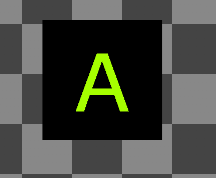
在此樣式下,觸控調整套件會根據高對比模式是停用或啟用,分別自動選取 `myAsset.png` 或 `myAsset.hc.png`。高對比模式**停用**時,此樣式會產生下列結果:
 高對比模式**啟用**時則會產生下列結果:
 ## 覆寫高對比模式的系統色彩
觸控配置或[內容檔案](/zh-TW/build/core-features/common/game-streaming/game-streaming-touch-touch-adaptation-bundle#context)中的[調色盤](/zh-TW/reference/system/touchadaptationkit/layout/game-streaming-touch-color-palette)可用來覆寫[系統色彩](/zh-TW/reference/system/touchadaptationkit/layout/game-streaming-touch-color-palette#system-colors)。控制項在設定樣式時會隱含地取樣系統色彩,這表示任何覆寫都會影響所有控制項的全域樣式 (除非控制項在自訂 `styles` 區塊中有自己的覆寫)。
例如,下列配置會覆寫部分系統色彩,以在啟用高對比模式時達成自訂樣式:
```JSON theme={null}
{
"$schema": "https://raw.githubusercontent.com/microsoft/xbox-game-streaming-tools/main/touch-adaptation-kit/schemas/layout/v4.0/layout.json",
"styles": {
"colors": {
"highContrast": {
"system_contentPrimary": "#ff00ffff",
"system_contentSecondary": "#00ff00aa",
"system_contrastPrimary": "#ff0000aa"
}
}
},
"content": {
"left": {
"inner": [
{
"type": "joystick",
"axis": {
"input": "axisXY",
"output": "leftJoystick"
}
},
{
"type": "button",
"action": "dPadRight",
"styles": {
"default": {
"faceImage": {
"type": "icon",
"value": "map"
}
}
}
}
]
},
"right": {
"inner": [
{
"type": "button",
"action": "gamepadY"
},
{
"type": "button",
"action": "gamepadB"
},
{
"type": "button",
"action": "gamepadA"
},
{
"type": "button",
"action": "gamepadX"
}
]
}
}
}
```
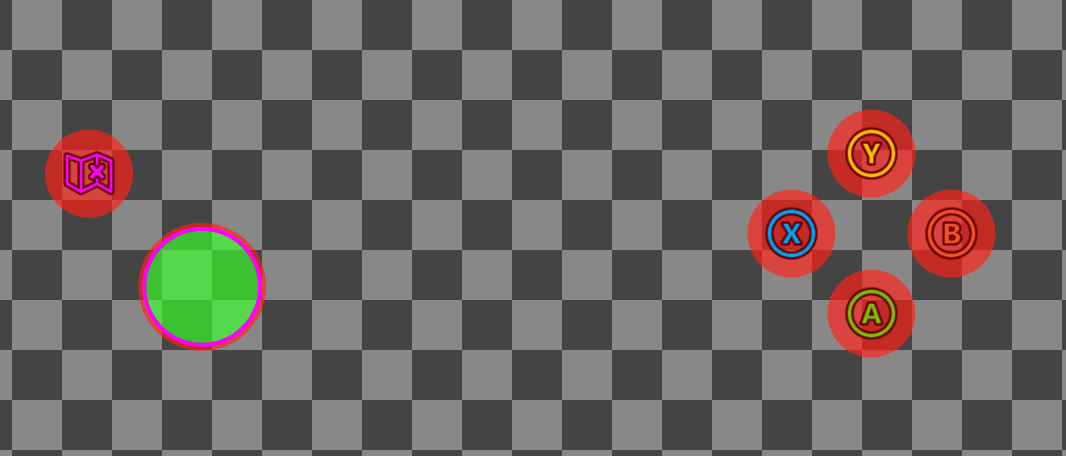
在上述配置中,`highContrast` 區塊宣告了三個色彩覆寫,這些覆寫只會在啟用高對比模式時套用:
1. `system_contentPrimary` 會覆寫套用到搖桿中間筆觸和地圖圖示色調的樣式。
2. `system_contentSecondary` 會覆寫套用到搖桿填滿的樣式。
3. `system_contrastPrimary` 會覆寫套用到搖桿外部筆觸和按鈕背板的樣式。
上述配置在高對比模式**停用**時:
## 覆寫高對比模式的系統色彩
觸控配置或[內容檔案](/zh-TW/build/core-features/common/game-streaming/game-streaming-touch-touch-adaptation-bundle#context)中的[調色盤](/zh-TW/reference/system/touchadaptationkit/layout/game-streaming-touch-color-palette)可用來覆寫[系統色彩](/zh-TW/reference/system/touchadaptationkit/layout/game-streaming-touch-color-palette#system-colors)。控制項在設定樣式時會隱含地取樣系統色彩,這表示任何覆寫都會影響所有控制項的全域樣式 (除非控制項在自訂 `styles` 區塊中有自己的覆寫)。
例如,下列配置會覆寫部分系統色彩,以在啟用高對比模式時達成自訂樣式:
```JSON theme={null}
{
"$schema": "https://raw.githubusercontent.com/microsoft/xbox-game-streaming-tools/main/touch-adaptation-kit/schemas/layout/v4.0/layout.json",
"styles": {
"colors": {
"highContrast": {
"system_contentPrimary": "#ff00ffff",
"system_contentSecondary": "#00ff00aa",
"system_contrastPrimary": "#ff0000aa"
}
}
},
"content": {
"left": {
"inner": [
{
"type": "joystick",
"axis": {
"input": "axisXY",
"output": "leftJoystick"
}
},
{
"type": "button",
"action": "dPadRight",
"styles": {
"default": {
"faceImage": {
"type": "icon",
"value": "map"
}
}
}
}
]
},
"right": {
"inner": [
{
"type": "button",
"action": "gamepadY"
},
{
"type": "button",
"action": "gamepadB"
},
{
"type": "button",
"action": "gamepadA"
},
{
"type": "button",
"action": "gamepadX"
}
]
}
}
}
```
在上述配置中,`highContrast` 區塊宣告了三個色彩覆寫,這些覆寫只會在啟用高對比模式時套用:
1. `system_contentPrimary` 會覆寫套用到搖桿中間筆觸和地圖圖示色調的樣式。
2. `system_contentSecondary` 會覆寫套用到搖桿填滿的樣式。
3. `system_contrastPrimary` 會覆寫套用到搖桿外部筆觸和按鈕背板的樣式。
上述配置在高對比模式**停用**時:
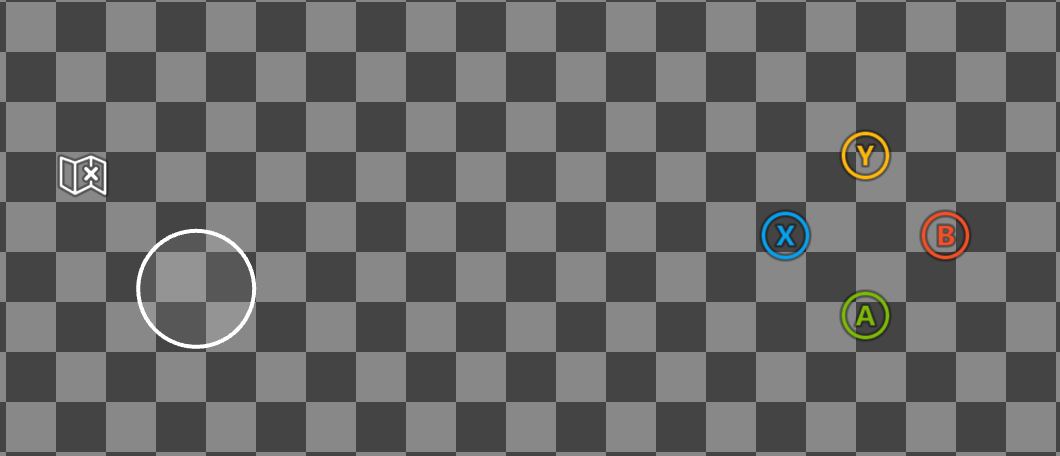 以及在高對比模式**啟用**時:
 ## 啟用高對比模式
您可以在任何 [Web](#web-cta)、[Android](#android-cta) 或 [Windows](#windows-cta) 內容測試應用程式 (CTA) 上測試高對比模式。
### Web CTA
若要在 [Web CTA](/zh-TW/build/core-features/common/game-streaming/game-streaming-web-content-test-application) 上啟用高對比模式:
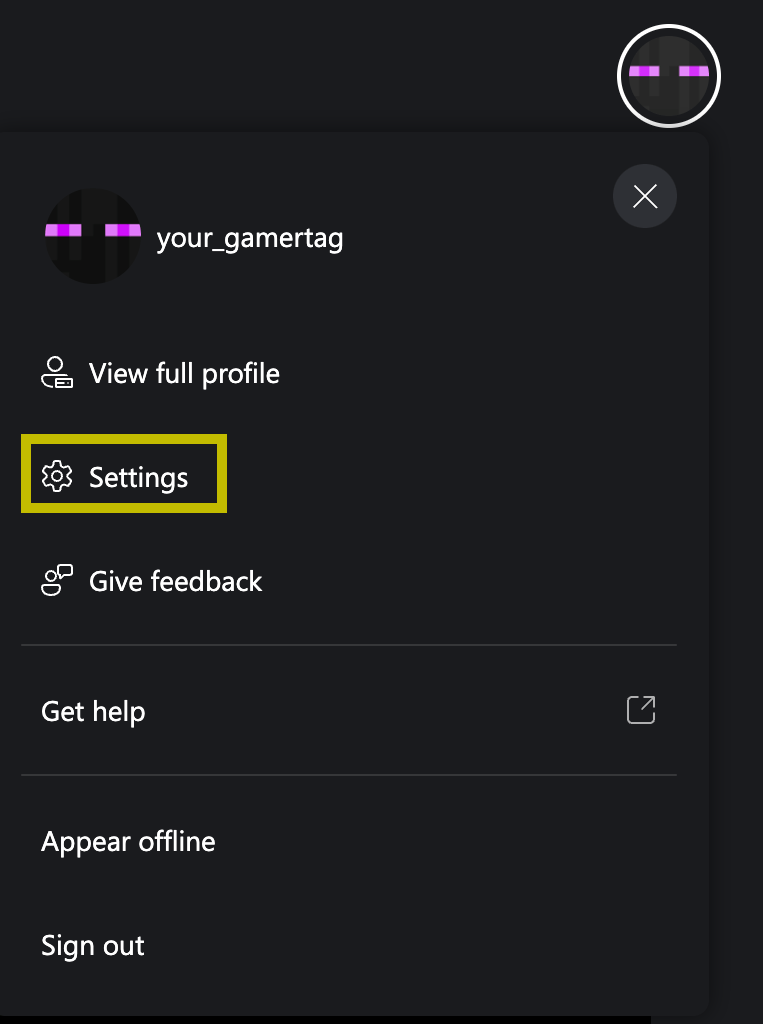
按一下您的設定檔,然後瀏覽至 \[設定] 視窗:
## 啟用高對比模式
您可以在任何 [Web](#web-cta)、[Android](#android-cta) 或 [Windows](#windows-cta) 內容測試應用程式 (CTA) 上測試高對比模式。
### Web CTA
若要在 [Web CTA](/zh-TW/build/core-features/common/game-streaming/game-streaming-web-content-test-application) 上啟用高對比模式:
按一下您的設定檔,然後瀏覽至 \[設定] 視窗:
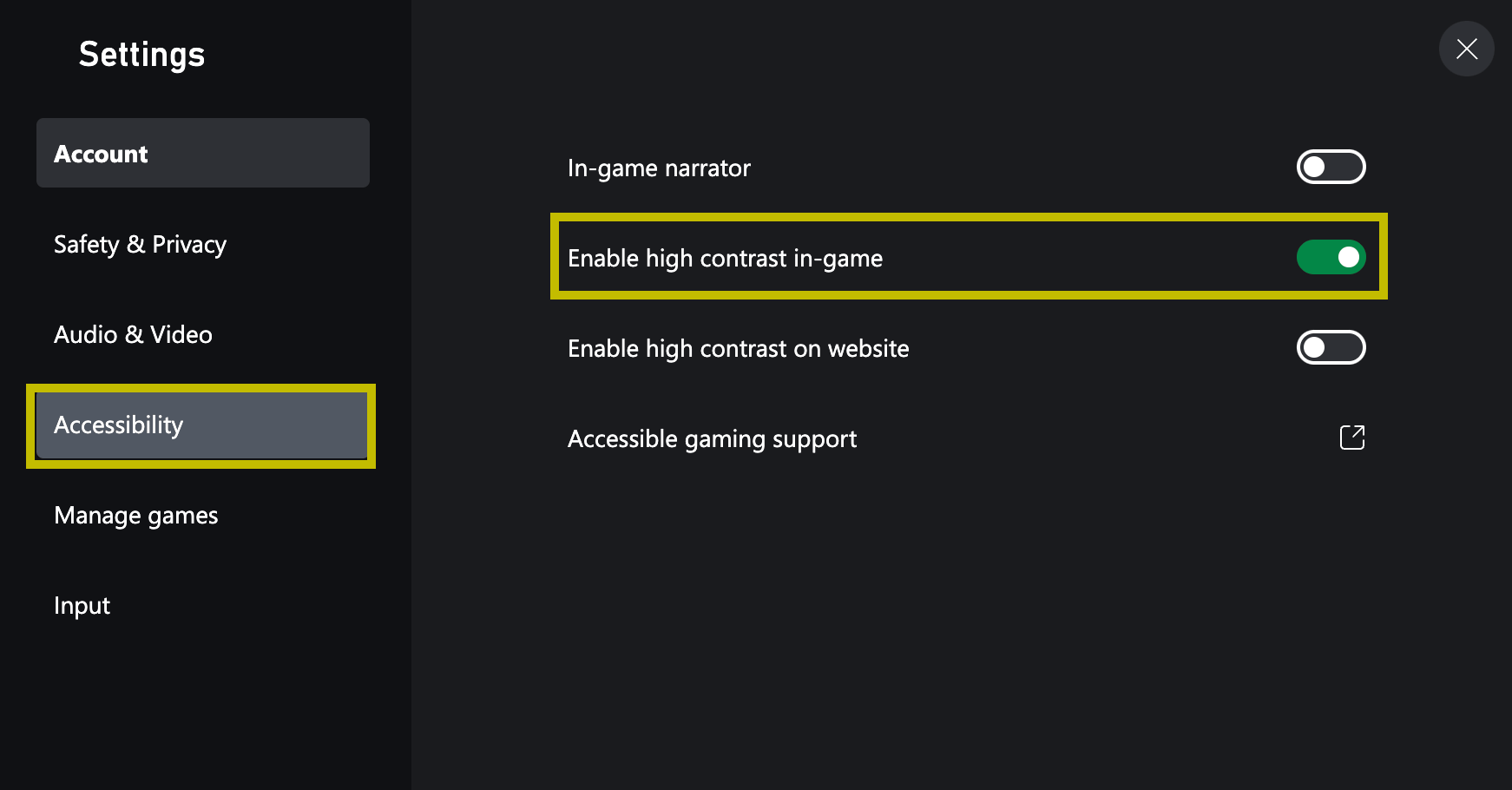
 瀏覽至 \[協助工具],然後勾選 \[在遊戲中啟用高對比]:
 ### Android CTA (已淘汰)
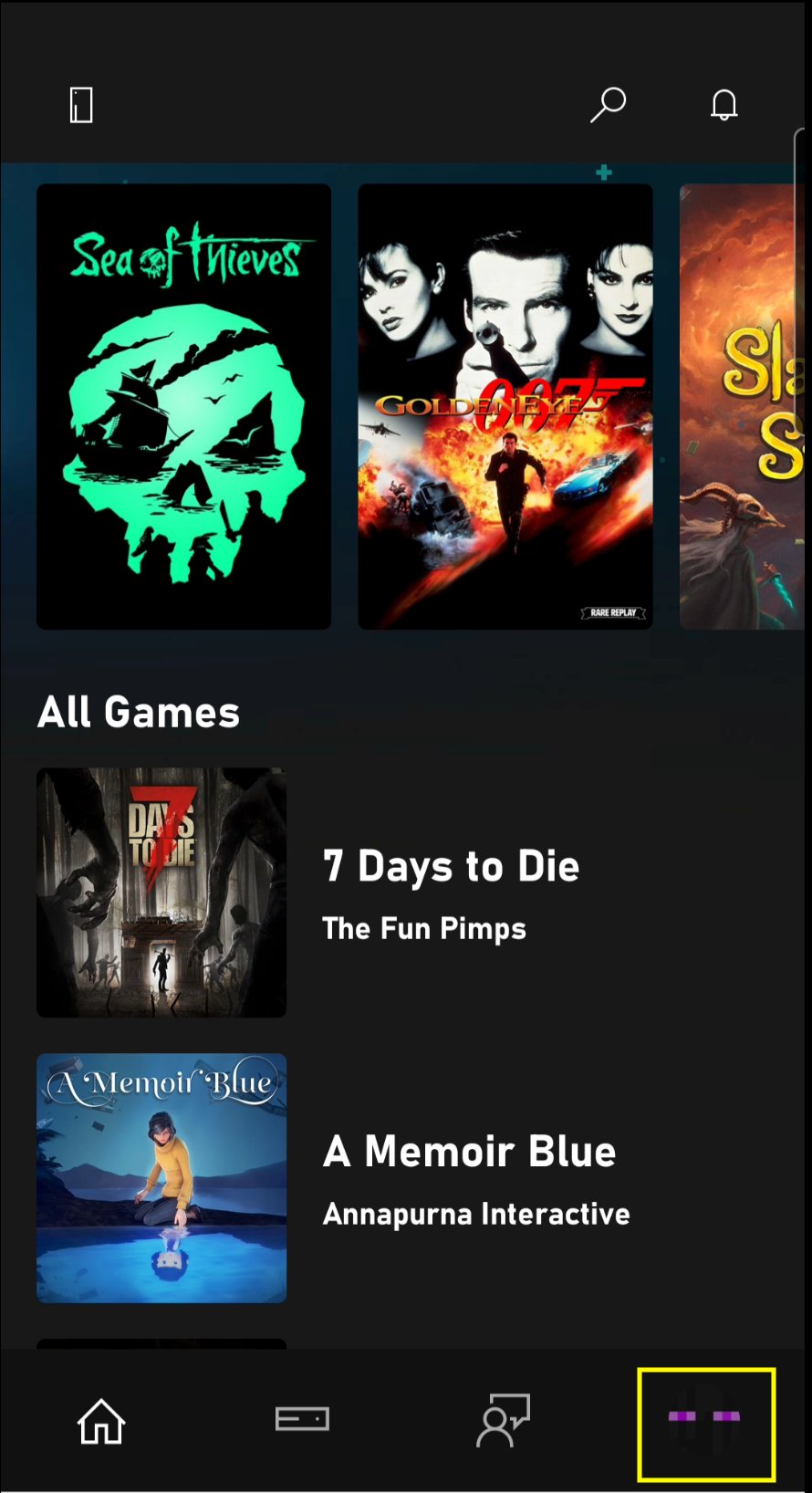
若要在 [Android CTA](/zh-TW/build/core-features/common/game-streaming/game-streaming-android-content-test-application) 上啟用高對比模式:
按一下您的設定檔:
### Android CTA (已淘汰)
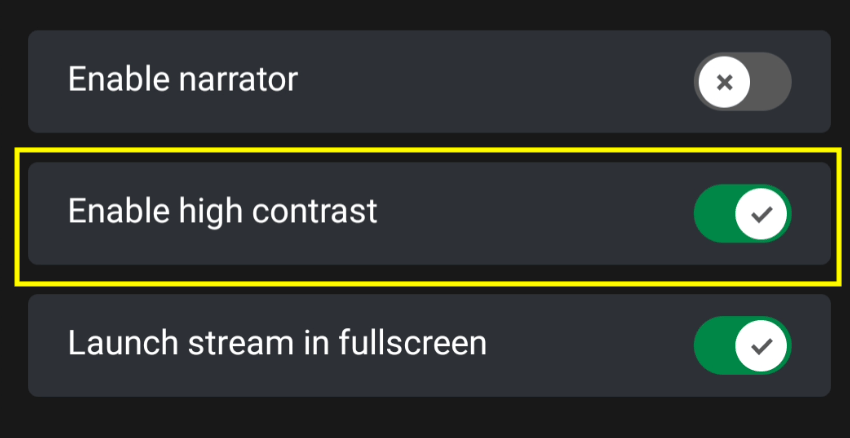
若要在 [Android CTA](/zh-TW/build/core-features/common/game-streaming/game-streaming-android-content-test-application) 上啟用高對比模式:
按一下您的設定檔:
 勾選 \[啟用高對比模式]:
 ### Windows CTA (已淘汰)
若要在 [Windows CTA](/zh-TW/build/core-features/common/game-streaming/game-streaming-windows-pc-content-test-application) 上啟用高對比模式:
按一下您的設定檔:
### Windows CTA (已淘汰)
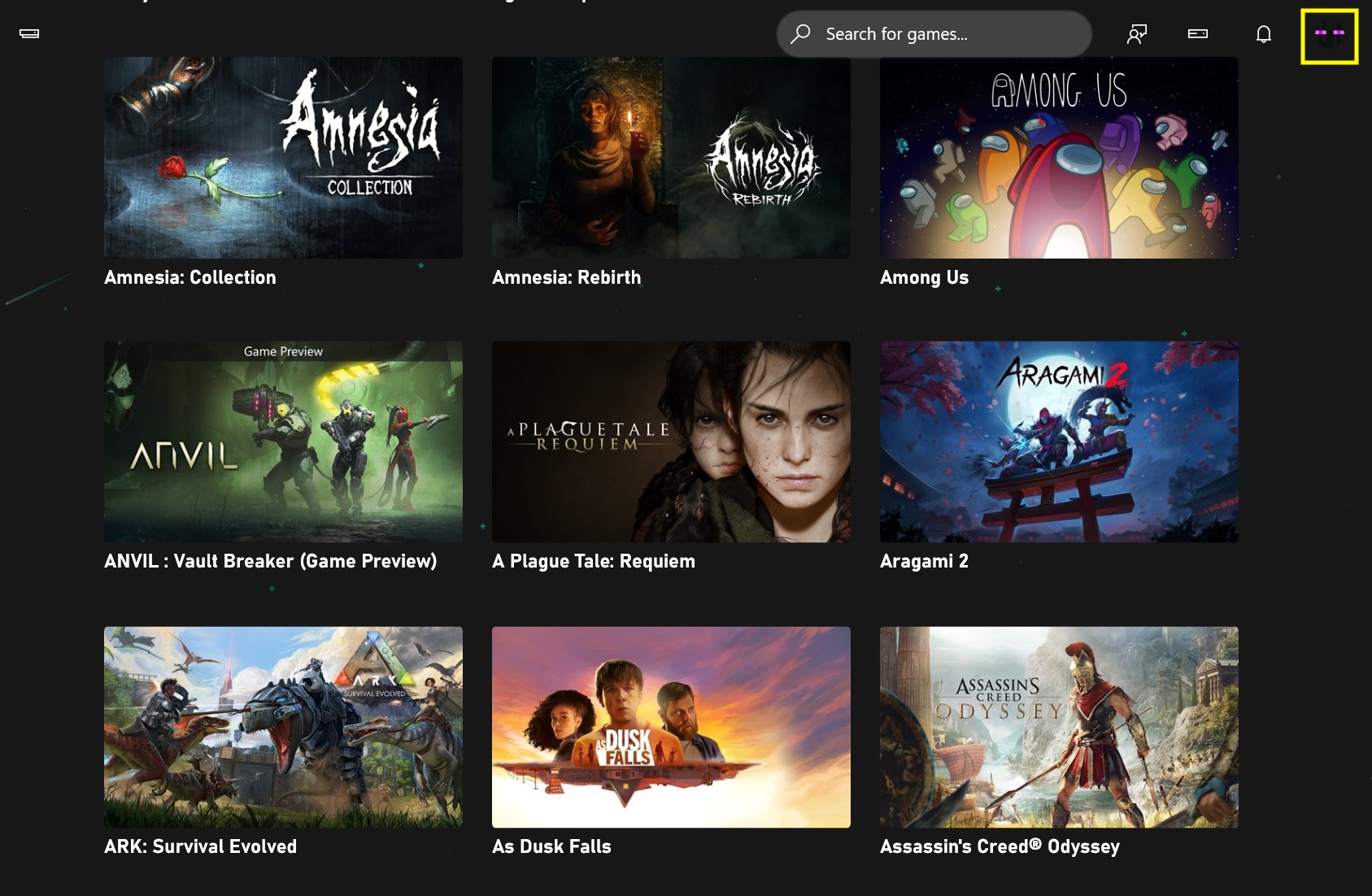
若要在 [Windows CTA](/zh-TW/build/core-features/common/game-streaming/game-streaming-windows-pc-content-test-application) 上啟用高對比模式:
按一下您的設定檔:
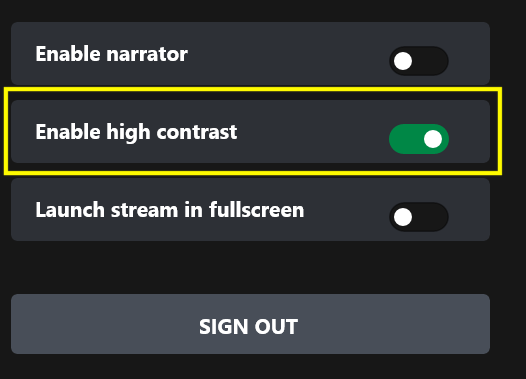
 勾選 \[啟用高對比模式]:
 ## Related topics
- [GDK 無障礙概覽](/zh-TW/build/game-principles/accessibility/accessibility-overview.md)
- [XBOX Accessibility Guidelines (XAG)](/zh-TW/build/game-principles/accessibility/xbox-accessibility-guidelines.md)
- [無障礙功能標籤](/zh-TW/build/game-principles/accessibility/accessibility-feature-tags.md)
- [开发模式](/zh-CN/services/playfab/pricing/development-mode.md)
- [高对比度模式](/zh-CN/build/core-features/common/game-streaming/building-touch-layouts/game-streaming-tak-high-contrast-mode.md)
## Related topics
- [GDK 無障礙概覽](/zh-TW/build/game-principles/accessibility/accessibility-overview.md)
- [XBOX Accessibility Guidelines (XAG)](/zh-TW/build/game-principles/accessibility/xbox-accessibility-guidelines.md)
- [無障礙功能標籤](/zh-TW/build/game-principles/accessibility/accessibility-feature-tags.md)
- [开发模式](/zh-CN/services/playfab/pricing/development-mode.md)
- [高对比度模式](/zh-CN/build/core-features/common/game-streaming/building-touch-layouts/game-streaming-tak-high-contrast-mode.md)