> ## Documentation Index
> Fetch the complete documentation index at: https://devdocs.xbox.com/llms.txt
> Use this file to discover all available pages before exploring further.
# 用于 PC 游戏开发的 Visual Studio 项目模板
> 用于 PC 游戏开发的 Visual Studio 项目模板
本主题介绍 Visual Studio 中可用的 Windows PC 游戏项目模板。
## 项目模板
Microsoft 游戏开发工具包 (GDK) 安装以下 Visual Studio C++ 项目模板。
* **Direct3D 12 Desktop Game (Classic):** 使用 Direct3D 12 和 C++ 以及 “原生” x64 MSBuild 平台的 Windows 游戏项目。
* **Direct3D 12 Desktop Game:** 使用 Direct3D 12 和 C++ 以及 Gaming.Desktop.x64 MSBuild 自定义平台的 Windows 游戏项目。
* **Direct3D 12 Desktop Game Makefile:** 使用外部生成系统的 Direct3D 12 和 C++ 的 Windows 游戏项目。
* **Desktop Static Library:** 使用 Gaming.Desktop.x64 MSBuild 自定义平台的 Windows 静态库项目。
* **Desktop DLL:** 使用 Gaming.Desktop.x64 MSBuild 自定义平台的 Windows 动态链接库项目。
### 独立模板
作为使用已安装的 GDK 模板进行 Desktop 和 Handheld 开发的替代方案,还有一个完全独立的项目模板,它使用 [vc 包管理器](https://aka.ms/vcpkg) 添加 *Microsoft GDK*、*DirectX 12 Agility SDK* 等的打包版本。这可以作为在 Microsoft Store 和 XBOX PC 应用中发布的基线。此包同时包含 MSBuild 和 CMake 项目模板,需要 Visual Studio 2022 v17.6 或更高版本。
请参阅 [Visual Studio Marketplace](https://aka.ms/gdktemplates)。
## 定位 Microsoft 游戏开发工具包 (GDK) 项目模板
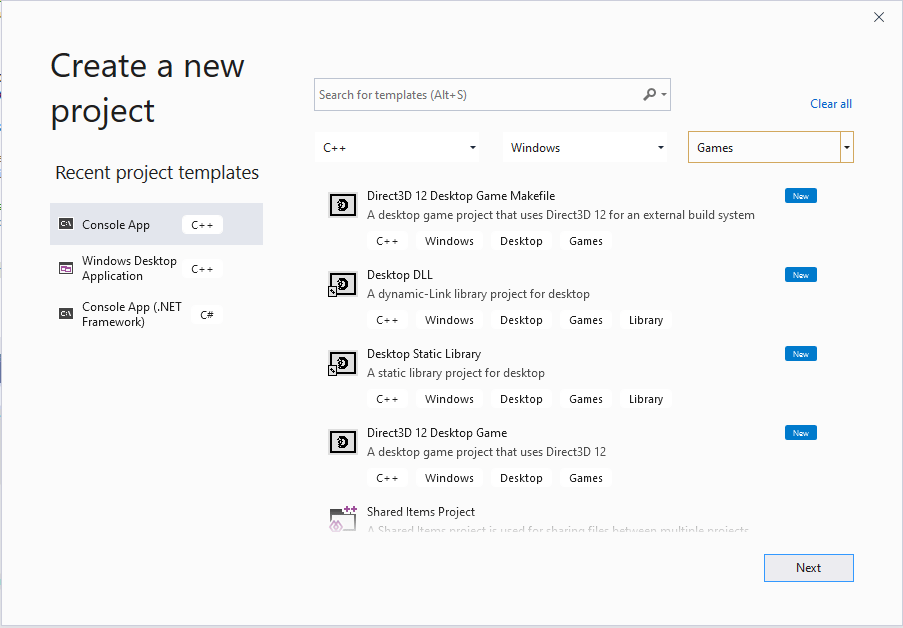
通过在 Visual Studio 2019 或 Visual Studio 2022 的 **创建新项目** 对话框中搜索和筛选来定位 Microsoft 游戏开发工具包 (GDK) 模板。可以通过筛选 **C++** 语言、**Windows** 平台和 **Games** 项目类型找到 Microsoft 游戏开发工具包 (GDK) 模板,如以下屏幕截图所示。
 ## Gaming.Desktop.x64 平台、msbuild 文件和属性
Microsoft 游戏开发工具包 (GDK) 定义了一个名为 Gaming.Desktop.x64 的 msbuild 平台,用于 Windows PC 游戏开发。Gaming.Desktop.x64 包含一组 msbuild 属性和目标文件,它们定义了所需的预处理器指令(例如 `_GAMING_DESKTOP`),并设置路径,以便在构建游戏时能够正确找到扩展库、包含文件和库(例如,位于 *C:\Program Files (x86)\Microsoft GDK\edition\GRDK* 下)。有关由 Gaming.Desktop.x64 平台定义的 msbuild 属性和目标的具体详细信息,请参阅 [在不安装 Microsoft 游戏开发工具包的情况下配置项目](/build/console-features/build-without-install/project-configuration-withoutinstall)。
## 将 x64 平台与 Microsoft 游戏开发工具包 (GDK) 一起使用
在不使用自定义 Gaming.Desktop.x64 MSBuild 平台的情况下面向 PC 时,项目文件必须实现所有所需的功能。
* 若要支持 “并行” 安装,项目必须选择合适的版本。这可以通过在 *Globals* 部分中设置的属性来完成:
```xml theme={null}
...
$(GRDKLatest)
```
`GRDKLatest` 环境变量的使用默认为开发 PC 上安装的最新版本,其形式为 **C:\Program Files (x86)\Microsoft GDK\\GRDK\\**。
> 我们在其余的构建设置中使用 **GDKPCEditionPath** 属性。不建议在项目文件的其余部分中直接使用 `GRDKLatest` 作为属性,因为这会使尝试新版本、管理更新、重现问题等变得更加困难。如果使用自定义 .props 文件来驱动生成过程,请在其中放置 `GDKPCEditionPath` 而不是在每个项目文件中。另外注意,此属性需要一个尾部斜杠以符合 MSBuild 约定。
对于 VS 2019,你还必须确保使用工具的 x64 原生版本。对于 VS 2022,这是默认设置,因此是可选的。
```xml theme={null}
...
x64
```
* 任何所需的 Microsoft 游戏开发工具包 (GDK) 扩展库都必须包含适当的 include/lib 路径和重新分发 DLL。这可以通过修改 vcxproj 文件的 *ExtensionSettings* 导入来完成:
**Microsoft GDK (2024 年 10 月) 或更高版本:**
```xml theme={null}
```
**Microsoft GDK (2024 年 6 月) 或更早版本:**
```xml theme={null}
```
* 应更新 VC++ 目录属性 **ExecutablePath**、**IncludePath** 和 **LibraryPath** 以包含 Microsoft 游戏开发工具包 (GDK) 路径。
```xml theme={null}
$(GameDK)bin;$(ExecutablePath)
$(GDKPCEditionPath)GameKit\Include;$(Console_SdkIncludeRoot);$(IncludePath);
$(GDKPCEditionPath)GameKit\lib\amd64;$(Console_SdkLibPath);$(LibraryPath)
```
```xml theme={null}
$(GameDK)bin;$(ExecutablePath)
$(GDKPCEditionPath)GameKit\Include;$(Console_SdkIncludeRoot);$(IncludePath);
$(GDKPCEditionPath)GameKit\lib\amd64;$(Console_SdkLibPath);$(LibraryPath)
```
对于可执行路径,我们直接使用 `GameDK` 环境变量,因为它不是 “并行” 的。如果需要,也可以在自定义 .props 文件中作为属性进行覆盖。
**Console\_SdkIncludeRoot** 和 **Console\_SdkLibPath** 属性由 Microsoft 游戏开发工具包 (GDK) 提供的 *ExtensionLibrary.props* 提供,与 x64 PC 和 XBOX 兼容。
* 对于你的平台 *ItemDefinitionGroups*,请确保将 `_GAMING_DESKTOP` 添加到预处理器定义中,以便在使用库或其他中间件时与 Gaming.Desktop.x64 保持一致。
```xml theme={null}
_GAMING_DESKTOP;WIN32;_DEBUG;_WINDOWS;%(PreprocessorDefinitions)
```
```xml theme={null}
_GAMING_DESKTOP;WIN32;NDEBUG;_WINDOWS;%(PreprocessorDefinitions)
```
* 同样在 *ItemDefinitionGroups* 中,将以下库添加到你的附加库依赖项中。具体来说,PC 上的 GameRuntime 是 `xgameruntime.lib`,GameInput 是 `gameinput.lib`。
```xml theme={null}
xgameruntime.lib;gameinput.lib;d3d12.lib;dxgi.lib;dxguid.lib;uuid.lib;kernel32.lib;user32.lib;%(AdditionalDependencies)
```
* 最后一个必需元素是将源 **MicrosoftGameConfig.mgc** 文件在构建输出中转换为所需的 **MicrosoftGame.config**。这可以作为生成自定义实现:
```xml theme={null}
copy %(Identity) "$(OutDir)MicrosoftGame.config"
makepkg.exe localize /d "$(OutDir)" /pd "$(OutDir)" /gc "%(Identity)"
MGC Compile
$(OutDir)MicrosoftGame.config
```
**MicrosoftGame.config** 还需要有效的所需徽标资产,这可以通过复制文件来实现:
```xml theme={null}
```
> 从 *Direct3D 12 Desktop Game (Classic)* 模板创建一个项目并查看它以获取上述设置以及一些其他建议。
## 另请参阅
[Visual Studio(用于 PC 游戏开发)](/tools/tools-pc/visualstudio/gr-visualstudio-toc)
## Related topics
- [Visual Studio(目录)](/zh-CN/tools/tools-pc/visualstudio/gr-visualstudio-toc.md)
- [面向 XBOX 开发的 Visual Studio 项目模板](/zh-CN/tools/tools-console/visualstudio/durango-visual-studio-templates.md)
- [用于 PC 游戏开发的 Visual Studio 属性](/zh-CN/tools/tools-pc/visualstudio/gr-vs-property-pages.md)
- [Visual Studio](/zh-CN/tools/tools-pc/visualstudio/index.md)
- [使用 GDK 项目模板启动新的 PC 作品](/zh-CN/build/gdk-and-engines/guides/gdk-project-templates.md)
## Gaming.Desktop.x64 平台、msbuild 文件和属性
Microsoft 游戏开发工具包 (GDK) 定义了一个名为 Gaming.Desktop.x64 的 msbuild 平台,用于 Windows PC 游戏开发。Gaming.Desktop.x64 包含一组 msbuild 属性和目标文件,它们定义了所需的预处理器指令(例如 `_GAMING_DESKTOP`),并设置路径,以便在构建游戏时能够正确找到扩展库、包含文件和库(例如,位于 *C:\Program Files (x86)\Microsoft GDK\edition\GRDK* 下)。有关由 Gaming.Desktop.x64 平台定义的 msbuild 属性和目标的具体详细信息,请参阅 [在不安装 Microsoft 游戏开发工具包的情况下配置项目](/build/console-features/build-without-install/project-configuration-withoutinstall)。
## 将 x64 平台与 Microsoft 游戏开发工具包 (GDK) 一起使用
在不使用自定义 Gaming.Desktop.x64 MSBuild 平台的情况下面向 PC 时,项目文件必须实现所有所需的功能。
* 若要支持 “并行” 安装,项目必须选择合适的版本。这可以通过在 *Globals* 部分中设置的属性来完成:
```xml theme={null}
...
$(GRDKLatest)
```
`GRDKLatest` 环境变量的使用默认为开发 PC 上安装的最新版本,其形式为 **C:\Program Files (x86)\Microsoft GDK\\GRDK\\**。
> 我们在其余的构建设置中使用 **GDKPCEditionPath** 属性。不建议在项目文件的其余部分中直接使用 `GRDKLatest` 作为属性,因为这会使尝试新版本、管理更新、重现问题等变得更加困难。如果使用自定义 .props 文件来驱动生成过程,请在其中放置 `GDKPCEditionPath` 而不是在每个项目文件中。另外注意,此属性需要一个尾部斜杠以符合 MSBuild 约定。
对于 VS 2019,你还必须确保使用工具的 x64 原生版本。对于 VS 2022,这是默认设置,因此是可选的。
```xml theme={null}
...
x64
```
* 任何所需的 Microsoft 游戏开发工具包 (GDK) 扩展库都必须包含适当的 include/lib 路径和重新分发 DLL。这可以通过修改 vcxproj 文件的 *ExtensionSettings* 导入来完成:
**Microsoft GDK (2024 年 10 月) 或更高版本:**
```xml theme={null}
```
**Microsoft GDK (2024 年 6 月) 或更早版本:**
```xml theme={null}
```
* 应更新 VC++ 目录属性 **ExecutablePath**、**IncludePath** 和 **LibraryPath** 以包含 Microsoft 游戏开发工具包 (GDK) 路径。
```xml theme={null}
$(GameDK)bin;$(ExecutablePath)
$(GDKPCEditionPath)GameKit\Include;$(Console_SdkIncludeRoot);$(IncludePath);
$(GDKPCEditionPath)GameKit\lib\amd64;$(Console_SdkLibPath);$(LibraryPath)
```
```xml theme={null}
$(GameDK)bin;$(ExecutablePath)
$(GDKPCEditionPath)GameKit\Include;$(Console_SdkIncludeRoot);$(IncludePath);
$(GDKPCEditionPath)GameKit\lib\amd64;$(Console_SdkLibPath);$(LibraryPath)
```
对于可执行路径,我们直接使用 `GameDK` 环境变量,因为它不是 “并行” 的。如果需要,也可以在自定义 .props 文件中作为属性进行覆盖。
**Console\_SdkIncludeRoot** 和 **Console\_SdkLibPath** 属性由 Microsoft 游戏开发工具包 (GDK) 提供的 *ExtensionLibrary.props* 提供,与 x64 PC 和 XBOX 兼容。
* 对于你的平台 *ItemDefinitionGroups*,请确保将 `_GAMING_DESKTOP` 添加到预处理器定义中,以便在使用库或其他中间件时与 Gaming.Desktop.x64 保持一致。
```xml theme={null}
_GAMING_DESKTOP;WIN32;_DEBUG;_WINDOWS;%(PreprocessorDefinitions)
```
```xml theme={null}
_GAMING_DESKTOP;WIN32;NDEBUG;_WINDOWS;%(PreprocessorDefinitions)
```
* 同样在 *ItemDefinitionGroups* 中,将以下库添加到你的附加库依赖项中。具体来说,PC 上的 GameRuntime 是 `xgameruntime.lib`,GameInput 是 `gameinput.lib`。
```xml theme={null}
xgameruntime.lib;gameinput.lib;d3d12.lib;dxgi.lib;dxguid.lib;uuid.lib;kernel32.lib;user32.lib;%(AdditionalDependencies)
```
* 最后一个必需元素是将源 **MicrosoftGameConfig.mgc** 文件在构建输出中转换为所需的 **MicrosoftGame.config**。这可以作为生成自定义实现:
```xml theme={null}
copy %(Identity) "$(OutDir)MicrosoftGame.config"
makepkg.exe localize /d "$(OutDir)" /pd "$(OutDir)" /gc "%(Identity)"
MGC Compile
$(OutDir)MicrosoftGame.config
```
**MicrosoftGame.config** 还需要有效的所需徽标资产,这可以通过复制文件来实现:
```xml theme={null}
```
> 从 *Direct3D 12 Desktop Game (Classic)* 模板创建一个项目并查看它以获取上述设置以及一些其他建议。
## 另请参阅
[Visual Studio(用于 PC 游戏开发)](/tools/tools-pc/visualstudio/gr-visualstudio-toc)
## Related topics
- [Visual Studio(目录)](/zh-CN/tools/tools-pc/visualstudio/gr-visualstudio-toc.md)
- [面向 XBOX 开发的 Visual Studio 项目模板](/zh-CN/tools/tools-console/visualstudio/durango-visual-studio-templates.md)
- [用于 PC 游戏开发的 Visual Studio 属性](/zh-CN/tools/tools-pc/visualstudio/gr-vs-property-pages.md)
- [Visual Studio](/zh-CN/tools/tools-pc/visualstudio/index.md)
- [使用 GDK 项目模板启动新的 PC 作品](/zh-CN/build/gdk-and-engines/guides/gdk-project-templates.md)