> ## Documentation Index
> Fetch the complete documentation index at: https://devdocs.xbox.com/llms.txt
> Use this file to discover all available pages before exploring further.
# 在 GDK 中使用 Clang/LLVM
> 将 Clang/LLVM 与 Microsoft 游戏开发工具包 (GDK) 结合使用
使用 Clang/LLVM 开发 GDK 游戏官方支持通过 Visual Studio 2019 或 2022 以及 *clang/LLVM for Windows* 工具集 v12 或更高版本进行。此工具集使用 Visual C/C++ 运行时(通用 CRT 库 + Microsoft STL)。其他工具集和运行时组合可能会或可能不会成功运行或通过游戏认证。
带 **LLVM (clang-cl)** 平台工具集的 Clang/LLVM for Windows(即 ClangCL)使用 [Microsoft 标准 C++ 库](https://github.com/microsoft/STL)。
| Clang 版本 | Visual Studio 更新 |
| ------------- | -------------------------- |
| clang v12 | Visual Studio 2019 (16.11) |
| clang v12 | Visual Studio 2022 (17.0) |
| clang v13 | Visual Studio 2022 (17.1) |
| clang v13.0.1 | Visual Studio 2022 (17.2) |
| clang v14 | Visual Studio 2022 (17.3) |
| clang v15.0.1 | Visual Studio 2022 (17.4) |
| clang v16.0.5 | Visual Studio 2022 (17.7) |
| clang v17.0.3 | Visual Studio 2022 (17.9) |
| clang v18.1.8 | Visual Studio 2022 (17.12) |
| clang v19.1.1 | Visual Studio 2022 (17.13) |
| clang v19.1.5 | Visual Studio 2022 (17.14) |
## 所需的 Visual Studio 版本和组件
要将 Clang/LLVM 与 Microsoft 游戏开发工具包 (GDK) 一起使用,需要 Visual Studio 16.11 或更高版本。安装 Visual Studio 2019 时,必须选择 **使用 C++ 的桌面开发** 下的 **适用于 Windows 的 C++ Clang 工具** 组件。
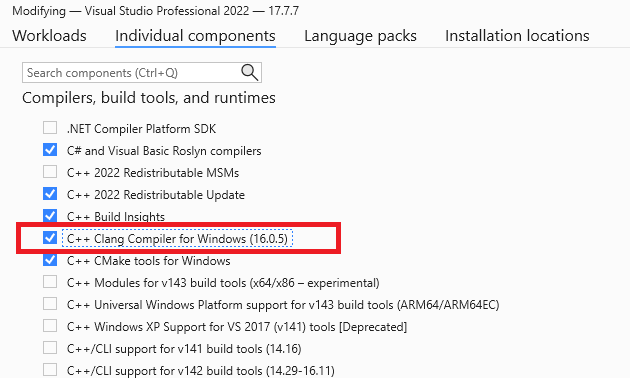 根据你使用的 Visual Studio 版本,所需的 Clang/LLVM 组件可能名为 **适用于 Windows 的 C++ Clang 编译器** 和 **适用于 v142 生成工具的 C++ Clang-cl (x64/x86)**。
如果你在安装 Microsoft 游戏开发工具包 (GDK) 之后修改现有的 Visual Studio 安装以添加 **适用于 Windows 的 C++ Clang 工具**,则在使用 Clang/LLVM 之前需要修复 Microsoft 游戏开发工具包 (GDK) 安装。
如果安装了 **适用于 Windows 的 C++ Clang 工具** 组件,Microsoft 游戏开发工具包 (GDK) 安装将为 `Gaming.Desktop.x64` 平台安装对 **ClangCl** 平台工具集的支持。
## 编译器和链接器开关
对于 `Gaming.Desktop.x64` 平台,与 `clang-cl.exe` 一起使用的 clang/LLVM 命令行将始终包括:
```
-Wno-c++98-compat -Wno-c++98-compat-pedantic -Wno-reserved-id-macro
-Wno-pragma-pack -Wno-unknown-pragmas
-Wno-unused-command-line-argument
```
## 支持的 CPU 内部函数
Clang/LLVM 和 GNUC 对 SSE SIMD 类型的处理方式与 Visual C++ 和 Intel 编译器不同。具体而言,\_\_m128、\_\_m128i、\_\_m128d 类型被视为不透明类型而不是结构体,因此不能使用这些类型创建 C++ 重载函数。这也意味着通过 \_\_m128.m128\_f32\[] 进行直接元素访问将无法在 clang 上编译。
请注意,对于 Clang/LLVM 上的 DirectXMath,这会导致所有 XMVECTOR C++ 重载被禁用。为了更好的可移植性,你也可以在 Visual C++ 上选择使用此行为,方法是在包含 DirectXMath 头文件之前定义预处理器符号 `XM_NO_XMVECTOR_OVERLOADS`。
对于 PC,你可以指望所有 x64 原生 CPU 都支持 SSE 和 SSE2,因为这是架构定义的一部分。你也可以放心地要求 SSE3,因为所有 Windows 10 支持的现代 CPU 都支持它。对于 DirectXMath,这意味着你可以定义预处理器定义 `_XM_SSE3_INTRINSICS_` 并且必须使用 clang/LLVM 通过 `-march=sse3` 构建。
即使你当前未使用 /arch:AVX 或 /arch:AVX2 进行构建,Visual C++ 也允许你使用高级指令内部函数,但在此场景中,如果没有正确的编译器开关,clang/LLVM 将无法构建。请务必在 PC 上对超出 SSE2 的任何内容执行运行时 CPU 支持检查。
Windows 10 SDK (18363) 或更早版本中的 DirectXMath 使用了错误的 CPUID 内部函数为 Clang/LLVM 实现 `XMVerifyCPUSupport`。这在 Windows 10 SDK (19041) 或更高版本中的 DirectXMath 3.14 中已修复。
* [https://walbourn.github.io/directxmath-3.14/](https://walbourn.github.io/directxmath-3.14/)
## 将 Clang/LLVM 与 msbuild 一起使用
要将 Clang/LLVM 与 msbuild 项目一起使用,请将 **平台工具集** 设置为 “LLVM (clang-cl)”。**平台工具集** 可以在 Visual C++ 项目属性对话框的 **常规** 选项卡下找到,如下图所示。
根据你使用的 Visual Studio 版本,所需的 Clang/LLVM 组件可能名为 **适用于 Windows 的 C++ Clang 编译器** 和 **适用于 v142 生成工具的 C++ Clang-cl (x64/x86)**。
如果你在安装 Microsoft 游戏开发工具包 (GDK) 之后修改现有的 Visual Studio 安装以添加 **适用于 Windows 的 C++ Clang 工具**,则在使用 Clang/LLVM 之前需要修复 Microsoft 游戏开发工具包 (GDK) 安装。
如果安装了 **适用于 Windows 的 C++ Clang 工具** 组件,Microsoft 游戏开发工具包 (GDK) 安装将为 `Gaming.Desktop.x64` 平台安装对 **ClangCl** 平台工具集的支持。
## 编译器和链接器开关
对于 `Gaming.Desktop.x64` 平台,与 `clang-cl.exe` 一起使用的 clang/LLVM 命令行将始终包括:
```
-Wno-c++98-compat -Wno-c++98-compat-pedantic -Wno-reserved-id-macro
-Wno-pragma-pack -Wno-unknown-pragmas
-Wno-unused-command-line-argument
```
## 支持的 CPU 内部函数
Clang/LLVM 和 GNUC 对 SSE SIMD 类型的处理方式与 Visual C++ 和 Intel 编译器不同。具体而言,\_\_m128、\_\_m128i、\_\_m128d 类型被视为不透明类型而不是结构体,因此不能使用这些类型创建 C++ 重载函数。这也意味着通过 \_\_m128.m128\_f32\[] 进行直接元素访问将无法在 clang 上编译。
请注意,对于 Clang/LLVM 上的 DirectXMath,这会导致所有 XMVECTOR C++ 重载被禁用。为了更好的可移植性,你也可以在 Visual C++ 上选择使用此行为,方法是在包含 DirectXMath 头文件之前定义预处理器符号 `XM_NO_XMVECTOR_OVERLOADS`。
对于 PC,你可以指望所有 x64 原生 CPU 都支持 SSE 和 SSE2,因为这是架构定义的一部分。你也可以放心地要求 SSE3,因为所有 Windows 10 支持的现代 CPU 都支持它。对于 DirectXMath,这意味着你可以定义预处理器定义 `_XM_SSE3_INTRINSICS_` 并且必须使用 clang/LLVM 通过 `-march=sse3` 构建。
即使你当前未使用 /arch:AVX 或 /arch:AVX2 进行构建,Visual C++ 也允许你使用高级指令内部函数,但在此场景中,如果没有正确的编译器开关,clang/LLVM 将无法构建。请务必在 PC 上对超出 SSE2 的任何内容执行运行时 CPU 支持检查。
Windows 10 SDK (18363) 或更早版本中的 DirectXMath 使用了错误的 CPUID 内部函数为 Clang/LLVM 实现 `XMVerifyCPUSupport`。这在 Windows 10 SDK (19041) 或更高版本中的 DirectXMath 3.14 中已修复。
* [https://walbourn.github.io/directxmath-3.14/](https://walbourn.github.io/directxmath-3.14/)
## 将 Clang/LLVM 与 msbuild 一起使用
要将 Clang/LLVM 与 msbuild 项目一起使用,请将 **平台工具集** 设置为 “LLVM (clang-cl)”。**平台工具集** 可以在 Visual C++ 项目属性对话框的 **常规** 选项卡下找到,如下图所示。
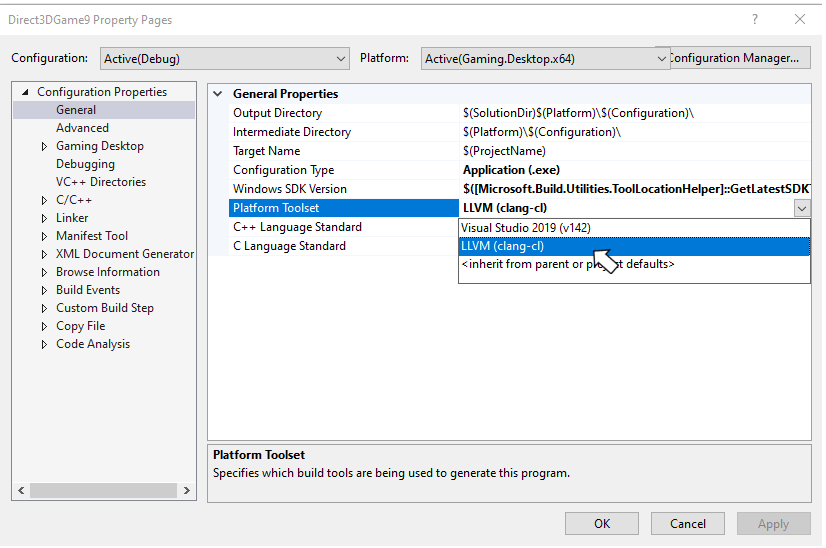 也可以通过直接将 **PlatformToolset** msbuild 属性设置为 **ClangCl** 来设置 Clang/LLVM 工具集,如以下示例所示。
```xml theme={null}
ClangCl
```
默认情况下,与 MSVC 相比,Clang/LLVM 编译器会生成明显更多的信息警告。因此,对于 “TODO” 位置,你会看到 -W#pragma-messages 输出作为警告,以及 -Wunused-value 警告:
```
1>Game.cpp(56,13): warning : Game.cpp: TODO in Update [-W#pragma-messages]
1>Game.cpp(58,5): warning : expression result unused [-Wunused-value]
1>Game.cpp(79,13): warning : Game.cpp: TODO in Render [-W#pragma-messages]
1>Game.cpp(81,5): warning : expression result unused [-Wunused-value]
1>Game.cpp(137,13): warning : Game.cpp: TODO in CreateDeviceDependentResources [-W#pragma-messages]
1>Game.cpp(139,5): warning : expression result unused [-Wunused-value]
1>Game.cpp(145,13): warning : Game.cpp: TODO in CreateWindowSizeDependentResources [-W#pragma-messages]
```
## 将 Clang/LLVM 与 cmake 一起使用
CMakeExample 和 CMakeGDKExample Microsoft 游戏开发工具包 (GDK) 示例为将 Clang/LLVM 集成到你的 cmake 项目中提供了一个良好的起点。有关下载说明,请参阅 [Microsoft 游戏开发工具包 (GDK) 示例](https://learn.microsoft.com/gaming/gdk/docs/gdk-dev/development-downloads/gdk-samples-home)。
在尝试向你的 cmake 项目添加 Clang/LLVM 支持之前,请确保已安装 **适用于 Windows 的 C++ CMake 工具** Visual Studio 组件。Visual Studio 2019 (16.11) 附带 CMake 3.20。Visual Studio 2022 附带 CMake 3.21 或更高版本。
### 使用 CMakeExample
使用以下步骤在 CMakeExample 项目中启用 Clang/LLVM。
1. 使用 Visual Studio 的 **打开本地文件夹** 选项打开 CMakeExample 根文件夹中的 Desktop 文件夹。
CMakeExample 在 2022 年 3 月已更新为使用 `CMakePresets.json` 而不是较旧的 `CMakeSettings.json` 解决方案。CMake Presets 已与 Visual Studio 2019 16.10 或更高版本集成。请参阅 [此博客文章](https://devblogs.microsoft.com/cppblog/cmake-presets-integration-in-visual-studio-and-visual-studio-code/)。
### CMakePresets.json 集成
2. 双击解决方案资源管理器中的 CMakePresets.json 文件。
编辑 `XdkEditionTarget` 变量以匹配你当前的 GDK 版本。
```
"cacheVariables": {
"XdkEditionTarget": "250400",
"CMAKE_INSTALL_PREFIX": "${sourceDir}/out/install/${presetName}"
}
```
3. 选择 `x64-Debug-Clang` 或 `x64-Release-Clang` 预设。
### CMakeSettings.json 集成
2. 双击解决方案资源管理器中的 CMakeSettings.json 文件。
3. 选择 “PLUS” 图标,并选择 “x64-Clang-Debug” 和/或 “x64-Clang-Release”,如下图所示。保存更改。
也可以通过直接将 **PlatformToolset** msbuild 属性设置为 **ClangCl** 来设置 Clang/LLVM 工具集,如以下示例所示。
```xml theme={null}
ClangCl
```
默认情况下,与 MSVC 相比,Clang/LLVM 编译器会生成明显更多的信息警告。因此,对于 “TODO” 位置,你会看到 -W#pragma-messages 输出作为警告,以及 -Wunused-value 警告:
```
1>Game.cpp(56,13): warning : Game.cpp: TODO in Update [-W#pragma-messages]
1>Game.cpp(58,5): warning : expression result unused [-Wunused-value]
1>Game.cpp(79,13): warning : Game.cpp: TODO in Render [-W#pragma-messages]
1>Game.cpp(81,5): warning : expression result unused [-Wunused-value]
1>Game.cpp(137,13): warning : Game.cpp: TODO in CreateDeviceDependentResources [-W#pragma-messages]
1>Game.cpp(139,5): warning : expression result unused [-Wunused-value]
1>Game.cpp(145,13): warning : Game.cpp: TODO in CreateWindowSizeDependentResources [-W#pragma-messages]
```
## 将 Clang/LLVM 与 cmake 一起使用
CMakeExample 和 CMakeGDKExample Microsoft 游戏开发工具包 (GDK) 示例为将 Clang/LLVM 集成到你的 cmake 项目中提供了一个良好的起点。有关下载说明,请参阅 [Microsoft 游戏开发工具包 (GDK) 示例](https://learn.microsoft.com/gaming/gdk/docs/gdk-dev/development-downloads/gdk-samples-home)。
在尝试向你的 cmake 项目添加 Clang/LLVM 支持之前,请确保已安装 **适用于 Windows 的 C++ CMake 工具** Visual Studio 组件。Visual Studio 2019 (16.11) 附带 CMake 3.20。Visual Studio 2022 附带 CMake 3.21 或更高版本。
### 使用 CMakeExample
使用以下步骤在 CMakeExample 项目中启用 Clang/LLVM。
1. 使用 Visual Studio 的 **打开本地文件夹** 选项打开 CMakeExample 根文件夹中的 Desktop 文件夹。
CMakeExample 在 2022 年 3 月已更新为使用 `CMakePresets.json` 而不是较旧的 `CMakeSettings.json` 解决方案。CMake Presets 已与 Visual Studio 2019 16.10 或更高版本集成。请参阅 [此博客文章](https://devblogs.microsoft.com/cppblog/cmake-presets-integration-in-visual-studio-and-visual-studio-code/)。
### CMakePresets.json 集成
2. 双击解决方案资源管理器中的 CMakePresets.json 文件。
编辑 `XdkEditionTarget` 变量以匹配你当前的 GDK 版本。
```
"cacheVariables": {
"XdkEditionTarget": "250400",
"CMAKE_INSTALL_PREFIX": "${sourceDir}/out/install/${presetName}"
}
```
3. 选择 `x64-Debug-Clang` 或 `x64-Release-Clang` 预设。
### CMakeSettings.json 集成
2. 双击解决方案资源管理器中的 CMakeSettings.json 文件。
3. 选择 “PLUS” 图标,并选择 “x64-Clang-Debug” 和/或 “x64-Clang-Release”,如下图所示。保存更改。
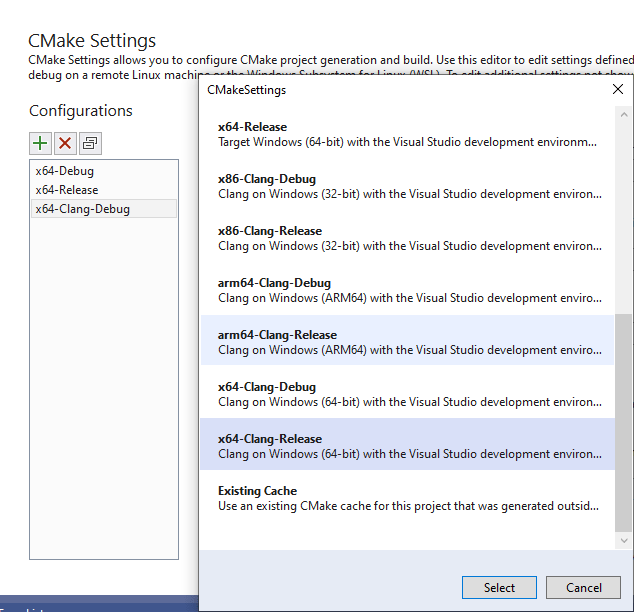 4. 单击 “Edit Json”,然后将 variables 部分从另一个配置剪切并粘贴到新的 Clang 配置,如以下示例所示。将 XDKEditionTarget 值设置为适合你的 GDK 版本(包括 QFE 级别)的值。
```
"variables": [
{
"name": "XdkEditionTarget",
"value": "210400",
"type": "STRING"
}
]
```
5. 保存所有更改后,从生成配置下拉列表中选择 x64-Clang-Debug 或 x64-Clang-Release 并进行生成。
## 使用 CMakeGDKExample
使用以下步骤在 CMakeGDKExample 项目中启用 Clang/LLVM。
1. 使用 Visual Studio 的 **打开本地文件夹** 选项打开 CMakeGDKExample 文件夹。
### CMakePresets.json 集成
2. 双击解决方案资源管理器中的 CMakePresets.json 文件。
编辑 `XdkEditionTarget` 变量以匹配你当前的 GDK 版本。
```
"cacheVariables": {
"XdkEditionTarget": "250400",
"CMAKE_INSTALL_PREFIX": "${sourceDir}/out/install/${presetName}"
}
```
3. 选择 `x64-Desktop-Clang` 预设。
### CMakeSettings.json 集成
2. 双击解决方案资源管理器中的 CMakeSettings.json 文件。
3. 选择要编辑的配置,并将 Toolset 值设置为 “clang\_cl\_x64”。保存并关闭。
4. 单击 “Edit Json”,然后将 variables 部分从另一个配置剪切并粘贴到新的 Clang 配置,如以下示例所示。将 XDKEditionTarget 值设置为适合你的 GDK 版本(包括 QFE 级别)的值。
```
"variables": [
{
"name": "XdkEditionTarget",
"value": "210400",
"type": "STRING"
}
]
```
5. 保存所有更改后,从生成配置下拉列表中选择 x64-Clang-Debug 或 x64-Clang-Release 并进行生成。
## 使用 CMakeGDKExample
使用以下步骤在 CMakeGDKExample 项目中启用 Clang/LLVM。
1. 使用 Visual Studio 的 **打开本地文件夹** 选项打开 CMakeGDKExample 文件夹。
### CMakePresets.json 集成
2. 双击解决方案资源管理器中的 CMakePresets.json 文件。
编辑 `XdkEditionTarget` 变量以匹配你当前的 GDK 版本。
```
"cacheVariables": {
"XdkEditionTarget": "250400",
"CMAKE_INSTALL_PREFIX": "${sourceDir}/out/install/${presetName}"
}
```
3. 选择 `x64-Desktop-Clang` 预设。
### CMakeSettings.json 集成
2. 双击解决方案资源管理器中的 CMakeSettings.json 文件。
3. 选择要编辑的配置,并将 Toolset 值设置为 “clang\_cl\_x64”。保存并关闭。
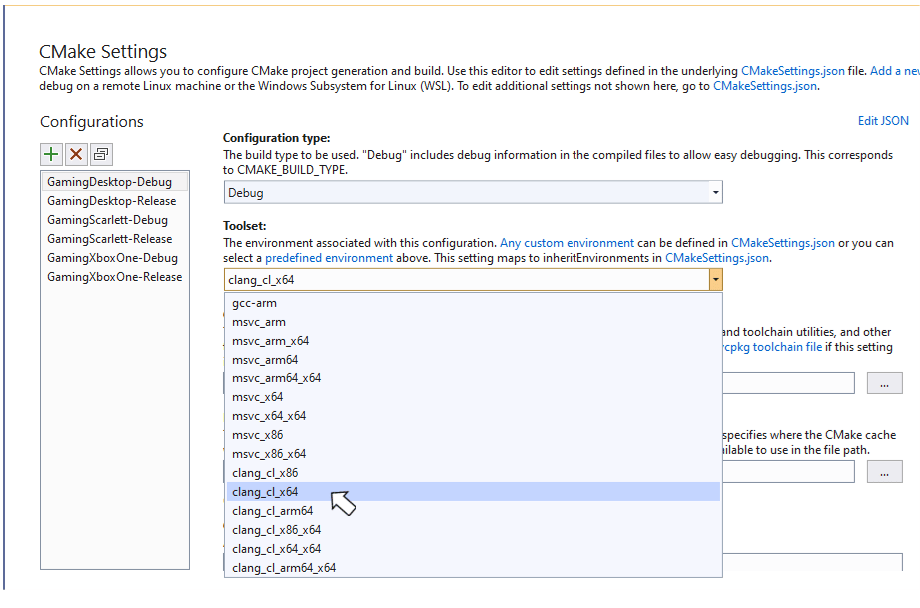 4. 对于 XBOX One 和 XBOX Series X|S 配置,选择 **Edit Json** 并确保 XdkEditionTarget 变量与你的 GDK 版本和 QFE 级别匹配。
5. 从配置下拉列表中选择所需的值,然后从 **生成** 菜单中选择 **全部重新生成**。
6. 使用 “文件 -> 打开 -> 项目/解决方案” 选择生成的解决方案/项目。例如:
CMakeGDKExample\out\build\GamingXboxOne-Debug\CMakeGDKExample.sln
现在可以开始生成和部署你的项目。
## 获取支持
对于 Visual C++ 编译器的 bug 报告,请使用 [在 Visual Studio 中报告问题…](https://learn.microsoft.com/visualstudio/ide/how-to-report-a-problem-with-visual-studio)
对于 clang/LLVM 编译器的 bug 报告,请使用 [https://bugs.llvm.org/](https://bugs.llvm.org/)
对于 Microsoft 标准 C++ 库(又称 STL)的 bug 报告,请使用 [https://github.com/microsoft/STL/issues](https://github.com/microsoft/STL/issues)
## 已知问题
* Clang/LLVM 工具集比 Visual C++ 显著更加冗长,尤其是在使用 -Wall -Wextra -Wpedantic 时。至少应在命令行上或作为 #pragma 抑制以下警告:
```
#ifdef __clang__
#pragma clang diagnostic ignored "-Wc++98-compat"
#pragma clang diagnostic ignored "-Wc++98-compat-pedantic"
#pragma clang diagnostic ignored "-Wgnu-anonymous-struct"
#pragma clang diagnostic ignored "-Wlanguage-extension-token"
#pragma clang diagnostic ignored "-Wnested-anon-types"
#pragma clang diagnostic ignored "-Wreserved-id-macro"
#pragma clang diagnostic ignored "-Wunknown-pragmas"
#endif
```
* Microsoft 游戏开发工具包 (GDK) 工具仅可用于使用 Microsoft PDB 进行调试符号,并且不支持在 LLVM .ld 文件中发出的 CodeView 或 DWARF 调试信息。
* Clang/LLVM 的链接时代码生成实现与 Microsoft Visual C++ 解决方案明显不同。使用链接时代码生成的代码不能在 MSVC 和 clang/LLVM 之间混合使用。
* 自 2022 年 10 月发布和 Windows SDK (10.0.22621) 起,C++ 静态库包含扩展流控制守护 (XFG) 元数据。在 v15 版本之前的 `ld` 链接器在使用这些库时始终会发出无害的警告:
```
lld-link: warning/error: ignoring unknown debug$S subsection kind 0xFF in file xgameruntime.lib
```
## 另请参阅
[Visual Studio](/tools/tools-pc/visualstudio/gr-visualstudio-toc)
[将 CMake 与 Clang/LLVM 一起使用](https://learn.microsoft.com/cpp/build/clang-support-cmake)
[将 MSBuild 与 Clang/LLVM 一起使用](https://learn.microsoft.com/cpp/build/clang-support-msbuild)
## Related topics
- [在主机 GDK 中使用 Clang/LLVM](/zh-CN/tools/tools-console/visualstudio/vs-clang.md)
- [在 Godot 中使用 GDK](/zh-CN/build/gdk-and-engines/godot.md)
- [在 Unity 中使用 GDK](/zh-CN/build/gdk-and-engines/unity/unity.md)
- [在 Unreal Engine 中使用 GDK](/zh-CN/build/gdk-and-engines/unreal/unreal.md)
- [在 GameMaker 中使用 GDK](/zh-CN/build/gdk-and-engines/gamemaker.md)
4. 对于 XBOX One 和 XBOX Series X|S 配置,选择 **Edit Json** 并确保 XdkEditionTarget 变量与你的 GDK 版本和 QFE 级别匹配。
5. 从配置下拉列表中选择所需的值,然后从 **生成** 菜单中选择 **全部重新生成**。
6. 使用 “文件 -> 打开 -> 项目/解决方案” 选择生成的解决方案/项目。例如:
CMakeGDKExample\out\build\GamingXboxOne-Debug\CMakeGDKExample.sln
现在可以开始生成和部署你的项目。
## 获取支持
对于 Visual C++ 编译器的 bug 报告,请使用 [在 Visual Studio 中报告问题…](https://learn.microsoft.com/visualstudio/ide/how-to-report-a-problem-with-visual-studio)
对于 clang/LLVM 编译器的 bug 报告,请使用 [https://bugs.llvm.org/](https://bugs.llvm.org/)
对于 Microsoft 标准 C++ 库(又称 STL)的 bug 报告,请使用 [https://github.com/microsoft/STL/issues](https://github.com/microsoft/STL/issues)
## 已知问题
* Clang/LLVM 工具集比 Visual C++ 显著更加冗长,尤其是在使用 -Wall -Wextra -Wpedantic 时。至少应在命令行上或作为 #pragma 抑制以下警告:
```
#ifdef __clang__
#pragma clang diagnostic ignored "-Wc++98-compat"
#pragma clang diagnostic ignored "-Wc++98-compat-pedantic"
#pragma clang diagnostic ignored "-Wgnu-anonymous-struct"
#pragma clang diagnostic ignored "-Wlanguage-extension-token"
#pragma clang diagnostic ignored "-Wnested-anon-types"
#pragma clang diagnostic ignored "-Wreserved-id-macro"
#pragma clang diagnostic ignored "-Wunknown-pragmas"
#endif
```
* Microsoft 游戏开发工具包 (GDK) 工具仅可用于使用 Microsoft PDB 进行调试符号,并且不支持在 LLVM .ld 文件中发出的 CodeView 或 DWARF 调试信息。
* Clang/LLVM 的链接时代码生成实现与 Microsoft Visual C++ 解决方案明显不同。使用链接时代码生成的代码不能在 MSVC 和 clang/LLVM 之间混合使用。
* 自 2022 年 10 月发布和 Windows SDK (10.0.22621) 起,C++ 静态库包含扩展流控制守护 (XFG) 元数据。在 v15 版本之前的 `ld` 链接器在使用这些库时始终会发出无害的警告:
```
lld-link: warning/error: ignoring unknown debug$S subsection kind 0xFF in file xgameruntime.lib
```
## 另请参阅
[Visual Studio](/tools/tools-pc/visualstudio/gr-visualstudio-toc)
[将 CMake 与 Clang/LLVM 一起使用](https://learn.microsoft.com/cpp/build/clang-support-cmake)
[将 MSBuild 与 Clang/LLVM 一起使用](https://learn.microsoft.com/cpp/build/clang-support-msbuild)
## Related topics
- [在主机 GDK 中使用 Clang/LLVM](/zh-CN/tools/tools-console/visualstudio/vs-clang.md)
- [在 Godot 中使用 GDK](/zh-CN/build/gdk-and-engines/godot.md)
- [在 Unity 中使用 GDK](/zh-CN/build/gdk-and-engines/unity/unity.md)
- [在 Unreal Engine 中使用 GDK](/zh-CN/build/gdk-and-engines/unreal/unreal.md)
- [在 GameMaker 中使用 GDK](/zh-CN/build/gdk-and-engines/gamemaker.md)