> ## Documentation Index
> Fetch the complete documentation index at: https://devdocs.xbox.com/llms.txt
> Use this file to discover all available pages before exploring further.
# Visual Studio 2019 支持说明
> Visual Studio 2019 支持说明
本主题介绍 Microsoft 游戏开发工具包 (GDK) 对 Visual Studio 2019 的支持。Microsoft 游戏开发工具包 (GDK) 开发支持 Visual Studio 2019 [版本 16.11](https://learn.microsoft.com/visualstudio/releases/2019/servicing-vs2019)。
自 2022 年 10 月起,Visual Studio 2019 版本 16.0 - 16.10 不再受支持。
## 安装 Visual Studio 2019
安装 Visual Studio 2019 时,必须在安装期间选择 **使用 C++ 的游戏开发** 工作负载,如以下屏幕截图所示。
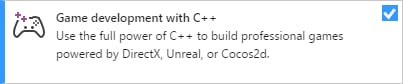 除了 Windows PC 游戏开发所需的核心 C++ 工具之外,使用 C++ 的游戏开发还包含使用 Microsoft 游戏开发工具包 (GDK) 构建 Windows PC 游戏所需的 Windows 10 SDK 版本。
尽管不是必需的,但安装使用 C++ 的桌面开发工作负载可以提供你可能觉得有用的其他工具和示例。
根据你的需要,可以选择安装其他可选工作负载或组件。
* 如果你正在构建使用 Unity 的游戏,请安装 **使用 Unity 的游戏开发** 工作负载。
* MVSC 构建工具的 **v142** 版本随使用 C++ 的游戏开发工作负载一起安装。如果需要,可以将 Visual Studio 2019 集成开发环境 (IDE) 与 Visual Studio 2017 中包含的 MSVC 工具 (**v141**) 一起使用。使用较新的 IDE 而不升级到新的工具集,可以让你利用新的 IDE 功能,而无需更新源代码以与新的编译器兼容。
> 若要将 Visual Studio 2017 工具集与 Visual Studio 2019 IDE 一起使用,请在 **使用 C++ 的桌面开发** 工作负载下安装 **MSVC v141 - VS 2017 C++ x64/x86 生成工具 (v14.16)** 组件,如以下屏幕截图所示。自 2024 年 10 月发布起,Visual Studio 2017 工具集不再受支持。
* 若要在远程 PC 上调试游戏,请参阅 [在 Visual Studio 中远程调试 C++ 项目](https://learn.microsoft.com/visualstudio/debugger/remote-debugging-cpp),了解有关安装 Visual Studio 远程工具的说明。
## 将现有的 Visual Studio 2017 项目迁移到 Visual Studio 2019
在大多数情况下,Visual Studio 提供的升级向导可以在不进行其他更改的情况下将项目迁移到 Visual Studio 2019。在 Visual Studio 2019 中打开 Visual Studio 2017 项目时,你会看到以下 “查看解决方案操作” 对话框,提示你进行升级。若要升级项目,请选择 **确定**。
除了 Windows PC 游戏开发所需的核心 C++ 工具之外,使用 C++ 的游戏开发还包含使用 Microsoft 游戏开发工具包 (GDK) 构建 Windows PC 游戏所需的 Windows 10 SDK 版本。
尽管不是必需的,但安装使用 C++ 的桌面开发工作负载可以提供你可能觉得有用的其他工具和示例。
根据你的需要,可以选择安装其他可选工作负载或组件。
* 如果你正在构建使用 Unity 的游戏,请安装 **使用 Unity 的游戏开发** 工作负载。
* MVSC 构建工具的 **v142** 版本随使用 C++ 的游戏开发工作负载一起安装。如果需要,可以将 Visual Studio 2019 集成开发环境 (IDE) 与 Visual Studio 2017 中包含的 MSVC 工具 (**v141**) 一起使用。使用较新的 IDE 而不升级到新的工具集,可以让你利用新的 IDE 功能,而无需更新源代码以与新的编译器兼容。
> 若要将 Visual Studio 2017 工具集与 Visual Studio 2019 IDE 一起使用,请在 **使用 C++ 的桌面开发** 工作负载下安装 **MSVC v141 - VS 2017 C++ x64/x86 生成工具 (v14.16)** 组件,如以下屏幕截图所示。自 2024 年 10 月发布起,Visual Studio 2017 工具集不再受支持。
* 若要在远程 PC 上调试游戏,请参阅 [在 Visual Studio 中远程调试 C++ 项目](https://learn.microsoft.com/visualstudio/debugger/remote-debugging-cpp),了解有关安装 Visual Studio 远程工具的说明。
## 将现有的 Visual Studio 2017 项目迁移到 Visual Studio 2019
在大多数情况下,Visual Studio 提供的升级向导可以在不进行其他更改的情况下将项目迁移到 Visual Studio 2019。在 Visual Studio 2019 中打开 Visual Studio 2017 项目时,你会看到以下 “查看解决方案操作” 对话框,提示你进行升级。若要升级项目,请选择 **确定**。
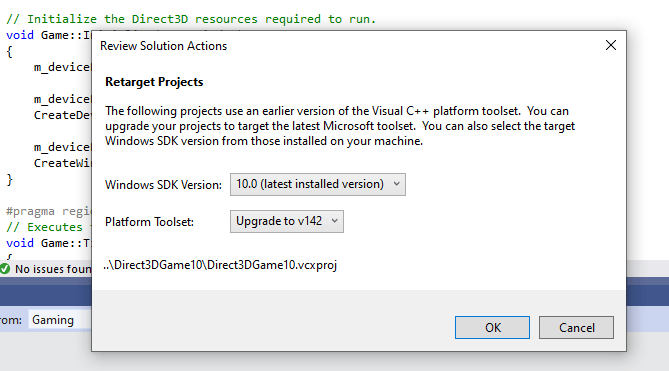 你也可以选择使用 Visual Studio 2019 IDE 而不升级你的构建工具。若要执行此操作,请在 **查看解决方案操作** 对话框中选择 **取消**。
### 手动将项目升级到 Visual Studio 2019
如果你想通过直接编辑项目文件 (.vcxproj) 升级项目,则需要进行以下更改。
1. 将 `WindowsTargetPlatformVersion` 添加到 `Globals` 属性组。将其值设置为 10.0。以下是一个示例。
```xml theme={null}
10.0
...
```
1. 将 `PlatformToolset` 的所有实例从 v141 更改为 v142。以下是一个示例。
```xml theme={null}
v141
...
v142
```
1. 重新生成项目。
### clang/LLVM for Windows (ClangCl) 项目支持
Visual Studio 2019 也支持 clang/LLVM for Windows 开发。这需要安装 **C++ Clang-cl for Windows** 和 **C++ Clang-cl for v142 build tools (x64/x86)**,它们是独立的组件。
有关更多信息,请参阅 [Microsoft 游戏开发工具包 (GDK)](/tools/tools-pc/visualstudio/gr-vs-clang) Clang 主题以及 [Microsoft Docs](https://learn.microsoft.com/cpp/build/clang-support-msbuild)。
## 已知问题
* 使用 `/fp:fast` 构建时,DirectXMath \*IsNan 函数可能在 Visual Studio 2019 中失败。修复方法是将 Visual Studio 2019 (16.3 或更高版本) 与 DirectXMath 3.14 或更高版本一起使用。否则,你可以通过在使用这些函数的位置周围放置 `#pragma float_control` 语句来解决该问题。
* 在 v11 之前的 clang/LLVM for Windows 中,预编译头的使用有许多问题。取决于你的 PCH 和 C++ 模板的使用方式,可能需要添加 `-fno-pch-instantiate-templates` 才能成功生成。
* [通过 Microsoft 更新发布的 .NET Core 更新](https://devblogs.microsoft.com/dotnet/net-core-updates-coming-to-microsoft-update/) 可能会阻止 Microsoft 游戏开发工具包 (GDK) 的安装。若要解决此问题,请更新你的 Visual Studio 实例,或通过 Visual Studio 安装程序卸载 Microsoft.NET.Core.Component.SDK.2.1 组件,然后重试(卸载)安装 Microsoft 游戏开发工具包 (GDK)。
## 报告 bug
**Visual C++ 编译器** 的 bug 报告应(如有可能)通过 Visual Studio 的 *报告问题...* 提交。请参阅 [Microsoft Docs](https://learn.microsoft.com/visualstudio/ide/how-to-report-a-problem-with-visual-studio) 和 [开发者社区](https://aka.ms/feedback/report?space=62) 网站。请务必阅读 [此页](https://aka.ms/compilerbug),了解为编译器创建良好 bug 报告的详细信息。
如果需要额外的 NDA 信息才能重现问题,你可以在标记为 “仅限 Microsoft” 的公共报告问题上添加评论。
对于 **clang/LLVM for Windows 编译器** 的 bug 报告,请使用 [https://bugs.llvm.org/](https://bugs.llvm.org/)
对于 **Microsoft 标准 C++ 库**(又称 STL)的 bug 报告,请使用 [https://github.com/microsoft/STL/issues](https://github.com/microsoft/STL/issues)
## 另请参阅
[用于 PC 游戏开发的 Visual Studio](/tools/tools-pc/visualstudio/gr-visualstudio-toc)
## Related topics
- [Visual Studio](/zh-CN/tools/tools-pc/visualstudio/index.md)
- [Visual Studio(目录)](/zh-CN/tools/tools-pc/visualstudio/gr-visualstudio-toc.md)
- [面向主机开发的 Visual Studio](/zh-CN/tools/tools-console/visualstudio/visualstudio.md)
- [Visual Studio 2019 GDK 支持说明](/zh-CN/tools/tools-console/visualstudio/vs-2019-support-notes.md)
- [Visual Studio 2026 GDK 支持说明](/zh-CN/tools/tools-console/visualstudio/vs-2026-support-notes.md)
你也可以选择使用 Visual Studio 2019 IDE 而不升级你的构建工具。若要执行此操作,请在 **查看解决方案操作** 对话框中选择 **取消**。
### 手动将项目升级到 Visual Studio 2019
如果你想通过直接编辑项目文件 (.vcxproj) 升级项目,则需要进行以下更改。
1. 将 `WindowsTargetPlatformVersion` 添加到 `Globals` 属性组。将其值设置为 10.0。以下是一个示例。
```xml theme={null}
10.0
...
```
1. 将 `PlatformToolset` 的所有实例从 v141 更改为 v142。以下是一个示例。
```xml theme={null}
v141
...
v142
```
1. 重新生成项目。
### clang/LLVM for Windows (ClangCl) 项目支持
Visual Studio 2019 也支持 clang/LLVM for Windows 开发。这需要安装 **C++ Clang-cl for Windows** 和 **C++ Clang-cl for v142 build tools (x64/x86)**,它们是独立的组件。
有关更多信息,请参阅 [Microsoft 游戏开发工具包 (GDK)](/tools/tools-pc/visualstudio/gr-vs-clang) Clang 主题以及 [Microsoft Docs](https://learn.microsoft.com/cpp/build/clang-support-msbuild)。
## 已知问题
* 使用 `/fp:fast` 构建时,DirectXMath \*IsNan 函数可能在 Visual Studio 2019 中失败。修复方法是将 Visual Studio 2019 (16.3 或更高版本) 与 DirectXMath 3.14 或更高版本一起使用。否则,你可以通过在使用这些函数的位置周围放置 `#pragma float_control` 语句来解决该问题。
* 在 v11 之前的 clang/LLVM for Windows 中,预编译头的使用有许多问题。取决于你的 PCH 和 C++ 模板的使用方式,可能需要添加 `-fno-pch-instantiate-templates` 才能成功生成。
* [通过 Microsoft 更新发布的 .NET Core 更新](https://devblogs.microsoft.com/dotnet/net-core-updates-coming-to-microsoft-update/) 可能会阻止 Microsoft 游戏开发工具包 (GDK) 的安装。若要解决此问题,请更新你的 Visual Studio 实例,或通过 Visual Studio 安装程序卸载 Microsoft.NET.Core.Component.SDK.2.1 组件,然后重试(卸载)安装 Microsoft 游戏开发工具包 (GDK)。
## 报告 bug
**Visual C++ 编译器** 的 bug 报告应(如有可能)通过 Visual Studio 的 *报告问题...* 提交。请参阅 [Microsoft Docs](https://learn.microsoft.com/visualstudio/ide/how-to-report-a-problem-with-visual-studio) 和 [开发者社区](https://aka.ms/feedback/report?space=62) 网站。请务必阅读 [此页](https://aka.ms/compilerbug),了解为编译器创建良好 bug 报告的详细信息。
如果需要额外的 NDA 信息才能重现问题,你可以在标记为 “仅限 Microsoft” 的公共报告问题上添加评论。
对于 **clang/LLVM for Windows 编译器** 的 bug 报告,请使用 [https://bugs.llvm.org/](https://bugs.llvm.org/)
对于 **Microsoft 标准 C++ 库**(又称 STL)的 bug 报告,请使用 [https://github.com/microsoft/STL/issues](https://github.com/microsoft/STL/issues)
## 另请参阅
[用于 PC 游戏开发的 Visual Studio](/tools/tools-pc/visualstudio/gr-visualstudio-toc)
## Related topics
- [Visual Studio](/zh-CN/tools/tools-pc/visualstudio/index.md)
- [Visual Studio(目录)](/zh-CN/tools/tools-pc/visualstudio/gr-visualstudio-toc.md)
- [面向主机开发的 Visual Studio](/zh-CN/tools/tools-console/visualstudio/visualstudio.md)
- [Visual Studio 2019 GDK 支持说明](/zh-CN/tools/tools-console/visualstudio/vs-2019-support-notes.md)
- [Visual Studio 2026 GDK 支持说明](/zh-CN/tools/tools-console/visualstudio/vs-2026-support-notes.md)