> ## Documentation Index
> Fetch the complete documentation index at: https://devdocs.xbox.com/llms.txt
> Use this file to discover all available pages before exploring further.
# XBOX Manager:管理主机自动化
> XBOX Manager:管理主机自动化
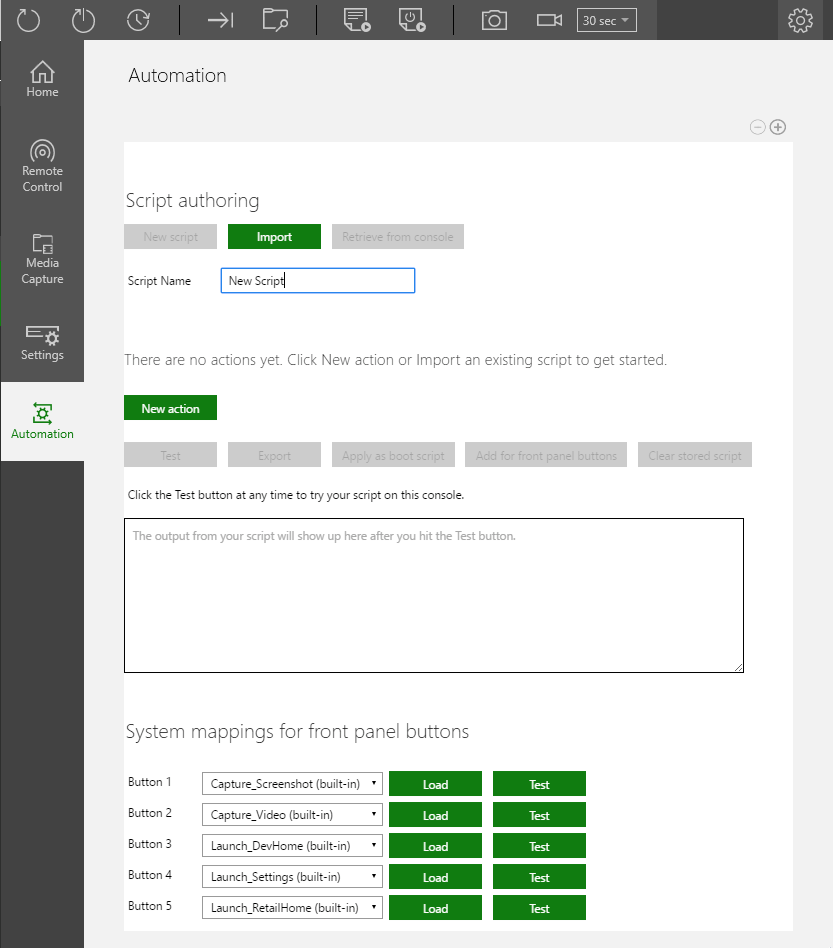
XBOX Manager 中的 Automation 选项卡(如以下截图所示)承载了 [XBOX Device Portal (Windows Device Portal on XBOX)](/tools/tools-console/wdp/wdp) 中用于无人参与脚本(以及 XBOX One X 开发套件和前面板脚本)的 UI。当连接到具有前面板显示屏的开发套件时,Automation 页面上会提供该显示屏,可用于远程测试和控制。仅当主机上启用了 [XBOX Device Portal](/tools/tools-console/wdp/wdp) 时,Automation 选项卡才可用。
 ## 创建新脚本
1. 选择 **New script**(如下所示)。
## 创建新脚本
1. 选择 **New script**(如下所示)。  2. 输入新的脚本名称。默认名称为 **New Script**。
3. 向脚本添加新的操作。选择 **New action**(如下所示)。
2. 输入新的脚本名称。默认名称为 **New Script**。
3. 向脚本添加新的操作。选择 **New action**(如下所示)。
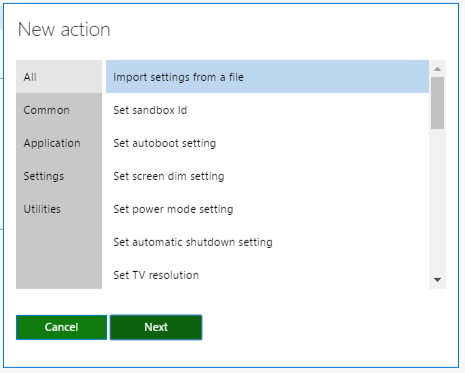
 1. 在出现的 **New action** 窗口中为脚本选择操作(如下所示),然后选择 **Next**。
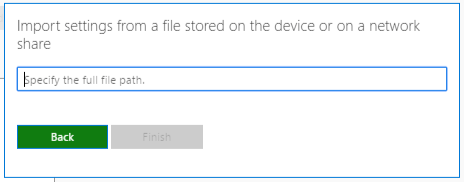
 1. 为操作设置任何参数(如下所示)。
 1. 重复步骤 3 至 5,向脚本添加更多操作。
2. 可选:若要将脚本设置为在启动时启动,请选择 **Apply as boot script**(如下所示)。
1. 重复步骤 3 至 5,向脚本添加更多操作。
2. 可选:若要将脚本设置为在启动时启动,请选择 **Apply as boot script**(如下所示)。
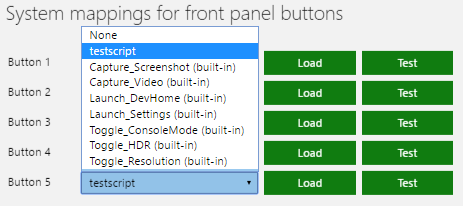
 1. 可选:若要将脚本应用到某个前面板按钮,请点击 **Add for front panel buttons**(如下所示),然后在 **System mappings for front panel buttons** 部分选择该脚本(如下所示)。

 ## Related topics
- [XBOX Manager:管理主机和主机组](/zh-CN/tools/tools-console/xbom/manager-tool-groups.md)
- [XBOX Manager:管理主机设置](/zh-CN/tools/tools-console/xbom/manager-tool-console-settings.md)
- [XBOX Manager](/zh-CN/tools/tools-console/xbom/xbom.md)
- [脚本创作工具](/zh-CN/tools/tools-console/wdp/script-authoring-tool.md)
- [用于管理开发主机的 XBOX Manager 工具](/zh-CN/tools/tools-console/xbom/index.md)
## Related topics
- [XBOX Manager:管理主机和主机组](/zh-CN/tools/tools-console/xbom/manager-tool-groups.md)
- [XBOX Manager:管理主机设置](/zh-CN/tools/tools-console/xbom/manager-tool-console-settings.md)
- [XBOX Manager](/zh-CN/tools/tools-console/xbom/xbom.md)
- [脚本创作工具](/zh-CN/tools/tools-console/wdp/script-authoring-tool.md)
- [用于管理开发主机的 XBOX Manager 工具](/zh-CN/tools/tools-console/xbom/index.md)