> ## Documentation Index
> Fetch the complete documentation index at: https://devdocs.xbox.com/llms.txt
> Use this file to discover all available pages before exploring further.
# 管理叠加文件夹
> 管理叠加文件夹
XBOX Device Portal Home 页面的 My Games & apps 窗格显示主机上已安装的游戏和应用,如以下截图所示。使用此窗格可为你的游戏配置叠加文件夹。
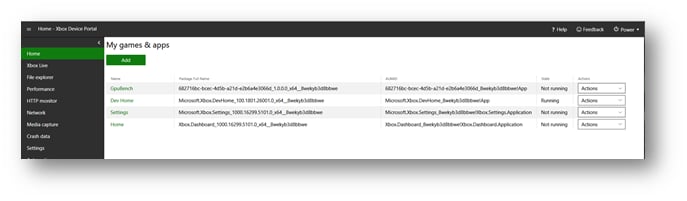 要为你的游戏配置叠加文件夹,请执行以下步骤。
1. 在 **My games & apps** 窗格中,选择游戏的名称。此时会显示游戏的 **View Details** 对话框。
2. 在 **Overlay Folder** 框中,输入你希望用于游戏的叠加文件夹路径,如以下截图所示。
要为你的游戏配置叠加文件夹,请执行以下步骤。
1. 在 **My games & apps** 窗格中,选择游戏的名称。此时会显示游戏的 **View Details** 对话框。
2. 在 **Overlay Folder** 框中,输入你希望用于游戏的叠加文件夹路径,如以下截图所示。
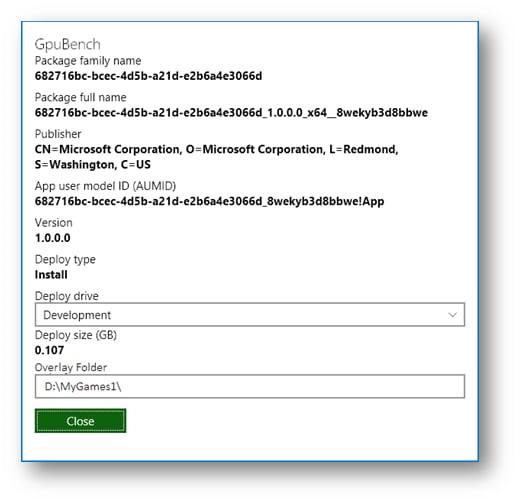 1. 选择 **Close**。
## Related topics
- [管理叠加文件夹](/zh-CN/tools/tools-console/devhome/devhome-overlay-folders.md)
- [Home 页面](/zh-CN/tools/tools-console/wdp/windows-device-portal-on-xbox-home.md)
- [主页 (Dev Home)](/zh-CN/tools/tools-console/devhome/devhome-home.md)
- [主机上的 Developer Home (Dev Home)](/zh-CN/tools/tools-console/devhome/devhome.md)
- [在合作伙伴中心配置 Title Storage](/zh-CN/services/xbox-services/storage/title-storage/config/live-title-storage-portal-config.md)
1. 选择 **Close**。
## Related topics
- [管理叠加文件夹](/zh-CN/tools/tools-console/devhome/devhome-overlay-folders.md)
- [Home 页面](/zh-CN/tools/tools-console/wdp/windows-device-portal-on-xbox-home.md)
- [主页 (Dev Home)](/zh-CN/tools/tools-console/devhome/devhome-home.md)
- [主机上的 Developer Home (Dev Home)](/zh-CN/tools/tools-console/devhome/devhome.md)
- [在合作伙伴中心配置 Title Storage](/zh-CN/services/xbox-services/storage/title-storage/config/live-title-storage-portal-config.md)