> ## Documentation Index
> Fetch the complete documentation index at: https://devdocs.xbox.com/llms.txt
> Use this file to discover all available pages before exploring further.
# 向 XBOX Device Portal 工作区添加工具
> 向 XBOX Device Portal 工作区添加工具
在 XBOX Device Portal 中向任意页面/工作区添加工具以自定义其界面。
## 向工作区添加工具
1. 转到要向其添加工具的工作区(例如 **Scratch** 页面)。
2. 选择 **Menu**(带有三条横线的图标)。
3. 在出现的菜单上选择 **Add tools to workspace**,如以下截图所示。
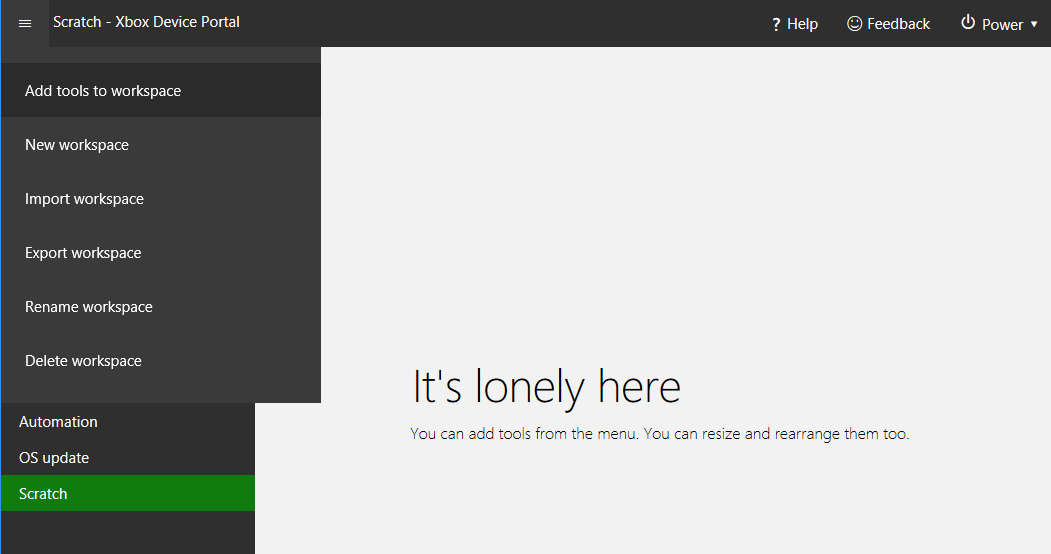 4. 选择要添加到工作区的工具,如以下截图所示。
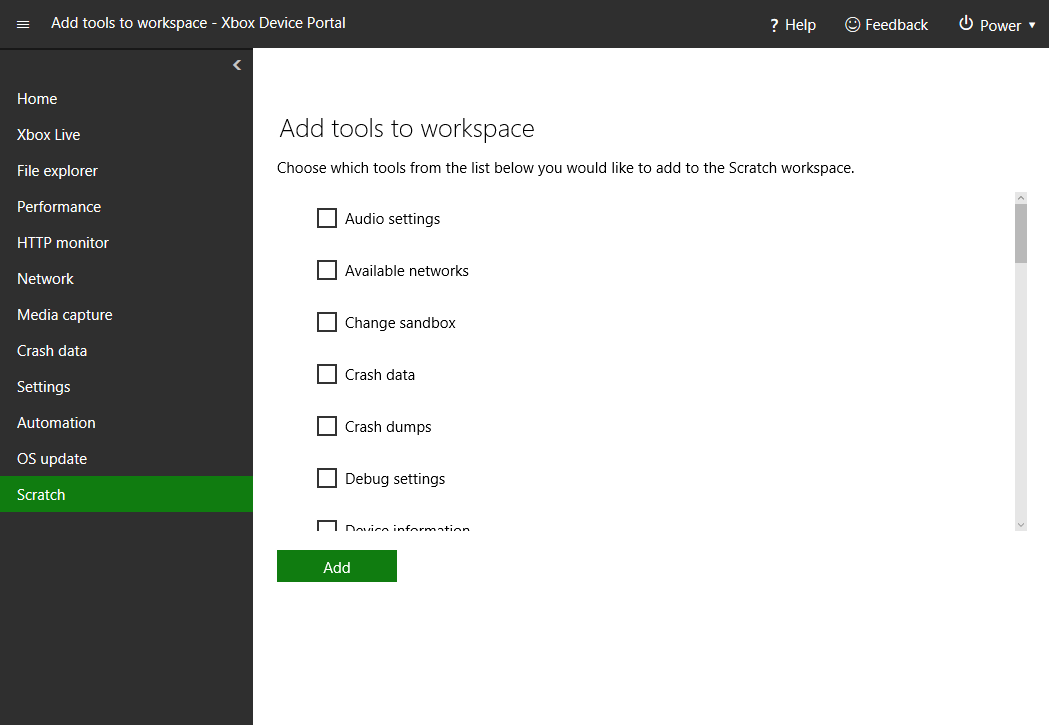 5. 选择 **Add**。
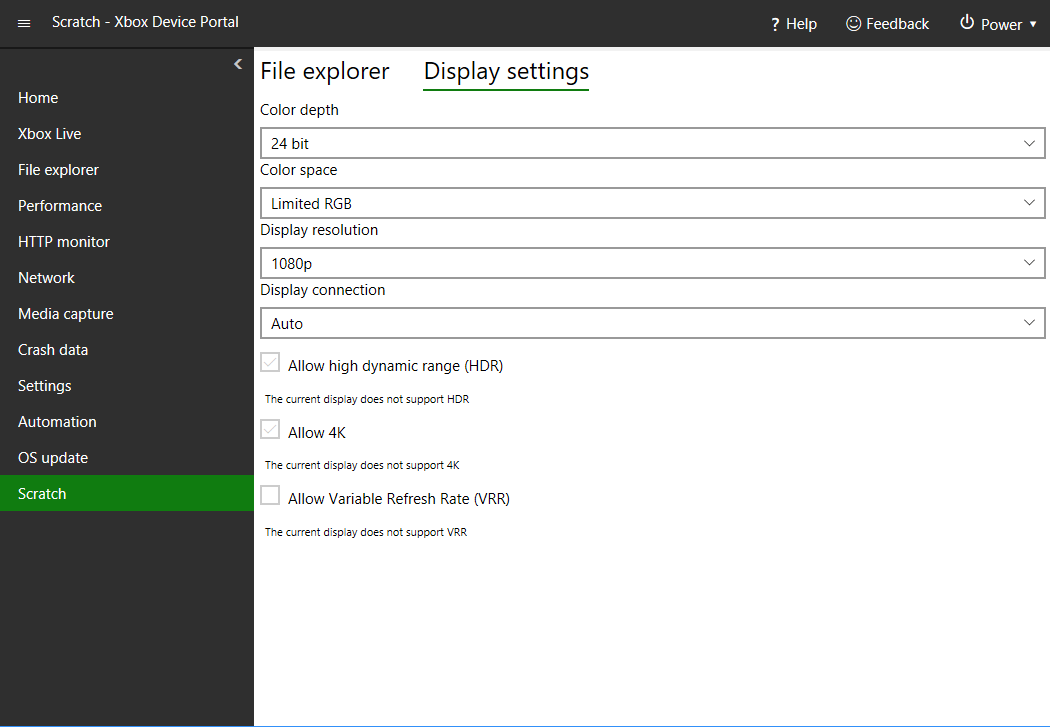
6. 所选工具现已出现在当前工作区中,如以下截图所示。
5. 选择 **Add**。
6. 所选工具现已出现在当前工作区中,如以下截图所示。
 ## Related topics
- [Scratch 页面](/zh-CN/tools/tools-console/wdp/windows-device-portal-on-xbox-scratch.md)
- [XBOX Device Portal(XBOX 上的 Windows Device Portal)](/zh-CN/tools/tools-console/wdp/index.md)
- [脚本创作工具](/zh-CN/tools/tools-console/wdp/script-authoring-tool.md)
- [XBOX PC Remote 工具:2026 年 3 月 (2603) 发行说明](/zh-CN/tools/tools-pc/xbox-pc-remote-tools/release-notes/2603.md)
- [如何使用 XBOX PC Remote 工具](/zh-CN/tools/tools-pc/xbox-pc-remote-tools/how-to-use-tools.md)
## Related topics
- [Scratch 页面](/zh-CN/tools/tools-console/wdp/windows-device-portal-on-xbox-scratch.md)
- [XBOX Device Portal(XBOX 上的 Windows Device Portal)](/zh-CN/tools/tools-console/wdp/index.md)
- [脚本创作工具](/zh-CN/tools/tools-console/wdp/script-authoring-tool.md)
- [XBOX PC Remote 工具:2026 年 3 月 (2603) 发行说明](/zh-CN/tools/tools-pc/xbox-pc-remote-tools/release-notes/2603.md)
- [如何使用 XBOX PC Remote 工具](/zh-CN/tools/tools-pc/xbox-pc-remote-tools/how-to-use-tools.md)