> ## Documentation Index
> Fetch the complete documentation index at: https://devdocs.xbox.com/llms.txt
> Use this file to discover all available pages before exploring further.
# XBOX Gaming Explorer
> XBOX Gaming Explorer
XBOX Gaming Explorer 是托管在 Visual Studio 集成开发环境 (IDE) 中的一个窗口,用于简化常见的主机相关开发者工作流,主要围绕调试、启动进程以及监视主机状态。
XBOX Gaming Explorer 集成了 [xbWatson](/tools/tools-console/xbWatson/xbwatson) 和 [XBOX Manager](/tools/tools-console/xbom/xbom) 中一些常见的面向开发者的功能,并简化了对常见调试场景的访问。使用 XBOX Gaming Explorer,你可以直接在 Visual Studio IDE 中完成更多操作。
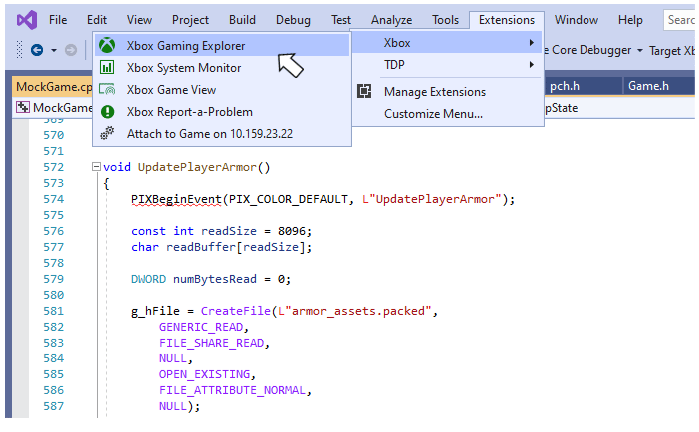
可以通过 Visual Studio 中的 XBOX 菜单访问 XBOX Gaming Explorer。XBOX 菜单位于 Extensions 菜单下,如下图所示。
 XBOX Gaming Explorer 中的功能分为三个选项卡:Console Details、Consoles 和 XBOX Developer Tools Launcher。用于选择这四个选项卡之一的功能区还提供了查看此帮助页面以及访问 *Report A Problem* 功能的能力,该功能与其他工具(例如 [XBOX Manager](/tools/tools-console/xbom/xbom))通用。
## Console Details
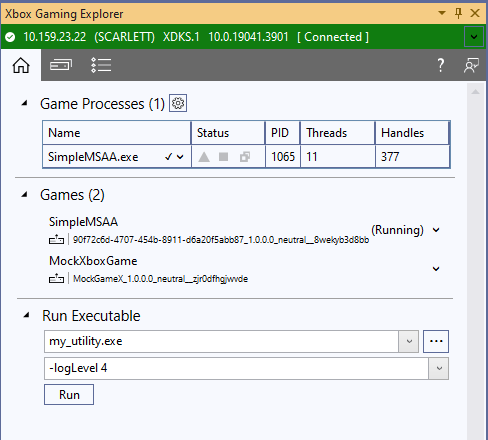
使用 Console Details 选项卡可以监视主机上运行的游戏进程,启动并调试已注册的游戏,让游戏在各种[进程生命周期管理](/build/console-features/console-workflows/xbox-game-life-cycle) (PLM) 状态之间切换,保存 minidump,以及在主机上运行可执行文件,如下图所示。
XBOX Gaming Explorer 中的功能分为三个选项卡:Console Details、Consoles 和 XBOX Developer Tools Launcher。用于选择这四个选项卡之一的功能区还提供了查看此帮助页面以及访问 *Report A Problem* 功能的能力,该功能与其他工具(例如 [XBOX Manager](/tools/tools-console/xbom/xbom))通用。
## Console Details
使用 Console Details 选项卡可以监视主机上运行的游戏进程,启动并调试已注册的游戏,让游戏在各种[进程生命周期管理](/build/console-features/console-workflows/xbox-game-life-cycle) (PLM) 状态之间切换,保存 minidump,以及在主机上运行可执行文件,如下图所示。
 ### Game Processes
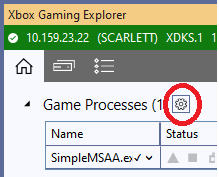
游戏进程以及 Game OS 中运行的任何实用程序都会列在 *Game Processes* 表中。表中显示的列包含进程的当前状态、进程标识符 (PID) 以及正在运行的线程数和打开的句柄数。可以使用表标题旁边的齿轮图标更改表中显示的列集。
### Game Processes
游戏进程以及 Game OS 中运行的任何实用程序都会列在 *Game Processes* 表中。表中显示的列包含进程的当前状态、进程标识符 (PID) 以及正在运行的线程数和打开的句柄数。可以使用表标题旁边的齿轮图标更改表中显示的列集。
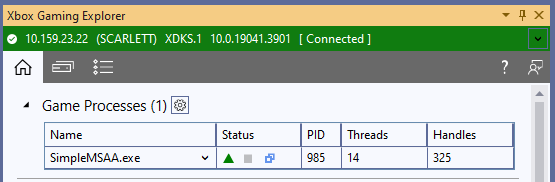
 *Status* 列包含以下三个图标。
* 当进程数据在最近五秒内发生变化时,三角形图标变为绿色。
* 当进程已结束时,正方形图标变为红色。
* 当调试器已附加到该进程时,双方框图标变为浅蓝色。
下图显示了这三个图标。
*Status* 列包含以下三个图标。
* 当进程数据在最近五秒内发生变化时,三角形图标变为绿色。
* 当进程已结束时,正方形图标变为红色。
* 当调试器已附加到该进程时,双方框图标变为浅蓝色。
下图显示了这三个图标。
 选择进程旁边的箭头或右键单击表行会显示上下文菜单,如下图所示。上下文菜单提供以下操作:
* 附加到进程
* 终止进程
* 保存 minidump
* 更新 Visual Studio 属性窗口,使其包含该进程的信息。
选择进程旁边的箭头或右键单击表行会显示上下文菜单,如下图所示。上下文菜单提供以下操作:
* 附加到进程
* 终止进程
* 保存 minidump
* 更新 Visual Studio 属性窗口,使其包含该进程的信息。
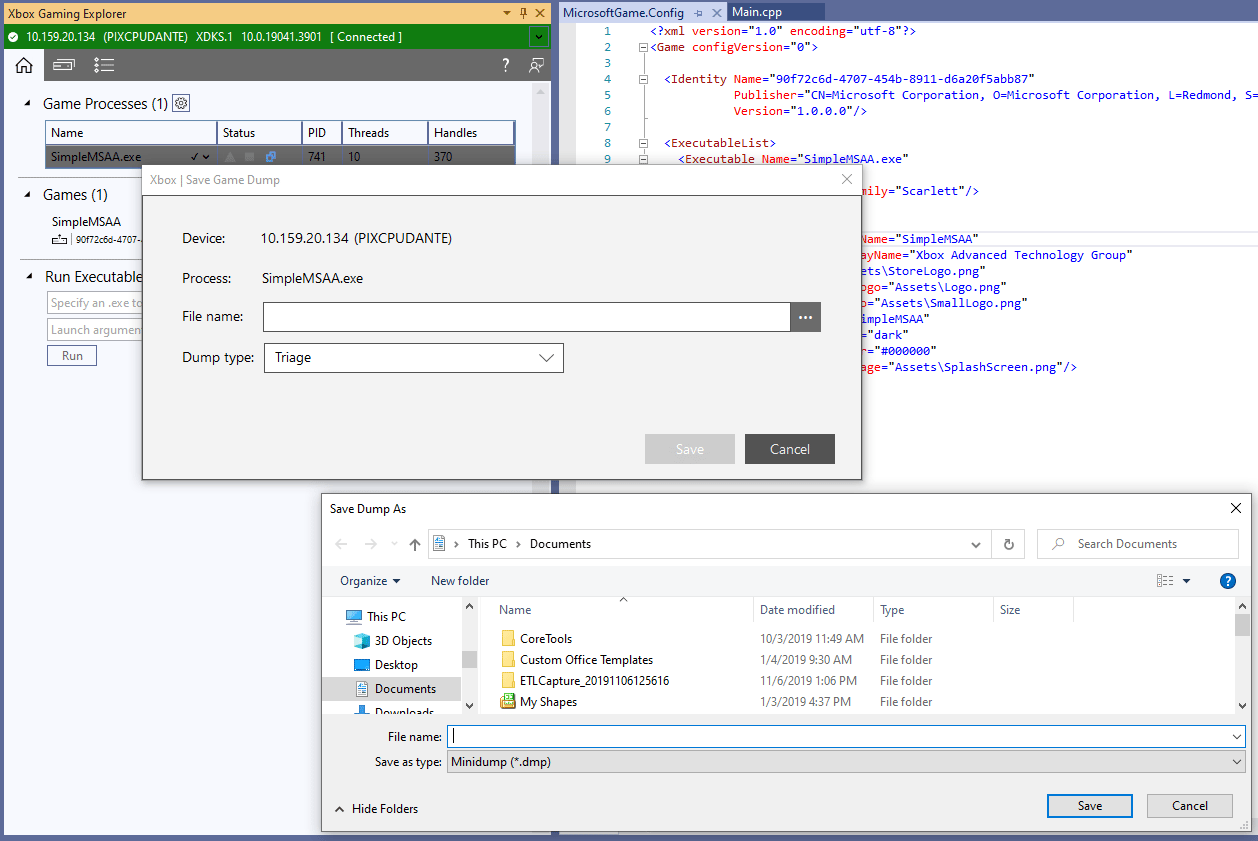
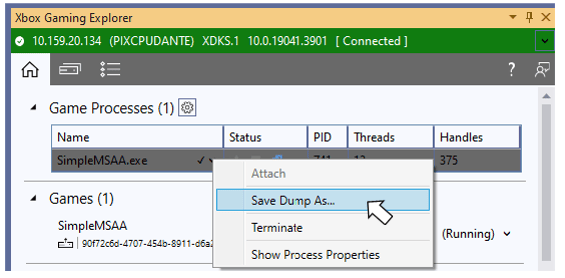 从上下文菜单中选择 *Save Dump As...* 会显示一个对话框,允许你指定 minidump 的类型以及在开发 PC 上保存 minidump 的文件路径,如下图所示。
 ### Games
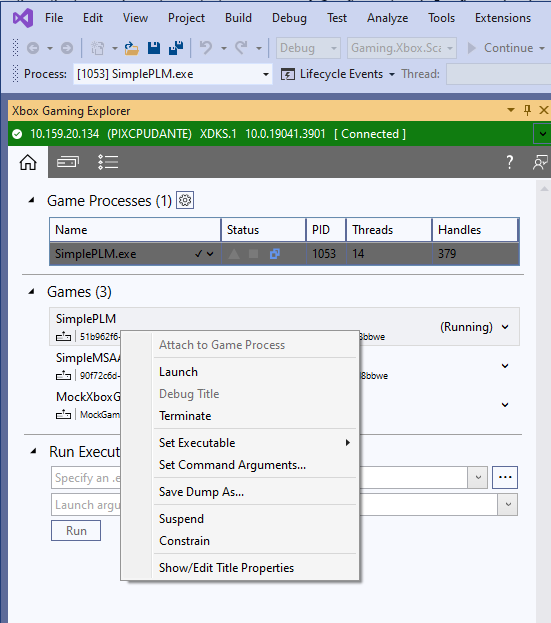
Console Details 选项卡包含当前主机上已注册游戏的列表。*Games* 列表包含如下图所示的上下文菜单,可用于执行以下操作:
* 启动、终止游戏或附加到游戏
* 选择要启动的游戏可执行文件
* 设置游戏的命令行参数
* 保存 minidump
* 将游戏切换到不同的 PLM 状态
* 在 Visual Studio 属性窗口中查看游戏的属性。
### Games
Console Details 选项卡包含当前主机上已注册游戏的列表。*Games* 列表包含如下图所示的上下文菜单,可用于执行以下操作:
* 启动、终止游戏或附加到游戏
* 选择要启动的游戏可执行文件
* 设置游戏的命令行参数
* 保存 minidump
* 将游戏切换到不同的 PLM 状态
* 在 Visual Studio 属性窗口中查看游戏的属性。
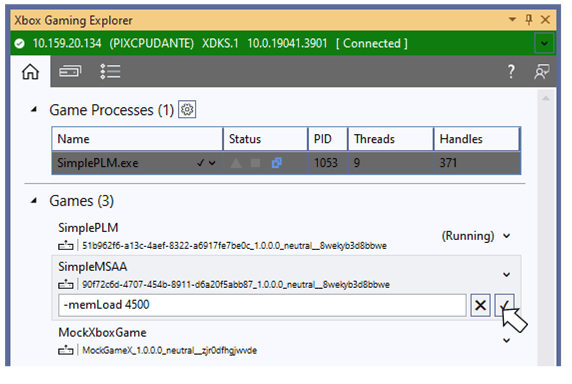
 选择 **Set Command Arguments...** 上下文菜单会显示一个编辑框,你可以在其中输入游戏启动时要传递的参数。输入参数后,选择 **Save Parameters** 按钮,参数就会在下次启动游戏时被传递。
 #### 编辑游戏属性
在 Console Details 视图的 **Games** 区域选择 **Show/Edit Title Properties** 菜单项,会将一组游戏属性填充到 Visual Studio 属性页中。这些属性按类别分组。以粗体显示的属性可以编辑。**Debugging** 类别包含在各种调试场景中通常需要设置的属性。
#### 编辑游戏属性
在 Console Details 视图的 **Games** 区域选择 **Show/Edit Title Properties** 菜单项,会将一组游戏属性填充到 Visual Studio 属性页中。这些属性按类别分组。以粗体显示的属性可以编辑。**Debugging** 类别包含在各种调试场景中通常需要设置的属性。
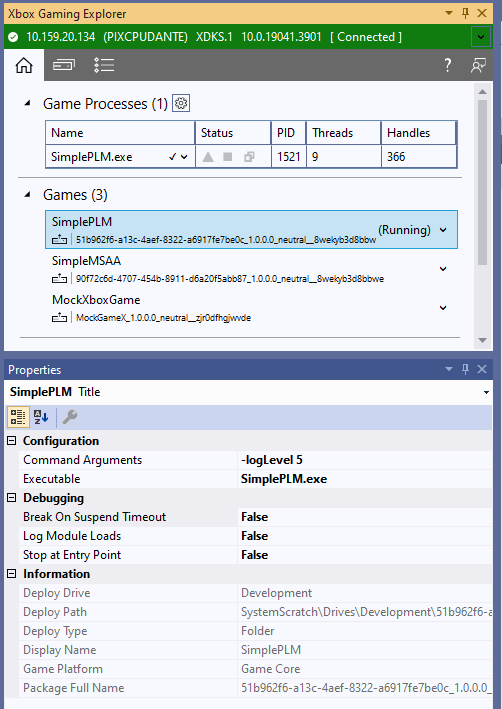 从 **Break on Suspend Timeout** 下拉列表中选择 **True**,会使调试器在你的挂起处理程序完成时间超过 1 秒时中断到你的游戏中。
从 **Log Module Loading** 下拉列表中选择 **True**,会在调试期间将操作系统加载器的输出显示到 Visual Studio 输出窗口。加载器的日志包含操作系统加载的所有模块的信息,包括重定向。调试 DLL 加载失败(包括 “A dependent dll was not found”)是此日志的常见用途。
从 **Stop at Entry Point** 下拉列表中选择 **True**,会使调试器在游戏的主入口点处中断。此选项对调试游戏启动早期发生的问题很有用。
有关这些属性的更多信息,请参阅[面向 XBOX 开发的 Visual Studio 属性](/tools/tools-console/visualstudio/durango-property-pages)。
仅当游戏是从 XBOX Gaming Explorer 启动时,使用游戏属性页设置的属性才会生效。如果你使用 F5 启动项目,这些设置将不会生效。要为通过 F5 启动设置这些属性,请使用可通过在**解决方案资源管理器**中右键单击你的项目并选择**属性**上下文菜单项来访问的属性页。
### Run Executable
Console Details 选项卡提供了在主机上启动工具可执行文件的能力。这些工具包括操作系统提供的工具,或由你的工作室开发的任何工具。通过 XBOX Gaming Explorer 启动的工具在 Game OS 中运行,而不是 System OS。使用 Console Details 选项卡的 **Run Executable** 部分指定工具在主机上的路径以及所需的启动参数。使用 **Run Executable** 启动的任何工具的输出都会显示在 Visual Studio 的 **Gaming** 输出窗口中。在下图中,**Run Executable** 用于运行操作系统实用程序 **filever.exe**,以列出当前运行游戏中所有可执行文件的版本信息。
从 **Break on Suspend Timeout** 下拉列表中选择 **True**,会使调试器在你的挂起处理程序完成时间超过 1 秒时中断到你的游戏中。
从 **Log Module Loading** 下拉列表中选择 **True**,会在调试期间将操作系统加载器的输出显示到 Visual Studio 输出窗口。加载器的日志包含操作系统加载的所有模块的信息,包括重定向。调试 DLL 加载失败(包括 “A dependent dll was not found”)是此日志的常见用途。
从 **Stop at Entry Point** 下拉列表中选择 **True**,会使调试器在游戏的主入口点处中断。此选项对调试游戏启动早期发生的问题很有用。
有关这些属性的更多信息,请参阅[面向 XBOX 开发的 Visual Studio 属性](/tools/tools-console/visualstudio/durango-property-pages)。
仅当游戏是从 XBOX Gaming Explorer 启动时,使用游戏属性页设置的属性才会生效。如果你使用 F5 启动项目,这些设置将不会生效。要为通过 F5 启动设置这些属性,请使用可通过在**解决方案资源管理器**中右键单击你的项目并选择**属性**上下文菜单项来访问的属性页。
### Run Executable
Console Details 选项卡提供了在主机上启动工具可执行文件的能力。这些工具包括操作系统提供的工具,或由你的工作室开发的任何工具。通过 XBOX Gaming Explorer 启动的工具在 Game OS 中运行,而不是 System OS。使用 Console Details 选项卡的 **Run Executable** 部分指定工具在主机上的路径以及所需的启动参数。使用 **Run Executable** 启动的任何工具的输出都会显示在 Visual Studio 的 **Gaming** 输出窗口中。在下图中,**Run Executable** 用于运行操作系统实用程序 **filever.exe**,以列出当前运行游戏中所有可执行文件的版本信息。
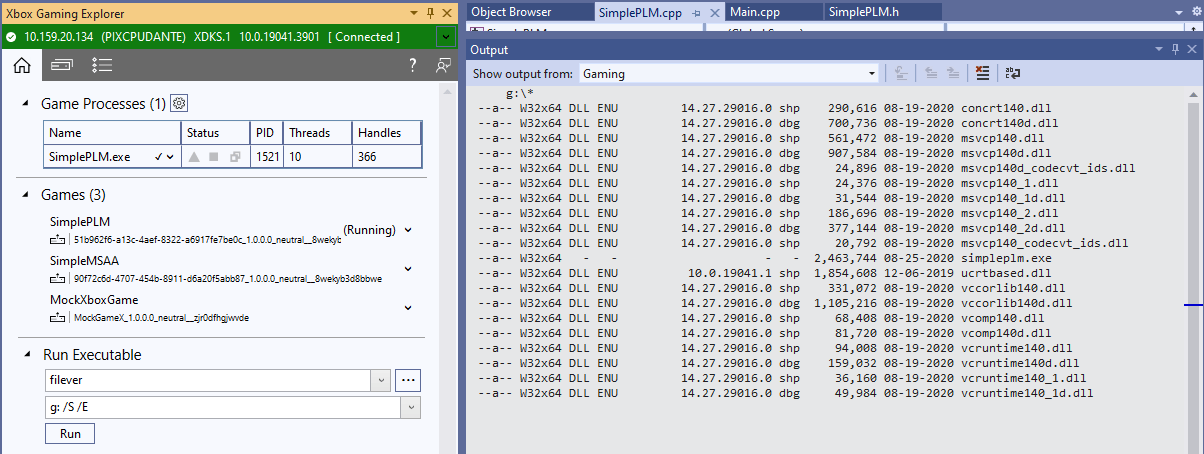 你必须为要运行的可执行文件指定完全限定路径,除非该可执行文件位于主机 Game OS 中的 C:\windows\system32 目录下。
**Run Executable** 只能用于启动工具可执行文件,而不能用于启动游戏。可以通过多种方式启动游戏,包括 XBOX Gaming Explorer 中的 **Games** 列表、Visual Studio 的 F5 与 Ctrl+F5 命令、[XBOX Manager](/tools/tools-console/xbom/xbom)、[Windows Device Portal](/tools/tools-console/wdp/wdp) 以及 [xbapp](/tools/tools-console/commandlinetools/xbapp)。
## Consoles
Consoles 选项卡提供了可用于连接并与 XBOX Gaming Explorer 一起使用的主机列表。如果你已通过 [XBOX Manager](/tools/tools-console/xbom/xbom) 或 [xbconnect](/tools/tools-console/commandlinetools/xbconnect) 指定了默认主机,该主机会自动出现在 XBOX Gaming Explorer 中。默认主机由代表该主机的图标旁边的星号 (\*) 标识。
可以使用 Consoles 选项卡上的 *Add a Console* 按钮添加其他主机,如下图所示。
你必须为要运行的可执行文件指定完全限定路径,除非该可执行文件位于主机 Game OS 中的 C:\windows\system32 目录下。
**Run Executable** 只能用于启动工具可执行文件,而不能用于启动游戏。可以通过多种方式启动游戏,包括 XBOX Gaming Explorer 中的 **Games** 列表、Visual Studio 的 F5 与 Ctrl+F5 命令、[XBOX Manager](/tools/tools-console/xbom/xbom)、[Windows Device Portal](/tools/tools-console/wdp/wdp) 以及 [xbapp](/tools/tools-console/commandlinetools/xbapp)。
## Consoles
Consoles 选项卡提供了可用于连接并与 XBOX Gaming Explorer 一起使用的主机列表。如果你已通过 [XBOX Manager](/tools/tools-console/xbom/xbom) 或 [xbconnect](/tools/tools-console/commandlinetools/xbconnect) 指定了默认主机,该主机会自动出现在 XBOX Gaming Explorer 中。默认主机由代表该主机的图标旁边的星号 (\*) 标识。
可以使用 Consoles 选项卡上的 *Add a Console* 按钮添加其他主机,如下图所示。
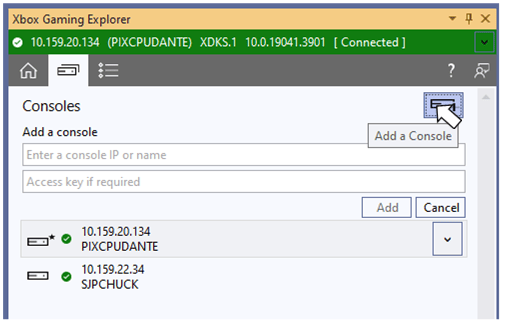 从列表中选择主机会连接到该主机,并使用来自该主机的进程与游戏更新 Console Details 选项卡。
XBOX Gaming Explorer 中显示的主机列表与 XBOX Manager 中显示的主机列表可能会不同步。这些列表将在未来的版本中同步。
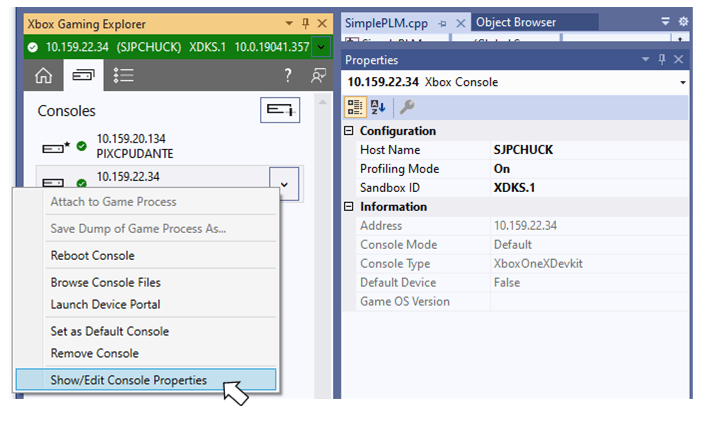
主机列表具有如下图所示的上下文菜单,可用于在主机上执行各种操作,包括将有关主机的信息填充到 Visual Studio 属性窗口中。以粗体显示的属性可直接从属性窗口编辑。
从列表中选择主机会连接到该主机,并使用来自该主机的进程与游戏更新 Console Details 选项卡。
XBOX Gaming Explorer 中显示的主机列表与 XBOX Manager 中显示的主机列表可能会不同步。这些列表将在未来的版本中同步。
主机列表具有如下图所示的上下文菜单,可用于在主机上执行各种操作,包括将有关主机的信息填充到 Visual Studio 属性窗口中。以粗体显示的属性可直接从属性窗口编辑。
 ## XBOX Developer Tools Launcher
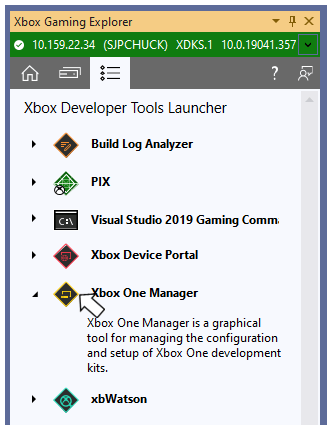
XBOX Developer Tools Launcher 选项卡如下图所示,为启动 Microsoft Game Development Kit (GDK) 中随附的其他工具提供了便捷方式。通过选择工具的名称或图标即可启动它。
## XBOX Developer Tools Launcher
XBOX Developer Tools Launcher 选项卡如下图所示,为启动 Microsoft Game Development Kit (GDK) 中随附的其他工具提供了便捷方式。通过选择工具的名称或图标即可启动它。
 ## 另请参阅
[Visual Studio](/tools/tools-console/visualstudio/visualstudio) [获取崩溃转储](/build/console-features/debugging-diagnostics/retrieving-crash-dumps)
## Related topics
- [使用 Visual Studio 调试 XBOX 项目](/zh-CN/tools/tools-console/visualstudio/debugging-with-visualstudio.md)
- [XBOX System Monitor](/zh-CN/tools/tools-console/visualstudio/xbox-system-monitor.md)
- [Visual Studio](/zh-CN/tools/tools-console/visualstudio/index.md)
- [面向主机开发的 Visual Studio](/zh-CN/tools/tools-console/visualstudio/visualstudio.md)
- [XBOX Game View](/zh-CN/tools/tools-console/visualstudio/xbox-game-view.md)
## 另请参阅
[Visual Studio](/tools/tools-console/visualstudio/visualstudio) [获取崩溃转储](/build/console-features/debugging-diagnostics/retrieving-crash-dumps)
## Related topics
- [使用 Visual Studio 调试 XBOX 项目](/zh-CN/tools/tools-console/visualstudio/debugging-with-visualstudio.md)
- [XBOX System Monitor](/zh-CN/tools/tools-console/visualstudio/xbox-system-monitor.md)
- [Visual Studio](/zh-CN/tools/tools-console/visualstudio/index.md)
- [面向主机开发的 Visual Studio](/zh-CN/tools/tools-console/visualstudio/visualstudio.md)
- [XBOX Game View](/zh-CN/tools/tools-console/visualstudio/xbox-game-view.md)