> ## Documentation Index
> Fetch the complete documentation index at: https://devdocs.xbox.com/llms.txt
> Use this file to discover all available pages before exploring further.
# PlayFab 游戏服务器基础知识
> 了解 PlayFab 多人游戏服务器如何打包为 Windows 或 Linux 容器,作为资产上传,并与 GSDK 集成以进行托管。
PlayFab 将游戏服务器作为容器化应用程序运行。本教程介绍如何打包游戏服务器并将其与 PlayFab 系统集成。
## 将游戏服务器容器化和打包
### Windows
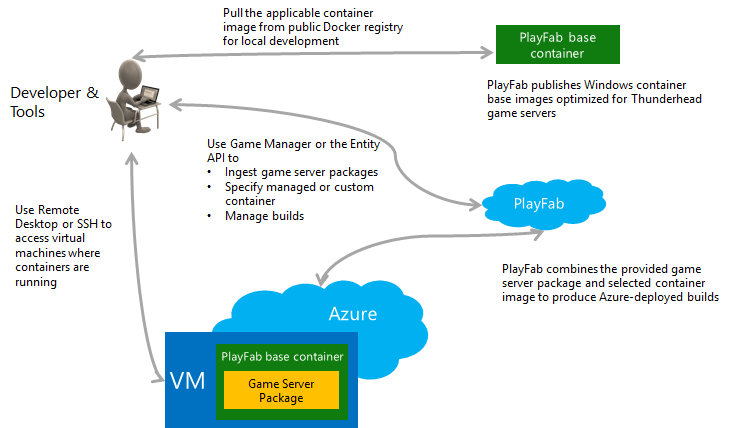
在 Windows 上,通常将游戏服务器可执行文件和其他文件打包为 zip 文件,并作为游戏资产上传。资产与容器映像结合以创建游戏服务器生成。基础容器映像提供 Windows 操作系统文件以及允许游戏运行的执行环境。PlayFab 为 Windows 生成提供了一组托管容器映像可供使用。
当通过 Game Manager 或 [CreateBuildWithManagedContainer()](xref:titleid.playfabapi.com.multiplayer.multiplayerserver.createbuildwithmanagedcontainer) 等 API 创建 Windows 生成时,你需要指定资产以及它们在容器文件系统中的挂载位置。你还需要指定用于启动游戏的 shell 命令 (`StartGameCommand`),它可能与下面显示的类似。
```cmd theme={null}
C:\GameCoreApp\GameServer.exe -mode RETAIL
```
`StartGameCommand` 必须启动一个使用 PlayFab 游戏服务器 SDK 的应用程序,并在准备好为游戏客户端服务时调用 `ReadyForPlayers`。当应用程序进程退出时,容器将被终止并回收。
### Linux
在 Linux 上,你需要自己通过打包游戏可执行文件和资产来创建容器映像。在运行时与容器映像结合的资产使用是可选的。
当通过 Game Manager 或 [CreateBuildWithCustomContainer()](xref:titleid.playfabapi.com.multiplayer.multiplayerserver.createbuildwithcustomcontainer) 等 API 创建 Linux 生成时,你可以选择指定资产以及它们在容器文件系统中的挂载位置。启动游戏的 shell 命令 (`StartGameCommand`) 的规范也是可选的,因为此命令也可以包含在容器映像中。
有关为 PlayFab Multiplayer Servers 创建 Linux 容器映像的详细信息,请查看[此](/services/playfab/multiplayer/servers/deploying-linux-based-builds)页面
## 用于 Windows 的托管容器
PlayFab 目前支持一种托管容器;基于 Windows Server Core 的 PlayFab Multiplayer 容器映像。你可以通过 [Docker Hub](https://hub.docker.com/r/microsoft/playfab-multiplayer/) 下载此容器,以便你的本地环境与 Azure 中的运行时环境相匹配。
有一些调试工具允许你在开发机器上本地逐步执行多人服务器状态机。
有关更多信息,请查看[本地调试游戏服务器以及与 PlayFab 的集成](/services/playfab/multiplayer/servers/locally-debugging-game-servers-and-integration-with-playfab)。
下图显示了上传游戏服务器并将此包与所选容器组合的关键流程。
 ### 托管容器更新
托管容器是 Windows 项目最简单的集成选项,如果你不熟悉容器,这是一个很好的起点。
托管容器的一个关键功能是,PlayFab 将自动使用关键安全修补程序更新基础映像,以确保可靠的游戏体验。通常,安全更新每月发生一次,并且不应导致服务中断。若要了解详情,请参阅 [Windows 的 OS 修补程序更新](/services/playfab/multiplayer/servers/os-patch-updates)。
在升级期间,自然回收的备用会话将被替换为更新的容器映像和相同的游戏服务器包。
当 PlayFab 打算更新你正在使用的托管容器映像时,你将收到 PlayStream 事件。
## 集成 PlayFab 游戏服务器 SDK
*了解详情:* [将游戏服务器与 PlayFab 游戏服务器 SDK (GSDK) 集成](/services/playfab/multiplayer/servers/integrating-game-servers-with-gsdk)
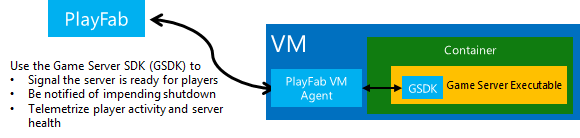
PlayFab 游戏服务器 SDK (GSDK) 以多种编程语言提供,如 **C++**、**C#** 和 **Java**。GSDK 将你的游戏服务器连接到安装在 VM 上的本地代理。此代理便利关键服务器与 PlayFab 控制基础架构的交互。
### 托管容器更新
托管容器是 Windows 项目最简单的集成选项,如果你不熟悉容器,这是一个很好的起点。
托管容器的一个关键功能是,PlayFab 将自动使用关键安全修补程序更新基础映像,以确保可靠的游戏体验。通常,安全更新每月发生一次,并且不应导致服务中断。若要了解详情,请参阅 [Windows 的 OS 修补程序更新](/services/playfab/multiplayer/servers/os-patch-updates)。
在升级期间,自然回收的备用会话将被替换为更新的容器映像和相同的游戏服务器包。
当 PlayFab 打算更新你正在使用的托管容器映像时,你将收到 PlayStream 事件。
## 集成 PlayFab 游戏服务器 SDK
*了解详情:* [将游戏服务器与 PlayFab 游戏服务器 SDK (GSDK) 集成](/services/playfab/multiplayer/servers/integrating-game-servers-with-gsdk)
PlayFab 游戏服务器 SDK (GSDK) 以多种编程语言提供,如 **C++**、**C#** 和 **Java**。GSDK 将你的游戏服务器连接到安装在 VM 上的本地代理。此代理便利关键服务器与 PlayFab 控制基础架构的交互。
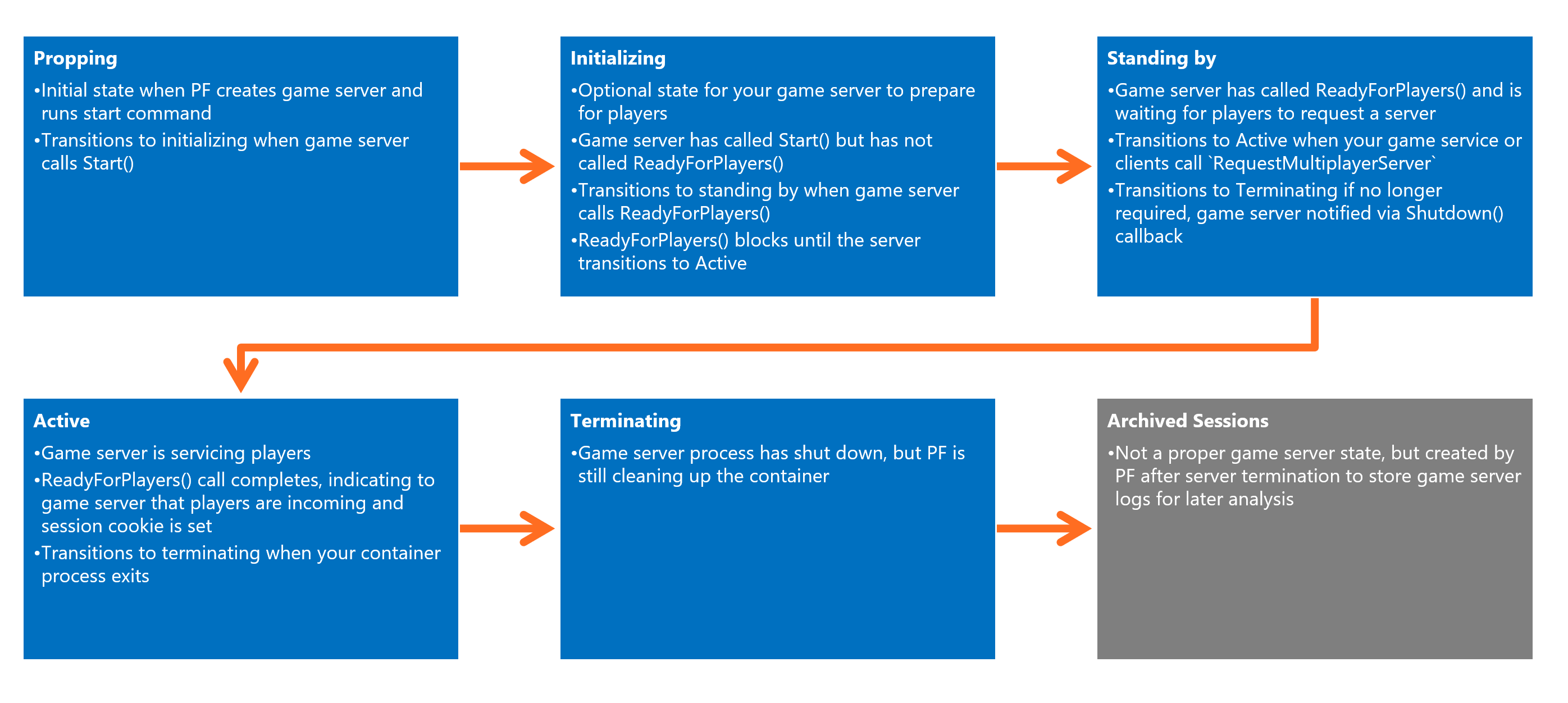
 游戏服务器初始化时,将被置于*准备状态*,PlayFab 等待你的游戏服务器调用 `ReadyForPlayers()`。
调用此方法后,游戏服务器将被置于*备用状态*,并等待你的匹配服务通过 [RequestMultiplayerServer](xref:titleid.playfabapi.com.multiplayer.multiplayerserver.requestmultiplayerserver) 方法向 PlayFab 发起的分配请求。
下图显示了 PlayFab 多人服务器的状态。
游戏服务器初始化时,将被置于*准备状态*,PlayFab 等待你的游戏服务器调用 `ReadyForPlayers()`。
调用此方法后,游戏服务器将被置于*备用状态*,并等待你的匹配服务通过 [RequestMultiplayerServer](xref:titleid.playfabapi.com.multiplayer.multiplayerserver.requestmultiplayerserver) 方法向 PlayFab 发起的分配请求。
下图显示了 PlayFab 多人服务器的状态。
 表面上,调用 `ReadyForPlayers()` 是让你的游戏服务器运行并持续运行的唯一要求。然而,你可能需要处理若干个回调/事件,以便提供最佳的用户体验。
## 服务器脚本和 PlayFab 配置的环境变量
在某些情况下,你可能希望游戏服务器运行 CMD、PowerShell 或 bash 脚本("引导程序"),然后由该脚本启动已编译的游戏服务器可执行文件。此脚本可以配置容器的内部环境、向可执行文件传递命令行参数,或执行其他任何你不希望在游戏服务器可执行文件中执行的任务。
为方便起见,PlayFab 将一些生成信息作为以下环境变量在容器中进行配置。这些也可以通过 GSDK 访问,但从脚本使用环境变量可能更简单。
* **PF\_TITLE\_ID** — 会话主机的标题 ID
* **PF\_BUILD\_ID** — 会话主机的生成 ID
* **PF\_REGION** — 会话主机的 Azure 区域
* **PUBLIC\_IPV4\_ADDRESS** — VM 的公共 IP 地址
* **PF\_VM\_ID** — VM 的唯一标识符 (例如 'xcloudeau4u4yyxj4xymu:AustraliaEast:1E03\_6f27ad88-9bc3-4ea3-8d16-75480aba4637:tvmps\_0e05c37e0bbdca298a09fb0d597bd666eb7c5fd0ebcf1fed4c52e608a39a7c9c\_d')
* **CERTIFICATE\_FOLDER** — 包含游戏证书的文件夹
* **PF\_SERVER\_LOG\_DIRECTORY** — 包含游戏日志的文件夹
* **PF\_SERVER\_INSTANCE\_NUMBER** — 服务器的实例编号。VM 上的第一个服务器为 0,第二个为 1,第三个为 2,依此类推。
## Related topics
- [将 PlayFab GSDK 集成到 Unity 中](/zh-CN/services/playfab/multiplayer/servers/mps-unity.md)
- [创作游戏服务器生成](/zh-CN/services/playfab/multiplayer/servers/author-a-game-server-build.md)
- [游戏服务器与大厅](/zh-CN/services/playfab/multiplayer/lobby/lobby-server-overview.md)
- [部署 PlayFab 多人游戏服务器构建](/zh-CN/services/playfab/multiplayer/servers/deploying-playfab-multiplayer-server-builds.md)
- [启用 PlayFab 多人游戏服务器功能](/zh-CN/services/playfab/multiplayer/servers/enable-playfab-multiplayer-servers.md)
表面上,调用 `ReadyForPlayers()` 是让你的游戏服务器运行并持续运行的唯一要求。然而,你可能需要处理若干个回调/事件,以便提供最佳的用户体验。
## 服务器脚本和 PlayFab 配置的环境变量
在某些情况下,你可能希望游戏服务器运行 CMD、PowerShell 或 bash 脚本("引导程序"),然后由该脚本启动已编译的游戏服务器可执行文件。此脚本可以配置容器的内部环境、向可执行文件传递命令行参数,或执行其他任何你不希望在游戏服务器可执行文件中执行的任务。
为方便起见,PlayFab 将一些生成信息作为以下环境变量在容器中进行配置。这些也可以通过 GSDK 访问,但从脚本使用环境变量可能更简单。
* **PF\_TITLE\_ID** — 会话主机的标题 ID
* **PF\_BUILD\_ID** — 会话主机的生成 ID
* **PF\_REGION** — 会话主机的 Azure 区域
* **PUBLIC\_IPV4\_ADDRESS** — VM 的公共 IP 地址
* **PF\_VM\_ID** — VM 的唯一标识符 (例如 'xcloudeau4u4yyxj4xymu:AustraliaEast:1E03\_6f27ad88-9bc3-4ea3-8d16-75480aba4637:tvmps\_0e05c37e0bbdca298a09fb0d597bd666eb7c5fd0ebcf1fed4c52e608a39a7c9c\_d')
* **CERTIFICATE\_FOLDER** — 包含游戏证书的文件夹
* **PF\_SERVER\_LOG\_DIRECTORY** — 包含游戏日志的文件夹
* **PF\_SERVER\_INSTANCE\_NUMBER** — 服务器的实例编号。VM 上的第一个服务器为 0,第二个为 1,第三个为 2,依此类推。
## Related topics
- [将 PlayFab GSDK 集成到 Unity 中](/zh-CN/services/playfab/multiplayer/servers/mps-unity.md)
- [创作游戏服务器生成](/zh-CN/services/playfab/multiplayer/servers/author-a-game-server-build.md)
- [游戏服务器与大厅](/zh-CN/services/playfab/multiplayer/lobby/lobby-server-overview.md)
- [部署 PlayFab 多人游戏服务器构建](/zh-CN/services/playfab/multiplayer/servers/deploying-playfab-multiplayer-server-builds.md)
- [启用 PlayFab 多人游戏服务器功能](/zh-CN/services/playfab/multiplayer/servers/enable-playfab-multiplayer-servers.md)