> ## Documentation Index
> Fetch the complete documentation index at: https://devdocs.xbox.com/llms.txt
> Use this file to discover all available pages before exploring further.
# CloudScript 快速入门
> 从 Game Manager 上传、修订并调用 PlayFab CloudScript JavaScript 文件,然后从你的 Unity 游戏客户端或 PlayStream 操作中调用它们。
CloudScript 为专用服务器提供了一种快速、安全且可扩展的替代方案。你的自定义 JavaScript 直接驻留并在 PlayFab 服务器上执行。
[使用 Azure Functions 的 CloudScript](/services/playfab/live-service-management/service-gateway/automation/cloudscript-af/quickstart) 支持更多语言,并提供改进的调试工作流。
从这里开始,你的代码可以由游戏客户端*直接*调用,也可以通过 PlayStream 操作间接调用。此外,CloudScript 方法可以完全访问 PlayFab 的 [Server](/services/playfab/api-references) API 集。
本快速入门介绍在 PlayFab Game Manager 中上传和管理 CloudScript 文件。
[编写自定义 CloudScript](/services/playfab/live-service-management/service-gateway/automation/cloudscript/writing-custom-cloudscript) 教程介绍如何编写 CloudScript 代码本身。
阅读本文时请注意以下事项:
* 你应熟悉 PlayFab 的基础知识。
* 所示的 **C#** 示例对应于使用 PlayFab Unity SDK。
* JavaScript 示例对应于使用 PlayFab CloudScript 服务。
## 你的第一个 CloudScript 修订版
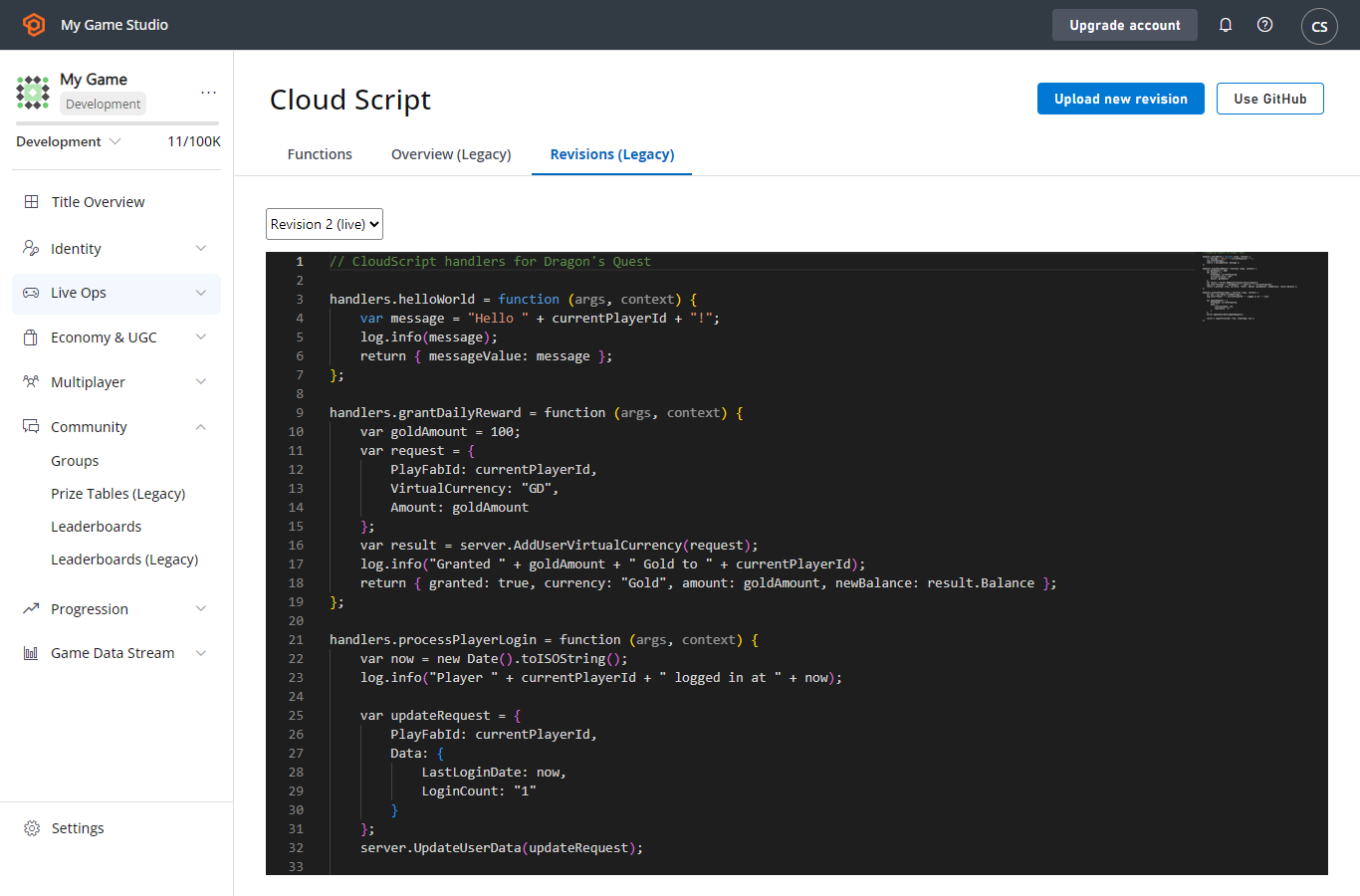
创建游戏后,PlayFab 会自动包含一个示例脚本作为你的第一个修订版。此修订版包含许多可用于学习和测试 CloudScript 的方法。
若要查看这些函数:
* 打开 [Game Manager](https://developer.playfab.com/)。
* 选择你的游戏。
* 在左侧边栏中选择 **Automation**。
你应看到许多 CloudScript 方法,例如 **HelloWorld**,它会记录消息 **Hello PLAYERID**,其中 **PLAYERID** 是当前玩家的 PlayFab ID。
 ## 上传你自己的修订版
你可以通过 Game Manager 上传自己的自定义方法。你上传的每个文件都会创建一个新的修订版。上传期间,PlayFab 服务会对你的 CloudScript 运行简单的 LINT 检查以查找语法错误。
如果发现错误:
* 将显示一条错误消息。
* 修复错误,然后再次选择 **SUBMIT**。
* 默认情况下,新上传必须通过选择 **DEPLOY REVISION # TO LIVE** 链接进行部署。这样你可以更新或在多个 CloudScript 版本之间进行回滚。
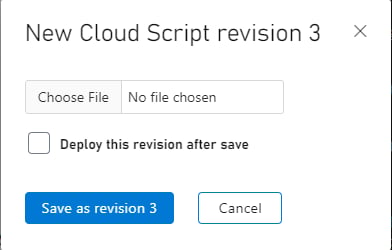
首次按下橙色的 **UPLOAD NEW REVISION** 按钮时,你将看到一个文件选择器,可以从本地计算机上传文件。
## 上传你自己的修订版
你可以通过 Game Manager 上传自己的自定义方法。你上传的每个文件都会创建一个新的修订版。上传期间,PlayFab 服务会对你的 CloudScript 运行简单的 LINT 检查以查找语法错误。
如果发现错误:
* 将显示一条错误消息。
* 修复错误,然后再次选择 **SUBMIT**。
* 默认情况下,新上传必须通过选择 **DEPLOY REVISION # TO LIVE** 链接进行部署。这样你可以更新或在多个 CloudScript 版本之间进行回滚。
首次按下橙色的 **UPLOAD NEW REVISION** 按钮时,你将看到一个文件选择器,可以从本地计算机上传文件。
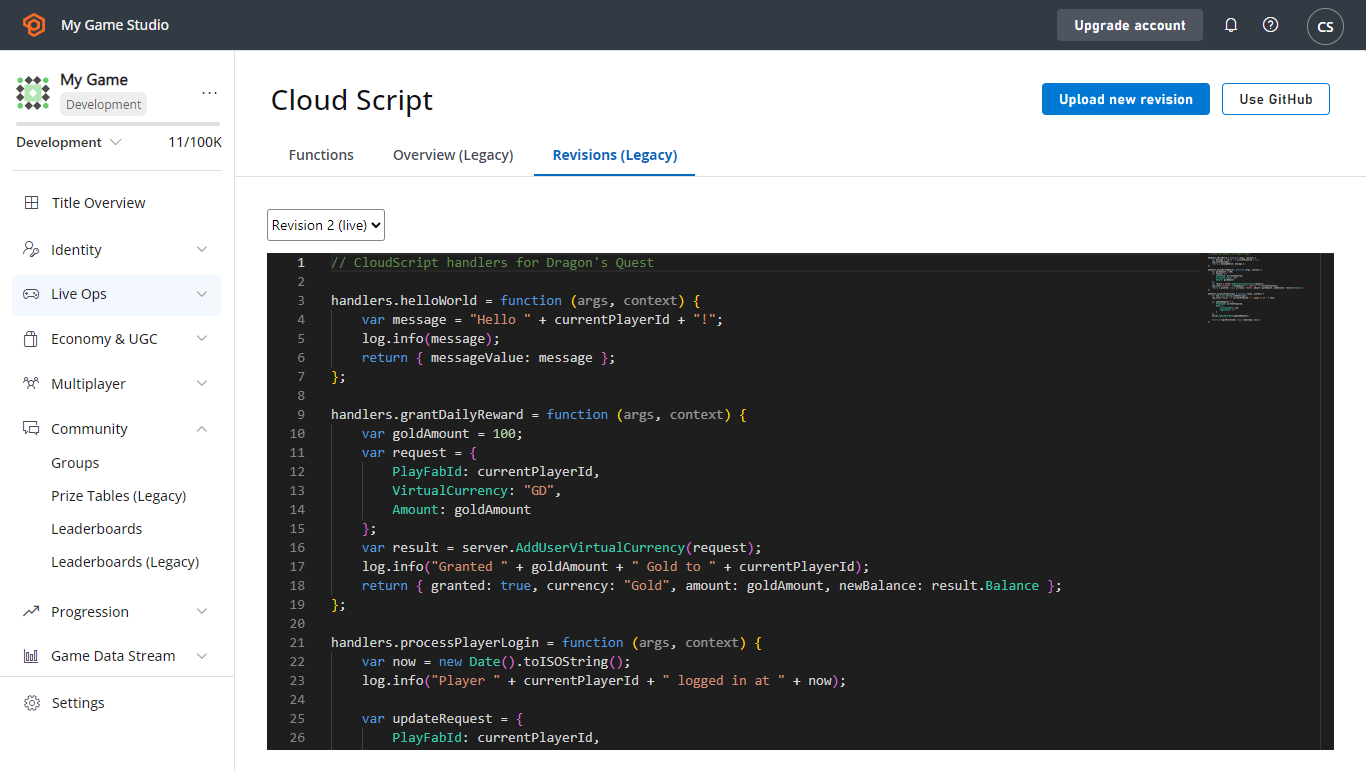
 添加多个修订版后,你可以使用下拉列表选择*哪个*已提交的修订版处于生产状态。
 ## GitHub 集成
你还可以使用 GitHub 管理你的 CloudScript 修订版。你必须拥有一个 GitHub 帐户,并且必须已登录。
* 选择 **USE GITHUB** 按钮(上一个屏幕截图中的灰色按钮)。
* 下一个窗口会有一个橙色的 **AUTHORIZE GITHUB ACCOUNT** 按钮。
* 在 **GitHub** 中创建一个新的空仓库。
* 返回 PlayFab Game Manager 中的 **GitHub** 页面(刷新标签页)。
* 此时,你应该能够选择你的 **GitHub** 仓库,并将其绑定到你的游戏。
## GitHub 集成
你还可以使用 GitHub 管理你的 CloudScript 修订版。你必须拥有一个 GitHub 帐户,并且必须已登录。
* 选择 **USE GITHUB** 按钮(上一个屏幕截图中的灰色按钮)。
* 下一个窗口会有一个橙色的 **AUTHORIZE GITHUB ACCOUNT** 按钮。
* 在 **GitHub** 中创建一个新的空仓库。
* 返回 PlayFab Game Manager 中的 **GitHub** 页面(刷新标签页)。
* 此时,你应该能够选择你的 **GitHub** 仓库,并将其绑定到你的游戏。
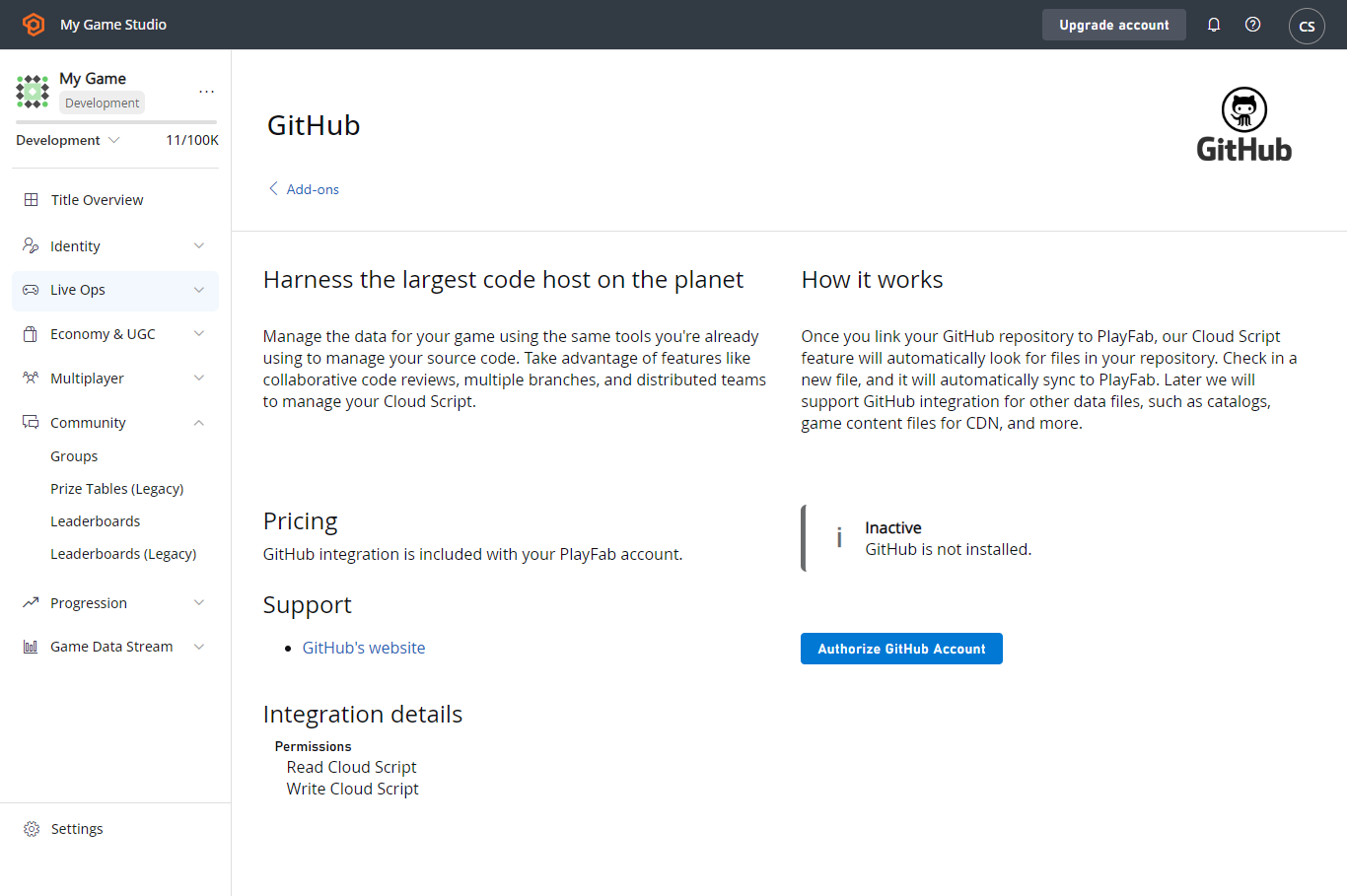 一旦绑定到 GitHub,手动上传选项将被移除,并且新的 CloudScript 修订版会为每次向 “master” 分支的 GitHub 提交自动创建。
如果你提交*多个*文件,它们将连接在一起,形成单个 PlayFab CloudScript 修订版。生产版本选择保持不变:必须在 Game Manager 中按上述方式将新的 GitHub 提交设置为生产版本。
## 结论
CloudScript 允许你将文件上传到 PlayFab,并在我们的服务器上执行你的代码。你可以从左侧边栏的 **Automation** 选项管理你的 CloudScript 文件。你可以从自己的计算机手动上传文件,或将你的游戏绑定到 GitHub 帐户。
本快速入门涵盖了管理你的代码文件并将其上传到 PlayFab。
如果你还有其他问题,[编写自定义 CloudScript 教程](/services/playfab/live-service-management/service-gateway/automation/cloudscript/writing-custom-cloudscript)进一步说明了如何编写你的 CloudScript 代码文件。
## Related topics
- [CloudScript](/zh-CN/services/playfab/live-service-management/service-gateway/automation/cloudscript/index.md)
- [使用 Azure Functions 的 PlayFab CloudScript 快速入门指南](/zh-CN/services/playfab/live-service-management/service-gateway/automation/cloudscript-af/quickstart.md)
- [计划任务快速入门](/zh-CN/services/playfab/data-analytics/acting-data/scheduled-tasks/quickstart.md)
- [Title Data 快速入门](/zh-CN/services/playfab/live-service-management/game-configuration/titledata/quickstart.md)
- [玩家数据快速入门](/zh-CN/services/playfab/player-progression/player-data/quickstart.md)
一旦绑定到 GitHub,手动上传选项将被移除,并且新的 CloudScript 修订版会为每次向 “master” 分支的 GitHub 提交自动创建。
如果你提交*多个*文件,它们将连接在一起,形成单个 PlayFab CloudScript 修订版。生产版本选择保持不变:必须在 Game Manager 中按上述方式将新的 GitHub 提交设置为生产版本。
## 结论
CloudScript 允许你将文件上传到 PlayFab,并在我们的服务器上执行你的代码。你可以从左侧边栏的 **Automation** 选项管理你的 CloudScript 文件。你可以从自己的计算机手动上传文件,或将你的游戏绑定到 GitHub 帐户。
本快速入门涵盖了管理你的代码文件并将其上传到 PlayFab。
如果你还有其他问题,[编写自定义 CloudScript 教程](/services/playfab/live-service-management/service-gateway/automation/cloudscript/writing-custom-cloudscript)进一步说明了如何编写你的 CloudScript 代码文件。
## Related topics
- [CloudScript](/zh-CN/services/playfab/live-service-management/service-gateway/automation/cloudscript/index.md)
- [使用 Azure Functions 的 PlayFab CloudScript 快速入门指南](/zh-CN/services/playfab/live-service-management/service-gateway/automation/cloudscript-af/quickstart.md)
- [计划任务快速入门](/zh-CN/services/playfab/data-analytics/acting-data/scheduled-tasks/quickstart.md)
- [Title Data 快速入门](/zh-CN/services/playfab/live-service-management/game-configuration/titledata/quickstart.md)
- [玩家数据快速入门](/zh-CN/services/playfab/player-progression/player-data/quickstart.md)