> ## Documentation Index
> Fetch the complete documentation index at: https://devdocs.xbox.com/llms.txt
> Use this file to discover all available pages before exploring further.
# Android 推送通知
> 通过设置 Firebase 项目、上传服务器私钥并使用 Unity3D 客户端进行测试,为 Android 配置 PlayFab 推送通知。
# Android 推送通知
## 先决条件
* [推送通知快速入门](/services/playfab/live-service-management/game-configuration/title-communications/push-notifications/quickstart)
* [Unity3D 快速入门](/services/playfab/sdks/unity3d/quickstart)
* **可选** [Unity Editor Extensions](https://blog.playfab.com/blog/new-unity-editor-extensions-beta)
* **可选** [Postman 快速入门](/services/playfab/sdks/postman/postman-quickstart)
## 配置 Android 通知通道
### Firebase 设置
你必须使用并同步三个 Google 网站。在 Google/Firebase 中,同时存在 Projects 和 Apps:
* **Project**:
* 如果尚未导入,请将你的项目导入 [Firebase Console](https://console.firebase.google.com/)。
* **App**:
* [Firebase](https://console.firebase.google.com/) Projects 包含 apps。
* 确保你的应用同时存在于两个位置,并使用相同的名称和标识符(例如 [Unicorn Battle 和 com.playfab.unicornbattle2](https://play.google.com/store/apps/details?id=com.playfab.unicornbattle2))。
### PlayFab 需要服务器私钥文件
* 你可以从 [Firebase Console](https://console.firebase.google.com/) 获取此私钥文件。
* **Firebase Console**:
* 选择你的 **Project** 或 **App**,找到 **Settings** 选项(有多种方式可以到达此处,最终都会到达同一位置)。
* 在 **Service accounts** 选项卡中,选择 **Generate new private key** 按钮以下载 JSON 文件。
## 使用私钥文件
* 通过以下两种方式之一提供你的私钥文件:
1. 直接将私钥文件上传到 **Game Manager UI**:**Settings**(针对你的 **Title**)> **Push Notifications** > **Android**。
2. 或者使用 Postman 或启用了 Server API 方法的 Unity 项目调用 [SetupPushNotification](xref:titleid.playfabapi.com.admin.title-widedatamanagement.setuppushnotification)。
* Name:**your\_game\_name**
* Platform:**GCM**
* Credential:(**私钥文件内容作为字符串**):`{ ... }`
* Overwrite OldARN:`true`
* 你应该会收到一个 **HTTP 200 OK** 响应,数据类似如下。
```json theme={null}
// Postman JSON result output
{
"code": 200,
"status": "OK",
"data": { "ARN" : "arn:*******/GCM/your_game_name" }
}
```
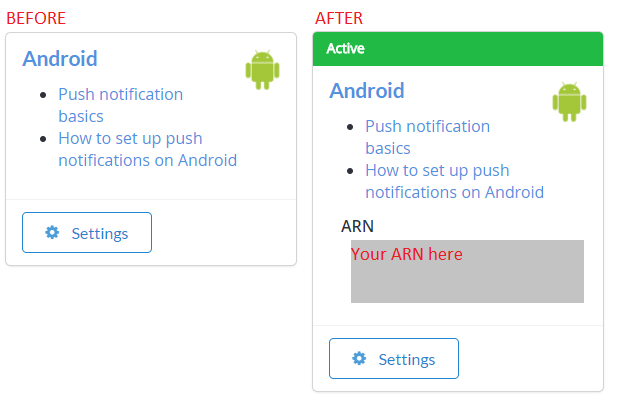
* 正确设置完成后(使用任一方法),你应该在 **Game Manager UI** 的 **Settings(针对你的 title)> Push Notifications > Android** 中看到以下内容。
 ## 入门:Android + Unity 推送通知
设置你的 Unity 项目:
* 创建新的 Unity 项目。
* **可选** 导入 [PlayFab Unity Editor Extensions](https://aka.ms/playfabunityextension) 包。
* 导入 [Unity PlayFab SDK](https://aka.ms/playfabunitysdkdownload) 包。
* 按照 [FCM Unity](https://firebase.google.com/docs/cloud-messaging/unity/client) 指南安装 FCM 消息传递,并为推送通知设置项目。
* 完成后,可以继续按照本指南接收来自 PlayFab 的消息。
* 我们将在下面的示例中提供一个完整的支持 FCM 的 monoBehaviour 脚本,它结合了 FCM 和 PlayFab。
* 在 FCM 指南中,你创建了一个用于设置 Firebase 插件的 monobehavior 脚本。
* 你可以继续使用该 monobehavior 脚本,或将其替换为下面示例中的脚本。
### 设置你的第一个推送通知
在 Unity 中打开你在 FCM 教程中创建的脚本,并替换其内容。
```csharp theme={null}
using PlayFab;
using PlayFab.ClientModels;
using PlayFab.Json;
using UnityEngine;
public class MsgCatcher : MonoBehaviour
{
public string pushToken;
public string playFabId;
public string lastMsg;
// OnGUI should be deleted/replaced with your own gui - This is only provided for debugging
public void OnGUI()
{
GUI.Label(new Rect(0, 0, Screen.width, 200), pushToken);
GUI.Label(new Rect(0, 200, Screen.width, Screen.height - 200), lastMsg);
}
private void OnPfFail(PlayFabError error)
{
Debug.Log("PlayFab: api error: " + error.GenerateErrorReport());
}
public void Start()
{
// PlayFabSettings.TitleId = "TITLE_ID";
Firebase.Messaging.FirebaseMessaging.TokenReceived += OnTokenReceived;
Firebase.Messaging.FirebaseMessaging.MessageReceived += OnMessageReceived;
LoginToPlayFab();
}
private void LoginToPlayFab()
{
#if UNITY_ANDROID
var request = new LoginWithAndroidDeviceIDRequest { AndroidDeviceId = SystemInfo.deviceUniqueIdentifier, CreateAccount = true, };
PlayFabClientAPI.LoginWithAndroidDeviceID(request, OnPfLogin, OnPfFail);
#endif
}
private void OnPfLogin(LoginResult result)
{
Debug.Log("PlayFab: login successful");
playFabId = result.PlayFabId;
RegisterForPush();
}
private void RegisterForPush()
{
if (string.IsNullOrEmpty(pushToken) || string.IsNullOrEmpty(playFabId))
return;
#if UNITY_ANDROID
var request = new AndroidDevicePushNotificationRegistrationRequest {
DeviceToken = pushToken,
SendPushNotificationConfirmation = true,
ConfirmationMessage = "Push notifications registered successfully"
};
PlayFabClientAPI.AndroidDevicePushNotificationRegistration(request, OnPfAndroidReg, OnPfFail);
#endif
}
private void OnPfAndroidReg(AndroidDevicePushNotificationRegistrationResult result)
{
Debug.Log("PlayFab: Push Registration Successful");
}
private void OnTokenReceived(object sender, Firebase.Messaging.TokenReceivedEventArgs token)
{
Debug.Log("PlayFab: Received Registration Token: " + token.Token);
pushToken = token.Token;
RegisterForPush();
}
private void OnMessageReceived(object sender, Firebase.Messaging.MessageReceivedEventArgs e)
{
Debug.Log("PlayFab: Received a new message from: " + e.Message.From);
lastMsg = "";
if (e.Message.Data != null)
{
lastMsg += "DATA: " + JsonWrapper.SerializeObject(e.Message.Data) + "\n";
Debug.Log("PlayFab: Received a message with data:");
foreach (var pair in e.Message.Data)
Debug.Log("PlayFab data element: " + pair.Key + "," + pair.Value);
}
if (e.Message.Notification != null)
{
Debug.Log("PlayFab: Received a notification:");
lastMsg += "TITLE: " + e.Message.Notification.Title + "\n";
lastMsg += "BODY: " + e.Message.Notification.Body + "\n";
}
}
}
```
在设备上构建并运行你的 Unity 项目。如果你收到文本为 **Push notifications registered successfully** 的推送通知,则说明一切按预期工作。
`PlayFabSettings.TitleId = TITLE_ID`。你必须设置自己的 `TitleId`。如果不更新此 `TitleId`,此示例将无法工作,因为我们的 title 已使用我们的 Firebase 密钥和设置注册,*而不是你的*。你可以通过取消注释此行并将 `TITLE_ID` 替换为你的 `titleId` 来实现,或者你可以从上一节中提到的可选 Editor Extensions 插件中选择你的 title。
### Android 疑难解答
* 验证你能否从 Firebase Console 发送测试推送通知。
* 如果不能,则说明你的 Firebase 插件未正确设置,你应查阅 Firebase 文档以找出原因,或联系 Firebase 支持。
* 确保正确设置了 FCM 客户端 pushToken。
* 示例中的 `OnTokenReceived` 函数应被调用,并且应具有有效的令牌。
* 如果*未*被调用,则你的 Firebase 插件*未*正确设置,你应查阅 Firebase 文档以找出原因,或联系 Firebase 支持。
* 确保你的 `titleId` 设置为你拥有的 title,并且已使用来自你的 Firebase 项目的服务器 API 密钥进行了注册。
### 高级功能
在 **server.[SendPushNotification](xref:titleid.playfabapi.com.server.accountmanagement.sendpushnotification)** 中,你可以使用 **[request.Package](xref:titleid.playfabapi.com.server.accountmanagement.sendpushnotification#pushnotificationpackage).CustomData** 向设备传送任意数据。在前面的示例中,这些数据会传送到带有以下注释的部分。
```csharp theme={null}
Debug.Log("PlayFab: Received a message with data:");
```
你可以自定义客户端接收器,以任意方式使用这些数据。**CustomData** 不会显示给玩家,因此可用于向你的客户端传送自定义游戏信息,或使用 **FCM** 插件本地安排另一个未来的通知。
你还可以使用 **[request.Package](xref:titleid.playfabapi.com.server.accountmanagement.sendpushnotification#pushnotificationpackage).CustomData** 或请求 **[AdvancedPlatformDelivery](xref:titleid.playfabapi.com.server.accountmanagement.sendpushnotification#advancedpushplatformmsg)** 来传送到许多第三方插件。
不支持或保证第三方插件传送,但可供高级用户使用。
## 其他支持
如需帮助、示例错误报告和相关问题,请通过我们的[论坛](https://community.playfab.com/index.html)与我们联系。
目前,我们仅支持本文档中描述的标准流程的服务。如果你的团队正在寻找与其他常见推送服务或插件配合使用的其他功能,请告诉我们!我们很乐意从我们的开发者社区获得反馈。
有关通过 Amazon SNS 的推送负载的文档:
* [Amazon SNS Message & JSON Formats](https://docs.aws.amazon.com/sns/latest/dg/json-formats.html)
## Related topics
- [推送通知快速入门](/zh-CN/services/playfab/live-service-management/game-configuration/title-communications/push-notifications/quickstart.md)
- [服务 C API 概览 - PFPushNotifications.h](/zh-CN/services/playfab/api-references/c/pfpushnotifications/pfpushnotifications_members.md)
- [PFPushNotificationsServerSendPushNotificationAsync](/zh-CN/services/playfab/api-references/c/pfpushnotifications/functions/pfpushnotificationsserversendpushnotificationasync.md)
- [PFPushNotificationsServerSendPushNotificationFromTemplateAsync](/zh-CN/services/playfab/api-references/c/pfpushnotifications/functions/pfpushnotificationsserversendpushnotificationfromtemplateasync.md)
- [内容与配置读取计量 API 说明](/zh-CN/services/playfab/pricing/meters/file-reads.md)
## 入门:Android + Unity 推送通知
设置你的 Unity 项目:
* 创建新的 Unity 项目。
* **可选** 导入 [PlayFab Unity Editor Extensions](https://aka.ms/playfabunityextension) 包。
* 导入 [Unity PlayFab SDK](https://aka.ms/playfabunitysdkdownload) 包。
* 按照 [FCM Unity](https://firebase.google.com/docs/cloud-messaging/unity/client) 指南安装 FCM 消息传递,并为推送通知设置项目。
* 完成后,可以继续按照本指南接收来自 PlayFab 的消息。
* 我们将在下面的示例中提供一个完整的支持 FCM 的 monoBehaviour 脚本,它结合了 FCM 和 PlayFab。
* 在 FCM 指南中,你创建了一个用于设置 Firebase 插件的 monobehavior 脚本。
* 你可以继续使用该 monobehavior 脚本,或将其替换为下面示例中的脚本。
### 设置你的第一个推送通知
在 Unity 中打开你在 FCM 教程中创建的脚本,并替换其内容。
```csharp theme={null}
using PlayFab;
using PlayFab.ClientModels;
using PlayFab.Json;
using UnityEngine;
public class MsgCatcher : MonoBehaviour
{
public string pushToken;
public string playFabId;
public string lastMsg;
// OnGUI should be deleted/replaced with your own gui - This is only provided for debugging
public void OnGUI()
{
GUI.Label(new Rect(0, 0, Screen.width, 200), pushToken);
GUI.Label(new Rect(0, 200, Screen.width, Screen.height - 200), lastMsg);
}
private void OnPfFail(PlayFabError error)
{
Debug.Log("PlayFab: api error: " + error.GenerateErrorReport());
}
public void Start()
{
// PlayFabSettings.TitleId = "TITLE_ID";
Firebase.Messaging.FirebaseMessaging.TokenReceived += OnTokenReceived;
Firebase.Messaging.FirebaseMessaging.MessageReceived += OnMessageReceived;
LoginToPlayFab();
}
private void LoginToPlayFab()
{
#if UNITY_ANDROID
var request = new LoginWithAndroidDeviceIDRequest { AndroidDeviceId = SystemInfo.deviceUniqueIdentifier, CreateAccount = true, };
PlayFabClientAPI.LoginWithAndroidDeviceID(request, OnPfLogin, OnPfFail);
#endif
}
private void OnPfLogin(LoginResult result)
{
Debug.Log("PlayFab: login successful");
playFabId = result.PlayFabId;
RegisterForPush();
}
private void RegisterForPush()
{
if (string.IsNullOrEmpty(pushToken) || string.IsNullOrEmpty(playFabId))
return;
#if UNITY_ANDROID
var request = new AndroidDevicePushNotificationRegistrationRequest {
DeviceToken = pushToken,
SendPushNotificationConfirmation = true,
ConfirmationMessage = "Push notifications registered successfully"
};
PlayFabClientAPI.AndroidDevicePushNotificationRegistration(request, OnPfAndroidReg, OnPfFail);
#endif
}
private void OnPfAndroidReg(AndroidDevicePushNotificationRegistrationResult result)
{
Debug.Log("PlayFab: Push Registration Successful");
}
private void OnTokenReceived(object sender, Firebase.Messaging.TokenReceivedEventArgs token)
{
Debug.Log("PlayFab: Received Registration Token: " + token.Token);
pushToken = token.Token;
RegisterForPush();
}
private void OnMessageReceived(object sender, Firebase.Messaging.MessageReceivedEventArgs e)
{
Debug.Log("PlayFab: Received a new message from: " + e.Message.From);
lastMsg = "";
if (e.Message.Data != null)
{
lastMsg += "DATA: " + JsonWrapper.SerializeObject(e.Message.Data) + "\n";
Debug.Log("PlayFab: Received a message with data:");
foreach (var pair in e.Message.Data)
Debug.Log("PlayFab data element: " + pair.Key + "," + pair.Value);
}
if (e.Message.Notification != null)
{
Debug.Log("PlayFab: Received a notification:");
lastMsg += "TITLE: " + e.Message.Notification.Title + "\n";
lastMsg += "BODY: " + e.Message.Notification.Body + "\n";
}
}
}
```
在设备上构建并运行你的 Unity 项目。如果你收到文本为 **Push notifications registered successfully** 的推送通知,则说明一切按预期工作。
`PlayFabSettings.TitleId = TITLE_ID`。你必须设置自己的 `TitleId`。如果不更新此 `TitleId`,此示例将无法工作,因为我们的 title 已使用我们的 Firebase 密钥和设置注册,*而不是你的*。你可以通过取消注释此行并将 `TITLE_ID` 替换为你的 `titleId` 来实现,或者你可以从上一节中提到的可选 Editor Extensions 插件中选择你的 title。
### Android 疑难解答
* 验证你能否从 Firebase Console 发送测试推送通知。
* 如果不能,则说明你的 Firebase 插件未正确设置,你应查阅 Firebase 文档以找出原因,或联系 Firebase 支持。
* 确保正确设置了 FCM 客户端 pushToken。
* 示例中的 `OnTokenReceived` 函数应被调用,并且应具有有效的令牌。
* 如果*未*被调用,则你的 Firebase 插件*未*正确设置,你应查阅 Firebase 文档以找出原因,或联系 Firebase 支持。
* 确保你的 `titleId` 设置为你拥有的 title,并且已使用来自你的 Firebase 项目的服务器 API 密钥进行了注册。
### 高级功能
在 **server.[SendPushNotification](xref:titleid.playfabapi.com.server.accountmanagement.sendpushnotification)** 中,你可以使用 **[request.Package](xref:titleid.playfabapi.com.server.accountmanagement.sendpushnotification#pushnotificationpackage).CustomData** 向设备传送任意数据。在前面的示例中,这些数据会传送到带有以下注释的部分。
```csharp theme={null}
Debug.Log("PlayFab: Received a message with data:");
```
你可以自定义客户端接收器,以任意方式使用这些数据。**CustomData** 不会显示给玩家,因此可用于向你的客户端传送自定义游戏信息,或使用 **FCM** 插件本地安排另一个未来的通知。
你还可以使用 **[request.Package](xref:titleid.playfabapi.com.server.accountmanagement.sendpushnotification#pushnotificationpackage).CustomData** 或请求 **[AdvancedPlatformDelivery](xref:titleid.playfabapi.com.server.accountmanagement.sendpushnotification#advancedpushplatformmsg)** 来传送到许多第三方插件。
不支持或保证第三方插件传送,但可供高级用户使用。
## 其他支持
如需帮助、示例错误报告和相关问题,请通过我们的[论坛](https://community.playfab.com/index.html)与我们联系。
目前,我们仅支持本文档中描述的标准流程的服务。如果你的团队正在寻找与其他常见推送服务或插件配合使用的其他功能,请告诉我们!我们很乐意从我们的开发者社区获得反馈。
有关通过 Amazon SNS 的推送负载的文档:
* [Amazon SNS Message & JSON Formats](https://docs.aws.amazon.com/sns/latest/dg/json-formats.html)
## Related topics
- [推送通知快速入门](/zh-CN/services/playfab/live-service-management/game-configuration/title-communications/push-notifications/quickstart.md)
- [服务 C API 概览 - PFPushNotifications.h](/zh-CN/services/playfab/api-references/c/pfpushnotifications/pfpushnotifications_members.md)
- [PFPushNotificationsServerSendPushNotificationAsync](/zh-CN/services/playfab/api-references/c/pfpushnotifications/functions/pfpushnotificationsserversendpushnotificationasync.md)
- [PFPushNotificationsServerSendPushNotificationFromTemplateAsync](/zh-CN/services/playfab/api-references/c/pfpushnotifications/functions/pfpushnotificationsserversendpushnotificationfromtemplateasync.md)
- [内容与配置读取计量 API 说明](/zh-CN/services/playfab/pricing/meters/file-reads.md)