> ## Documentation Index
> Fetch the complete documentation index at: https://devdocs.xbox.com/llms.txt
> Use this file to discover all available pages before exploring further.
# 使用 Steam 和 Unity 设置 PlayFab 身份验证
> 使用 PlayFab SDK 和 Steamworks 将 Steam 登录添加到 Unity 游戏的分步教程,涵盖 AppID 设置和玩家身份验证代码。
本教程指导你完成使用 **SteamWorks** 和 Unity 通过 Steam 登录 PlayFab 的步骤。
## 先决条件
在开始之前,你应具备:
* 一个具有导入的 PlayFab SDK 和已配置 title ID 的 Unity 项目。
* 一个 Steam 应用程序:
* AppID 已设置。可以通过 [Steam Direct(原 Greenlight)](https://partner.steamgames.com/steamdirect)流程获取 AppID。
* Steam Publisher Web API Key。要生成 publisher key,请按照 **Steamworks** 文档中的[创建 Publisher Web API Key](https://partner.steamgames.com/doc/webapi_overview/auth#create_publisher_key)进行操作。
* 熟悉[登录基础和最佳实践](/services/playfab/identity/player-identity/login/login-basics-best-practices)。
## 使用 Steam 集成设置 PlayFab title
要启用对 Steam 授权的支持,PlayFab 要求你启用 Steam 附加组件。
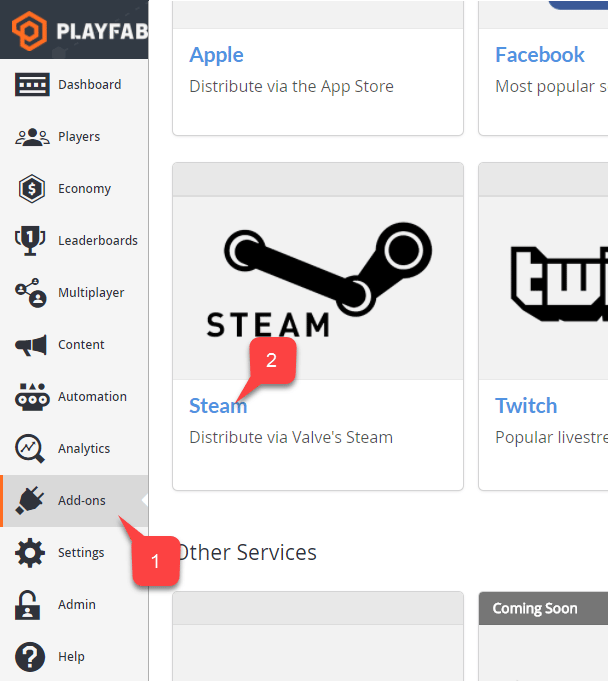
转到你的 **Game Manager** 页面:
1. 选择 **Add-ons** 菜单项。
2. 在可用 **Add-ons** 列表中,找到 **Steam** 并选择 title 链接:
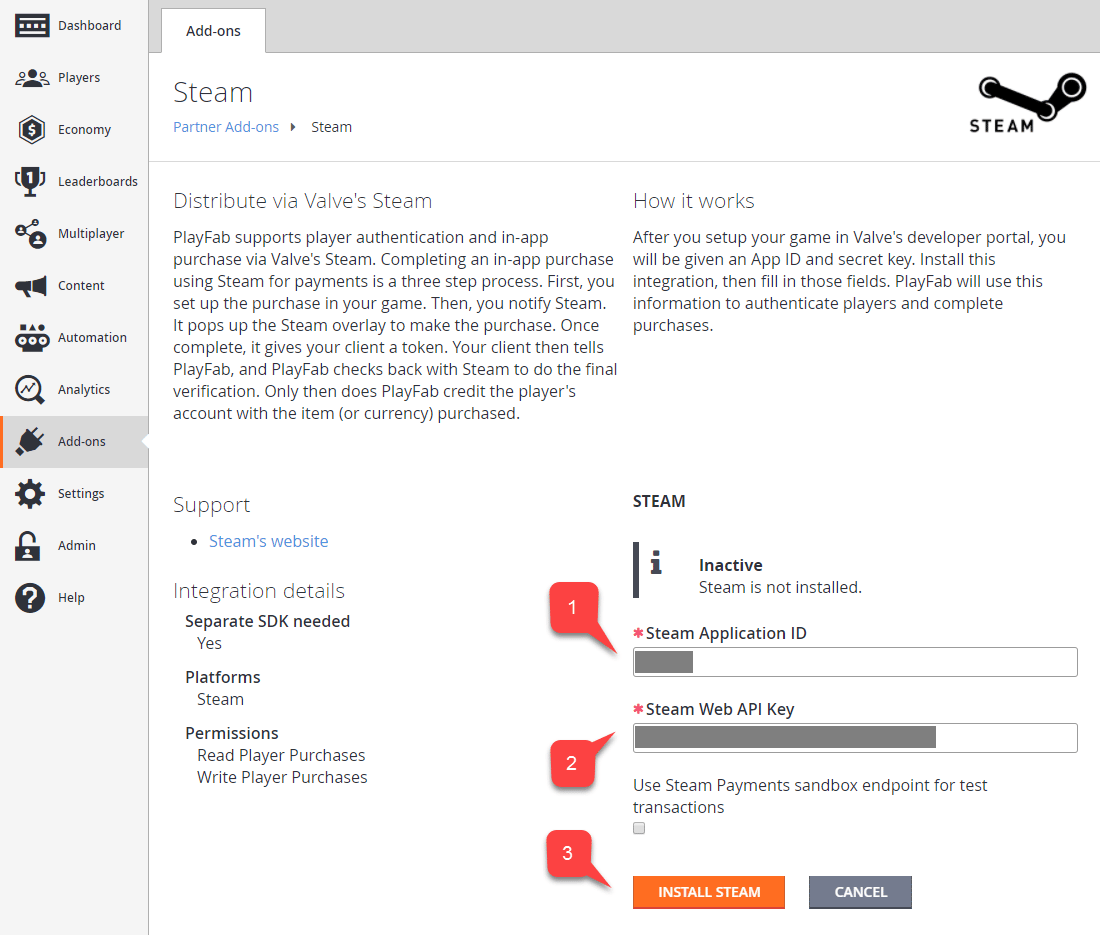
 1. 输入你的 **App ID**。
2. 输入 **Web API Key**。
3. 然后选择 **Install Steam**。
1. 输入你的 **App ID**。
2. 输入 **Web API Key**。
3. 然后选择 **Install Steam**。
 ## 设置 Unity 项目
首先从[发布页面](https://github.com/rlabrecque/Steamworks.NET/releases)下载 Steamworks.NET 的最新版本。
* 获取版本的 Unity Package,并将其导入到项目中。
* 导入包后,关闭 Unity。
* 导航到 **Project** 根文件夹。
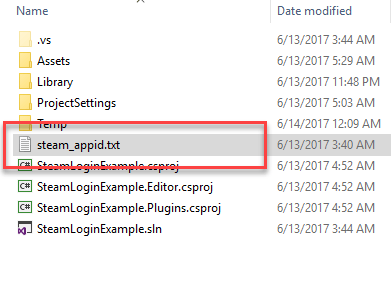
* 找到 **steam\_appid.txt** 文件。
* 打开文件并将 **App ID** 值替换为你自己的值。
## 设置 Unity 项目
首先从[发布页面](https://github.com/rlabrecque/Steamworks.NET/releases)下载 Steamworks.NET 的最新版本。
* 获取版本的 Unity Package,并将其导入到项目中。
* 导入包后,关闭 Unity。
* 导航到 **Project** 根文件夹。
* 找到 **steam\_appid.txt** 文件。
* 打开文件并将 **App ID** 值替换为你自己的值。
 重新打开 Unity 并创建一个新场景。
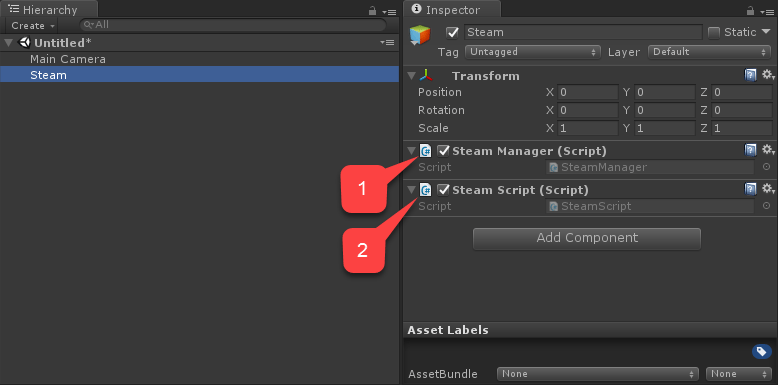
在该场景中,创建一个名为 **Steam** 的新 **GameObject**:
1. 将 **SteamManager** 组件添加到 **GameObject**。此组件是 Steamworks.Net 的一部分。
2. 创建并将 **SteamScript** 组件添加到 **GameObject**。
重新打开 Unity 并创建一个新场景。
在该场景中,创建一个名为 **Steam** 的新 **GameObject**:
1. 将 **SteamManager** 组件添加到 **GameObject**。此组件是 Steamworks.Net 的一部分。
2. 创建并将 **SteamScript** 组件添加到 **GameObject**。
 以下示例显示了 `SteamScript` 组件的代码。
```csharp theme={null}
using System.Text;
using PlayFab;
using PlayFab.ClientModels;
using Steamworks;
using UnityEngine;
public class SteamScript : MonoBehaviour
{
protected Callback m_OnGetSteamAuthTicket;
// Alternatively, you can use this callback if you choose to call SteamUser.GetAuthSessionTicket(...) instead
// TicketIsServiceSpecific in the PlayFabLoginRequest should be false in this case
// protected Callback m_OnGetSteamAuthTicketAlternate;
private HAuthTicket m_hTicket;
public void Awake()
{
m_OnGetSteamAuthTicket = Callback.Create(OnGetSteamAuthTicket);
}
public void OnGUI()
{
if (GUILayout.Button("Log In") && SteamManager.Initialized)
{
GetSteamAuthTicket();
}
}
private void GetSteamAuthTicket()
{
m_hTicket = SteamUser.GetAuthTicketForWebApi("AzurePlayFab");
if (m_hTicket == HAuthTicket.Invalid)
{
Debug.Log("Failed to request steam auth ticket");
}
else
{
Debug.Log("Steam auth ticket requested");
}
}
private void OnGetSteamAuthTicket(GetTicketForWebApiResponse_t pCallback)
{
Debug.Log("Steam auth ticket callback invoked");
if (pCallback.m_eResult != EResult.k_EResultOK)
{
Debug.Log("Failed to get steam auth ticket: " + pCallback.m_eResult);
}
StringBuilder sb = new();
for (int i = 0; i < pCallback.m_cubTicket; ++i)
{
sb.AppendFormat("{0:x2}", pCallback.m_rgubTicket[i]);
}
PlayFabClientAPI.LoginWithSteam(new LoginWithSteamRequest
{
CreateAccount = true,
SteamTicket = sb.ToString(),
TicketIsServiceSpecific = true
}, OnComplete, OnFailed);
}
private void OnComplete(LoginResult obj)
{
SteamUser.CancelAuthTicket(m_hTicket);
Debug.Log("Success!");
}
private void OnFailed(PlayFabError error)
{
SteamUser.CancelAuthTicket(m_hTicket);
Debug.Log("Failed PlayFab login: " + error.GenerateErrorReport());
}
}
```
## 测试
你可以直接在编辑器内进行测试:
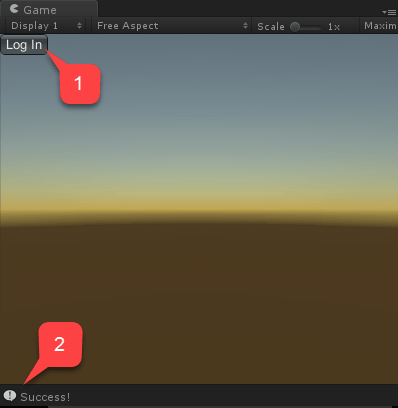
1. 运行场景并选择 **Log In** 按钮。
2. 片刻后控制台消息应出现,指示身份验证结果为 **Success!**。
以下示例显示了 `SteamScript` 组件的代码。
```csharp theme={null}
using System.Text;
using PlayFab;
using PlayFab.ClientModels;
using Steamworks;
using UnityEngine;
public class SteamScript : MonoBehaviour
{
protected Callback m_OnGetSteamAuthTicket;
// Alternatively, you can use this callback if you choose to call SteamUser.GetAuthSessionTicket(...) instead
// TicketIsServiceSpecific in the PlayFabLoginRequest should be false in this case
// protected Callback m_OnGetSteamAuthTicketAlternate;
private HAuthTicket m_hTicket;
public void Awake()
{
m_OnGetSteamAuthTicket = Callback.Create(OnGetSteamAuthTicket);
}
public void OnGUI()
{
if (GUILayout.Button("Log In") && SteamManager.Initialized)
{
GetSteamAuthTicket();
}
}
private void GetSteamAuthTicket()
{
m_hTicket = SteamUser.GetAuthTicketForWebApi("AzurePlayFab");
if (m_hTicket == HAuthTicket.Invalid)
{
Debug.Log("Failed to request steam auth ticket");
}
else
{
Debug.Log("Steam auth ticket requested");
}
}
private void OnGetSteamAuthTicket(GetTicketForWebApiResponse_t pCallback)
{
Debug.Log("Steam auth ticket callback invoked");
if (pCallback.m_eResult != EResult.k_EResultOK)
{
Debug.Log("Failed to get steam auth ticket: " + pCallback.m_eResult);
}
StringBuilder sb = new();
for (int i = 0; i < pCallback.m_cubTicket; ++i)
{
sb.AppendFormat("{0:x2}", pCallback.m_rgubTicket[i]);
}
PlayFabClientAPI.LoginWithSteam(new LoginWithSteamRequest
{
CreateAccount = true,
SteamTicket = sb.ToString(),
TicketIsServiceSpecific = true
}, OnComplete, OnFailed);
}
private void OnComplete(LoginResult obj)
{
SteamUser.CancelAuthTicket(m_hTicket);
Debug.Log("Success!");
}
private void OnFailed(PlayFabError error)
{
SteamUser.CancelAuthTicket(m_hTicket);
Debug.Log("Failed PlayFab login: " + error.GenerateErrorReport());
}
}
```
## 测试
你可以直接在编辑器内进行测试:
1. 运行场景并选择 **Log In** 按钮。
2. 片刻后控制台消息应出现,指示身份验证结果为 **Success!**。
 ## Related topics
- [特定平台的身份验证](/zh-CN/services/playfab/identity/player-identity/platform-specific-authentication/index.md)
- [使用 Facebook 和 Unity 设置 PlayFab 身份验证](/zh-CN/services/playfab/identity/player-identity/platform-specific-authentication/facebook-unity.md)
- [使用 Kongregate 和 Unity 设置 PlayFab 身份验证](/zh-CN/services/playfab/identity/player-identity/platform-specific-authentication/kongregate-unity.md)
- [使用 Google 和 HTML5 设置 PlayFab 身份验证](/zh-CN/services/playfab/identity/player-identity/platform-specific-authentication/google-html5.md)
- [使用 Facebook 和 HTML5 设置 PlayFab 身份验证](/zh-CN/services/playfab/identity/player-identity/platform-specific-authentication/facebook-html5.md)
## Related topics
- [特定平台的身份验证](/zh-CN/services/playfab/identity/player-identity/platform-specific-authentication/index.md)
- [使用 Facebook 和 Unity 设置 PlayFab 身份验证](/zh-CN/services/playfab/identity/player-identity/platform-specific-authentication/facebook-unity.md)
- [使用 Kongregate 和 Unity 设置 PlayFab 身份验证](/zh-CN/services/playfab/identity/player-identity/platform-specific-authentication/kongregate-unity.md)
- [使用 Google 和 HTML5 设置 PlayFab 身份验证](/zh-CN/services/playfab/identity/player-identity/platform-specific-authentication/google-html5.md)
- [使用 Facebook 和 HTML5 设置 PlayFab 身份验证](/zh-CN/services/playfab/identity/player-identity/platform-specific-authentication/facebook-html5.md)