> ## Documentation Index
> Fetch the complete documentation index at: https://devdocs.xbox.com/llms.txt
> Use this file to discover all available pages before exploring further.
# 为测试运行 HTTP 服务器
> 如何安装 Node.js http-server 并在本地提供静态 HTML 文件,以便你可以按照 Facebook、Google 或 Twitch 的 PlayFab 身份验证教程操作。
在某些场景中,你可能需要出于测试目的运行本地 HTTP 服务器。例如,如果你按照我们的教程使用 [Facebook 和 HTML5](/services/playfab/identity/player-identity/platform-specific-authentication/facebook-html5)、[Google 和 HTML5](/services/playfab/identity/player-identity/platform-specific-authentication/google-html5) 或 [Twitch 和 HTML5](/services/playfab/identity/player-identity/platform-specific-authentication/twitch-html5) 设置 PlayFab 身份验证,并且你没有带域名的远程服务器,你可能会发现本教程很有用。
## 先决条件
* 已安装 [Node.JS](https://nodejs.org/en/)
## 使用 npm 安装 HTTP 服务器
在你的系统上运行命令行/终端(当前所在的目录无关紧要)。
执行 `npm install -g http-server`。npm 完成后,你已经安装了小巧的 HTTP-server。就是这样。
## 提供文件
在你希望提供静态文件的位置,在系统上创建一个新文件夹。Windows 上对路径没有具体限制。
在 macOS 上,你可能希望检查对该文件夹的访问权限。在新创建的文件夹内,创建一个名为 **index.html** 的文件。
用下面提供的内容填充该文件。
```html theme={null}
My Page
Hello world!
```
运行**命令行/终端**并 cd 到带有你的 **index.html** 文件的文件夹,然后:
1. 执行 **http-server**。
2. **HTTP-server** 将开始从你的当前目录提供文件。
3. 它还将打印服务器正在监听的所有 **IP** 端点。
4. 使用其中一个通过浏览器访问你的 Web 服务器。
5. 观察你的页面正在加载。
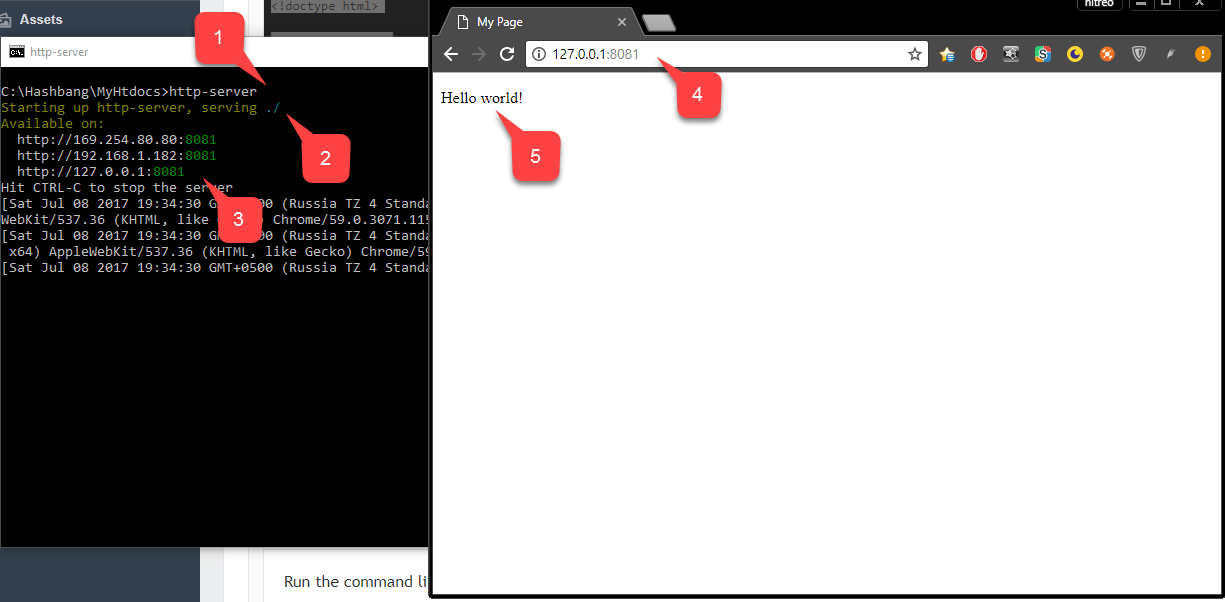 你可以选择指定运行服务器的端口。
* **示例**:执行 `http-server -p 80` 以在**端口 80** 上运行服务器。如果端口被占用,你必须找出使用此端口的应用程序并关闭它,然后再尝试运行 HTTP 服务器。
### 使用自定义域名提供文件
在测试不同的 SDK(例如 [Google](/services/playfab/identity/player-identity/platform-specific-authentication/google-html5) 或 [Facebook](/services/playfab/identity/player-identity/platform-specific-authentication/facebook-html5))时,你会注意到某些服务只能使用某个有效域名进行配置。
例如,它们不接受简单的 IP 地址 + 端口。某些服务使用这种配置来确保你的浏览器从特定的安全域获取你的代码。
它们还经常使用此配置来确保用户只能从你的域登录到你的应用程序,并且没有其他人可以伪造它并窃取用户数据。
虽然这是一项重要且有用的安全限制,但在尝试在本地测试你的代码时可能会产生复杂性。
如果你在端口 80 上运行服务器,且用例足够简单,你可以利用操作系统上的 HOSTS 文件通过有效的域名访问你的 HTTP 服务器。
HOSTS 文件是 Windows 和 macOS 上都可用的特殊文件。它允许你使用自定义端点覆盖某些域名。示意性地,HOSTS 文件如下所示:
```cmd theme={null}
IP_ADDRESS_1 DOMAIN_NAME_1
IP_ADDRESS_2 DOMAIN_NAME_2
IP_ADDRESS_3 DOMAIN_NAME_3
# This is comment
# IP_ADDRESS_4 DOMAIN_NAME_4 <- this entry is commented out and is inactive
...
```
每行代表恰好*一个*条目。当你尝试访问 `DOMAIN_NAME_1` 时,你的浏览器会将你的请求定向到 `IP_ADDRESS_1`。
这同样适用于 HOSTS 文件中的*每个*条目。在上例中,条目 `4` 以 `#` 开头。这是注释的语法。
通过*注释掉*某些条目,你可以禁用它们,而不必将其从 HOSTS 文件中删除。
`playfab.example` 是一个有效的域名,但你的浏览器不太可能使用它访问任何网站。通过将以下条目添加到你的 HOSTS 文件,你将能够使用该域名访问你的本地 HTTP 服务器。
```cmd theme={null}
127.0.0.1 playfab.example
```
如果你使用的不是 80 端口,你将需要将本地服务器启动时创建的端口(例如端口 8080)添加到 URL 末尾 (``)
你可以选择指定运行服务器的端口。
* **示例**:执行 `http-server -p 80` 以在**端口 80** 上运行服务器。如果端口被占用,你必须找出使用此端口的应用程序并关闭它,然后再尝试运行 HTTP 服务器。
### 使用自定义域名提供文件
在测试不同的 SDK(例如 [Google](/services/playfab/identity/player-identity/platform-specific-authentication/google-html5) 或 [Facebook](/services/playfab/identity/player-identity/platform-specific-authentication/facebook-html5))时,你会注意到某些服务只能使用某个有效域名进行配置。
例如,它们不接受简单的 IP 地址 + 端口。某些服务使用这种配置来确保你的浏览器从特定的安全域获取你的代码。
它们还经常使用此配置来确保用户只能从你的域登录到你的应用程序,并且没有其他人可以伪造它并窃取用户数据。
虽然这是一项重要且有用的安全限制,但在尝试在本地测试你的代码时可能会产生复杂性。
如果你在端口 80 上运行服务器,且用例足够简单,你可以利用操作系统上的 HOSTS 文件通过有效的域名访问你的 HTTP 服务器。
HOSTS 文件是 Windows 和 macOS 上都可用的特殊文件。它允许你使用自定义端点覆盖某些域名。示意性地,HOSTS 文件如下所示:
```cmd theme={null}
IP_ADDRESS_1 DOMAIN_NAME_1
IP_ADDRESS_2 DOMAIN_NAME_2
IP_ADDRESS_3 DOMAIN_NAME_3
# This is comment
# IP_ADDRESS_4 DOMAIN_NAME_4 <- this entry is commented out and is inactive
...
```
每行代表恰好*一个*条目。当你尝试访问 `DOMAIN_NAME_1` 时,你的浏览器会将你的请求定向到 `IP_ADDRESS_1`。
这同样适用于 HOSTS 文件中的*每个*条目。在上例中,条目 `4` 以 `#` 开头。这是注释的语法。
通过*注释掉*某些条目,你可以禁用它们,而不必将其从 HOSTS 文件中删除。
`playfab.example` 是一个有效的域名,但你的浏览器不太可能使用它访问任何网站。通过将以下条目添加到你的 HOSTS 文件,你将能够使用该域名访问你的本地 HTTP 服务器。
```cmd theme={null}
127.0.0.1 playfab.example
```
如果你使用的不是 80 端口,你将需要将本地服务器启动时创建的端口(例如端口 8080)添加到 URL 末尾 (``)
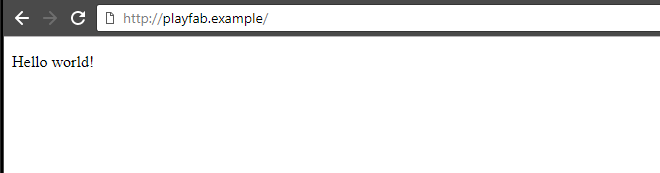 在 Windows 操作系统上,HOSTS 文件通常位于:
`C:\Windows\System32\drivers\etc\hosts`。
在 macOS 上,HOSTS 文件通常位于:
`/private/etc/hosts`。
在浏览器地址栏中输入域名时,请始终确保包含协议:``。
在 Windows 操作系统上,HOSTS 文件通常位于:
`C:\Windows\System32\drivers\etc\hosts`。
在 macOS 上,HOSTS 文件通常位于:
`/private/etc/hosts`。
在浏览器地址栏中输入域名时,请始终确保包含协议:``。