> ## Documentation Index
> Fetch the complete documentation index at: https://devdocs.xbox.com/llms.txt
> Use this file to discover all available pages before exploring further.
# 使用 Facebook 和 Unity 设置 PlayFab 身份验证
> 使用 PlayFab SDK 将 Facebook 登录集成到 Unity 项目中的分步教程,涵盖 Facebook 应用设置和玩家身份验证代码。
本教程指导你完成一个使用 Facebook 和 Unity 进行 PlayFab 身份验证的示例。
## 要求
* [Unity 5+](https://unity3d.com/) 和一个已创建的项目。
* 用于测试的 [Facebook 账户](https://www.facebook.com/)。
* 已导入到项目中的 [Facebook SDK](https://developers.facebook.com/docs/unity/)。
* 已注册的 [PlayFab](https://developer.playfab.com/) title。
* 已导入到项目中且配置了 title 引用的 [PlayFab SDK](https://aka.ms/playfabunitysdkdownload)。
* 熟悉[登录基础和最佳实践](/services/playfab/identity/player-identity/login/login-basics-best-practices)。
## 实现
### 注册 Facebook 应用程序
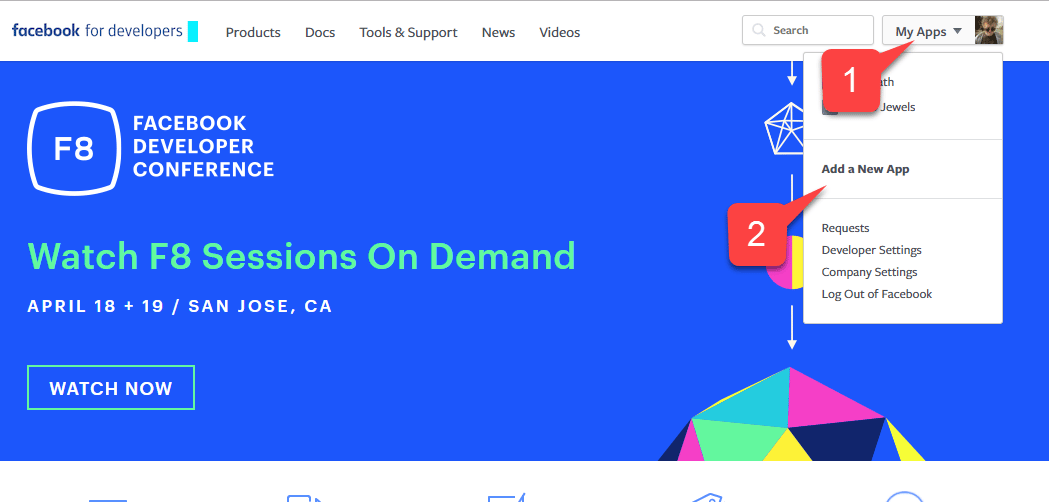
首先导航到 [Facebook Developer Portal](https://developers.facebook.com/):
1. 将鼠标移到 **My Apps** 按钮上。
2. 如下图所示,选择 **Add a New App**。
 一个新的 **Application** 弹窗将打开。
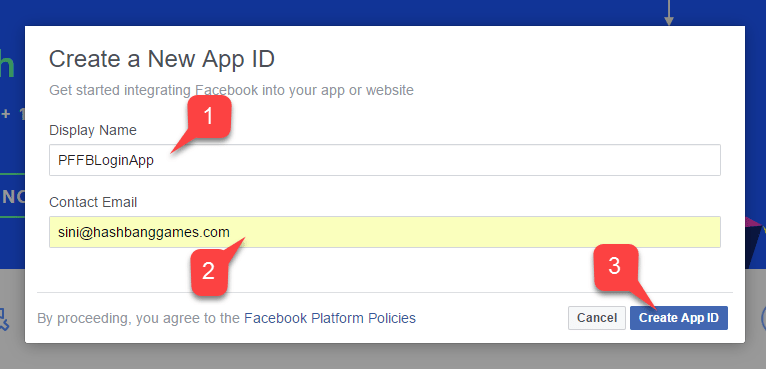
1. 输入你的 **Application** 名称。
2. 输入 **Contact Email**。
请务必设计你自己的*唯一* **Application Name** 和 **Email**,如下图所示。
一个新的 **Application** 弹窗将打开。
1. 输入你的 **Application** 名称。
2. 输入 **Contact Email**。
请务必设计你自己的*唯一* **Application Name** 和 **Email**,如下图所示。
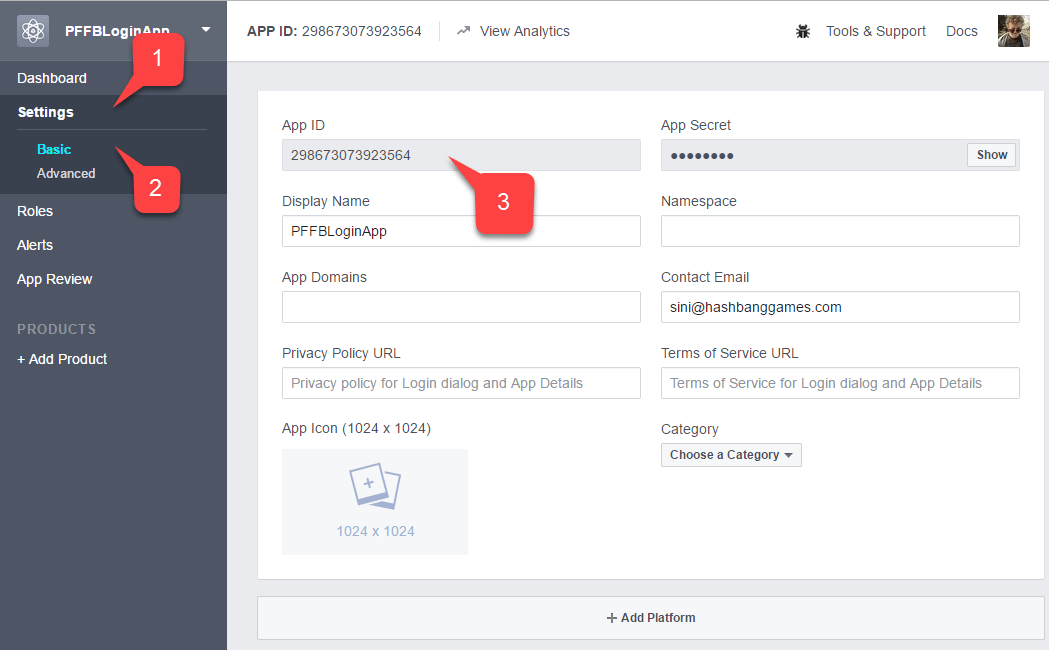
 1. 导航到 **Settings** 选项卡。
2. 然后移动到 **Basic** 子选项卡。
3. 找到你的 **Application ID**。
* 将其复制到易于访问的安全位置。
稍后我们将使用它设置 Facebook SDK。
1. 导航到 **Settings** 选项卡。
2. 然后移动到 **Basic** 子选项卡。
3. 找到你的 **Application ID**。
* 将其复制到易于访问的安全位置。
稍后我们将使用它设置 Facebook SDK。
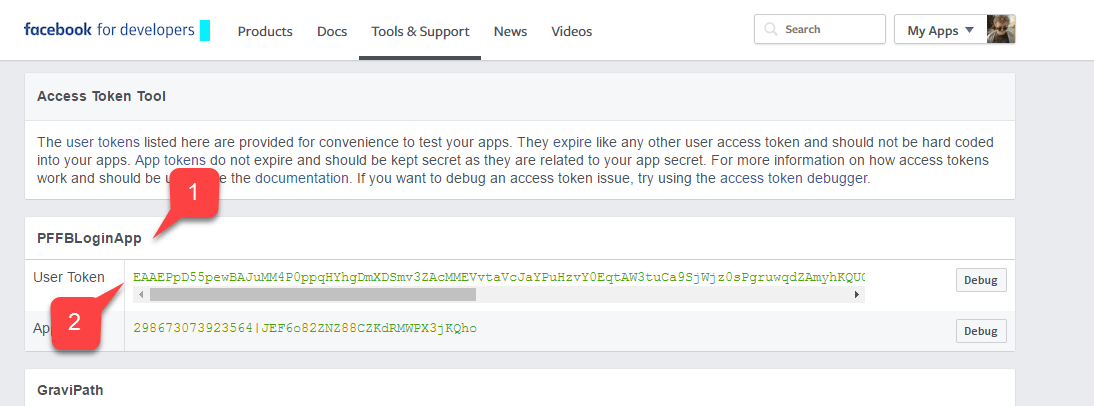
 导航到 [Facebook Access Token Tool](https://developers.facebook.com/tools/accesstoken/)。
1. 在列表中找到你的 **App**。
2. 验证它是否已分配 **User Token**。
如果你*没有*分配的用户令牌,请使用屏幕右侧的按钮请求一个。每当你需要新的用户令牌时,请参阅此页面。如果在 PC 上测试期间授权失败,令牌过期可能是最可能的原因。刷新页面以获取新的用户令牌并重新测试。
导航到 [Facebook Access Token Tool](https://developers.facebook.com/tools/accesstoken/)。
1. 在列表中找到你的 **App**。
2. 验证它是否已分配 **User Token**。
如果你*没有*分配的用户令牌,请使用屏幕右侧的按钮请求一个。每当你需要新的用户令牌时,请参阅此页面。如果在 PC 上测试期间授权失败,令牌过期可能是最可能的原因。刷新页面以获取新的用户令牌并重新测试。
 1. 在你的 **Application Manager** 页面上,导航到 **+ Add Products**。
2. 找到 **Facebook Login** 条目并选择 **Get Started**。
1. 在你的 **Application Manager** 页面上,导航到 **+ Add Products**。
2. 找到 **Facebook Login** 条目并选择 **Get Started**。
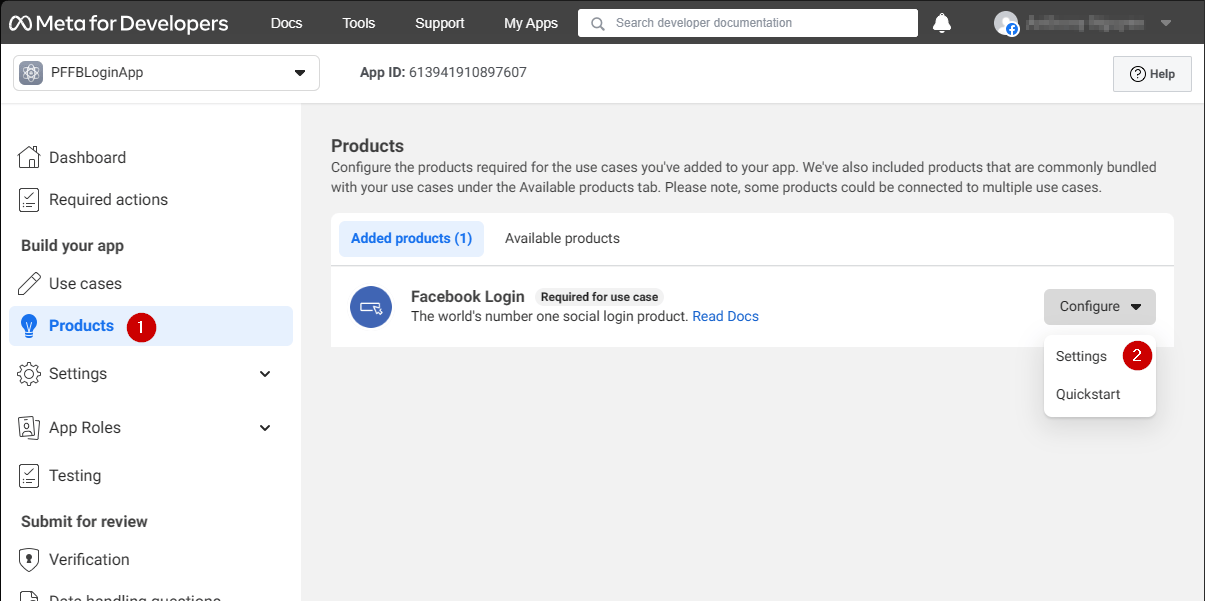 一个包含 **Login** 产品设置的页面应打开。
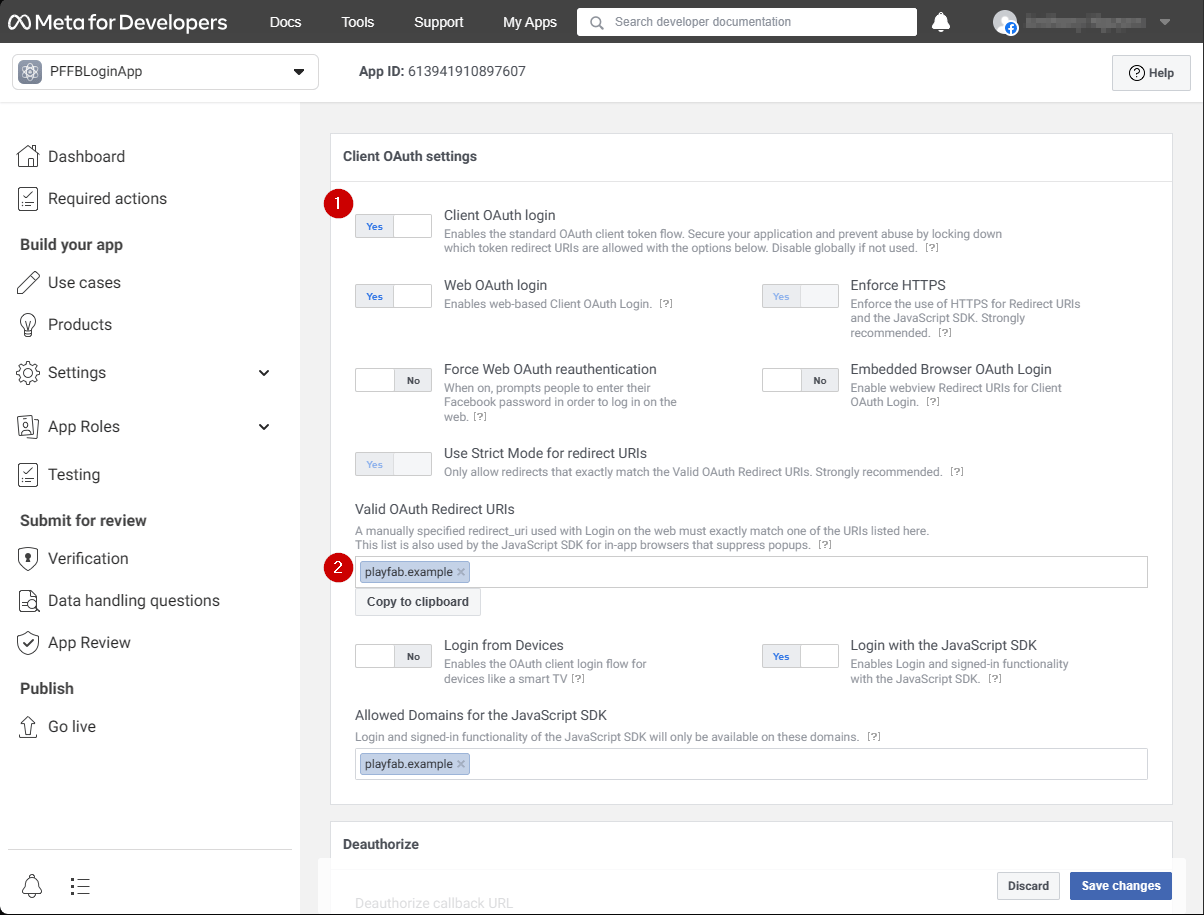
1. 确保你已打开 **Login** 产品的 **Settings** 页面。
2. 验证 **Client OAuth** 和 **Web OAuth** 都已开启。
一个包含 **Login** 产品设置的页面应打开。
1. 确保你已打开 **Login** 产品的 **Settings** 页面。
2. 验证 **Client OAuth** 和 **Web OAuth** 都已开启。
 ### 设置 Facebook SDK
打开你的 **Unity Project**:
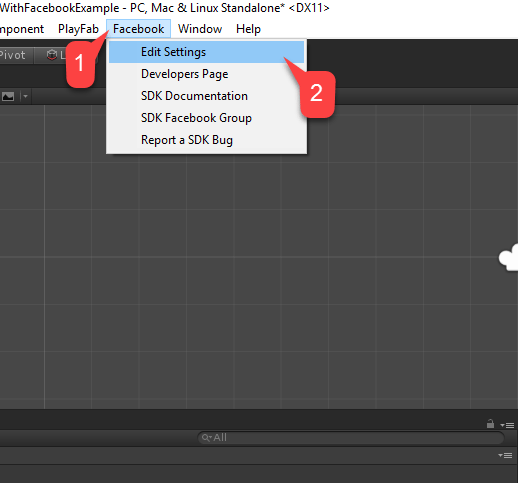
1. 在文件菜单中选择 **Facebook**。
2. 然后选择 **Edit Settings**。
### 设置 Facebook SDK
打开你的 **Unity Project**:
1. 在文件菜单中选择 **Facebook**。
2. 然后选择 **Edit Settings**。
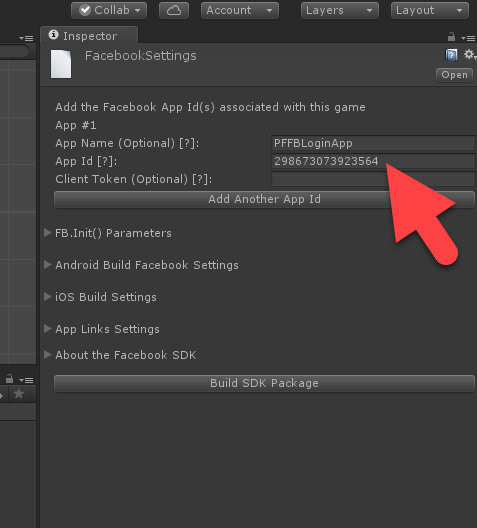
 **Inspector** 窗口将显示当前的 **Facebook SDK** 配置。
* 在相应字段中输入你的 **Application ID**,如下图所示。
**Inspector** 窗口将显示当前的 **Facebook SDK** 配置。
* 在相应字段中输入你的 **Application ID**,如下图所示。
 ### 简单的身份验证脚本
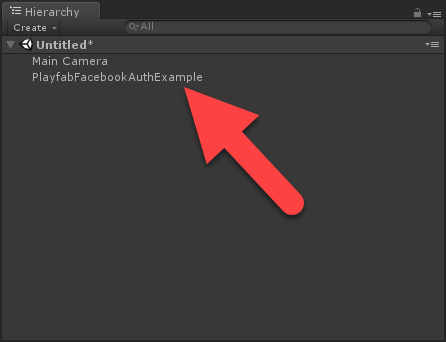
创建一个新的 **Game Object**,并将其重命名为 **PlayfabFacebookAuthExample**,如下图所示。
### 简单的身份验证脚本
创建一个新的 **Game Object**,并将其重命名为 **PlayfabFacebookAuthExample**,如下图所示。
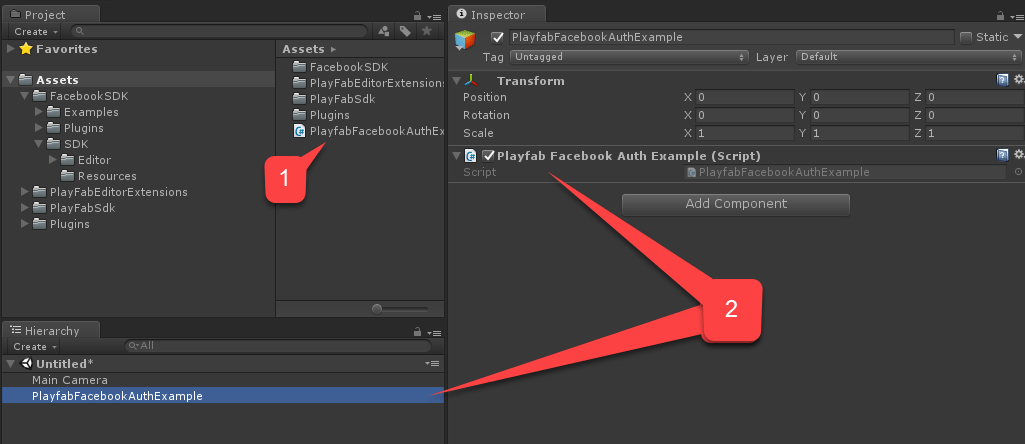
 1. 创建一个名为 **PlayfabFacebookAuthExample.cs** 的脚本。
2. 将其添加到 **Game Object** 中,如下图所示。
1. 创建一个名为 **PlayfabFacebookAuthExample.cs** 的脚本。
2. 将其添加到 **Game Object** 中,如下图所示。
 在 `PlayfabFacebookAuthExample.cs` 内放置以下代码。
```csharp theme={null}
// Import statements introduce all the necessary classes for this example.
using Facebook.Unity;
using PlayFab;
using PlayFab.ClientModels;
using UnityEngine;
using LoginResult = PlayFab.ClientModels.LoginResult;
public class PlayfabFacebookAuthExample : MonoBehaviour
{
// holds the latest message to be displayed on the screen
private string _message;
public void Start()
{
SetMessage("Initializing Facebook..."); // logs the given message and displays it on the screen using OnGUI method
// This call is required before any other calls to the Facebook API. We pass in the callback to be invoked once initialization is finished
FB.Init(OnFacebookInitialized);
}
private void OnFacebookInitialized()
{
SetMessage("Logging into Facebook...");
// Once Facebook SDK is initialized, if we are logged in, we log out to demonstrate the entire authentication cycle.
if (FB.IsLoggedIn)
FB.LogOut();
// We invoke basic login procedure and pass in the callback to process the result
FB.LogInWithReadPermissions(null, OnFacebookLoggedIn);
}
private void OnFacebookLoggedIn(ILoginResult result)
{
// If result has no errors, it means we have authenticated in Facebook successfully
if (result == null || string.IsNullOrEmpty(result.Error))
{
SetMessage("Facebook Auth Complete! Access Token: " + AccessToken.CurrentAccessToken.TokenString + "\nLogging into PlayFab...");
/*
* We proceed with making a call to PlayFab API. We pass in current Facebook AccessToken and let it create
* and account using CreateAccount flag set to true. We also pass the callback for Success and Failure results
*/
PlayFabClientAPI.LoginWithFacebook(new LoginWithFacebookRequest { CreateAccount = true, AccessToken = AccessToken.CurrentAccessToken.TokenString},
OnPlayfabFacebookAuthComplete, OnPlayfabFacebookAuthFailed);
}
else
{
// If Facebook authentication failed, we stop the cycle with the message
SetMessage("Facebook Auth Failed: " + result.Error + "\n" + result.RawResult, true);
}
}
// When processing both results, we just set the message, explaining what's going on.
private void OnPlayfabFacebookAuthComplete(LoginResult result)
{
SetMessage("PlayFab Facebook Auth Complete. Session ticket: " + result.SessionTicket);
}
private void OnPlayfabFacebookAuthFailed(PlayFabError error)
{
SetMessage("PlayFab Facebook Auth Failed: " + error.GenerateErrorReport(), true);
}
public void SetMessage(string message, bool error = false)
{
_message = message;
if (error)
Debug.LogError(_message);
else
Debug.Log(_message);
}
public void OnGUI()
{
var style = new GUIStyle { fontSize = 40, normal = new GUIStyleState { textColor = Color.white }, alignment = TextAnchor.MiddleCenter, wordWrap = true };
var area = new Rect(0,0,Screen.width,Screen.height);
GUI.Label(area, _message,style);
}
}
```
## 测试
### 在编辑器中运行应用程序
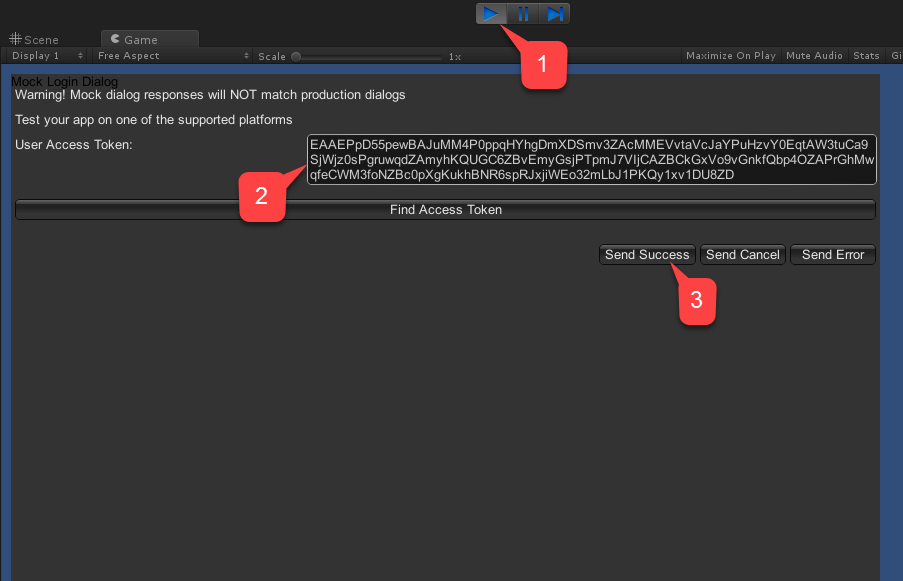
1. 选择 **Play** 按钮。**Facebook** 初始化后(并进行身份验证调用),你的游戏视图中将出现一个 **Facebook** 身份验证对话框。
2. 输入 **User Token**。
3. 选择 **Send Success** 按钮,如下图所示。
在 `PlayfabFacebookAuthExample.cs` 内放置以下代码。
```csharp theme={null}
// Import statements introduce all the necessary classes for this example.
using Facebook.Unity;
using PlayFab;
using PlayFab.ClientModels;
using UnityEngine;
using LoginResult = PlayFab.ClientModels.LoginResult;
public class PlayfabFacebookAuthExample : MonoBehaviour
{
// holds the latest message to be displayed on the screen
private string _message;
public void Start()
{
SetMessage("Initializing Facebook..."); // logs the given message and displays it on the screen using OnGUI method
// This call is required before any other calls to the Facebook API. We pass in the callback to be invoked once initialization is finished
FB.Init(OnFacebookInitialized);
}
private void OnFacebookInitialized()
{
SetMessage("Logging into Facebook...");
// Once Facebook SDK is initialized, if we are logged in, we log out to demonstrate the entire authentication cycle.
if (FB.IsLoggedIn)
FB.LogOut();
// We invoke basic login procedure and pass in the callback to process the result
FB.LogInWithReadPermissions(null, OnFacebookLoggedIn);
}
private void OnFacebookLoggedIn(ILoginResult result)
{
// If result has no errors, it means we have authenticated in Facebook successfully
if (result == null || string.IsNullOrEmpty(result.Error))
{
SetMessage("Facebook Auth Complete! Access Token: " + AccessToken.CurrentAccessToken.TokenString + "\nLogging into PlayFab...");
/*
* We proceed with making a call to PlayFab API. We pass in current Facebook AccessToken and let it create
* and account using CreateAccount flag set to true. We also pass the callback for Success and Failure results
*/
PlayFabClientAPI.LoginWithFacebook(new LoginWithFacebookRequest { CreateAccount = true, AccessToken = AccessToken.CurrentAccessToken.TokenString},
OnPlayfabFacebookAuthComplete, OnPlayfabFacebookAuthFailed);
}
else
{
// If Facebook authentication failed, we stop the cycle with the message
SetMessage("Facebook Auth Failed: " + result.Error + "\n" + result.RawResult, true);
}
}
// When processing both results, we just set the message, explaining what's going on.
private void OnPlayfabFacebookAuthComplete(LoginResult result)
{
SetMessage("PlayFab Facebook Auth Complete. Session ticket: " + result.SessionTicket);
}
private void OnPlayfabFacebookAuthFailed(PlayFabError error)
{
SetMessage("PlayFab Facebook Auth Failed: " + error.GenerateErrorReport(), true);
}
public void SetMessage(string message, bool error = false)
{
_message = message;
if (error)
Debug.LogError(_message);
else
Debug.Log(_message);
}
public void OnGUI()
{
var style = new GUIStyle { fontSize = 40, normal = new GUIStyleState { textColor = Color.white }, alignment = TextAnchor.MiddleCenter, wordWrap = true };
var area = new Rect(0,0,Screen.width,Screen.height);
GUI.Label(area, _message,style);
}
}
```
## 测试
### 在编辑器中运行应用程序
1. 选择 **Play** 按钮。**Facebook** 初始化后(并进行身份验证调用),你的游戏视图中将出现一个 **Facebook** 身份验证对话框。
2. 输入 **User Token**。
3. 选择 **Send Success** 按钮,如下图所示。
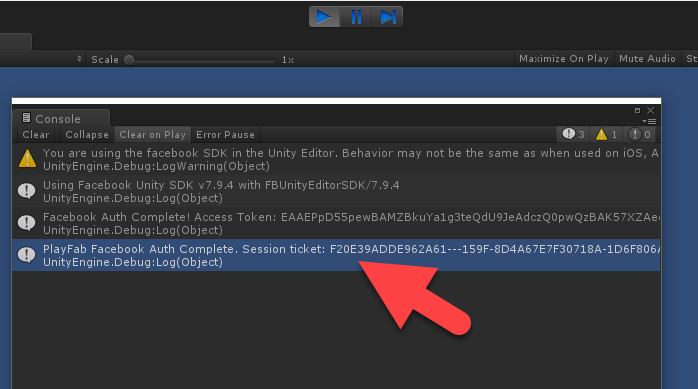
 * 检查控制台输出。它应显示我们的调试语句,如下图所示。
* 如果没有看到错误,则表示身份验证成功。
* 检查控制台输出。它应显示我们的调试语句,如下图所示。
* 如果没有看到错误,则表示身份验证成功。
 ### 在 Android 上运行应用程序
在 Android 上启动应用程序之前,你需要执行其他配置步骤:
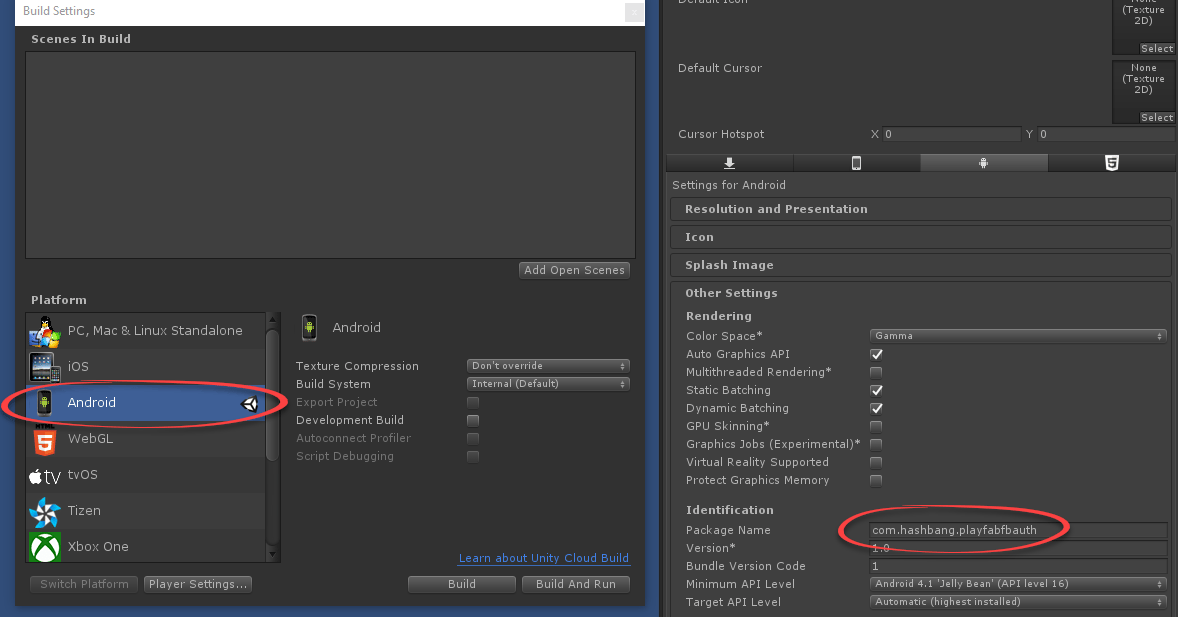
* 首先,你需要确保你已选择 Android 平台,并设置了唯一的 **Package ID**(如下例所示)。
请务必创建你自己的*唯一* **Package ID**。
### 在 Android 上运行应用程序
在 Android 上启动应用程序之前,你需要执行其他配置步骤:
* 首先,你需要确保你已选择 Android 平台,并设置了唯一的 **Package ID**(如下例所示)。
请务必创建你自己的*唯一* **Package ID**。
 **可选步骤**:安装 [Open SSL](https://wiki.openssl.org/index.php/Binaries) 并将其添加到 **PATH** 环境变量。如果缺失,Unity 将在构建期间产生无害的错误。此错误*不会*停止构建或影响执行。
接下来,在你的 **Facebook Application** 控制台中:
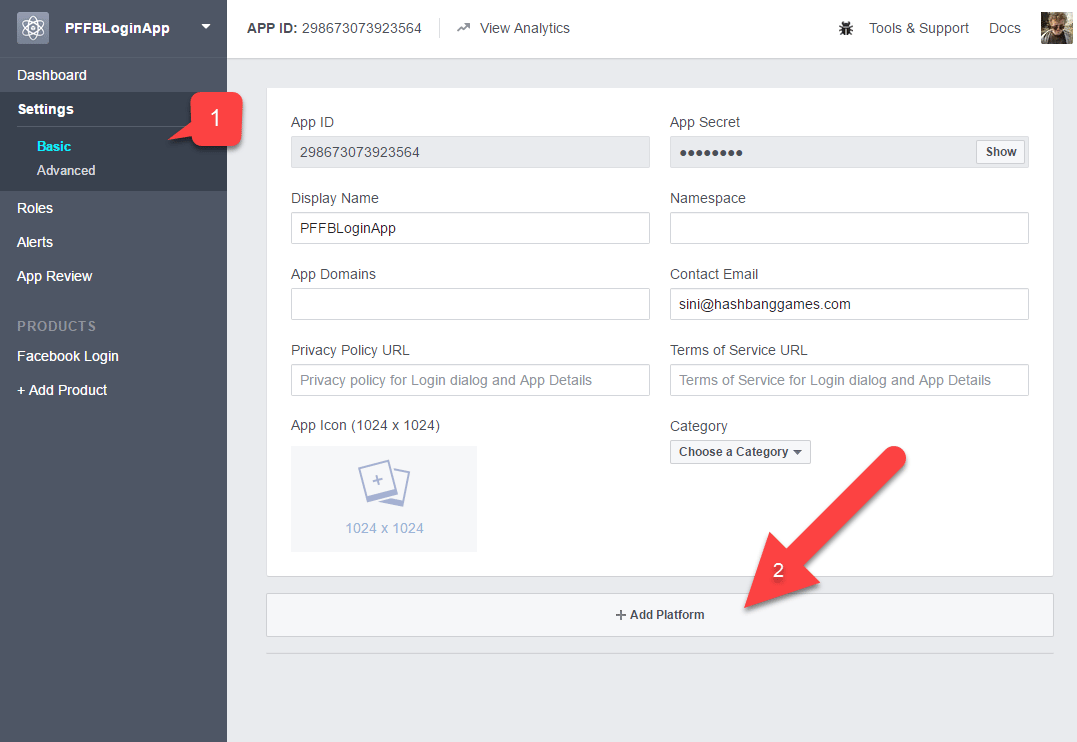
1. 导航到 **Basic** 设置。
2. 如下例所示,选择 **+ Add Platform**。
**可选步骤**:安装 [Open SSL](https://wiki.openssl.org/index.php/Binaries) 并将其添加到 **PATH** 环境变量。如果缺失,Unity 将在构建期间产生无害的错误。此错误*不会*停止构建或影响执行。
接下来,在你的 **Facebook Application** 控制台中:
1. 导航到 **Basic** 设置。
2. 如下例所示,选择 **+ Add Platform**。
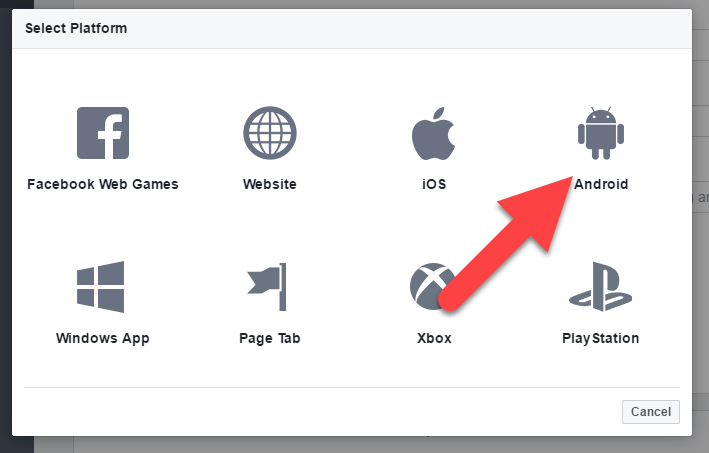
 * 然后从可用平台列表中选择 **Android**。
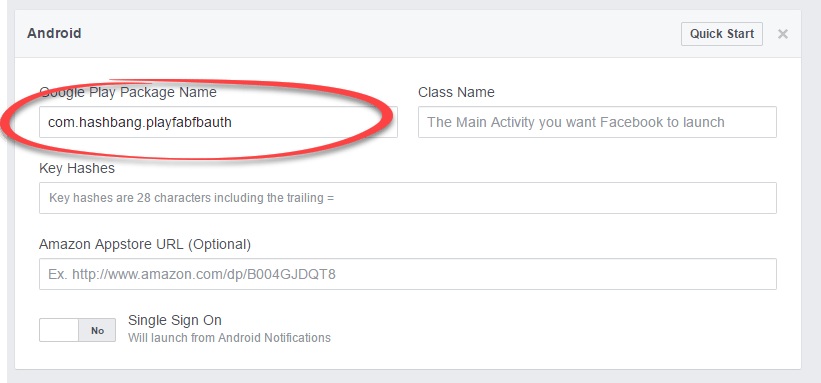
 带有平台特定设置的面板将出现。
* 填写你的 **Package ID**。
* 选择 **Save**(**Save** 按钮隐藏在页面右下角)。
带有平台特定设置的面板将出现。
* 填写你的 **Package ID**。
* 选择 **Save**(**Save** 按钮隐藏在页面右下角)。
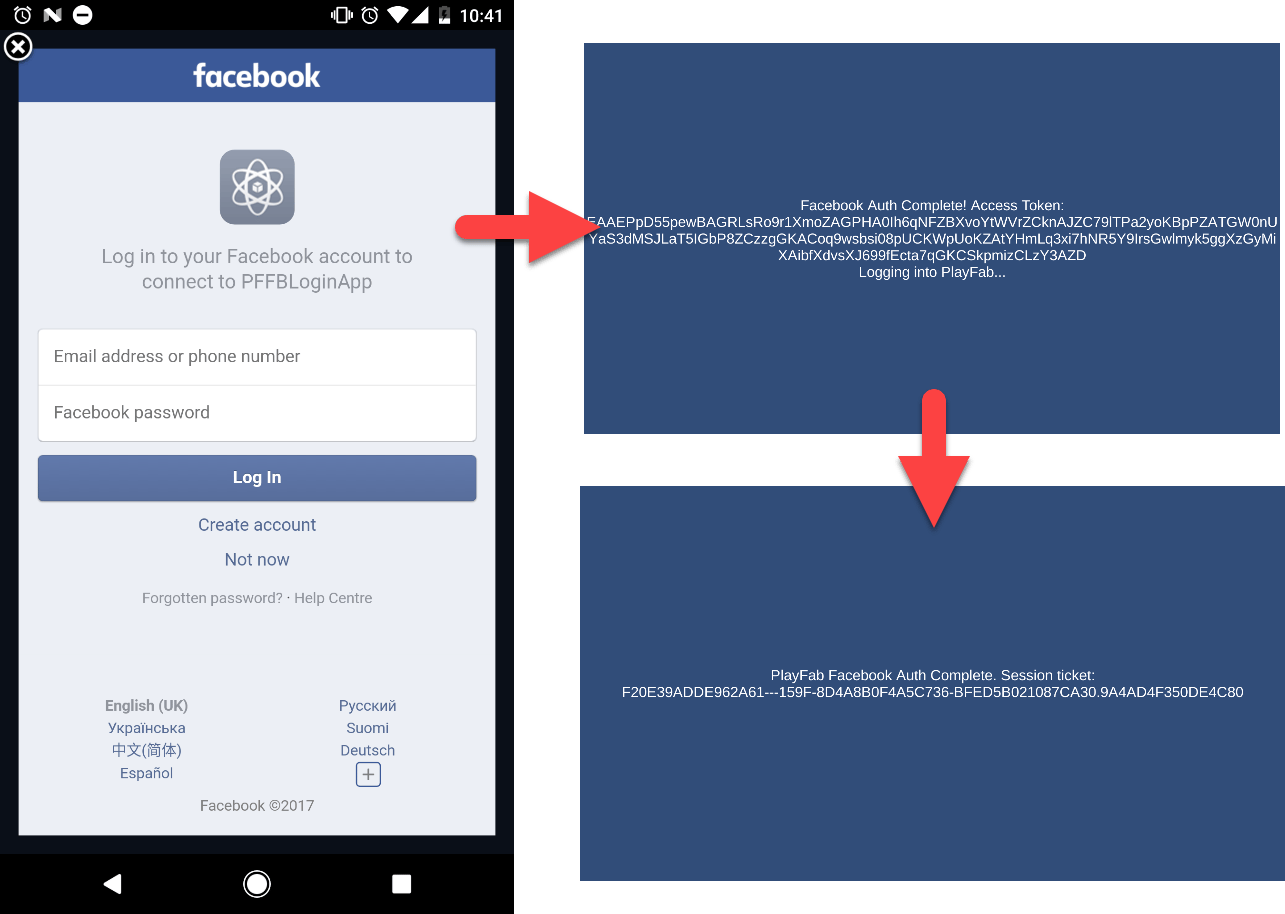
 像往常一样在你的 Android 设备上构建并运行应用程序。
* 应用程序应欢迎你出现一个 Facebook 登录页面。
* 登录后,观察屏幕上的消息如何变化。
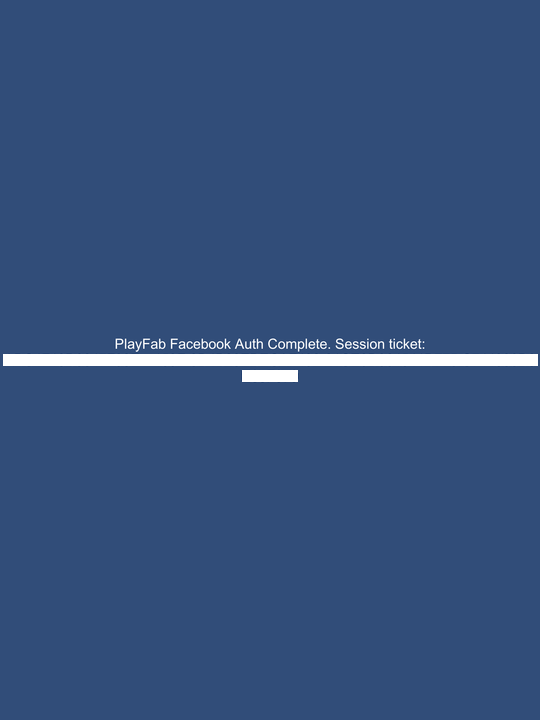
* 最后,你应该看到一条消息,表明在 PlayFab 中身份验证成功。整个过程如下例所示。
像往常一样在你的 Android 设备上构建并运行应用程序。
* 应用程序应欢迎你出现一个 Facebook 登录页面。
* 登录后,观察屏幕上的消息如何变化。
* 最后,你应该看到一条消息,表明在 PlayFab 中身份验证成功。整个过程如下例所示。
 ### 在 iOS 上运行应用程序
在 iOS 上启动应用程序之前,你必须执行其他配置步骤。
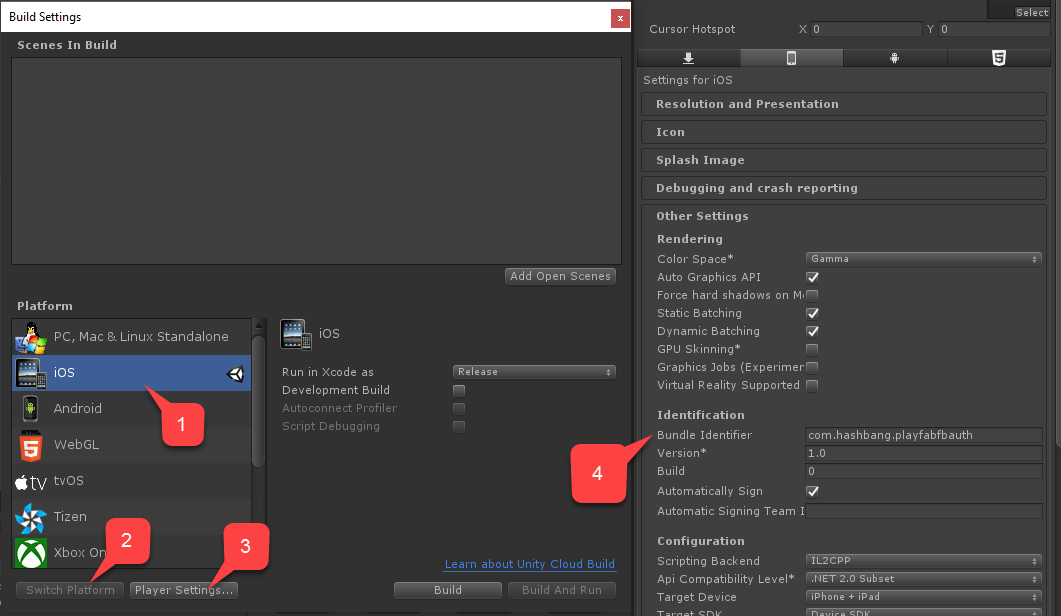
* 首先,确保你已选择 **iOS** 平台。
* 然后,如下例所示,设置一个唯一的 **Bundle ID**。
* 请务必创建你自己的*唯一* **Package ID**。
### 在 iOS 上运行应用程序
在 iOS 上启动应用程序之前,你必须执行其他配置步骤。
* 首先,确保你已选择 **iOS** 平台。
* 然后,如下例所示,设置一个唯一的 **Bundle ID**。
* 请务必创建你自己的*唯一* **Package ID**。
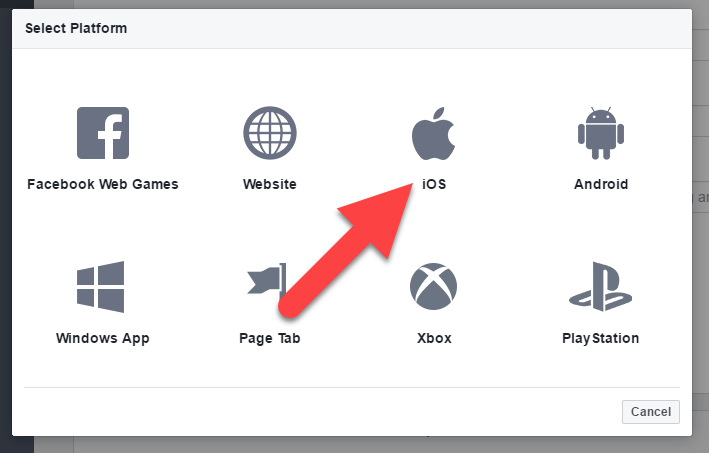
 接下来,在你的 **Facebook Application Console** 中:
1. 导航到 **Basic** 设置。
2. 如下例所示,选择 **+ Add Platform**。
* 从可用平台列表中选择 **iOS**。
接下来,在你的 **Facebook Application Console** 中:
1. 导航到 **Basic** 设置。
2. 如下例所示,选择 **+ Add Platform**。
* 从可用平台列表中选择 **iOS**。
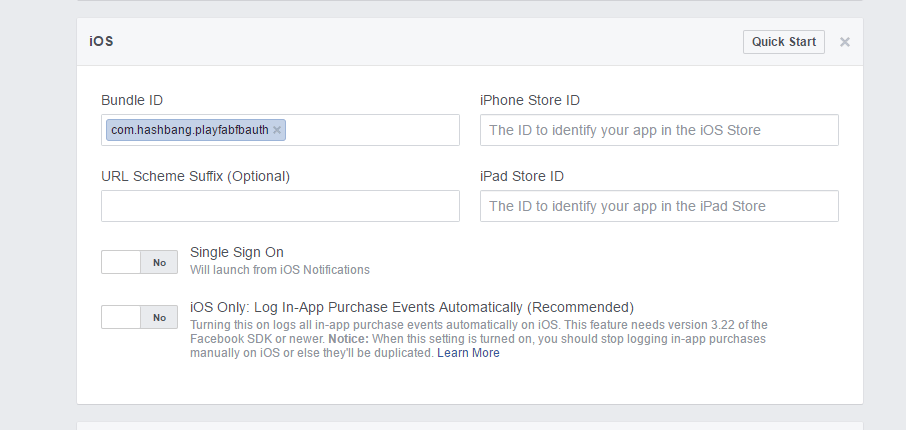
 带有平台特定设置的面板将出现。
* 填写你的 **Package ID**。
* 选择 **Save** 按钮(**Save** 按钮隐藏在页面右下角)。
带有平台特定设置的面板将出现。
* 填写你的 **Package ID**。
* 选择 **Save** 按钮(**Save** 按钮隐藏在页面右下角)。
 * 接下来,像往常一样构建应用程序。
* 完成后,使用 **XCode** 打开 **Project**。
* 接下来,像往常一样构建应用程序。
* 完成后,使用 **XCode** 打开 **Project**。
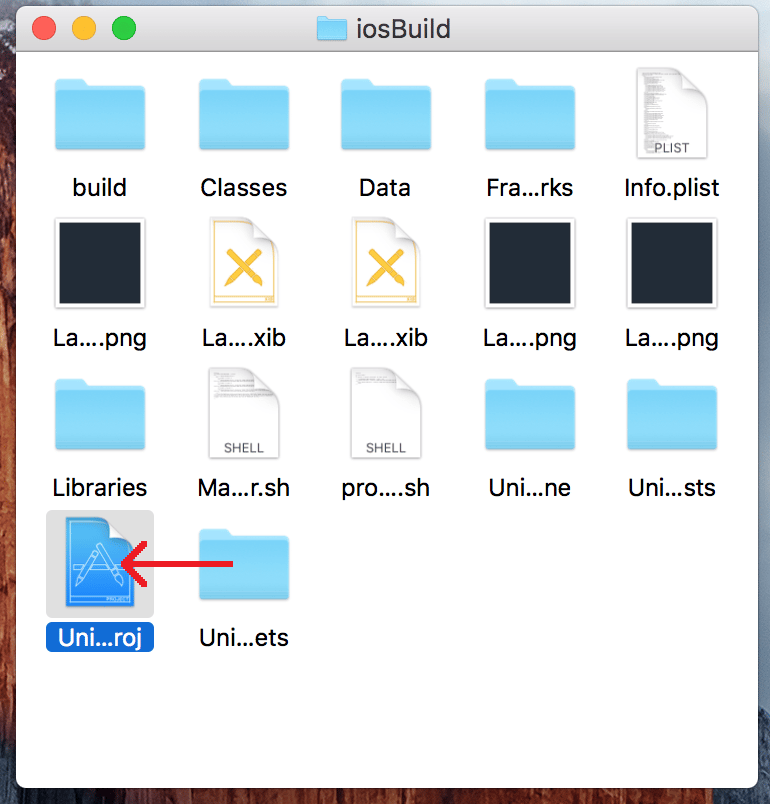 * 选择 **Project** 打开 **Project Settings**。
* 验证 **Bundle ID** 与你的唯一 **Package ID** 匹配。
* 选择 **Project** 打开 **Project Settings**。
* 验证 **Bundle ID** 与你的唯一 **Package ID** 匹配。
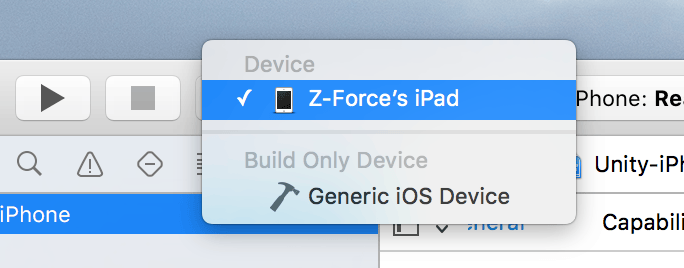
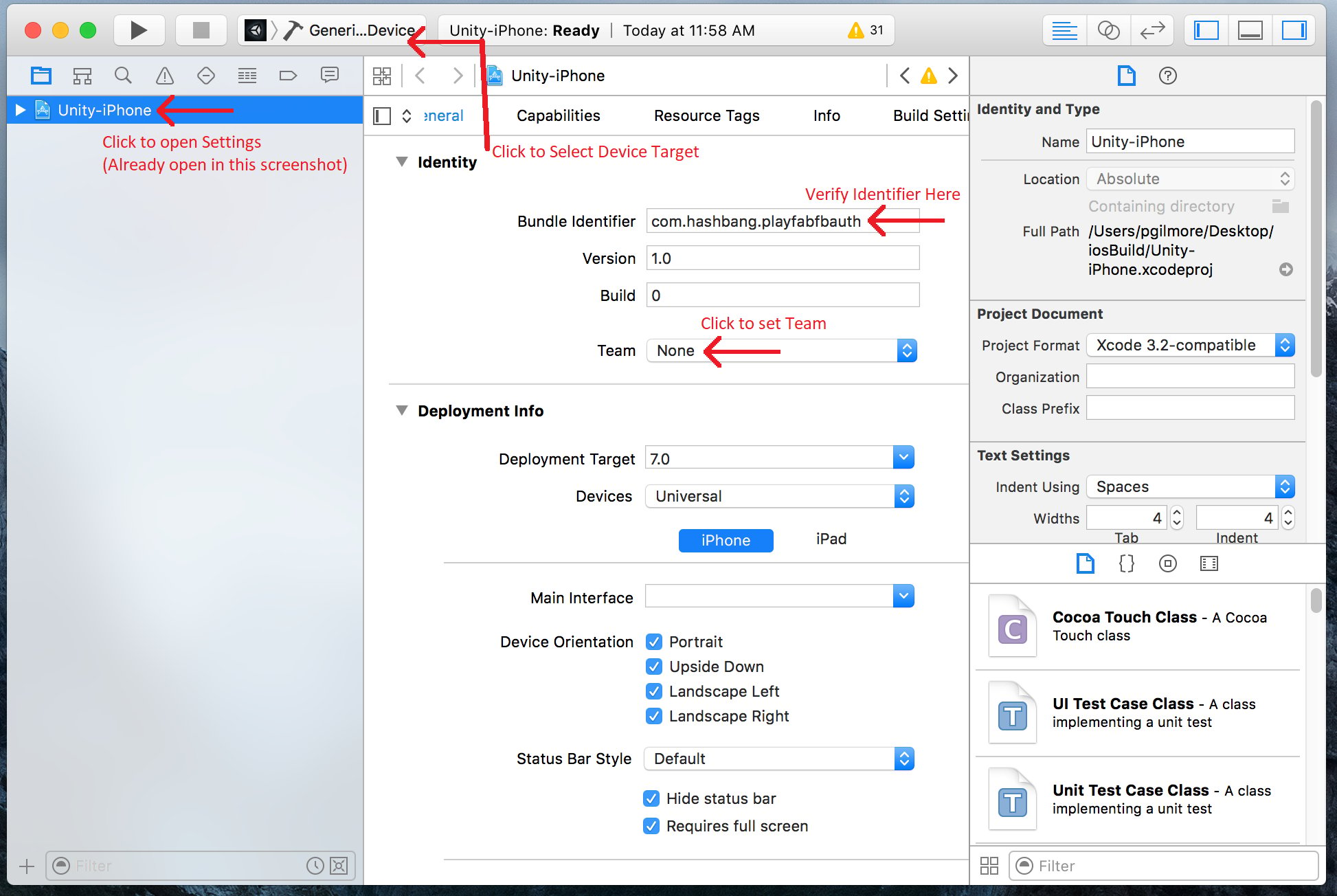 * 请务必选择正确的设备。
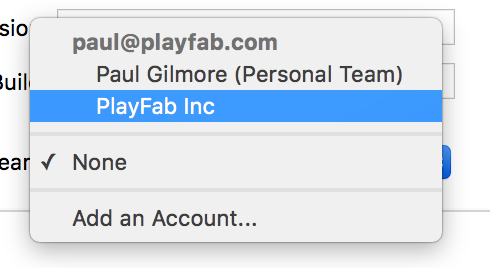
 * 并选择正确的 **Identity Team**。
 最后,像往常一样运行应用程序。
* 一旦启动,应用程序将允许你使用 Web 浏览器登录 Facebook。
* 完成后,将调用 PlayFab 身份验证,并显示一条指示结果的消息。
最后,像往常一样运行应用程序。
* 一旦启动,应用程序将允许你使用 Web 浏览器登录 Facebook。
* 完成后,将调用 PlayFab 身份验证,并显示一条指示结果的消息。
 ### 通过 PlayFab Game Manager 检查
在 Game Manager 中打开你的 PlayFab title。
* 导航到仪表板。
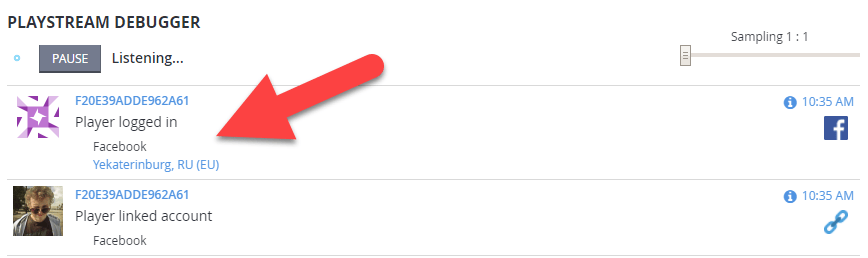
* 参考 **PlayStream Debugger** 面板检查最新事件。你应该看到 Facebook 身份验证事件,如下例所示。
### 通过 PlayFab Game Manager 检查
在 Game Manager 中打开你的 PlayFab title。
* 导航到仪表板。
* 参考 **PlayStream Debugger** 面板检查最新事件。你应该看到 Facebook 身份验证事件,如下例所示。
 至此,你已成功为 PlayFab 集成 Facebook 身份验证。
## Related topics
- [特定平台的身份验证](/zh-CN/services/playfab/identity/player-identity/platform-specific-authentication/index.md)
- [使用 Facebook 和 HTML5 设置 PlayFab 身份验证](/zh-CN/services/playfab/identity/player-identity/platform-specific-authentication/facebook-html5.md)
- [使用 Steam 和 Unity 设置 PlayFab 身份验证](/zh-CN/services/playfab/identity/player-identity/platform-specific-authentication/steam-unity.md)
- [使用 Kongregate 和 Unity 设置 PlayFab 身份验证](/zh-CN/services/playfab/identity/player-identity/platform-specific-authentication/kongregate-unity.md)
- [使用 Google 和 HTML5 设置 PlayFab 身份验证](/zh-CN/services/playfab/identity/player-identity/platform-specific-authentication/google-html5.md)
至此,你已成功为 PlayFab 集成 Facebook 身份验证。
## Related topics
- [特定平台的身份验证](/zh-CN/services/playfab/identity/player-identity/platform-specific-authentication/index.md)
- [使用 Facebook 和 HTML5 设置 PlayFab 身份验证](/zh-CN/services/playfab/identity/player-identity/platform-specific-authentication/facebook-html5.md)
- [使用 Steam 和 Unity 设置 PlayFab 身份验证](/zh-CN/services/playfab/identity/player-identity/platform-specific-authentication/steam-unity.md)
- [使用 Kongregate 和 Unity 设置 PlayFab 身份验证](/zh-CN/services/playfab/identity/player-identity/platform-specific-authentication/kongregate-unity.md)
- [使用 Google 和 HTML5 设置 PlayFab 身份验证](/zh-CN/services/playfab/identity/player-identity/platform-specific-authentication/google-html5.md)