> ## Documentation Index
> Fetch the complete documentation index at: https://devdocs.xbox.com/llms.txt
> Use this file to discover all available pages before exploring further.
# 双重身份验证
> 通过在设备上配对身份验证器应用以启用双重登录验证,为你的 PlayFab Game Manager 帐户添加额外一层安全性。
双重身份验证允许你通过在身份验证过程中添加一个额外步骤,来增强 PlayFab Game Manager 帐户的安全性。
它通过在身份验证过程中添加一个设备因素来实现这一点,这只有在你拥有为此目的专门注册的某个设备时,才允许你进行身份验证。
## 配置双重身份验证
在你的设备上安装一个**双重身份验证**应用。你可以搜索你自己的应用,或者从以下列表中选择你的平台:
* [iPhone、iPad 和 iPod Touch](https://itunes.apple.com/us/app/google-authenticator/id388497605?mt=8)
* [Android 手机或平板](https://play.google.com/store/apps/details?id=com.google.android.apps.authenticator2)
* [Windows 手机或平板](https://www.windowsphone.com/store/app/authenticator/e7994dbc-2336-4950-91ba-ca22d653759b)
所有平台上的步骤基本相似。此示例展示了一台基于 Android 的设备和 Google Authenticator 应用。
下载该应用后:
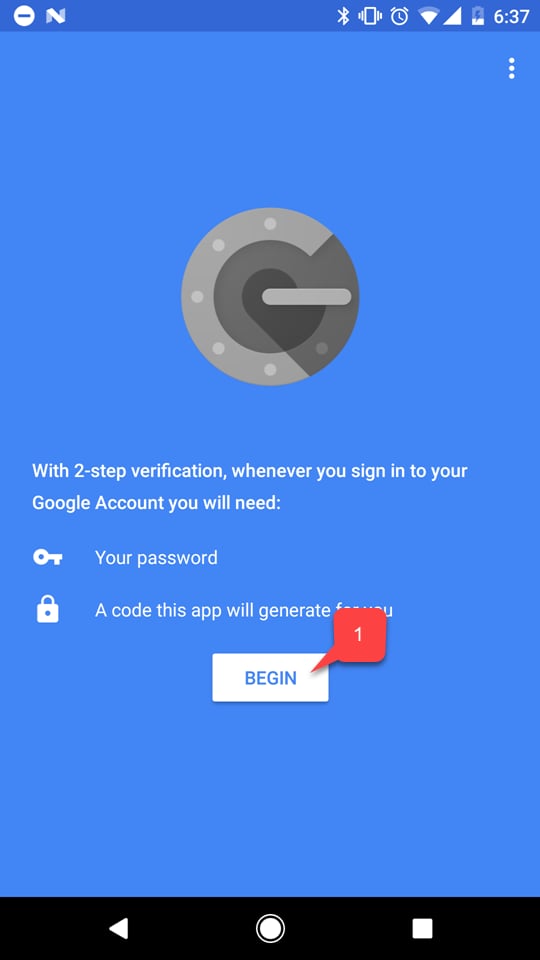
* 打开它并按照说明操作。
* 选择 **Begin** 按钮 **(1)**。
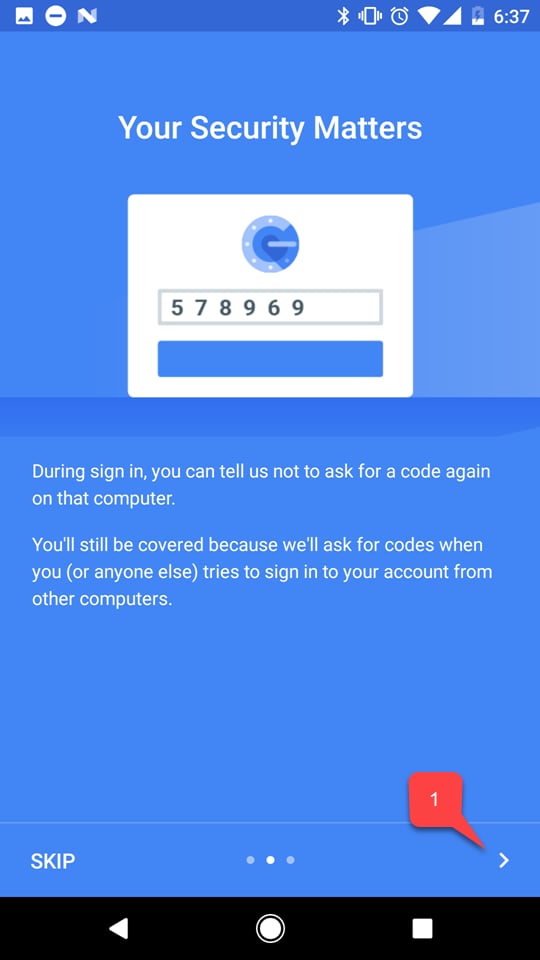
 如果有的话,按照该应用的教程进行 **(1)**。
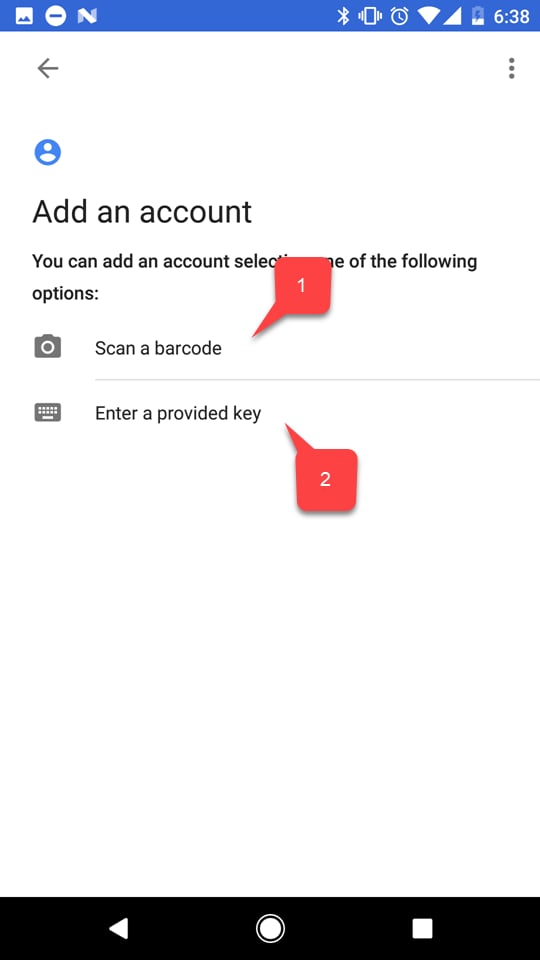
 * 然后选择两个选项之一来添加你的 PlayFab 帐户:
* 扫描**二维码 (1)**。
* 或手动输入**密钥 (2)**。
* 然后选择两个选项之一来添加你的 PlayFab 帐户:
* 扫描**二维码 (1)**。
* 或手动输入**密钥 (2)**。
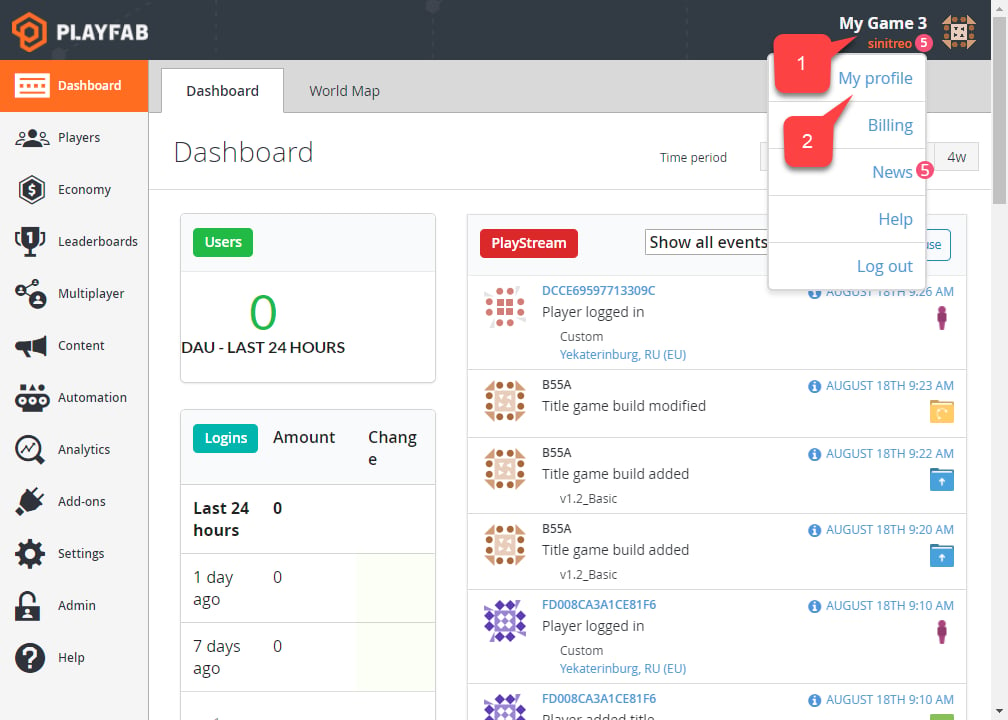
 无论你选择哪个选项,都请转到 PlayFab 网站并导航到 **Game Manager**。在 **Dashboard** 选项卡上:
* 选择 **Account** 面板 **(1)**。
* 然后选择 **My Profile (2)**。
无论你选择哪个选项,都请转到 PlayFab 网站并导航到 **Game Manager**。在 **Dashboard** 选项卡上:
* 选择 **Account** 面板 **(1)**。
* 然后选择 **My Profile (2)**。
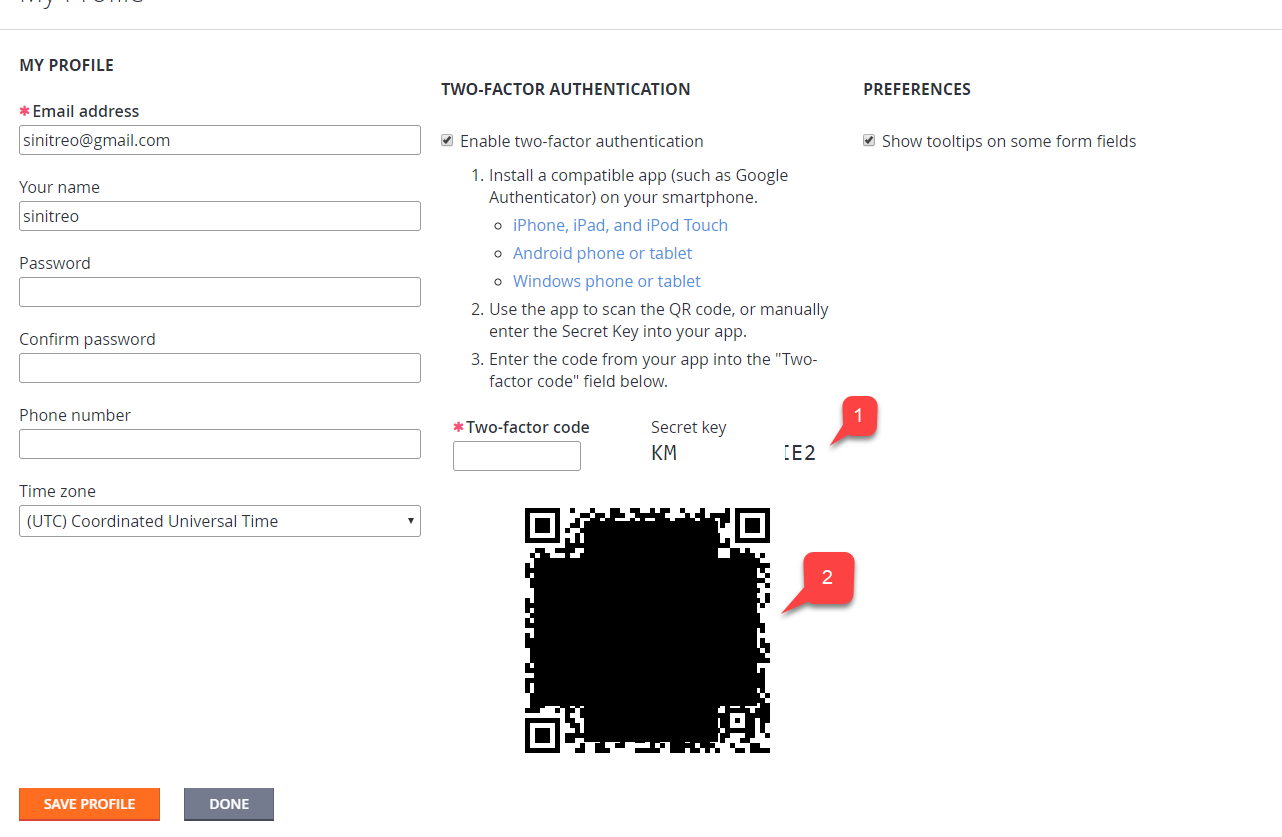
 **Account** 设置将打开。
* 验证 **Enable two-factor authentication** 复选框已被选中。
* 根据你选择的选项,使用**代码 (1)** 或**二维码 (2)** 使用你设备上的应用添加新帐户。
**Account** 设置将打开。
* 验证 **Enable two-factor authentication** 复选框已被选中。
* 根据你选择的选项,使用**代码 (1)** 或**二维码 (2)** 使用你设备上的应用添加新帐户。
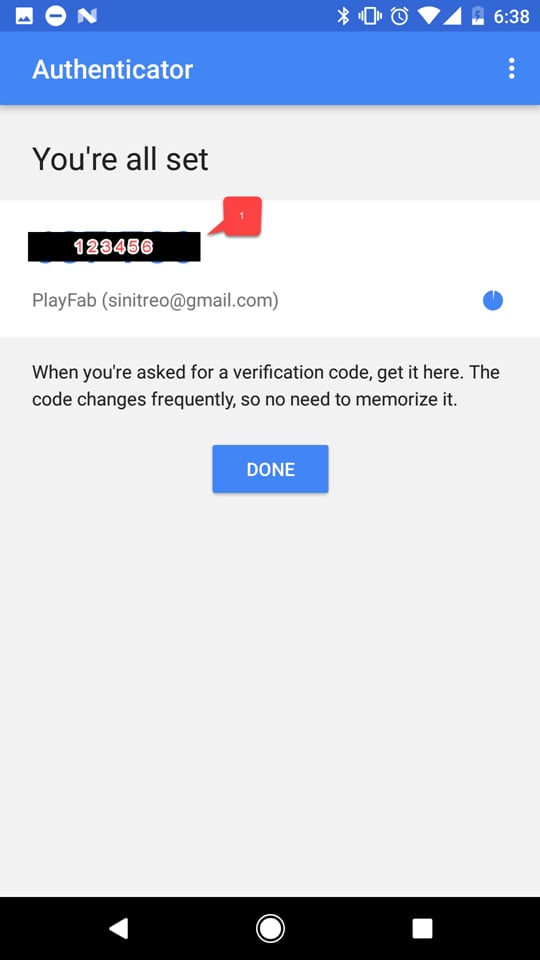
 完成后,你将获得一个双重身份验证代码。
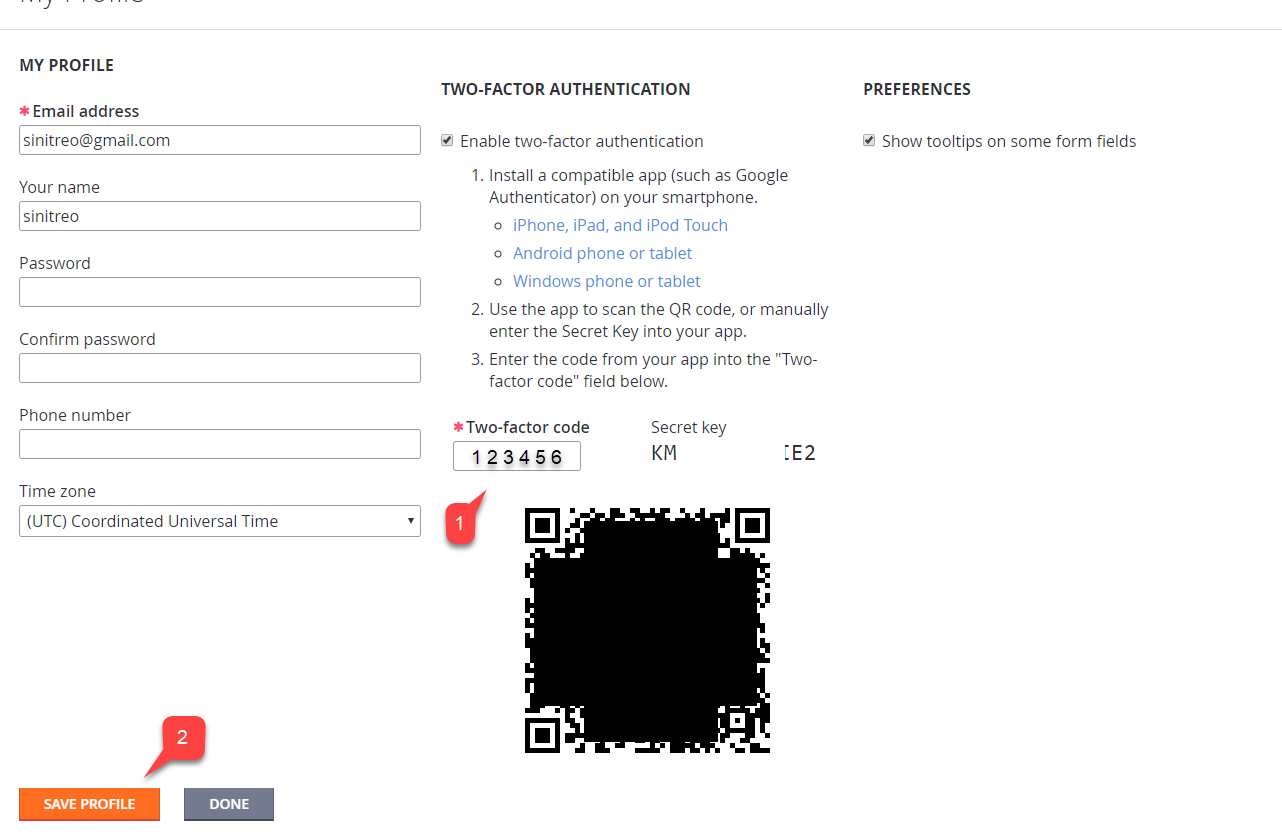
 返回到 PlayFab **Game Manager** 中的 **Profile** 设置:
* 输入你收到的**代码 (1)**。
* 选择 **Save Profile** 按钮 **(2)**。
返回到 PlayFab **Game Manager** 中的 **Profile** 设置:
* 输入你收到的**代码 (1)**。
* 选择 **Save Profile** 按钮 **(2)**。
 ## 测试
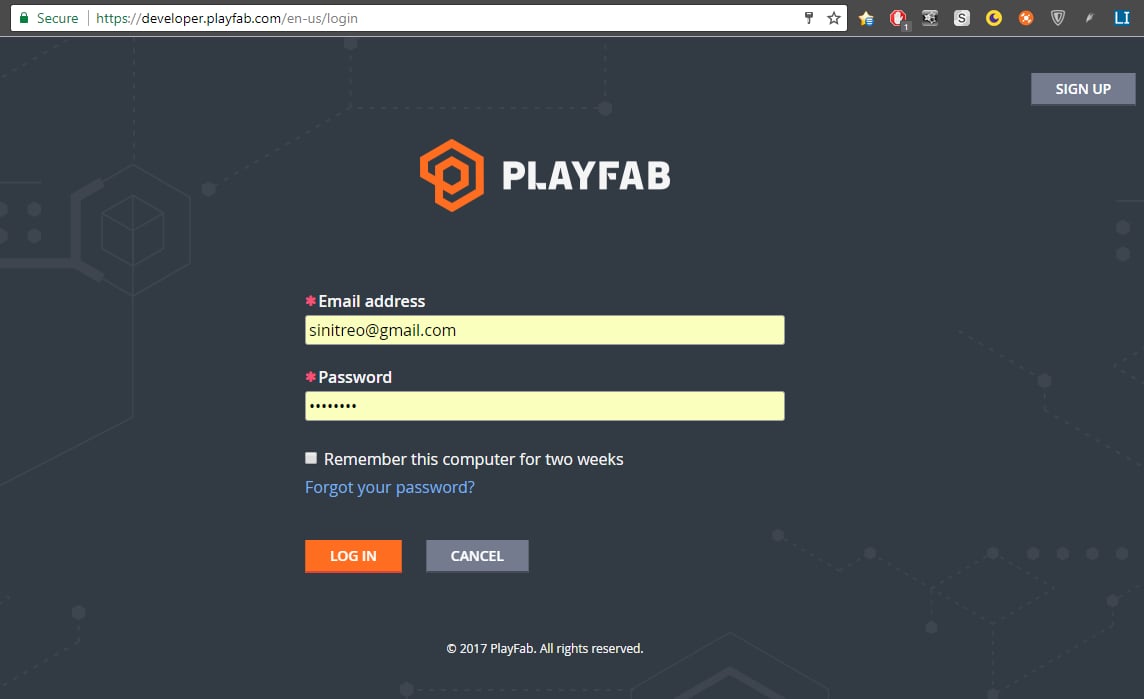
退出你的 PlayFab 帐户并尝试再次登录。身份验证过程的第一步看起来会很正常(请参阅下面提供的示例)。
## 测试
退出你的 PlayFab 帐户并尝试再次登录。身份验证过程的第一步看起来会很正常(请参阅下面提供的示例)。
 第二步将要求你使用双重身份验证代码。该代码随时可用,你可以使用安装在设备上的应用访问它。
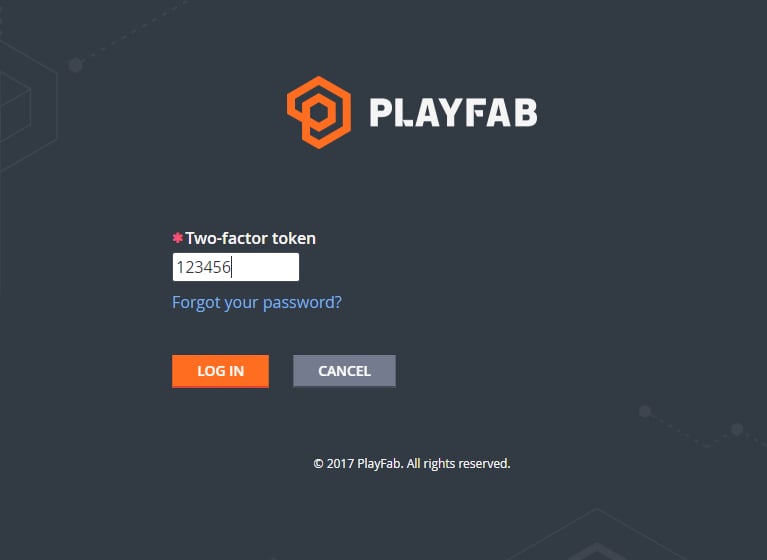 一旦输入正确的双重身份验证代码,你应该已登录。
至此完成了为 PlayFab 设置双重身份验证。
## Related topics
- [认证 PC BVT 指南](/zh-CN/publishing/game-publishing/concepts/certification/certification-pc-bvt-guide.md)
- [Game Manager 参考](/zh-CN/services/playfab/live-service-management/gamemanager/reference.md)
- [使用附加组件设置 SMTP 服务器](/zh-CN/services/playfab/live-service-management/game-configuration/title-communications/emails/setting-up-an-smtp-server-with-add-ons.md)
- [用于 PlayFab API 的 Microsoft Entra ID 身份验证](/zh-CN/services/playfab/identity/dev-identity/authentication/entra-id-api-authentication.md)
- [身份验证](/zh-CN/services/playfab/identity/player-identity/authentication/index.md)
一旦输入正确的双重身份验证代码,你应该已登录。
至此完成了为 PlayFab 设置双重身份验证。
## Related topics
- [认证 PC BVT 指南](/zh-CN/publishing/game-publishing/concepts/certification/certification-pc-bvt-guide.md)
- [Game Manager 参考](/zh-CN/services/playfab/live-service-management/gamemanager/reference.md)
- [使用附加组件设置 SMTP 服务器](/zh-CN/services/playfab/live-service-management/game-configuration/title-communications/emails/setting-up-an-smtp-server-with-add-ons.md)
- [用于 PlayFab API 的 Microsoft Entra ID 身份验证](/zh-CN/services/playfab/identity/dev-identity/authentication/entra-id-api-authentication.md)
- [身份验证](/zh-CN/services/playfab/identity/player-identity/authentication/index.md)