> ## Documentation Index
> Fetch the complete documentation index at: https://devdocs.xbox.com/llms.txt
> Use this file to discover all available pages before exploring further.
# 将 Kusto Explorer 连接到 Insights
> 使用 Microsoft Entra ID 身份验证设置 Kusto Explorer,以运行 KQL 查询并从桌面客户端探索旧版 PlayFab Insights 游戏遥测数据。
# 教程:将 Kusto Explorer 连接到 Insights
本指南可帮助你开始将 Kusto Explorer 与 Insights 结合使用。连接后,你可以使用 Kusto Explorer 查询和探索你的游戏数据。要了解可与 Insights 连接的其他工具,请参阅[将外部工具连接到 Insights](/services/playfab/data-analytics/legacy/connectivity)。
PlayFab Insights Management 已于 2026 年 3 月 31 日退役。我们建议使用 [Azure Data Explorer (ADX) 连接](/services/playfab/data-analytics/export-data/data-connection-adx)以便今后管理你的性能和成本。如果你的标题仍在使用 **Insights**,请继续查看本文以了解实现详情。有关更多信息,请参阅 [PlayFab Digest:3 月功能更新](https://developer.microsoft.com/en-us/games/articles/2026/04/playfab-digest-march-feature-updates/)。
## 先决条件
### 使用 AAD 认证的 PlayFab 账户
你需要一个 PlayFab 账户或用户,其身份验证提供商设置为 Microsoft。Microsoft 身份验证提供商使用 Azure Active Directory (AAD) 进行身份验证,这是使用 Azure 服务所必需的。有关创建 AAD 认证账户或用户的说明,请参阅 [Game Manager 的 Azure Active Directory 身份验证](/services/playfab/identity/dev-identity/authentication/aad-authentication)。
验证账户或用户是否设置为使用 Microsoft 身份验证提供商。
* 导航到 [developer.playfab.com](https://developer.playfab.com)。
* 选择 **Sign in with Microsoft** 以访问你的 PlayFab 账户。
如果你可以登录,则该账户已设置为使用 Microsoft 身份验证提供商。
### Insights 的 Game Manager 权限
你需要为你的账户分配启用以下 Game Manager 权限的[用户角色](/services/playfab/identity/dev-identity/permissions/playfab-user-roles)。
* 管理员状态。
* 访问 Explorer 选项卡和关联数据。
* 对 Analytics 数据的读写访问。
你可以创建新的用户角色,也可以向现有角色添加这些权限。
### 其他先决条件
* [Kusto.Explorer](https://learn.microsoft.com/en-us/azure/data-explorer/kusto/tools/kusto-explorer)
Insights 仅支持 V1 查询响应架构。你可以使用以下步骤在 Kusto Explorer 中更新响应架构。
在本地计算机上打开 Kusto.Explorer。
1. 选择 **Tools** 选项卡,然后选择 **Options...**
2. 在 **Connections** 类别下,更改以下两个属性。
* 从下拉选项中将 **Query results protocol** 设置为 **V1**。
* 从下拉选项中将 **KQL Parser version** 设置为 **V1**。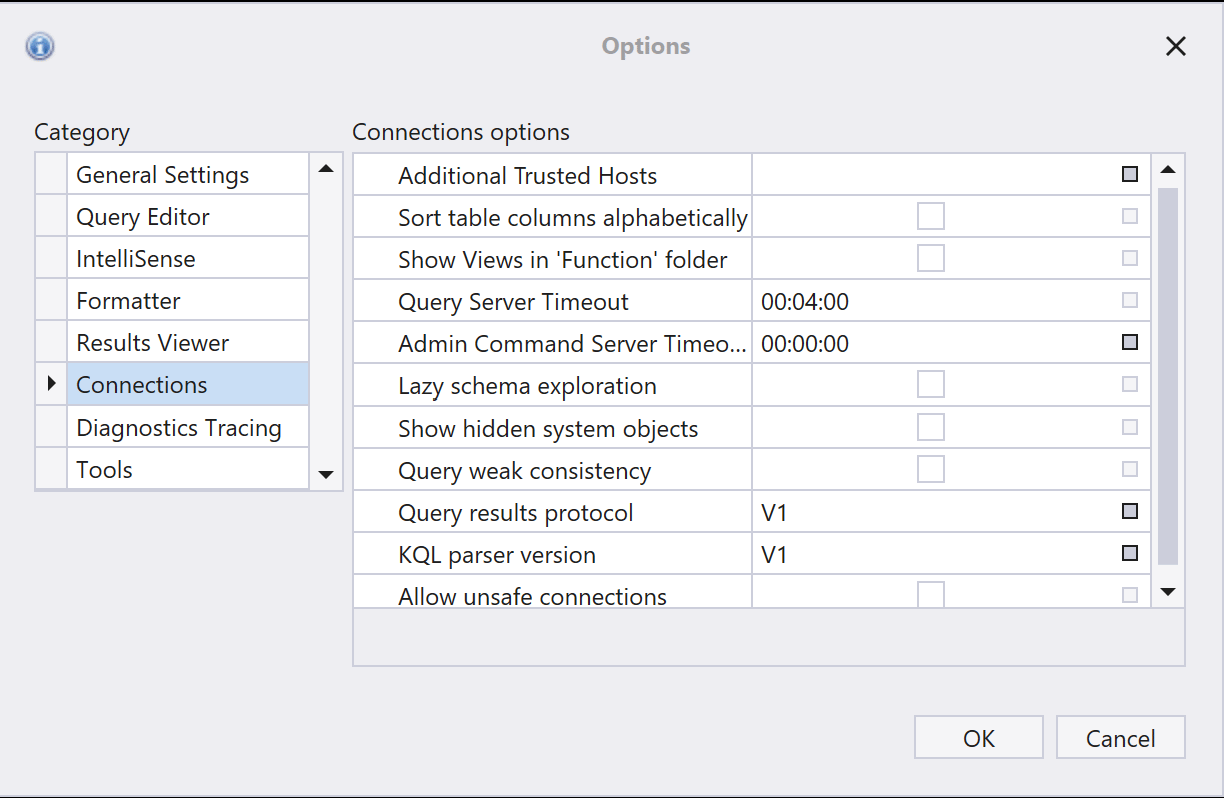 ## 使用 Kusto Explorer 连接
在本地计算机上打开 Kusto.Explorer。
1. 添加连接。你可以用两种不同的方式做到这一点:
* 选择 **Connections** 选项卡,然后选择 **Add connection**。
* 右键单击左侧导航面板中的 **Connections** 文件夹,然后选择 **Add connection**。
2. 在 **Add connection** 对话框中:
* 在 **Cluster connection** 下输入 PlayFab API 端点,即 `https://insights.playfab.com`。
* 在 **Security** 下,确保选择 **AAD Federated**。
* 展开 **Advanced: Connection String** 框,将 **Initial Catalog** 的值从 **NetDefaultDB** 改为 ``。请注意,此处的 `` 必须全部大写。在下面的示例中,此更改在字符串中突出显示。
## 使用 Kusto Explorer 连接
在本地计算机上打开 Kusto.Explorer。
1. 添加连接。你可以用两种不同的方式做到这一点:
* 选择 **Connections** 选项卡,然后选择 **Add connection**。
* 右键单击左侧导航面板中的 **Connections** 文件夹,然后选择 **Add connection**。
2. 在 **Add connection** 对话框中:
* 在 **Cluster connection** 下输入 PlayFab API 端点,即 `https://insights.playfab.com`。
* 在 **Security** 下,确保选择 **AAD Federated**。
* 展开 **Advanced: Connection String** 框,将 **Initial Catalog** 的值从 **NetDefaultDB** 改为 ``。请注意,此处的 `` 必须全部大写。在下面的示例中,此更改在字符串中突出显示。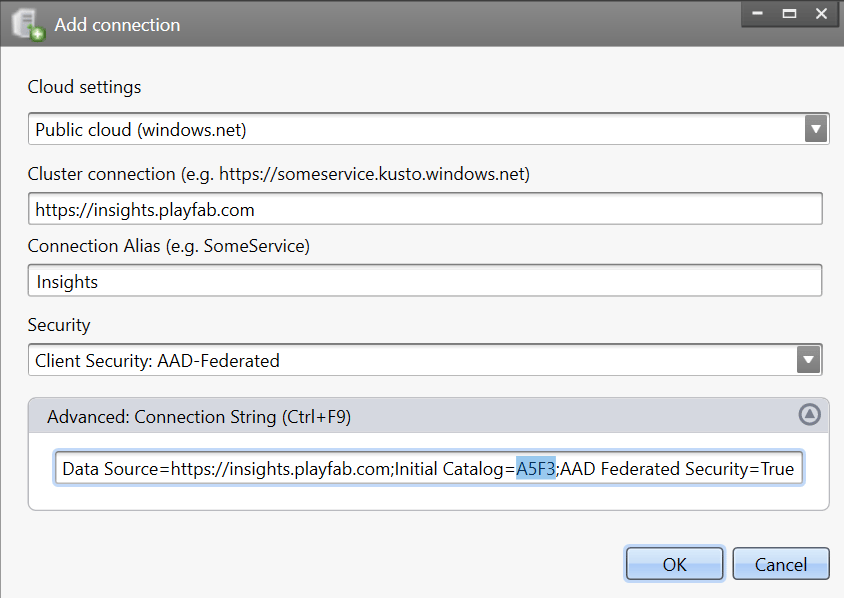 3. 选择 **OK**。现在,你应该能够可视化查询的结果。
## 其他资源
* [Kusto Explorer 文档](https://learn.microsoft.com/en-us/azure/kusto/tools/kusto-explorer)
* [将外部工具连接到 Insights](/services/playfab/data-analytics/legacy/connectivity)
## Related topics
- [将外部工具与 Insights 连接](/zh-CN/services/playfab/data-analytics/legacy/connectivity/index.md)
- [将 Kusto C# SDK 连接到 Insights](/zh-CN/services/playfab/data-analytics/legacy/connectivity/connecting-kusto-csharp-to-insights.md)
- [将 Azure Data Explorer 连接到 Insights](/zh-CN/services/playfab/data-analytics/legacy/connectivity/connecting-azure-data-explorer-to-insights.md)
- [将 Python 连接到 Insights](/zh-CN/services/playfab/data-analytics/legacy/connectivity/connecting-python-to-insights.md)
- [将 Power BI 连接到 Insights](/zh-CN/services/playfab/data-analytics/legacy/connectivity/connecting-power-bi-to-insights.md)
3. 选择 **OK**。现在,你应该能够可视化查询的结果。
## 其他资源
* [Kusto Explorer 文档](https://learn.microsoft.com/en-us/azure/kusto/tools/kusto-explorer)
* [将外部工具连接到 Insights](/services/playfab/data-analytics/legacy/connectivity)
## Related topics
- [将外部工具与 Insights 连接](/zh-CN/services/playfab/data-analytics/legacy/connectivity/index.md)
- [将 Kusto C# SDK 连接到 Insights](/zh-CN/services/playfab/data-analytics/legacy/connectivity/connecting-kusto-csharp-to-insights.md)
- [将 Azure Data Explorer 连接到 Insights](/zh-CN/services/playfab/data-analytics/legacy/connectivity/connecting-azure-data-explorer-to-insights.md)
- [将 Python 连接到 Insights](/zh-CN/services/playfab/data-analytics/legacy/connectivity/connecting-python-to-insights.md)
- [将 Power BI 连接到 Insights](/zh-CN/services/playfab/data-analytics/legacy/connectivity/connecting-power-bi-to-insights.md)