> ## Documentation Index
> Fetch the complete documentation index at: https://devdocs.xbox.com/llms.txt
> Use this file to discover all available pages before exploring further.
# TAK 编辑器设置
> TAK 编辑器设置
本文提供设置 TAK 编辑器必须遵循的步骤。假定您已经安装了 Visual Studio Code、[下载了最新的 TAK CLI](https://aka.ms/get-takcli) 并安装了 TAK 编辑器扩展。如果您尚未这样做,请参阅[概述](/build/core-features/common/game-streaming/tak-editor/game-streaming-tak-editor)页面了解更多信息。
从大体上讲,设置过程包括以下步骤:
1. 在扩展中设置 TAK CLI 路径。
2. 在 Visual Studio Code 中打开文件夹或工作区
* 这是将创建和编辑适配包的位置。
此扩展的大部分功能都可以通过在 [VS Code 命令面板](https://code.visualstudio.com/docs/getstarted/userinterface#_command-palette)中执行的命令来访问。可通过在 Windows 上按 `Ctrl+Shift+P` 或 macOS 上按 `Cmd+Shift+P` 访问命令面板。建议您熟悉此界面,因为它将在本指南中被频繁使用。
## 设置 TAK CLI 路径
在计算机上下载 [TAK CLI](/build/core-features/common/game-streaming/tak-command-line-tool/game-streaming-tak-command-line) 后,必须在扩展设置中设置其路径。扩展将在后台启动 TAK CLI 以执行各种操作,例如创建适配包。
这可以通过在 VS Code 中执行命令,或在 [VS Code 用户设置](https://code.visualstudio.com/docs/getstarted/settings)中手动设置路径(设置 ID:`TAK.editor.commandLineTool.path`)来完成。
要通过命令设置路径:
1. 打开命令面板(Windows 上为 `Ctrl+Shift+P`,macOS 上为 `Cmd+Shift+P`)。
2. 搜索 "Set TAK CLI" 并选择 "Touch Adaptation Kit: Set TAK Command Line Tool (TAK CLI) Path" 命令。
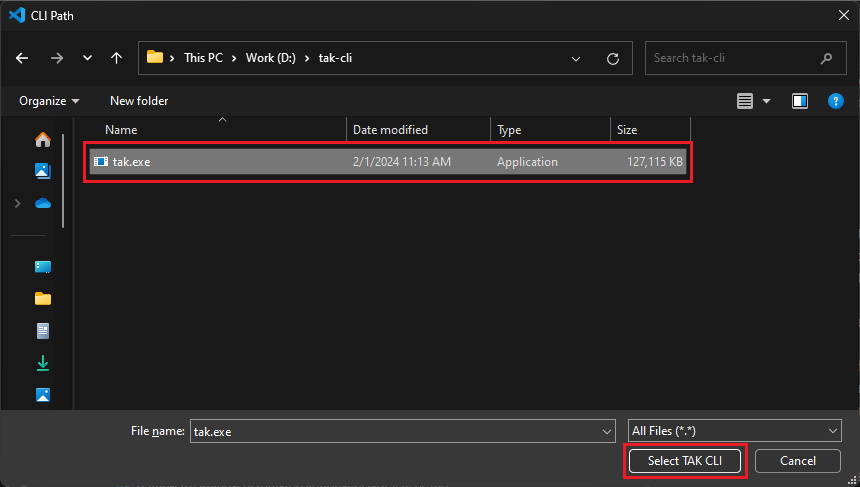
 3. 将打开文件选择器。导航到下载 TAK CLI 的位置并选择可执行文件(Windows 上为 `tak.exe`,macOS 上为 `tak`):
 ## 打开文件夹或工作区
必须在 Visual Studio Code 中打开文件夹或[工作区](https://code.visualstudio.com/docs/editor/workspaces)才能处理适配包。可以将其视为将包含游戏适配包的父目录。
要打开文件夹,请单击窗口左上角的 "File" 菜单,然后选择 "Open Folder"。导航到要创建适配包的位置(或包含适配包的现有文件夹),然后单击 "Select Folder"。
要打开工作区,请单击 "File",然后选择 "Open Workspace from File"。请注意,这需要计算机上存在现有的工作区文件(扩展名为 `.code-workspace`)。如果没有工作区文件,可以通过从 "File" 菜单中选择 "Add Folder to Workspace..." 并添加所需的文件夹来创建工作区。然后,可以通过单击 "File" 并选择 "Save Workspace As..." 来保存工作区。
## 故障排除
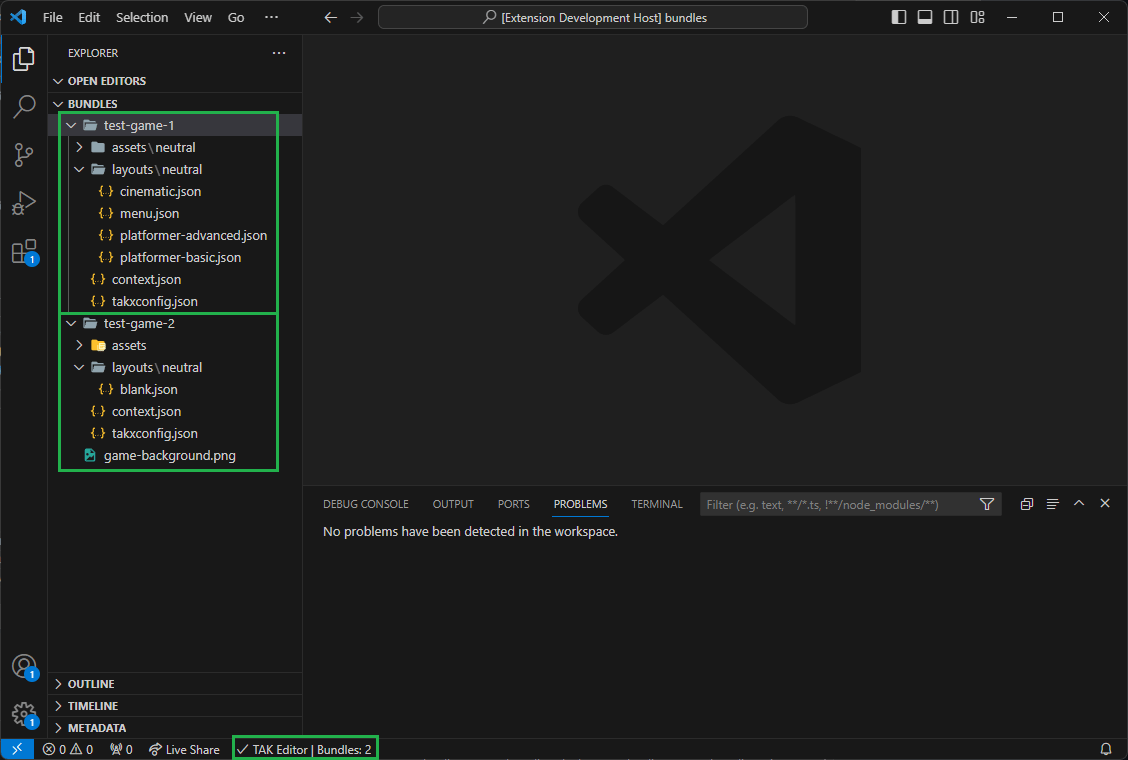
窗口左下角会出现一个状态栏项(标签为 "TAK Editor"),以指示扩展的状态。这允许您快速识别 TAK CLI 路径是否设置正确,以及扩展是否能够与 CLI 通信。
如果一切设置正确,状态栏项将显示一个复选标记,并显示在工作区中找到的触控适配包的数量(如果有)。
## 打开文件夹或工作区
必须在 Visual Studio Code 中打开文件夹或[工作区](https://code.visualstudio.com/docs/editor/workspaces)才能处理适配包。可以将其视为将包含游戏适配包的父目录。
要打开文件夹,请单击窗口左上角的 "File" 菜单,然后选择 "Open Folder"。导航到要创建适配包的位置(或包含适配包的现有文件夹),然后单击 "Select Folder"。
要打开工作区,请单击 "File",然后选择 "Open Workspace from File"。请注意,这需要计算机上存在现有的工作区文件(扩展名为 `.code-workspace`)。如果没有工作区文件,可以通过从 "File" 菜单中选择 "Add Folder to Workspace..." 并添加所需的文件夹来创建工作区。然后,可以通过单击 "File" 并选择 "Save Workspace As..." 来保存工作区。
## 故障排除
窗口左下角会出现一个状态栏项(标签为 "TAK Editor"),以指示扩展的状态。这允许您快速识别 TAK CLI 路径是否设置正确,以及扩展是否能够与 CLI 通信。
如果一切设置正确,状态栏项将显示一个复选标记,并显示在工作区中找到的触控适配包的数量(如果有)。
 如果状态栏项显示错误,可以将鼠标悬停在其上以查看有关错误的更多详细信息。这通常伴有出现在窗口右下角的通知,其中包含更多信息。
常见问题包括:
### 未设置 TAK CLI 路径
如果状态栏项显示错误,可以将鼠标悬停在其上以查看有关错误的更多详细信息。这通常伴有出现在窗口右下角的通知,其中包含更多信息。
常见问题包括:
### 未设置 TAK CLI 路径
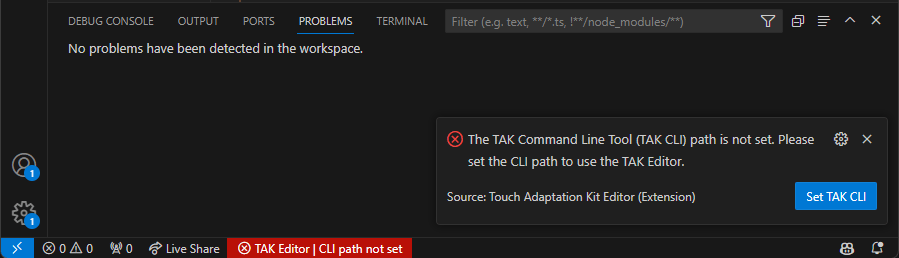 当扩展设置中未设置 CLI 路径时会发生这种情况。事实上,第一次安装扩展时,这是默认状态。要解决此问题,请按照[上一节](#set-tak-cli-path)中的步骤设置路径。
您也可以单击通知中的 "Set TAK CLI" 按钮,或单击状态栏项并选择 "Set TAK Command Line Tool" 选项来设置路径。
### TAK CLI 路径不存在
当扩展设置中未设置 CLI 路径时会发生这种情况。事实上,第一次安装扩展时,这是默认状态。要解决此问题,请按照[上一节](#set-tak-cli-path)中的步骤设置路径。
您也可以单击通知中的 "Set TAK CLI" 按钮,或单击状态栏项并选择 "Set TAK Command Line Tool" 选项来设置路径。
### TAK CLI 路径不存在
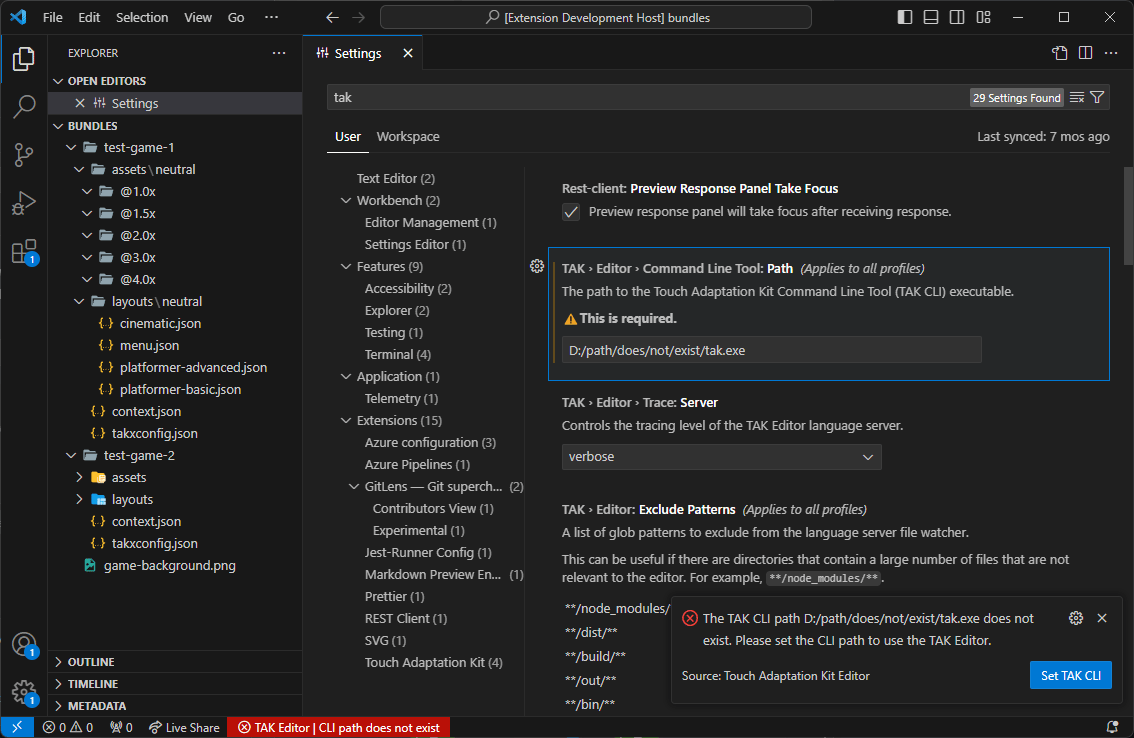 当提供的路径不存在时会发生这种情况。如果 CLI 从最初设置的位置被移动或删除,或者在设置中手动输入路径时存在拼写错误,则会发生这种情况。要解决此问题,请按照[上一节](#set-tak-cli-path)中的步骤重新分配路径。
### TAK CLI 不可执行
当提供的路径不存在时会发生这种情况。如果 CLI 从最初设置的位置被移动或删除,或者在设置中手动输入路径时存在拼写错误,则会发生这种情况。要解决此问题,请按照[上一节](#set-tak-cli-path)中的步骤重新分配路径。
### TAK CLI 不可执行
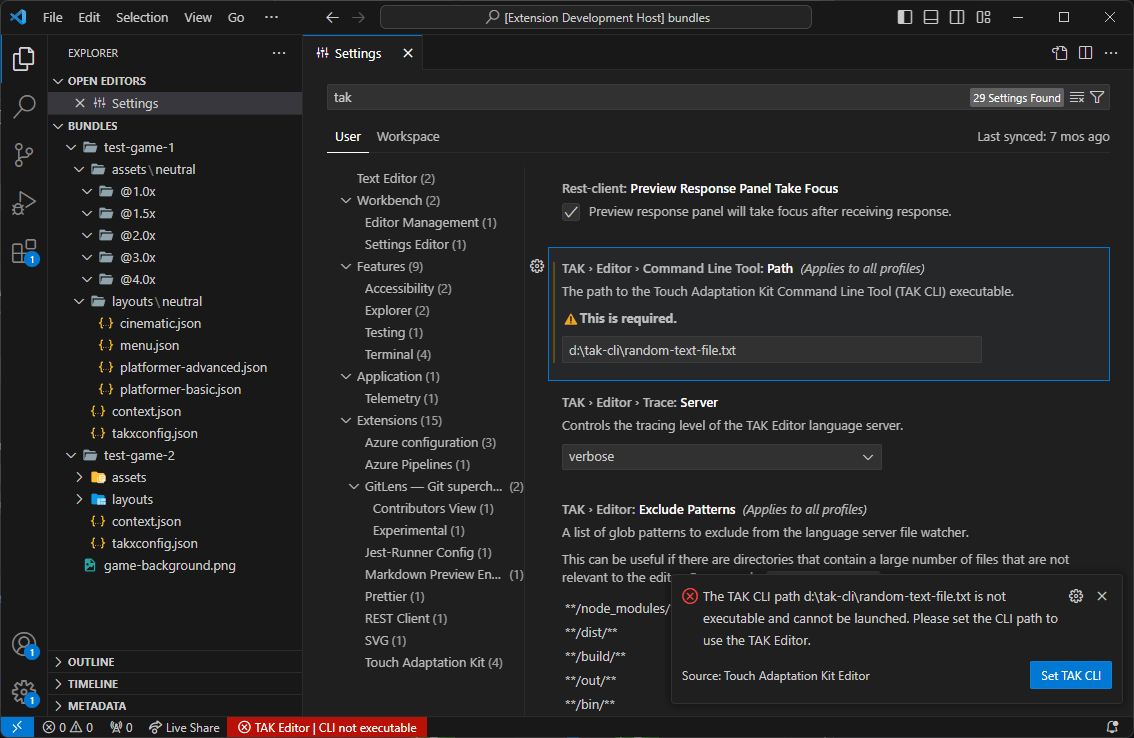 当提供的路径不是可执行文件时会发生这种情况。如果在文件选择器中选择了错误的文件,或者文件未标记为可执行(例如,在 macOS 上没有执行权限),则会发生这种情况。要解决此问题,请重新分配路径。
macOS:如果路径设置正确但 CLI 未标记为可执行,则必须为文件分配执行权限。可能需要重新启动 VS Code 才能让扩展识别更改。
### TAK CLI 版本无法确定
当提供的路径不是可执行文件时会发生这种情况。如果在文件选择器中选择了错误的文件,或者文件未标记为可执行(例如,在 macOS 上没有执行权限),则会发生这种情况。要解决此问题,请重新分配路径。
macOS:如果路径设置正确但 CLI 未标记为可执行,则必须为文件分配执行权限。可能需要重新启动 VS Code 才能让扩展识别更改。
### TAK CLI 版本无法确定
 如果扩展无法启动 CLI 并确定其版本,则可能会发生这种情况,这可能是由于 CLI 版本太旧,或者选择了错误的可执行文件作为 CLI。要解决此问题,请确保下载最新版本的 CLI 并重置路径。
### TAK CLI 版本过时
如果扩展无法启动 CLI 并确定其版本,则可能会发生这种情况,这可能是由于 CLI 版本太旧,或者选择了错误的可执行文件作为 CLI。要解决此问题,请确保下载最新版本的 CLI 并重置路径。
### TAK CLI 版本过时
 如果扩展能够启动并验证 CLI 的版本,但版本已过时,则会发生这种情况。如果最近更新了扩展并需要更新版本的 TAK CLI,则会发生这种情况。要解决此问题,请下载最新版本的 CLI 并重置路径。
## 下一步
> \[!div class="nextstepaction"]
> [创建新的触控适配包](/build/core-features/common/game-streaming/tak-editor/game-streaming-tak-editor-create-bundle)
## Related topics
- [适用于 Visual Studio Code 的 Touch Adaptation Kit (TAK) 编辑器](/zh-CN/build/core-features/common/game-streaming/tak-editor/index.md)
- [在 TAK 编辑器中创建适配包和布局](/zh-CN/build/core-features/common/game-streaming/tak-editor/game-streaming-tak-editor-create-bundle.md)
- [使用 TAK 编辑器打包触控适配包](/zh-CN/build/core-features/common/game-streaming/tak-editor/game-streaming-tak-editor-pack-bundles.md)
- [什么是 Touch Adaptation Kit 编辑器?](/zh-CN/build/core-features/common/game-streaming/tak-editor/game-streaming-tak-editor.md)
- [MicrosoftGame.config 编辑器](/zh-CN/build/core-features/common/game-config/MicrosoftGameConfig-Editor.md)
如果扩展能够启动并验证 CLI 的版本,但版本已过时,则会发生这种情况。如果最近更新了扩展并需要更新版本的 TAK CLI,则会发生这种情况。要解决此问题,请下载最新版本的 CLI 并重置路径。
## 下一步
> \[!div class="nextstepaction"]
> [创建新的触控适配包](/build/core-features/common/game-streaming/tak-editor/game-streaming-tak-editor-create-bundle)
## Related topics
- [适用于 Visual Studio Code 的 Touch Adaptation Kit (TAK) 编辑器](/zh-CN/build/core-features/common/game-streaming/tak-editor/index.md)
- [在 TAK 编辑器中创建适配包和布局](/zh-CN/build/core-features/common/game-streaming/tak-editor/game-streaming-tak-editor-create-bundle.md)
- [使用 TAK 编辑器打包触控适配包](/zh-CN/build/core-features/common/game-streaming/tak-editor/game-streaming-tak-editor-pack-bundles.md)
- [什么是 Touch Adaptation Kit 编辑器?](/zh-CN/build/core-features/common/game-streaming/tak-editor/game-streaming-tak-editor.md)
- [MicrosoftGame.config 编辑器](/zh-CN/build/core-features/common/game-config/MicrosoftGameConfig-Editor.md)