> ## Documentation Index
> Fetch the complete documentation index at: https://devdocs.xbox.com/llms.txt
> Use this file to discover all available pages before exploring further.
# 预览触控适配布局
> 预览触控适配布局
本文提供了使用 TAK 编辑器预览触控适配布局的概述,以及可用于自定义预览的各种选项。
## 先决条件
* TAK 编辑器已[安装](/build/core-features/common/game-streaming/tak-editor/game-streaming-tak-editor)并[设置](/build/core-features/common/game-streaming/tak-editor/game-streaming-tak-editor-setup)。
* 在打开的工作区文件夹中至少存在一个包含[布局](/build/core-features/common/game-streaming/tak-editor/game-streaming-tak-editor-create-bundle#create-a-new-layout)的[适配包](/build/core-features/common/game-streaming/tak-editor/game-streaming-tak-editor-create-bundle#create-a-new-bundle)。
## 预览布局
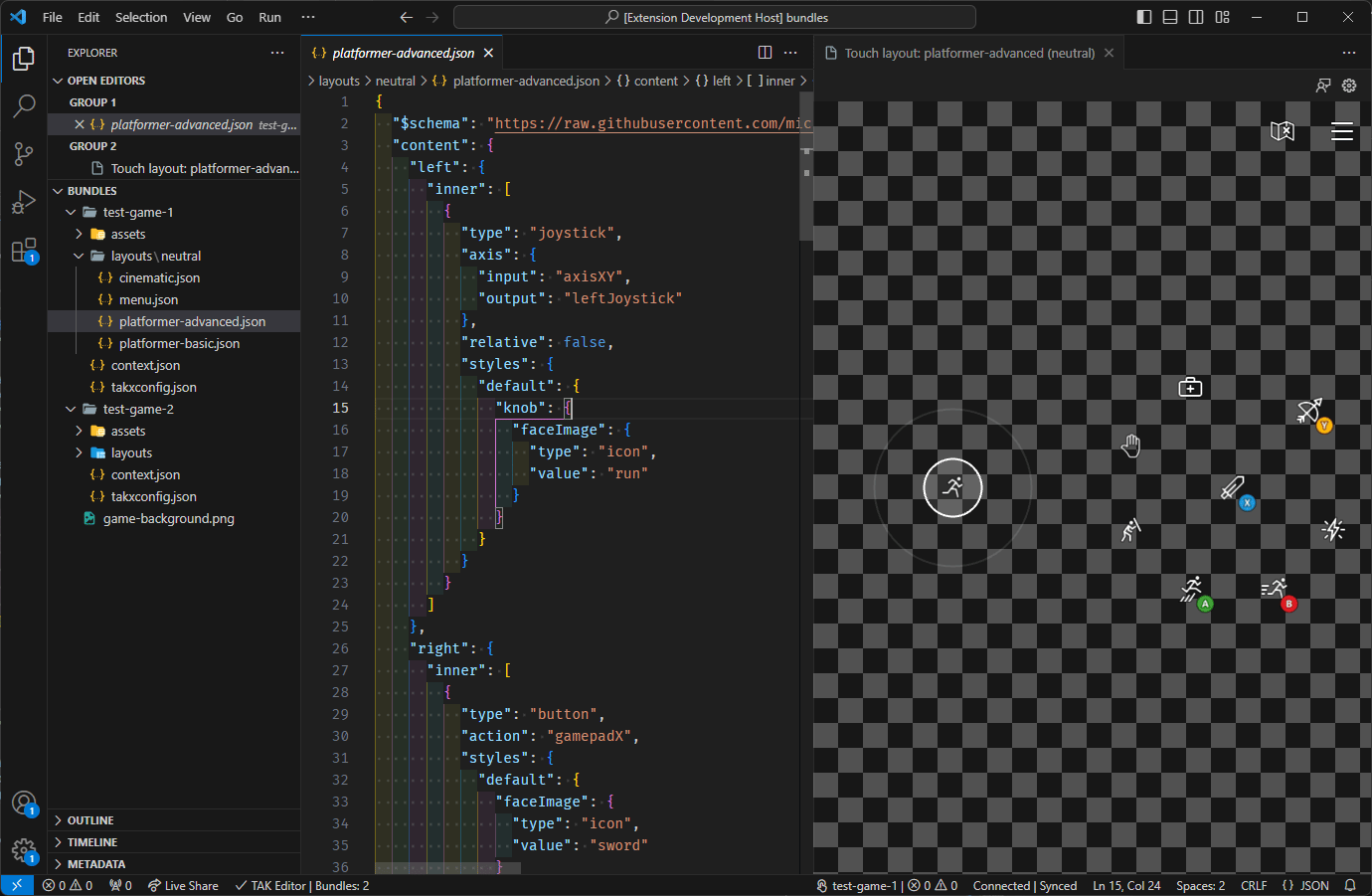
预览布局非常简单,只需通过 [VS Code 资源管理器](https://code.visualstudio.com/docs/getstarted/userinterface#_explorer)在编辑器中打开布局文件即可。只需单击适配包 `layouts` 目录下的布局文件,布局的 JSON 内容将显示在一个选项卡中,布局的实时预览将自动出现在旁边的选项卡中。
如果布局文件中存在**错误**,它们将显示在 [VS Code 问题面板](https://code.visualstudio.com/docs/editor/editingevolved#_errors-warnings)中。在解决错误之前,预览不会更新。这在[状态、错误和警告](#status-errors-and-warnings)部分中有更详细的说明。
预览是交互式的,这意味着您可以使用鼠标(或者如果使用支持触摸的设备则可以使用触控输入)与触控控件交互。预览将响应您的输入,就像它在实际游戏串流上呈现一样。
对布局 JSON 文件所做的更改将在保存文件后反映在预览中。这允许快速迭代设计,您可以更改布局并立即看到结果。
 如果关闭了预览选项卡,可以通过以下两种方式之一重新打开:
1. 通过单击布局文件右上角的 "Open Preview" 按钮:
如果关闭了预览选项卡,可以通过以下两种方式之一重新打开:
1. 通过单击布局文件右上角的 "Open Preview" 按钮:
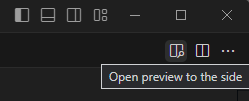 2. 通过命令面板执行 "Touch Adaptation Kit: Open preview to the side" 命令。
 请注意,此命令和按钮仅在 (1) 打开了布局文件且 (2) 预览尚未打开时可用。
## 状态、错误和警告
### 验证状态
对适配包中的布局、资源和其他文件进行修改时,扩展将持续验证适配包内容是否符合所有适配包必须遵守的预定义规则集。这在后台完成,并在每次保存或以任何其他方式(例如重命名)更改嵌套在适配包中的文件时重新评估。
此验证状态通过位于窗口右下边缘的状态栏项进行报告。
请注意,此命令和按钮仅在 (1) 打开了布局文件且 (2) 预览尚未打开时可用。
## 状态、错误和警告
### 验证状态
对适配包中的布局、资源和其他文件进行修改时,扩展将持续验证适配包内容是否符合所有适配包必须遵守的预定义规则集。这在后台完成,并在每次保存或以任何其他方式(例如重命名)更改嵌套在适配包中的文件时重新评估。
此验证状态通过位于窗口右下边缘的状态栏项进行报告。
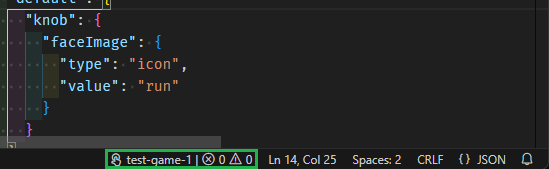 此状态栏项仅在编辑器中至少打开一个布局文件时才会出现。它显示活动适配包的名称和适配包中发现的问题数量(错误和警告)。单击状态栏项将打开 [VS Code 问题面板](https://code.visualstudio.com/docs/editor/editingevolved#_errors-warnings),其中包含适配包中发现的所有问题的列表。
### 同步状态
预览面板与 TAK CLI 有一个活动的适配包旁加载连接。您可以在 [TAK CLI 文档](/build/core-features/common/game-streaming/tak-command-line-tool/game-streaming-tak-command-line-serve-command)中阅读更多有关此工作原理的信息。
此连接状态通过位于窗口右下边缘的状态栏项报告,位于验证状态栏项旁边。此状态仅在打开预览面板时才会出现。
此状态栏项仅在编辑器中至少打开一个布局文件时才会出现。它显示活动适配包的名称和适配包中发现的问题数量(错误和警告)。单击状态栏项将打开 [VS Code 问题面板](https://code.visualstudio.com/docs/editor/editingevolved#_errors-warnings),其中包含适配包中发现的所有问题的列表。
### 同步状态
预览面板与 TAK CLI 有一个活动的适配包旁加载连接。您可以在 [TAK CLI 文档](/build/core-features/common/game-streaming/tak-command-line-tool/game-streaming-tak-command-line-serve-command)中阅读更多有关此工作原理的信息。
此连接状态通过位于窗口右下边缘的状态栏项报告,位于验证状态栏项旁边。此状态仅在打开预览面板时才会出现。
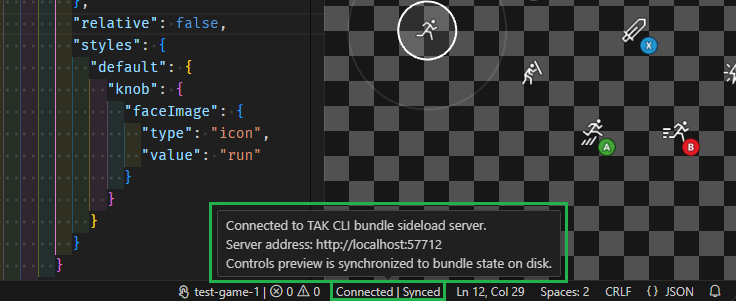 上面的屏幕截图显示了连接处于活动状态且预览已同步时的状态栏项。这适用于适配包中没有错误的情况(允许警告并保持状态为 "synchronized")。如果存在错误,状态将变为 "Out of sync"。
将鼠标悬停在此状态栏项上时,将出现一个工具提示,其中包含 TAK CLI 托管的旁加载服务器的详细信息。此地址可用于将另一个游戏串流客户端连接到预览,如[内容测试应用](/build/core-features/common/game-streaming/building-touch-layouts/game-streaming-touch-deploying-touch-layout)。
### 错误和警告
[VS Code 问题面板](https://code.visualstudio.com/docs/editor/editingevolved#_errors-warnings)将显示适配包中发现的所有问题的列表。这包括在验证过程中发现的所有问题。
存在问题时,单击验证或同步状态栏项中的任一项都将打开问题面板并显示问题列表。每个问题都将有描述以及在适配包中发现问题的位置。
例如,在以下屏幕截图中,适配包中存在一个错误,其中布局文件 `platformer-advanced.json` 引用了一个不存在于适配包中的资源 (`run.png`):
上面的屏幕截图显示了连接处于活动状态且预览已同步时的状态栏项。这适用于适配包中没有错误的情况(允许警告并保持状态为 "synchronized")。如果存在错误,状态将变为 "Out of sync"。
将鼠标悬停在此状态栏项上时,将出现一个工具提示,其中包含 TAK CLI 托管的旁加载服务器的详细信息。此地址可用于将另一个游戏串流客户端连接到预览,如[内容测试应用](/build/core-features/common/game-streaming/building-touch-layouts/game-streaming-touch-deploying-touch-layout)。
### 错误和警告
[VS Code 问题面板](https://code.visualstudio.com/docs/editor/editingevolved#_errors-warnings)将显示适配包中发现的所有问题的列表。这包括在验证过程中发现的所有问题。
存在问题时,单击验证或同步状态栏项中的任一项都将打开问题面板并显示问题列表。每个问题都将有描述以及在适配包中发现问题的位置。
例如,在以下屏幕截图中,适配包中存在一个错误,其中布局文件 `platformer-advanced.json` 引用了一个不存在于适配包中的资源 (`run.png`):
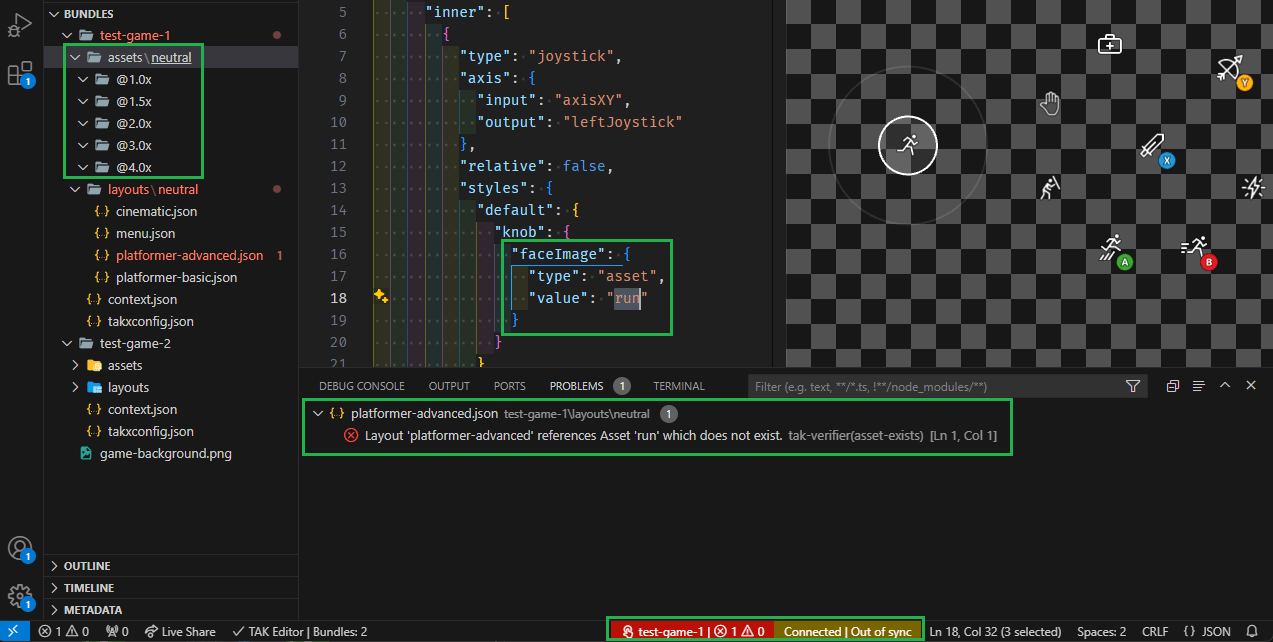 在引用更改为适配包中存在的资源或将资源添加到适配包之前,预览的状态现在为 "Out of sync"。
## 下一步
> \[!div class="nextstepaction"]
> [自定义预览](/build/core-features/common/game-streaming/tak-editor/game-streaming-tak-editor-customize-preview)
## Related topics
- [适用于 Visual Studio Code 的 Touch Adaptation Kit (TAK) 编辑器](/zh-CN/build/core-features/common/game-streaming/tak-editor/index.md)
- [Android 内容测试应用 (CTA) 概述(已弃用)](/zh-CN/build/core-features/common/game-streaming/game-streaming-android-content-test-application.md)
- [触控入门](/zh-CN/build/core-features/common/game-streaming/game-streaming-getting-started-with-touch.md)
- [自定义触控控件预览](/zh-CN/build/core-features/common/game-streaming/tak-editor/game-streaming-tak-editor-customize-preview.md)
- [为 XBOX 游戏串流构建触控布局](/zh-CN/build/core-features/common/game-streaming/building-touch-layouts/index.md)
在引用更改为适配包中存在的资源或将资源添加到适配包之前,预览的状态现在为 "Out of sync"。
## 下一步
> \[!div class="nextstepaction"]
> [自定义预览](/build/core-features/common/game-streaming/tak-editor/game-streaming-tak-editor-customize-preview)
## Related topics
- [适用于 Visual Studio Code 的 Touch Adaptation Kit (TAK) 编辑器](/zh-CN/build/core-features/common/game-streaming/tak-editor/index.md)
- [Android 内容测试应用 (CTA) 概述(已弃用)](/zh-CN/build/core-features/common/game-streaming/game-streaming-android-content-test-application.md)
- [触控入门](/zh-CN/build/core-features/common/game-streaming/game-streaming-getting-started-with-touch.md)
- [自定义触控控件预览](/zh-CN/build/core-features/common/game-streaming/tak-editor/game-streaming-tak-editor-customize-preview.md)
- [为 XBOX 游戏串流构建触控布局](/zh-CN/build/core-features/common/game-streaming/building-touch-layouts/index.md)