> ## Documentation Index
> Fetch the complete documentation index at: https://devdocs.xbox.com/llms.txt
> Use this file to discover all available pages before exploring further.
# 使用 TAK 编辑器打包触控适配包
> 使用 TAK 编辑器打包触控适配包
本文概述了使用 TAK 编辑器打包触控适配包以通过您的 Microsoft 客户代表提交给 XBOX 游戏串流服务的过程。打包过程涉及创建一个包含适配包所有必要资源和元数据的 `.takx` 文件。您可以了解有关[发布触控布局](/build/core-features/common/game-streaming/building-touch-layouts/game-streaming-touch-publishing-layouts)以及支持打包过程的 TAK CLI 中的[基础 pack 命令](/build/core-features/common/game-streaming/tak-command-line-tool/game-streaming-tak-command-line-pack-command)的更多信息。
## 先决条件
* 已使用 TAK 编辑器创建具有至少一个布局的有效适配包。如果您尚未创建适配包,请参阅[创建新的适配包](/build/core-features/common/game-streaming/tak-editor/game-streaming-tak-editor-create-bundle#create-a-new-bundle)。
## 打包适配包
1. 启动命令面板(Windows 上为 `Ctrl+Shift+P`,macOS 上为 `Cmd+Shift+P`)。
2. 搜索 "Pack" 并选择 "Touch Adaptation Kit: Pack Bundle"。
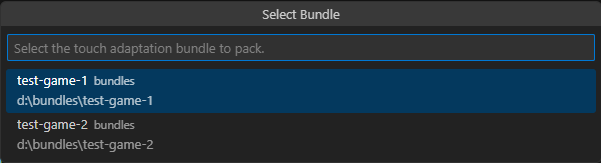
 3. 如果工作区中有多个适配包,将出现一个适配包列表。选择您要打包的适配包。如果只有一个适配包,将跳过此步骤,并且命令将继续使用唯一可用的适配包。
 4. 验证:将出现一个选择下拉菜单,询问是否应在打包前验证适配包的正确性。**强烈建议此步骤选择 "Yes"**,以确保适配包可以毫无问题地提交给您的 Microsoft 客户代表。
5. 资源优化:将出现一个选择下拉菜单,询问在打包操作期间是否应通过量化优化适配包中的资源。这可以减少已打包适配包的大小,但也可能影响资源的视觉质量。如果启用了资源优化,建议在游戏中测试已打包的适配包,以确保视觉质量可以接受。
6. 将出现一个保存文件对话框以指定 `.takx` 文件的位置和名称。导航到所需位置并输入文件名。将自动附加 `.takx` 扩展名。单击 "Save Bundle" 启动打包过程。
请注意,它可以存储在计算机可访问的任何位置,不必与未打包(松散)适配包位于相同的工作区文件夹中。
## 下一步
> \[!div class="nextstepaction"]
> [故障排除](/build/core-features/common/game-streaming/tak-editor/game-streaming-tak-editor-troubleshooting)
## Related topics
- [适用于 Visual Studio Code 的 Touch Adaptation Kit (TAK) 编辑器](/zh-CN/build/core-features/common/game-streaming/tak-editor/index.md)
- [在 TAK 编辑器中创建适配包和布局](/zh-CN/build/core-features/common/game-streaming/tak-editor/game-streaming-tak-editor-create-bundle.md)
- [Create 命令](/zh-CN/build/core-features/common/game-streaming/tak-command-line-tool/game-streaming-tak-command-line-create-command.md)
- [TAK 编辑器设置](/zh-CN/build/core-features/common/game-streaming/tak-editor/game-streaming-tak-editor-setup.md)
- [预览触控适配布局](/zh-CN/build/core-features/common/game-streaming/tak-editor/game-streaming-tak-editor-preview-layouts.md)
4. 验证:将出现一个选择下拉菜单,询问是否应在打包前验证适配包的正确性。**强烈建议此步骤选择 "Yes"**,以确保适配包可以毫无问题地提交给您的 Microsoft 客户代表。
5. 资源优化:将出现一个选择下拉菜单,询问在打包操作期间是否应通过量化优化适配包中的资源。这可以减少已打包适配包的大小,但也可能影响资源的视觉质量。如果启用了资源优化,建议在游戏中测试已打包的适配包,以确保视觉质量可以接受。
6. 将出现一个保存文件对话框以指定 `.takx` 文件的位置和名称。导航到所需位置并输入文件名。将自动附加 `.takx` 扩展名。单击 "Save Bundle" 启动打包过程。
请注意,它可以存储在计算机可访问的任何位置,不必与未打包(松散)适配包位于相同的工作区文件夹中。
## 下一步
> \[!div class="nextstepaction"]
> [故障排除](/build/core-features/common/game-streaming/tak-editor/game-streaming-tak-editor-troubleshooting)
## Related topics
- [适用于 Visual Studio Code 的 Touch Adaptation Kit (TAK) 编辑器](/zh-CN/build/core-features/common/game-streaming/tak-editor/index.md)
- [在 TAK 编辑器中创建适配包和布局](/zh-CN/build/core-features/common/game-streaming/tak-editor/game-streaming-tak-editor-create-bundle.md)
- [Create 命令](/zh-CN/build/core-features/common/game-streaming/tak-command-line-tool/game-streaming-tak-command-line-create-command.md)
- [TAK 编辑器设置](/zh-CN/build/core-features/common/game-streaming/tak-editor/game-streaming-tak-editor-setup.md)
- [预览触控适配布局](/zh-CN/build/core-features/common/game-streaming/tak-editor/game-streaming-tak-editor-preview-layouts.md)