> ## Documentation Index
> Fetch the complete documentation index at: https://devdocs.xbox.com/llms.txt
> Use this file to discover all available pages before exploring further.
# 自定义触控控件预览
> 自定义触控控件预览
本文提供了使用 TAK 编辑器自定义触控适配布局预览的各种可用选项概述。预览可以自定义为模拟不同的游戏场景,并测试触控控件在不同情境下的外观。这可以通过为预览指定背景颜色或图像来完成。
## 背景
可以通过两种方式使用颜色或图像自定义背景:通过预览设置,或在命令面板中执行命令。
### 通过预览设置
1. 在编辑器中打开适配包的布局文件以启动预览。
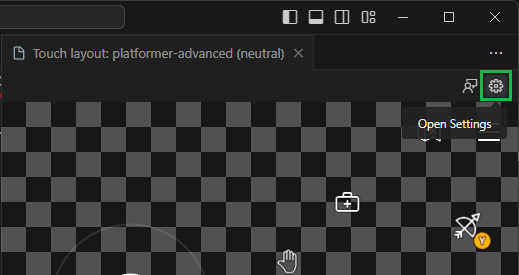
2. 单击预览面板右上角的 "Open Settings":
 3. 会出现一个模态框,其中包含自定义背景的选项。可以指定颜色或图像:
1. **颜色:** 单击颜色选择器选择颜色。或者,可以在输入字段中输入颜色。颜色可以以 CSS 支持的任何格式指定(例如 `#0000ffff`、`rgba(0, 0, 255, 1)`、`hsl(240, 100%, 50%)` 或 `blue`)。
3. 会出现一个模态框,其中包含自定义背景的选项。可以指定颜色或图像:
1. **颜色:** 单击颜色选择器选择颜色。或者,可以在输入字段中输入颜色。颜色可以以 CSS 支持的任何格式指定(例如 `#0000ffff`、`rgba(0, 0, 255, 1)`、`hsl(240, 100%, 50%)` 或 `blue`)。
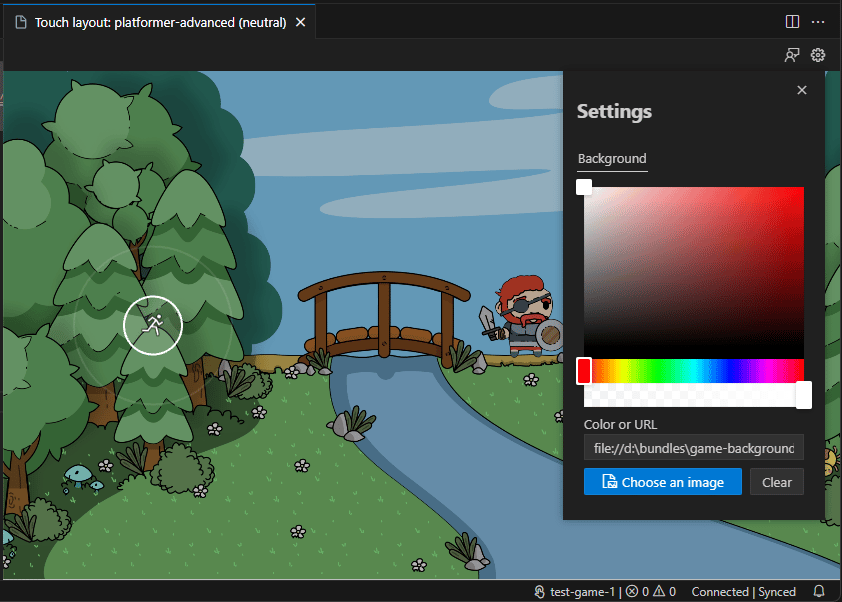
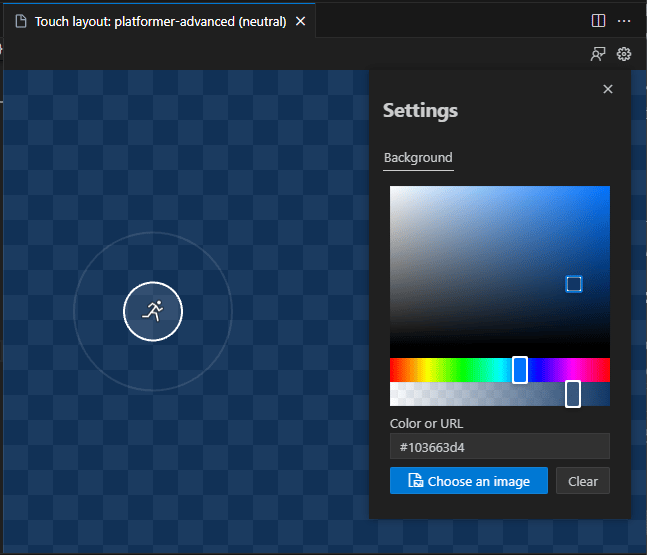 2. **图像:** 单击 "Choose an image" 打开文件选择器。导航到图像的位置并选择它。或者,可以在输入字段中输入图像的 URL。
 ### 通过命令面板
1. 在编辑器中打开适配包的布局文件以启动预览。**仅当预览打开时此命令才可用。**
2. 启动命令面板(Windows 上为 `Ctrl+Shift+P`,macOS 上为 `Cmd+Shift+P`)。
3. 搜索 "Background" 并选择 "Touch Adaptation Kit: Set preview background":
### 通过命令面板
1. 在编辑器中打开适配包的布局文件以启动预览。**仅当预览打开时此命令才可用。**
2. 启动命令面板(Windows 上为 `Ctrl+Shift+P`,macOS 上为 `Cmd+Shift+P`)。
3. 搜索 "Background" 并选择 "Touch Adaptation Kit: Set preview background":
 4. 选择可用选项之一:
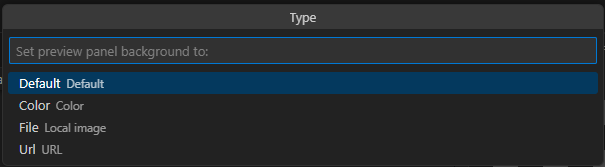 1. `Default`:将背景重置为默认透明棋盘图案。
2. `Color`:为背景指定颜色。必须以 CSS 颜色值格式作为文本输入。
3. `Image`:为背景指定图像。将打开文件选择器以选择图像。
4. `URL`:使用 URL 为背景指定图像。将出现一个文本输入以输入 URL。
## 下一步
> \[!div class="nextstepaction"]
> [打包适配包以提交给 XBOX](/build/core-features/common/game-streaming/tak-editor/game-streaming-tak-editor-pack-bundles)
## Related topics
- [触控入门](/zh-CN/build/core-features/common/game-streaming/game-streaming-getting-started-with-touch.md)
- [为 XBOX 游戏串流构建触控布局](/zh-CN/build/core-features/common/game-streaming/building-touch-layouts/index.md)
- [模板](/zh-CN/build/core-features/common/game-streaming/tak-command-line-tool/game-streaming-tak-command-line-templates.md)
- [Touch Adaptation Kit](/zh-CN/reference/system/touchadaptationkit/touchadaptationkit-reference.md)
- [构建触控的设计师指南](/zh-CN/build/core-features/common/game-streaming/building-touch-layouts/game-streaming-tak-designers-guide.md)
1. `Default`:将背景重置为默认透明棋盘图案。
2. `Color`:为背景指定颜色。必须以 CSS 颜色值格式作为文本输入。
3. `Image`:为背景指定图像。将打开文件选择器以选择图像。
4. `URL`:使用 URL 为背景指定图像。将出现一个文本输入以输入 URL。
## 下一步
> \[!div class="nextstepaction"]
> [打包适配包以提交给 XBOX](/build/core-features/common/game-streaming/tak-editor/game-streaming-tak-editor-pack-bundles)
## Related topics
- [触控入门](/zh-CN/build/core-features/common/game-streaming/game-streaming-getting-started-with-touch.md)
- [为 XBOX 游戏串流构建触控布局](/zh-CN/build/core-features/common/game-streaming/building-touch-layouts/index.md)
- [模板](/zh-CN/build/core-features/common/game-streaming/tak-command-line-tool/game-streaming-tak-command-line-templates.md)
- [Touch Adaptation Kit](/zh-CN/reference/system/touchadaptationkit/touchadaptationkit-reference.md)
- [构建触控的设计师指南](/zh-CN/build/core-features/common/game-streaming/building-touch-layouts/game-streaming-tak-designers-guide.md)