> ## Documentation Index
> Fetch the complete documentation index at: https://devdocs.xbox.com/llms.txt
> Use this file to discover all available pages before exploring further.
# 高对比度模式
> 高对比度模式
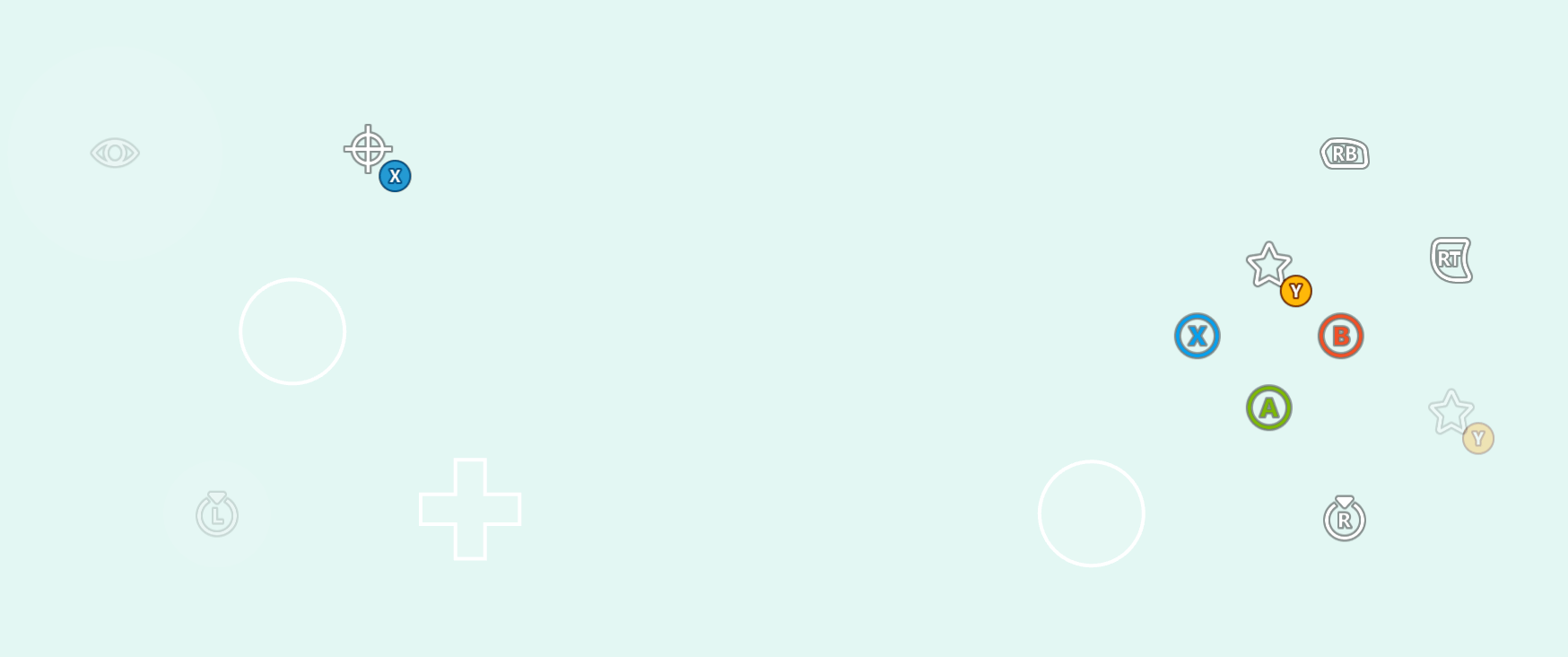
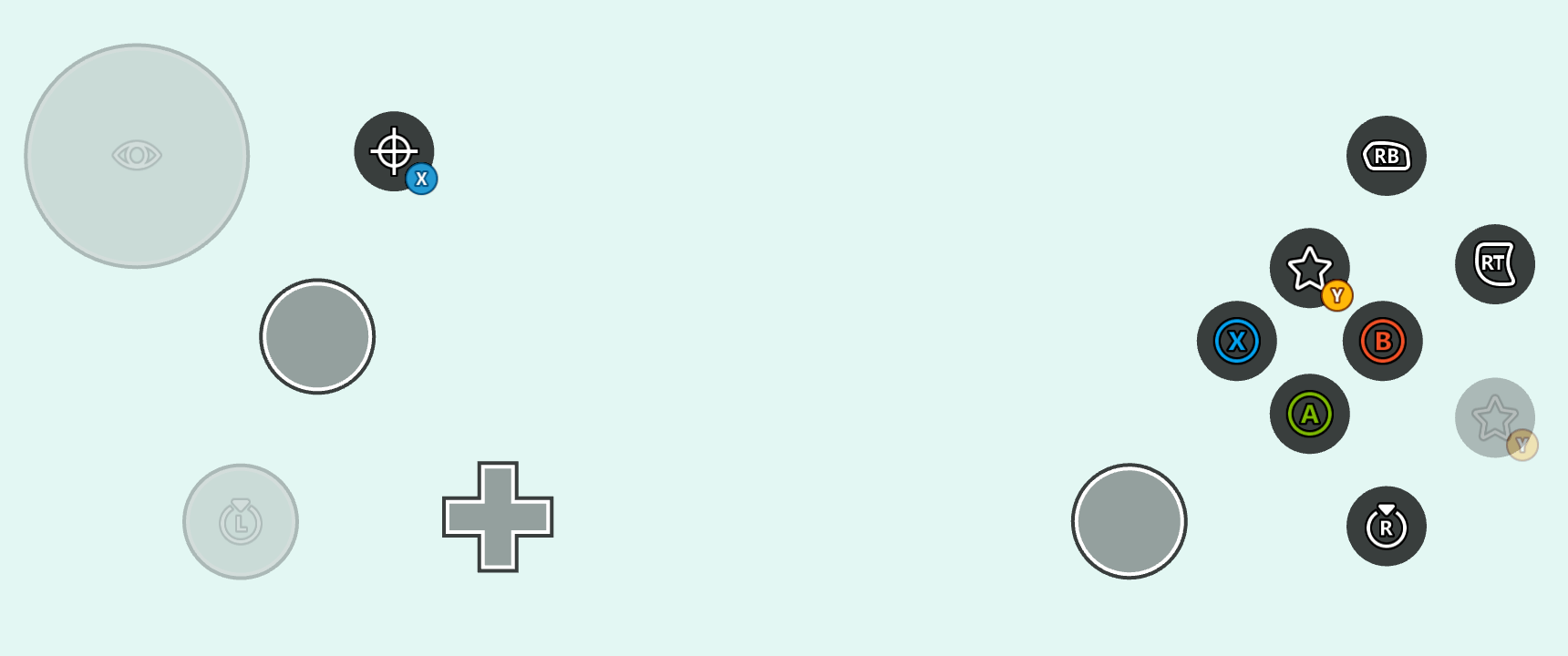
根据你标题的配色方案,可能存在这样的情况:由于触控布局与底层流中运行的标题对比度较差,导致触控布局难以看清。这对于低视力、色盲或其他视觉障碍的玩家尤其成问题。高对比度模式是一种客户端设置,激活后会为使用[图标](/reference/system/touchadaptationkit/types/game-streaming-touch-icon)设置样式的按钮添加额外的描边和按钮背板,并修改[系统颜色](/reference/system/touchadaptationkit/layout/game-streaming-touch-color-palette#system-colors)以增加对比度。
例如,标准布局和纯色浅色背景,高对比度模式**已禁用**时:
 以下是相同设置但**已启用**高对比度模式:
 虽然你可以依赖系统默认的高对比度模式样式,但你也可以包含[自定义资产的高对比度模式变体](#custom-assets-for-high-contrast-mode)以及[覆盖系统颜色](#overriding-system-colors-for-high-contrast-mode)以匹配你游戏的视觉美学。
## 高对比度模式的自定义资产
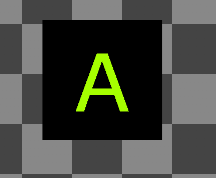
在触控适配包中使用[自定义资产](/build/core-features/common/game-streaming/building-touch-layouts/game-streaming-tak-custom-assets)时,你可以为每个标准对比度资产包含高对比度资产变体。这些高对比度资产变体在启用高对比度模式时被渲染。资产通过在资产名称之后、文件扩展名之前包含 `.hc` 后缀被标记为高对比度变体。例如,考虑 `myAsset.png`(左侧)及其高对比度变体 `myAsset.hc.png`(右侧):
虽然你可以依赖系统默认的高对比度模式样式,但你也可以包含[自定义资产的高对比度模式变体](#custom-assets-for-high-contrast-mode)以及[覆盖系统颜色](#overriding-system-colors-for-high-contrast-mode)以匹配你游戏的视觉美学。
## 高对比度模式的自定义资产
在触控适配包中使用[自定义资产](/build/core-features/common/game-streaming/building-touch-layouts/game-streaming-tak-custom-assets)时,你可以为每个标准对比度资产包含高对比度资产变体。这些高对比度资产变体在启用高对比度模式时被渲染。资产通过在资产名称之后、文件扩展名之前包含 `.hc` 后缀被标记为高对比度变体。例如,考虑 `myAsset.png`(左侧)及其高对比度变体 `myAsset.hc.png`(右侧):
 在磁盘上组织资产时,标准对比度和高对比度资产[都按语言和资产比例正常组织](/build/core-features/common/game-streaming/building-touch-layouts/game-streaming-tak-custom-assets#asset-files)。对于上述资产,文件结构可能如下所示:
```
assets/
└───neutral/
├───@1.0x/
│ myAsset.png
│ myAsset.hc.png
├───@1.5x/
│ myAsset.png
│ myAsset.hc.png
├───@2.0x/
│ myAsset.png
│ myAsset.hc.png
├───@3.0x/
│ myAsset.png
│ myAsset.hc.png
└───@4.0x/
myAsset.png
myAsset.hc.png
```
在布局中,资产的引用[不带文件名扩展名](/build/core-features/common/game-streaming/building-touch-layouts/game-streaming-tak-custom-assets#referencing-assets-from-layouts)**并且不带 `.hc` 后缀**。例如,使用上述资产设置样式的按钮可能配置如下:
```JSON theme={null}
{
"type": "button",
"action": "gamepadA",
"styles": {
"idle": {
"faceImage": {
"type": "asset",
"value": "myAsset"
}
}
}
}
```
有了这种样式,触控适配套件将根据高对比度模式是禁用还是启用,自动选择 `myAsset.png` 或 `myAsset.hc.png`。当高对比度模式**已禁用**时,此样式将产生以下结果:
在磁盘上组织资产时,标准对比度和高对比度资产[都按语言和资产比例正常组织](/build/core-features/common/game-streaming/building-touch-layouts/game-streaming-tak-custom-assets#asset-files)。对于上述资产,文件结构可能如下所示:
```
assets/
└───neutral/
├───@1.0x/
│ myAsset.png
│ myAsset.hc.png
├───@1.5x/
│ myAsset.png
│ myAsset.hc.png
├───@2.0x/
│ myAsset.png
│ myAsset.hc.png
├───@3.0x/
│ myAsset.png
│ myAsset.hc.png
└───@4.0x/
myAsset.png
myAsset.hc.png
```
在布局中,资产的引用[不带文件名扩展名](/build/core-features/common/game-streaming/building-touch-layouts/game-streaming-tak-custom-assets#referencing-assets-from-layouts)**并且不带 `.hc` 后缀**。例如,使用上述资产设置样式的按钮可能配置如下:
```JSON theme={null}
{
"type": "button",
"action": "gamepadA",
"styles": {
"idle": {
"faceImage": {
"type": "asset",
"value": "myAsset"
}
}
}
}
```
有了这种样式,触控适配套件将根据高对比度模式是禁用还是启用,自动选择 `myAsset.png` 或 `myAsset.hc.png`。当高对比度模式**已禁用**时,此样式将产生以下结果:
 而当高对比度模式**已启用**时的以下结果:
 ## 覆盖高对比度模式的系统颜色
你的触控布局或[上下文文件](/build/core-features/common/game-streaming/game-streaming-touch-touch-adaptation-bundle#context)中的[调色板](/reference/system/touchadaptationkit/layout/game-streaming-touch-color-palette)可用于覆盖[系统颜色](/reference/system/touchadaptationkit/layout/game-streaming-touch-color-palette#system-colors)。控件在设置样式时隐式地采样系统颜色,这意味着任何覆盖都将影响所有控件的全局样式(除非控件在自定义 `styles` 块中有自己的覆盖)。
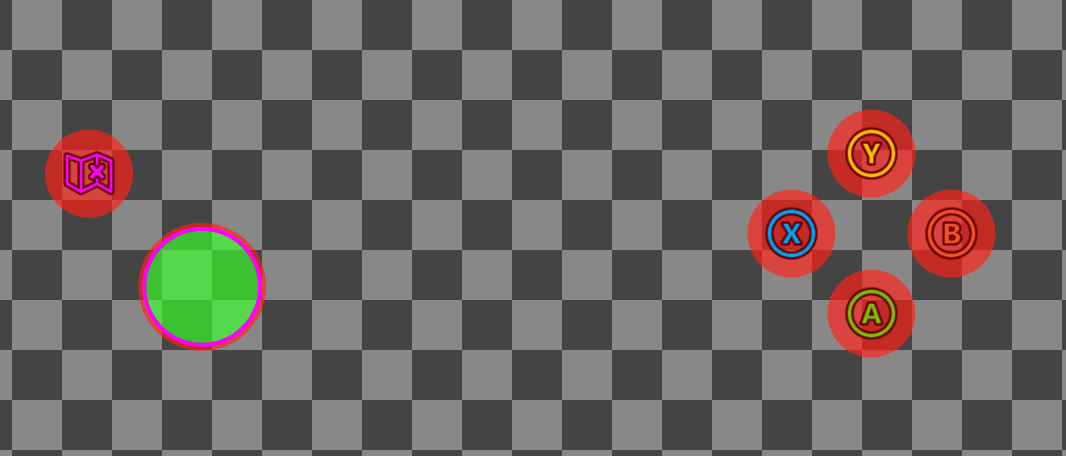
例如,以下布局覆盖了一些系统颜色,以在启用高对比度模式时实现自定义样式:
```JSON theme={null}
{
"$schema": "https://raw.githubusercontent.com/microsoft/xbox-game-streaming-tools/main/touch-adaptation-kit/schemas/layout/v4.0/layout.json",
"styles": {
"colors": {
"highContrast": {
"system_contentPrimary": "#ff00ffff",
"system_contentSecondary": "#00ff00aa",
"system_contrastPrimary": "#ff0000aa"
}
}
},
"content": {
"left": {
"inner": [
{
"type": "joystick",
"axis": {
"input": "axisXY",
"output": "leftJoystick"
}
},
{
"type": "button",
"action": "dPadRight",
"styles": {
"default": {
"faceImage": {
"type": "icon",
"value": "map"
}
}
}
}
]
},
"right": {
"inner": [
{
"type": "button",
"action": "gamepadY"
},
{
"type": "button",
"action": "gamepadB"
},
{
"type": "button",
"action": "gamepadA"
},
{
"type": "button",
"action": "gamepadX"
}
]
}
}
}
```
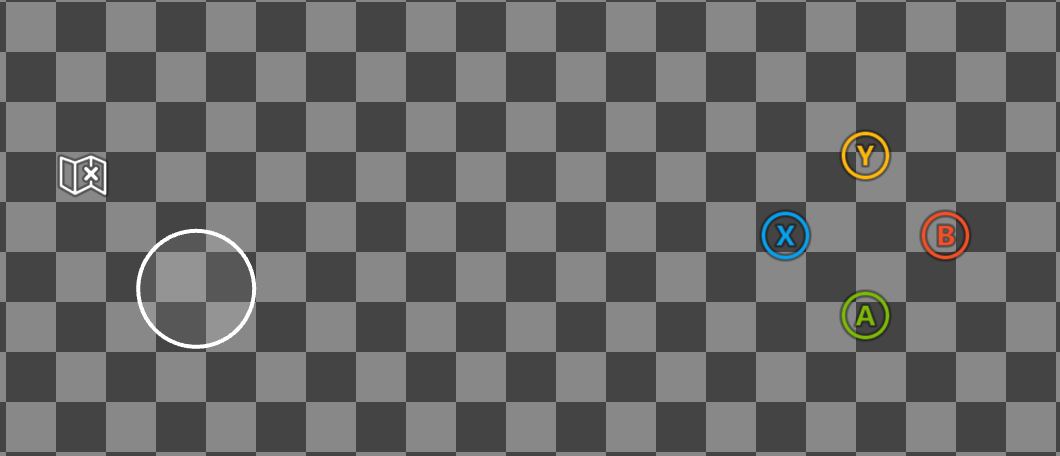
在上述布局中,`highContrast` 块中声明了三个颜色覆盖,只有在启用高对比度模式时才会应用它们:
1. `system_contentPrimary` 将覆盖应用于摇杆中间描边和地图图标色调的样式。
2. `system_contentSecondary` 将覆盖应用于摇杆填充的样式。
3. `system_contrastPrimary` 将覆盖应用于摇杆外部描边和按钮背板的样式。
上述布局在高对比度模式**已禁用**时:
## 覆盖高对比度模式的系统颜色
你的触控布局或[上下文文件](/build/core-features/common/game-streaming/game-streaming-touch-touch-adaptation-bundle#context)中的[调色板](/reference/system/touchadaptationkit/layout/game-streaming-touch-color-palette)可用于覆盖[系统颜色](/reference/system/touchadaptationkit/layout/game-streaming-touch-color-palette#system-colors)。控件在设置样式时隐式地采样系统颜色,这意味着任何覆盖都将影响所有控件的全局样式(除非控件在自定义 `styles` 块中有自己的覆盖)。
例如,以下布局覆盖了一些系统颜色,以在启用高对比度模式时实现自定义样式:
```JSON theme={null}
{
"$schema": "https://raw.githubusercontent.com/microsoft/xbox-game-streaming-tools/main/touch-adaptation-kit/schemas/layout/v4.0/layout.json",
"styles": {
"colors": {
"highContrast": {
"system_contentPrimary": "#ff00ffff",
"system_contentSecondary": "#00ff00aa",
"system_contrastPrimary": "#ff0000aa"
}
}
},
"content": {
"left": {
"inner": [
{
"type": "joystick",
"axis": {
"input": "axisXY",
"output": "leftJoystick"
}
},
{
"type": "button",
"action": "dPadRight",
"styles": {
"default": {
"faceImage": {
"type": "icon",
"value": "map"
}
}
}
}
]
},
"right": {
"inner": [
{
"type": "button",
"action": "gamepadY"
},
{
"type": "button",
"action": "gamepadB"
},
{
"type": "button",
"action": "gamepadA"
},
{
"type": "button",
"action": "gamepadX"
}
]
}
}
}
```
在上述布局中,`highContrast` 块中声明了三个颜色覆盖,只有在启用高对比度模式时才会应用它们:
1. `system_contentPrimary` 将覆盖应用于摇杆中间描边和地图图标色调的样式。
2. `system_contentSecondary` 将覆盖应用于摇杆填充的样式。
3. `system_contrastPrimary` 将覆盖应用于摇杆外部描边和按钮背板的样式。
上述布局在高对比度模式**已禁用**时:
 在高对比度模式**已启用**时:
 ## 启用高对比度模式
你可以在任何 [web](#web-cta)、[android](#android-cta) 或 [windows](#windows-cta) 内容测试应用程序 (CTA) 上测试高对比度模式。
### Web CTA
可以在 [web CTA](/build/core-features/common/game-streaming/game-streaming-web-content-test-application) 上通过以下方式启用高对比度模式:
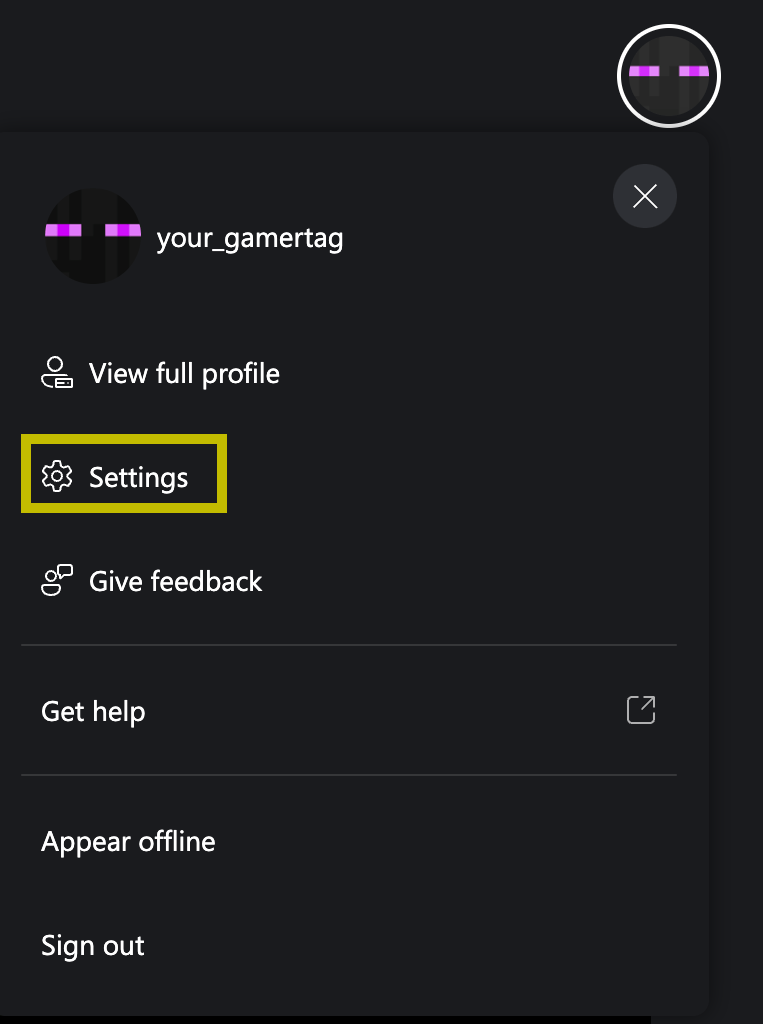
单击你的个人资料并导航到"设置"窗口:
## 启用高对比度模式
你可以在任何 [web](#web-cta)、[android](#android-cta) 或 [windows](#windows-cta) 内容测试应用程序 (CTA) 上测试高对比度模式。
### Web CTA
可以在 [web CTA](/build/core-features/common/game-streaming/game-streaming-web-content-test-application) 上通过以下方式启用高对比度模式:
单击你的个人资料并导航到"设置"窗口:
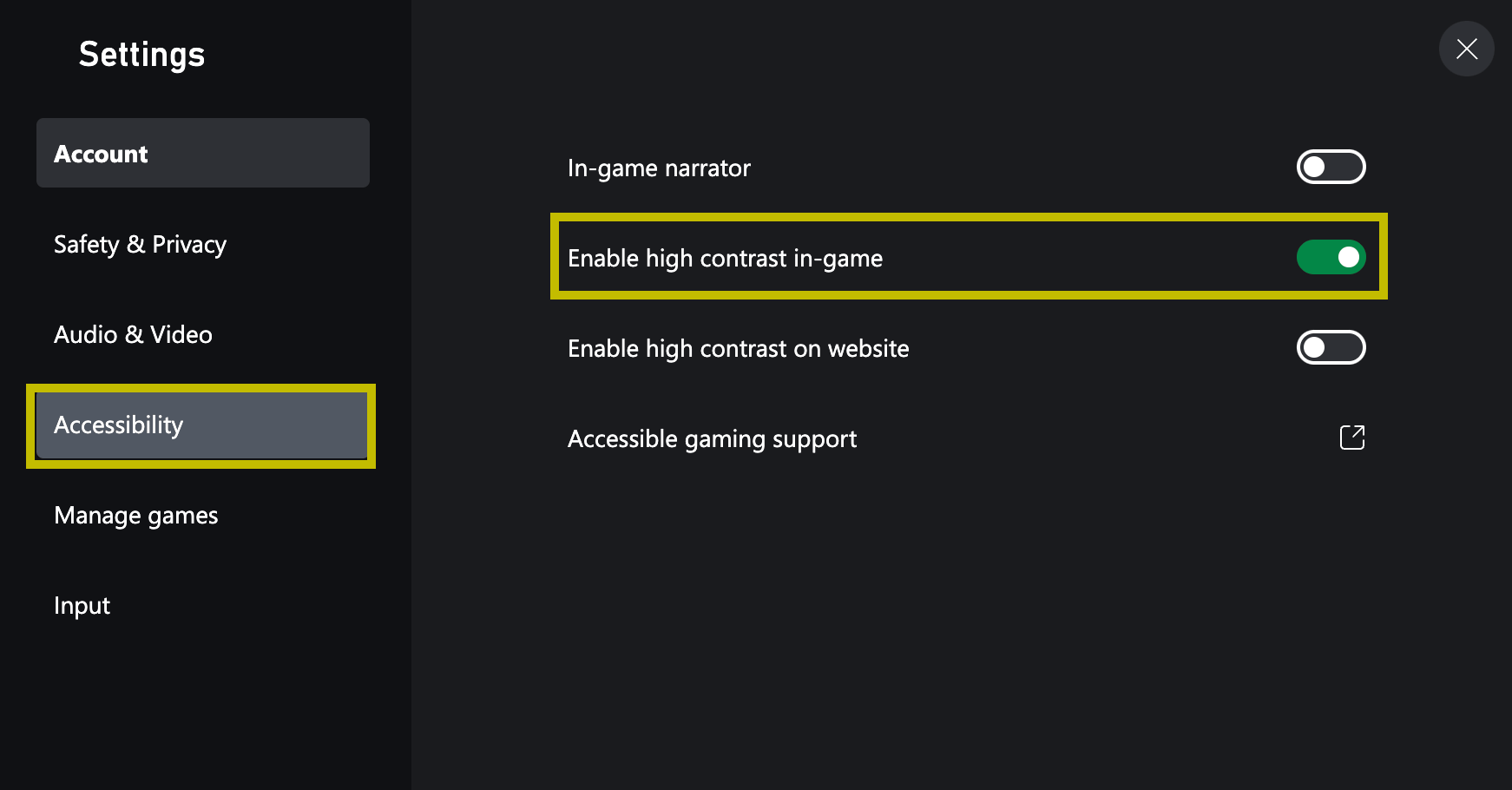
 导航到"辅助功能"并勾选"在游戏中启用高对比度":
 ### Android CTA(已弃用)
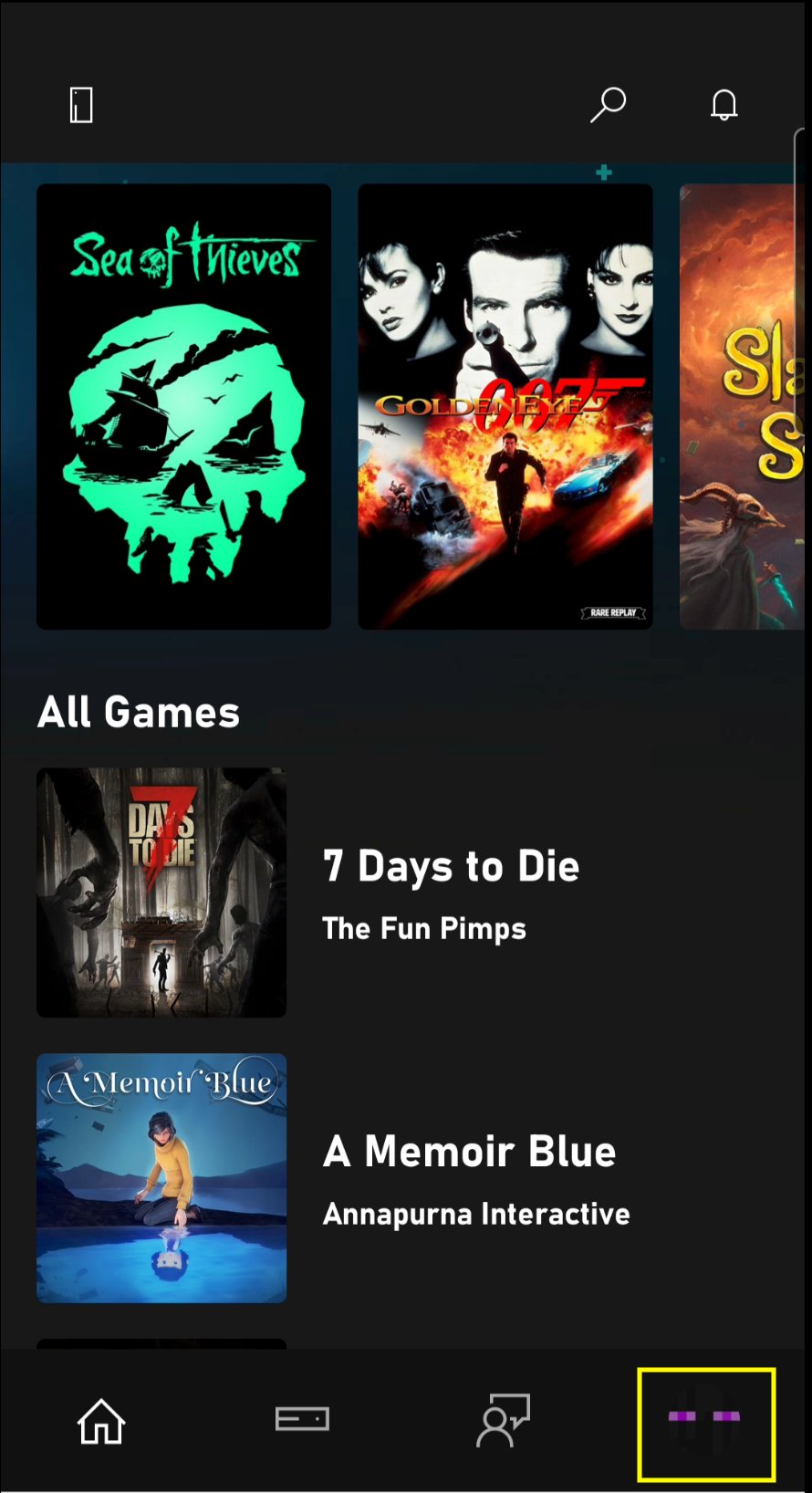
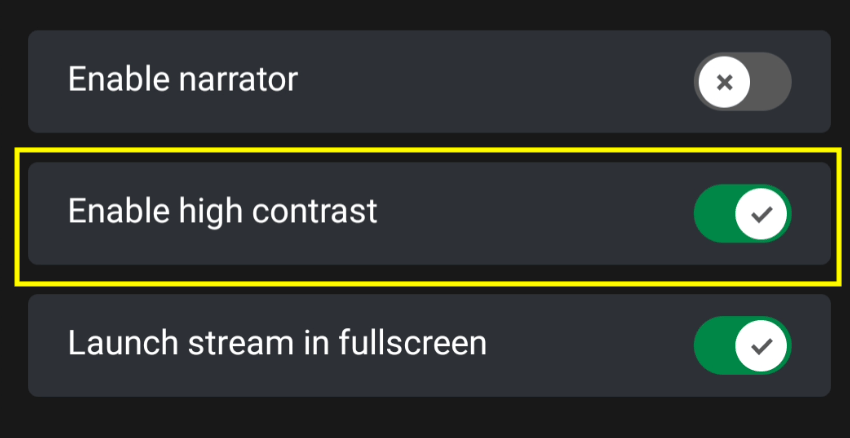
可以在 [android CTA](/build/core-features/common/game-streaming/game-streaming-android-content-test-application) 上通过以下方式启用高对比度模式:
单击你的个人资料:
### Android CTA(已弃用)
可以在 [android CTA](/build/core-features/common/game-streaming/game-streaming-android-content-test-application) 上通过以下方式启用高对比度模式:
单击你的个人资料:
 勾选"启用高对比度模式":
 ### Windows CTA(已弃用)
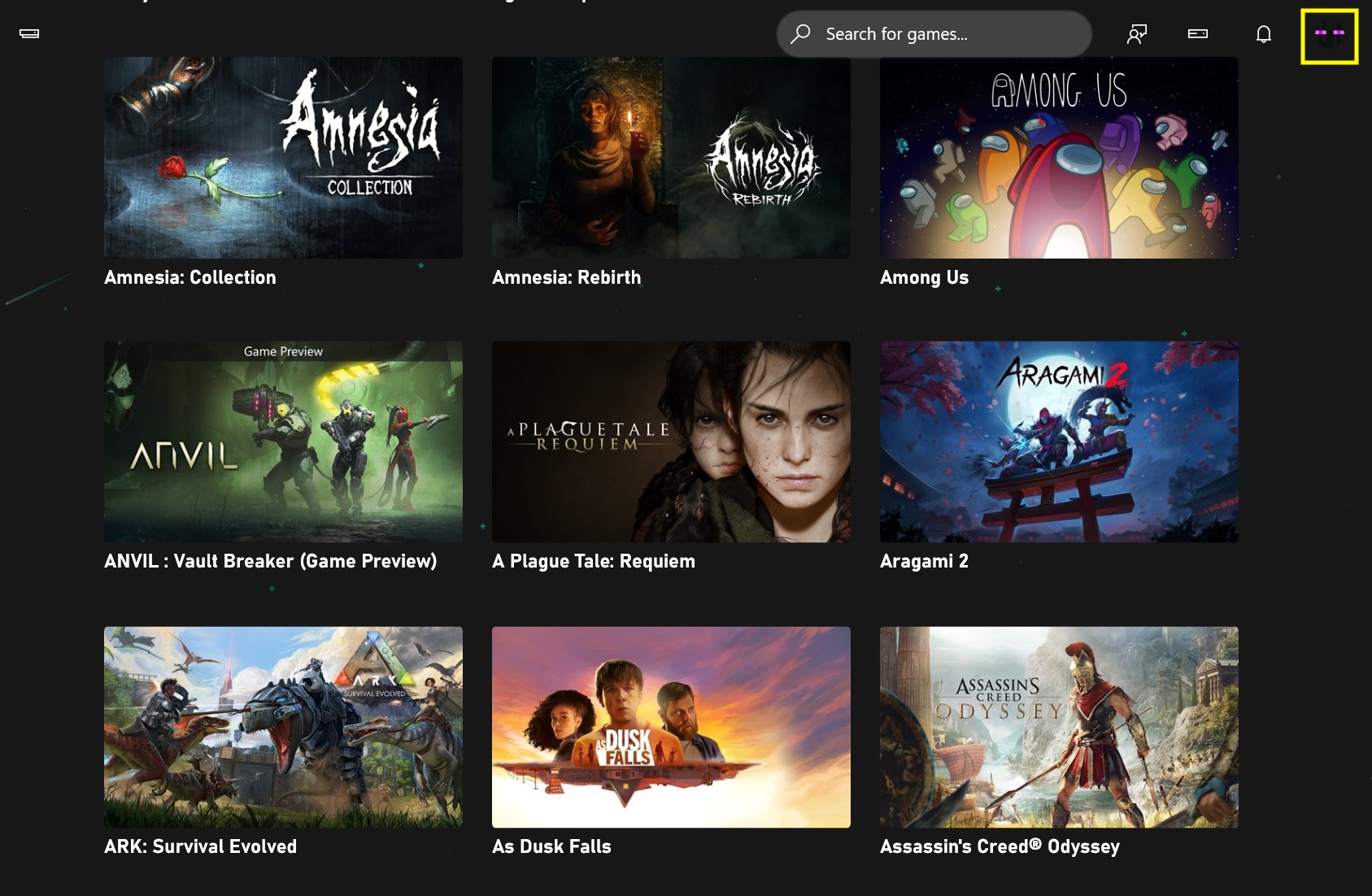
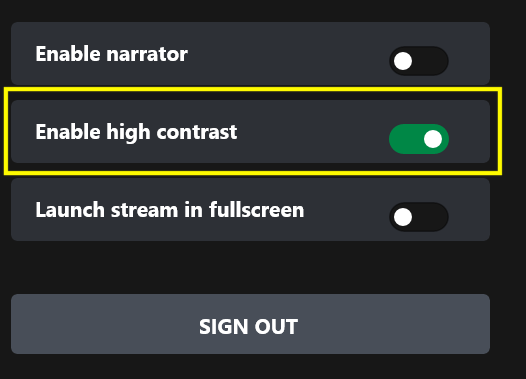
可以在 [windows CTA](/build/core-features/common/game-streaming/game-streaming-windows-pc-content-test-application) 上通过以下方式启用高对比度模式:
单击你的个人资料:
### Windows CTA(已弃用)
可以在 [windows CTA](/build/core-features/common/game-streaming/game-streaming-windows-pc-content-test-application) 上通过以下方式启用高对比度模式:
单击你的个人资料:
 勾选"启用高对比度模式":
 ## Related topics
- [XAG 102:对比度](/zh-CN/build/game-principles/accessibility/xag-deep-dives/xag-102-contrast.md)
- [XHighContrastMode](/zh-CN/reference/system/xaccessibility/enums/xhighcontrastmode.md)
- [XHighContrastGetMode](/zh-CN/reference/system/xaccessibility/functions/xhighcontrastgetmode.md)
- [GDK 无障碍概览](/zh-CN/build/game-principles/accessibility/accessibility-overview.md)
- [为 XBOX 游戏串流构建触控布局](/zh-CN/build/core-features/common/game-streaming/building-touch-layouts/index.md)
## Related topics
- [XAG 102:对比度](/zh-CN/build/game-principles/accessibility/xag-deep-dives/xag-102-contrast.md)
- [XHighContrastMode](/zh-CN/reference/system/xaccessibility/enums/xhighcontrastmode.md)
- [XHighContrastGetMode](/zh-CN/reference/system/xaccessibility/functions/xhighcontrastgetmode.md)
- [GDK 无障碍概览](/zh-CN/build/game-principles/accessibility/accessibility-overview.md)
- [为 XBOX 游戏串流构建触控布局](/zh-CN/build/core-features/common/game-streaming/building-touch-layouts/index.md)