> ## Documentation Index
> Fetch the complete documentation index at: https://devdocs.xbox.com/llms.txt
> Use this file to discover all available pages before exploring further.
# XBOX Manager: updating a console
> XBOX Manager: updating a console
Use XBOX Manager to update the system software on a console and perform a factory reset on a console.
If you opted into automatic console OS updates on your Development Kit by using XBOX Device Portal (XDP) or Developer Home (Dev Home), manually updating the console by using XBOX Manager or by running *XboxOneUpdate.bat* fails. If you want to manually update the console OS, go to the OS recovery update policy setting and select **I install OS recovery updates manually**. After you select the manual recovery option, run the manual OS update from XBOX Manager.
For more information, see the following sections of this topic.
* [To update a console and perform a factory reset](#ID4E3)
* [To perform a factory reset without updating the console](#ID4EMD)
## To update a console and perform a factory reset
1. Download the compressed OS program file available from the XDP. The OS update program files are formatted as *XboxOneUpdate\_\[version].zip*.
2. Extract the compressed program files' contents.
3. Select **XBOX Manager GDK** from the **Start** menu shortcut.
4. Select the console that you want to update.
> \[!NOTE]
> You can update multiple consoles at the same time by selecting a console group instead of a single console.
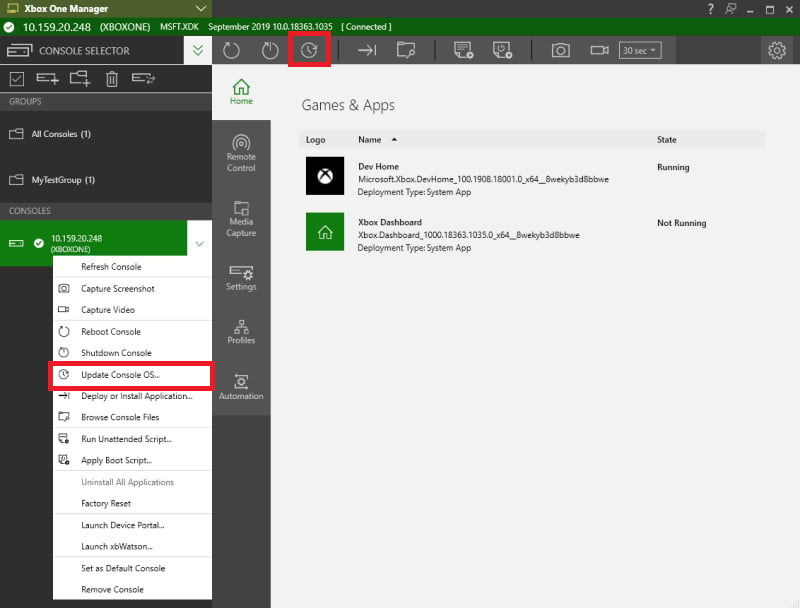
5. Select **Update** or select **Update Console OS** in the context menu for a console or console group as shown in the following screenshot.
 1. After you're prompted, browse File Explorer for the saved, extracted program files.
2. Select the update option you want, either by selecting **Update** or by selecting **Update and Factory Reset**. Then select **Update** as shown in the following screenshot.
1. After you're prompted, browse File Explorer for the saved, extracted program files.
2. Select the update option you want, either by selecting **Update** or by selecting **Update and Factory Reset**. Then select **Update** as shown in the following screenshot.
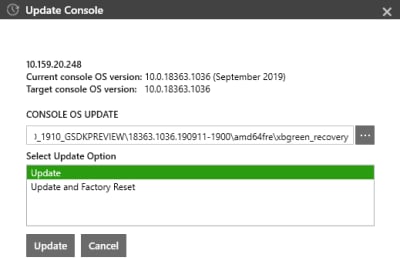 > \[!NOTE]
> If you select **Update** instead of **Update and Factory Reset**, the **Update** option factory resets if the build that you're installing is *older* than the one that's currently on your console.
1. When you update the console by using XBOX Manager, the update package then updates the console by using the following update process.
1. XBOX Manager downloads the update package to the console.
2. The console restarts before starting the update.
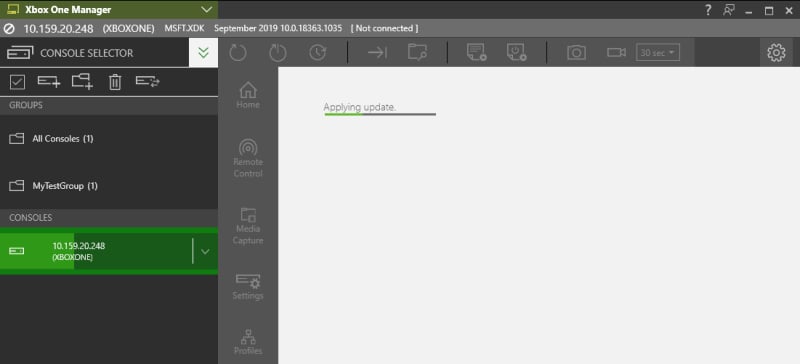
3. After the update starts, a green bar is displayed on screen as the console updates to the OS as shown in the following screenshot.
> \[!NOTE]
> If you select **Update** instead of **Update and Factory Reset**, the **Update** option factory resets if the build that you're installing is *older* than the one that's currently on your console.
1. When you update the console by using XBOX Manager, the update package then updates the console by using the following update process.
1. XBOX Manager downloads the update package to the console.
2. The console restarts before starting the update.
3. After the update starts, a green bar is displayed on screen as the console updates to the OS as shown in the following screenshot.
 1. When the update has been completed, the console restarts to the XBOX shell.
> \[!NOTE]
> Consoles updated by using XBOX Manager create log files in %temp% on your development PC. There's one log per update, and the logs are formatted as XboxOneUpdate\_\[console IP or hostname]\_\[datetime].txt.
## To perform a factory reset without updating the console
1. Select **XBOX Manager GDK** from the **Start** menu shortcut.
2. Select the console that you want to factory reset from the list.
> \[!NOTE]
> You can factory reset multiple consoles at the same time by selecting a console group instead of a single console.
3. Select **Factory Reset** in the context menu for a console or console group as shown in the following screenshot.
1. When the update has been completed, the console restarts to the XBOX shell.
> \[!NOTE]
> Consoles updated by using XBOX Manager create log files in %temp% on your development PC. There's one log per update, and the logs are formatted as XboxOneUpdate\_\[console IP or hostname]\_\[datetime].txt.
## To perform a factory reset without updating the console
1. Select **XBOX Manager GDK** from the **Start** menu shortcut.
2. Select the console that you want to factory reset from the list.
> \[!NOTE]
> You can factory reset multiple consoles at the same time by selecting a console group instead of a single console.
3. Select **Factory Reset** in the context menu for a console or console group as shown in the following screenshot.
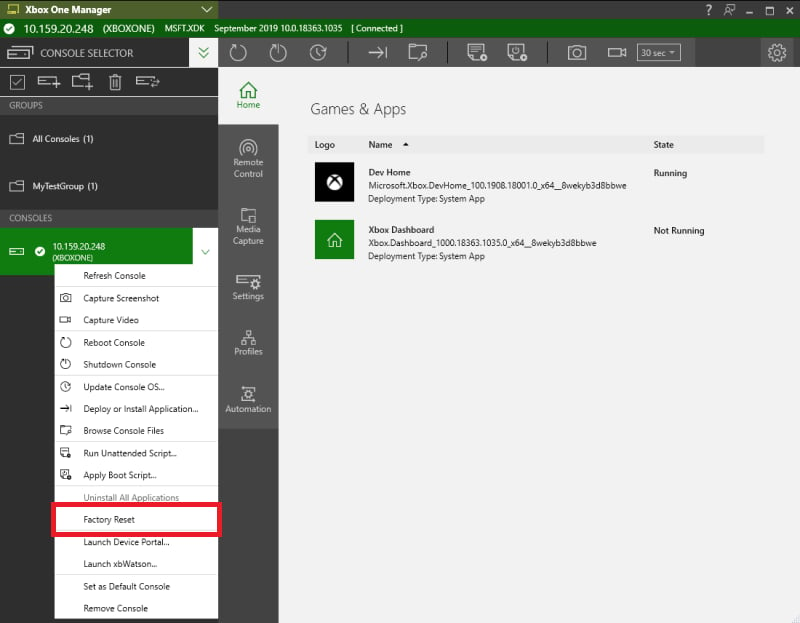 This process is the equivalent of running [xbcleanup.exe /F](/tools/tools-console/commandlinetools/xbcleanup).
## See also
[XBOX Manager](/tools/tools-console/xbom/xbom)
## Related topics
- [XBOX Manager tool for managing dev consoles](/tools/tools-console/xbom/index.md)
- [XBOX Manager: managing consoles and groups](/tools/tools-console/xbom/manager-tool-groups.md)
- [XBOX Manager: managing console settings](/tools/tools-console/xbom/manager-tool-console-settings.md)
- [XBOX Manager: managing console automation](/tools/tools-console/xbom/manager-tool-automation.md)
- [XBOX Manager](/tools/tools-console/xbom/xbom.md)
This process is the equivalent of running [xbcleanup.exe /F](/tools/tools-console/commandlinetools/xbcleanup).
## See also
[XBOX Manager](/tools/tools-console/xbom/xbom)
## Related topics
- [XBOX Manager tool for managing dev consoles](/tools/tools-console/xbom/index.md)
- [XBOX Manager: managing consoles and groups](/tools/tools-console/xbom/manager-tool-groups.md)
- [XBOX Manager: managing console settings](/tools/tools-console/xbom/manager-tool-console-settings.md)
- [XBOX Manager: managing console automation](/tools/tools-console/xbom/manager-tool-automation.md)
- [XBOX Manager](/tools/tools-console/xbom/xbom.md)