> ## Documentation Index
> Fetch the complete documentation index at: https://devdocs.xbox.com/llms.txt
> Use this file to discover all available pages before exploring further.
# XBOX Manager: manage test accounts
> XBOX Manager: manage test accounts
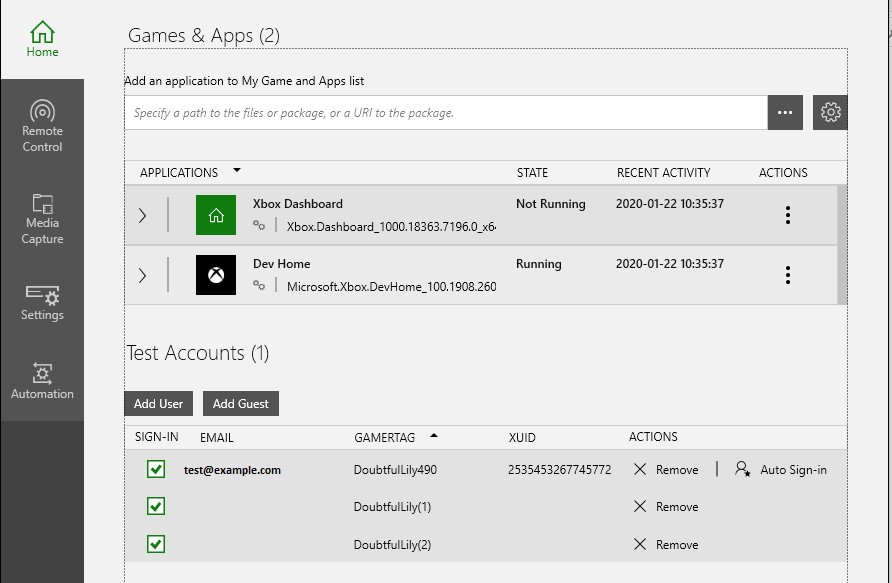
Use the **Test Accounts** section of the home tab to sign in users and create guest users on a console.
 * [Add a new user](#ID4E2)
* [Sign in a guest user](#ID4EJC)
* [Sign in or sign out an existing user](#ID4E1C)
* [Remove a user from the console](#ID4ESD)
* [Set a default user](#ID4E5D)
* [Sort the user list](#ID4EIE)
* [Maximum number of users](#ID4EWE)
## Add a new user
1. Run **XBOX Manager** from the start menu shortcut created by setup.
2. In the console selector, click the console you want to sign in a user on.
3. Click the **Home** tab.
4. Under the **Test Accounts** section, click **Add User**.
5. In the **Sign in user** dialog, type in the user email address and password, then click the **Sign in user** button.
## Sign in a guest user
1. Sign in a user following the previous steps.
2. After a user signs in, click the **Add Guest** button.
3. A new guest appears under the signed-in user.
## Sign in or sign out an existing user
You can toggle the state of an existing user by clicking the checkbox in the **SIGN-IN** column.
Signing out a user will automatically sign out all guest accounts associated with that user. Signing out a guest user will remove the guest user only from the user list.
## Remove a user from the console
To remove a user from the console, click **Remove** in the **ACTIONS** column. This removes the user from the list of users in the **Test Accounts** section and from the list of users on the console itself.
## Set a default user
To set a default user, click **Auto Sign-in** in the **ACTIONS** column for the user. Setting the default user causes that user to automatically sign in each time the console boots. The default user has a check mark next to the **Auto Sign-in** action in the **ACTIONS** column.
## Sort the user list
To sort the user list, click the **Email**, **Gamertag**, or **XUID** column headers.
## Maximum number of users
There is a limit of 16 signed-in users on a console. This total includes all users and all guests. The **Add User** and **Add Guest** buttons will be grayed out when this limit is reached.
## See also
[XBOX Manager](/tools/tools-console/xbom/xbom)
## Related topics
- [XBOX Manager tool for managing dev consoles](/tools/tools-console/xbom/index.md)
- [Create and manage XBOX test accounts](/publishing/game-publishing/how-to/how-to-create-and-manage-test-accounts.md)
- [XBOX test accounts](/services/xbox-services/develop/test-accounts/live-test-accounts.md)
- [XBOX Live Test Account tool (XblTestAccountGui.exe)](/tools/tools-services/live-xbox-live-account-tool.md)
- [Exporting XBOX test accounts](/services/xbox-services/develop/test-accounts/live-exporting-test-accounts.md)
* [Add a new user](#ID4E2)
* [Sign in a guest user](#ID4EJC)
* [Sign in or sign out an existing user](#ID4E1C)
* [Remove a user from the console](#ID4ESD)
* [Set a default user](#ID4E5D)
* [Sort the user list](#ID4EIE)
* [Maximum number of users](#ID4EWE)
## Add a new user
1. Run **XBOX Manager** from the start menu shortcut created by setup.
2. In the console selector, click the console you want to sign in a user on.
3. Click the **Home** tab.
4. Under the **Test Accounts** section, click **Add User**.
5. In the **Sign in user** dialog, type in the user email address and password, then click the **Sign in user** button.
## Sign in a guest user
1. Sign in a user following the previous steps.
2. After a user signs in, click the **Add Guest** button.
3. A new guest appears under the signed-in user.
## Sign in or sign out an existing user
You can toggle the state of an existing user by clicking the checkbox in the **SIGN-IN** column.
Signing out a user will automatically sign out all guest accounts associated with that user. Signing out a guest user will remove the guest user only from the user list.
## Remove a user from the console
To remove a user from the console, click **Remove** in the **ACTIONS** column. This removes the user from the list of users in the **Test Accounts** section and from the list of users on the console itself.
## Set a default user
To set a default user, click **Auto Sign-in** in the **ACTIONS** column for the user. Setting the default user causes that user to automatically sign in each time the console boots. The default user has a check mark next to the **Auto Sign-in** action in the **ACTIONS** column.
## Sort the user list
To sort the user list, click the **Email**, **Gamertag**, or **XUID** column headers.
## Maximum number of users
There is a limit of 16 signed-in users on a console. This total includes all users and all guests. The **Add User** and **Add Guest** buttons will be grayed out when this limit is reached.
## See also
[XBOX Manager](/tools/tools-console/xbom/xbom)
## Related topics
- [XBOX Manager tool for managing dev consoles](/tools/tools-console/xbom/index.md)
- [Create and manage XBOX test accounts](/publishing/game-publishing/how-to/how-to-create-and-manage-test-accounts.md)
- [XBOX test accounts](/services/xbox-services/develop/test-accounts/live-test-accounts.md)
- [XBOX Live Test Account tool (XblTestAccountGui.exe)](/tools/tools-services/live-xbox-live-account-tool.md)
- [Exporting XBOX test accounts](/services/xbox-services/develop/test-accounts/live-exporting-test-accounts.md)