> ## Documentation Index
> Fetch the complete documentation index at: https://devdocs.xbox.com/llms.txt
> Use this file to discover all available pages before exploring further.
# XBOX Manager: managing console automation
> XBOX Manager: managing console automation
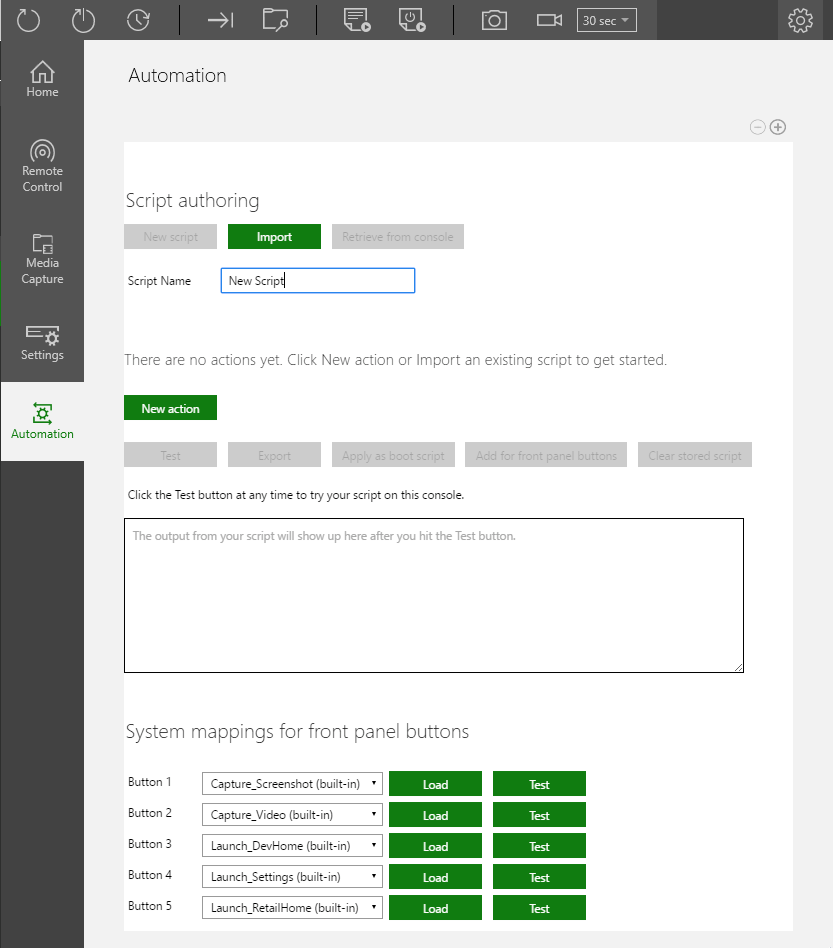
The Automation tab in XBOX Manager, shown in the following screenshot, hosts the [XBOX Device Portal (Windows Device Portal on XBOX)](/tools/tools-console/wdp/wdp) UI for unattended scripts (and for XBOX One X Development Kits and front panel scripts). When connected to dev kits that have a front panel display, the display is available on the Automation page for remote testing and control. The Automation tab is available only when the [XBOX Device Portal](/tools/tools-console/wdp/wdp) is enabled on your console.
 ## Create a new script
1. Select **New script** (shown as follows).
## Create a new script
1. Select **New script** (shown as follows).  2. Enter a new script name. The default name is **New Script**.
3. Add a new action to the script. Select **New action** (shown as follows).
2. Enter a new script name. The default name is **New Script**.
3. Add a new action to the script. Select **New action** (shown as follows).
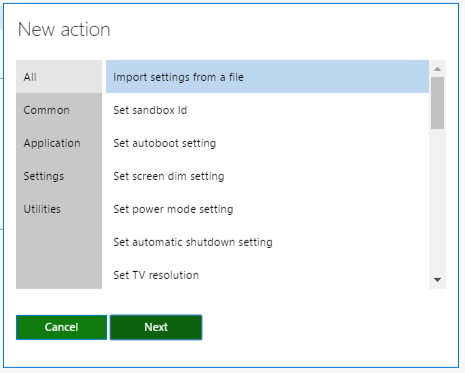
 1. Select the action for the script from the **New action** window that appears (shown as follows), and then select **Next**.
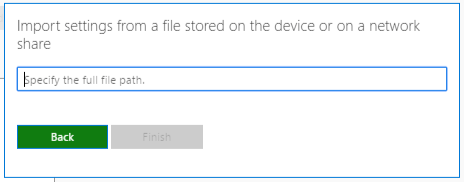
 1. Set any parameters for the action (shown as follows).
 1. Repeat steps 3 through 5 to add more actions to the script.
2. Optionally, to set the script to launch at startup, select **Apply as boot script** (shown as follows).
1. Repeat steps 3 through 5 to add more actions to the script.
2. Optionally, to set the script to launch at startup, select **Apply as boot script** (shown as follows).
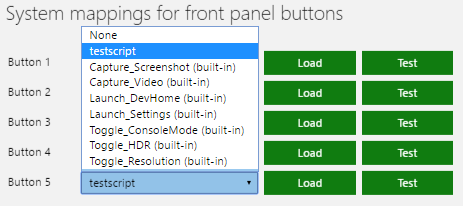
 1. Optionally, to apply the script to one of the front panel buttons, click **Add for front panel buttons** (shown as follows), and then select the script in the **System mappings for front panel buttons** section (shown as follows).

 ## Related topics
- [XBOX Manager tool for managing dev consoles](/tools/tools-console/xbom/index.md)
- [XBOX Manager: managing console settings](/tools/tools-console/xbom/manager-tool-console-settings.md)
- [XBOX Manager: managing consoles and groups](/tools/tools-console/xbom/manager-tool-groups.md)
- [Managing console settings with XBOX Device Portal](/tools/tools-console/wdp/windows-device-portal-on-xbox-settings.md)
- [XBOX Manager: updating a console](/tools/tools-console/xbom/manager-tool-updating-console.md)
## Related topics
- [XBOX Manager tool for managing dev consoles](/tools/tools-console/xbom/index.md)
- [XBOX Manager: managing console settings](/tools/tools-console/xbom/manager-tool-console-settings.md)
- [XBOX Manager: managing consoles and groups](/tools/tools-console/xbom/manager-tool-groups.md)
- [Managing console settings with XBOX Device Portal](/tools/tools-console/wdp/windows-device-portal-on-xbox-settings.md)
- [XBOX Manager: updating a console](/tools/tools-console/xbom/manager-tool-updating-console.md)