> ## Documentation Index
> Fetch the complete documentation index at: https://devdocs.xbox.com/llms.txt
> Use this file to discover all available pages before exploring further.
# Script authoring tool
> Script authoring tool
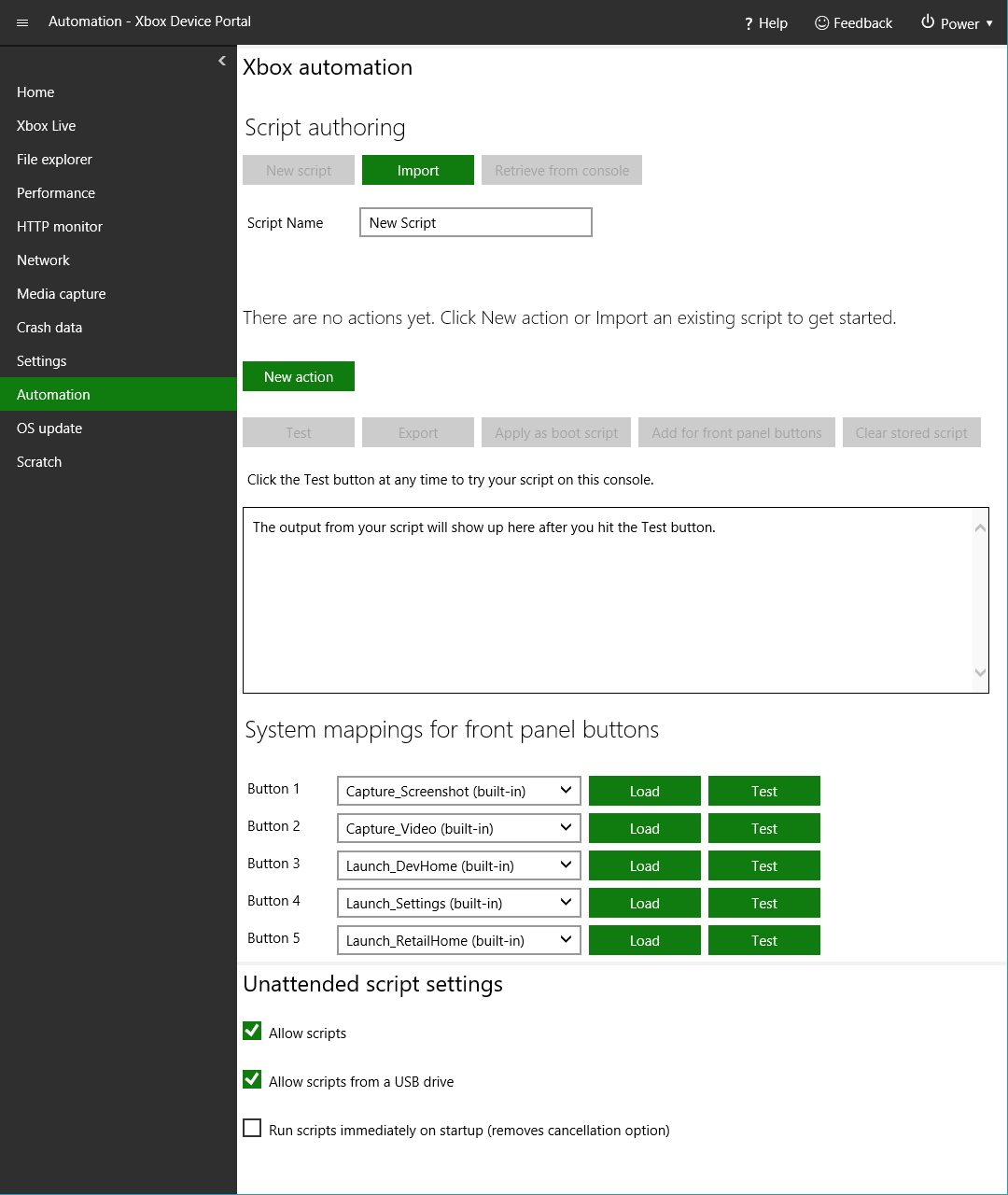
Use this tool to quickly create new unattended setup scripts for XBOX One Development Kits by choosing from a wide selection of predefined actions. The script authoring tool is available both in [XBOX Device Portal (Windows Device Portal on XBOX)](/tools/tools-console/wdp/wdp), as shown in figure 1, and in [XBOX Manager](/tools/tools-console/xbom/xbom).
**Figure 1. Main interface of the script authoring tool in XBOX Device Portal**
 This topic contains the following sections.
* [Open the script authoring tool](#open_tool)
* [Create a new script](#create_script)
* [Add, edit, and reorder script actions](#add_actions)
* [Export and import scripts](#save_script)
* [Deploy and clear a boot script](#deploy_script)
* [Cancel a boot script](#abort_script)
* [Invoke scripts from the XBOX One X dev kit front panel](#front_panel)
## Open the script authoring tool
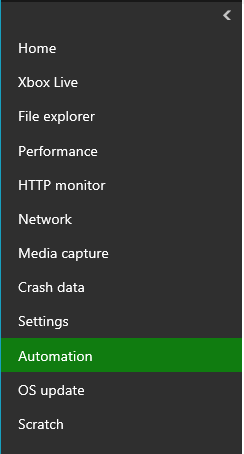
The script authoring tool is included in [XBOX Device Portal (Windows Device Portal on XBOX)](/tools/tools-console/wdp/wdp) and is hosted in [XBOX Manager](/tools/tools-console/xbom/xbom). To open the tool in XBOX Device Portal, go to the **Automation** workspace on the left pane as shown in figure 2.
**Figure 2. Workspaces in XBOX Device Portal**
This topic contains the following sections.
* [Open the script authoring tool](#open_tool)
* [Create a new script](#create_script)
* [Add, edit, and reorder script actions](#add_actions)
* [Export and import scripts](#save_script)
* [Deploy and clear a boot script](#deploy_script)
* [Cancel a boot script](#abort_script)
* [Invoke scripts from the XBOX One X dev kit front panel](#front_panel)
## Open the script authoring tool
The script authoring tool is included in [XBOX Device Portal (Windows Device Portal on XBOX)](/tools/tools-console/wdp/wdp) and is hosted in [XBOX Manager](/tools/tools-console/xbom/xbom). To open the tool in XBOX Device Portal, go to the **Automation** workspace on the left pane as shown in figure 2.
**Figure 2. Workspaces in XBOX Device Portal**
 If you can't find the Automation workspace, add the automation tools to a new workspace by using the following steps.
1. Select **Menu** on the upper-left corner, and then select **New workspace**.
2. Enter a name for the new workspace, and then select **Add**.
3. On the new workspace, select **Menu**, and then select **Add tools to workspace**.
4. On the tools list, select **XBOX automation** and **XBOX unattended settings**, and then select **Add**.
## Create a new script
If you're already working on a script, consider either exporting or deploying the script that you're working on *before* you select **New script**.
To create a new script, select **New script** under **Automation** or your custom workspace. This clears the current script and resets **Script Name** to "New Script".
>
If you can't find the Automation workspace, add the automation tools to a new workspace by using the following steps.
1. Select **Menu** on the upper-left corner, and then select **New workspace**.
2. Enter a name for the new workspace, and then select **Add**.
3. On the new workspace, select **Menu**, and then select **Add tools to workspace**.
4. On the tools list, select **XBOX automation** and **XBOX unattended settings**, and then select **Add**.
## Create a new script
If you're already working on a script, consider either exporting or deploying the script that you're working on *before* you select **New script**.
To create a new script, select **New script** under **Automation** or your custom workspace. This clears the current script and resets **Script Name** to "New Script".
>  **CAUTION:** When you go to a different XBOX Device Portal workspace, it has the same effect as selecting **New script**. To avoid losing your work, open your new workspace in a new browser tab.
## Add, edit, and reorder script actions
Script actions are individual automation tasks that you can combine to create a script. .
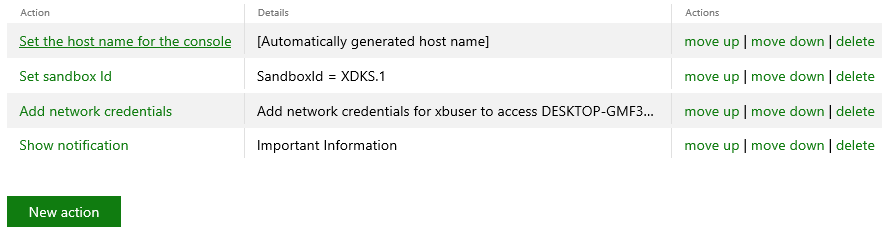
The script editor maintains a table of actions that you've added. This table is blank in a newly created script. As you add new actions, new lines are added to the table as shown in figure 3.
**Figure 3. Actions table in the script authoring tool**
**CAUTION:** When you go to a different XBOX Device Portal workspace, it has the same effect as selecting **New script**. To avoid losing your work, open your new workspace in a new browser tab.
## Add, edit, and reorder script actions
Script actions are individual automation tasks that you can combine to create a script. .
The script editor maintains a table of actions that you've added. This table is blank in a newly created script. As you add new actions, new lines are added to the table as shown in figure 3.
**Figure 3. Actions table in the script authoring tool**
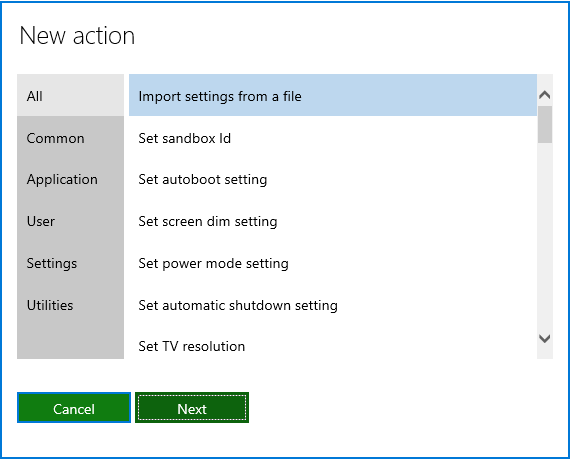
 To add a new action to a script, select **New action**. This shows the New action dialog box, which contains categorized lists of dozens of scriptable tasks and settings that you can add to your script. To do so, choose a category, select the action that you want from the list, and then select **Next** to finish adding the action to your script as shown in figure 4.
**Figure 4. New action dialog box in the script authoring tool**
To add a new action to a script, select **New action**. This shows the New action dialog box, which contains categorized lists of dozens of scriptable tasks and settings that you can add to your script. To do so, choose a category, select the action that you want from the list, and then select **Next** to finish adding the action to your script as shown in figure 4.
**Figure 4. New action dialog box in the script authoring tool**
 To edit an existing action, select the name of that action in the table. After you create a script with several actions, you can change the order in which the actions are run by selecting the **move up** or **move down** link in the **Actions** column. To delete an action, select the **delete** link in the **Actions** column as shown in figure 3.
## Export and import scripts
To save your script, select **Export**, and then save the script by using the standard file dialog box. The script is saved in a text file named "*scriptname*.xboxunattend". (Note that the Export button isn't available if the script doesn't contain any actions.) Saved scripts can be imported and deployed later to another console or a USB drive.
To edit previously exported scripts, import them into the script authoring tool. To import a script, select **Import**, and then browse to the .xboxunattend file that contains the script.
## Deploy and clear a boot script
To automatically run a script every time you restart your dev kit, import the script into the tool, and then select **Apply as boot script**. This copies the script to a command script named *xd:\boot\boot.cmd* on your dev kit. Every time that your dev kit restarts, it opens either [Developer Home on the console (Dev Home)](/tools/tools-console/devhome/devhome) (the default for dev kits) or the retail Home screen, depending on the preferences you've selected, and then runs your boot script about 20-30 seconds later.
To remove the current boot script from the console, select **Clear stored script**. This button is available whenever XBOX Device Portal is connected to a console that has a boot script deployed.
## Cancel a boot script
When the dev kit is restarted, the system shows the following notification, as shown in figure 5, by default before the boot script is run.
**Figure 5. Boot script notification**
To edit an existing action, select the name of that action in the table. After you create a script with several actions, you can change the order in which the actions are run by selecting the **move up** or **move down** link in the **Actions** column. To delete an action, select the **delete** link in the **Actions** column as shown in figure 3.
## Export and import scripts
To save your script, select **Export**, and then save the script by using the standard file dialog box. The script is saved in a text file named "*scriptname*.xboxunattend". (Note that the Export button isn't available if the script doesn't contain any actions.) Saved scripts can be imported and deployed later to another console or a USB drive.
To edit previously exported scripts, import them into the script authoring tool. To import a script, select **Import**, and then browse to the .xboxunattend file that contains the script.
## Deploy and clear a boot script
To automatically run a script every time you restart your dev kit, import the script into the tool, and then select **Apply as boot script**. This copies the script to a command script named *xd:\boot\boot.cmd* on your dev kit. Every time that your dev kit restarts, it opens either [Developer Home on the console (Dev Home)](/tools/tools-console/devhome/devhome) (the default for dev kits) or the retail Home screen, depending on the preferences you've selected, and then runs your boot script about 20-30 seconds later.
To remove the current boot script from the console, select **Clear stored script**. This button is available whenever XBOX Device Portal is connected to a console that has a boot script deployed.
## Cancel a boot script
When the dev kit is restarted, the system shows the following notification, as shown in figure 5, by default before the boot script is run.
**Figure 5. Boot script notification**
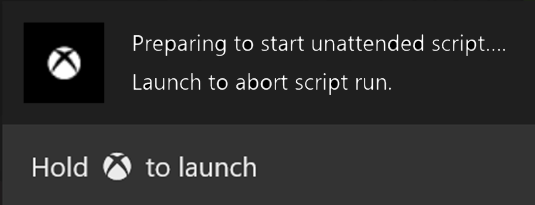 This notification enables you to cancel a dangerous script. For example, a script that restarts the console isn't a good choice for a boot script because it would result in an endless restart loop. To cancel a script, press and hold the XBOX button on your controller when this notification appears.
The cancel notification is enabled by default and adds a small amount of time to the startup sequence. To disable this notification, select the **Run scripts immediately on startup** option under **Unattended script settings** as shown in figure 1.
## Invoke scripts from the XBOX One X dev kit front panel
The XBOX One X dev kit has a built-in front panel display and five programmable buttons. You can configure any of these buttons to perform a custom action when the button is pressed. This includes both built-in actions and custom actions that you create by using the script authoring tool.
To map a script to a button on the front panel, select **Add for front panel buttons** in the script authoring tool to copy the script to the dev kit. Then, follow the instructions in [Managing console automation](/tools/tools-console/xbom/manager-tool-automation) to remap the button to your custom script.
This feature appears only when XBOX Device Portal is connected to an XBOX One X dev kit.
## Related topics
- [XBOX Device Portal (Windows Device Portal on XBOX)](/tools/tools-console/wdp/index.md)
- [PlayFab Live service management documentation](/services/playfab/live-service-management/index.md)
- [MicrosoftGame.config overview](/build/core-features/common/game-config/MicrosoftGameConfig-Overview.md)
- [A designer's guide to building touch controls](/build/core-features/common/game-streaming/building-touch-layouts/game-streaming-tak-designers-guide.md)
- [Getting started with Data Explorer advanced mode](/services/playfab/data-analytics/learn-data/data-explorer/getting-started-with-data-explorer-advanced.md)
This notification enables you to cancel a dangerous script. For example, a script that restarts the console isn't a good choice for a boot script because it would result in an endless restart loop. To cancel a script, press and hold the XBOX button on your controller when this notification appears.
The cancel notification is enabled by default and adds a small amount of time to the startup sequence. To disable this notification, select the **Run scripts immediately on startup** option under **Unattended script settings** as shown in figure 1.
## Invoke scripts from the XBOX One X dev kit front panel
The XBOX One X dev kit has a built-in front panel display and five programmable buttons. You can configure any of these buttons to perform a custom action when the button is pressed. This includes both built-in actions and custom actions that you create by using the script authoring tool.
To map a script to a button on the front panel, select **Add for front panel buttons** in the script authoring tool to copy the script to the dev kit. Then, follow the instructions in [Managing console automation](/tools/tools-console/xbom/manager-tool-automation) to remap the button to your custom script.
This feature appears only when XBOX Device Portal is connected to an XBOX One X dev kit.
## Related topics
- [XBOX Device Portal (Windows Device Portal on XBOX)](/tools/tools-console/wdp/index.md)
- [PlayFab Live service management documentation](/services/playfab/live-service-management/index.md)
- [MicrosoftGame.config overview](/build/core-features/common/game-config/MicrosoftGameConfig-Overview.md)
- [A designer's guide to building touch controls](/build/core-features/common/game-streaming/building-touch-layouts/game-streaming-tak-designers-guide.md)
- [Getting started with Data Explorer advanced mode](/services/playfab/data-analytics/learn-data/data-explorer/getting-started-with-data-explorer-advanced.md)