> ## Documentation Index
> Fetch the complete documentation index at: https://devdocs.xbox.com/llms.txt
> Use this file to discover all available pages before exploring further.
# Enabling XBOX Device Portal
> Enabling XBOX Device Portal
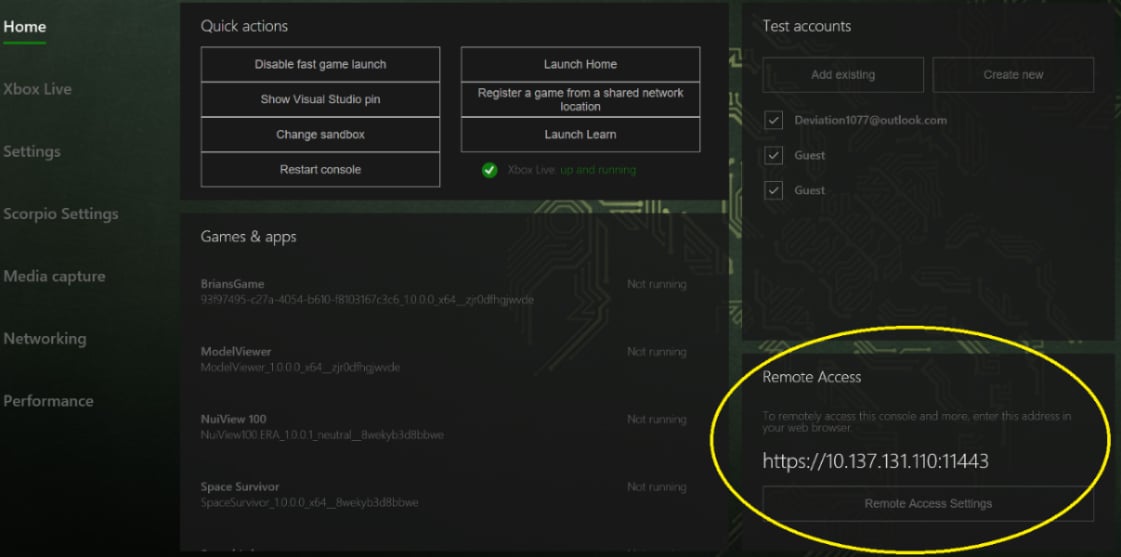
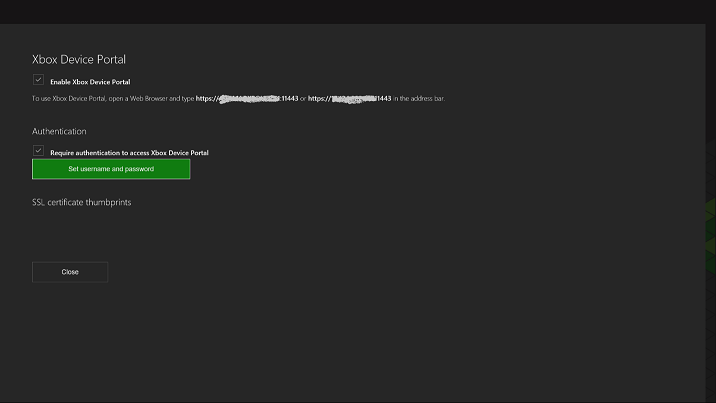
To enable or disable XBOX Device Portal on your XBOX One console, select the **Remote Access Settings** button in the **Remote Access** tab on the **Home** screen in Developer Home (Dev Home) as shown in the following screenshots.
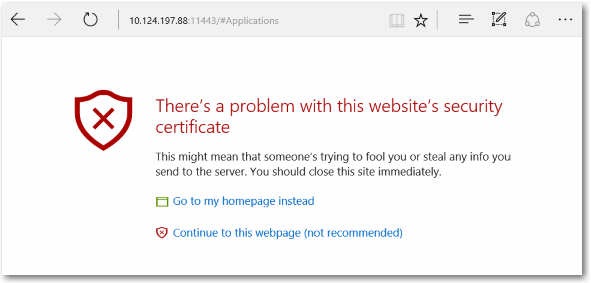
 When you connect to XBOX Device Portal from your web browser, a warning message appears (similar to the following screenshot) about the certificate that was provided. This is because the security certificate that was signed by your XBOX Development Kit isn't considered a well-known, trusted publisher. To access XBOX Device Portal, select **Continue to this webpage**.
 ## Use a custom SSL certificate
To prevent this warning message from appearing when you connect to XBOX Device Portal, set your web browser to trust your dev kit. This is done by providing your own root certificate authority (*root CA*) and SSL certificate. The root CA signs the certificate to create a trusted connection. Each dev kit needs a unique certificate that's signed by the root CA. Use one root CA with multiple certificates to connect the same development PC to multiple dev kits. Use the same root CA on multiple development PCs to connect to the same dev kits by using the same certificates.
### To provision XBOX Device Portal
1. If you or your organization has a root CA, use it to create certificates for each dev kit.
2. If you don't have a root CA, you must create your own. For instructions about how to do this and install your root CA to your development PC's Trusted Root Certification Authorities, see [Provision Device Portal with a custom SSL certificate](https://learn.microsoft.com/windows/uwp/debug-test-perf/device-portal-ssl).
3. Create a signed certificate with the root CA for the dev kit. For information about how to do this, see the previous link.
4. Add the certificate to XBOX Device Portal by using the **Add XBOX Device Portal custom certificate** action in an unattended setup script.
## Related topics
- [XBOX Device Portal (Windows Device Portal on XBOX)](/tools/tools-console/wdp/index.md)
- [XBOX Manager: managing console settings](/tools/tools-console/xbom/manager-tool-console-settings.md)
- [Adding tools to XBOX Device Portal workspaces](/tools/tools-console/wdp/windows-device-portal-on-xbox-adding-tools.md)
- [Managing console settings with XBOX Device Portal](/tools/tools-console/wdp/windows-device-portal-on-xbox-settings.md)
- [XBOX services sandboxes overview](/services/xbox-services/fundamentals/sandboxes/live-setup-sandbox.md)
## Use a custom SSL certificate
To prevent this warning message from appearing when you connect to XBOX Device Portal, set your web browser to trust your dev kit. This is done by providing your own root certificate authority (*root CA*) and SSL certificate. The root CA signs the certificate to create a trusted connection. Each dev kit needs a unique certificate that's signed by the root CA. Use one root CA with multiple certificates to connect the same development PC to multiple dev kits. Use the same root CA on multiple development PCs to connect to the same dev kits by using the same certificates.
### To provision XBOX Device Portal
1. If you or your organization has a root CA, use it to create certificates for each dev kit.
2. If you don't have a root CA, you must create your own. For instructions about how to do this and install your root CA to your development PC's Trusted Root Certification Authorities, see [Provision Device Portal with a custom SSL certificate](https://learn.microsoft.com/windows/uwp/debug-test-perf/device-portal-ssl).
3. Create a signed certificate with the root CA for the dev kit. For information about how to do this, see the previous link.
4. Add the certificate to XBOX Device Portal by using the **Add XBOX Device Portal custom certificate** action in an unattended setup script.
## Related topics
- [XBOX Device Portal (Windows Device Portal on XBOX)](/tools/tools-console/wdp/index.md)
- [XBOX Manager: managing console settings](/tools/tools-console/xbom/manager-tool-console-settings.md)
- [Adding tools to XBOX Device Portal workspaces](/tools/tools-console/wdp/windows-device-portal-on-xbox-adding-tools.md)
- [Managing console settings with XBOX Device Portal](/tools/tools-console/wdp/windows-device-portal-on-xbox-settings.md)
- [XBOX services sandboxes overview](/services/xbox-services/fundamentals/sandboxes/live-setup-sandbox.md)